JSON व्यूअर

द्वारा
JSON को syntax highlighting और error checks के साथ देखें, format करें, और edit करें। text और tree views के बीच switch करके nested data को तेज़ी से समझें। Apps और APIs के लिए साफ़ JSON export करें।
PRODUCT HUNT#1 Product of the Week
Accenture logoCriteo logoGrammarly logoVerisk logoklook logoPuma logoRingCentral logoAccenture logoCriteo logoGrammarly logoVerisk logoklook logoPuma logoRingCentral logoAccenture logoCriteo logoGrammarly logoVerisk logoklook logoPuma logoRingCentral logoAccenture logoCriteo logoGrammarly logoVerisk logoklook logoPuma logoRingCentral logoAccenture logoCriteo logoGrammarly logoVerisk logoklook logoPuma logoRingCentral logoAccenture logoCriteo logoGrammarly logoVerisk logoklook logoPuma logoRingCentral logo
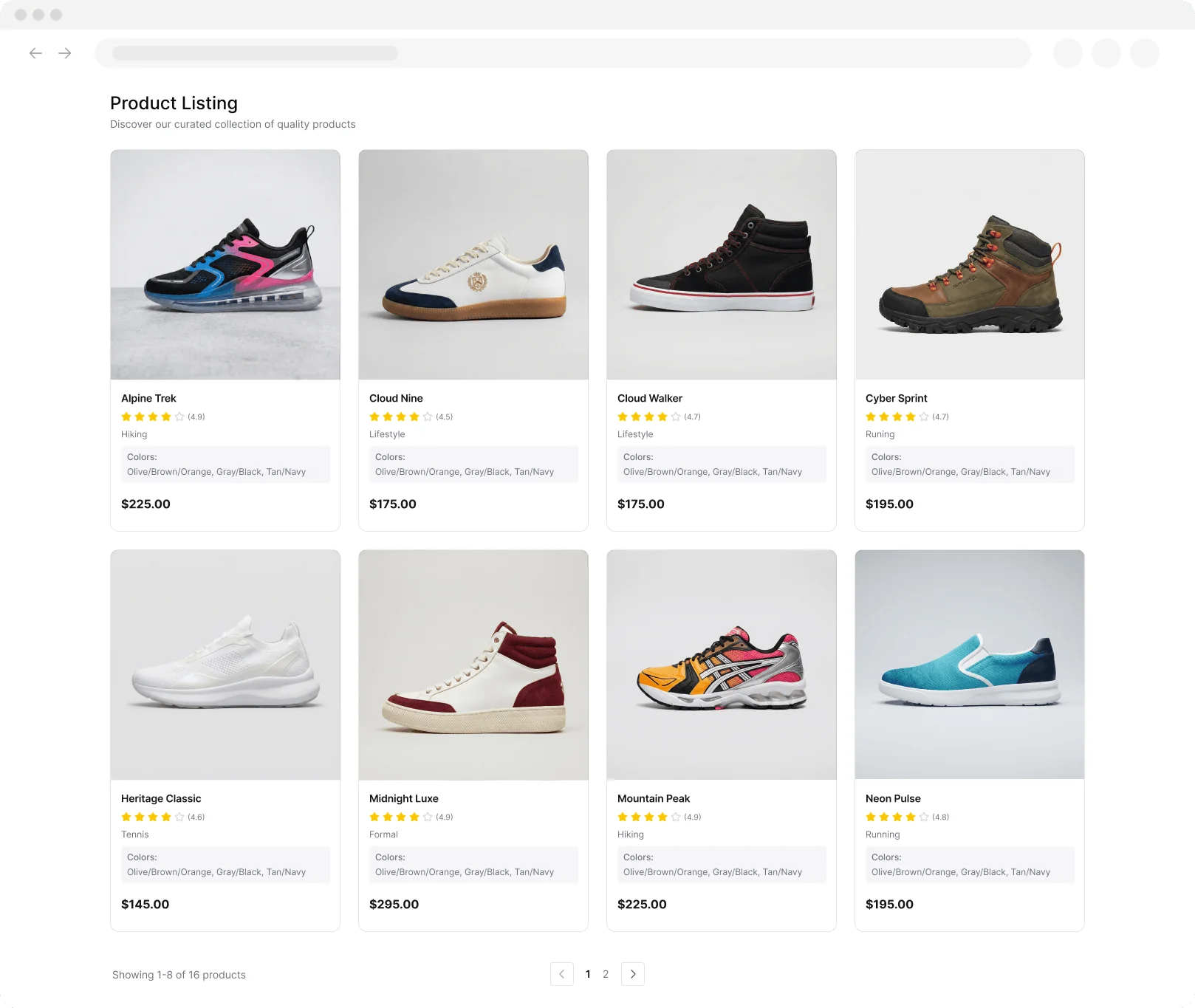
Product Listing
Extracted Data Table
Just Click to Extract
Thunderbit के साथ Structured Data Scrape करेंThunderbit का इस्तेमाल करके web scraping को automate करें और pages, subpages, PDFs, docs, और images से structured fields निकालें। कुछ ही मिनटों में results को Sheets, Airtable, या Notion में export करें।
chrome-web-store
से इंस्टॉल करेंChrome Web Store

Thunderbit के साथ Structured Data Scrape करें

Thunderbit के Chrome extension से किसी भी website से structured data इकट्ठा करें: पहले AI Suggest Fields पर क्लिक करें, फिर Scrape करें ताकि pagination और subpages के across tables, listings, और details capture हो सकें। यह PDFs, docs, और images से भी data निकालता है, फिर fields को summarize, categorize, और format करके साफ़ dataset बनाता है. अपने results को Google Sheets, Airtable, या Notion में free export options के साथ भेजें, या अपने workflows के लिए CSV और JSON डाउनलोड करें। समय के साथ datasets को updated रखने के लिए Scheduled Scraper का उपयोग करें, और तेज़ runs के लिए cloud scraping या logged-in pages के लिए browser scraping चुनें।

Thunderbit का उपयोग करके JSON को format और validate कैसे करें

step_01.png
STEP 1Download और Install करेंThunderbit Chrome Extension को Thunderbit Chrome Extension Download Page से डाउनलोड और install करें। Install होने के बाद, शुरू करने के लिए sign in करें या free account बनाएं।
step_02.png
STEP 2Extension खोलेंThunderbit Chrome Extension खोलें, फिर Json Viewer tool खोलें। अपना JSON देने का तरीका चुनें: "Paste JSON" tab में JSON को "json_input" field में paste करें, या "Upload JSON File" tab में एक single .json file को "json_file" field में upload करें। Formatting preferences के लिए "indentation" option (2 spaces, 4 spaces, या tab) और "view_mode" option (text या tree) चुनें, ताकि formatted output किस तरह दिखे, यह तय हो सके।
step03.png
STEP 3"Format & Validate JSON" बटन पर क्लिक करें"Format & Validate JSON" button पर क्लिक करें। Thunderbit आपके JSON को strictly validate करेगा और फिर आपके चुने हुए indentation के साथ pretty-printed version देगा, या एक error report देगा जिसमें short message, best-effort line और column location, तथा suggested fix होगा। अपने selected view mode में formatted result की समीक्षा करें, फिर output text को copy करके या इसे .json file के रूप में save करके अपने workflow में इस्तेमाल करें।

JSON data को view, validate, और format करना सीखें

JSON validate करें और errors की सही जगह पहचानें

यह जाँचने के लिए कि JSON valid है या नहीं, JSON text paste करें या .json file upload करें। Json Viewer missing commas, mismatched brackets, या invalid quotes जैसी syntax issues को highlight करता है, जिससे API call या automation टूटने से पहले आप problem ढूँढ सकें। यह developers, analysts, और operations teams के लिए बनाया गया है जो नियमित रूप से JSON payloads संभालते हैं और debugging या data prep के दौरान तेज़, भरोसेमंद validation चाहते हैं।
मुफ़्त शुरू करें
01_validate_json.png

Readable structure के साथ JSON format और edit करें

गंदे, minified, या असंगत JSON को 2 spaces, 4 spaces, या tabs का उपयोग करके साफ़, indented format में बदलें। values और nested objects को edit करें, जबकि structure स्पष्ट बना रहे, और बदलाव करते समय real-time feedback भी मिलता रहे। यह उन लोगों के लिए उपयोगी है जो configuration files, webhook payloads, या scraped data outputs तैयार कर रहे हैं और collaboration के दौरान formatting mistakes कम करके तेज़ review चाहते हैं।
मुफ़्त शुरू करें
02_format_edit.png

तेज़ QA के लिए JSON को text या tree view में review करें

Direct editing के लिए text mode और nested arrays तथा objects को visual रूप से explore करने के लिए tree mode के बीच switch करें। Tree view complex schemas को समझने, missing fields पहचानने, और long text blocks स्कैन किए बिना data types verify करने में मदद करता है। यह workflow product teams, QA, और data teams के लिए उपयुक्त है जिन्हें दूसरों के साथ साझा करने से पहले API responses, event logs, या exported datasets inspect करने होते हैं।
मुफ़्त शुरू करें
03_tree_view.png

Exports और automations के लिए JSON outputs तैयार करें

Formatted result को scripts, ETL steps, या documentation जैसे downstream tools के लिए साफ़ source of truth की तरह उपयोग करें। जब आप Thunderbit exports, जैसे web extraction से मिले JSON downloads, के साथ काम कर रहे हों, तो यह viewer databases में import करने या Google Sheets, Airtable, या Notion के लिए transform करने से पहले field names, nesting, और consistency की पुष्टि करने में मदद करता है। इससे malformed JSON और अस्पष्ट structures के कारण होने वाला दोबारा काम कम होता है।
मुफ़्त शुरू करें
04_export_automation.png

Thunderbit के बारे में उपयोगकर्ता क्या कहते हैं

Taryn W.Growth Strategist@Thunderbit ने मेरे competitor research करने का तरीका बदल दिया। मैं 'AI Suggest Fields' पर क्लिक करती हूँ, और यह paginated results में एक साफ़ टेबल बना देता है—ना coding, ना CSS. लंबे-tail marketplaces से product data analyze करते समय यह बहुत समय बचाता है।
Miles T.Sales Development Consultantमैं Thunderbit का उपयोग directories से emails और phone numbers लेने के लिए करता हूँ। यह एक क्लिक में साफ़ contact info निकाल देता है, और Sheets या Notion में export करना कुछ ही सेकंड लेता है। कोई extra setup नहीं, कोई coding नहीं—बस काम का data, तुरंत उपयोग के लिए तैयार।
Rhea C.E-commerce AnalystThunderbit मुझे कई pages पर SKU data मॉनिटर करने में मदद करता है। मैं listings स्क्रैप करती हूँ, फिर Subpage Scraping से full product specs, pricing, reviews, और stock निकालती हूँ। AI सब कुछ मेरे तय किए हुए columns में व्यवस्थित कर देता है।
Cassian B.Real Estate AdvisorThunderbit का Scheduled Scraper real estate tracking को आसान बनाता है। मैं interval को simple English में बताता हूँ, और यह अपने आप updated listings, prices, और links खींच लेता है—setup दोबारा छूने की जरूरत नहीं। सरल और बहुत उपयोगी।
Dorian B.Content & SEO Specialistमैं Thunderbit के Field AI Prompts का उपयोग scraped blog content को साफ़ करने और tag करने के लिए करता हूँ। यह titles, authors, और categories तक सुझाता है। dynamic sites और subpages पर बढ़िया काम करता है—structured SEO datasets बनाने के लिए बिल्कुल सही।
Lina K.Marketplace Operations Leadहम Thunderbit का उपयोग niche stores से SKUs track करने के लिए करते हैं। Cloud Scraping एक बार में 50 pages संभाल लेता है, और login-required sites के लिए हम browser mode में switch कर देते हैं। यह तेज़, flexible है, और ongoing maintenance या manual edits की जरूरत नहीं होती।
Jorge F.Inbound Sales ManagerThunderbit का AI Autofill बहुत काम आता है। contact info स्क्रैप करने के बाद, मैं इसका उपयोग सीधे ब्राउज़र में lead forms भरने के लिए करता हूँ। मैं बस tab चुनता हूँ, और यह scraped row का उपयोग करके सब कुछ भर देता है। manual input की जरूरत नहीं।
Alina D.Freelance Researcherमैं PDFs, image-based sites, और infinite scroll pages से डेटा निकालने के लिए Thunderbit पर भरोसा करती हूँ। यह messy formats को AI से संभालता है और ऐसे tables देता है जिन्हें मैं कुछ ही सेकंड में Google Sheets या Airtable में भेज सकती हूँ।
Taryn W.Growth Strategist@Thunderbit ने मेरे competitor research करने का तरीका बदल दिया। मैं 'AI Suggest Fields' पर क्लिक करती हूँ, और यह paginated results में एक साफ़ टेबल बना देता है—ना coding, ना CSS. लंबे-tail marketplaces से product data analyze करते समय यह बहुत समय बचाता है।
Miles T.Sales Development Consultantमैं Thunderbit का उपयोग directories से emails और phone numbers लेने के लिए करता हूँ। यह एक क्लिक में साफ़ contact info निकाल देता है, और Sheets या Notion में export करना कुछ ही सेकंड लेता है। कोई extra setup नहीं, कोई coding नहीं—बस काम का data, तुरंत उपयोग के लिए तैयार।
Rhea C.E-commerce AnalystThunderbit मुझे कई pages पर SKU data मॉनिटर करने में मदद करता है। मैं listings स्क्रैप करती हूँ, फिर Subpage Scraping से full product specs, pricing, reviews, और stock निकालती हूँ। AI सब कुछ मेरे तय किए हुए columns में व्यवस्थित कर देता है।
Cassian B.Real Estate AdvisorThunderbit का Scheduled Scraper real estate tracking को आसान बनाता है। मैं interval को simple English में बताता हूँ, और यह अपने आप updated listings, prices, और links खींच लेता है—setup दोबारा छूने की जरूरत नहीं। सरल और बहुत उपयोगी।
Dorian B.Content & SEO Specialistमैं Thunderbit के Field AI Prompts का उपयोग scraped blog content को साफ़ करने और tag करने के लिए करता हूँ। यह titles, authors, और categories तक सुझाता है। dynamic sites और subpages पर बढ़िया काम करता है—structured SEO datasets बनाने के लिए बिल्कुल सही।
Lina K.Marketplace Operations Leadहम Thunderbit का उपयोग niche stores से SKUs track करने के लिए करते हैं। Cloud Scraping एक बार में 50 pages संभाल लेता है, और login-required sites के लिए हम browser mode में switch कर देते हैं। यह तेज़, flexible है, और ongoing maintenance या manual edits की जरूरत नहीं होती।
Jorge F.Inbound Sales ManagerThunderbit का AI Autofill बहुत काम आता है। contact info स्क्रैप करने के बाद, मैं इसका उपयोग सीधे ब्राउज़र में lead forms भरने के लिए करता हूँ। मैं बस tab चुनता हूँ, और यह scraped row का उपयोग करके सब कुछ भर देता है। manual input की जरूरत नहीं।
Alina D.Freelance Researcherमैं PDFs, image-based sites, और infinite scroll pages से डेटा निकालने के लिए Thunderbit पर भरोसा करती हूँ। यह messy formats को AI से संभालता है और ऐसे tables देता है जिन्हें मैं कुछ ही सेकंड में Google Sheets या Airtable में भेज सकती हूँ।

अक्सर पूछे जाने वाले प्रश्न

AI का उपयोग करके डेटा निकालें
Google Sheets, Airtable, या Notion में डेटा आसानी से ट्रांसफर करें
PRODUCT HUNT#1 Product of the Week