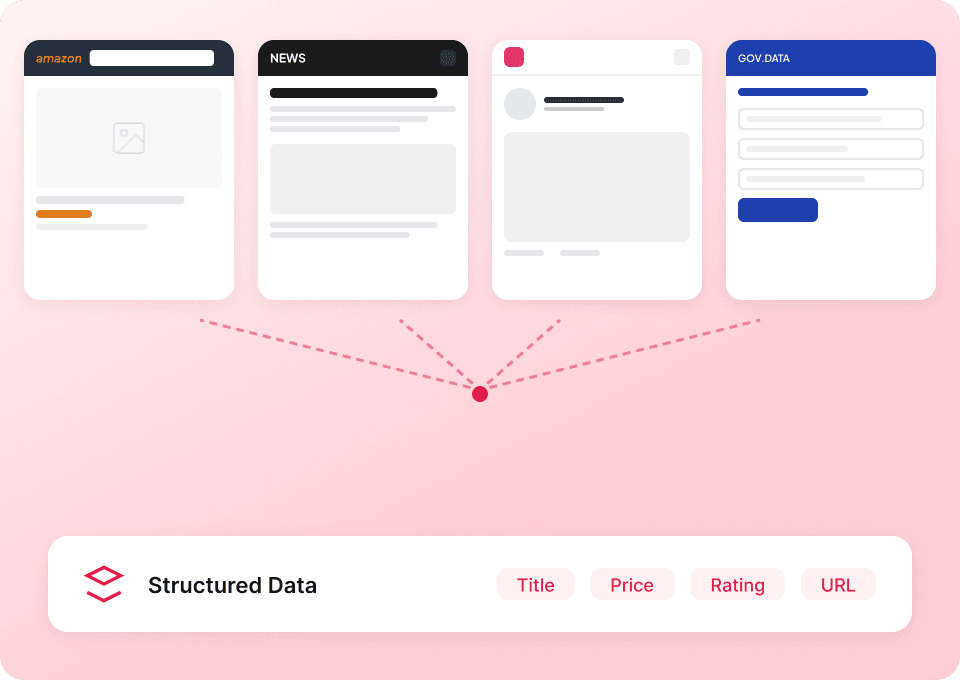
Thunderbit का AI-Powered Upwork Scraper Upwork पेजों को कुछ ही मिनटों में साफ़, व्यवस्थित (structured) डेटा में बदल देता है। आप AI से सही फ़ील्ड्स (जैसे hourly rate, skills, location, budget और job details) पहचान सकते हैं, pagination के साथ लिस्टिंग्स स्क्रैप कर सकते हैं, और डेटा को Excel, Google Sheets, Airtable या Notion में एक्सपोर्ट कर सकते हैं। यह उन बिज़नेस वर्कफ़्लोज़ के लिए बनाया गया है जहाँ बिना कोड लिखे, तेज़ी से भरोसेमंद डेटा चाहिए।
🤝 Upwork Scraper क्या है
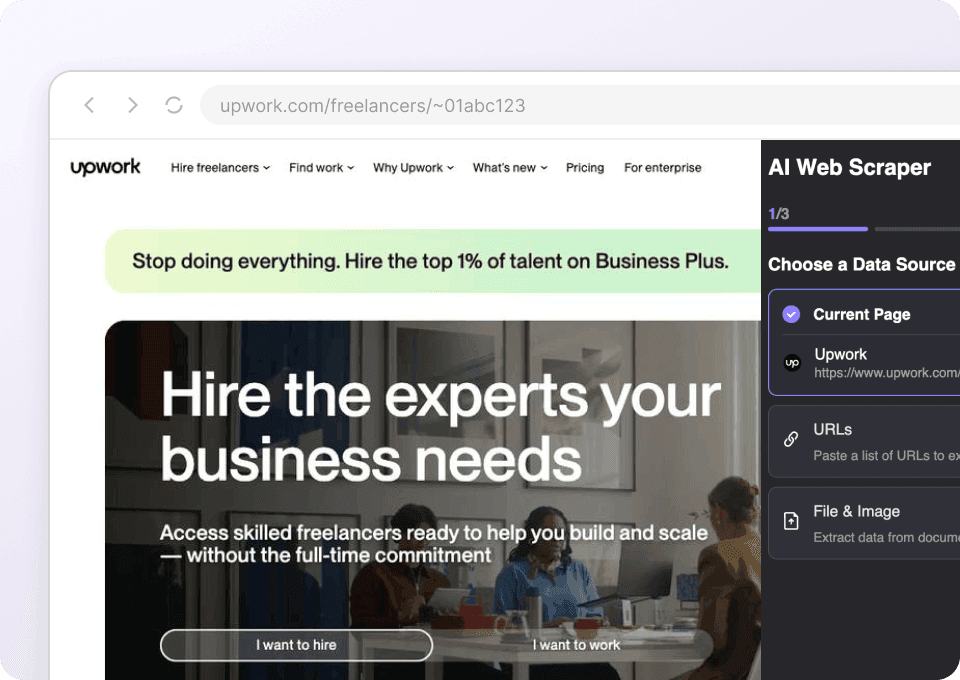
Upwork Scraper एक है, जो AI की मदद से से डेटा निकालकर उसे टेबल के रूप में व्यवस्थित करता है। आपको बस वह Upwork पेज खोलना है जिसे आप स्क्रैप करना चाहते हैं, AI Suggest Columns पर क्लिक करना है, और फिर में Scrape दबाना है।
Upwork पर यह खास तौर पर उपयोगी है क्योंकि लिस्टिंग्स अक्सर dynamic होती हैं और जानकारी कार्ड्स व सबपेजेज़ में बंटी रहती है। Thunderbit आपके डेटासेट को और समृद्ध करने के लिए subpages visit भी कर सकता है (जैसे individual freelancer profiles या job posts)।

🧲 Upwork से आप क्या-क्या स्क्रैप कर सकते हैं
Upwork का इस्तेमाल आम तौर पर hiring, lead sourcing, market research और competitive analysis के लिए किया जाता है। Thunderbit के साथ आप freelancer profile listings और job listings—दोनों को स्क्रैप कर सकते हैं और परिणामों को अपने पसंदीदा टूल में एक्सपोर्ट कर सकते हैं।
👤 Upwork Freelancer Profiles स्क्रैप करें
इस स्क्रैपर को जैसे category पेज पर इस्तेमाल करके freelancers की shortlist बनाएं, rates की तुलना करें और मार्केट में skills का विश्लेषण करें। यह recruiting, agencies और ecommerce teams के लिए उपयोगी है जो specialized contractors हायर करती हैं।

Steps:
- डाउनलोड करें और अकाउंट रजिस्टर करें।
- जिस पेज से डेटा चाहिए, वहाँ जाएँ—उदाहरण: .
- AI से best column names और data types सुझवाने के लिए AI Suggest Columns पर क्लिक करें।
- Scrape पर क्लिक करके स्क्रैपर चलाएँ, फिर Excel, Google Sheets, Airtable या Notion में एक्सपोर्ट करें।
Column names
| Column | Description |
|---|---|
| 👤 Freelancer Name | लिस्टिंग कार्ड पर दिखने वाला freelancer का display name. |
| 🧾 Profile Title | freelancer क्या करता/करती है, उसे बताने वाला headline/title. |
| 🌐 Profile URL | freelancer के Upwork प्रोफ़ाइल पेज का direct लिंक. |
| 💲 Hourly Rate | लिस्टिंग में दिखने वाली प्रति-घंटा दर (यदि उपलब्ध हो). |
| 📍 Location | प्रोफ़ाइल कार्ड पर दिखने वाला देश/क्षेत्र (कभी-कभी शहर भी). |
| 🧠 Skills | लिस्टिंग में दिखने वाले प्रमुख skills/tags (जैसे Amazon, APIs, Python). |
| ⭐ Job Success / Rating | दिखने वाले performance metrics जैसे Job Success Score या rating. |
| 🕒 Hours Billed | कुल billed hours (यदि कार्ड पर उपलब्ध हों). |
| 📝 Overview Snippet | freelancer overview का छोटा summary/preview. |
| 🖼️ Profile Image | प्रोफ़ाइल फोटो URL (Airtable/Notion के media fields के लिए उपयोगी). |
💼 Upwork Freelance Job Listings स्क्रैप करें
इस स्क्रैपर को जैसे job category पेज पर इस्तेमाल करके demand, budgets और required skills ट्रैक करें। यह freelancers, studios, staffing teams और marketers के लिए उपयोगी है जो समझना चाहते हैं कि clients किस तरह की hiring कर रहे हैं।

Steps:
- डाउनलोड करें और अकाउंट रजिस्टर करें।
- जिस पेज से डेटा चाहिए, वहाँ जाएँ—उदाहरण: .
- job posts के लिए recommended fields बनाने हेतु AI Suggest Columns पर क्लिक करें।
- Scrape पर क्लिक करके डेटा निकालें और उसे अपनी spreadsheet या database में एक्सपोर्ट करें।
Column names
| Column | Description |
|---|---|
| 🧩 Job Title | जॉब पोस्ट का शीर्षक. |
| 🌐 Job URL | पूरी job description वाले पेज का लिंक. |
| 💰 Budget / Rate | fixed-price jobs के लिए बजट या hourly jobs के लिए hourly range (जैसा दिखाया गया हो). |
| 🧾 Job Type | Fixed-price या hourly (और कभी-कभी experience level). |
| 🏷️ Skills / Tags | जॉब कार्ड पर दिए गए required skills या tags. |
| 📝 Description Snippet | जॉब description का preview टेक्स्ट. |
| 📅 Posted Time | जॉब कब पोस्ट हुई (page के अनुसार relative या exact). |
| 🌍 Client Location | यदि दिखाया गया हो तो client की लोकेशन. |
| ✅ Payment Verified | लिस्टिंग में payment verification दिख रहा है या नहीं. |
| 📊 Proposals / Activity | activity indicators (जैसे proposals count, interviewing). |
🎯 Upwork Tool क्यों इस्तेमाल करें
Upwork डेटा स्क्रैप करना तब काम आता है जब आप manual browsing के बजाय real market signals के आधार पर निर्णय लेना चाहते हैं।
Upwork स्क्रैप करने के आम कारण:
- Recruiting & talent sourcing: role, rate, location और skills के आधार पर freelancers की pipeline बनाएं और Google Sheets या Airtable में टीम के साथ शेयर करें।
- Sales & agencies: job posts, budgets और बार-बार आने वाली skill requirements का विश्लेषण करके service demand समझें।
- Freelancers & studios: नई opportunities ट्रैक करें, budgets की तुलना करें और clients क्या मांग रहे हैं—उसमें trends पकड़ें।
- Market research: किसी skill की frequency, समय के साथ budgets में बदलाव, और कौन-सी categories बढ़ रही हैं—इनका डेटा-आधारित आकलन करें।
Thunderbit बिज़नेस यूज़र्स के लिए speed और reliability पर फोकस करता है:
- AI Suggest Columns पेज पढ़कर आपके लिए structured schema सुझाता है।
- Pagination scraping से आप एक से ज़्यादा पेज के results इकट्ठा कर सकते हैं (जहाँ supported हो वहाँ infinite scroll भी)।
- Subpage scraping हर freelancer profile या job post खोलकर आपकी टेबल में और गहराई वाले details जोड़ सकता है।
- Free export CSV/JSON, Excel, Google Sheets, Airtable और Notion में।
अगर आप scraping में नए हैं, तो ये guides मदद करेंगी:
🧩 Upwork Chrome Extension कैसे इस्तेमाल करें
- Thunderbit Chrome Extension इंस्टॉल करें: इसे से लें और पर अपना अकाउंट बनाएं।
- जिस Upwork पेज को स्क्रैप करना है, वहाँ जाएँ: उदाहरण के लिए freelancer category पेज https://www.upwork.com/hire/amazon-backend-developer/ या job category पेज https://www.upwork.com/freelance-jobs/anime/.
- AI-Powered Scraper चालू करें: column names, data types और optional field instructions बनाने के लिए AI Suggest Columns पर क्लिक करें। आप अपने workflow के हिसाब से columns एडिट कर सकते हैं (जैसे “Budget” को min/max में बाँटना)।
- Scrape और export करें: Scrape पर क्लिक करें, फिर Excel, Google Sheets, Airtable या Notion में एक्सपोर्ट करें (export मुफ़्त है)।
Tip: अगर आपको और गहराई वाले details चाहिए (full job descriptions, पूरी skill lists, portfolio links), तो Subpage Scraping इस्तेमाल करें ताकि Thunderbit हर result के detail page पर जाकर extra columns जोड़ सके।
💳 Upwork के लिए Pricing
Thunderbit credit system इस्तेमाल करता है:
- 1 credit = 1 output row (आपकी results table में एक row)।
- AI-powered scraping (AI Suggest Columns + Scrape) शामिल है, और data export मुफ़्त है।
शुरुआत के लिए free options:
- Free tier: महीने में 6 pages तक स्क्रैप करें।
- Free trial: 10 pages मुफ़्त स्क्रैप करें—Upwork scraping को real workflows पर टेस्ट करने का अच्छा तरीका।
Paid plans आपके volume के साथ scale होते हैं, और yearly plan आम तौर पर सबसे किफ़ायती होता है क्योंकि इसमें discount शामिल होता है:
- Starter: $15 monthly या $9 monthly (yearly billing)
- Pro tiers: teams और higher-volume scraping के लिए ज़्यादा credits
नवीनतम जानकारी के लिए देखें।
❓ FAQ
-
AI Powered Upwork Scraper क्या है?
AI Powered Upwork Scraper एक ऐसा टूल है जो AI की मदद से Upwork के freelancer listings और job listings जैसे पेजों से structured डेटा निकालता है। HTML elements को manually चुनने के बजाय, आप AI Suggest Columns पर क्लिक करते हैं और Thunderbit आपके लिए table schema सुझाता है—फिर Scrape दबाकर डेटा इकट्ठा कर लेते हैं। -
Thunderbit क्या है?
एक AI web scraping और productivity Chrome extension है, जो websites, PDFs और images से डेटा निकालकर structured tables में बदलने में मदद करता है। यह उन बिज़नेस यूज़र्स के लिए बनाया गया है जिन्हें तेज़ setup, भरोसेमंद scraping और Google Sheets, Airtable, Notion जैसे टूल्स में आसान export चाहिए। -
Thunderbit से मैं Upwork के कौन-से पेज स्क्रैप कर सकता/सकती हूँ?
आप freelancer category pages, job category pages और Upwork के कई अन्य listing-style pages स्क्रैप कर सकते हैं। अगर डेटा आपके browser में दिख रहा है, तो Thunderbit आम तौर पर उसे rows और columns में व्यवस्थित कर देता है—और subpages स्क्रैप करके आप results को और enrich भी कर सकते हैं। -
क्या Thunderbit listing card से आगे जाकर freelancer profile details भी निकाल सकता है?
हाँ। Subpage Scraping के साथ Thunderbit हर freelancer के profile URL को खोलकर अतिरिक्त फ़ील्ड्स निकाल सकता है—जैसे लंबा overview text, portfolio items, employment history, या अधिक detailed skill sections (जो भी visible हो)। यह तब उपयोगी है जब listing page पर सिर्फ़ summary दिखती हो। -
क्या Thunderbit Upwork job posts से full job descriptions स्क्रैप कर सकता है?
हाँ। आप पहले job listing pages स्क्रैप कर सकते हैं और फिर subpage scraping से हर job URL पर जाकर full description, client details और job page पर दिखने वाले अन्य fields कैप्चर कर सकते हैं। यह तरीका analysis, categorization या lead qualification के लिए richer text चाहिए हो तब मदद करता है। -
Upwork scraping में pagination कैसे काम करता है?
Thunderbit pagination वाले पेजों और कई infinite-scroll experiences को सपोर्ट करता है। आप तय कर सकते हैं कि कितने pages स्क्रैप करने हैं, और Thunderbit pages के across rows collect करता रहेगा—ताकि आपको manual copy-paste न करना पड़े। -
मैं Upwork डेटा किन formats में export कर सकता/सकती हूँ?
आप Excel, Google Sheets, Airtable या Notion में export कर सकते हैं, और CSV या JSON डाउनलोड भी कर सकते हैं। Export मुफ़्त है, इसलिए टीम के साथ शेयर करना या workflow में जोड़ना आसान हो जाता है। -
Upwork के लिए Cloud Scraping और Browser Scraping में क्या अंतर है?
Browser Scraping आपके Chrome session में चलता है—यह तब उपयोगी है जब साइट login मांगती हो या आप चाहते हों कि scraper आपके current browser की तरह behave करे। Cloud Scraping public pages के लिए तेज़ हो सकता है क्योंकि यह cloud में चलता है और pages के batches जल्दी process कर सकता है; सही विकल्प पेज और access requirements पर निर्भर करता है। -
मैं कितनी rows स्क्रैप कर सकता/सकती हूँ, और “500 max rows” का क्या मतलब है?
practical limit पेज की structure, उपलब्ध results की संख्या और आपके credits पर निर्भर करता है। “500 max rows” कई listing pages पर एक single run के लिए common target है। Thunderbit का credit system इसे predictable बनाता है: हर output row की कीमत 1 credit होती है, इसलिए आप अपने dataset size के हिसाब से runs प्लान कर सकते हैं।
📚 Learn More
- Extension लें:
- Product details देखें:
- Pricing और credits:
- Guides और tutorials:
- Recommended reads:
- Video tutorials: