If you’ve ever tried to give directions to a delivery driver, organize a team meetup, or share a precise location with a client, you know the struggle: “Just look for the big red building near the corner—no, not that one, the other one!” In today’s world, where over a billion people use Google Maps every month, getting your pin on Google Maps in the right spot isn’t just a nice-to-have—it’s essential for business and daily life. Yet, for many, the process feels like a mystery, especially when you need to pin dozens (or hundreds) of locations at once.
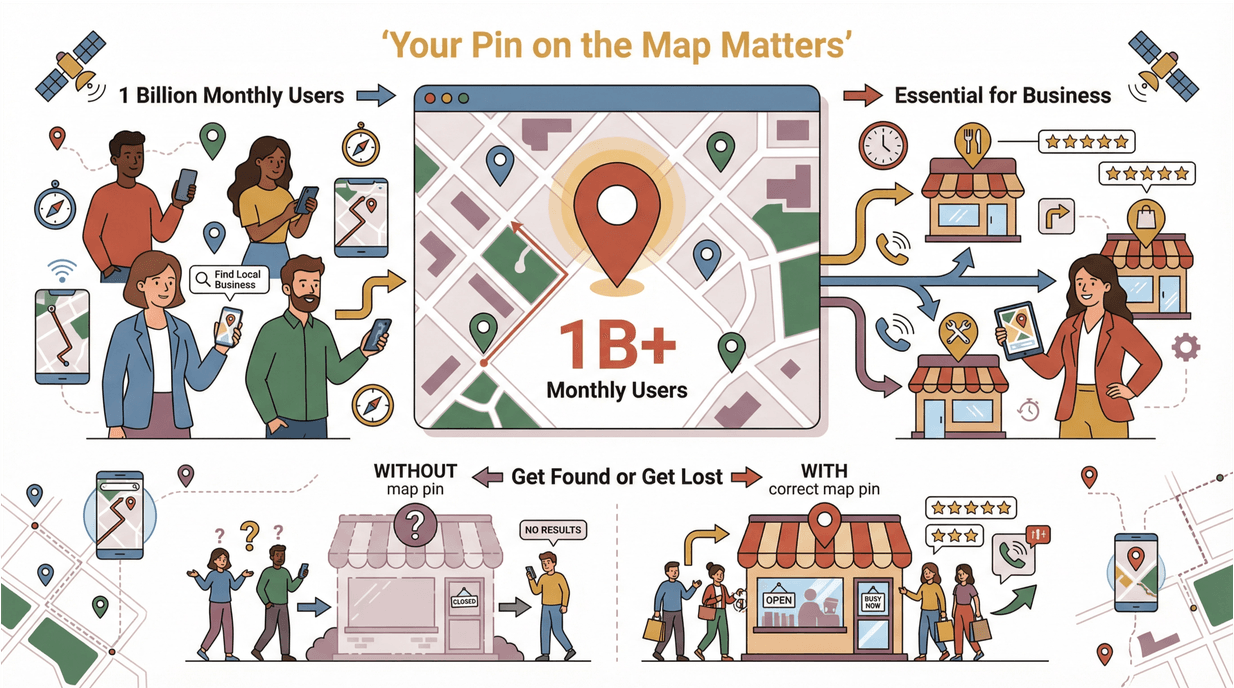
I’ve spent years helping teams streamline their workflows, and I’ve seen firsthand how a simple pin can make or break a delivery, a meeting, or even a customer relationship. Whether you’re a small business owner, a logistics manager, or just someone who wants to make sure your friends don’t end up at the wrong taco truck, this guide will walk you through everything you need to know about pinning on Google Maps—manually and at scale with automation tools like Thunderbit.
What Does It Mean to Pin on Google Maps?
Scrape and Pin Locations with Thunderbit AI Get Started Free
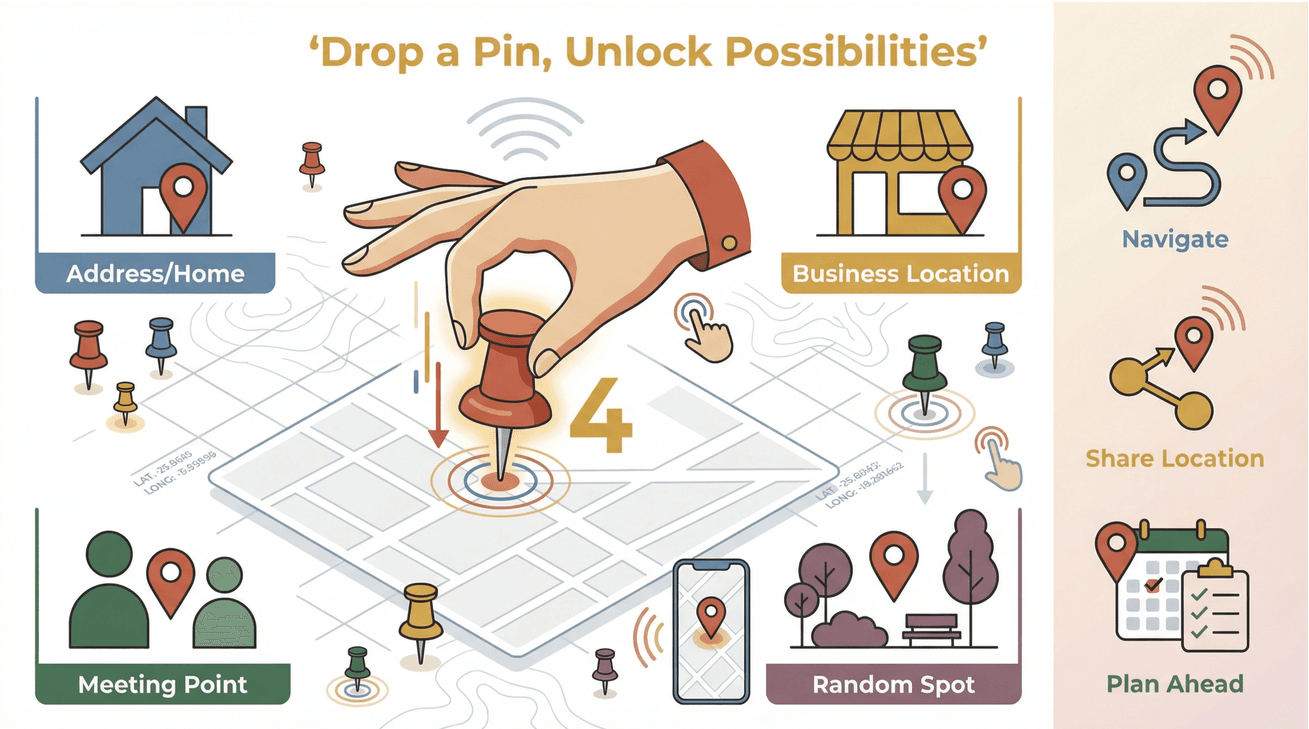 Let’s start with the basics: pinning on Google Maps means placing a virtual marker on a specific spot on the map. Think of it as dropping a digital pushpin to mark an address, a business, a meeting point, or even a random spot in the middle of a park. This pin isn’t just for show—it’s a powerful tool for navigation, sharing, and planning.
- Personal Use: Mark your favorite coffee shop, your friend’s house, or that secret hiking trail you don’t want to forget.
- Business Use: Pin delivery addresses, event venues, customer locations, or assets like EV charging stations.
It’s important to note that a pin is different from a “saved place.” A pin is a marker you drop for reference or sharing, while a saved place is something you add to your Google account for future access (HackMD).
Why Pinning on Google Maps Matters for Business
You might be thinking, “Isn’t pinning just for finding restaurants?” Not anymore. Businesses across industries rely on accurate Google Maps pins for everything from logistics to customer service. Here’s why:
- Improved Delivery Accuracy: Companies like Domino’s use precise pins to ensure drivers reach the right doorstep—boosting delivery efficiency and customer satisfaction.
- Better Event Planning: Event organizers drop pins for venues, parking, and check-in spots, making it easier for attendees to find their way (e2webservices).
- Asset Tracking: Real estate teams, utility companies, and service providers use pins to mark properties, job sites, or equipment locations.
- Customer Experience: Sharing a pin link in an email or invite means clients can navigate directly to your door—no more “I couldn’t find you” calls.
Here’s a quick look at how different teams use pins:
| Use Case | Benefit | Example Scenario |
|---|---|---|
| Delivery Route Planning | Fewer missed deliveries, faster routes | Food delivery, e-commerce, courier services |
| Event Invitations | Higher turnout, less confusion | Conferences, pop-up shops, community events |
| Asset Tracking | Easier management, reduced loss | Fleet vehicles, equipment rentals, real estate |
| Customer Support | Smoother visits, happier customers | Home services, repairs, in-person consultations |
Accurate pins mean less time on the phone, fewer missed appointments, and a smoother experience for everyone involved (ignitingbusiness).
Step-by-Step: How to Pin on Google Maps Manually (Desktop & Mobile)
Let’s get hands-on. Whether you’re at your desk or on the go, pinning a location on Google Maps is straightforward once you know where to click (or tap).
Pin on Google Maps (Desktop)
- Open Google Maps: Head to Google Maps in your browser.
- Find the Location: Use the search bar to enter an address, business name, or coordinates. Or, just browse the map.
- Drop the Pin: Click directly on the spot you want to mark. A small gray pin will appear, and a panel will pop up at the bottom.
- View Details: Click the panel to see more info—address, coordinates, and options.
- Save or Share: Click “Save” to add it to your places, or “Share” to get a link you can send via email, text, or social media.
- Remove the Pin: Click elsewhere on the map or the “X” in the info panel to clear the pin.
Pro Tip: Zoom in for maximum accuracy—especially if you’re pinning a spot without a formal address (datumcode).
Pin on Google Maps (Mobile)
For Android and iOS:
- Open the Google Maps App: Make sure you’re signed in for saving pins.
- Find Your Spot: Search for an address or scroll to the location.
- Drop the Pin: Tap and hold on the exact spot. A red pin will appear, and the address will show at the bottom.
- Save or Label: Tap the address panel, then tap “Save” to add to a list (like Favorites or Want to Go). You can also add a label for easy reference.
- Share the Pin: Tap “Share” to copy the link or send it via your favorite app.
- Remove the Pin: Tap the “X” or tap elsewhere on the map.
Managing Pins: To see all your saved pins, tap your profile picture > “Your places” > “Saved.” This helps you organize and revisit important spots (HackMD).
The Advantages of Manual Pinning for Business Users
Manual pinning isn’t just for the tech-savvy. In fact, it’s the best way to guarantee pinpoint accuracy—especially for:
- Unique or Unlisted Locations: Construction sites, pop-up events, or rural addresses that don’t show up in search.
- Adding Custom Notes: Label pins with delivery instructions, client names, or special access info.
- Field Teams: Mobile staff can drop pins on-site to report issues, log visits, or share locations with HQ.
Manual pinning gives you full control, ensuring that your marker is exactly where you need it—no more “close enough” errors that send people to the wrong side of the street (localguidesconnect).
Automating Bulk Pinning on Google Maps with Thunderbit
How to Automate Data Scraping with AI Get Started Free
Now, here’s where things get really interesting—especially if you’re managing dozens or hundreds of locations. Manually dropping pins one by one? That’s a recipe for carpal tunnel (and a lot of coffee). This is where Thunderbit comes in.
Thunderbit is an AI-powered Chrome Extension that lets you automate the process of pinning multiple locations on Google Maps. Instead of clicking each spot, you can import a list of addresses or geographic data, and Thunderbit will handle the rest—scraping, processing, and generating pins at scale.
This is a game-changer for:
- Retail chains rolling out new stores
- Logistics companies optimizing delivery routes
- EV charging networks deploying stations across a city
- Event organizers mapping multiple venues
How Thunderbit Works for Bulk Pinning
Here’s how you can use Thunderbit to automate bulk pinning:
- Prepare Your Address List: Gather your addresses or coordinates in a spreadsheet (Excel, Google Sheets, etc.).
- Open Thunderbit: Install the Thunderbit Chrome Extension and launch it from your browser.
- Import Data: Paste or upload your list of locations.
- AI Processing: Thunderbit’s AI reads each address, finds the exact spot on Google Maps, and generates pin data.
- Export Results: Download the pins as a CSV, Excel file, or sync directly to Google Sheets or Notion.
- Upload to Google Maps: Use Google My Maps to import your file and visualize all pins at once.
Thunderbit’s automation means you can go from a messy address list to a fully mapped set of pins in minutes—not hours. And if you need to update your locations regularly (think: mobile food trucks, pop-up shops, or seasonal events), Thunderbit makes it easy to refresh your map with the latest data (Thunderbit Blog).
Automate Bulk Pinning with Thunderbit
Embedding Pin Locations in Emails and Event Invitations
Let’s talk about one of my favorite business hacks: embedding Google Maps pins in your emails, event invites, or customer notifications. This isn’t just about looking techy—it’s about making life easier for your clients and team.
How to Share a Pin Link
- Drop a Pin: Manually or with Thunderbit, mark your location on Google Maps.
- Get the Shareable Link: Click “Share” (desktop) or tap “Share” (mobile) to copy the URL.
- Embed in Email or Invite: Paste the link into your email, calendar event, or even your website.
When your recipient clicks the link, they’ll be taken straight to the pinned location—no more copy-pasting addresses or guessing which entrance to use (bybrand).
Pro Tip: For event invites, include a labeled pin for parking, check-in, or VIP entrances to reduce confusion and improve turnout (e2webservices).
Keeping Pin Data Up-to-Date with Thunderbit Automation
If your business locations change frequently—maybe you run pop-up events, mobile clinics, or seasonal stands—keeping your Google Maps pins current can be a headache. Outdated pins mean lost customers and wasted trips.
Thunderbit’s automation features let you schedule regular updates to your pin data. Here’s how:
- Schedule Data Refreshes: Set Thunderbit to pull the latest address list from your CRM, website, or spreadsheet on a regular basis.
- Automate Pin Generation: Thunderbit processes new or updated locations, generating fresh pins.
- Sync Across Platforms: Export the updated pins to Google Maps, your website, or customer communications.
This way, your customers and team always have access to the most up-to-date locations—no more “I went to the old address” headaches (Thunderbit Blog).
Troubleshooting Common Pinning Issues on Google Maps
Even with the best tools, things can go sideways. Here are some common pinning problems—and how to fix them:
- Pin Not Saving: Make sure you’re signed in to your Google account and using the latest version of Maps (HackMD).
- Incorrect Location: Zoom in and double-check the address before dropping the pin. If Google Maps auto-corrects to the wrong spot, manually adjust the pin.
- Pin Not Showing on Map: If you’re using Google My Maps, ensure your CSV or Excel file is formatted correctly (columns for name, address, etc.).
- Sharing Issues: Always test the shareable link before sending it out. Make sure recipients have access (public vs. private maps).
- Duplicate or Outdated Pins: Regularly review and clean up your saved places to avoid confusion.
For more troubleshooting tips, check out the Google Maps Help Center.
Conclusion & Key Takeaways
Pinning on Google Maps isn’t just about dropping a marker—it’s about making your business more efficient, your customers happier, and your team less stressed. Here’s what to remember:
- Manual pinning is perfect for one-off locations, field teams, and when accuracy is critical.
- Automated pinning with Thunderbit saves hours for businesses managing many locations, and keeps your data fresh and organized.
- Sharing pins in emails or invites improves communication and customer experience.
- Regular updates ensure your pins are always accurate—no more lost deliveries or missed meetings.
If you’re ready to take your location management to the next level, give Thunderbit a try. And for more tips on automation and web data, check out the Thunderbit Blog.
Happy pinning—and may your next delivery, event, or team meeting land exactly where you want it.
FAQs
1. What’s the difference between a pin and a saved place on Google Maps?
A pin is a temporary marker you drop on a specific spot, while a saved place is a location you add to your Google account for future reference.
2. How do I drop a pin on Google Maps using my phone?
Open the Google Maps app, find your location, tap and hold on the spot, and a red pin will appear. Tap the address panel to save or share the pin.
3. Can I pin multiple locations at once on Google Maps?
Not directly in the main Google Maps app, but you can use tools like Thunderbit to automate bulk pinning and import them into Google My Maps.
4. How do I share a pinned location with others?
After dropping a pin, click or tap “Share” to copy a link. Paste this link into emails, invites, or messages so others can navigate directly to the spot.
5. How can I keep my business’s pin locations up to date?
Use Thunderbit’s automation features to regularly update your address lists and regenerate pin data, ensuring your customers and team always have the latest info.
Ready to streamline your Google Maps workflow? Download Thunderbit and start pinning smarter today.
Try Thunderbit for Automated Google Maps Pinning Get Started Free
Learn More