

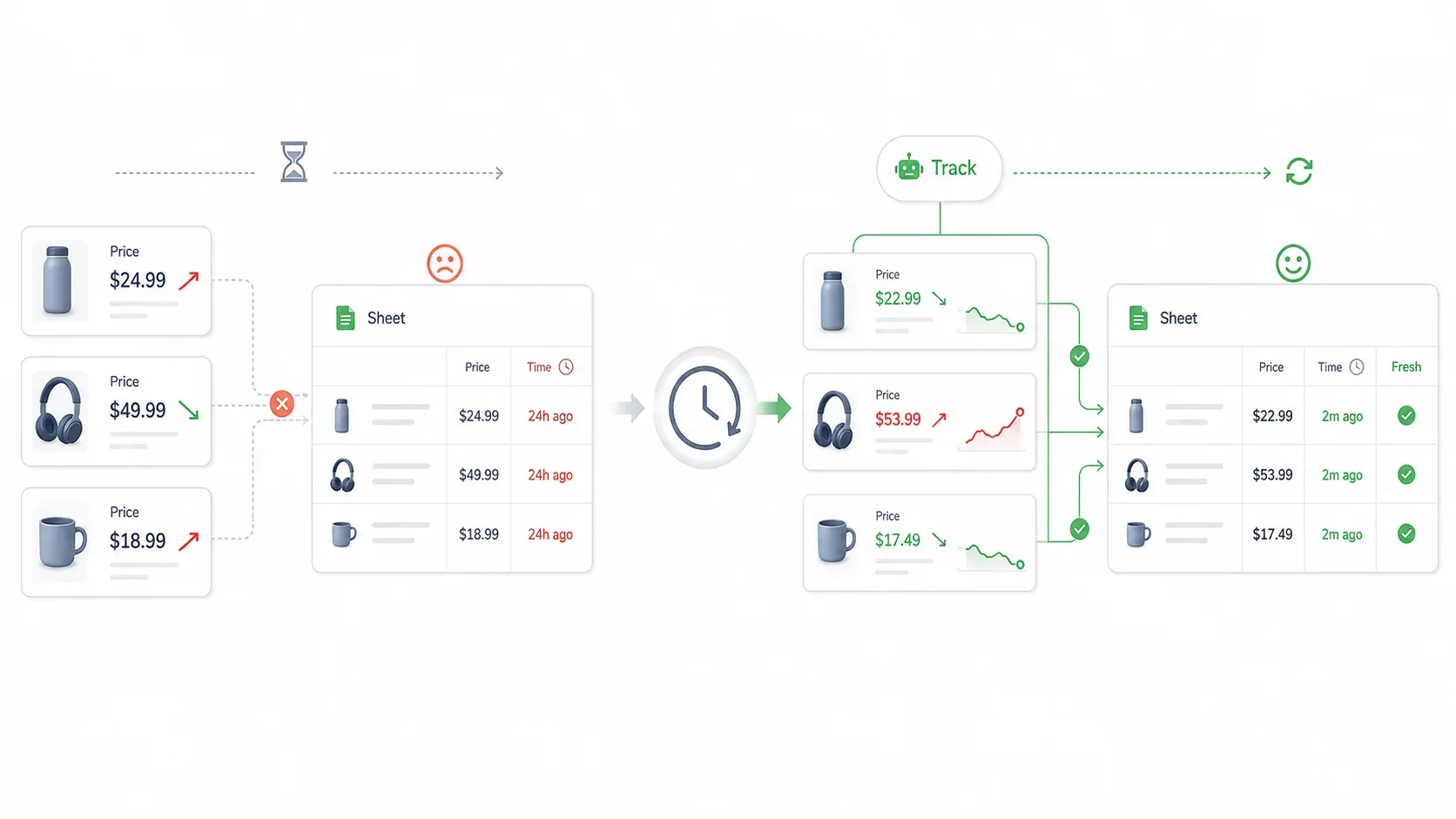
Last Tuesday I spent 47 minutes checking prices on 23 Amazon product pages. By the time I finished, two of the prices I'd logged at the start had already changed. That's the thing about Amazon pricing: it doesn't wait for your spreadsheet to catch up.
If you sell on Amazon—or manage pricing for someone who does—you've probably felt this. The market moves, and manual tracking always puts you one step behind. I've spent months testing every approach to competitor price tracking, from Amazon's own free tools to Chrome extensions to full-blown repricing platforms.
In this guide, I'll walk you through each method, show you exactly how to set up a no-code scraping workflow with Thunderbit, and help you pick the right approach for your catalog size and budget. No coding, no fluff—just the stuff that actually works.
Try Thunderbit for Amazon Price Tracking
What Does It Mean to Track Competitor Prices on Amazon?
Competitor price tracking on Amazon means systematically monitoring what other sellers charge for the same or similar products. At one end: opening a product page and jotting down the Buy Box price. At the other: scheduled scraping that feeds fresh data into your pricing strategy every morning.
A few important distinctions:
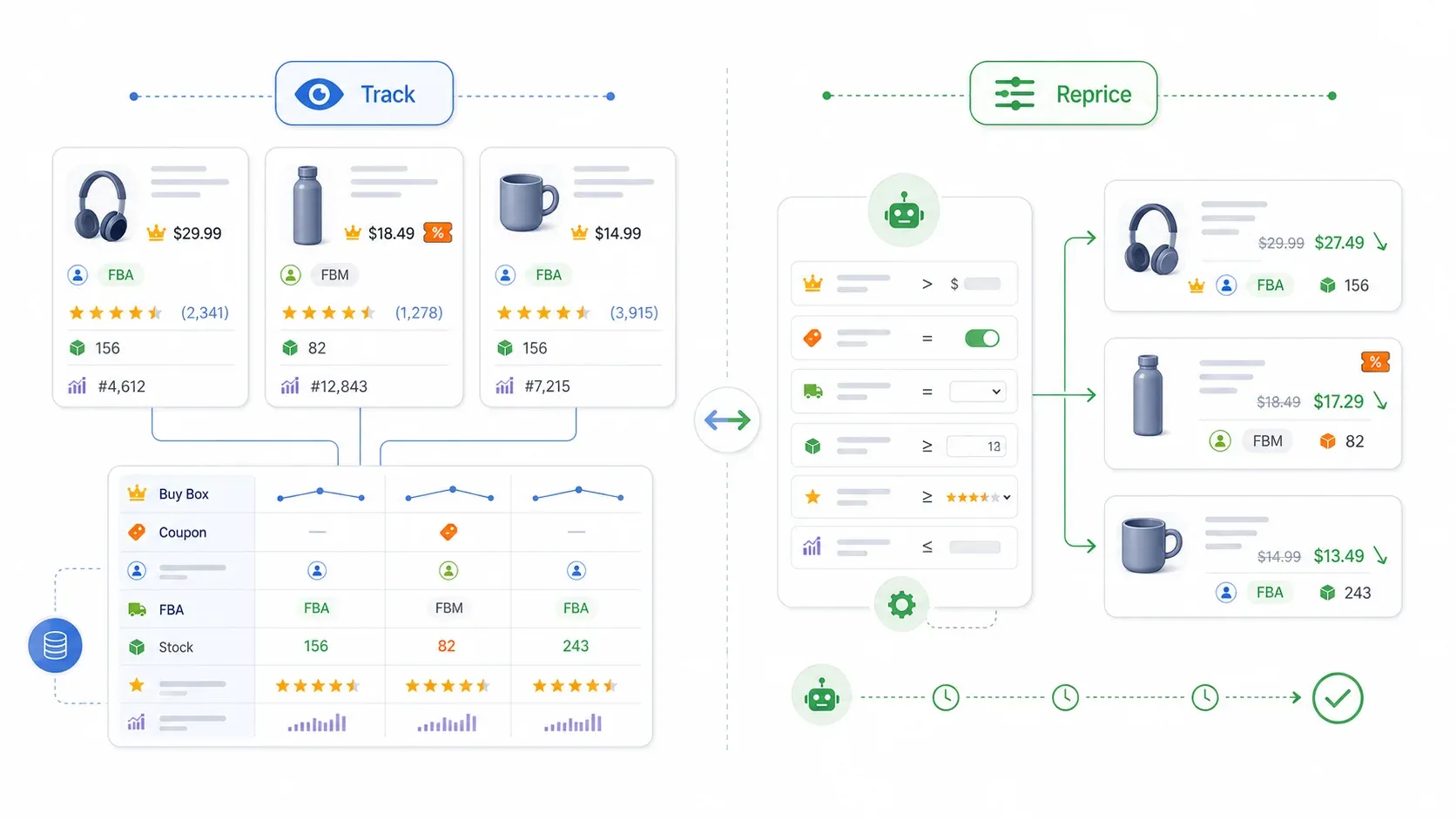
- Tracking is observation. You're collecting data—Buy Box price, lowest FBA offer, seller identity, fulfillment method, coupon status, stock availability—so you can make informed decisions.
- Repricing is action. A repricer connects to Seller Central and automatically changes your price based on rules, floors, or algorithms.
You can track without repricing. In fact, most sellers should understand their competitive landscape before they ever automate a price change.
The data points that matter on a typical Amazon product page include the Featured Offer (Buy Box) price, landed price (price plus shipping), List Price or "Was" price, coupon and deal badges, seller identity, fulfillment method (FBA/FBM/Prime), stock availability, seller count, reviews, rating, and BSR. Amazon's own SP-API exposes many of these attributes programmatically, and a 2026 academic study tracked 118.6 million Amazon offers across 17,754 products to analyze how these factors interact.
Scrape product data from Amazon pages with AI Get Started Free
Why Tracking Competitor Prices on Amazon Matters for Your Bottom Line
Pricing on Amazon isn't just about margins. It's a visibility system.
A price change can affect whether you win the Featured Offer (Buy Box). Lose that, and your ad placement suffers. Lose ad placement, and your search rank tanks. The whole thing can snowball into a sales rank problem within hours.
The numbers back this up. Industry sources commonly cite that 82% or more of Amazon sales flow through the Featured Offer. A 2026 academic paper goes further, estimating that 98% of Amazon.com sales go through Buy Box buttons. The same study found that when the Featured Offer is suppressed, search rank worsens by 17.8 percentage points within one hour, sales rank degrades by 12% after 48 hours, and ads can disappear within 12 hours. A price increase of just 5–10% raised suppression probability by 24x.
Who benefits, and how:
| Business Type | Why Price Tracking Matters |
|---|---|
| Resellers / Wholesale | Protect Featured Offer share, avoid race-to-the-bottom, detect new co-listers |
| Private Label Brands | Position pricing vs. category average, defend brand value, monitor coupon behavior |
| Ecommerce Operations | Monitor MAP compliance, detect unauthorized sellers, flag channel mismatches |
| Arbitrage Sellers | Spot profitable price gaps between markets while checking fees and floors |
Selling on Amazon without knowing what your competitors charge is pricing with a blindfold on.
The Hidden Cost of Manual Price Tracking (and When It Stops Making Sense)
Manual tracking is where most sellers start. Open a product page, check the Buy Box price, click "Other Sellers," paste the numbers into a spreadsheet, repeat. For a handful of ASINs, it works.
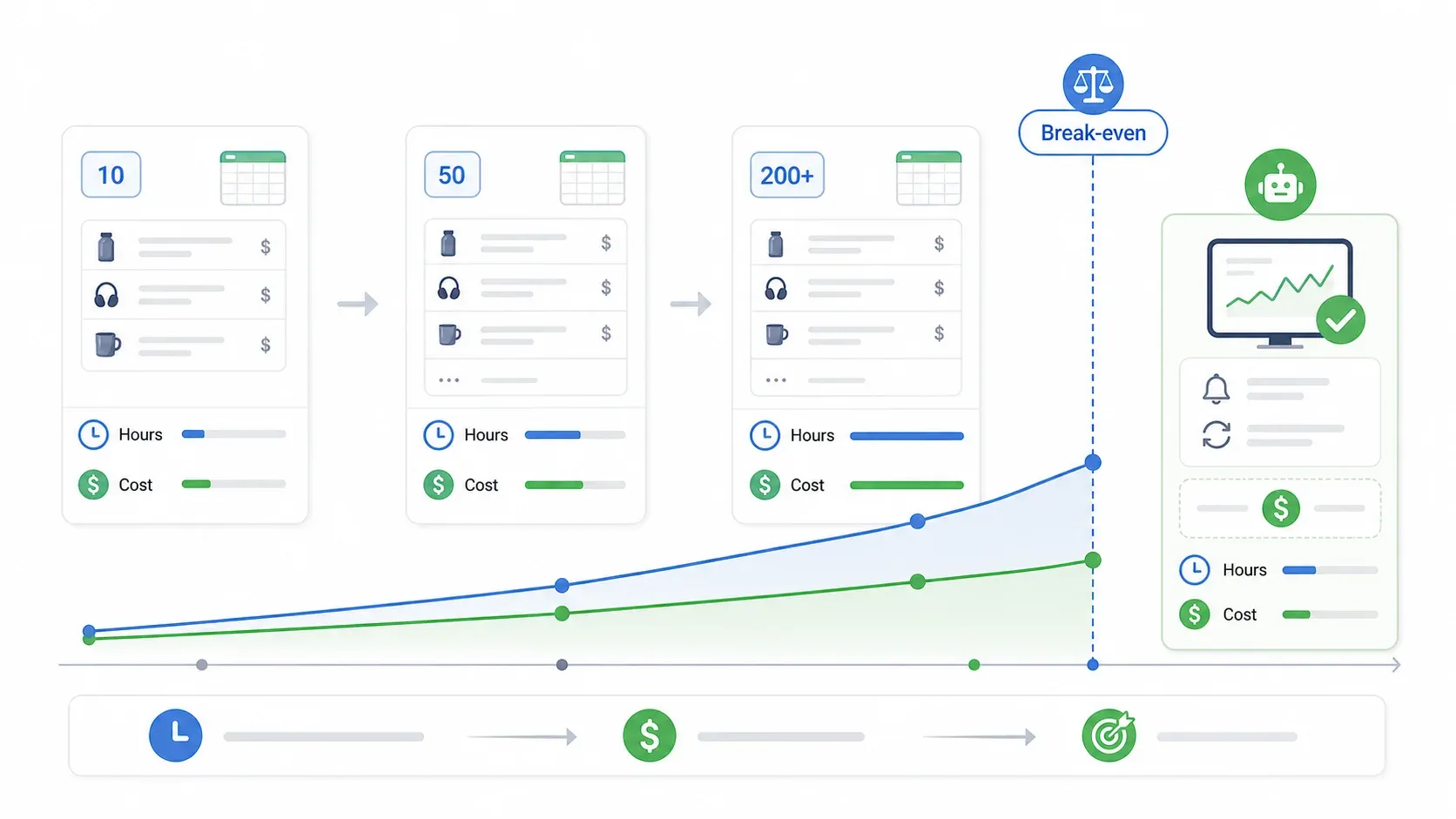
But the cost scales fast. I put together a simple calculator using current VA and operations associate rates (entry-level ecommerce VAs run $4–$8/hour, while a U.S. Associate Ecommerce Manager averages about $31/hour):
| Catalog Size | Manual Time/Day | Monthly Hours | Cost at $15/hr | Break-Even Tool Budget |
|---|---|---|---|---|
| 10 ASINs | ~20 min | ~10 hrs | $150 | Free to $50/mo tools pay for themselves |
| 50 ASINs | ~1.5 hrs | ~45 hrs | $1,125 | $50–$100/mo tool is a clear win |
| 200+ ASINs | Impractical | — | — | Automation is essential |
Beyond the labor cost, manual tracking is error-prone and creates stale snapshots. Amazon has long been reported to make about 2.5 million price changes per day—a figure from Profitero that's been cited in academic research and industry reports for over a decade. Even if that number has shifted, the underlying volatility is real: Amazon now shows shoppers 30/90/365-day price history through Rufus, and 50 million+ customers have used it since 2024.
A spreadsheet updated at 9 a.m. may be wrong by noon.
The graduation path looks like this: manual tracking → free Seller Central tools → Chrome extension or scraper → full repricing platform. The right step depends on your catalog size, business model, and how much time you're willing to trade for money.
A Spreadsheet Template That Actually Works
If you're still in the manual phase, at least structure your spreadsheet well. Here are the columns I recommend:
- Identity: Date/time, marketplace, SKU, ASIN, title, category, URL
- Your economics: Landed cost, referral fee, FBA/FBM fee, ad/coupon allowance, min price, max price, target margin
- Market: Featured Offer price, landed Featured Offer price, Featured Offer seller, lowest FBA, lowest FBM, seller count, Amazon-as-seller
- Non-price signals: Stock, delivery promise, Prime/FBA/FBM, review velocity, deal badge, coupon, Subscribe & Save
- History: 30-day low, 60-day low, 90-day median, 12-month low, Prime Day low, BFCM low
- Decision: Hold, match, undercut, raise, coupon, pause, reorder, MAP enforcement
Add conditional formatting for price-change percentage and margin impact, and you'll have a tool that's actually useful—not just a wall of numbers.
Start Free: What Amazon Seller Central Already Gives You
Before you spend a dollar on third-party tools, it's worth squeezing everything you can out of Seller Central. Most guides skip this, but Amazon's built-in pricing features are more useful than sellers give them credit for.
Automate Pricing Rules
Amazon's Automate Pricing is free for Professional sellers ($39.99/month plan). You can create rules in Seller Central under Pricing > Automate Pricing, choose predefined or custom rules, assign SKUs individually or in bulk, and set a minimum price (required) and optional maximum price.
Amazon's rule families include:
| Rule Family | What It Does |
|---|---|
| Competitive price-based | Reprices against Featured Offer, lowest Amazon price, or lowest external price |
| Sales-based | Changes price based on sales volume over a specified period |
| Business pricing | Adjusts Amazon Business price and quantity discounts tied to standard price |
Amazon says existing rules usually process in less than 15 minutes, while new rules or changed parameters can take up to one hour. One nice detail: Automate Pricing changes don't count toward your daily price update allotment.
Limitations: It only works on ASINs where you compete directly on the same listing. There's no category-wide visibility, no AI, and no margin-aware logic. Basic rules can create price-war risk if you don't set floors and ceilings carefully.
Pricing Dashboard and Pricing Health Alerts
The Pricing Dashboard shows your price versus the competitive price (defined by Amazon as the lowest price from other major retailers outside Amazon). Pricing Health alerts notify you when your price is too high for Featured Offer eligibility.
These are reactive tools—they flag problems, but they don't give you competitor intelligence, trends, or category-wide benchmarks.
Where Seller Central Falls Short
- No category-wide or market-level pricing data
- Only covers products you already sell (can't scout new competitors or adjacent products)
- No historical price trends
- No alerting on competitor-specific changes
Think of Seller Central's pricing tools as "Step 0." Start here, then graduate to external tools as your catalog and ambitions grow.
Private Label vs. Reseller: Two Very Different Tracking Playbooks
One thing I've noticed in every pricing guide out there: they treat all Amazon sellers the same. But the tracking approach for a private label brand is fundamentally different from a reseller or wholesale operation.
| Factor | Private Label Seller | Reseller / Wholesale |
|---|---|---|
| What to track | Category avg. price, top 5–10 competitors' prices, coupons, reviews, BSR | Exact ASIN-level price of every co-lister, Buy Box price, seller count |
| Key metric | Price positioning vs. category median | Buy Box share % and price gap |
| Tracking frequency | Weekly (prices shift slowly in most categories) | Daily or real-time (Buy Box rotates fast) |
| Biggest risk | Underpricing your brand | Race-to-the-bottom repricing wars |
| Recommended approach | Benchmark + strategic discounting/couponing | Algorithmic repricing with floor rules |
Tips for Private Label Sellers
- Scrape category or search result pages to understand the "shelf"—price bands, coupon behavior, review tiers, pack sizes, Prime status.
- Monitor the top 5–10 direct substitutes, not every seller in the category.
- Segment competitors by review tier: new products under 100 reviews, mid-tier 100–1,000, incumbents above 1,000.
- Use 90-day price history to decide whether to hold premium, coupon temporarily, bundle, or reposition.
Tips for Resellers and Wholesale Sellers
- Track every co-lister on your exact ASINs.
- Watch Buy Box winner, landed price, lowest FBA, lowest FBM, seller count, Amazon-as-seller, fulfillment speed, and stock.
- Set price floors and ceilings before enabling any automation.
- Don't blindly follow a competitor below your floor. Check whether they're FBM, low stock, poor rating, or running a short promotion. As one r/AmazonFBA commenter put it: "Match the lowest FBA seller without going below loss. Undercutting can start a price war."
How to Track Competitor Prices on Amazon with a Chrome Extension (The No-Code Shortcut)
For sellers with 20–200 ASINs, this is my go-to. A Chrome extension like Thunderbit scrapes Amazon search results, category pages, and product listings in a couple of clicks—no coding, no API setup, no template configuration.
It fills the gap between "manual checking that eats your mornings" and "repricing platforms that cost $200+/month." And because Thunderbit uses AI to read the page and suggest data columns, it works on different Amazon page types without needing a custom setup for each one.
Before you start:
- Difficulty: Beginner
- Time Required: ~10 minutes for your first scrape
- What You'll Need: Chrome browser, Thunderbit extension (free tier works), and an Amazon URL to scrape
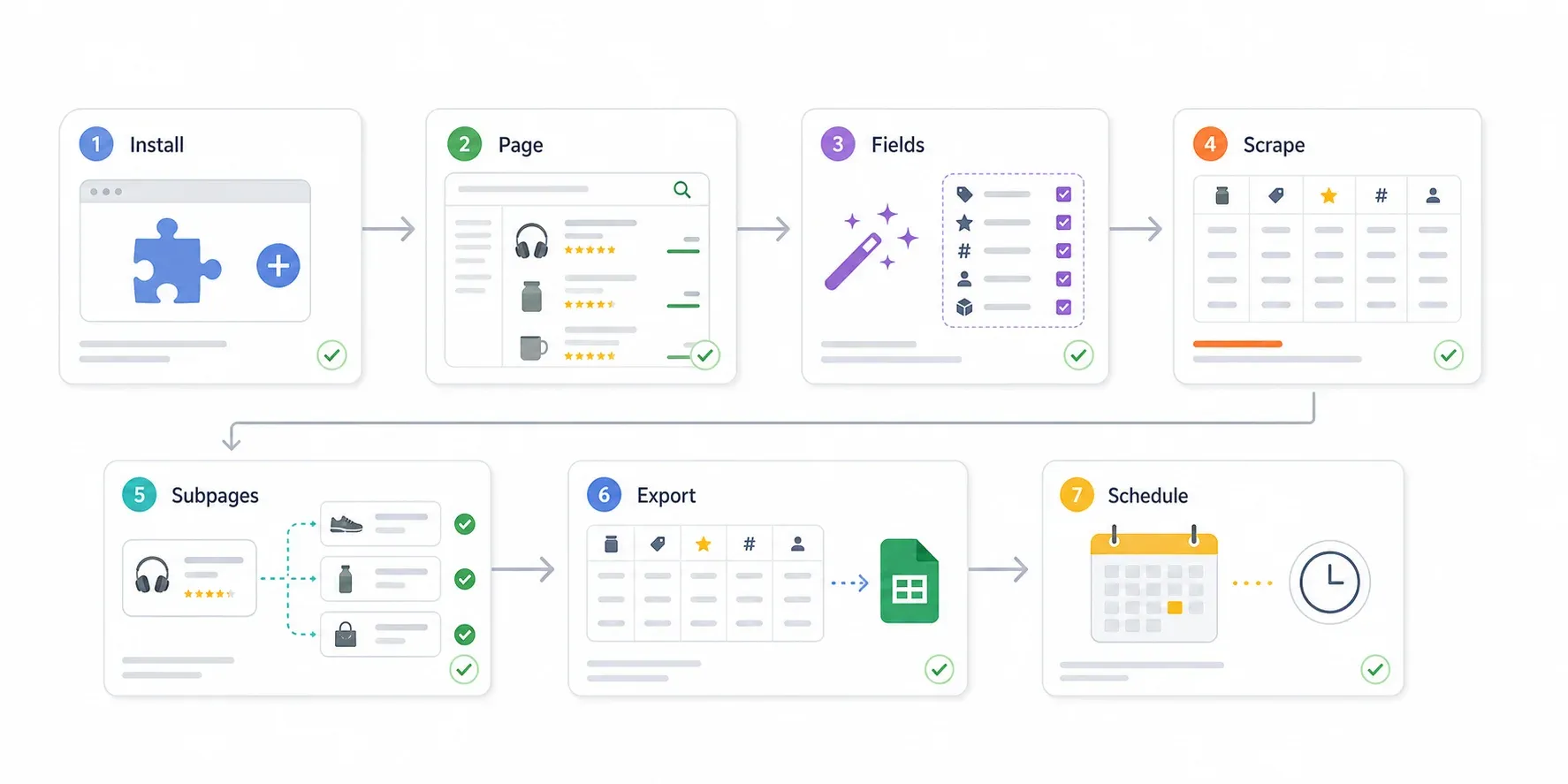
Step 1: Install Thunderbit
Go to the Chrome Web Store and add Thunderbit. Pin it to your toolbar for easy access. The extension currently has 100,000+ users.
Step 2: Navigate to an Amazon Search or Category Page
Search for your product keyword on Amazon—say, "wireless earbuds under $50"—or go directly to a category page. You want a results page with multiple products listed.
Step 3: Click "AI Suggest Fields"
Open the Thunderbit sidebar and click "AI Suggest Fields." The AI scans the page and proposes columns: Product Title, Price, Seller, Rating, Number of Reviews, Stock Status, and more.
You should see a table preview with the suggested columns. In my experience, Thunderbit picks up the main fields on the first try. For Amazon search results, it typically suggests title, price, rating, review count, image URL, and product URL.
Step 4: Adjust Columns If Needed
Add or remove fields based on what you need. For price tracking, I usually add:
- Fulfillment Method (Prime/FBA/FBM if visible)
- Coupon (Yes/No if a coupon badge is present)
- List Price (the strikethrough "Was" price)
- Seller Name (who's selling it)
You can type field instructions in plain English—like "return numeric USD only" or "return Yes/No if coupon is present."
Step 5: Click "Scrape"
Hit the Scrape button. Thunderbit extracts data from the current page and handles pagination—clicking through to the next page of results automatically if you enable it. For a 48-result search page, this took about 30 seconds in my testing.
Step 6: Use "Scrape Subpages" to Enrich Data
This is where it gets powerful. Click "Scrape Subpages" to have Thunderbit visit each individual product page and pull additional details: ASIN, seller count, FBA status, shipping info, product variations, or specs. This turns a surface-level search scrape into a rich competitive dataset.
Step 7: Export to Google Sheets or Excel
Click Export and choose Google Sheets, Excel, CSV, Airtable, or Notion. Data export is free—no paywall, no credit cost for the export itself. Your data is ready for filtering, conditional formatting, and charting.
For a comparison: scraping 50 products from an Amazon search page, enriching each with subpage data, and exporting to Google Sheets took me about 4 minutes. Doing the same manually would have taken well over an hour.
Set Up Scheduled Scraping for Ongoing Monitoring
Thunderbit's Scheduled Scraper lets you describe the interval in plain language—"every day at 8am," "every Monday at 9 AM," or "every 6 hours"—input your URLs, and let it run automatically. Results export to your chosen destination on schedule.
This replaces the need to manually check prices every day. For resellers, I'd set daily or every-6-hour schedules on priority ASINs. For private label, weekly category benchmarks are usually enough.
Cloud vs. Browser Mode
| Scenario | Recommended Mode | Why |
|---|---|---|
| Small manual research batch | Browser | Uses your Chrome session, easy to validate |
| Public Amazon search/category pages | Cloud (after browser validation) | Thunderbit can process up to 50 pages at once |
| Logged-in, regional, or personalized views | Browser | Uses your session/cookies/local state |
| Bot-sensitive or CAPTCHA-prone pages | Browser, lower frequency | Use reasonable rates and validate manually |
Start with 5–10 URLs in Browser mode to validate your field setup. Once you're confident the schema is right, scale up with Cloud or scheduled runs.
How to Spot Fake Discounts and Inflated "Was" Prices Before They Wreck Your Strategy
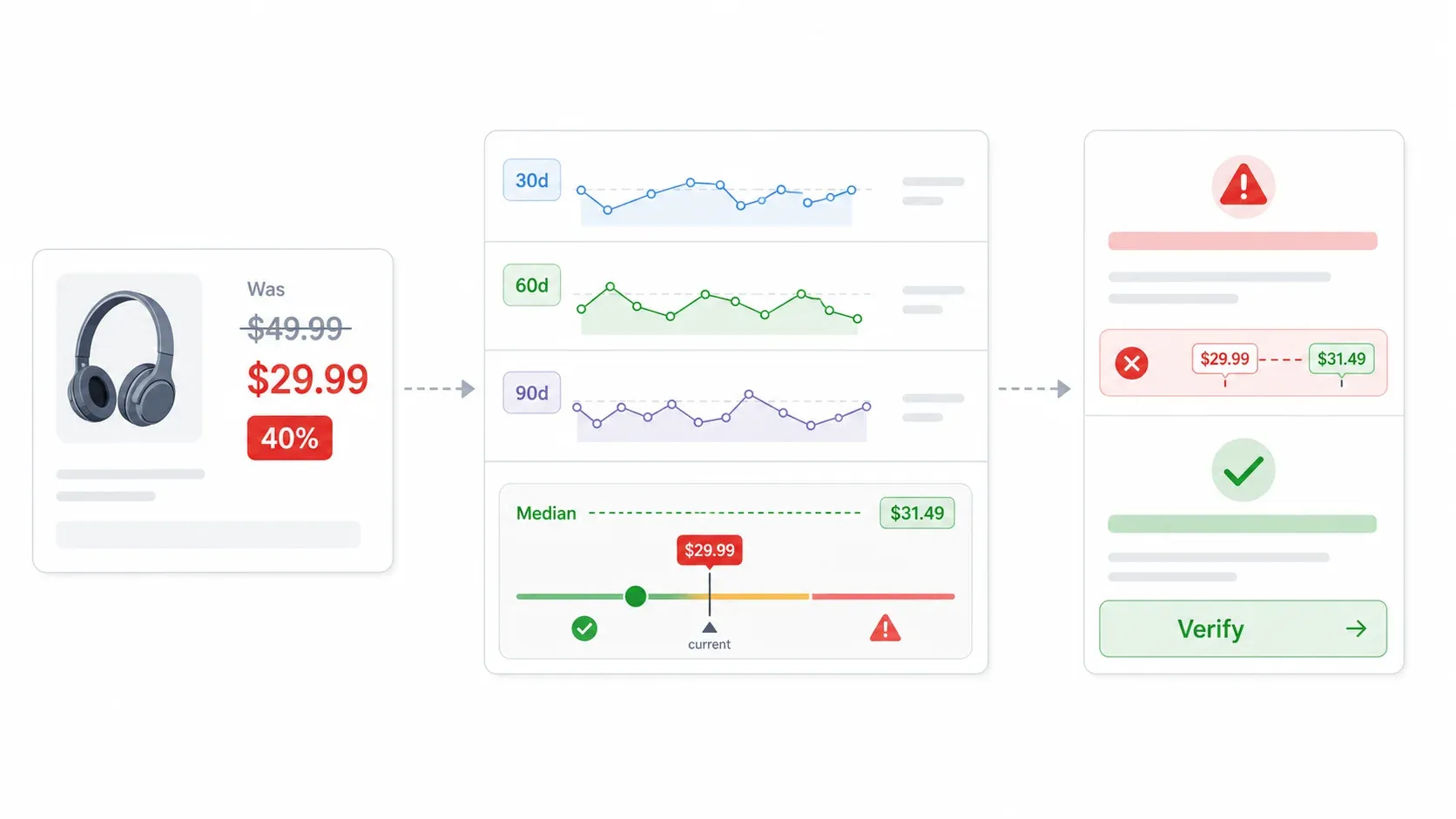
This is a trap I've seen catch even experienced sellers. A competitor drops their price to $19.99 with a big "40% off" badge. You panic, match the price, and give away margin—only to realize the "original" price was inflated for a few days just to make the discount look impressive.
Amazon defines two validated reference prices that can appear as strikethrough prices: List Price (a suggested retail price from a manufacturer, supplier, or seller, validated against Amazon sales and external competitor prices) and Typical Price (automatically computed using the median price customers paid over the past 90 days, excluding limited-time promotions). Source: Amazon List Price guidance.
Recent enforcement is getting stricter. Effective April 23, 2026, a seller-provided List Price must be validated by either a recent offer at that List Price by another retailer or customer purchases as the Featured Offer at that List Price. Effective May 18, 2026, if more than half of a product's 90-day price-history days are below the non-promotional median, Amazon will calculate Typical Price using all sales, including promotional ones.
Real-world examples of fake discount problems:
- A Prime Day 2025 class action alleged a headphone product advertised as 39% off had not actually been listed at the claimed "original" price in the prior 90 days.
- CBS News reported on a tablet listed as 40% off a $119.99 strikethrough, while plaintiffs alleged the prior 90-day median was actually $72.
- Ars Technica covered a complaint alleging 15 Fire TV models used advertised List Prices not reached in more than 90 days.
How to Verify a Competitor's "Sale" Is Real
- Check 90-day price history before matching any competitor's "discount." Use Keepa (tracks price history across 6B+ Amazon products) or CamelCamelCamel (free Amazon price drop alerts and history charts).
- If the "original" price only appeared for 1–2 days, treat the discount as suspicious. The 90-day median is the practical baseline—Amazon itself uses it for Typical Price, and lawsuits often evaluate whether a reference price existed during the prior 90 days.
- Compare the current price to 30-day and 90-day averages, not just the displayed strikethrough.
- Build your own clean dataset. Use Thunderbit's scheduled exports to collect current prices over time, so you have your own historical record rather than relying on Amazon's displayed "savings" claims.
This one step—verifying before reacting—can save you from unnecessary margin erosion on dozens of products.
Comparing Your Options: Manual, Free Tools, Extensions, and Repricing Platforms
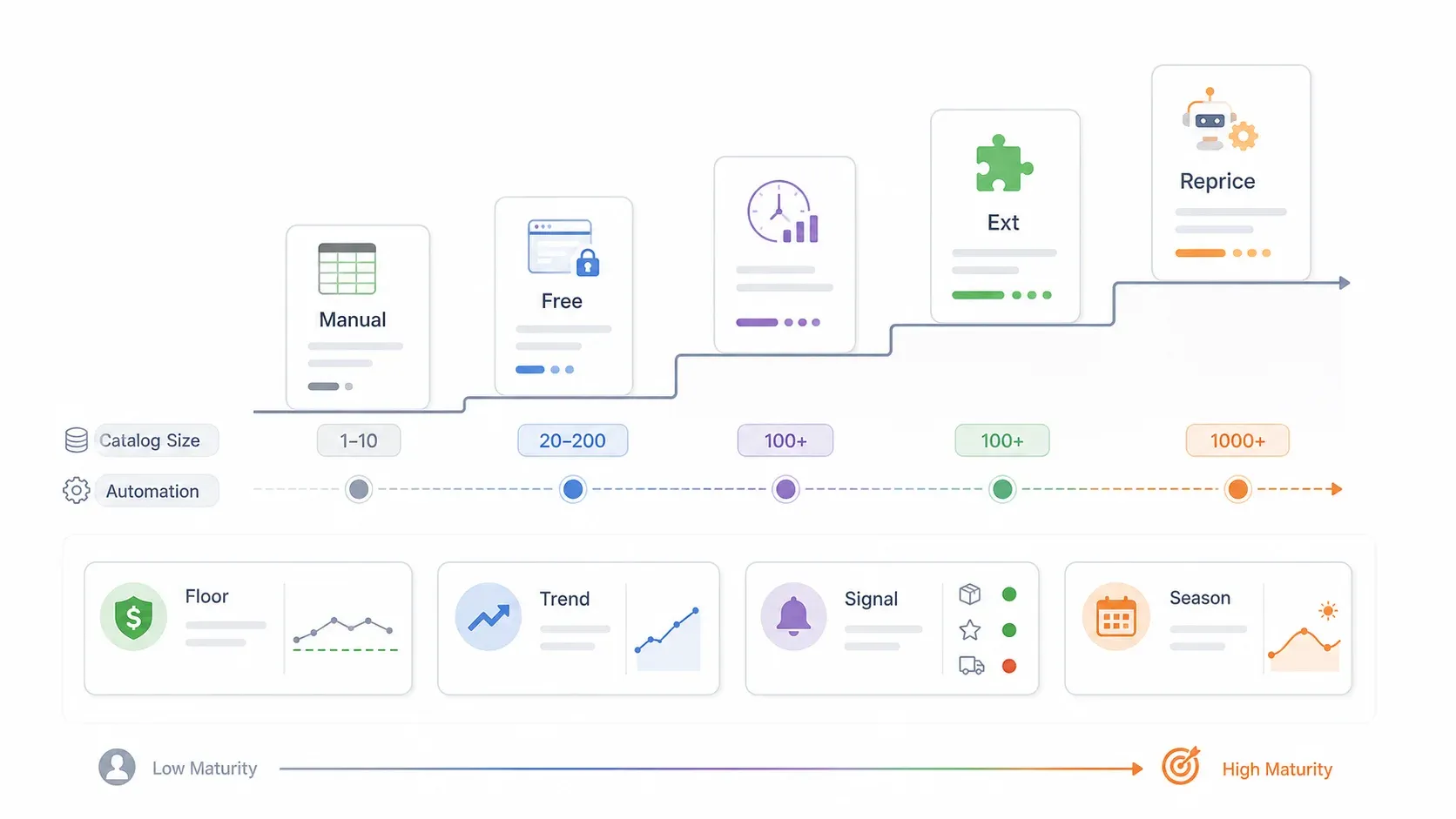
A side-by-side view of every approach in this guide:
| Method | Best For | Cost | Setup Time | Scalability | Real-Time? |
|---|---|---|---|---|---|
| Manual (spreadsheet) | 1–10 ASINs, beginners | Free | Minutes | Low | No |
| Seller Central tools | Current listings only | Free with Professional plan ($39.99/mo) | Minutes | Low–Medium | Partial |
| Keepa / CamelCamelCamel | Historical price checks | Free–~€19/mo (Keepa paid) | Minutes | Medium | Near real-time alerts |
| Thunderbit (Chrome extension) | 20–200+ ASINs, no code | Free tier available; paid from ~$9/mo | Minutes | High | Scheduled |
| Amazon repricers (BQool, Seller Snap, etc.) | 100+ ASINs, automated action | ~$25–$500+/mo | Hours | High | Yes |
| Enterprise platforms (Omnia, Competera) | 1,000+ SKUs, omnichannel | €399/mo+ to custom enterprise | Weeks | Very High | Yes |
The decision framework:
- 1–10 ASINs: Start with Seller Central, Keepa/CamelCamelCamel, and a spreadsheet.
- 20–200 ASINs: Use a Chrome extension workflow like Thunderbit plus Google Sheets.
- 100+ shared-listing ASINs where Buy Box share drives revenue: Evaluate a repricer with floor/ceiling safeguards.
- 1,000+ SKUs, multiple channels, MAP enforcement: Evaluate enterprise price intelligence.
Thunderbit fills the gap between free-but-limited tools and expensive enterprise platforms—especially for sellers who want structured data in a spreadsheet without writing code or paying hundreds per month.
Tips to Turn Pricing Data into a Real Competitive Advantage
Collecting data is the easy part. Acting on it well—that's where most sellers leave money on the table.
Set Price Floors and Ceilings Before You React
Amazon's Automate Pricing requires a minimum price and supports an optional maximum. That should be the baseline for any pricing workflow, automated or manual.
Your minimum price formula:
Min price = landed cost + referral fee + fulfillment fee + inbound shipping/prep + returns allowance + ad/coupon allowance + target profit
For private label sellers, include ACoS/TACoS assumptions and coupon cost. Never let a competitor's price move push you below this number.
Track Trends, Not Just Today's Number
A single day's price drop might be a liquidation, a glitch, or a short promotion. Use 30/60/90-day windows to spot real trends. The 90-day view is especially important because Amazon's Typical Price uses a 90-day median, and public fake-discount disputes often center on whether a reference price existed during that window.
Chart your Thunderbit exports over time. A line graph of Buy Box price, your price, and 90-day median tells a much better story than a snapshot.
Monitor More Than Just Price
Non-price signals often explain why a seller can hold a higher price and still win the Featured Offer:
- Seller count and offer count — rising co-listers signal future price compression
- FBA vs. FBM / Prime eligibility — FBA sellers have a structural advantage
- Stock availability — a low-priced competitor with weak stock may not justify a price cut
- Delivery promise — faster delivery can offset a slightly higher price
- Review count and review velocity — higher reviews support premium pricing
- Coupon/deal badge — a lower effective price may be hidden behind a clipped coupon
- Amazon-as-seller status — Amazon's own offers often win the Buy Box regardless of price
Thunderbit's subpage scraping can pull these additional data points from individual product pages, so you're not just tracking price—you're tracking the full competitive picture.
Time Your Adjustments to Seasonal Patterns
Amazon pricing follows predictable seasonal rhythms. Omnia Retail found a pre-Prime Day 2025 price-hike pattern: average prices rose from €142.78 the prior month to €148.28 two to three weeks before Prime Day, dipped to €145.50 the week before, then settled at €142.77 during Prime Day. And 54.9% of products showed no price drop from the week before to Prime Day.
Adobe reported U.S. consumers spent $14.1B online during Prime Day 2025, while Cyber Monday 2025 reached $14.25B in U.S. online spending, up 7.1% year over year.
Plan pricing adjustments around these patterns rather than constantly reacting. Build seasonal baselines into your tracking spreadsheet so you know whether a competitor's price move is a real shift or just seasonal noise.
A Quick Note on Amazon's Terms of Service and Price Tracking
Monitoring publicly visible pricing data on Amazon is a standard retail practice. Amazon itself provides competitive pricing data inside Seller Central, and third-party tools—including browser extensions—that access publicly visible pages are widely used across the seller ecosystem.
That said, a few guardrails:
- Amazon's Marketplace Fair Pricing Policy says sellers set their own prices, but Amazon monitors item prices including shipping. Enforcement can include removing the Featured Offer, removing the offer, or suspending selling privileges.
- Automated repricing tools must comply with this policy.
- Use public information for internal analysis. Avoid collecting personal data.
- Use reasonable scraping frequency—don't hammer Amazon's servers.
- Review Amazon's current Terms of Service, Seller Central policies, and any tool-specific compliance notes.
Tracking competitor prices is normal. Just do it responsibly.
Wrapping Up: Track Competitor Prices on Amazon in Minutes, Starting Today
The maturity ladder I'd recommend:
- Start with what's free. Seller Central's Pricing Health, Automate Pricing, and Keepa/CamelCamelCamel cover the basics.
- Know your business model. Private label sellers need category benchmarking. Resellers need exact-ASIN Buy Box monitoring. The tracking cadence and tools differ.
- Graduate to a Chrome extension when manual tracking starts eating your mornings. Thunderbit gives you structured data in Google Sheets without code, templates, or expensive subscriptions.
- Always verify competitor "discounts" with 30/60/90-day history. Don't let a fake sale push you into a bad pricing decision.
- Turn data into strategy. Use floors, ceilings, trends, seasonal baselines, and non-price signals so tracking becomes a competitive advantage—not a panic response.
If you want to see how this works in practice, try Thunderbit's free tier, scrape your top Amazon competitor prices in two clicks, export to Google Sheets, and see how much time you save this week. For more on Amazon scraping workflows, check out our guides on how to scrape Amazon and scraping Amazon prices. You can also watch walkthroughs on the Thunderbit YouTube channel.
Track Amazon Competitor Prices with Thunderbit Get Started Free
FAQs
How often should I track competitor prices on Amazon?
It depends on your business model. Resellers and wholesale sellers should track priority ASINs daily—or even every few hours—because the Buy Box can rotate fast. Private label sellers usually need weekly category benchmarking, with daily checks during launches, Prime Day, Black Friday/Cyber Monday, and aggressive promotions. The key is matching your tracking frequency to the volatility of your category and the stakes of losing the Featured Offer.
Can I track competitor prices on Amazon for free?
Yes. Amazon Seller Central's Pricing Dashboard, Pricing Health alerts, and Automate Pricing are free with a Professional seller account. CamelCamelCamel is completely free for price history and alerts. Keepa offers a free tier with limited features. Thunderbit also has a free tier that lets you scrape a handful of pages per month. For small catalogs, you can absolutely start without spending anything on third-party tools.
What is the best way to track competitor prices on Amazon without coding?
A Chrome extension like Thunderbit is the most practical no-code option. You navigate to an Amazon page, click "AI Suggest Fields" to let the AI propose data columns, click "Scrape," and export to Google Sheets or Excel. No selectors, no scripts, no API keys. It handles pagination and subpage scraping too, so you can enrich search results with product-level detail in the same workflow.
How do I avoid price wars when tracking competitor prices?
Set a minimum profitable price before you ever react to a competitor. Monitor fulfillment method, stock levels, seller quality, review count, and price history—not just the headline number. If a competitor drops below your floor, check whether they're FBM, low stock, poor rating, or running a short promotion before you follow. Use the private label vs. reseller playbook from this guide to choose the right response for your business model.
Does tracking competitor prices on Amazon violate Amazon's rules?
Monitoring publicly visible pricing information is a common retail practice, and Amazon itself provides competitive pricing signals inside Seller Central. Third-party tools that access public pages are widely used. Automated repricing must comply with Amazon's Marketplace Fair Pricing Policy. Always review Amazon's current Terms of Service and any tool-specific compliance notes before setting up automated workflows.
Learn More