

Scraping Amazon prices used to be the kind of task that made even the most patient ecommerce manager want to toss their laptop out the window. Amazon’s marketplace is a whirlwind—prices shift by the minute, competitors tweak their listings at 2 a.m., and manual tracking is about as effective as using a bucket to bail out the Titanic. I’ve seen teams spend hours copying prices into spreadsheets, only to discover the data was already out of date by the time their coffee cooled. In today’s hyper-competitive ecommerce world, staying on top of Amazon pricing isn’t just a nice-to-have—it’s a must for anyone serious about winning the buy box or making informed sales decisions.
Scrape Amazon Prices with AI Extract Amazon price data in seconds with Thunderbit's AI-powered web scraper. No coding required. Get Started Free
But here’s the good news: scraping Amazon prices no longer has to be a technical headache or a time sink. Thanks to AI-powered tools like Thunderbit, even non-technical users can extract accurate, up-to-date price data from Amazon in just a few clicks. In this guide, I’ll walk you step-by-step through how to scrape Amazon prices easily, highlight the pitfalls of traditional scrapers, and show you how Thunderbit can supercharge your price tracking and competitive analysis—no coding, no drama, just results.
What is Scraping Amazon Prices? Why Does It Matter?
Scraping Amazon prices means extracting product price data from Amazon pages—whether it’s a single product, a category, or a whole search result—so you can analyze, monitor, or react to market changes. Instead of relying on manual checks or expensive third-party reports, you get real-time, actionable pricing info straight from the source.
Why does this matter? Because Amazon is the most dynamic marketplace on the planet. According to recent reports, 65% of Amazon sellers raised prices in 2024, with the average price increase hitting 6.7%. Price changes happen constantly—sometimes dozens of times a day on popular SKUs. If you’re not tracking prices, you’re flying blind.
Here’s why businesses scrape Amazon prices:
| Use Case | Benefit |
|---|---|
| Competitive Price Monitoring | Stay ahead of rivals, react to undercutting, win the buy box |
| Dynamic Pricing & Repricing | Adjust your own prices in real time to maximize sales and margin |
| Market Research & Trend Analysis | Spot pricing trends, identify new opportunities, validate product ideas |
| Lead Generation | Identify resellers or distributors by price points |
| Inventory & Stock Management | Monitor competitor stock-outs and price hikes to time your own offers |
Automated price tracking delivers real ROI. One case study found that dynamic pricing, powered by real-time scraping, increased sales by up to 25% while improving margins. In short: the faster you can react to price changes, the more competitive (and profitable) your business becomes.
The Challenges of Scraping Amazon Prices: Why Traditional Scrapers Struggle
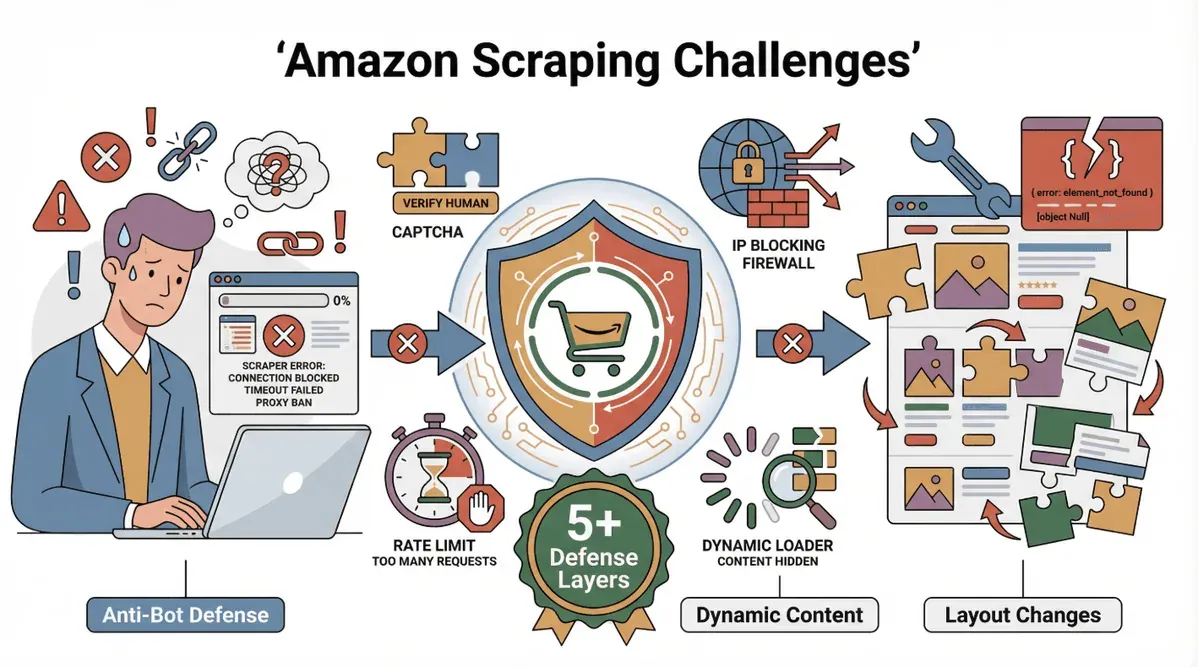 If you’ve ever tried to scrape Amazon with a basic tool or a DIY script, you know it’s not a walk in the park. Amazon is notorious for its anti-bot defenses and ever-changing page layouts. Here’s what usually trips people up:
- Aggressive Anti-Bot Measures: Amazon uses CAPTCHAs, rate limiting, IP blocking, and even “honey pot” traps to detect and block scrapers (ScrapingBee).
- Dynamic Content Loading: Prices are often loaded via JavaScript or AJAX after the page loads, making them invisible to simple HTML scrapers (Decodo).
- Frequent Layout Changes: Amazon tweaks its DOM structure regularly, breaking hard-coded scrapers and requiring constant maintenance (Octoparse).
- Multi-Step Navigation: Prices might be hidden behind tabs, buttons, or even require clicking through multiple pages.
- Location & Cookie Sensitivity: Prices can vary by region, and Amazon uses cookies to personalize results, making consistent scraping tricky (StackOverflow).
The result? Traditional scrapers break often, miss prices, or get blocked after a few requests. And for non-technical users, debugging these issues is a nightmare. As one frustrated user put it: “I spent more time fixing my scraper than actually analyzing prices.”
Meet Thunderbit: The Easiest Way for Scraping Amazon Prices
This is where Thunderbit comes in. We built Thunderbit to make scraping Amazon prices (and data from any website) as easy as possible—even if you’ve never written a line of code in your life.
Thunderbit is a Chrome extension that uses AI to read web pages, detect relevant fields (like price, title, rating, etc.), and extract structured data in seconds. Here’s what makes Thunderbit stand out for Amazon price scraping:
- AI Suggest Fields: Just click “AI Suggest Fields” and Thunderbit’s AI scans the page, automatically identifying price data—even if Amazon changes its layout.
- Handles Dynamic Content: Thunderbit waits for JavaScript-loaded prices and can scroll or interact with the page as needed.
- Pagination & Subpage Scraping: Scrape prices across multiple pages or drill down into product detail pages for more granular info.
- Instant Export: Send your data straight to Excel, Google Sheets, Airtable, Notion, or download as CSV—no manual copy-paste.
- Amazon Templates: For even faster results, use Thunderbit’s pre-built Amazon scraper templates—just enter your keywords and get a ready-to-use price report (Thunderbit Amazon Price Scraper).
- No Coding, No Maintenance: Thunderbit adapts to Amazon’s changes automatically. No more broken scripts, no more headaches.
Thousands of users—including sales, ecommerce, and operations teams—trust Thunderbit to keep their price data fresh and actionable (Thunderbit Blog).
Scrape Amazon Prices with Thunderbit
Step-by-Step Guide: How to Scrape Amazon Prices with Thunderbit
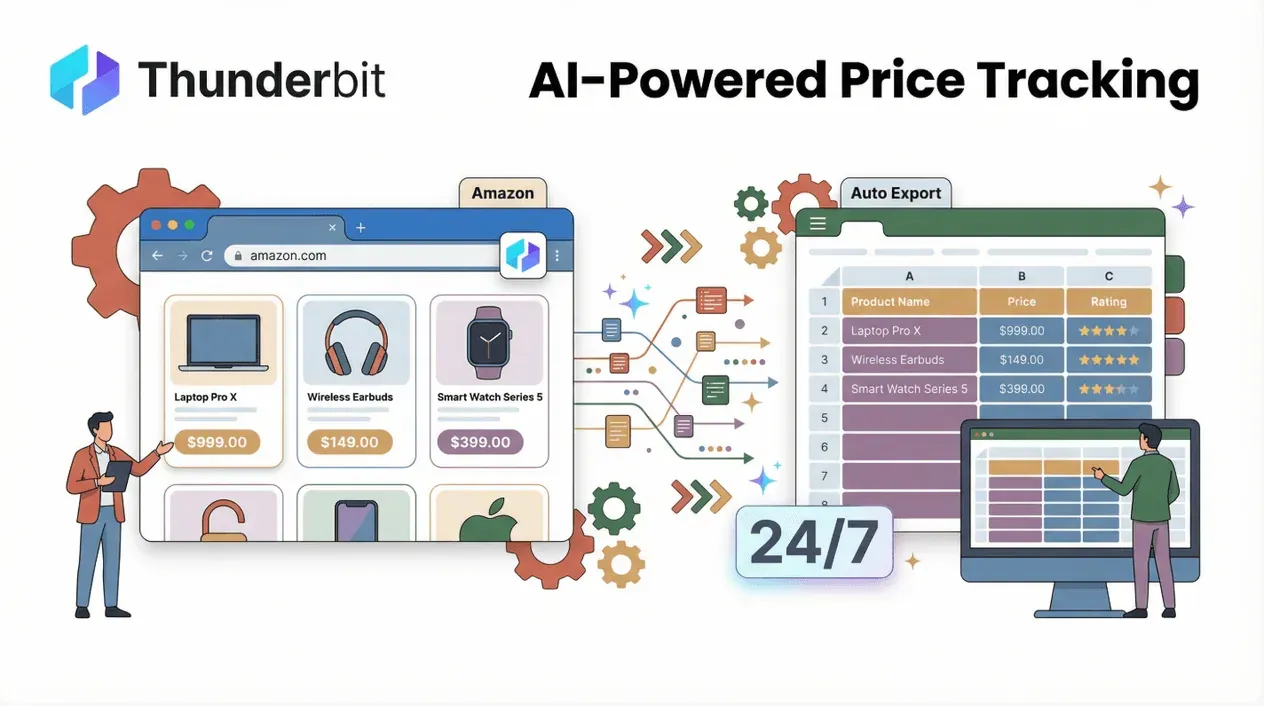 Ready to get your hands dirty (well, not really—Thunderbit does the heavy lifting for you)? Here’s a detailed, beginner-friendly walkthrough:
Step 1: Install Thunderbit Chrome Extension
- Head to the Thunderbit Chrome Extension page.
- Click “Add to Chrome” and confirm the installation.
- Thunderbit works on any desktop with Chrome (Windows, Mac, Linux). No special setup or permissions beyond the basics—just the ability to read the page you’re on.
Step 2: Open Amazon and Navigate to the Target Page
- Go to Amazon.com and search for the products or category you want to track.
- You can use a category page, a search results page, or even a single product detail page.
- For best results, make sure the page is fully loaded—wait for all images and prices to appear.
Step 3: Use “AI Suggest Fields” to Detect Price Data
- Click the Thunderbit icon in your Chrome toolbar to open the extension.
- Click “AI Suggest Fields”. Thunderbit’s AI will scan the page and suggest relevant columns—typically “Product Name,” “Price,” “Rating,” “ASIN,” etc.
- Review the suggested fields. Want to add or remove columns? Just edit the list—Thunderbit is flexible.
- For advanced users: you can add custom instructions to help the AI extract specific price types (e.g., “list price,” “deal price,” “used price”).
Step 4: Start Scraping and Handle Dynamic Content
- Click “Scrape”. Thunderbit will extract the price data from the visible page.
- If you’re scraping a search or category page, Thunderbit can handle pagination—just enable “pagination scraping” and it will move through each page, collecting prices as it goes.
- For dynamic content (like prices that load as you scroll), make sure to scroll down the page before scraping, or use Thunderbit’s “browser mode” to interact with the page as a real user would.
- Thunderbit adapts to Amazon’s AJAX-loaded prices and can even follow links to product detail pages for more granular data.
Step 5: Export Amazon Price Data to Excel
- Once the data is ready, you’ll see it in a clean, structured table.
- Click “Export” and choose your format: Excel, Google Sheets, Airtable, Notion, CSV, or JSON.
- You can also copy the data to your clipboard for quick pasting into any tool.
- Now you’re ready to analyze, visualize, or share your Amazon price data—no more manual entry.
Step 6: Troubleshooting and Best Practices
- Missing prices? Make sure the page is fully loaded and you’ve scrolled through all products. Some prices may be hidden behind “See price in cart” or require clicking through to the product detail page—Thunderbit’s subpage scraping can help here.
- Blocked pages or CAPTCHAs? If Amazon blocks your requests, slow down your scraping, use browser mode, or try scraping at off-peak hours.
- Dynamic price changes? Schedule regular scrapes to keep your data up to date—Thunderbit’s scheduling feature makes this easy.
- Large catalogs? Break your scraping into smaller batches to avoid timeouts or blocks.
For more troubleshooting tips, check out the Thunderbit documentation or our YouTube Channel.
Thunderbit vs. Traditional Amazon Price Scraping Tools: A Quick Comparison
Let’s see how Thunderbit stacks up against the old-school methods:
| Feature | Thunderbit | Manual Copy-Paste | Python Scripts / DIY Tools | Other Browser Extensions |
|---|---|---|---|---|
| Setup Time | Minutes | Hours | Hours–days | Moderate |
| Coding Required | None | None | Yes | Sometimes |
| Handles Dynamic Content | Yes (AI + browser mode) | No | Sometimes (needs setup) | Rarely |
| Adapts to Layout Changes | Yes (AI-driven) | No | No (needs updates) | No (breaks often) |
| Pagination/Subpages | Yes (built-in) | Manual | Needs coding | Limited |
| Export Options | Excel, Sheets, Notion, CSV | Manual | Needs scripting | CSV, sometimes Excel |
| Maintenance | None | N/A | High | High |
| User-Friendliness | ⭐⭐⭐⭐⭐ | ⭐ | ⭐ | ⭐⭐ |
Thunderbit is built for business users who just want results—not headaches. No tutorials, no debugging, just data.
Automate Amazon Price Tracking: Scheduled Scraping with Thunderbit
One of Thunderbit’s most powerful features is scheduled scraping. Instead of scraping prices manually every day, you can set up Thunderbit to run automatically at your chosen times—hourly, daily, weekly, you name it.
- Just describe your schedule in plain English (“every morning at 8 a.m.”), and Thunderbit will handle the rest.
- Perfect for ecommerce and sales teams who need regular price updates for trend analysis or competitor monitoring.
- Exported data can be sent directly to Google Sheets or Airtable, creating live dashboards for your team.
This feature is especially handy for tracking fast-moving categories or monitoring price wars—so your pricing strategy is always a step ahead (Thunderbit Blog).
Try Amazon Price Scraper Template
Boost Your Ecommerce Strategy: Using Scraped Amazon Prices for Competitive Advantage
What can you actually do with all this price data? Here are some practical workflows:
- Competitive Price Analysis: Import your scraped prices into a dashboard (Excel, Sheets, or BI tool) to compare your listings with competitors. Spot undercutting, identify pricing gaps, and react faster.
- Dynamic Repricing: Feed price data into your repricing engine or rules—automatically adjust your own prices to match or beat the competition (GrowByData).
- Market Opportunity Validation: Before launching a new product, scrape prices for similar items to gauge market saturation and price points.
- Inventory & Stock Management: Track when competitors go out of stock and raise prices—perfect timing for your own promotions.
One of my favorite stories: a Thunderbit user set up daily Amazon price scrapes for their top 50 SKUs. Within a week, they spotted a competitor’s price hike and adjusted their own pricing—resulting in a 12% sales boost. When you have real-time data, your strategy is sharper than ever.
Thunderbit’s AI Templates: Accelerate Your Amazon Price Scraping Workflow
Don’t want to set up fields manually? Thunderbit offers Amazon-specific templates for instant scraping. Here’s how it works:
- Open the Thunderbit extension and select the Amazon Price Scraper template.
- Enter your keywords or paste the Amazon URL.
- Thunderbit applies a pre-built field mapping—no configuration needed.
- Click “Scrape” and get a standard report with prices, titles, ratings, and more.
This is perfect for business users who want quick, consistent results—whether you’re validating a new product idea or running a weekly competitor check.
Thunderbit for Non-Technical Users: Scraping Amazon Prices Made Simple
How to Scrape Amazon Products and Reviews Learn how to extract Amazon product and review data using Thunderbit's AI-powered web scraper. Get Started Free
I’ve seen my fair share of web scraping tools, and most are built for developers. Thunderbit is different. Here’s why non-technical users love it:
- Natural Language Prompts: Just describe what you want—Thunderbit’s AI handles the rest.
- AI-Driven Field Detection: No need to hunt for CSS selectors or XPath. Thunderbit finds prices, titles, and more automatically.
- One-Click Scraping: From setup to export, it’s all point-and-click.
- Handles Price Field Changes: If Amazon moves the price or changes its label, Thunderbit adapts—no manual updates needed.
- Bulk & Multi-Page Scraping: Scrape hundreds of products across multiple pages, all in one go.
As one new user put it: “I scraped 200 Amazon prices in under 5 minutes—no code, no stress. Thunderbit just works.”
Conclusion & Key Takeaways
Scraping Amazon prices is no longer a technical challenge reserved for coders or big-budget teams. With Thunderbit, anyone can extract accurate, up-to-date price data from Amazon in minutes—no code, no maintenance, no headaches.
Key takeaways:
- Amazon price tracking is critical for competitive ecommerce and sales teams—manual tracking just can’t keep up.
- Traditional scrapers struggle with Amazon’s anti-bot measures, dynamic content, and frequent layout changes.
- Thunderbit makes scraping Amazon prices easy with AI-powered field detection, instant templates, and one-click export to Excel or Sheets.
- Scheduled scraping and automation let you monitor prices and trends in real time—giving your team a true competitive edge.
- Non-technical users can succeed with Thunderbit’s intuitive, no-code workflow.
Ready to level up your price tracking? Download Thunderbit and start scraping Amazon prices today. Your next pricing win could be just a click away.
For more tips, tutorials, and advanced scraping strategies, check out the Thunderbit Blog or our YouTube Channel.
Start Scraping Amazon Prices with Thunderbit Get Started Free
FAQs
1. Is scraping Amazon prices legal?
Scraping publicly available data for personal or business analysis is generally legal, but you should always review Amazon’s terms of service and comply with local laws. Avoid scraping personal or sensitive information, and use data responsibly.
2. What if Amazon changes its page layout or price format?
Thunderbit’s AI is designed to adapt to layout changes automatically. If you notice missing data, try “AI Suggest Fields” again or use Thunderbit’s Amazon template for the latest field mapping.
3. Can Thunderbit handle large catalogs or bulk price scraping?
Yes! Thunderbit supports multi-page scraping, bulk URL input, and scheduled scraping for large-scale projects. Just paste your URLs or set up a scheduled task.
4. How do I export scraped Amazon prices to Excel or Google Sheets?
After scraping, click “Export” in Thunderbit and choose your preferred format—Excel, Google Sheets, Airtable, Notion, CSV, or JSON. You can also copy results to your clipboard.
5. What if I’m not technical? Can I still use Thunderbit?
Absolutely. Thunderbit is built for non-technical users—no coding, no setup, just click and go. If you need help, our documentation and support are always available.
Ready to see how easy Amazon price scraping can be? Try Thunderbit for free and take control of your pricing strategy today.
Learn More




