
Last week, a colleague on our team pinged me in a panic. He was on a client's corporate Wi-Fi, trying to demo Thunderbit — and nothing would load. Chrome just spun. He checked his proxy settings: everything said "Off." Yet something was clearly intercepting his traffic. Sound familiar?
If you've ever stared at a "No proxy configured" screen while your browser refuses to cooperate, you're not alone. A Microsoft Q&A thread about Windows failing to detect proxy settings has over 4,100 users reporting the same problem.
The reality is that finding your proxy server address in 2026 is trickier than it used to be — proxies hide behind auto-config scripts, enterprise policies, cloud security gateways, and VPN tunnels. This guide will walk you through every method for finding your proxy address on every platform, including the scenarios where your proxy is genuinely invisible.
Difficulty: Beginner to Intermediate
Time Required: ~5–15 minutes depending on your setup
What You'll Need: Access to your device's settings; optionally, a terminal/command prompt
Try Thunderbit for Easy Data Scraping
What Is a Proxy Server Address (and Why Does It Matter)?
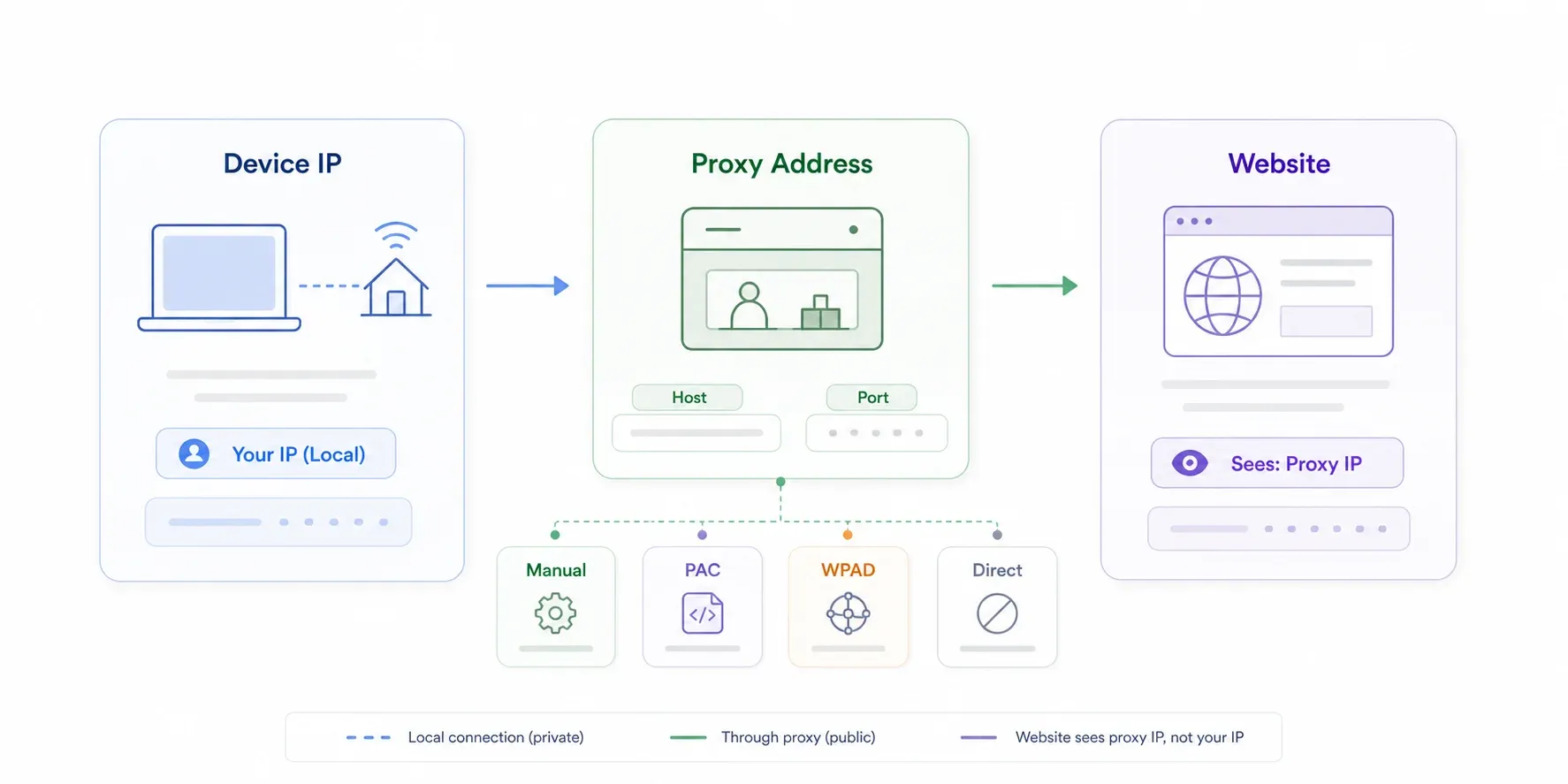
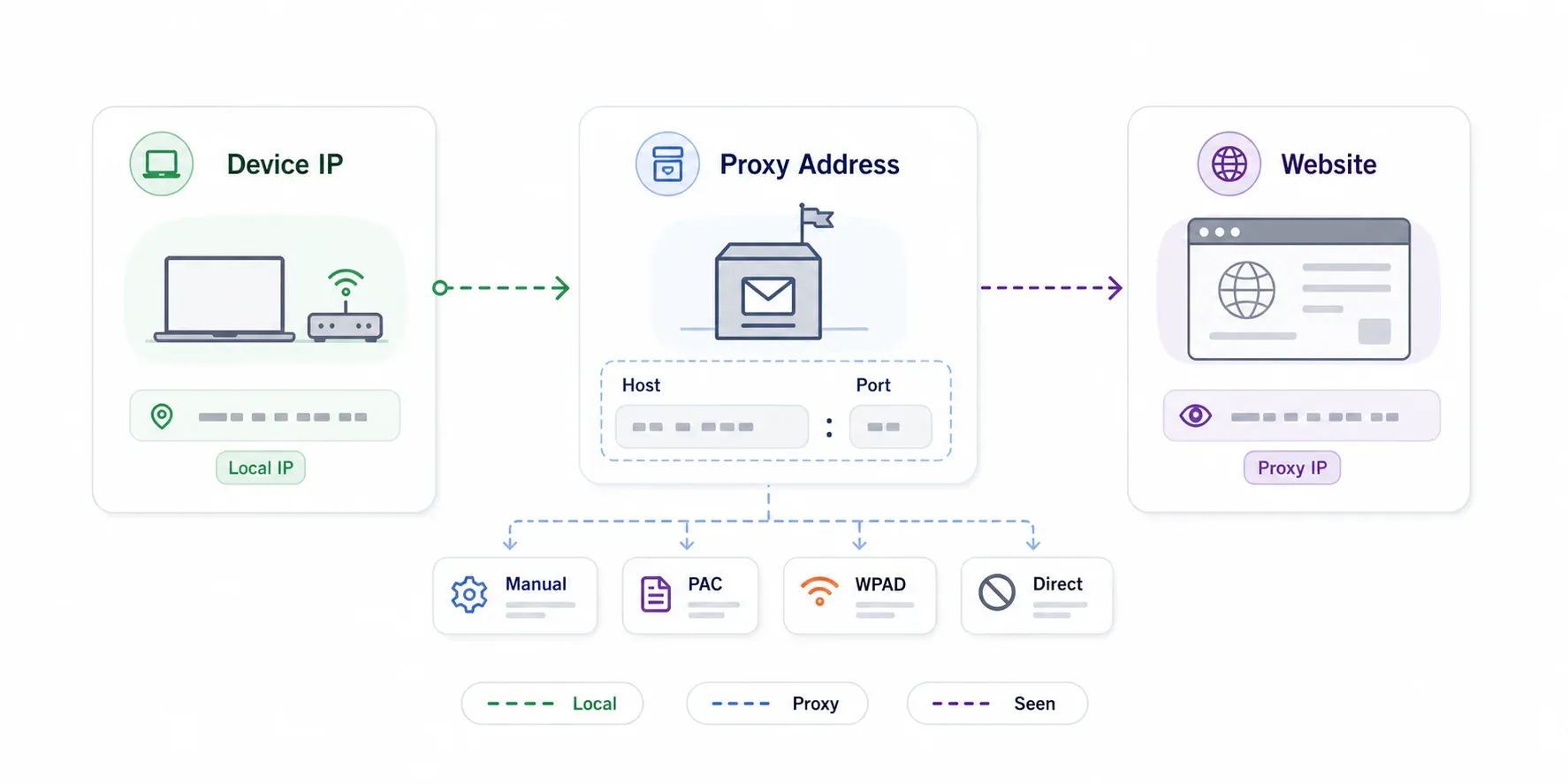
A proxy server address is the hostname or IP address — plus a port number — of the intermediary server that sits between your device and the internet. Think of it like a company mailroom: your laptop is the employee, the website is the outside recipient, and the proxy is the mailroom desk that logs, inspects, or forwards your mail before it leaves the building.
It's important to distinguish a proxy address from your device's IP address. Your device IP (like 192.168.1.23) identifies your machine on the local network. The proxy address (like proxy.corp.example:8080) identifies the middleman handling your web requests. When a website sees your traffic, it often sees the proxy's IP, not yours.
There are a few configuration models you'll encounter:
- Manual proxy: A static IP/hostname and port you enter directly (e.g.,
10.0.0.12:3128) - Auto-config script (PAC URL): A URL pointing to a JavaScript file that tells your browser which proxy to use for which sites
- Auto-detect (WPAD): The network automatically locates the PAC file via DNS or DHCP — no manual entry at all
- Direct: No proxy configured
Why would you need to find this info? Troubleshooting network errors, configuring software or browser extensions, setting up web scraping tools, or just verifying your corporate network compliance. Knowing where to look can save you an entire afternoon.
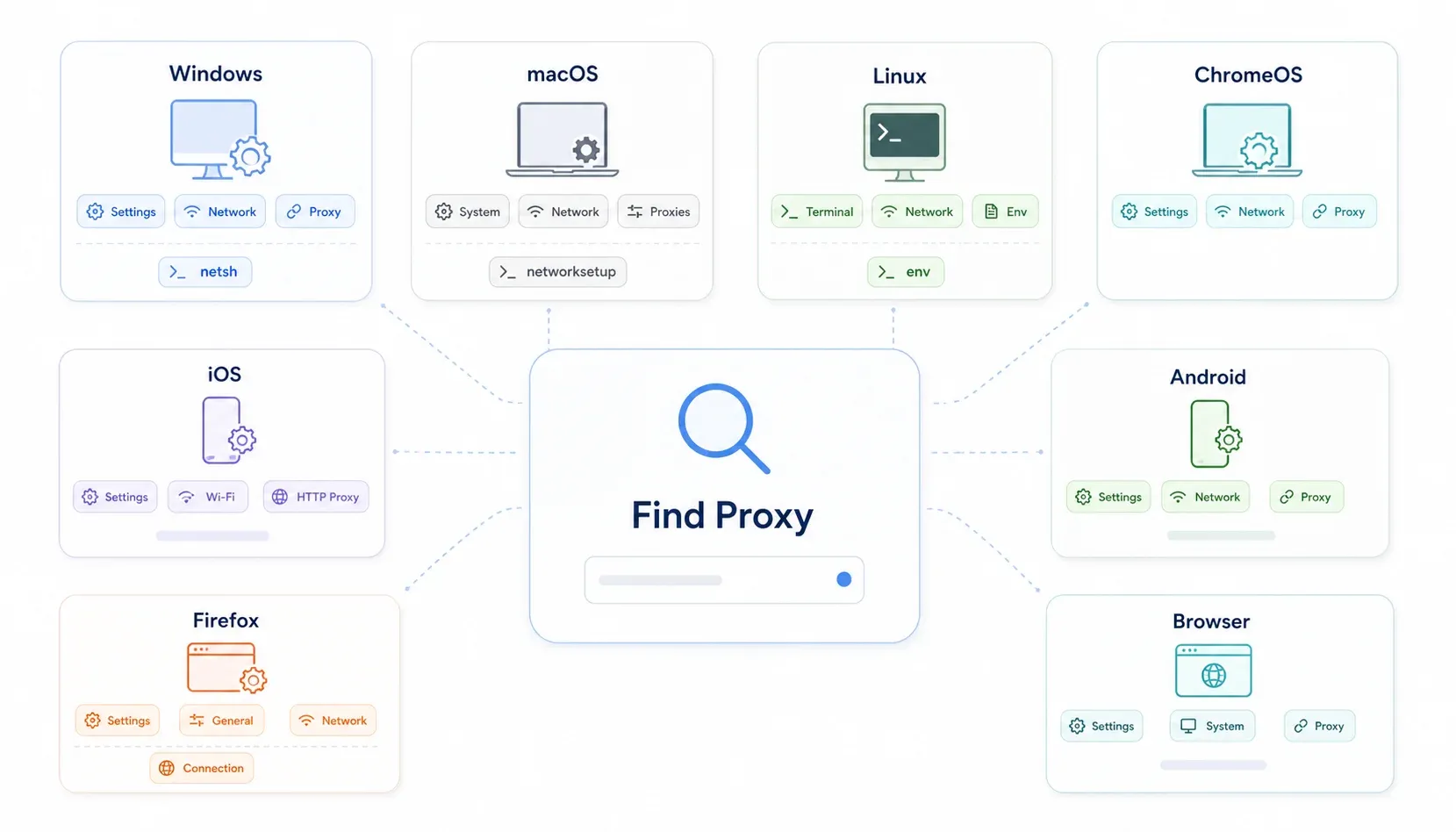
Quick-Reference Table: How to Find Proxy Server Address on Every Platform
Before we get into the step-by-step details, here's a scannable master reference. Bookmark this — you'll thank yourself later.
| Platform | Path to Proxy Settings | Also Check |
|---|---|---|
| Windows 10/11 | Settings → Network & Internet → Proxy | netsh winhttp show proxy |
| Windows (classic) | Control Panel → Internet Options → Connections → LAN Settings | Registry: HKCU\\Software\\Microsoft\\Windows\\CurrentVersion\\Internet Settings |
| macOS | System Settings → Network → [connection] → Details → Proxies | networksetup -getwebproxy Wi-Fi |
| Linux (GNOME) | Settings → Network → Network Proxy | `env |
| Chrome OS | Settings → Network → Wi-Fi → [network] → Proxy | Same path for all Chromebooks |
| iOS | Settings → Wi-Fi → (i) next to network → HTTP Proxy → Configure Proxy | Check MDM profiles |
| Android | Settings → Network & Internet → Wi-Fi → gear icon → Advanced → Proxy | Varies by manufacturer |
| Chrome | Inherits OS settings | chrome://settings/?search=proxy |
| Firefox | Settings → General → Network Settings → Settings | about:preferences#general |
| Safari | Inherits macOS settings | System Settings → Network → Proxies |
| Edge | Inherits OS settings | edge://settings/system |
Chrome, Edge, and Safari all inherit your operating system's proxy settings. Firefox is the exception — it maintains its own independent proxy configuration, which makes it a fantastic cross-check tool when something seems off.
How to Find Proxy Server Address on Windows
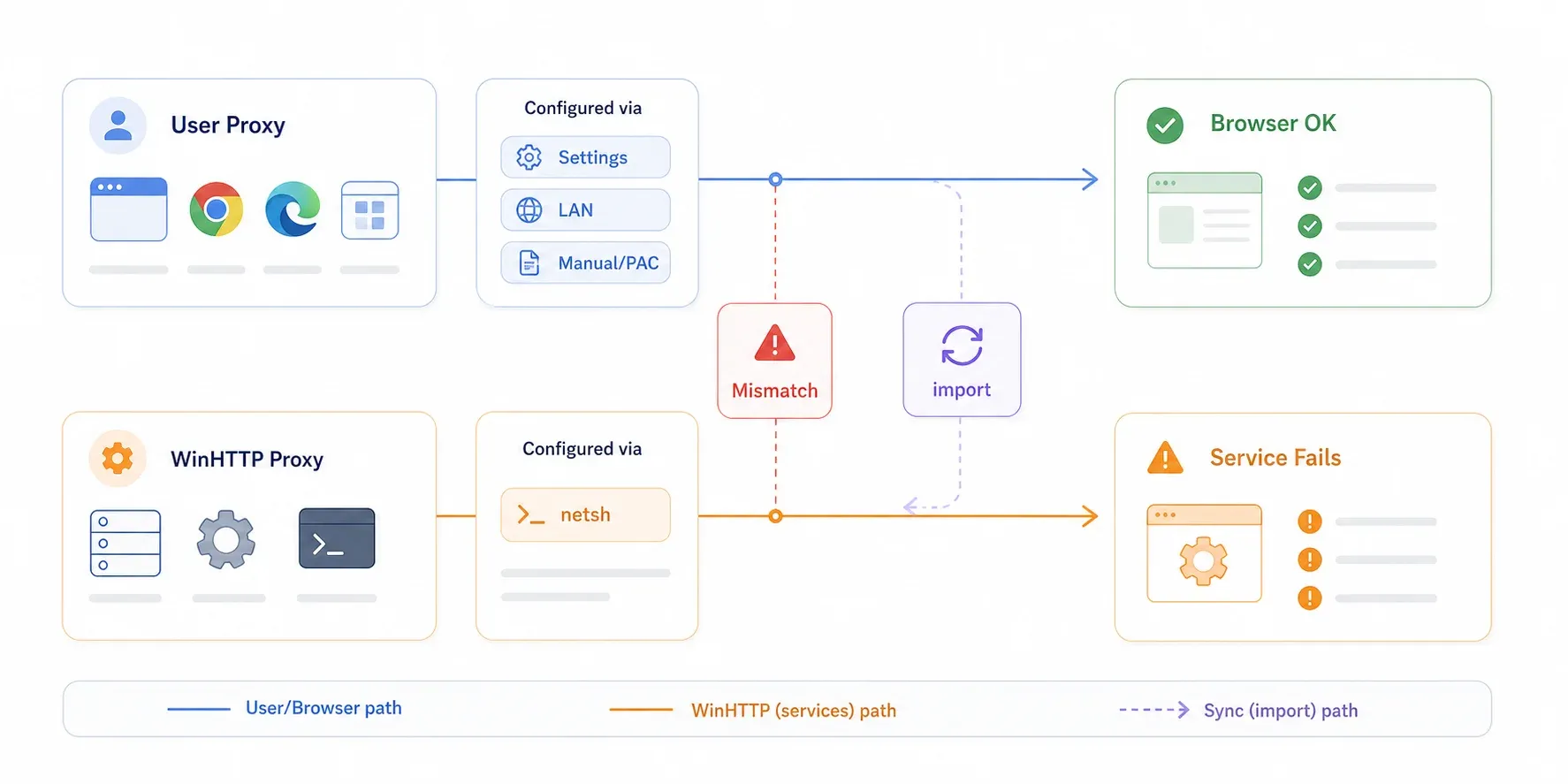
Windows is where most proxy confusion lives, partly because it actually maintains two separate proxy configurations: the WinINet/system user proxy (used by browsers and most desktop apps) and the WinHTTP proxy (used by background services and many enterprise tools). They can be set differently, which is a common source of "it works in Chrome but not in my app" headaches.
Method 1: Using Windows Settings (Windows 10/11)
- Open Settings (press Win + I)
- Click Network & Internet
- Click Proxy in the sidebar
You'll see two sections:
- Automatic proxy setup: Look for "Automatically detect settings" (toggle) and "Use setup script" (with a script address field). If a PAC URL is listed here, that's your auto-config script — not the proxy address itself. More on decoding that below.
- Manual proxy setup: If "Use a proxy server" is toggled on, you'll see an Address field and a Port field. That's your proxy server address.
If both sections are off, Windows isn't configured to use an explicit proxy at the user level. But don't stop here — your traffic could still be routed by a transparent proxy, VPN, or enterprise policy.
Method 2: Using Internet Options (Control Panel)
This classic route is especially useful on older Windows versions or in enterprise environments where the modern Settings app may be restricted.
- Open Control Panel → Internet Options
- Click the Connections tab
- Click LAN settings
In the dialog box, you'll see checkboxes for "Automatically detect settings," "Use automatic configuration script" (with a URL field), and "Use a proxy server for your LAN" (with address and port fields). The proxy address and port are right there if manual proxy is enabled.
This is the same data surface that Microsoft's official support page documents for Windows 10/11 proxy setup.
How to Find Proxy Server Address on macOS
macOS ties proxy settings to specific network services — Wi-Fi, Ethernet, USB-C adapter, and so on. Switching from Wi-Fi to Ethernet can change or deactivate your proxy. Keep that in mind if your proxy "disappears" when you plug in a cable.
- Click the Apple menu → System Settings
- Click Network in the sidebar
- Select your active connection (e.g., Wi-Fi)
- Click Details (or Advanced on older macOS versions)
- Click the Proxies tab
You'll see checkboxes for:
- Web Proxy (HTTP) — with server and port fields
- Secure Web Proxy (HTTPS) — with server and port fields
- SOCKS Proxy — with server and port fields
- Automatic Proxy Configuration — with a PAC URL field
If "Auto Proxy Discovery" is checked, macOS is using WPAD to find the proxy automatically. If "Automatic Proxy Configuration" shows a URL, that's a PAC file — jump to the PAC/WPAD section below to extract the actual proxy address.
Apple's official documentation confirms this path for current macOS versions.
How to Find Proxy Server Address on Mobile Devices (iOS and Android)
Mobile proxy settings are almost always per-Wi-Fi-network, not system-wide. A proxy configured on your office Wi-Fi won't follow you to your home network or cellular data. This catches people off guard constantly.
Finding Proxy Settings on iOS (iPhone and iPad)
- Open Settings → Wi-Fi
- Tap the (i) icon next to your connected network
- Scroll down to HTTP Proxy → tap Configure Proxy
You'll see three options:
- Off: No proxy
- Manual: Shows Server and Port fields — that's your proxy address
- Automatic: Shows a PAC URL
For managed devices, an MDM profile may enforce a Global HTTP Proxy that applies across all networks. Check Settings → General → VPN & Device Management for configuration profiles.
Finding Proxy Settings on Android
- Open Settings → Network & Internet (or Connections on Samsung)
- Tap Wi-Fi → tap the gear icon on your connected network
- Tap Edit → Advanced options → Proxy
The exact menu labels vary by manufacturer. Samsung uses "Connections → Wi-Fi → network settings → Advanced → Proxy." Google Pixel follows the path above more closely. Google's Android Help confirms proxy settings live under advanced network settings.
Android's native proxy UI often doesn't include username/password fields for authenticated proxies. If your corporate proxy requires authentication, you may need IP allowlisting, a third-party proxy client, or MDM configuration.
How to Find Proxy Server Address in Your Browser
Most browsers don't have their own proxy settings — they just redirect you to the operating system's configuration. But there's one important exception.
Google Chrome (and Why chrome://net-internals/#proxy No Longer Works)
If you've searched for proxy info in Chrome, you've probably seen advice to visit chrome://net-internals/#proxy. I've seen this tip in dozens of articles and forum posts. The problem? Google deprecated this page. In current Chrome versions, it's either blank or gone entirely. Chromium moved the NetLog viewer out of Chrome starting in 2018, and the old proxy tab is no longer maintained.
Here's what actually works in 2026:
chrome://settings/?search=proxy— redirects you to your OS proxy settingschrome://policy— shows if an enterprise policy is enforcing proxy configurationchrome://extensions— check if a proxy or VPN extension is controlling your traffic- Browser DevTools → Network tab — inspect response headers like
ViaandX-Forwarded-Foron any request. Caveat: HTTPS proxies may strip or hide these headers, so this isn't foolproof. - Third-party sites like whatismyproxy.com — a quick sanity check for external proxy detection
The Chromium proxy support documentation confirms that Chrome's proxy configuration can come from managed policy, command-line flags, extensions, or system settings.
Firefox: Your Best Cross-Check Tool
Firefox is special. It maintains independent proxy settings that don't depend on your OS configuration.
- Open Firefox → Settings (or type
about:preferences#general) - Scroll to Network Settings → click Settings
You'll see options for:
- No proxy
- Auto-detect proxy settings for this network
- Use system proxy settings
- Manual proxy configuration (shows HTTP Proxy, SSL Proxy, SOCKS Host — each with address and port)
- Automatic proxy configuration URL (a PAC URL)
If your OS shows no proxy but Firefox has one configured manually, that's your proxy address. I use Firefox as a diagnostic tool all the time — it's the fastest way to isolate whether a proxy issue is browser-specific or system-wide.
Mozilla's support page documents these options in detail.
Microsoft Edge and Safari
Both inherit OS settings. Edge has edge://settings/system → "Open your computer's proxy settings." Safari uses macOS network proxy settings directly. Neither has an independent proxy configuration panel.
How to Find Proxy Server Address Using Command-Line Tools
GUI settings sometimes lie — or at least, they don't tell the whole story. Command-line checks are especially valuable when proxy settings are managed by policy, hidden from the UI, or configured differently for services versus browsers.
Windows Command Prompt / PowerShell
Check WinHTTP proxy (used by services and enterprise apps):
netsh winhttp show proxy
Sample output when no proxy is configured:
Current WinHTTP proxy settings:

    Direct access (no proxy server).
Sample output with a proxy:
Current WinHTTP proxy settings:

    Proxy Server(s) :  proxy.corp.example:8080
    Bypass List     :  *.corp.example;<local>
Import user-level proxy settings to WinHTTP (useful when apps fail because WinHTTP doesn't match the browser proxy):
netsh winhttp import proxy source=ie
Microsoft Learn documents both commands. This import is a common fix when Windows Update or enterprise apps can't reach the internet but Chrome works fine.
Read-only registry check (for advanced users):
reg query "HKCU\Software\Microsoft\Windows\CurrentVersion\Internet Settings" /v ProxyServer
reg query "HKCU\Software\Microsoft\Windows\CurrentVersion\Internet Settings" /v ProxyEnable
macOS Terminal
networksetup -getwebproxy Wi-Fi
networksetup -getsecurewebproxy Wi-Fi
networksetup -getsocksfirewallproxy Wi-Fi
Sample output:
$ networksetup -getwebproxy Wi-Fi
Enabled: No
Server:
Port: 0
Authenticated Proxy Enabled: 0

$ networksetup -getsecurewebproxy Wi-Fi
Enabled: Yes
Server: proxy.corp.example
Port: 8080
Authenticated Proxy Enabled: 0
If your active network service isn't named "Wi-Fi," run networksetup -listallnetworkservices first to find the right name.
Linux Terminal
env | grep -i proxy
Sample output:
HTTPS_PROXY=http://proxy.corp.example:8080
HTTP_PROXY=http://proxy.corp.example:8080
NO_PROXY=localhost,127.0.0.1,.corp.example
For GNOME desktop settings:
gsettings get org.gnome.system.proxy mode
gsettings get org.gnome.system.proxy.http host
gsettings get org.gnome.system.proxy.http port
Many Linux CLI tools respect the HTTP_PROXY, HTTPS_PROXY, and NO_PROXY environment variables. If those are set, that's your proxy address for command-line operations.
How to Decode Auto-Config Scripts (PAC and WPAD) to Find the Real Proxy Address
This is the section I wish existed when I first encountered a PAC URL in my proxy settings. You expect an IP address and port. Instead: https://proxy.corp.example/proxy.pac. Where's the actual proxy?
A PAC (Proxy Auto-Configuration) file is a small JavaScript file that tells your browser which proxy to use for different URLs. Enterprises use them to route traffic dynamically — internal sites go direct, SaaS apps go through one proxy, everything else through another. MDN's PAC documentation defines the standard FindProxyForURL(url, host) function and its return values.
WPAD (Web Proxy Auto-Discovery) is the protocol that automatically locates the PAC file on a network without any manual configuration. When "Automatically detect settings" is checked, your device is using WPAD.
How to Read a PAC File and Extract the Proxy Address
Step 1: Copy the PAC URL from your proxy settings (it usually ends in .pac or .dat).
Step 2: Open that URL in a browser or download it with curl. It's just a text file containing JavaScript.
Step 3: Search for the keyword PROXY inside the file. Lines like return "PROXY 10.0.0.1:8080" reveal the actual proxy IP and port.
Here's an annotated example:
function FindProxyForURL(url, host) {
  // Internal hostnames go direct — no proxy needed
  if (isPlainHostName(host)) {
    return "DIRECT";
  }

  // Company intranet stays off the proxy
  if (dnsDomainIs(host, ".corp.example")) {
    return "DIRECT";
  }

  // SaaS and public HTTPS traffic through the primary proxy
  if (shExpMatch(host, "*.salesforce.com") || shExpMatch(url, "https://*")) {
    return "PROXY proxy-us.corp.example:8080; PROXY proxy-backup.corp.example:8080; DIRECT";
  }

  // Default: everything else through the global proxy
  return "PROXY proxy-global.corp.example:8080";
}
Notice the semicolons — PAC files can specify fallback proxies. If the first proxy is down, the browser tries the next one, and DIRECT means "go without a proxy as a last resort."
How to Find the PAC File When WPAD Is Enabled
If "Automatically detect settings" is checked but no PAC URL is visible, the network is using WPAD auto-discovery. Try these:
- Open
http://wpad/wpad.datin a browser — this is the default WPAD URL - Check your DHCP settings or DNS for a
wpadentry - Ask your network administrator (sometimes the fastest path)
If you can reach the file, read it the same way as above.
Quick Scenario Decision Table
| What You See in Settings | What It Means | What to Do |
|---|---|---|
| IP address and port visible | Manual proxy configured | Copy the address and port directly |
A URL ending in .pac or .dat | Auto-config script (PAC) | Download the file, search for PROXY keyword |
| "Automatically detect settings" checked | WPAD enabled | Try http://wpad/wpad.dat or check DNS/DHCP |
| No proxy settings visible at all | Direct, VPN, extension, policy, or transparent proxy | Continue to the next section |
"No Proxy Configured" — But Something's Still Routing Your Traffic
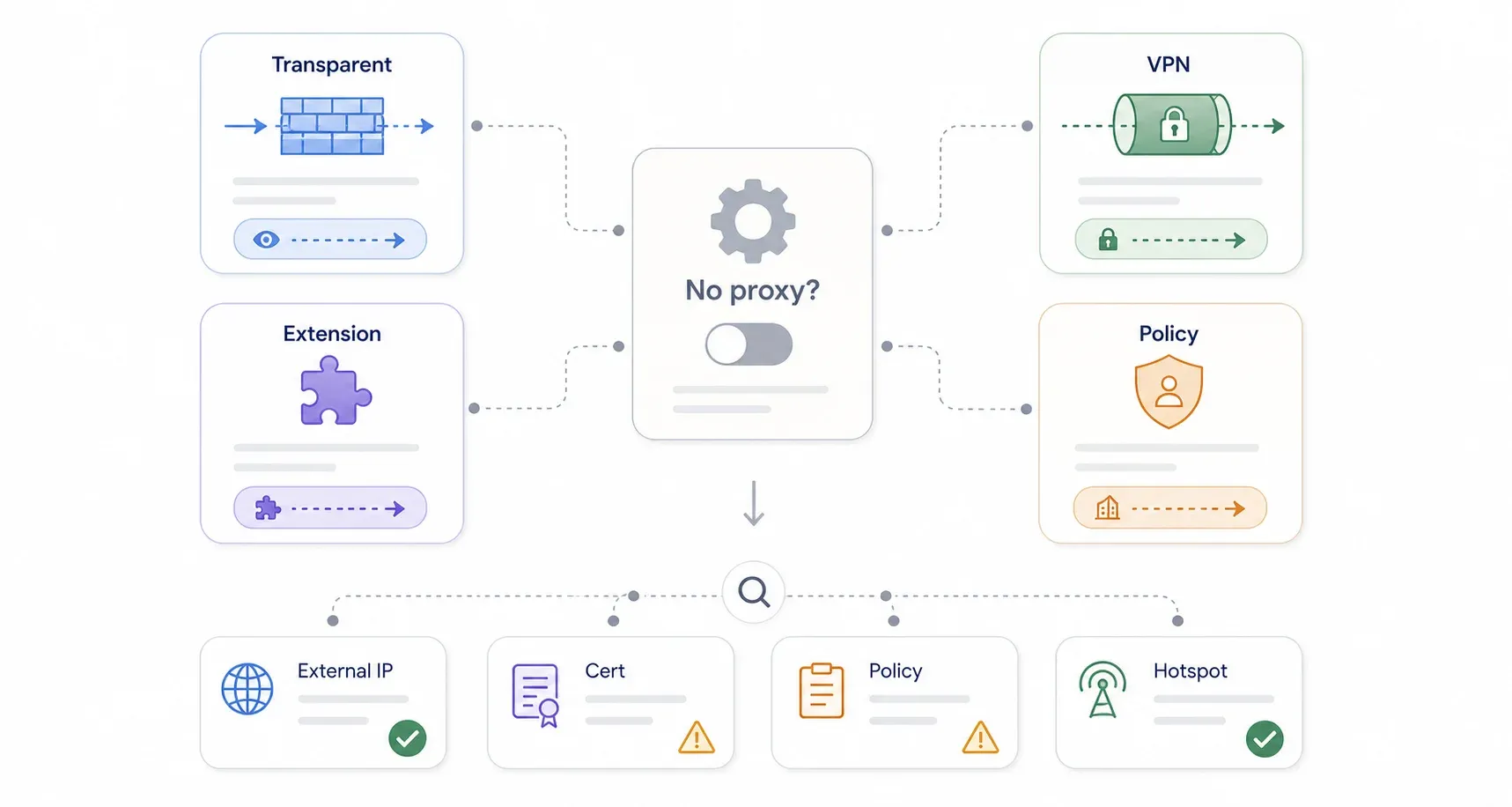
This is the scenario that drives people up the wall. Your settings say "Off" or "Direct." Chrome says no proxy. Yet your browsing behavior is clearly being filtered, redirected, or throttled. What's going on?
Multiple culprits can route your traffic without leaving a trace in proxy settings.
Transparent (Intercepting) Proxies
Common in schools, offices, hotels, and public Wi-Fi. A transparent proxy intercepts outbound web traffic at the network level — the router or firewall redirects it before it ever leaves the building. Your device truthfully reports "no proxy configured" because it isn't configured to talk to one. The network is doing it behind your back.
How to detect: Visit an IP-check site like whatismyip.com from your browser. Then do the same from a mobile hotspot or home network. If the external IP is different and you're not on a VPN, something on the corporate network is acting as an intermediary. Also check your HTTPS certificate chain — if you see a corporate root CA (like "Company Name Root CA") on public websites, TLS inspection is happening, which usually means a proxy or secure web gateway.
You'll see advice elsewhere to "compare local IP vs. external IP." Your local private IP (like 192.168.x.x) will almost always differ from your public IP — that's just NAT, even on a home network with no proxy. The comparison that actually matters is your external IP on the corporate network versus your external IP on a personal hotspot.
VPN Extensions and Apps
VPN apps create an encrypted tunnel, not a traditional proxy entry. Your proxy settings remain blank, but all your traffic routes through the VPN provider's servers.
Check for active VPN connections in your system tray, browser extensions, or Settings → VPN. On Chrome, chrome://extensions may reveal a proxy-controlling extension you forgot you installed.
Enterprise MDM / Group Policy
On managed corporate devices, proxy settings may be pushed via Group Policy (Windows), MDM profiles (macOS/iOS), or Intune/Jamf policies — and hidden from the normal Settings UI.
- Windows: Run
netsh winhttp show proxyor checkchrome://policyfor proxy-related policies - macOS: Check System Settings → Privacy & Security → Profiles (or General → Device Management)
- iOS: Settings → General → VPN & Device Management
Diagnostic Flowchart
Work through this decision tree:
Settings show a proxy?
  → YES → Copy address, port, PAC URL, and bypass rules
  → NO → Is a VPN, secure web gateway client, or proxy extension active?
        → YES → Check that app/extension's config or ask IT
        → NO → Is the device managed by MDM/GPO/profile?
              → YES → Check Profiles, chrome://policy, registry, or ask IT
              → NO → Compare external IP across networks; check certificate chain
                    → Signs of intermediary? → Likely transparent proxy (contact admin)
                    → No signs? → Probably no proxy for this network
With Gartner predicting 25% of organizations will deploy a secure enterprise browser by 2028 and 14% of enterprises already having deployed SASE, the trend is clear: more proxy-like behavior is moving into cloud security layers and managed browsers, making it less visible in traditional OS settings.
Why Proxy Settings Matter for Web Scraping (and How Thunderbit Helps)
I spend a lot of my time thinking about this intersection. At Thunderbit, we see users every week who run into proxy-related scraping failures — especially on corporate networks. The scraping tool loads a blank page, returns incomplete data, or gets a mysterious 407 error, and the user has no idea their proxy is the culprit.
The failure modes are predictable:
- A corporate proxy blocks the target site category, returning an internal block page instead of the expected HTML
- PAC logic routes the target domain through a proxy but sends API calls or assets direct, causing partial page loads
- TLS inspection breaks certificate validation in non-browser tools
- Proxy authentication returns a 407 error that the scraping library logs as a generic network failure
- A transparent proxy caches or rewrites content, producing stale or incomplete results
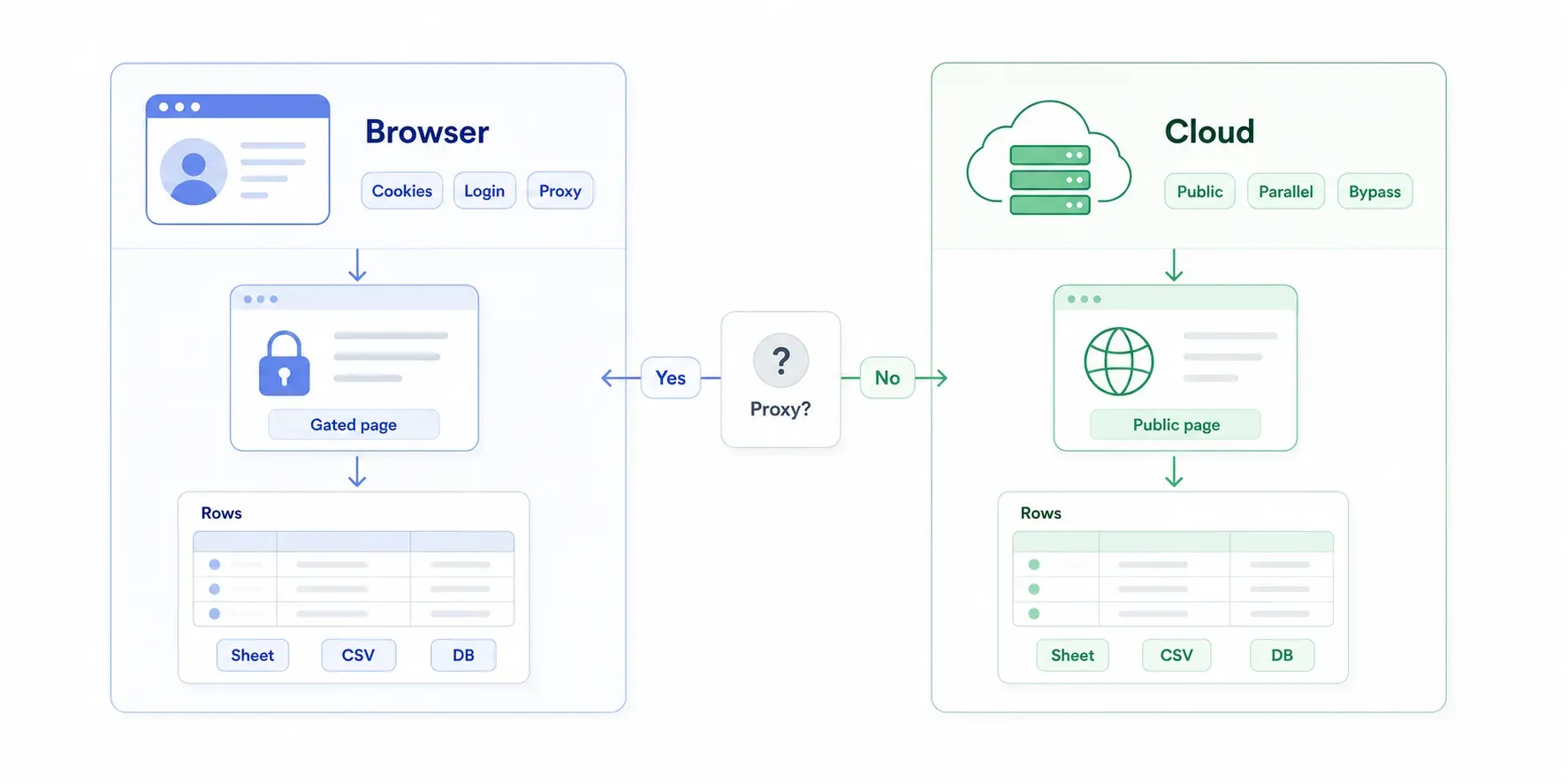
The Thunderbit AI Web Scraper Chrome Extension handles this with two scraping modes:
| Proxy Situation | Best Thunderbit Mode | Why |
|---|---|---|
| Internal/login-protected site only accessible from corporate browser | Browser Scraping | Uses your local Chrome session, cookies, and current network path — including your proxy |
| Public website fails due to local proxy misconfiguration | Cloud Scraping | Bypasses your local proxy/VPN/PAC settings entirely |
| Large public scraping job (50+ pages) | Cloud Scraping | Runs on Thunderbit's cloud infrastructure in parallel |
| Site requires manual interaction or personalized state | Browser Scraping | Preserves your authenticated browser session |
| Compliance requires corporate egress logging | Browser Scraping or ask IT | Cloud scraping may bypass required corporate controls |
Browser Scraping inherits your current proxy and network configuration — ideal when you need to access internal sites or login-protected pages. Cloud Scraping uses Thunderbit's own servers, completely bypassing local proxy complexity. Both modes use Thunderbit's AI to suggest columns automatically, so there's no technical configuration — just click "AI Suggest Fields" and scrape. Data exports free to Excel, Google Sheets, Airtable, or Notion.
If proxy misconfiguration is silently killing your scraping results, switching from Browser to Cloud mode is often the fastest fix — I've seen it save people hours of troubleshooting. For more on scraping approaches, check out our guide on how to scrape the web.
Troubleshooting Common Proxy Issues
Even after you've found your proxy address, things can still go sideways.
Websites Won't Load or Show Connection Errors
Usually caused by an incorrect proxy address or port — double-check every digit. Try temporarily disabling the proxy to confirm it's the source. The error ERR_PROXY_CONNECTION_FAILED in Chrome means the browser can't reach the configured proxy at all.
407 Proxy Authentication Required
The proxy wants credentials before forwarding your request. Add your proxy username/password where supported, refresh your SSO/Kerberos session, or ask IT for IP-based allowlisting.
Slow Internet Through Proxy
Every proxy adds a hop and some latency. Distance to the proxy server and server load both matter. If speed is critical, consider switching to a closer proxy, temporarily disabling for speed-sensitive tasks, or using a tool with cloud scraping that avoids the local proxy path.
Some Apps Work but Browsers Don't (or Vice Versa)
This is the classic WinINet vs. WinHTTP mismatch on Windows. Browsers use the user-level proxy (visible in Settings/Internet Options), while background services use WinHTTP. Run netsh winhttp show proxy to check the service-level proxy and netsh winhttp import proxy source=ie to sync them if needed.
Common Proxy Error Codes
| Error/Status | Meaning | Practical Fix |
|---|---|---|
| 407 Proxy Authentication Required | Proxy needs credentials | Add credentials, refresh SSO, or request allowlisting |
| 502 Bad Gateway | Proxy got invalid upstream response | Retry; test direct connection |
| 503 Service Unavailable | Proxy or upstream temporarily down | Wait/retry; try backup proxy |
| 504 Gateway Timeout | Proxy didn't get timely upstream response | Try smaller request or closer proxy |
| ERR_PROXY_CONNECTION_FAILED | Browser can't reach proxy | Verify host, port, VPN, firewall, DNS |
| ERR_TUNNEL_CONNECTION_FAILED | HTTPS tunnel through proxy failed | Check proxy auth, TLS inspection, blocked ports |
Conclusion: Key Takeaways for Finding Your Proxy Server Address
Finding your proxy server address comes down to knowing where to look — and knowing that "no proxy" in Settings doesn't always mean no proxy is active.
The short version:
- GUI settings (Windows Settings, macOS System Settings, mobile Wi-Fi settings) are the first place to check for manual proxy addresses and PAC URLs
- Command-line tools (
netsh winhttp show proxy,networksetup,env | grep proxy) reveal proxy configurations that may not appear in the GUI - PAC files are just JavaScript — download them and search for
PROXYto find the actual address - Firefox has independent proxy settings and is your best cross-check tool
- Transparent proxies, VPNs, extensions, and MDM policies can all route your traffic without any visible proxy entry
- For web scraping, proxy misconfiguration is a common silent failure. Thunderbit's Cloud Scraping mode bypasses local proxy issues entirely — try it free
Bookmark the quick-reference table at the top of this article. The next time your browser mysteriously refuses to load a page, you'll know exactly where to start digging.
Try Thunderbit Cloud Scraping Get Started Free
FAQs
Is a proxy server address the same as an IP address?
No. An IP address identifies your device on the network (like 192.168.1.23). A proxy server address identifies the intermediary server routing your traffic (like proxy.corp.example:8080). They serve different purposes, and when a website sees your request, it typically sees the proxy's IP, not your device's.
How do I find my proxy server address using command prompt?
On Windows, open Command Prompt and run netsh winhttp show proxy. On macOS, open Terminal and run networksetup -getwebproxy Wi-Fi. On Linux, run env | grep -i proxy. Each command will display the proxy address and port if one is configured, or indicate direct access if no proxy is set.
Why can't I find my proxy server address in Chrome?
Chrome no longer has a built-in proxy viewer — the old chrome://net-internals/#proxy page was deprecated by Google. Chrome inherits OS-level proxy settings. Go to chrome://settings/?search=proxy to be redirected to your OS proxy settings, or check chrome://policy for enterprise-enforced proxy configurations. You can also use browser DevTools (Network tab) to inspect request headers for proxy fingerprints like Via or X-Forwarded-For.
What should I do if my settings show "no proxy" but my traffic is being redirected?
You may be behind a transparent proxy (common in corporate and school networks), using a VPN, or have proxy settings enforced via Group Policy or MDM. Compare your external IP on the corporate network versus a personal hotspot at whatismyip.com — if they differ and no VPN is active, something on the network is routing your traffic. Also check your HTTPS certificate chain for corporate root CAs. Contact your network administrator for details.
Can proxy settings affect web scraping?
Yes — significantly. Misconfigured proxies can cause scraping tools to fail silently, return incomplete data, or get blocked with 407 authentication errors. Tools like Thunderbit offer a Cloud Scraping mode that bypasses local proxy settings entirely, making it a practical workaround for users on complex corporate networks. Browser Scraping mode, on the other hand, inherits your local proxy configuration, which is useful for accessing internal or login-protected sites.
Learn More