

Every guide I found on setting up a proxy server started after the hard part — assuming you already had an address, a port number, and a clear idea of what you were doing. Most of us don't.
So I wrote the guide I wish existed when I first needed to route my browser traffic through a different region for price monitoring. This walkthrough covers the full journey: understanding proxy types, finding a provider, configuring on Windows 11, macOS Sequoia, Chrome, Edge, Firefox, and Safari, and then testing (and undoing) everything. All using 2026-era UI paths, because the screenshots in most competing articles are from 2022 at best.
Difficulty: Beginner
Time Required: ~10–15 minutes per platform
What You'll Need: A computer running Windows 11 or macOS (Sequoia-era), a browser (Chrome, Edge, Firefox, or Safari), and a proxy server address and port (we'll cover where to get those below)
What Is a Proxy Server (and Why Would You Need One)?

A proxy server sits between your device and the internet. When you browse through a proxy, your request goes to the proxy first, and the proxy forwards it to the destination website. The website sees the proxy's IP address — not yours.
That's the one-sentence version. Here's why non-technical business users actually care:
- Online privacy: Mask your real IP when browsing publicly.
- Accessing geo-restricted content: View a website as if you're in another country — useful for checking localized pricing, region-locked vendor portals, or international search results.
- Bypassing network restrictions: Get around overly aggressive office or campus firewalls (within policy, of course).
- Corporate compliance: Your IT department may require all traffic to route through a company proxy for security and logging.
- Web data collection: Scraping public product listings, business directories, or market data from multiple geographies.
For that last use case — data collection — tools like Thunderbit can handle proxy infrastructure automatically through Cloud Scraping, so you may not need to configure a proxy at all. More on that later.
Proxy demand is climbing fast. A 2026 Apify survey found that 65.8% of web scraping professionals used more proxies in 2025 than the year before, and 58.3% increased their proxy budgets. Residential proxy market estimates range from $670 million to $3.59 billion depending on who's counting, with projections pointing sharply upward through 2033.
Proxy Types Explained: Which One Should You Choose?
Before you touch a single settings menu, you need to know which proxy type to select. Windows, macOS, and Firefox all ask you to pick a protocol — and if you choose wrong, nothing works.
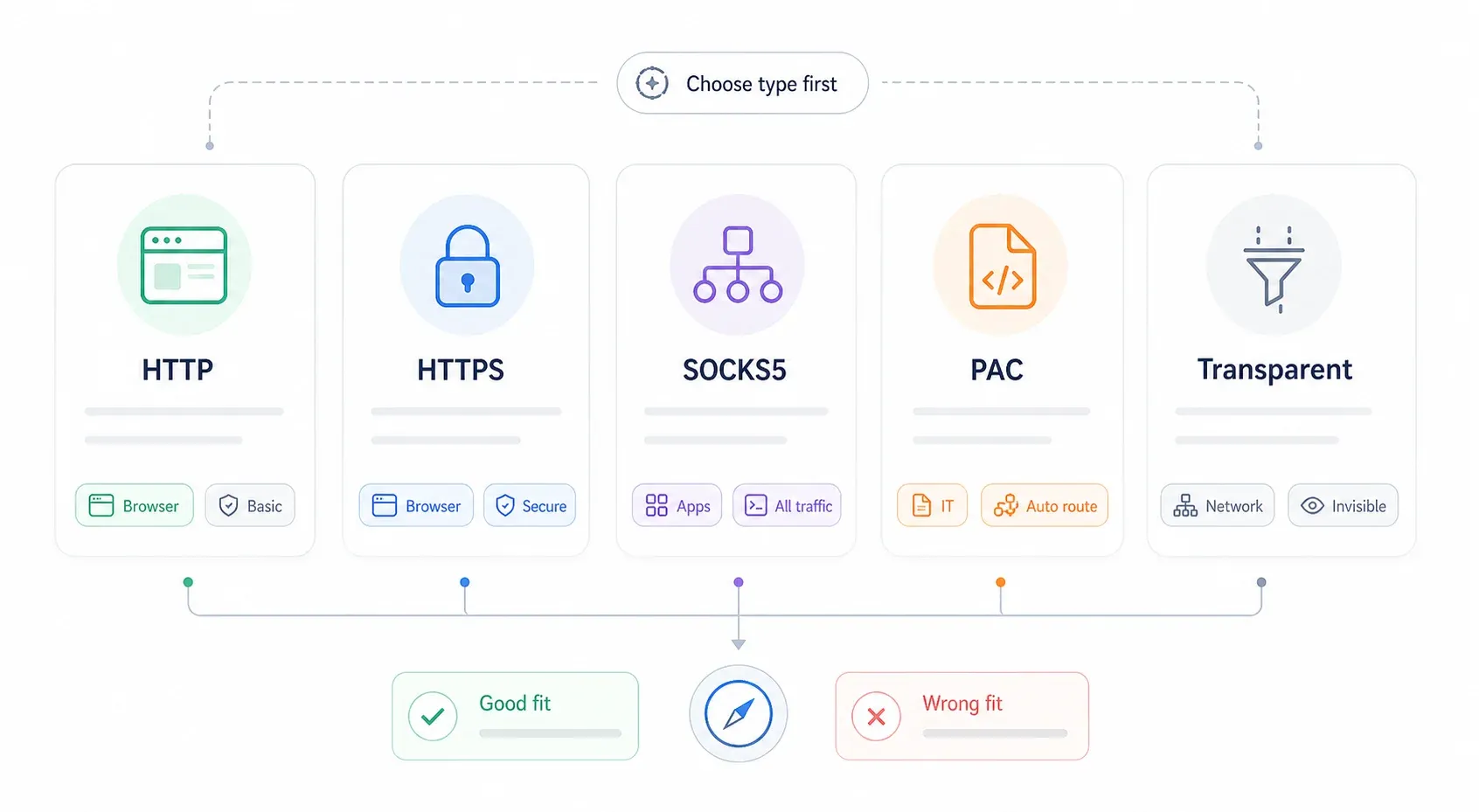
| Proxy Type | Protocol | Best Use Case | Encryption | Speed |
|---|---|---|---|---|
| HTTP Proxy | HTTP | Basic web browsing, content filtering | None | Fast |
| HTTPS (SSL) Proxy | HTTPS | Secure browsing, online banking | Yes (TLS end-to-end) | Fast |
| SOCKS5 Proxy | SOCKS | App-level routing, gaming, torrenting | Optional | Moderate |
| Transparent Proxy | HTTP | Corporate/school content filtering | None | Fast |
| PAC File (Auto-Config) | Various | Enterprise environments, conditional routing | Depends | Varies |
Quick decision guide:
- HTTP/HTTPS — Pick this for normal browser traffic. Most paid proxy providers give you an HTTP/HTTPS endpoint by default.
- SOCKS5 — Use when you need to route non-browser apps or when your provider specifically offers SOCKS5 endpoints. ProxyScrape notes that datacenter SOCKS5 supports TCP and UDP, while residential SOCKS5 is typically TCP only.
- PAC file — Only when your IT department or proxy provider gives you a script URL. You probably won't choose this yourself.
- Transparent — You don't configure this manually; the network does it for you.
Proxy Server vs. VPN: What's the Difference?
This comes up constantly. Microsoft's own documentation notes that VPN and proxy connections can look similar, but a VPN provides a more secure connection.
| Scope | Proxy Server | VPN |
|---|---|---|
| Scope | Per-app or per-browser | Entire device |
| Encryption | Usually none (except HTTPS/SOCKS5) | Always encrypted tunnel |
| Speed impact | Minimal | Moderate |
| Setup difficulty | Per-platform config | Install an app |
| Best for | Browser routing, scraping, specific app traffic | Full-device privacy, censorship bypass |
If you need full-device encryption on sketchy airport Wi-Fi, use a VPN. If you need one browser pointed at a specific region for price checks or data collection, a proxy is the right tool.
Where to Get a Proxy Server Address (Before You Start)
This is the section every other guide skips. You can't configure a proxy without a server address, port number, and (usually) credentials. Here's where those come from:
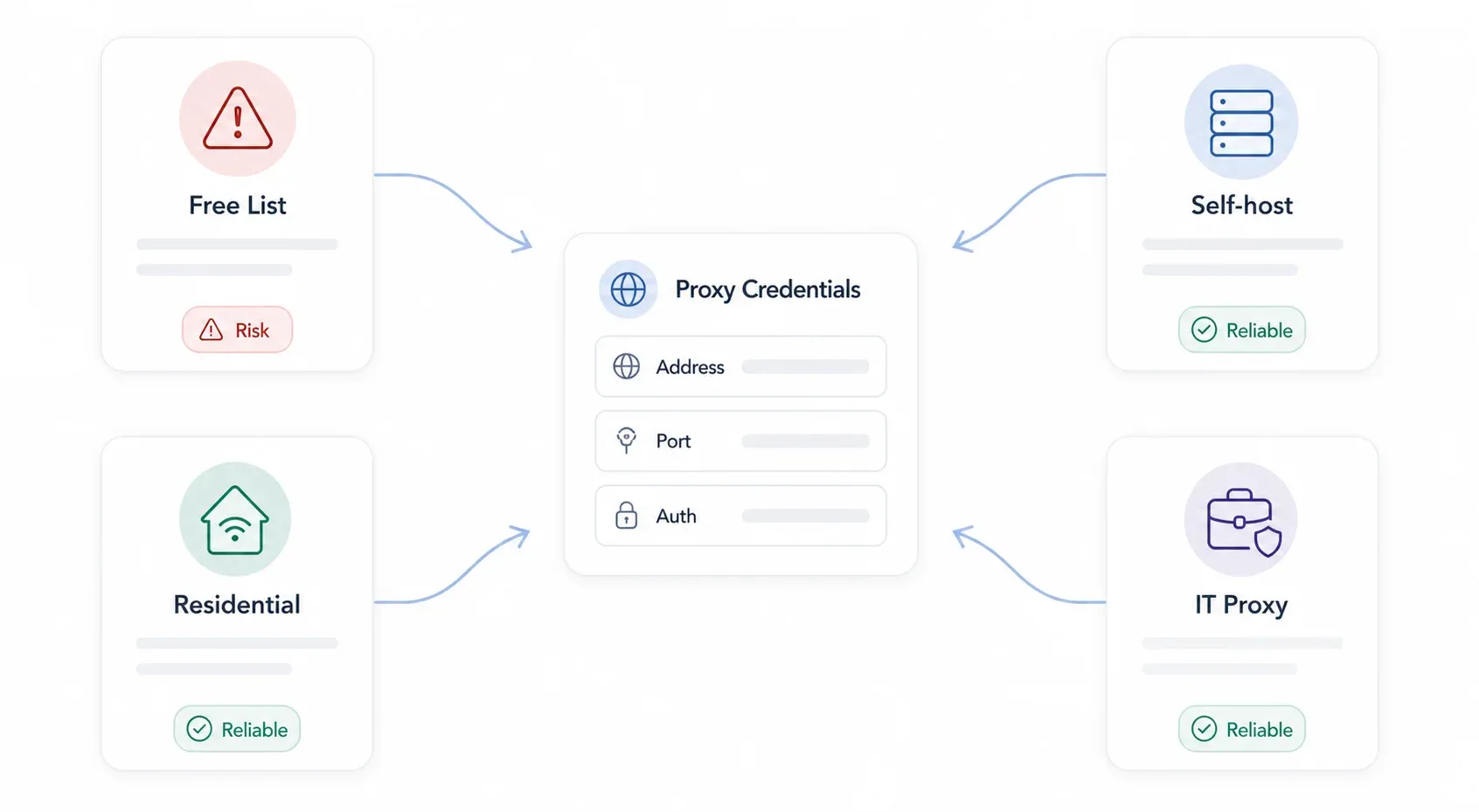
| Proxy Source | Cost | Best For | Example Providers |
|---|---|---|---|
| Free proxy lists | Free | Quick testing, low-risk browsing | ProxyScrape, free-proxy-list.net |
| Paid residential proxies | ~$4–75/mo | Geo-unblocking, reliable speed, scraping | Bright Data, Smartproxy, Webshare |
| Self-hosted proxy (Squid, tinyproxy) | Free (+ server cost) | Full control, custom setups | Home server, VPS (DigitalOcean, Linode) |
| Enterprise/corporate proxy | Provided by IT | Workplace compliance | Zscaler, Cisco Umbrella |
A word on free proxies: a 2024 academic study found that only 34.5% of collected free proxies were even active during testing, and the researchers flagged significant privacy and security risks. Free lists are fine for a quick test on a throwaway task. Do not use them for anything involving logins, banking, or sensitive data.
Paid providers like Decodo list residential pay-as-you-go at $4/GB, while Webshare starts proxy servers from $1.99/month. Most paid services authenticate via username/password or IP whitelisting — check your provider's dashboard for the exact credentials before you start.
Thunderbit angle: If your reason for wanting a proxy is web data collection, you might not need one at all. Thunderbit's Cloud Scraping mode routes requests through cloud servers in the US, EU, and Asia — scraping up to 50 pages at a time — so manual proxy configuration is unnecessary for most scraping workflows.
Which Browsers Use System Proxy Settings (and Which Don't)
I've watched people waste hours on this. Some browsers have their own proxy settings. Others just open your OS settings and call it a day.
If you don't understand this distinction upfront, you'll configure a proxy in Chrome and wonder why your entire computer's traffic is now routed through it.
| Browser | Uses System Proxy? | Has Its Own Proxy Settings? | Extension Workaround? |
|---|---|---|---|
| Google Chrome | Yes | No | ZeroOmega (SwitchyOmega 3) |
| Microsoft Edge | Yes | No | ZeroOmega |
| Safari (macOS) | Yes | No | Limited |
| Mozilla Firefox | No (by default) | Yes — built-in | FoxyProxy Standard |
| Brave | Yes (Chromium-based) | No | ZeroOmega |
| Opera | Partial | Built-in VPN/Proxy | Yes |

The practical takeaway: if you only want the proxy in one browser, Firefox is the simplest path. If you use Chrome or Edge, you'll either configure at the OS level (affecting everything) or install a browser extension for per-browser control.
One forum user summed it up perfectly: "Chrome uses your IE settings. So, setup the proxy in Firefox." That advice is a decade old, but the underlying behavior hasn't changed — Chrome and Edge still delegate to the OS.
How to Set Up a Proxy Server on Windows 11
Manual Proxy Setup on Windows 11
The most common method. Here's the exact path on a current Windows 11 build:
Step 1: Open Settings (press Win + I).
Step 2: Click Network & internet in the left sidebar.
Step 3: Click Proxy.
Step 4: Under Manual proxy setup, click Set up (or the "Edit" button next to "Use a proxy server").
Step 5: Toggle Use a proxy server to On.
Step 6: Enter your Proxy IP address and Port from your proxy provider.
Step 7: (Optional) In the exceptions field, add addresses that should bypass the proxy. Use semicolons to separate entries — for example, *.contoso.com;*.internal.local;localhost. Microsoft recommends checking "Don't use the proxy server for local (intranet) addresses" unless your organization requires proxying intranet traffic.
Step 8: Click Save.
You should now see the proxy status reflected under the Proxy settings page. If your proxy requires username/password authentication, Windows will typically prompt you the first time your browser sends traffic through it.
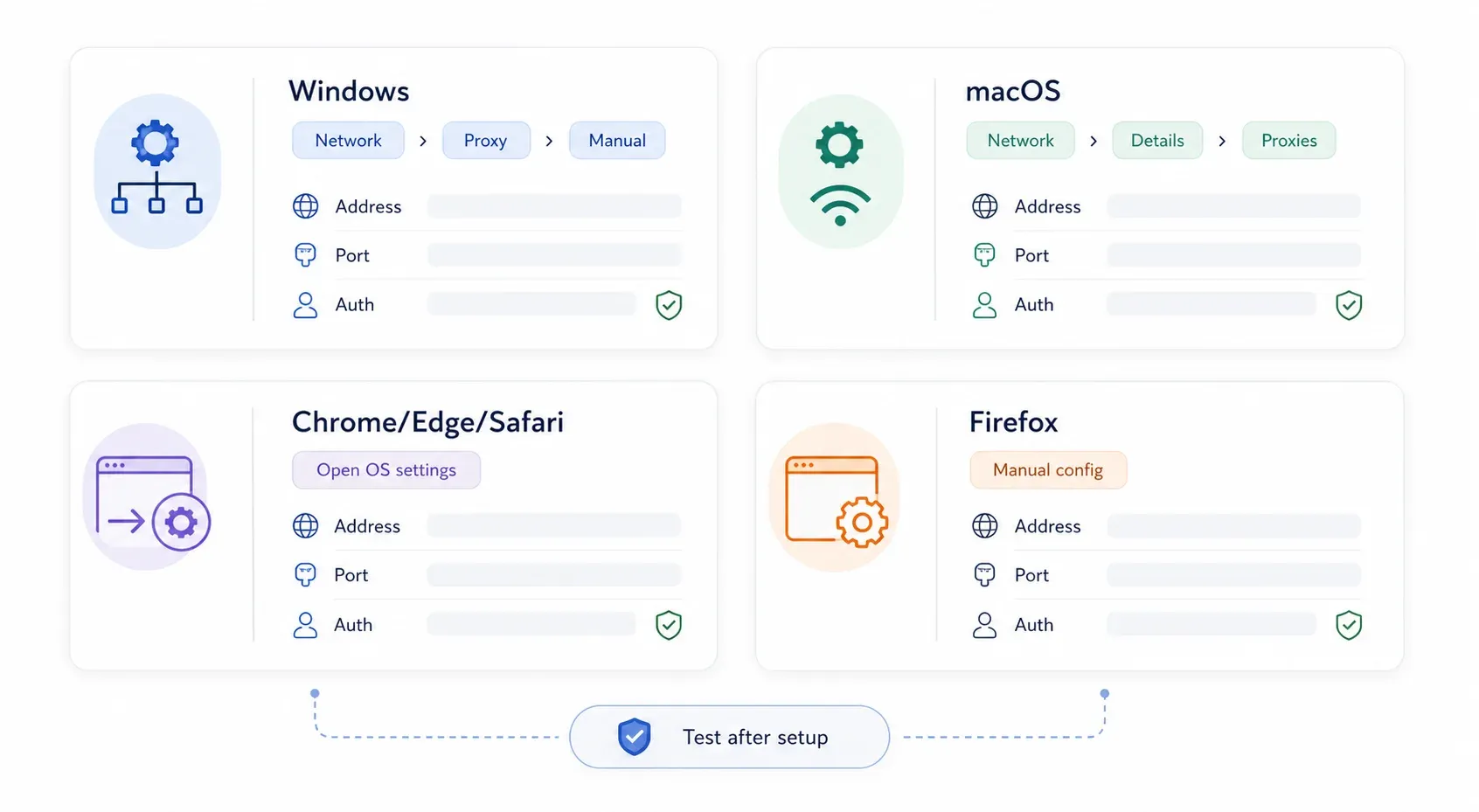
Automatic Proxy Setup (PAC File) on Windows 11
If your IT department or proxy provider gave you a PAC (Proxy Auto-Configuration) script URL:
Step 1: Open Settings → Network & internet → Proxy.
Step 2: Under Automatic proxy setup, click Set up next to "Use setup script."
Step 3: Toggle Use setup script to On.
Step 4: Enter the Script address (the PAC URL your provider gave you).
Step 5: Click Save.
A PAC file is essentially a small JavaScript file that tells your computer "send this traffic through the proxy, send that traffic direct." It's common in corporate environments.
Windows 10 Differences (Quick Note)
If you're still on Windows 10, the path is nearly identical: Settings → Network & Internet → Proxy. The main difference is visual — Windows 10 shows the automatic and manual sections on a single scrollable page, while Windows 11 puts manual setup behind a sub-dialog. The fields themselves (address, port, exceptions) are the same.
How to Set Up a Proxy Server on Mac (macOS Sequoia)
If any guide tells you to open "System Preferences," it's outdated — Apple renamed it to System Settings starting with Ventura.
Manual Proxy Setup on macOS
Step 1: Click the Apple menu → System Settings.
Step 2: Click Network in the sidebar.
Step 3: Select your active connection — Wi-Fi or Ethernet.
Step 4: Click Details.
Step 5: Click the Proxies tab.
Step 6: Turn on the proxy type you need:
- Web Proxy (HTTP) — for HTTP traffic
- Secure Web Proxy (HTTPS) — for HTTPS traffic
- SOCKS Proxy — for SOCKS5 routing
Step 7: Enter the Server address and Port.
Step 8: If your proxy requires authentication, check Proxy server requires password and enter your username and password. Apple documents this checkbox for each proxy type.
Step 9: Optionally configure bypass rules under "Bypass proxy settings for these hosts & domains."
Step 10: Click OK, then confirm/apply.
[screenshot: macOS Sequoia System Settings → Network → Wi-Fi → Details → Proxies panel with Web Proxy enabled]
Auto Proxy Configuration on macOS
In the same Proxies tab:
Step 1: Enable Automatic Proxy Configuration.
Step 2: Enter the PAC file URL in the URL field.
Step 3: Click OK and apply.
There's also an Auto Proxy Discovery toggle for enterprise environments that use WPAD (Web Proxy Auto-Discovery). Unless your IT team told you to enable it, leave it off.
How to Set Up a Proxy Server in Google Chrome
Chrome has no independent proxy settings on desktop. Navigate to proxy configuration in Chrome and it literally opens your operating system's settings dialog.
Step 1: Open Chrome.
Step 2: Go to Settings → System (or type chrome://settings/system in the address bar).
Step 3: Click Open your computer's proxy settings.
Step 4: This opens either the Windows 11 or macOS proxy dialog. Follow the OS-specific steps above.
Any proxy you configure here applies to Chrome, Edge, and every other app that respects system proxy settings.
Using a Chrome Extension for Per-Browser Proxy Control
If you want the proxy only in Chrome — without affecting your entire system — you need an extension. The current go-to is Proxy SwitchyOmega 3 (ZeroOmega). The original SwitchyOmega has been largely superseded due to Chrome's Manifest V3 changes.
Step 1: Install ZeroOmega from the Chrome Web Store.
Step 2: Click the extension icon → Options.
Step 3: Create a new proxy profile.
Step 4: Select the protocol (HTTP, HTTPS, or SOCKS5).
Step 5: Enter the host, port, and credentials if prompted.
Step 6: Save, then switch to the profile from the toolbar icon.
This approach also works for Brave and other Chromium-based browsers.
One caveat: extension-based proxying may not cover every network path. WebRTC and certain DNS requests can leak your real IP. For sensitive workflows, test with an IP checker and a DNS leak test after configuring.
How to Set Up a Proxy Server in Microsoft Edge
Edge is Chromium-based, so it behaves identically to Chrome regarding proxies — it delegates to the OS.
Step 1: Open Edge.
Step 2: Go to Settings → System and performance. (IPnProxy documents this path.)
Step 3: Click Open your computer's proxy settings.
Step 4: Configure at the OS level using the Windows 11 or macOS steps above.
For per-browser proxy control in Edge, the same ZeroOmega extension works via the Edge Add-ons store or Chrome Web Store compatibility. Enterprise environments may restrict extension installation, so check with IT first.
How to Set Up a Proxy Server in Mozilla Firefox
Firefox is the outlier. Mozilla's documentation confirms it has its own built-in proxy settings, independent of the OS — which makes it the best choice when you want a proxy in only one browser.
Using Firefox's Built-In Proxy Settings
Step 1: Open Firefox.
Step 2: Click the menu (☰) → Settings.
Step 3: Scroll down to Network Settings under the General tab.
Step 4: Click Settings… (or "Configure proxy").
Step 5: Select Manual proxy configuration.
Step 6: Enter your proxy details:
- HTTP Proxy and port — for HTTP traffic
- SSL Proxy and port — for HTTPS traffic (Firefox labels it "SSL Proxy" in the dialog)
- SOCKS Host and port — for SOCKS routing
Step 7: If you're using one proxy for all protocols, you can check the option to use the HTTP proxy for HTTPS as well.
Step 8: Add bypass addresses in the No Proxy for field (e.g., localhost, 127.0.0.1, .internal.company.com).
Step 9: If using SOCKS5, check Proxy DNS when using SOCKS v5 — this prevents your local machine from performing DNS lookups that could leak your real location.
Step 10: Click OK.
You should now see Firefox routing through the proxy while Chrome, Edge, and the rest of your system remain unaffected.
Firefox also offers a Use system proxy settings option, which tells it to follow whatever the OS has configured. And there's an Automatic proxy configuration URL field for PAC files.
[screenshot: Firefox Network Settings dialog with Manual proxy configuration selected, showing HTTP Proxy, SSL Proxy, and SOCKS Host fields]
Using FoxyProxy for Advanced Proxy Switching
If you juggle multiple proxies — say, one for US traffic and another for EU — FoxyProxy Standard makes switching fast. It's a Firefox (and Chrome) extension for toggling between proxy profiles by tab, URL pattern, or manual dropdown.
Install it, add your proxy profiles with host/port/credentials, and switch from the toolbar. It's been around for years and remains actively maintained on Mozilla Add-ons.
How to Set Up a Proxy Server in Safari
No surprises here: Safari delegates entirely to macOS system-level proxy settings. There's no independent proxy configuration within the browser.
Step 1: Open Safari.
Step 2: Go to Safari → Settings (not "Preferences" — Apple updated the terminology).
Step 3: Click Advanced.
Step 4: Next to Proxies, click Change Settings…
Step 5: This opens the macOS System Settings → Network → Proxies panel. Follow the macOS steps above.
For iOS/iPadOS, Safari uses the per-network Wi-Fi proxy setting: Settings → Wi-Fi → tap the info (i) icon next to your network → HTTP Proxy → Manual (then enter server and port). This is useful if you need to proxy on an iPhone or iPad, but it's a per-network configuration, not a global one.
How to Test, Troubleshoot, and Remove Your Proxy Settings
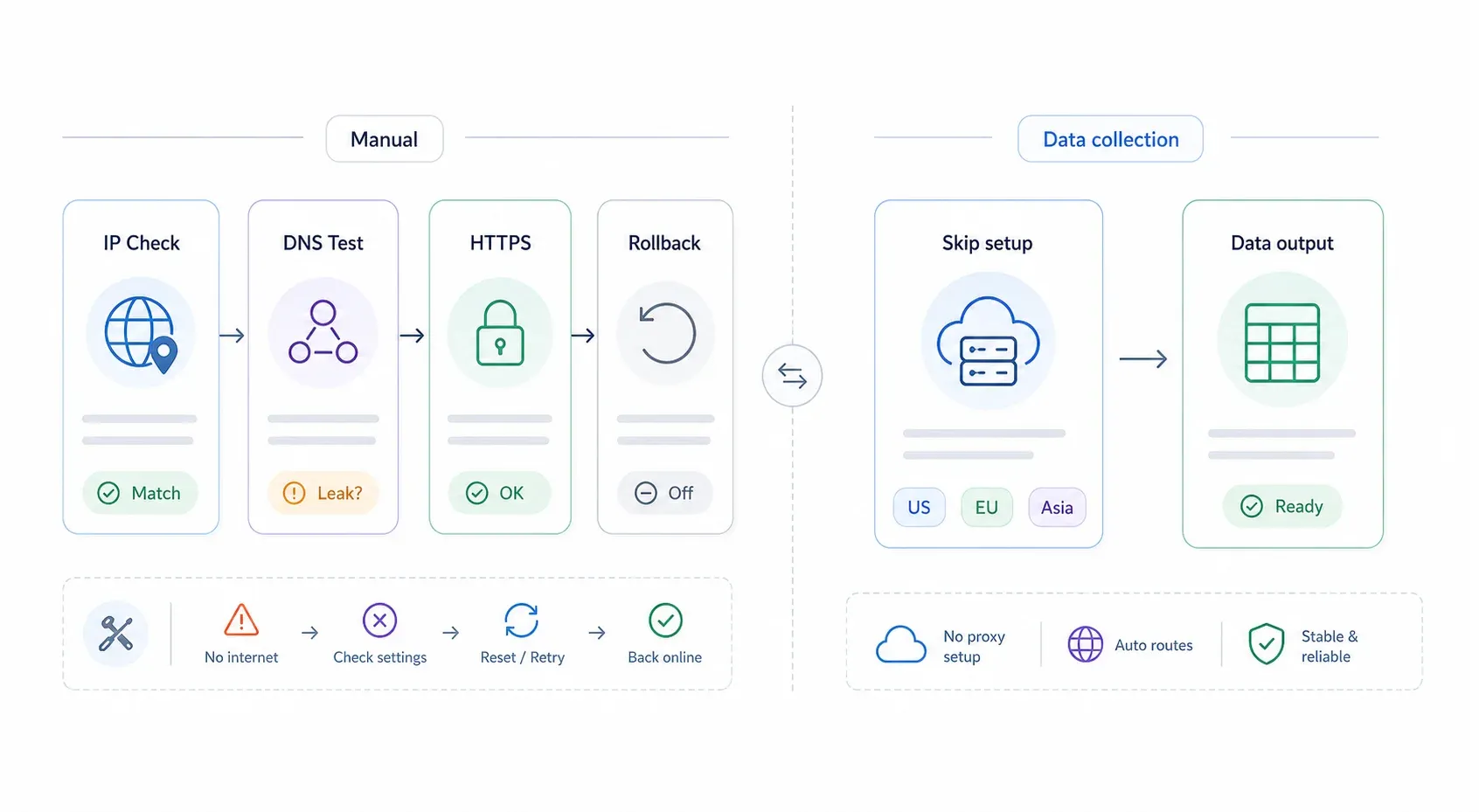
Configuring a proxy is only half the job. Without a verification step and a fast rollback plan, you'll end up staring at a "No Internet" error with no escape route.
How to Verify Your Proxy Is Working
- Check your public IP: Visit whatismyipaddress.com or ipinfo.io. If the displayed IP and location match your proxy's exit point (not your ISP), traffic is routing correctly.
- Test for DNS leaks: Go to dnsleaktest.com and run the extended test. The DNS servers should correspond to the proxy or its network, not your local ISP.
- Test HTTPS separately: Open a few HTTPS sites (your bank, Google, etc.). Some basic or free proxies only handle HTTP traffic — if HTTPS pages fail, you may need a different proxy type.
Troubleshooting Common Proxy Issues
| Symptom | Likely Cause | Fix |
|---|---|---|
| No internet after enabling proxy | Wrong address or port, or the proxy is dead | Disable proxy, re-check provider dashboard, retry with known-good endpoint |
| "Proxy authentication required" error | Missing or wrong credentials | Re-enter username/password; check if provider uses IP whitelisting instead |
| HTTPS sites won't load | HTTP-only proxy | Switch to an HTTPS-capable proxy or SOCKS5 |
| Slow browsing | Overloaded free proxy or distant exit node | Switch to a paid provider or a geographically closer server |
| Proxy works in Firefox but not Chrome | Firefox has independent settings; Chrome uses OS settings | Configure proxy at the OS level for Chrome/Edge, or use a browser extension |
| Internal company sites break | Missing bypass rules | Add localhost, 127.0.0.1, and internal domains to the exceptions/bypass list |
How to Disable or Remove Proxy Settings
This is your escape hatch. Bookmark this section.
- Windows 11: Settings → Network & internet → Proxy → Toggle off Use a proxy server. Also disable Use setup script if you enabled automatic configuration.
- macOS: System Settings → Network → select your connection → Details → Proxies → Turn off all enabled proxy types and Automatic Proxy Configuration → Click OK → Apply.
- Firefox: Settings → General → Network Settings → Settings → Select No proxy (or Use system proxy settings if you want to follow the OS again) → Click OK.
- Chrome/Edge/Safari: Remove the OS-level proxy setting they depend on. Or, if you used an extension, disable the extension profile or remove it entirely.
In my experience, the most common "my internet is broken" panic after proxy setup comes from forgetting which layer you configured. If Chrome stopped working, check both the OS proxy settings and any extension you installed. If Firefox stopped, check its own Network Settings dialog. Systematic, top-to-bottom.
When You Can Skip Proxy Setup: Using Thunderbit for Web Data Collection
I keep coming back to this after walking people through proxy configuration: a large chunk of users setting up proxies are doing it specifically for web scraping or data collection. They want to pull product prices from another country, gather business listings, or monitor competitor pages.
If that's you, you might not need any of the steps above.
Thunderbit's Cloud Scraping mode routes scraping requests through cloud servers in the US, EU, and Asia — handling proxy infrastructure behind the scenes. You can scrape up to 50 pages at a time without configuring a single proxy setting on your machine. For public pages, this is the fastest path from "I need data" to "here's my spreadsheet."
Browser Scraping mode, on the other hand, runs through your current Chrome session — including any proxy you've already configured. So if you set up a proxy using the steps above and then use Thunderbit's Browser Scraping, your scraping traffic routes through that proxy automatically. No extra configuration inside Thunderbit.
Other features worth mentioning:
- AI Suggest Fields: Thunderbit reads the page and suggests extraction columns — product name, price, rating — in two clicks. (Learn more about AI web scraping)
- Subpage and pagination scraping: Follow links and paginate automatically.
- Free export to Excel, Google Sheets, Airtable, and Notion.
- Scheduled scraping for recurring data collection.
- Over 30,000 users trust it for their data workflows.
You can try it free via the Thunderbit Chrome Extension. For pricing details, check the Thunderbit pricing page.
If your use case is broader than scraping — privacy, geo-testing, corporate compliance — then yes, manual proxy setup is the right move. But for data collection specifically, it's worth checking whether your tool already handles it.
Key Takeaways
A quick reference for matching your goal to the right setup:
| Your Goal | Recommended Setup |
|---|---|
| Privacy or geo-testing for all apps | OS-level proxy (Windows 11 or macOS) |
| Proxy for one browser only | Firefox built-in settings or a browser extension (ZeroOmega/FoxyProxy) |
| Web scraping / data collection | Thunderbit Cloud Scraping (no manual proxy needed) |
| Corporate compliance | PAC file or enterprise proxy from IT |
| App-level routing (non-browser) | SOCKS5 if the app supports it |
The five-step mental model: (1) choose your proxy type, (2) get your proxy address, port, and credentials, (3) figure out whether your browser uses OS settings or has its own, (4) configure on the right layer, (5) test and verify.
If something breaks, the troubleshooting table and removal steps above are your safety net.
If you want to go deeper on web scraping workflows that complement proxy usage, we've written guides on web scraping without coding, what web scraping actually is, and the best AI web scrapers available in 2026.
FAQs
1. Is it free to set up a proxy server on Windows or Mac?
The OS-level configuration itself is free — Windows and macOS don't charge for the settings. The cost depends on your proxy source. Free proxy lists exist but are unreliable and risky (only 34.5% of free proxies were active in a recent academic study). Paid residential proxies range from roughly $1.99/month for basic datacenter proxies to $75+/month for premium residential plans. Self-hosted proxies cost whatever your VPS costs.
2. Does changing proxy settings in Chrome affect my entire computer?
Yes. Chrome, Edge, and Safari all use your operating system's proxy settings. When you click "Open your computer's proxy settings" in Chrome, you're configuring a system-wide proxy that affects every app respecting those settings. If you want per-browser control, use Firefox's built-in proxy settings or install a browser extension like ZeroOmega.
3. Can I use a proxy server and a VPN at the same time?
Technically yes, but it can cause routing conflicts, authentication issues, and slower performance. In most cases, pick one: a VPN for full-device encryption, or a proxy for per-app/per-browser routing. Running both simultaneously is an advanced configuration that most users don't need.
4. How do I know if my proxy is working?
Visit whatismyipaddress.com or ipinfo.io and check whether the displayed IP address matches your proxy's exit IP rather than your ISP's. Then run a DNS leak test to make sure DNS queries aren't bypassing the proxy. If both check out, your proxy is routing traffic correctly.
5. Which browser is easiest for setting up a proxy without affecting the rest of my system?
Firefox, hands down. It has built-in, independent proxy settings that don't touch your OS configuration. You can set Manual proxy configuration in Firefox's Network Settings dialog, and Chrome, Edge, Safari, and every other app on your machine remain completely unaffected. For users who need to switch between multiple proxies, the FoxyProxy Standard extension makes it even easier.
Try Thunderbit for Web Data Collection Get Started Free
Learn More