

The Thunderbit AI-Powered RemoteOK Scraper helps you turn RemoteOK job listings into a clean, structured dataset using AI. You simply open a RemoteOK page, click AI Suggest Columns, then click Scrape—Thunderbit reads the page and structures fields like job title, company, location, tags, and posted date for export.
🤖 What is RemoteOK Scraper
The RemoteOK Scraper is an AI Web Scraper that lets you scrape data from RemoteOK | Remote Jobs using Thunderbit’s Chrome Extension. Instead of writing code, you navigate to a RemoteOK listings or category page, click AI Suggest Columns to generate a table schema, and click Scrape to extract rows into a structured table.
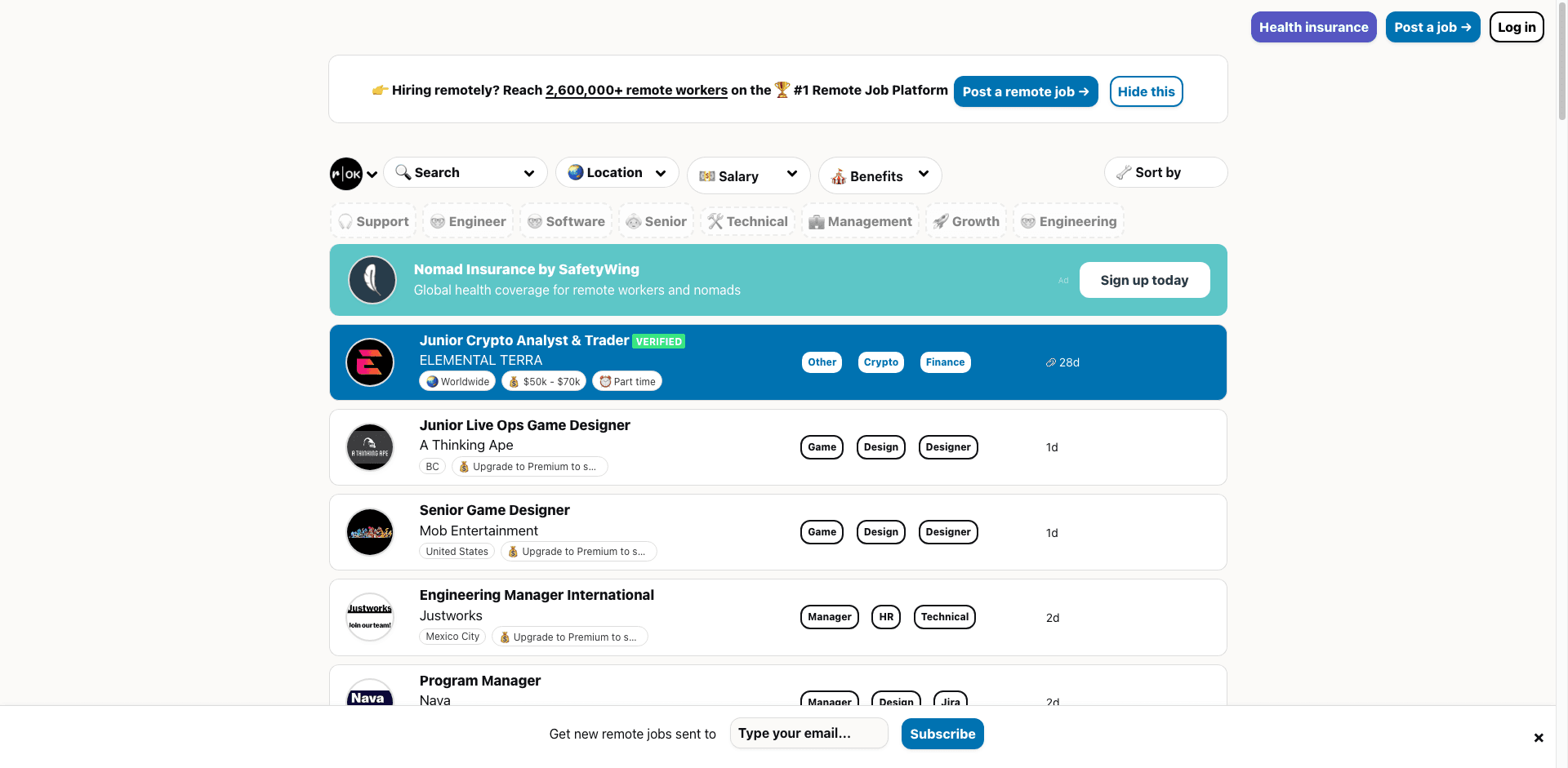
With Thunderbit, you can also use Subpage Scraping to visit each job detail page and enrich your dataset with fields like full description, apply link, benefits, and more—without manual copy/paste.
🧲 What can you scrape with Remote OK
Remote OK is a popular remote job board, so scraping it is useful when you want to build a job database, monitor new postings, analyze hiring trends, or create targeted outreach lists. Below are two common workflows you can run with Thunderbit.
🧾 Scrape Remote OK Browse Remote Job Listings
This use case focuses on extracting jobs from the main listings page, such as Remote OK Remote Jobs. It’s ideal for building a searchable spreadsheet of roles across companies, tags, and locations.
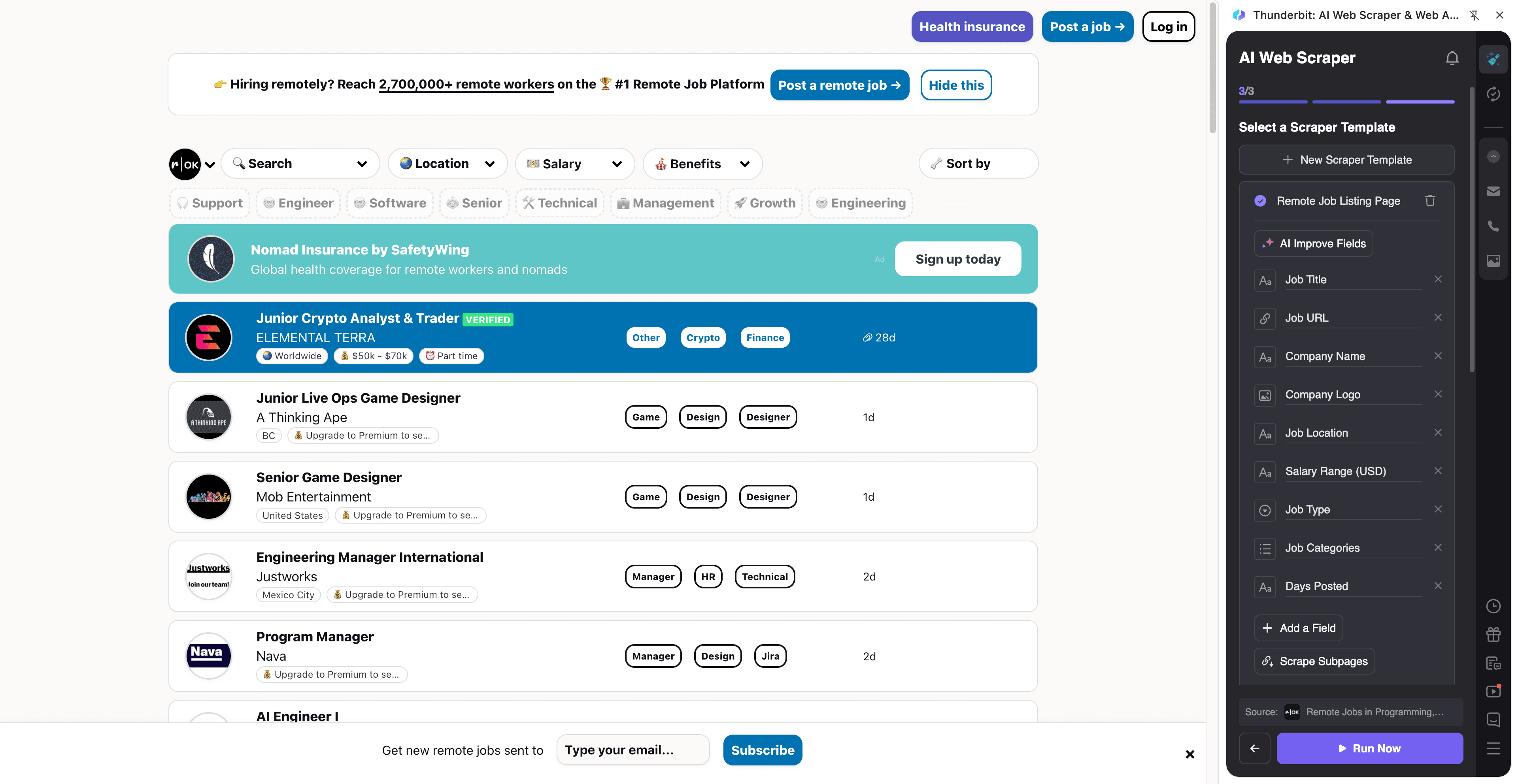
Steps:
- Download the Thunderbit Chrome Extension and register an account.
- Go to the destination page, for example: Remote OK Remote Jobs.
- Click AI Suggest Columns, which recommends column names and data types based on the page.
- Click Scrape to run the scraper, get data, and download or export your file.
Column names
| Column | Description |
|---|---|
| 🧑💻 Job Title | The role name shown in the listing (e.g., “Senior Backend Engineer”). |
| 🏢 Company | The company hiring for the role. |
| 📍 Location / Region | Location text shown on the listing (often “Worldwide” or region-based). |
| 🏷️ Tags | Tags/keywords attached to the job (e.g., React, DevOps, Design). |
| 🕒 Posted Date | The posted time/date shown on the listing. |
| 🔗 Job URL | The link to the job detail page on RemoteOK. |
| 🧾 Short Summary | Any short snippet/preview text visible in the listing (if present). |
| 🖼️ Company Logo | The logo image URL (useful for Airtable/Notion galleries). |
🧭 Scrape RemoteOK Explore Remote Job Categories
This use case extracts jobs from a filtered/category view such as benefits pages, for example: Distributed Team jobs. It’s useful when you want a curated dataset for a specific benefit, tag, or hiring style.
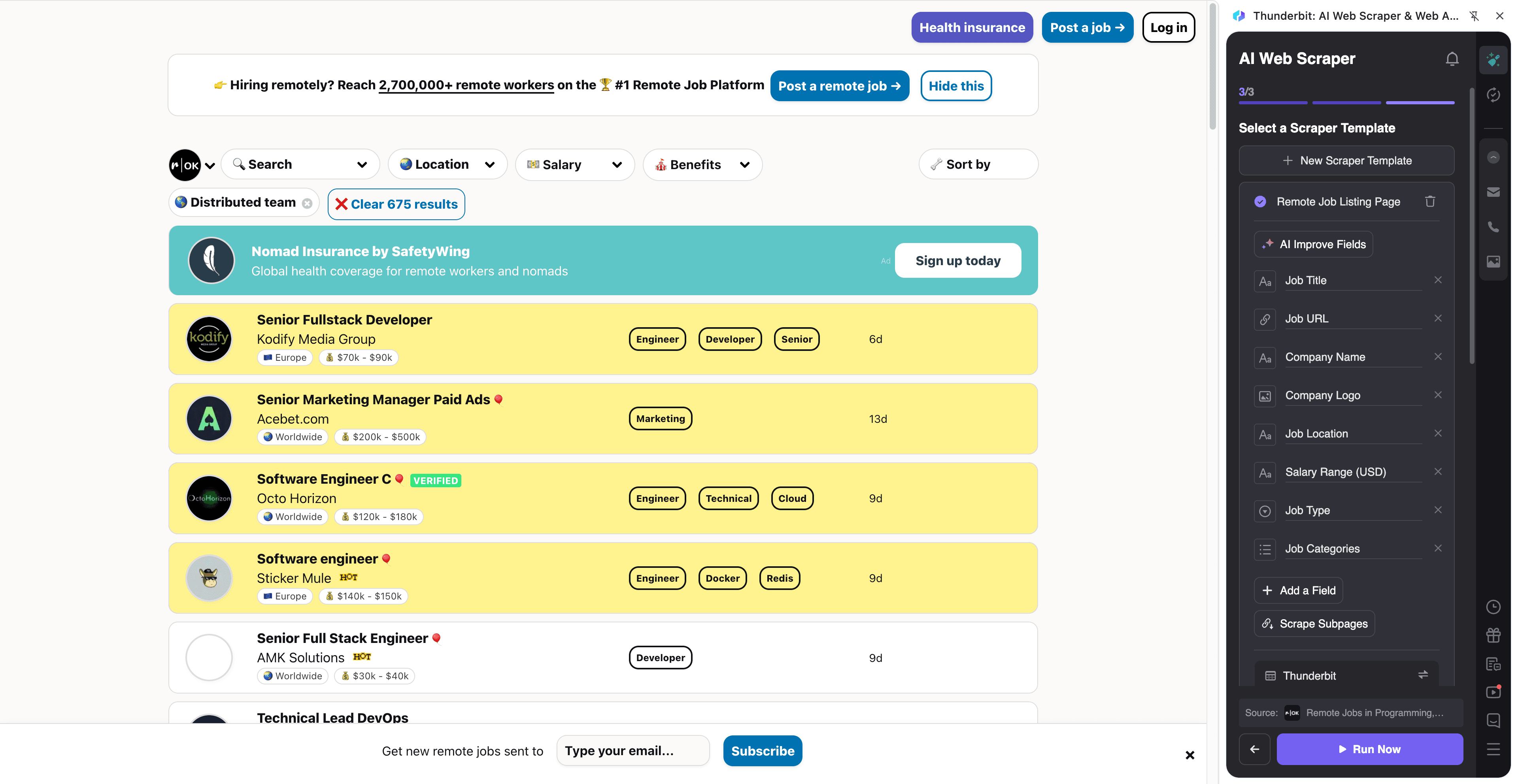
Steps:
- Download the Thunderbit Chrome Extension and register an account.
- Go to the destination page, for example: RemoteOK Distributed Team filter.
- Click AI Suggest Columns, which recommends column names.
- Click Scrape to run the scraper, get data, and download the file.
Column names
| Column | Description |
|---|---|
| 🧑💻 Job Title | The job title from the filtered results. |
| 🏢 Company | The company name for each listing. |
| 🎁 Benefit / Category | The filter context (e.g., “Distributed team”) captured as a field for analysis. |
| 🏷️ Tags | Tags shown for each job in the category view. |
| 📍 Location / Region | Location text shown for each job. |
| 🔗 Job URL | Direct link to the job detail page. |
| 🗓️ Posted Date | When the job was posted (as shown on the page). |
| 🖼️ Company Logo | Logo image URL for visual databases. |
💼 Why Use RemoteOK Tool
Scraping RemoteOK helps you move faster than manual browsing—especially when you’re tracking hundreds of roles across multiple filters.
Common ways you can use a Remote OK dataset:
- Job seekers & career coaches: Build a personal job tracker in Excel/Google Sheets, filter by tags, and prioritize by posted date.
- Recruiters & staffing teams: Monitor hiring activity by company, role type, or region and keep a running pipeline of opportunities.
- Sales & partnerships: Identify fast-growing companies hiring remotely and enrich leads by scraping job subpages for more context.
- Market research & analysts: Track trends like in-demand skills, hiring volume by category, and changes over time (especially with scheduling).
- Ecommerce & ops teams hiring remote talent: Create a shortlist of roles and companies relevant to your operational needs.
Thunderbit is designed for business workflows: you can scrape, structure, and export in minutes—then keep your dataset updated with Scheduled Scraper when you need recurring refreshes.
🧩 How to Use Thunderbit Chrome Extension
- Install the Thunderbit Chrome Extension: Get it from the Chrome Web Store and create your account on Thunderbit.
- Navigate to a RemoteOK page: Open a listings page like remote-jobs or a filtered category page like distributed_team.
- Activate AI-Powered Scraper: Click AI Suggest Columns to generate column names, data types, and optional field prompts. Adjust columns if you want (for example, add “Apply URL” or “Salary”).
- Scrape and enrich with subpages (optional): Click Scrape to collect rows. Then use Scrape Subpages to visit each job detail page and append fields like full description, apply link, benefits, and requirements.
If you’re new to AI scraping, these guides can help:
- How to Scrape Any Website Using AI
- What Is Data Scraping and How to Do It in 2025
- How to Scrape Website Data into Excel using AI
- What Is List Crawling and How to Do It Using AI
💳 Pricing for Thunderbit
Thunderbit uses a simple credit system:
- 1 credit = 1 output row in your results table.
- The AI-powered scraping experience (including AI Suggest Columns) is available for you to use right away.
- You can scrape 6 pages for free each month on the Free tier.
- If you start a free trial, you can scrape 10 pages for free, which is a good way to test RemoteOK listings + subpage enrichment.
What does “cost per run” look like in practice?
- If you scrape a listings page and get 100 jobs, that’s about 100 credits.
- If you also scrape subpages and still keep the same 100 rows (just enriched with more columns), it’s still based on output rows—so plan credits around how many jobs you want in your table.
Paid plans are designed for different volumes, and the yearly plan is more cost effective because it includes a discount compared to monthly pricing. You can compare options on the Thunderbit Pricing page.
| Tier | Pricing (Monthly) | Pricing (Yearly) | Yearly Total Price | Credits (Monthly) | Credits (Yearly) |
|---|---|---|---|---|---|
| Free | Free | Free | Free | 6 pages | N/A |
| Starter | $15 | $9 | $108 | 500 | 5,000 |
| Pro 1 | $38 | $16.5 | $199 | 3,000 | 30,000 |
| Pro 2 | $75 | $33.8 | $398 | 6,000 | 60,000 |
| Pro 3 | $125 | $68.4 | $796 | 10,000 | 120,000 |
| Pro 4 | $249 | $137.5 | $1,592 | 20,000 | 240,000 |
❓ FAQ
-
What is the AI Powered RemoteOK Scraper?
The AI Powered RemoteOK Scraper is a workflow in Thunderbit that extracts RemoteOK job listings and turns them into a structured table. You click AI Suggest Columns so the AI can identify fields like job title, company, tags, and posted date, then click Scrape to collect the rows. -
What is Thunderbit?
Thunderbit is an AI web scraping and productivity Chrome Extension that helps you extract structured data from websites, PDFs, and images. It’s built for business users who want fast setup, reliable extraction, and easy exports to tools like Excel, Google Sheets, Airtable, and Notion. -
Can I scrape RemoteOK job detail pages too, not just the listings?
Yes—Thunderbit supports Subpage Scraping, which means it can open each job’s detail page and add more columns to your existing table. This is useful when you want fields like full job description, apply link, benefits, or additional tags that aren’t fully visible on the listings page. -
What data fields are most useful to extract from RemoteOK?
Most teams start with Job Title, Company, Location, Tags, Posted Date, and Job URL. If you’re doing deeper analysis or outreach, adding subpage fields like Apply URL, Description, and Benefits can make your dataset much more actionable. -
How do I export RemoteOK data to Google Sheets or Airtable?
After scraping, Thunderbit lets you export your results to Excel/CSV/JSON, or send it directly to Google Sheets, Airtable, or Notion. Export is free, so you can test different formats and choose what fits your workflow best. -
Does RemoteOK scraping work with pagination or infinite scroll?
Thunderbit supports Pagination Scraping, including click-based pagination and infinite scroll patterns. If RemoteOK changes how it loads listings, Thunderbit’s AI approach is designed to adapt by reading the page structure each time rather than relying on brittle selectors. -
What’s the difference between Cloud Scraping and Browser Scraping for RemoteOK?
Cloud Scraping runs faster and can process many pages in batches, which is great for public pages like RemoteOK listings. Browser Scraping runs inside your Chrome session, which is helpful when a site requires your login or you need your exact browser context; you can choose the mode that matches your situation. -
Is it legal to scrape RemoteOK?
Scraping public web pages is often allowed, but rules vary by jurisdiction and by website terms. You should review RemoteOK’s terms and follow applicable laws, respect rate limits, and avoid collecting sensitive personal data; use the dataset responsibly for legitimate business or research purposes. -
How can I keep a RemoteOK dataset updated automatically?
You can use Thunderbit’s Scheduled Scraper to run your RemoteOK scraping job on a recurring schedule. This is helpful for monitoring new roles, tracking changes in tags or locations, and maintaining a fresh job database without manual work.
📚 Learn More
- Get started with the Thunderbit Chrome Extension
- Read the latest guides on the Thunderbit Blog
- Learn fundamentals: What Is Data Scraping and How to Do It in 2025
- Build list workflows: What Is List Crawling and How to Do It Using AI
- Export to spreadsheets: How to Scrape Website Data into Excel using AI
- If you also collect contacts for outreach: The Best Email Scrapers in 2025