

Thunderbit’s AI-Powered Lever Scraper helps you turn Lever-powered career pages into clean, structured datasets in minutes. You can use AI to identify the right fields (job title, location, team, description, apply link, and more), scrape listings plus job detail pages, and export to Excel, Google Sheets, Airtable, or Notion. It’s built for hiring teams, sales teams, and researchers who need reliable job data without manual copy-paste.
🧲 What is Lever Scraper
A Lever Scraper is an AI Web Scraper that extracts job listings and job detail data from Lever career pages. With Thunderbit AI Web Scraper, you simply open a Lever jobs page, click AI Suggest Columns, then click Scrape—Thunderbit’s AI reads the page and structures the data into a table you can download or send to your tools.
🧾 What can you scrape with Lever
Lever pages are commonly used for public job boards, and they’re ideal for extracting both listing-level data (what you see on the jobs index) and detail-level data (what’s inside each job posting). Below are two common workflows you can run with Thunderbit.
Scrape Enterprise SaaS Sales Recruiting
This use case focuses on scraping job listings from an enterprise SaaS company’s Lever page (example: Palantir). You can collect roles, locations, teams, and then enrich your dataset by visiting each job’s detail page to capture descriptions, requirements, and apply links.
Target page: https://jobs.lever.co/palantir
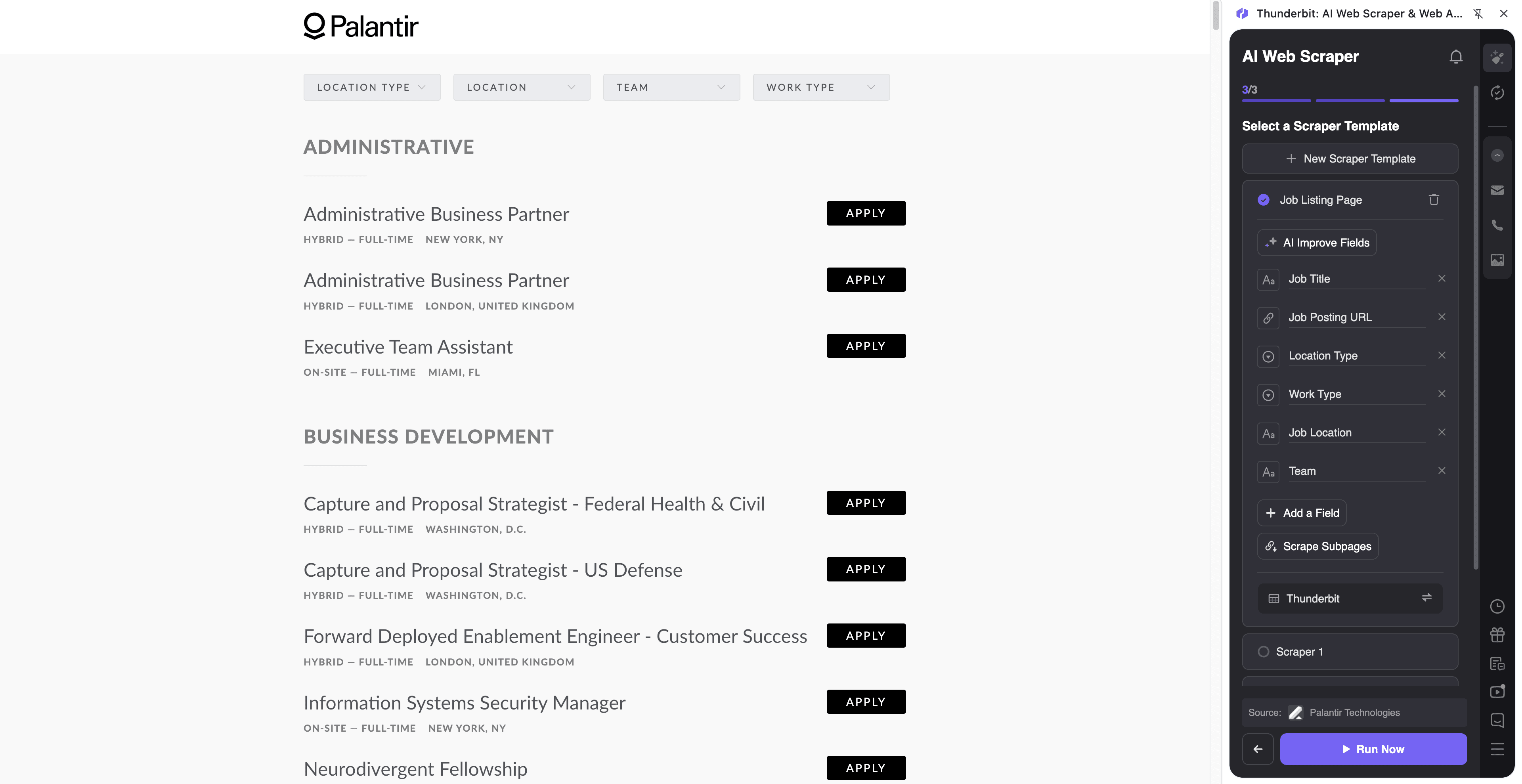
Steps:
- Download the Thunderbit Chrome Extension and register an account.
- Go to the destination page, for example: Palantir Lever jobs page.
- Click AI Suggest Columns to let AI recommend the best column names and data types.
- Click Scrape to run the scraper, then export to Excel/CSV or send to Google Sheets, Airtable, or Notion.
Column names
| Column | Description |
|---|---|
| 🧑💼 Job Title | The role name as shown on the listing (e.g., Account Executive, Sales Engineer). |
| 🏢 Department / Team | The org group or function (Sales, GTM, Engineering, etc.) when available. |
| 📍 Location | City/region/remote status listed for the role. |
| 🕒 Work Type | On-site, hybrid, or remote (if present on the page). |
| 🔗 Job URL | The link to the individual job posting page. |
| 📝 Job Description | Full description from the job detail page (use Subpage Scraping to capture). |
| ✅ Requirements | Qualifications/requirements section extracted from the job page. |
| 🧾 Responsibilities | Responsibilities section extracted from the job page. |
| 📨 Apply URL | The application link/button URL for the role. |
| 🗓️ Posted Date | Date posted when available on the job page. |
Scrape Autonomous Vehicle Research
This use case is great for tracking hiring trends in autonomous vehicles (example: Zoox). You can scrape roles across engineering, research, safety, and operations, then use subpage enrichment to capture detailed requirements and role responsibilities for analysis.
Target page: https://jobs.lever.co/zoox
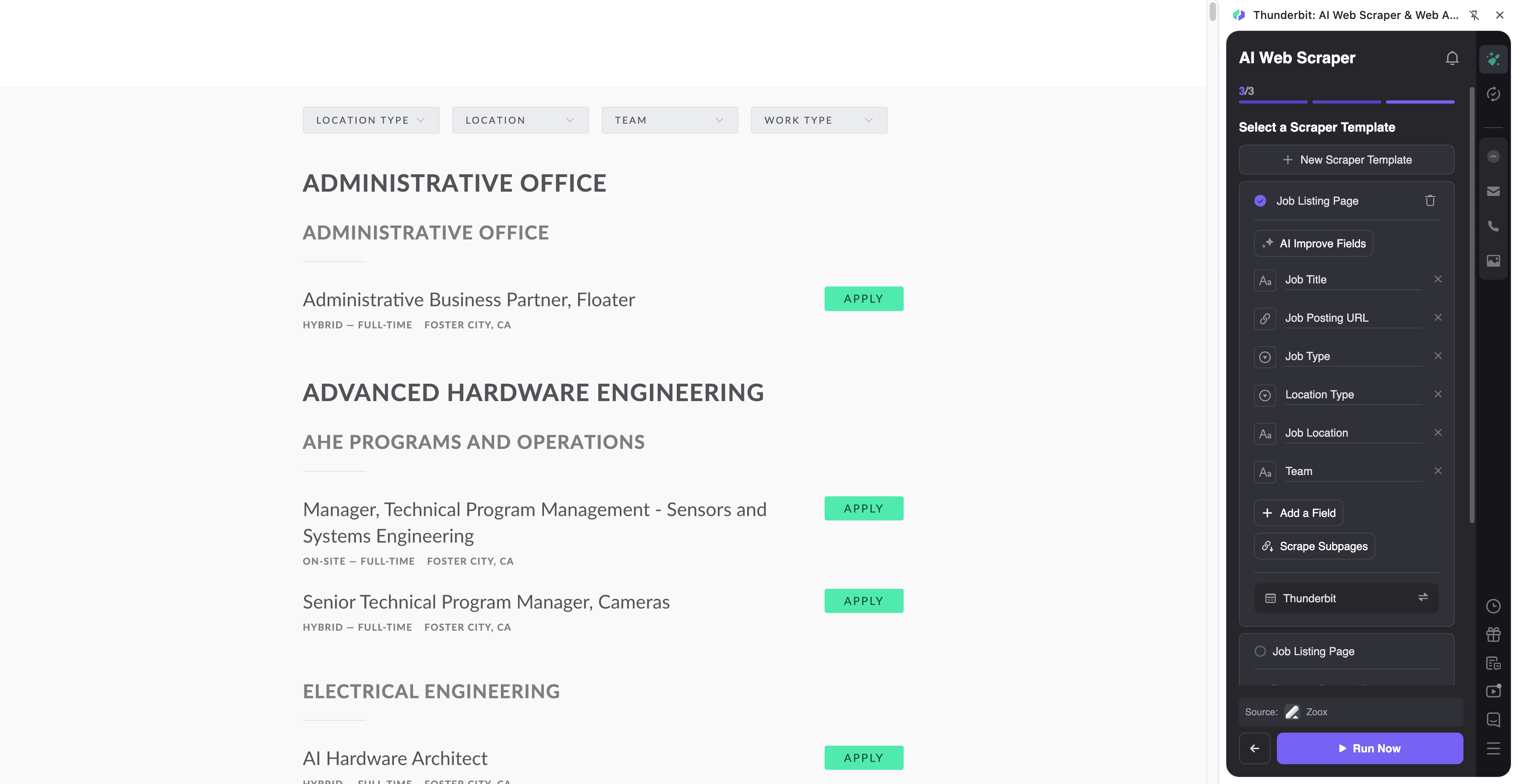
Steps:
- Download the Thunderbit Chrome Extension and register an account.
- Go to the destination page, for example: Zoox Lever jobs page.
- Click AI Suggest Columns to generate a structured schema for the page.
- Click Scrape to extract the data, then download or export it.
Column names
| Column | Description |
|---|---|
| 🚗 Job Title | The role title (e.g., Perception Engineer, Research Scientist). |
| 🧪 Function / Category | The job category or department grouping shown on the board. |
| 📍 Location | The listed location(s) for the role. |
| 🌎 Remote Status | Whether the role is remote/hybrid/on-site when stated. |
| 🔗 Job URL | Direct link to the job detail page. |
| 🧠 Key Skills | Skills/keywords extracted from the description (you can add a Field AI Prompt to standardize). |
| 📝 Description (Full Text) | Full job description from the job page via Subpage Scraping. |
| 🧩 Responsibilities | Responsibilities section parsed from the job page. |
| 🎓 Qualifications | Qualifications/requirements section parsed from the job page. |
| 📨 Apply URL | The apply link for the role. |
🎯 Why Use Lever Tool
Scraping Lever job boards is useful when you need structured hiring data for analysis, outreach, or operations.
- Recruiting & Talent Ops: Build a searchable database of open roles across competitors, subsidiaries, or target accounts. You can also track changes over time with Thunderbit’s Scheduled Scraper.
- Sales (Enterprise SaaS, Staffing, HR Tech): Identify hiring signals (new teams, new regions, leadership expansion) and prioritize accounts based on active headcount growth.
- Market & Competitive Research: Monitor which teams are hiring (AI, security, autonomy, GTM) and quantify trends by location, seniority, or function.
- Ecommerce & Operations teams: If you’re staffing for logistics, support, or operations, job boards can be a strong proxy for expansion plans and capacity changes.
Because Thunderbit uses AI to read the page each time, it’s also a strong fit for long-tail job boards and variations in Lever layouts.
🧩 How to Use Lever Chrome Extension
- Install the Thunderbit Chrome Extension: Get it from the Chrome Web Store and create your account.
- Navigate to a Lever jobs page: Open a listing page like jobs.lever.co/palantir or jobs.lever.co/zoox.
- Activate AI-Powered Scraper: Click AI Suggest Columns to generate fields, then adjust column names/data types if needed (Text, URL, Date, etc.).
- Scrape listings and enrich with subpages: Click Scrape for the listing table, then use Scrape Subpages to visit each job URL and pull in full descriptions, requirements, and apply links.
If you’re new to AI scraping, these guides can help:
- How to Scrape Any Website Using AI
- What Is Data Scraping and How to Do It in 2025
- How to Scrape Website Data into Excel using AI
💳 Pricing for Lever
Thunderbit uses a simple credit system:
- 1 credit = 1 output row in your results table (for example, 1 job listing row).
- The AI-powered scraping workflow (AI Suggest Columns + Scrape) is included, and data export is free (Excel/CSV/JSON, Google Sheets, Airtable, Notion).
You can start without a paid plan:
- Free tier: scrape 6 pages per month (page-based allowance).
- Free trial: scrape 10 pages for free, which is ideal for testing Lever boards and subpage enrichment.
For ongoing workflows (like monitoring multiple companies weekly), paid plans give you more monthly credits, and the yearly plan is discounted compared to paying month-to-month. You can compare options on Thunderbit Pricing.
| Tier | Pricing (Monthly) | Pricing (Yearly) | Yearly Total Price | Credits (Monthly) | Credits (Yearly) |
|---|---|---|---|---|---|
| Free | Free | Free | Free | 6 pages | N/A |
| Starter | $15 | $9 | $108 | 500 | 5,000 |
| Pro 1 | $38 | $16.5 | $199 | 3,000 | 30,000 |
| Pro 2 | $75 | $33.8 | $398 | 6,000 | 60,000 |
| Pro 3 | $125 | $68.4 | $796 | 10,000 | 120,000 |
| Pro 4 | $249 | $137.5 | $1,592 | 20,000 | 240,000 |
❓ FAQ
-
What is the AI Powered Lever Scraper?
The AI Powered Lever Scraper is a workflow in Thunderbit that extracts job listings and job details from Lever-powered career pages and converts them into structured rows and columns. Instead of manually selecting HTML elements, you click AI Suggest Columns and Thunderbit’s AI proposes a schema, then you click Scrape to collect the data. -
What is Thunderbit?
Thunderbit is an AI web scraping and web automation Chrome Extension built for business users who want fast, structured data from websites. You can scrape websites, PDFs, and images, export to tools like Google Sheets and Airtable, and automate repetitive web tasks without writing code. -
What data can I extract from Lever job boards?
You can extract job titles, locations, departments, job URLs, and apply links from the listing page. With Subpage Scraping, you can also pull full job descriptions, responsibilities, qualifications, and other details from each individual job posting page. -
Can Thunderbit scrape job descriptions from each job posting page?
Yes. After scraping the listing page, you can use Scrape Subpages to have Thunderbit visit each job URL and enrich your table with fields like description, requirements, and responsibilities. This is especially helpful when the listing page only shows a title and location. -
How does Thunderbit handle pagination or long job lists?
Thunderbit supports both click-based pagination and infinite scroll patterns, depending on how the Lever board is configured. If the page loads more roles as you scroll, you can scrape what’s loaded and continue until you’ve captured the full list. -
Do I need to know how to code to use Thunderbit on Lever?
No. Thunderbit is designed for non-technical workflows: open the page, click AI Suggest Columns, then click Scrape. If you want more control, you can rename columns, set data types (Text, URL, Date), and add a Field AI Prompt to standardize outputs. -
What is a credit and how many credits does a Lever scrape use?
A credit is one output row in your results table. If you scrape 200 job listings, that typically produces 200 rows and uses 200 credits; if you also enrich subpages, you still end up with one row per job, just with more filled-in columns. -
Can I export Lever job data to Google Sheets or Airtable?
Yes. Thunderbit supports free export to Excel/CSV/JSON and direct exports to Google Sheets, Airtable, and Notion. This makes it easy to share hiring trend dashboards, build lead lists, or run analysis in your existing workflow. -
Is it okay to scrape Lever job pages?
Lever job boards are often public, but you should still follow applicable laws, respect privacy, and review the website’s terms and policies before collecting and using data. Thunderbit is a tool for data extraction; you’re responsible for using it in a compliant way.
📚 Learn More
- Get started with the Thunderbit Chrome Extension
- Explore tutorials on the Thunderbit Blog
- Learn fundamentals: What Is List Crawling and How to Do It Using AI
- Build better exports: The Easiest Way to Scrape Website to Excel
- Compare tools: The Best Web Scraping Tools & Software in 2025
- Need contact data too: The Best Email Scrapers in 2025
Ready to turn Lever job boards into structured data you can use today: try Thunderbit and run your first scrape from a Lever page in minutes.