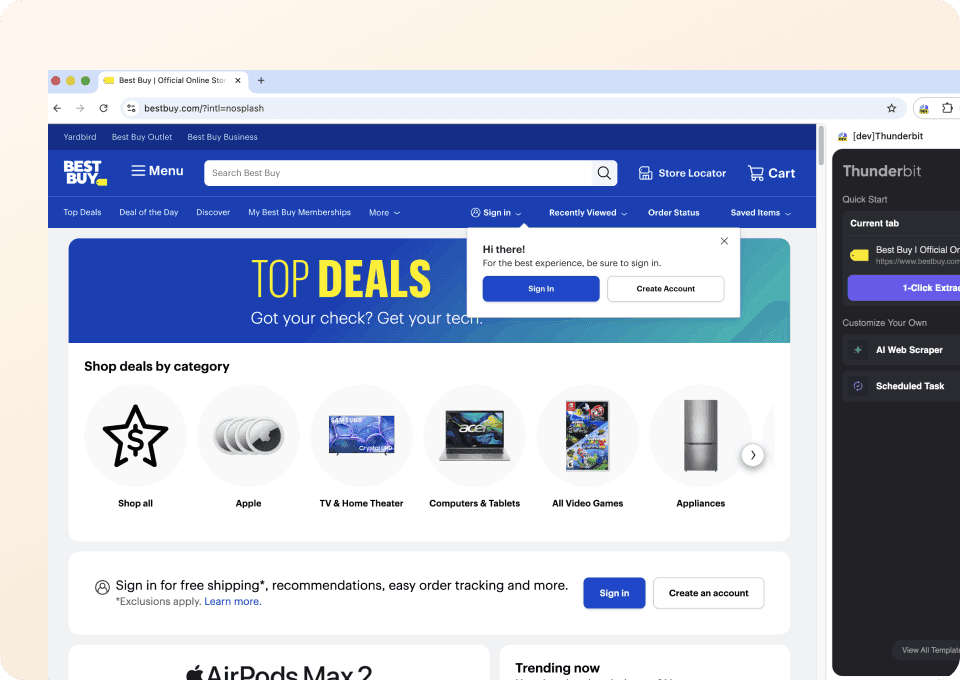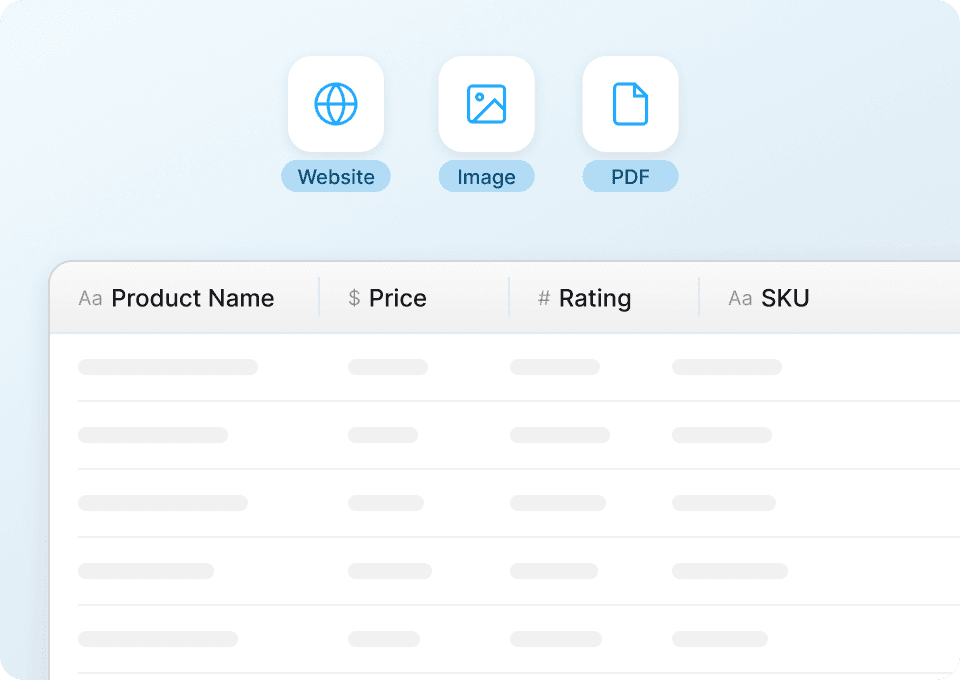







Thunderbit का Best Buy Scraper AI की मदद से Best Buy के प्रोडक्ट पेजों को structured डेटा में बदल देता है—ताकि आप मैन्युअल कॉपी-पेस्ट किए बिना कीमतों, रेटिंग्स और डील्स का विश्लेषण कर सकें। बस Best Buy का कोई पेज खोलें, AI Suggest Columns पर क्लिक करें, फिर Scrape दबाएँ—और आपको साफ-सुथरी rows मिल जाएँगी जिन्हें आप Excel, Google Sheets, Airtable या Notion में एक्सपोर्ट कर सकते हैं।
🛍️ Best Buy Scraper क्या है
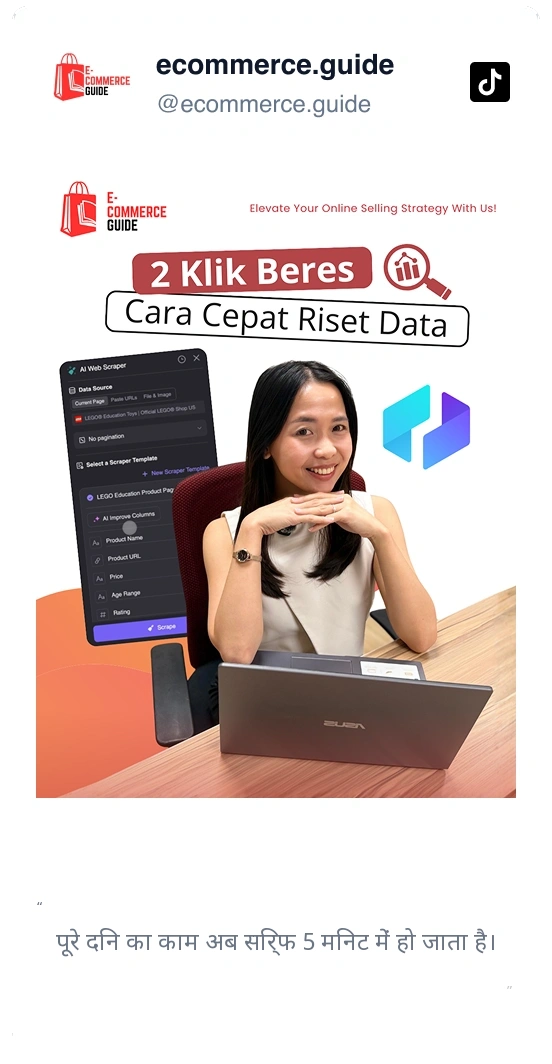
Best Buy Scraper एक AI Web Scraper है, जिसे ने बनाया है, और यह से structured प्रोडक्ट डेटा निकालता है। कोड लिखने या जटिल selectors बनाने की जगह, आप Best Buy की किसी listing page पर जाएँ, AI Suggest Columns पर क्लिक करें—और Thunderbit का AI पेज पढ़कर आपके लिए सबसे उपयोगी fields सुझा देता है (जैसे प्रोडक्ट नाम, कीमत, रेटिंग, URL)। इसके बाद Scrape पर क्लिक करके अपना dataset डाउनलोड कर लें।

🧾 Best Buy से आप क्या-क्या स्क्रैप कर सकते हैं
Best Buy पर कॉमर्स से जुड़ा बहुत काम का डेटा मिलता है: टॉप-रेटेड इलेक्ट्रॉनिक्स, मेंबर-ओनली डिस्काउंट, लिमिटेड-टाइम प्रमोशन्स और प्रोडक्ट availability। Thunderbit के AI Web Scraper (https://thunderbit.com/) के साथ आप इस डेटा को टेबल में इकट्ठा कर सकते हैं, subpage scraping से इसे और समृद्ध (enrich) कर सकते हैं, और scheduled scraping से इसे नियमित रूप से अपडेट भी रख सकते हैं।
🏆 Best Buy के Best Selling Electronics Index को स्क्रैप करें
यह use case Best Buy के top-rated / top products index pages पर केंद्रित है, जहाँ से आप लोकप्रिय इलेक्ट्रॉनिक्स और उनके key metrics का dataset जल्दी बना सकते हैं—analysis, merchandising या competitive research के लिए।
Target page:

Steps:
- डाउनलोड करें और अकाउंट रजिस्टर करें।
- जिस पेज से डेटा चाहिए, वहाँ जाएँ—उदाहरण: ।
- AI Suggest Columns पर क्लिक करें ताकि AI आपके लिए सही column names और data types सुझा सके।
- Scrape पर क्लिक करके स्क्रैपर चलाएँ, फिर Excel, Google Sheets, Airtable या Notion में एक्सपोर्ट करें।
Column names
| Column | Description |
|---|---|
| 🏷️ Product Name | लिस्टिंग कार्ड में दिखने वाला प्रोडक्ट टाइटल। |
| 🔗 Product URL | प्रोडक्ट डिटेल पेज (PDP) का डायरेक्ट लिंक। |
| 💲 Current Price | पेज पर दिख रही मौजूदा कीमत (सेल प्राइस हो तो उसे भी कैप्चर करता है)। |
| 🏪 Brand | जहाँ उपलब्ध हो, वहाँ ब्रांड का नाम। |
| ⭐ Rating | प्रोडक्ट की औसत स्टार रेटिंग। |
| 🧾 Review Count | रेटिंग के साथ दिखने वाले रिव्यूज़ की संख्या। |
| 🧩 Model / SKU | जहाँ दिखे, वहाँ मॉडल नंबर या SKU; कैटलॉग मैचिंग के लिए उपयोगी। |
| 🚚 Availability | लिस्टिंग में दिखने वाला in-stock / pickup / shipping availability टेक्स्ट। |
| 🖼️ Image URL | कैटलॉगिंग या रिपोर्टिंग के लिए प्रोडक्ट इमेज लिंक। |
| 🏷️ Category / Badge | “Top Rated”, “Best Seller” या अन्य promo labels जैसे badges। |
🔒 Best Buy Member-Exclusive Deals (Plus/Total) स्क्रैप करें
यह use case Best Buy की membership deal pages के लिए है, जहाँ कीमतें और प्रमोशन्स public listings से अलग हो सकते हैं। यह member-only discounts ट्रैक करने, deal depth तुलना करने और यह देखने के लिए उपयोगी है कि कौन-से प्रोडक्ट्स प्रोग्राम में आते-जाते रहते हैं।
Target page:

Steps:
- डाउनलोड करें और अकाउंट रजिस्टर करें।
- जिस पेज से डेटा चाहिए, वहाँ जाएँ—उदाहरण: ।
- AI Suggest Columns पर क्लिक करें ताकि deals डेटा के लिए ready-to-scrape schema बन जाए।
- Scrape पर क्लिक करके deals टेबल इकट्ठा करें और अपने पसंदीदा टूल में एक्सपोर्ट करें।
Column names
| Column | Description |
|---|---|
| 🏷️ Product Name | डील में शामिल आइटम का प्रोडक्ट टाइटल। |
| 🔗 Product URL | आगे enrichment के लिए प्रोडक्ट डिटेल पेज का लिंक। |
| 💰 Member Price | जहाँ उपलब्ध हो, वहाँ दिखने वाली member-exclusive कीमत। |
| 💲 Regular Price | non-member या original कीमत (यदि दिखाई गई हो)। |
| 🧮 Discount Amount | पेज पर दिखे तो discount वैल्यू (निकाली/कैल्क्युलेट की हुई)। |
| 🏷️ Deal Label | “Member Deal”, “Limited Time” जैसे promo tags। |
| ⭐ Rating | डील कार्ड पर दिखने वाली स्टार रेटिंग। |
| 🧾 Review Count | रेटिंग के पास दिखने वाले कुल रिव्यूज़। |
| 🚚 Fulfillment | डील के लिए दिखने वाला shipping/pickup delivery मैसेज। |
| ⏳ Deal Timing | countdown, end date या limited-time मैसेजिंग (यदि मौजूद हो)। |
| 🖼️ Image URL | रिपोर्टिंग या कैटलॉगिंग के लिए प्रोडक्ट इमेज लिंक। |
🎯 Best Buy टूल क्यों इस्तेमाल करें
Best Buy डेटा स्क्रैप करना तब काम आता है जब आपको TVs, laptops, appliances, gaming और smart home जैसी categories में बार-बार इस्तेमाल होने वाली, structured product intelligence चाहिए।
Best Buy स्क्रैप करने के आम कारण:
- E-commerce operations: competitor pricing, promo frequency और in-stock signals को key SKUs पर ट्रैक करें। अगर आप कई retailers मॉनिटर करते हैं, तो Thunderbit का Scheduled Scraper आपकी sheet को आपके बताए cadence (plain English में) पर अपडेट रख सकता है।
- Sales & partnerships: vendor outreach, assortment planning या channel comparisons के लिए प्रोडक्ट्स, ब्रांड्स और categories की लिस्ट तैयार करें।
- Marketing teams: देखें कौन-से प्रोडक्ट्स top-rated हैं, कौन-सी deals प्रमोट हो रही हैं, और review volume का pricing से क्या संबंध है।
- Analysts & researchers: brittle scraping scripts बनाए बिना trend analysis (price movement, rating distribution, deal depth) के लिए datasets तैयार करें।
Thunderbit खास तौर पर तब मदद करता है जब पेज का layout बदलता रहता है, क्योंकि AI Web Scraper (https://thunderbit.com/) हर run में पेज की संरचना पढ़ता है—fixed selectors पर निर्भर नहीं रहता।
🧩 Best Buy Chrome Extension कैसे इस्तेमाल करें
- Thunderbit Chrome Extension इंस्टॉल करें: इसे से लें और अपना अकाउंट बनाएं।
- जिस Best Buy पेज को स्क्रैप करना है, वहाँ जाएँ: जैसे या ।
- AI-Powered Scraper चालू करें: AI Suggest Columns पर क्लिक करके fields बनवाएँ, फिर जरूरत हो तो column names या data types (Text, Number, URL, Image आदि) एडजस्ट करें।
- Scrape करें और export करें: Scrape पर क्लिक करें, फिर Excel, Google Sheets, Airtable या Notion में एक्सपोर्ट करें (exports फ्री हैं)।
Tip: अगर आपको और detailed डेटा चाहिए (जैसे full specs, warranty info या विस्तृत availability), तो Subpage Scraping इस्तेमाल करें—Thunderbit हर product URL पर जाकर आपकी टेबल में extra columns जोड़ देगा।
💳 Best Buy के लिए Pricing
Thunderbit एक आसान credit system इस्तेमाल करता है:
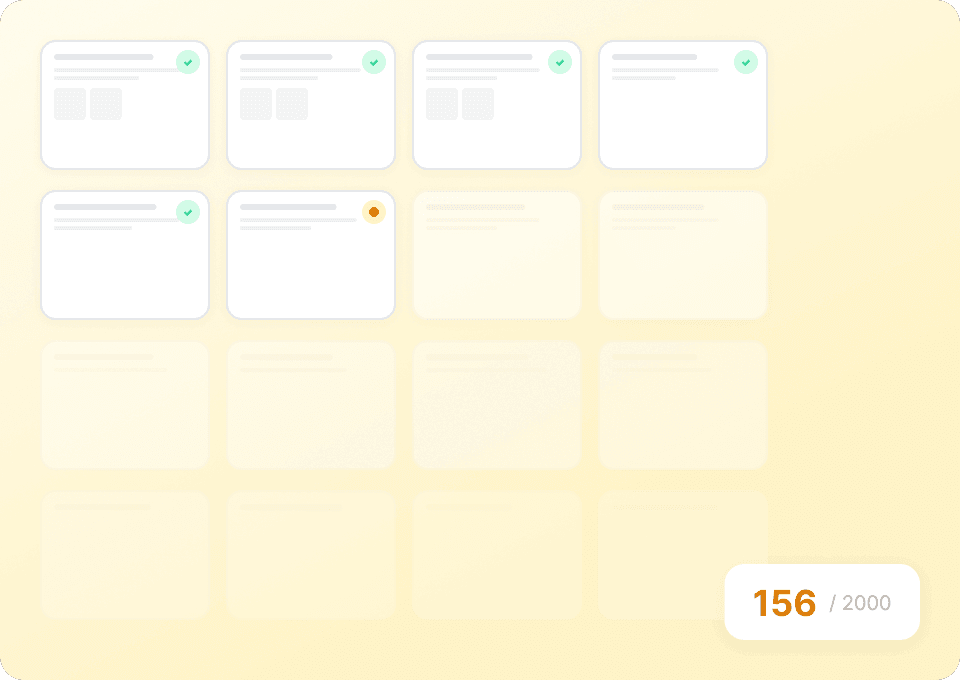
- आपके results table में 1 credit = 1 output row (उदाहरण: एक product card स्क्रैप हुआ = एक row)।
- AI-powered scraping अनुभव (AI Suggest Columns + Scrape) शामिल है, और आप भुगतान से पहले इसे ट्राई कर सकते हैं।
फ्री में आप क्या ट्राई कर सकते हैं:
- Free tier: हर महीने 6 pages स्क्रैप करें।
- Free trial: 10 pages फ्री स्क्रैप करें—Best Buy listings और exports टेस्ट करने के लिए बढ़िया।
Paid plans अलग-अलग volume के लिए बने हैं—हल्के competitive checks से लेकर ongoing monitoring तक:
- Starter: $15/month (या $9/month yearly billing) के साथ 500 credits/month
- Pro tiers 20,000 credits/month तक स्केल करते हैं
- Yearly plans आम तौर पर ज्यादा किफायती होते हैं क्योंकि monthly equivalent पर डिस्काउंट मिलता है
लेटेस्ट विकल्प पर देखें।
❓ FAQ
-
AI Powered Best Buy Scraper क्या है?
AI Powered Best Buy Scraper एक AI-आधारित टूल है जो BestBuy.com की listings (जैसे top-rated products और member-exclusive deals) से structured प्रोडक्ट डेटा निकालता है। आप AI Suggest Columns पर क्लिक करते हैं, Thunderbit एक साफ schema सुझाता है, फिर Scrape दबाकर डाउनलोड करने योग्य टेबल बना लेते हैं। -
Thunderbit क्या है?
एक AI Web Scraper Chrome Extension है जो websites, PDFs और images से डेटा निकालकर structured tables में बदलने में मदद करता है। यह lead generation, e-commerce operations और market research जैसे business workflows के लिए बनाया गया है, और Excel, Google Sheets, Airtable व Notion में export सपोर्ट करता है। -
क्या Best Buy स्क्रैप करने के लिए coding skills चाहिए?
नहीं। Thunderbit non-technical workflows के लिए बना है, इसलिए आपको Python, selectors या scraping infrastructure की जरूरत नहीं होती। AI पेज पढ़कर fields सुझाता है, और आप spreadsheet जैसी interface में उन्हें refine कर सकते हैं। -
क्या Thunderbit Best Buy के product detail pages भी स्क्रैप कर सकता है?
हाँ। आप पहले listing pages स्क्रैप करें, फिर Subpage Scraping से हर product URL पर जाकर अतिरिक्त fields जोड़कर dataset को enrich कर सकते हैं। यह तब उपयोगी है जब आपको specs, model details या विस्तृत fulfillment messaging जैसी गहराई चाहिए। -
Best Buy पर pagination और infinite scroll को Thunderbit कैसे संभालता है?
Thunderbit click-based pagination और infinite scroll—दोनों के लिए pagination scraping सपोर्ट करता है। अगर पेज scroll करने पर और प्रोडक्ट्स लोड करता है, तो आप items लोड करते रहें और फिर scrape करें, या पेज के behavior के अनुसार scraper को pages follow करने के लिए configure कर सकते हैं। -
Best Buy स्क्रैप करने के बाद मैं डेटा कहाँ export कर सकता/सकती हूँ?
आप CSV/JSON में export कर सकते हैं या डेटा सीधे Excel, Google Sheets, Airtable या Notion में भेज सकते हैं। Exports फ्री हैं—इससे टीम के साथ live pricing sheet शेयर करना या repeatable reporting workflow बनाना आसान हो जाता है। -
Best Buy के लिए Cloud Scraping और Browser Scraping में क्या फर्क है?
Cloud Scraping तेज चलता है और batch में कई pages प्रोसेस कर सकता है—public listings के लिए बढ़िया। Browser Scraping आपके Chrome session के अंदर चलता है—यह तब उपयोगी है जब member pricing या personalized availability देखने के लिए login जरूरी हो। -
Best Buy listings स्क्रैप करने की लागत कितनी होती है?
लागत credits पर आधारित है, जहाँ 1 credit = 1 output row। अगर आप 100 products वाले पेज से 100 rows निकालते हैं, तो आम तौर पर 100 credits लगेंगे। आप free tier (6 pages/month) या free trial (10 pages) से शुरू करके बाद में upgrade कर सकते हैं। -
क्या analysis के लिए Best Buy डेटा स्क्रैप करना ठीक है?
आपको हमेशा Best Buy की terms का पालन करना चाहिए, जहाँ लागू हो वहाँ robots rules का सम्मान करें, और संबंधित कानूनों व privacy requirements का पालन करें। Thunderbit एक productivity tool है; निकाले गए डेटा का उपयोग (internal analysis, price monitoring, research) आपके compliance standards के अनुरूप होना चाहिए।
📚 Learn More
- से शुरुआत करें
- पर गाइड्स देखें
- बेसिक्स सीखें:
- लिस्ट workflows बनाएं:
- स्प्रेडशीट में export करें:
- व्यापक तरीके:
- टूल तुलना:
AI Web Scraper (https://thunderbit.com/) के साथ AI की मदद से अपना Best Buy product dataset बनाने के लिए तैयार हैं? Thunderbit इंस्टॉल करें, Best Buy पेज खोलें, AI Suggest Columns पर क्लिक करें और scrape करें।