

Two browser extensions. Two very different philosophies for pulling data off the web. If you've narrowed your options to these two tools, you probably already know you need a scraping tool — and you've narrowed it down to Thunderbit and Webscraper.io.
I've spent a lot of time working with both approaches (full disclosure: I work at Thunderbit, so I know our tool inside and out, but I've also built plenty of Web Scraper sitemaps over the years). The interesting thing about this matchup in 2026 is that it's no longer a simple "AI vs. manual selectors" story. Web Scraper has added its own AI Sitemap Wizard, and Thunderbit has continued refining its field-first extraction model. So the real question isn't which tool has AI — it's which kind of AI workflow, which mental model, and which tradeoffs fit the way you actually work. Here is the honest, detailed breakdown I wish existed when I was evaluating these tools for different projects.
Why Compare Thunderbit vs Webscraper.io in 2026?
Someone searching "Thunderbit vs Webscraper.io" has already moved past the generic "best web scraper" listicle phase. You know you want a browser-based extension, and you're trying to decide between two specific tools with meaningfully different design philosophies.
Here's the core split: Thunderbit starts with the output — what fields do you want in your table? Web Scraper starts with the input — what's the structure of this page, and how do I navigate through it? Thunderbit’s agent analyzes the page and determines the output automatically. Web Scraper's AI Wizard generates a sitemap for common pages, but the deeper model remains a user-defined tree of selectors and navigation relationships. That architectural difference ripples through everything: setup time, maintenance, flexibility, learning curve, and the kinds of jobs each tool handles best.
Here is what matters:
- The actual workflows, step by step
- What happens when a site changes its layout
- What you get for free (and what costs money)
- Where your data can go after extraction
- A use-case verdict matrix so you can pick the right tool for your specific situation
The target audience: non-technical business users — sales, marketing, operations — who want structured data without writing code. (Developers, I'll touch on API options too.)
What Is Thunderbit?

Thunderbit is an agentic web scraper and automation platform, available as a Chrome and Edge browser extension plus a Web App and developer surfaces (Open API, MCP Server, CLI). Here, I'm focusing on the browser extension experience.
Thunderbit is an agentic web scraper: on a compatible, authorized page, click One Click Extract and the agent detects, reads, and analyzes the page to decide what to extract. Run Now starts immediately, but if you do nothing the task starts automatically—so the default experience needs only one intentional click, with no code, selectors, or schema setup.
The key differentiator: you open a page, click One Click Extract, and Thunderbit's agent determines the structured columns to extract — product names, prices, ratings, whatever it identifies on the page. The agent prepares the extraction automatically; optional field prompts can refine transformations, while Run Now starts immediately and otherwise the task auto-starts. No CSS selectors involved. Exports go directly to Excel, Google Sheets, Airtable, Notion, or CSV. There are also dedicated Email, Phone Number, and Image extractors for common contact-collection workflows.
What Is Webscraper.io?
Web Scraper is a well-established Chrome extension and cloud scraping platform. Its homepage now calls it "The #1 AI-Powered Web Scraping Chrome Extension," which reflects a significant 2025–2026 evolution: the tool now offers an AI Sitemap Wizard alongside its classic Advanced Sitemap Builder.
The AI Wizard handles common structured pages (listings, tables) by auto-detecting repeatable data, generating selectors, and — as of version 1.111.13 (July 2026) — automatically configuring pagination and detecting infinite scroll on most compatible sites. The Advanced Builder retains the full sitemap-and-selector model where users define parent-child relationships, element selectors, link navigation, and pagination manually. The Chrome extension is free for local scraping with CSV/XLSX export; cloud scheduling, API, and managed execution require paid plans.
The Core Workflow Difference: One Click Extract vs. Sitemap Selector Trees
Both tools now use AI, but they use it for fundamentally different things.
Thunderbit thinks in fields and tables. You look at a page and say, "I want a table with these columns." The AI figures out where those columns live in the HTML. You never see a selector unless you want to.
Web Scraper thinks in page structure and navigation. Even with the AI Wizard, the underlying model is a sitemap — a map of how to traverse the page, which containers hold repeating elements, which links lead to detail pages, and where pagination lives. The Wizard automates the construction of that map for common pages, but the map is still there, inspectable and editable.
Neither approach is wrong. They optimize for different kinds of control.
| Dimension | Thunderbit | Web Scraper |
|---|---|---|
| Default mental model | Desired output fields → table | AI-generated sitemap for common pages; selector tree for advanced control |
| Common-page automation | One Click Extract + optional Field AI Prompts | AI Sitemap Wizard + AI selector generation |
| Advanced control | Edit field names/prompts, select examples, choose browser/cloud mode | Explicit selector types, nesting, link traversal, pagination, sitemap relationships |
| CSS knowledge required | Not required for core workflow | Not required for many Wizard/point-and-click jobs; can be needed for advanced cases |
| Main validation task | Review field semantics and output correctness | Review generated selectors or manually verify selector coverage and hierarchy |
| Determinism | AI interpretation can vary; user review is important | Explicit selectors are predictable on stable DOMs; brittle choices can need repair |
Thunderbit: How One Click Extract Works
The Thunderbit workflow on a typical page:
- Install the Thunderbit Chrome extension and sign in.
- Navigate to your target page (say, a product listing).
- Click One Click Extract. Thunderbit's AI reads the page and proposes columns — "Product Name," "Price," "Rating," "Image URL," etc.
- Optional refinement. The agent has already prepared the extraction; refine columns or add a Field AI Prompt only when you need specialized output (e.g., "translate to Spanish" or "categorize as Electronics/Clothing/Other").
- Run Now is optional. Click it for an immediate start; otherwise extraction starts automatically. Choose Browser Mode (uses your current session, good for logged-in pages) or Cloud Mode (for public pages and faster batch processing).
- Review results and export to Google Sheets, Airtable, Notion, Excel, or CSV.
Pagination is AI-detected on compatible pages — you don't manually identify the "Next" button. Subpage enrichment (clicking into detail pages to pull additional fields) is available on paid plans. The whole process is field-first: you think about what data you want, not how the page is built.
Webscraper.io: How the Sitemap Selector Tree Works
Web Scraper's workflow has two paths now:
AI Wizard path (common structured pages):
- Install the Web Scraper extension and open DevTools.
- Navigate to your target page.
- Create a new sitemap and use the AI Sitemap Wizard.
- The Wizard detects repeatable data, generates selectors, and automatically configures pagination on most compatible sites.
- Review the generated sitemap, adjust if needed.
- Run the scrape and export CSV/XLSX.
Advanced Builder path (complex or unusual pages):
- Create a sitemap with a start URL.
- Define a root selector (the repeating container, e.g., a product card).
- Add child selectors for each data field (product name, price, image, etc.) using the point-and-click tool or manual CSS selectors.
- Add a pagination selector linking to the "Next" button or page links.
- Optionally add link selectors for detail pages and nested child selectors for the data on those pages.
- Preview selectors to verify coverage.
- Run the scrape.
- Export to CSV/XLSX.
The Advanced Builder is where Web Scraper's power and complexity live. You can see exactly how the scraper traverses the page, which is great for debugging but requires understanding the sitemap/selector model. Official documentation notes that some advanced cases require manually specified CSS selectors and HTML/CSS knowledge.
Time-to-First-Scrape: What to Expect
I want to be honest here: I didn't run a controlled stopwatch test for these results. Vendor claims and community estimates are not benchmarks, and I'm not going to pretend they are.
What I can describe is the observable difference in conceptual steps:
- Thunderbit: Install → navigate → one click for the agent to analyze the page, followed by automatic extraction → export. The main cognitive task is validating the AI's field proposals. On a straightforward listing page, most users report being up and running quickly.
- Web Scraper (Wizard path): Install → navigate → open DevTools → create sitemap → Wizard generates selectors → review → scrape → export. Faster than the old manual path, but still involves the DevTools panel and sitemap concepts.
- Web Scraper (Advanced path): Define root selectors, child selectors, pagination, and possibly link navigation. The setup time scales with page complexity and user familiarity with the model.
The practical gap narrows significantly when Web Scraper's AI Wizard handles the page well. It widens on complex or unusual pages where the Wizard's output needs manual correction.
Step-by-Step: Scraping the Same Page with Both Tools
Web Scraper publishes a practice pagination site — fictional vehicle listings across multiple pages — that makes a good common target. What follows is the documented workflow for each tool, not a timed benchmark.
Scraping with Thunderbit (Browser Extension)
- Open the Thunderbit extension and navigate to the practice page.
- Click One Click Extract. Thunderbit detects, reads, and analyzes the page, then determines columns such as "Vehicle Name," "Year," "Price," and "Mileage."
- Optionally refine the resulting fields if this page needs specialized output.
- Run Now is optional. Click it to start immediately; otherwise extraction starts automatically and, on compatible pages, can continue through pagination.
- Review the extracted table in the extension panel.
- Export to your preferred destination — Google Sheets, Excel, Airtable, Notion, or CSV.
The main thing to watch for: did the AI correctly identify all the fields you care about? On well-structured listing pages, it usually does. Unusual layouts may need manual edits.
Scraping with Webscraper.io (Chrome Extension)
- Open the Web Scraper extension via DevTools (F12 → Web Scraper tab) and navigate to the practice page.
- Create a new sitemap with the page URL as the start URL.
- Try the AI Sitemap Wizard — it should detect the repeating vehicle cards, generate selectors for each field, and configure pagination.
- Review the generated sitemap tree. Check that the root selector captures all vehicle cards, that child selectors map to the correct fields, and that pagination is configured.
- If the Wizard missed something (say, a field or the pagination link), switch to the Advanced Builder to manually add or correct selectors.
- Click Scrape to run the job.
- Export results as CSV or XLSX.
Common pitfalls on the Advanced path: selecting the wrong container (too broad or too narrow), missing the pagination link selector, or using a selector that matches extra elements. The point-and-click tool helps, but reviewing the generated selectors is still important.
Takeaway: Thunderbit's workflow felt more like filling out a form ("what columns do I want?"), while Web Scraper's felt more like building a map ("how is this page structured?"). Both got to the same destination, but through different cognitive paths.
Maintenance Reality Check: What Happens When a Site Changes Its Layout?
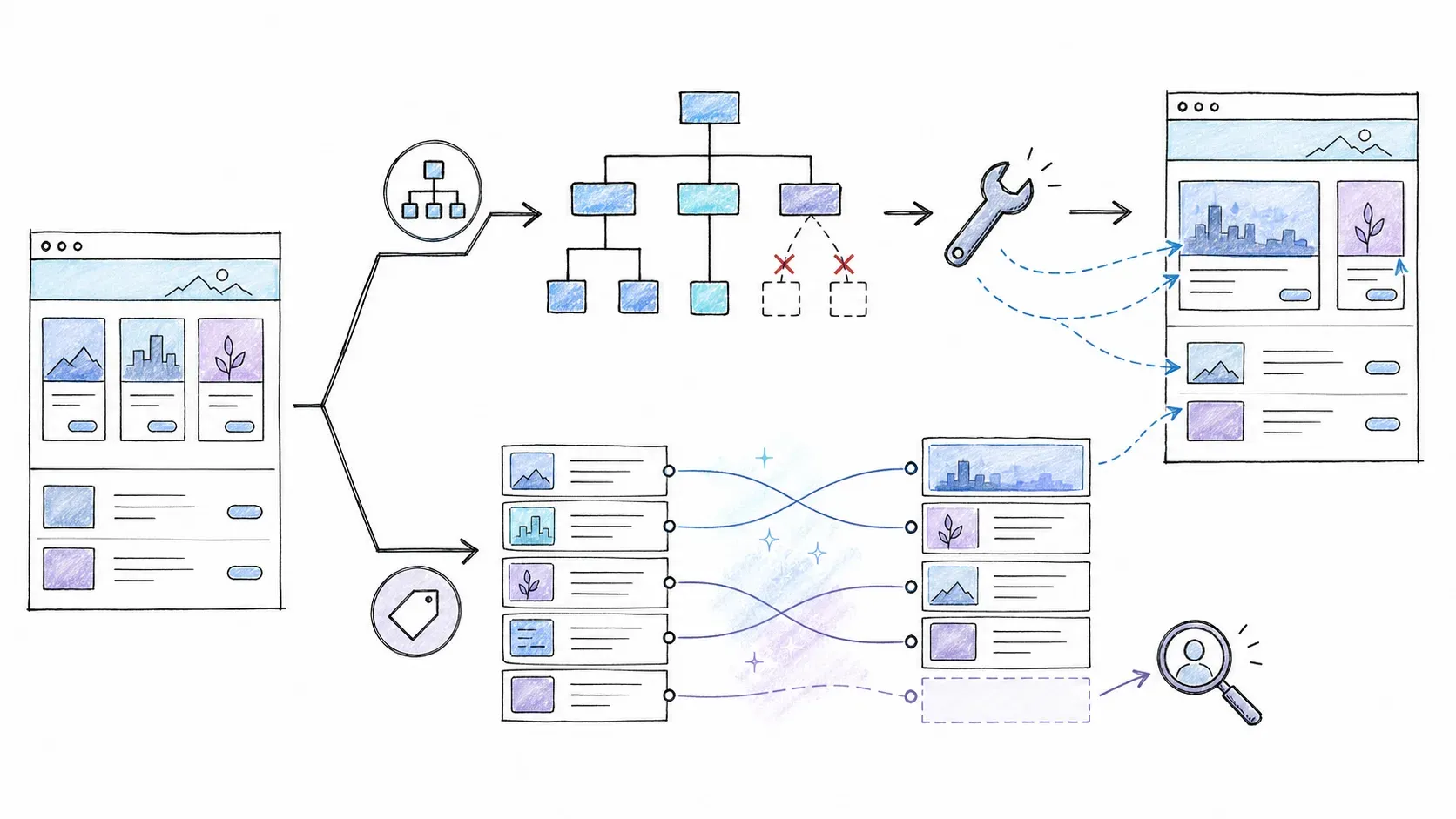
Setting up a scraper is a one-time cost. Maintaining it is the recurring cost — and often the bigger one.
Websites change. E-commerce sites redesign seasonally. Job boards update templates. Even government portals occasionally shuffle their HTML. When the DOM changes, scraping configurations can break.
Webscraper.io: The Selector Maintenance Cost
Web Scraper's sitemap model is built on explicit selectors tied to specific CSS classes, IDs, or DOM paths. When those change, the affected sitemap breaks and must be manually repaired.
The good news: Web Scraper's 2025 selector improvements avoid some unstable auto-generated class names that frequently change. Carefully chosen selectors on stable pages can be highly deterministic and repeatable — if the site stays the same, the scraper always works the same way.
The risk: meaningful DOM changes (a redesigned product card, a new pagination component, restructured parent-child relationships) can require reviewing and repairing the sitemap. For sites that rarely change — government data portals, static directories — this is a minor concern. For dynamic sites that update templates frequently, it's a real maintenance cost.
Thunderbit: AI-Based Adaptation to Layout Changes
Thunderbit's AI re-evaluates page semantics each time you run One Click Extract, which means it can often continue finding fields after layout changes without the user repairing a CSS selector. The AI reads context and page structure rather than relying on fixed locators.
The caveat (and I'll be straight about this): AI extraction can occasionally miscategorize or miss fields, especially after a significant redesign. Official troubleshooting acknowledges that fields can be missed or misclassified and may need a custom prompt or manually selected example. Users working with high-stakes structured data — prices, technical specs — should validate high-stakes batch output after extraction.
The honest framing: AI interpretation may reduce manual remapping after layout changes, but it's not zero-maintenance. Explicit selectors give you predictable repeatability on stable pages but can require repair when the DOM shifts. Neither approach is universally better — the right choice depends on how often your target sites change and how much manual maintenance you can tolerate.
Free Tier Face-Off: What You Actually Get Before Paying
"Which tool gives me more before I have to pay?" Fair question. Outdated pricing is a frequent complaint in scraping-tool reviews, so every number below links to the official pricing page, and I've noted the date I checked.
(All pricing verified 2026-08-13. Check the linked pages for current numbers — these change.)
Thunderbit Free Tier
Thunderbit's free plan currently includes:
- 6 pages/month, max 30 credits per page (one credit ≈ one standard output row)
- Pre-built templates, pagination up to 3 pages
- One scheduled scraper at daily frequency
- 5 saved scrapers, 14-day data retention
- Exports to Google Sheets, Airtable, Notion, Excel, CSV
- Email, Phone Number, and Image extractors
- No infinite scroll or subpage scraping on Free
Paid plans start at $15/month (Starter) with 500 credits/month, scaling up through Pro tiers. Annual plans offer significant discounts.
Webscraper.io Free Tier
Web Scraper's free Chrome extension includes:
- Advertised unlimited local scraping (no published URL or row quota for local runs)
- CSV and XLSX export
- No cloud scheduling, no managed execution, no API, no proxies
- Data stored locally in the browser
Paid Cloud plans start at $50/month (Project) with 5,000 URL credits/month. Annual plans reduce the effective monthly price.
Pricing Comparison Table
| Dimension | Thunderbit | Web Scraper |
|---|---|---|
| Free tier scope | Credit-based (6 pages/month, 30 credits/page); limited pagination, scheduling, exports | Unlimited local scraping; CSV/XLSX export; no cloud features |
| Cloud/scheduled runs | Available on all plans (1 daily schedule on Free; more on paid) | Paid Cloud plans only ($50+/month) |
| Export destinations on free tier | Google Sheets, Airtable, Notion, Excel, CSV | CSV, XLSX (local only) |
| Paid plan entry price | $15/month (Starter) | $50/month (Project Cloud) |
| Usage unit | Output-row credits (1 credit/standard row; 2 credits/subpage-enriched row) | URL credits (1 credit = 1 page load, regardless of rows returned) |
Why the units aren't directly comparable: A list page with 100 rows could consume ~100 Thunderbit row credits but only 1 Web Scraper URL credit (if no subpages are loaded). A 100-page crawl returning one row per page could consume ~100 credits on both. Subpage enrichment changes both calculations. You really need to estimate based on your specific job shape.
Export and Integration Comparison: Where Does Your Data Go?
Export destinations matter as much as extraction quality. If your scraped data can't reach Google Sheets or Airtable without a manual copy-paste step, you're paying a workflow tax on every single job.
| Export Target | Thunderbit | Web Scraper |
|---|---|---|
| CSV | ✅ | ✅ (local and Cloud) |
| Excel/XLSX | ✅ | ✅ (local and Cloud) |
| Google Sheets | ✅ Direct export | Cloud plans: direct export; local: manual |
| Airtable | ✅ Direct export | Not a current native Cloud destination |
| Notion | ✅ Direct export | Not a current native Cloud destination |
| Cloud storage (Dropbox, S3, etc.) | Not the primary extension story | Paid Cloud plans: Dropbox, Google Drive, GCP, Azure, S3 |
| API | Thunderbit Open API (separate units) | Cloud API on paid plans |
| Webhooks | Supported for async Open API batch jobs | Job webhooks (finished, stopped, failed) |
| AI-agent/developer tools | MCP Server, CLI | Cloud API; no equivalent MCP/CLI found |
If your daily tools are Google Sheets, Airtable, or Notion, Thunderbit's direct export paths save you from the CSV-download-then-import dance. If you need cloud storage destinations like S3 or Dropbox for large-scale data pipelines, Web Scraper's Cloud plans cover that. For developer and AI-agent workflows, Thunderbit's Open API, MCP Server, and CLI offer programmatic integration paths that Web Scraper's Cloud API doesn't directly match — but that's a different audience fit, not a blanket superiority claim.
Handling Pagination, Subpages, and JavaScript-Heavy Sites
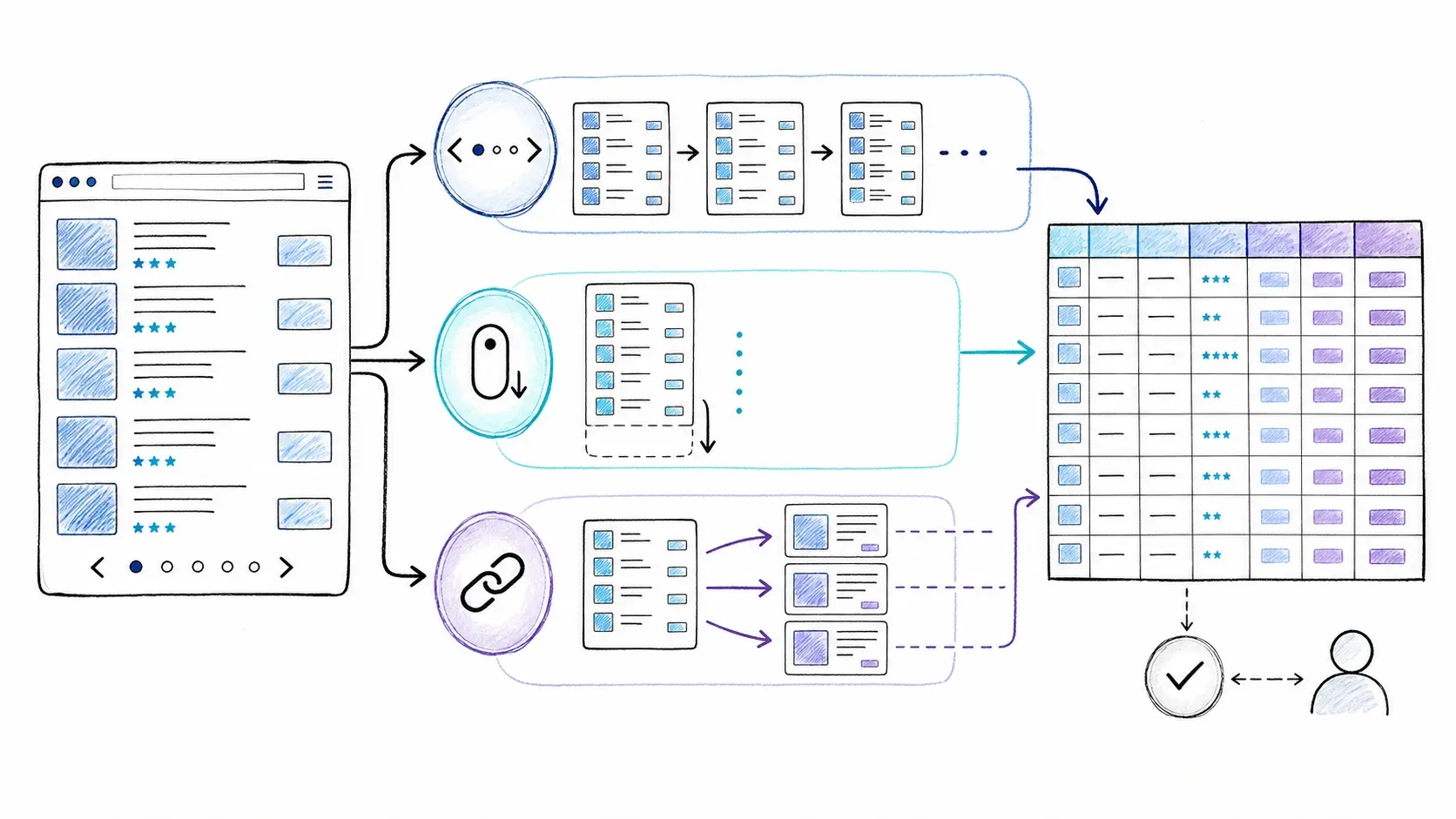
Most real scraping jobs span multiple pages, drill into detail views, or hit JavaScript-rendered content. That's where the differences between these two tools sharpen.
Pagination
- Thunderbit: AI-detected on compatible pages. The Free plan caps pagination at 3 pages; Starter and Pro support up to 200 pages. You don't manually identify the "Next" button.
- Web Scraper: The AI Wizard automatically detects pagination on most compatible sites and can detect infinite scroll. The Advanced Builder lets you manually add pagination selectors for full control.
Subpage Enrichment
- Thunderbit: Supports subpage enrichment on paid plans — the extension can visit linked detail pages and merge additional fields into your table. Each subpage-enriched row costs 2 credits.
- Web Scraper: Link selectors and nested sitemap paths provide granular control over detail-page navigation. You define exactly which links to follow and what to extract on each detail page. More setup, more control.
JavaScript-Rendered Pages
Both tools' browser extensions render JavaScript natively — they run in a real browser, so SPAs and dynamically loaded content are visible.
For cloud/scheduled runs: Thunderbit's Cloud Mode has managed rendering on supported pages. Web Scraper Cloud offers a full driver (renders JS) and a fast driver (does not). Neither tool guarantees success on every JS-heavy site — anti-bot protections, render timing, and site-specific behavior all vary. Test your actual target page.
Use-Case Verdict Matrix: Choose Thunderbit If… / Choose Webscraper.io If…
No single winner here — just a decision framework matched to actual workflows.
| Use Case | Better Fit | Why |
|---|---|---|
| Quick one-off extraction (non-coder) | Thunderbit | Field-first AI flow minimizes conceptual setup; direct business-tool exports |
| Free local scraping on common pages | Web Scraper | AI Wizard handles common lists/tables; local scraping is advertised as unlimited |
| Advanced stable-site scraper with explicit navigation control | Web Scraper | Advanced Sitemap Builder exposes precise selector hierarchy, link traversal, and pagination rules |
| Sales/ops lead collection and contact extraction | Thunderbit | Dedicated Email/Phone extractors, subpage enrichment, field transformations, and direct Sheets/Airtable/Notion export align with the workflow |
| Price monitoring on stable e-commerce pages | Web Scraper | Deterministic selectors provide reliable repeated runs on unchanged pages |
| Frequent site-layout changes | Slight edge to Thunderbit | AI re-interpretation may reduce selector repair, though review is still needed |
| Direct Airtable or Notion handoff | Thunderbit | These are current native Thunderbit destinations; not listed among Web Scraper's native Cloud destinations |
| Developer/API-first pipeline | Compare both APIs | Thunderbit Open API + MCP + CLI vs. Web Scraper Cloud API with scheduling and webhooks. Requirements determine fit. |
| Detailed parent-child scraping logic | Web Scraper | The sitemap tree provides explicit, inspectable navigation and extraction structure |
| Logged-in browser page | Both can fit | Thunderbit Browser Mode and Web Scraper's local extension both use the current browser context |
| JS-heavy public cloud job | Test the actual site | Both have JS-capable paths, but render modes and site behavior vary |
If you're a non-technical user who needs quick data from a variety of sites with direct export to business tools, Thunderbit's AI field-first approach is the more direct path. If you're monitoring stable pages on a fixed schedule and need deterministic, inspectable, repeatable output, Web Scraper's selector model gives you that precise control. And if you're somewhere in between — maybe doing a mix of quick extractions and recurring jobs — you might genuinely benefit from having both in your toolkit.
Thunderbit vs Webscraper.io: Full Comparison Table
Everything above, condensed into one scannable table. (Verify volatile details against official pages at the time you're reading this.)
| Dimension | Thunderbit | Web Scraper |
|---|---|---|
| Setup approach | One Click Extract → agentic analysis → Run Now or automatic start | AI Wizard for common pages; Advanced Sitemap Builder for complex jobs |
| Learning curve | Low — field-first, no selector concepts | Low for Wizard; moderate-to-steep for Advanced Builder |
| AI features | One Click Extract, Field AI Prompts, AI-detected pagination | AI Sitemap Wizard, AI selector generation, auto-pagination, infinite-scroll detection |
| CSS knowledge needed | No | Not for Wizard/point-and-click; sometimes for advanced cases |
| Pagination | AI-detected; Free caps at 3 pages | AI-detected on most sites; manual fallback available |
| Subpage enrichment | Supported on paid plans (2 credits/row) | Link selectors and nested sitemaps |
| Maintenance after layout changes | AI re-interprets; review still needed | Selectors may need repair; improved selector stability since 2025 |
| Free tier | 6 pages/month, 30 credits/page, limited scheduling and exports | Unlimited local scraping, CSV/XLSX export, no cloud features |
| Paid entry price | $15/month | $50/month |
| Export: Sheets/Airtable/Notion | ✅ Direct | Sheets on Cloud plans; Airtable/Notion not native |
| Export: Cloud storage | Not primary focus | Dropbox, S3, GCP, Azure, Google Drive on Cloud plans |
| API | Open API (separate units) | Cloud API on paid plans |
| Developer tools | MCP Server, CLI | Cloud API, webhooks |
| Chrome Web Store rating | 4.2/5 (195 ratings) | 4.1/5 (1.1K ratings) |
| Best for | Non-technical users, quick extraction, business-tool integration, lead gen | Free local scraping, stable-site monitoring, advanced selector control, cloud storage pipelines |

Which Tool Is Right for You?
The core tradeoff hasn't changed even as both tools have added AI: Thunderbit optimizes for getting a clean table of data into your business tools with minimal conceptual overhead. Web Scraper optimizes for giving you an inspectable, editable extraction path with explicit control over how data is found and navigated.
Neither is universally "better." If you're in sales or marketing and need to pull leads, product data, or competitive intel into Sheets or Airtable without learning what a CSS selector is, Thunderbit's Chrome extension is the more direct fit. If you want unlimited free local scraping, the ability to inspect exactly how your scraper traverses a page, and you're comfortable with (or willing to learn) the sitemap model, Web Scraper's extension remains a strong choice.
Try both on your own target pages — that's the comparison that actually matters. Thunderbit's free tier lets you test One Click Extract on real pages, and Web Scraper's local extension is free without limits.
FAQs: Thunderbit vs Webscraper.io
Is Thunderbit or Webscraper.io easier for beginners?
Thunderbit's default flow exposes fewer scraping concepts — you click One Click Extract and the agent analyzes and runs the task automatically. Web Scraper's AI Wizard has narrowed the gap for common structured pages, so it's no longer accurate to say every beginner must build selectors manually. That said, advanced Web Scraper configurations still require understanding sitemap relationships and may require CSS knowledge. For someone with zero technical background, Thunderbit's field-first approach is generally the faster on-ramp.
Can I use Webscraper.io without knowing CSS selectors?
Yes, for many common tasks. The AI Sitemap Wizard and point-and-click selector tools are no-code paths that handle standard listing and table pages well. Official documentation notes that some advanced cases — unusual page structures, complex navigation, nested data — may still require manually specified selectors and HTML/CSS knowledge.
Does Thunderbit work on every website?
No tool works on every website, and I won't claim otherwise. Thunderbit covers many common workflows across compatible web pages, but pages with complex anti-bot protections, unusual structures, or strict access controls can present challenges. Browser Mode helps with logged-in pages, and Cloud Mode handles many public pages, but some sites may need adjustment or may not be extractable. For more on what web scraping can and can't do, we've written about that separately.
Can I schedule recurring scrapes with both tools?
Yes. Web Scraper offers cloud-based scheduling on paid plans (starting at $50/month). Thunderbit includes limited scheduling even on the Free plan (one daily scheduled scraper), with more frequent and additional schedules on Starter and Pro plans. Check the current Thunderbit pricing page and Web Scraper pricing page for the latest plan details.
Which tool is better for scraping e-commerce product data?
It depends on the job. For one-off product extraction — pulling a catalog into a spreadsheet for competitive analysis — Thunderbit is faster to set up with One Click Extract and direct Sheets/Airtable export. For ongoing price monitoring on stable product pages where you need deterministic, repeatable runs on a schedule, Web Scraper's selector model and Cloud scheduling provide reliable repeated extraction. If the e-commerce site frequently redesigns its product pages, Thunderbit's AI re-interpretation may save you maintenance time, but you should still review outputs after layout changes.
Learn More