

If you’ve ever found yourself staring at a mountain of repetitive tasks on your Windows PC—copying data, renaming files, updating software, or just wishing your computer could “just do it for you”—you’re not alone. In 2026, automation isn’t just a buzzword for IT pros or coders; it’s a lifeline for business teams, sales reps, ops managers, and anyone who’d rather spend time on real work than on digital busywork. I’ve been in the SaaS and automation trenches for years, and I can tell you: the right free automation software for Windows can save your team hours (and maybe your sanity).
Here’s the wild part: nearly 60% of companies now use some form of automation in finance, operations, or IT, and 74% of employees say it helps them work faster. With Windows still dominating the business desktop, the demand for free, easy-to-use automation tools is skyrocketing. Whether you’re a spreadsheet warrior, a sales lead hunter, or just tired of clicking the same button for the hundredth time, this list is for you.
Let’s dive into the best free automation tools for Windows in 2026—ranked, reviewed, and ready to help you reclaim your time.
Why Free Automation Software for Windows Is a Must-Have in 2026
Automate the Browser Half of Your Workflow Desktop RPA handles your apps; Thunderbit handles the web pages. One click and the AI works out what to extract. Get Started Free
Automation isn’t just about saving a few minutes here and there—it’s about transforming how teams work. In a world where up to 80% of routine finance tasks could be automated, and Gartner expects 75% of new applications to be built with low-code technologies by 2026, automation has officially graduated from "nice to have" to baseline business skill.
For Windows users, the benefits are huge:
- Time savings: Automation tools can cut manual work by 50–80% for tasks like data entry, reporting, and file management.
- Error reduction: Fewer mistakes from copy-paste or manual updates.
- Productivity boost: Sales teams report 82% more time for clients) after automating routine work.
- Accessibility: With so many free options, even non-technical users can automate complex workflows—no coding required.
From web scraping and workflow automation to IT monitoring and file organization, there’s a free tool for almost every Windows automation need.
How We Selected the Best Free Automation Tools for Windows
Picking the right automation tool can feel like searching for a needle in a haystack (except the haystack is made of software and the needle is your lost productivity). Here’s how I narrowed down the top 20:
- Ease of use: Can non-coders get started quickly?
- Feature set: Does it cover real-world business needs (web, desktop, IT, data, etc.)?
- Community support: Are there tutorials, forums, and active user bases?
- Compatibility: Does it play nicely with other Windows apps and services?
- Free version limits: Is the free tier actually useful, or just a teaser?
I also looked at user reviews, expert ratings, and—most importantly—how well each tool solves actual business problems. You’ll find a mix of no-code, low-code, and script-based tools here, so there’s something for every skill level.
The 20 Best Free Automation Tools for Windows in 2026
1. Thunderbit
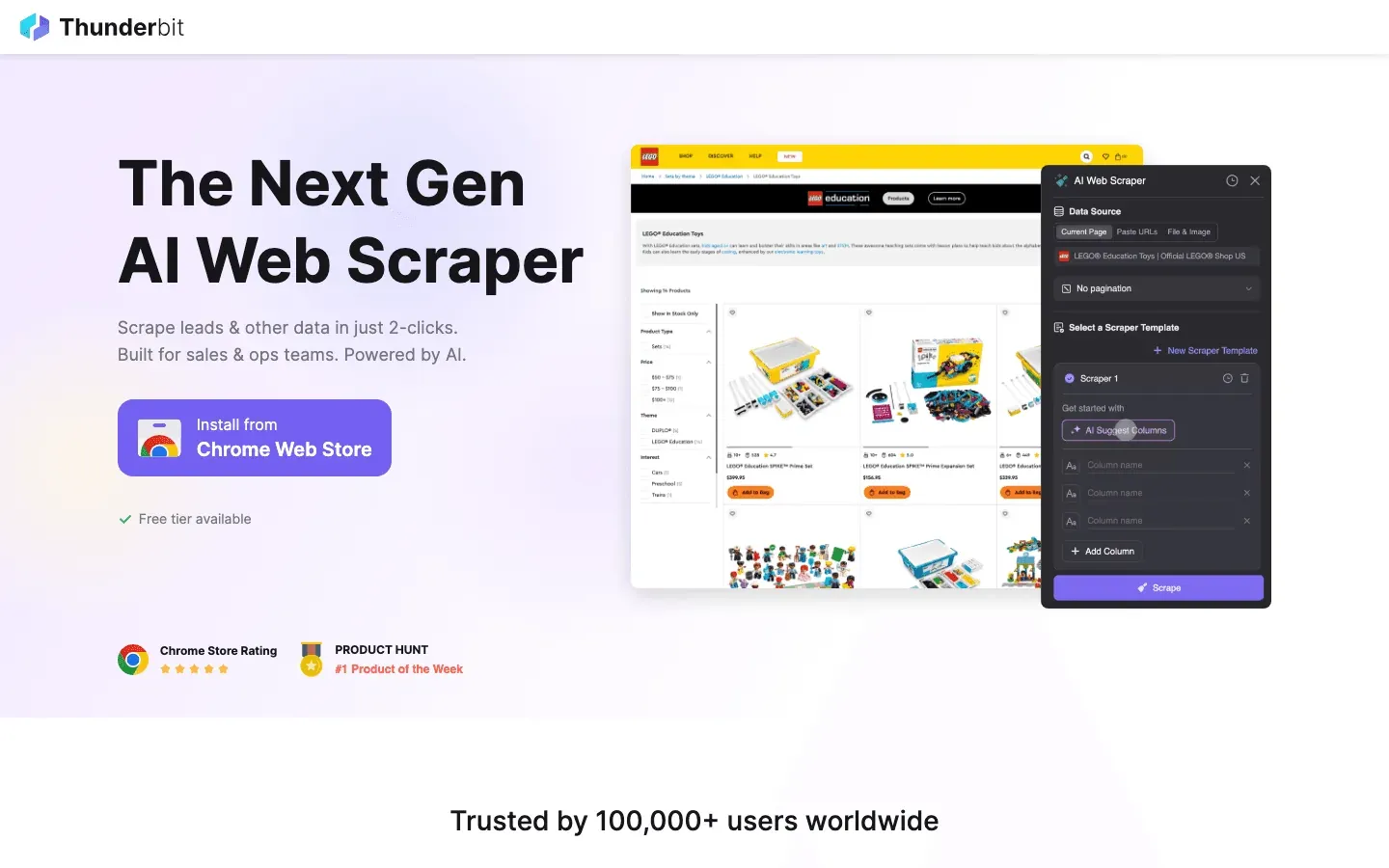 Thunderbit is my top pick for no-code web automation on Windows. As the co-founder, I’m a little biased—but hear me out. Thunderbit is an AI-powered web scraper Chrome Extension that lets anyone (yes, even your most non-technical teammate) extract data from any website from a single click.
- One Click Extract: Just click once, and Thunderbit’s AI reads the page, works out the columns (like Name, Price, Email), and builds a table.
- Subpage Scraping: Need more details? Thunderbit can visit each subpage (like product details or LinkedIn profiles) and enrich your table automatically.
- Instant Data Export: Export to Excel, Google Sheets, Airtable, or Notion—no extra steps.
- No-Code Setup: Describe what you want in plain English, and Thunderbit handles the rest.
Real-world use: Sales teams use Thunderbit to scrape lead lists, e-commerce ops monitor competitor prices, and researchers gather data for analysis—all without writing a single line of code. One B2B sales team cut 80% of their lead research time and tripled their qualified leads using Thunderbit.
Free tier: A free-forever tier covers email, phone, and image extractors; the trial bumps you to unlimited credits across 8 webpages so you can try the full AI scraper before deciding. Paid plans start at $9/month (Starter), which is more than enough for a small ops team running a few jobs a week.
If you want to see Thunderbit in action, check out this deep dive on the Thunderbit Blog.
Try Thunderbit Free for Web Automation Free on Windows, macOS, and anywhere Chrome or Edge runs. AI Autofill and the three Extractors are on every plan. Get Started Free
2. AutoHotkey
 AutoHotkey is the Swiss Army knife of Windows automation. It’s a free, open-source scripting tool that lets you automate almost anything: keyboard shortcuts, mouse clicks, form filling, batch renaming, and more.
- Custom Scripts: Automate repetitive tasks with simple scripts (tons of examples online).
- Hotkeys: Create custom keyboard shortcuts for any action.
- Community: Massive library of ready-made scripts for business, gaming, and productivity.
Use case: Automate data entry, fill out forms, or trigger complex workflows with a single keystroke. The learning curve is gentle, and the community is super helpful for beginners.
3. WinAutomation
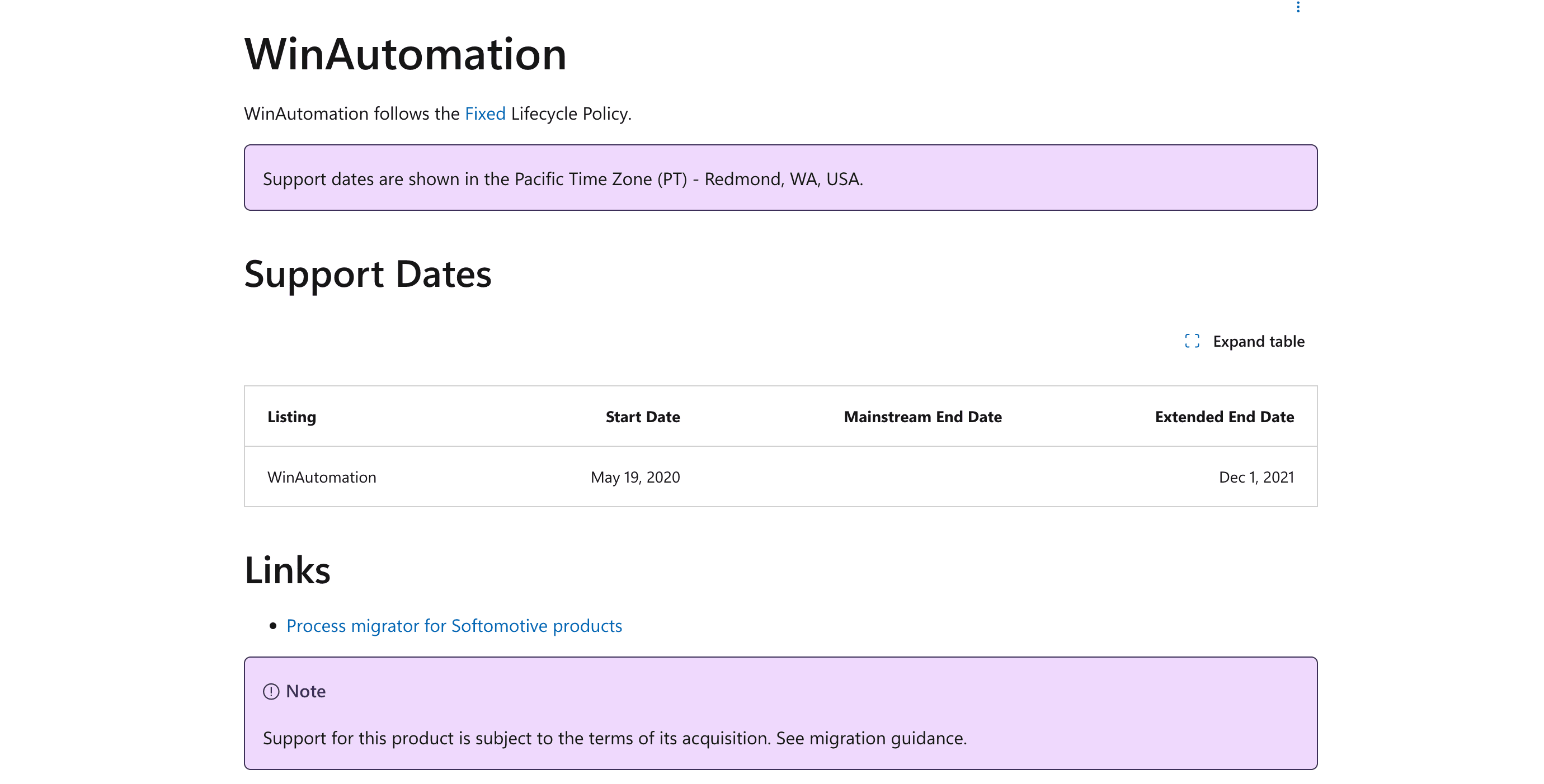 WinAutomation (now part of Microsoft Power Automate Desktop) is a drag-and-drop RPA tool for automating business processes on Windows.
- Visual Workflow Builder: No coding needed—just drag, drop, and connect actions.
- Task Scheduling: Automate reports, data sync, and more.
- Integration: Works with Excel, browsers, and other business apps.
Free version: Now included as Power Automate Desktop on all Windows 10/11 PCs—no extra charge.
4. UI.Vision RPA
 UI.Vision RPA is an open-source browser and desktop automation tool. It combines visual workflows with record/playback features—great for automating both web and desktop tasks.
- Web Testing & Scraping: Automate browser actions, extract data, and test web apps.
- Desktop Automation: Simulate mouse/keyboard, automate GUI tasks.
- OCR Support: Automate tasks based on text/images on the screen.
Free and open-source: All processing is local, and there’s a strong community for support.
5. Zabbix
 Zabbix is a free, open-source platform for IT monitoring and automation. It’s a favorite among sysadmins and IT teams.
- Automated Alerts: Get notified about server/network issues instantly.
- Auto-Remediation: Trigger scripts to fix problems automatically (like restarting a service).
- Reports: Schedule health checks and generate reports.
Use case: Keep your infrastructure healthy and avoid late-night emergencies.
6. AutoIt
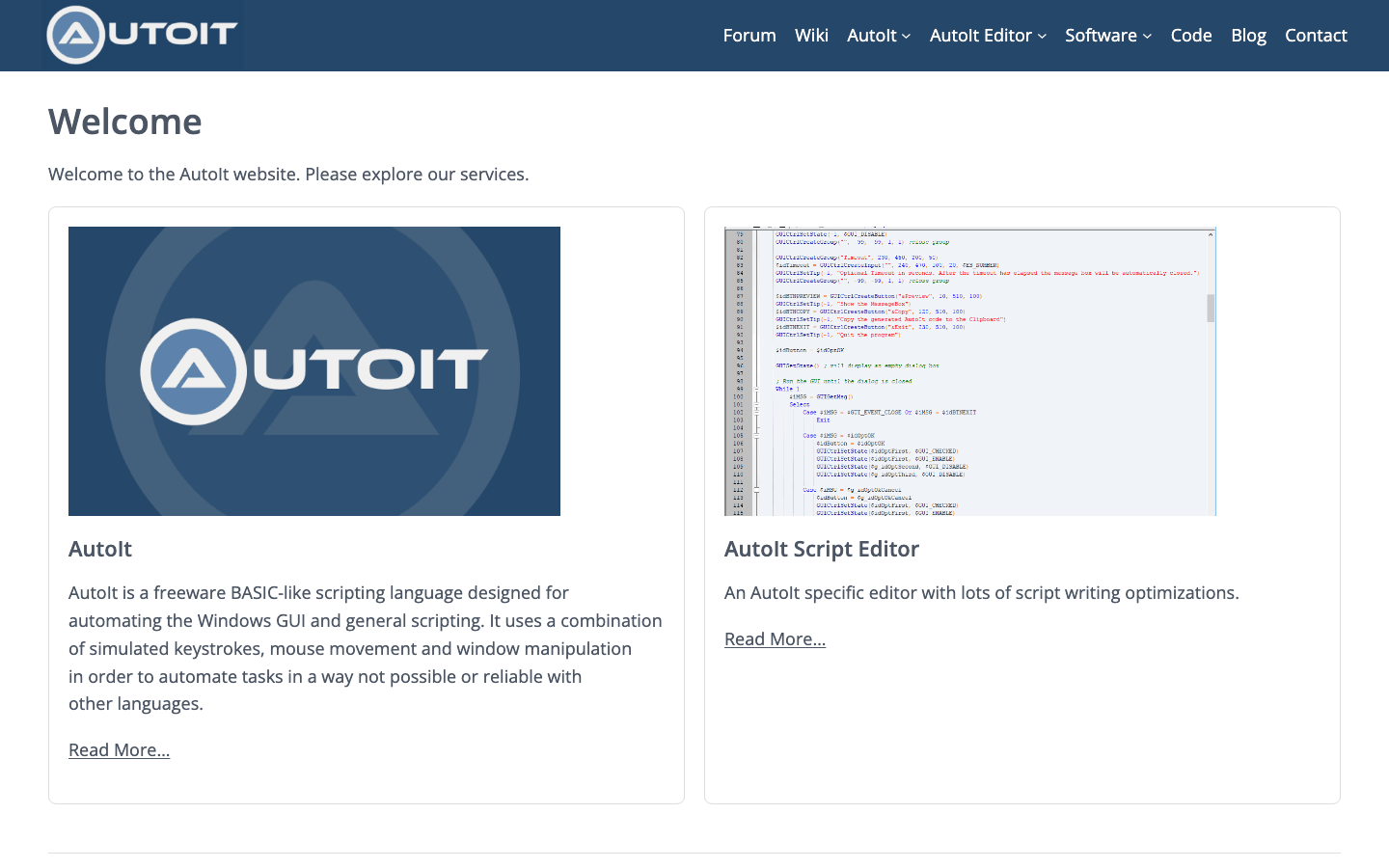 AutoIt is a free scripting language for automating Windows GUIs. It’s like AutoHotkey’s cousin, but with a BASIC-like syntax.
- GUI Automation: Control windows, simulate keystrokes, automate installers.
- Batch Tasks: Great for file management, software deployment, and admin chores.
- Active Community: Lots of beginner-friendly scripts and tutorials.
7. IFTTT
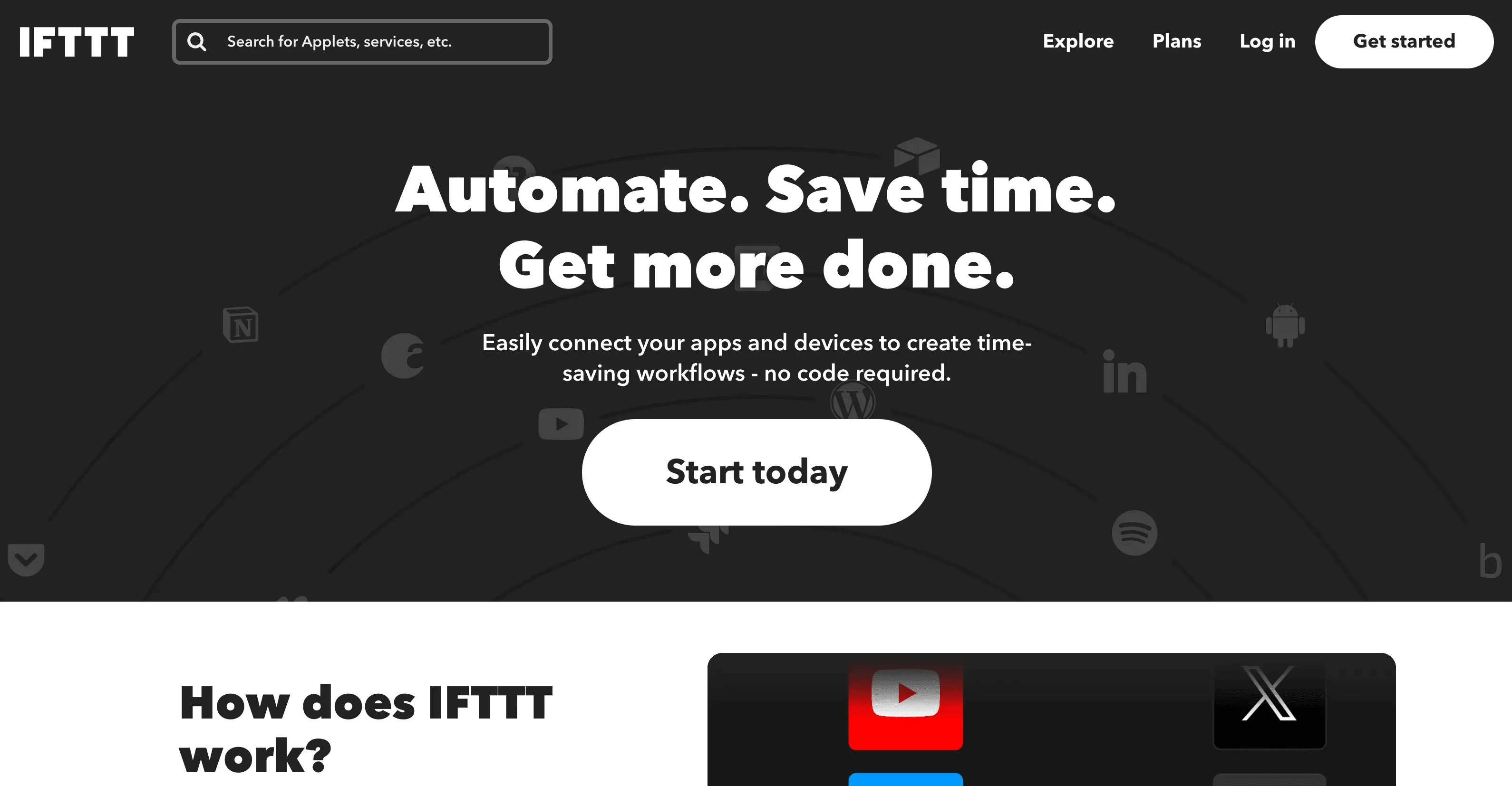 IFTTT (If This Then That) is a web-based automation platform that connects 1,000+ apps and services.
- Simple Logic: “If this happens, then do that.” (E.g., save email attachments to OneDrive.)
- Cross-App Automation: Sync files, send notifications, automate calendar events.
- Free Plan: Supports a few applets for basic automation.
Works with Windows: Integrate with Microsoft, Google, Slack, and more.
8. Task Scheduler (Windows Built-In)
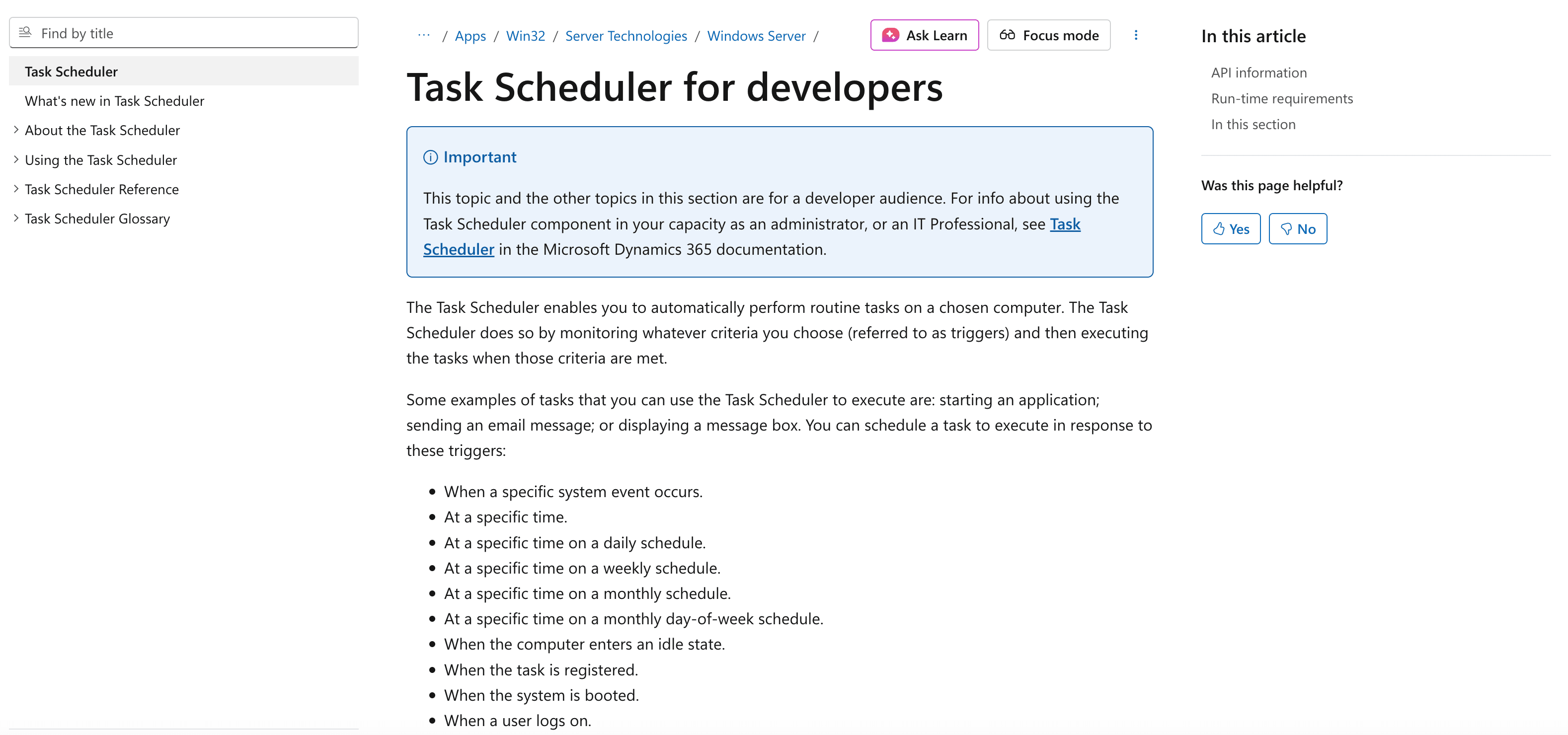 Windows’ own Task Scheduler is a hidden gem for automating routine tasks.
- Schedule Scripts: Run backups, launch programs, or execute batch files on a schedule.
- Event Triggers: Automate tasks based on system events (like logins or file changes).
- Completely Free: Built into every Windows PC.
Use case: Set up nightly backups, daily reports, or regular cleanup jobs—no extra software needed.
9. Zapier
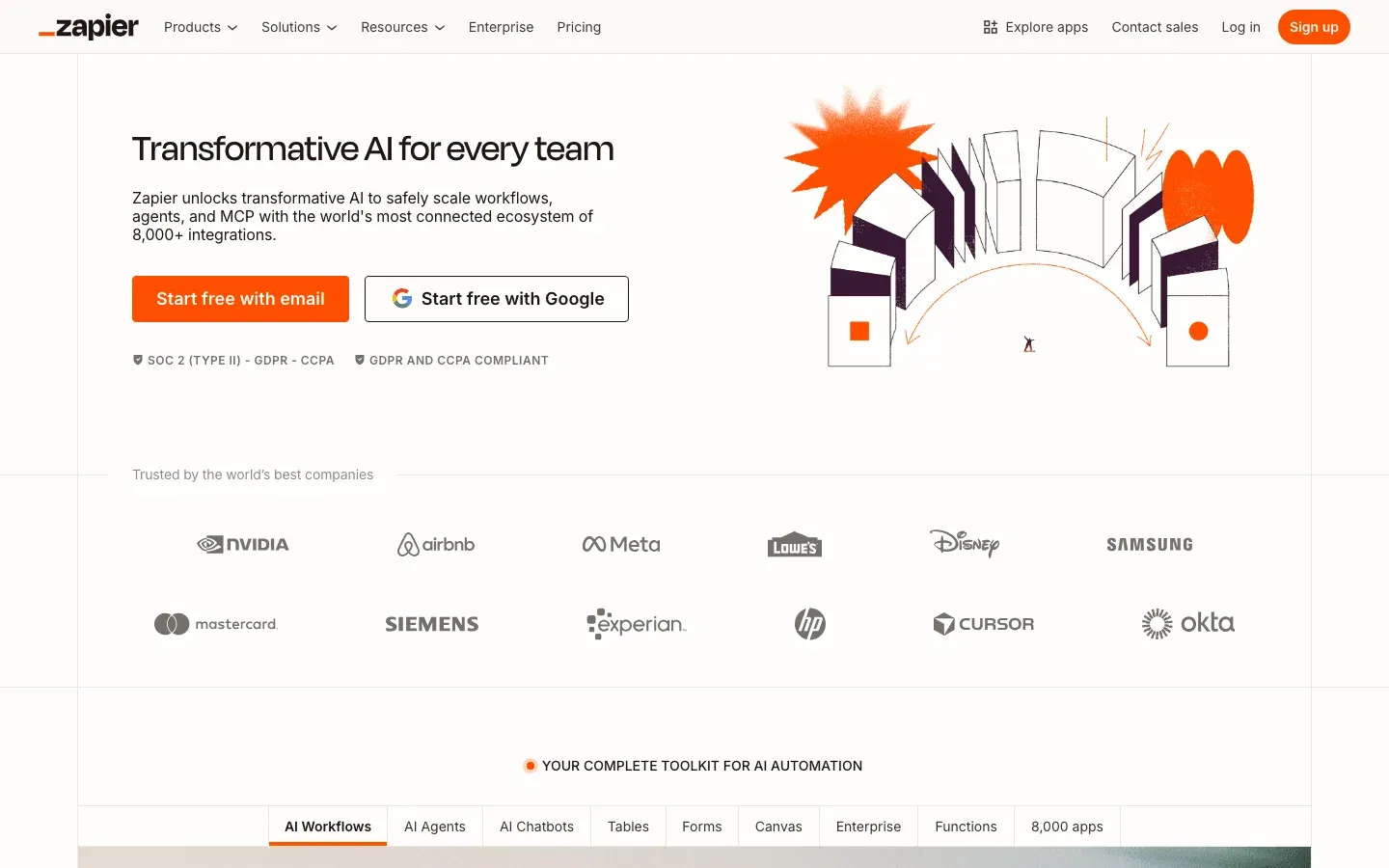 Zapier is a leading cloud-based automation platform, connecting over 8,000 apps.
- Automate Workflows: Move data between Windows apps and cloud services (like Outlook, Google Sheets, Slack).
- Free Tier: 100 tasks/month, basic two-step “Zaps.”
- Popular Use Cases: Lead capture, CRM updates, email automation.
Pro tip: Combine Zapier with desktop tools for end-to-end automation.
10. Selenium
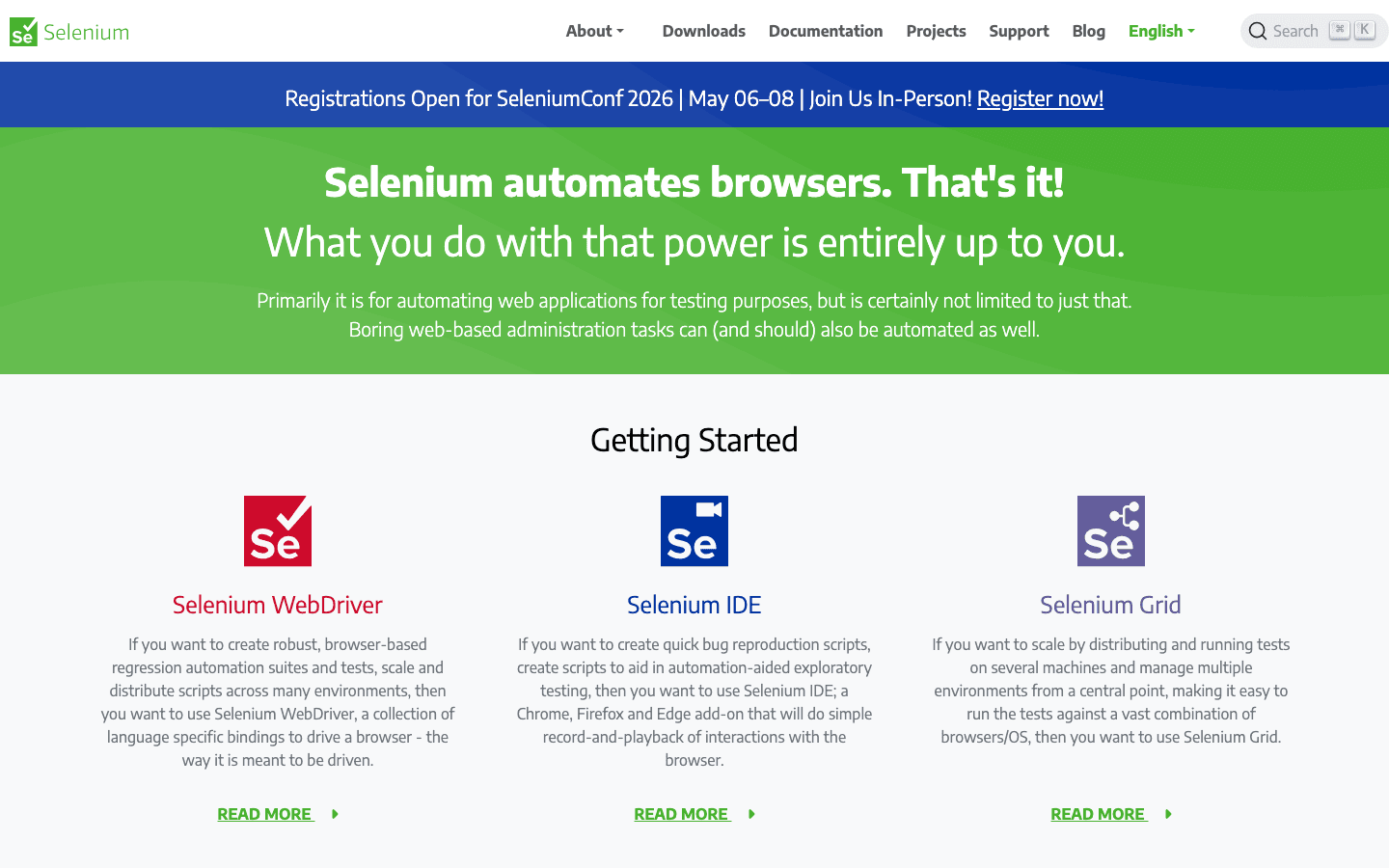 Selenium is the gold standard for browser automation and web testing.
- Automate Browsers: Script Chrome, Firefox, Edge, and more.
- Web Scraping: Extract data from websites (with some coding).
- Open-Source: Huge developer community and tons of documentation.
Best for: QA teams, developers, and advanced users who need robust browser automation.
11. Ninite
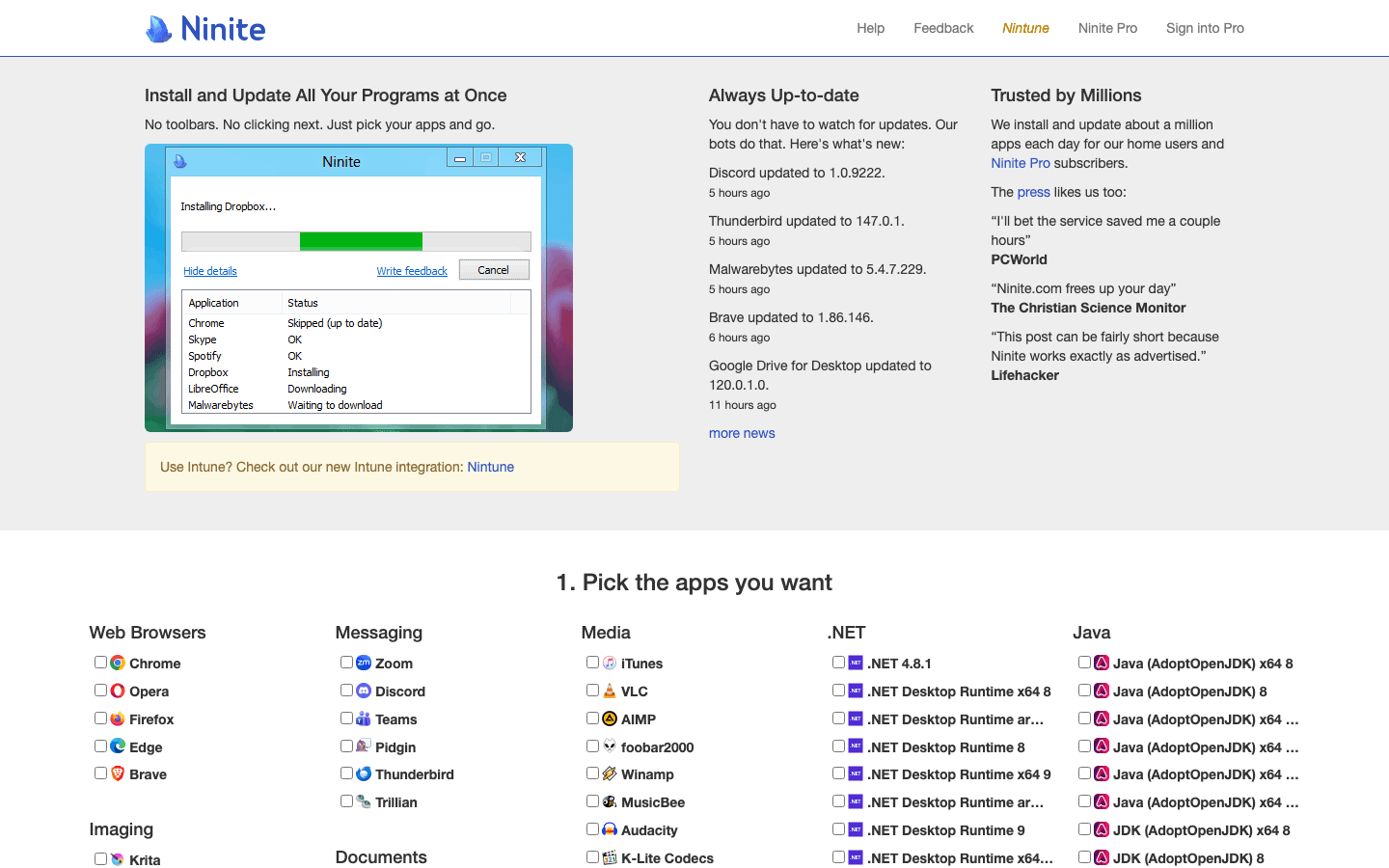 Ninite is the ultimate time-saver for installing and updating Windows software.
- Bulk Install: Select your favorite apps, download one installer, and Ninite does the rest.
- Silent Updates: Keeps software up-to-date without manual intervention.
- Free for Personal Use: IT admins love it for provisioning new PCs.
12. Microsoft Power Automate (Desktop & Cloud)
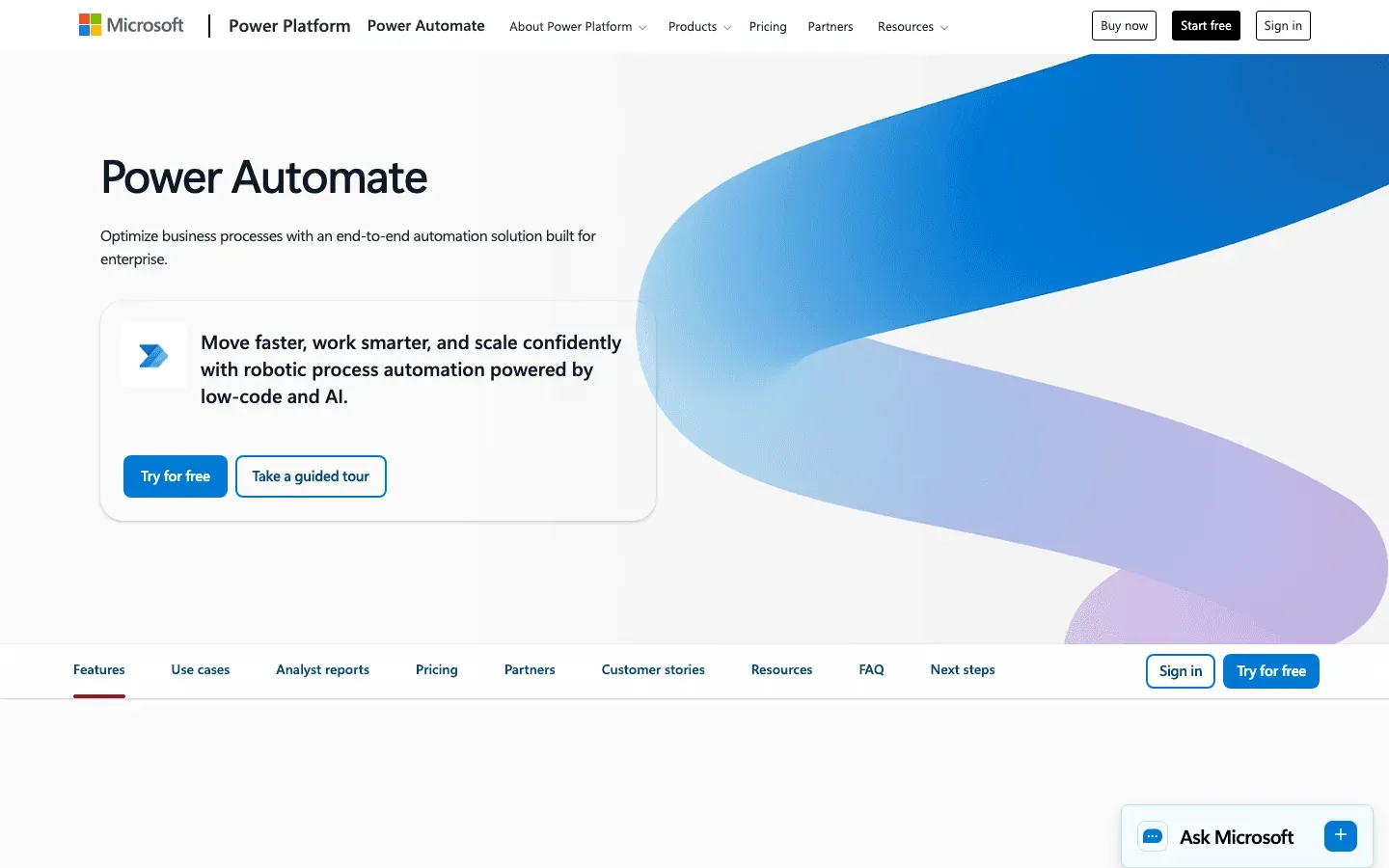 Microsoft Power Automate brings RPA to everyone on Windows.
- Drag-and-Drop Builder: Automate workflows across Microsoft 365, desktop apps, and cloud services.
- Free Desktop Version: Included with Windows 10/11.
- Popular Workflows: Invoice processing, data sync, approval chains.
Cloud version: Free tier available, with more features on paid plans.
13. File Juggler
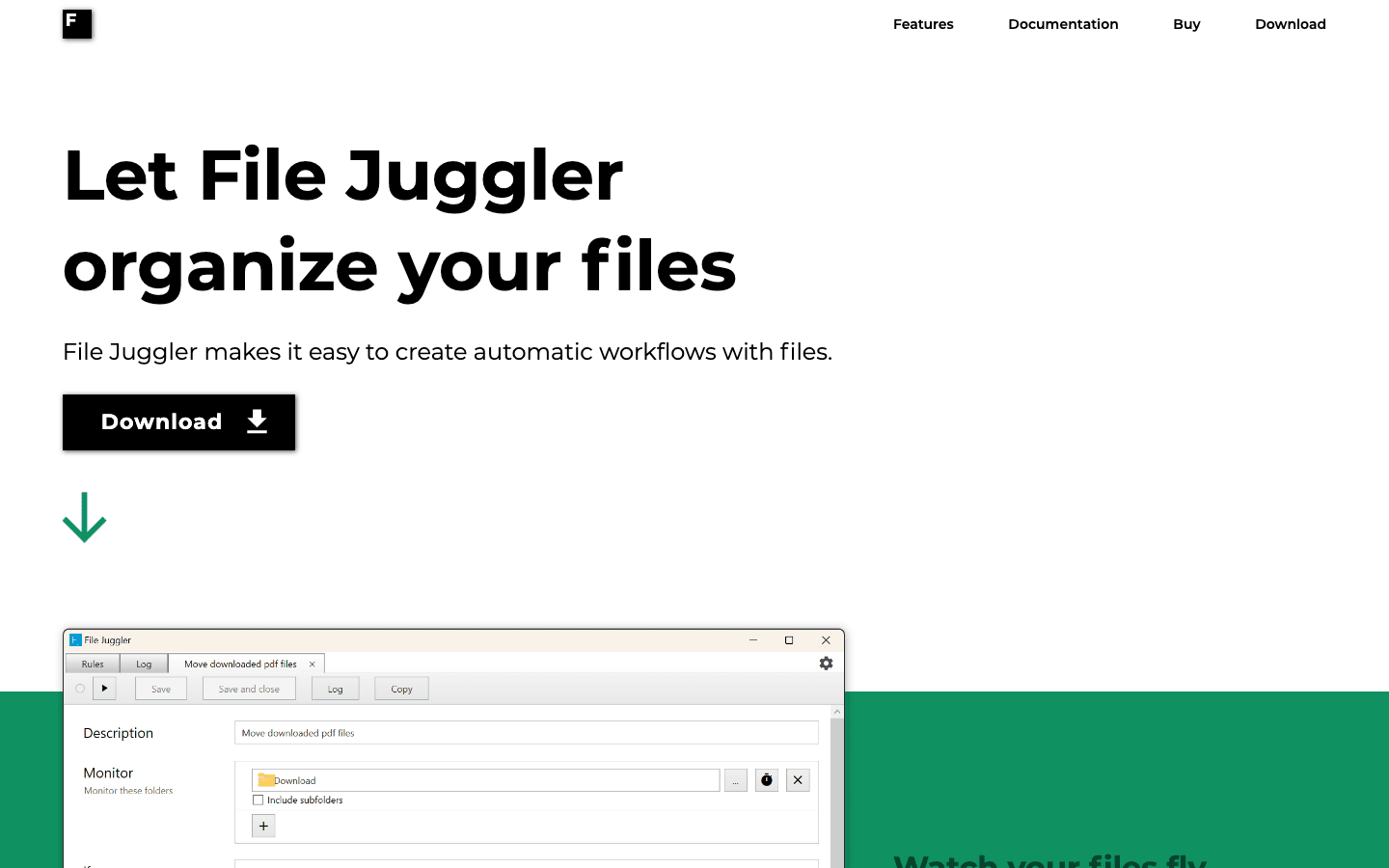 File Juggler automates file management on Windows.
- Rule-Based Automation: Move, rename, or delete files based on rules (like file type, date, or content).
- Document Sorting: Automatically organize invoices, receipts, and reports.
- Free Trial: Paid license for full features.
14. Actiona
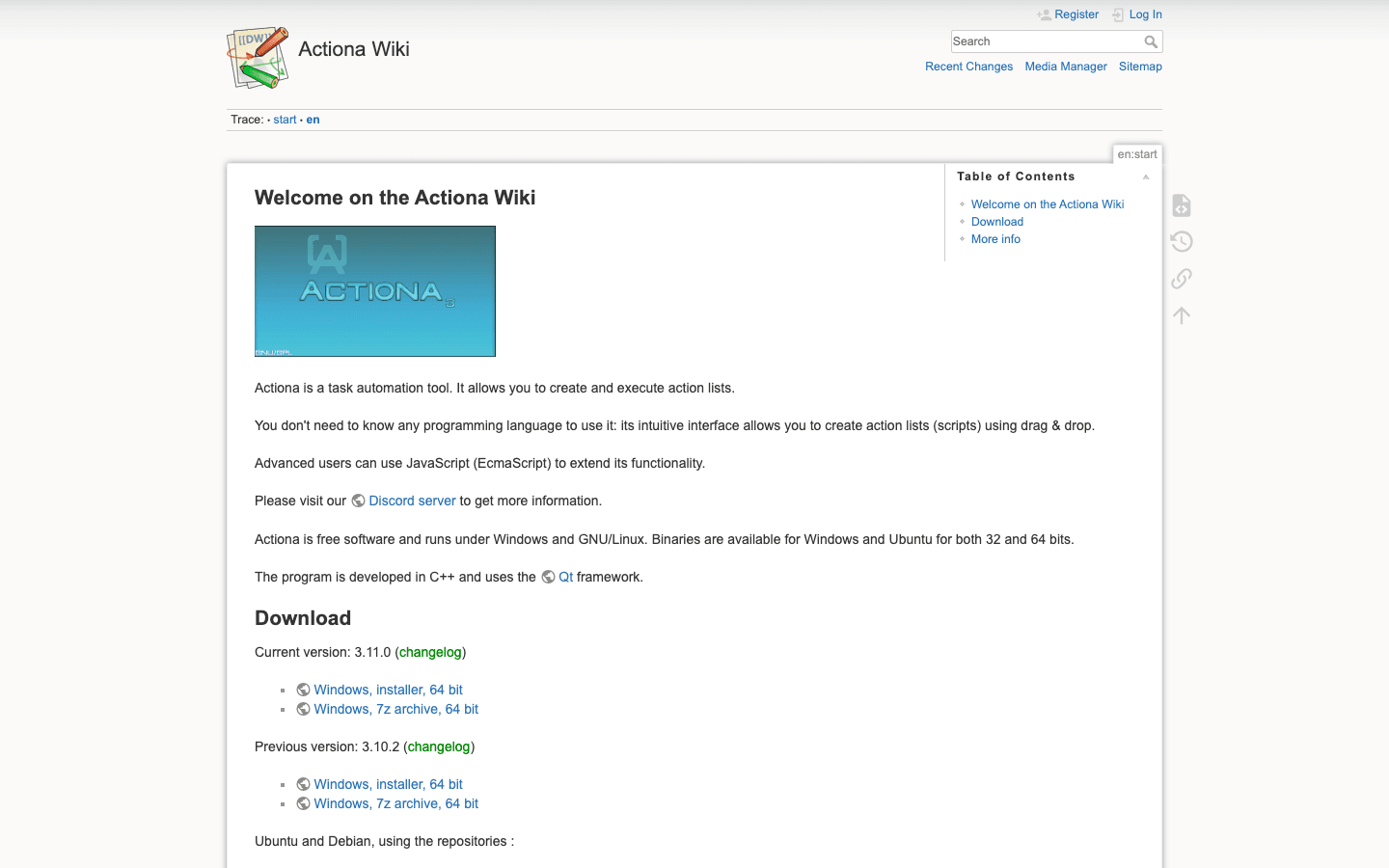 Actiona (formerly Actionaz) is a free, open-source visual scripting tool.
- Visual Editor: Build workflows with mouse clicks, keystrokes, file ops, and more.
- Cross-Platform: Works on Windows, Mac, and Linux.
- Script Logic: Add conditions and loops for advanced automation.
15. Keyboard Maestro
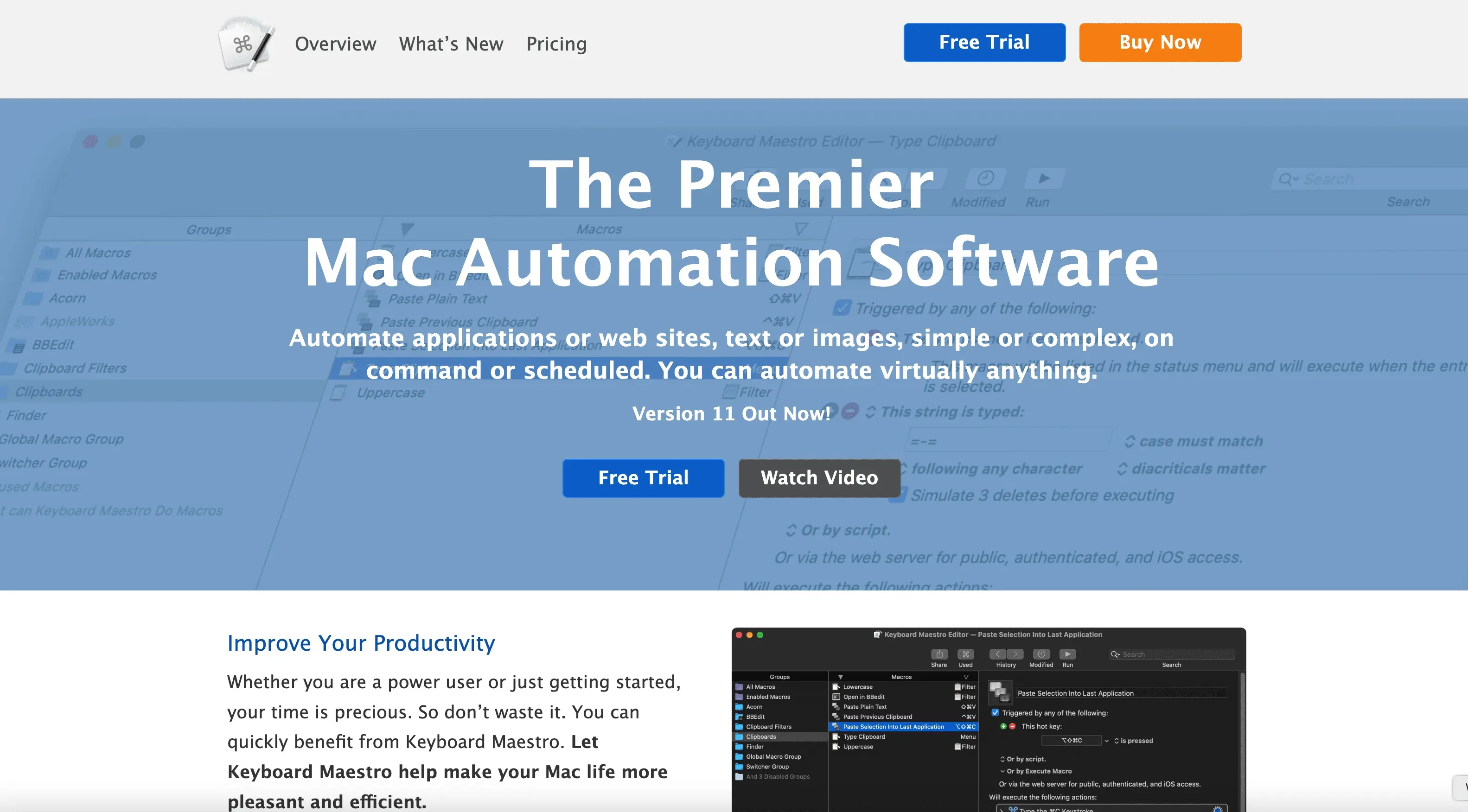 Keyboard Maestro is a legendary macro tool (primarily for macOS), but Windows users can find similar power with AutoHotkey or Macro Expert.
- Macro Automation: Automate keyboard and mouse actions for repetitive tasks.
- Workflow Shortcuts: Trigger complex actions with a single hotkey.
- Alternatives for Windows: Try AutoHotkey or Macro Expert for similar features.
16. Macro Expert
 Macro Expert is a Windows macro recorder and automation tool.
- Record & Replay: Automate repetitive tasks by recording your actions.
- Batch Processing: Generate reports, migrate data, or run batch jobs.
- Free Trial: Paid version unlocks advanced features.
17. ProjectWise
 ProjectWise is a project collaboration and automation platform (mainly for engineering and construction teams).
- Document Workflows: Automate approvals, notifications, and document management.
- Collaboration: Keep teams in sync with automated processes.
- Enterprise Focus: Free options may be limited, but worth exploring for project-driven organizations.
18. SikuliX
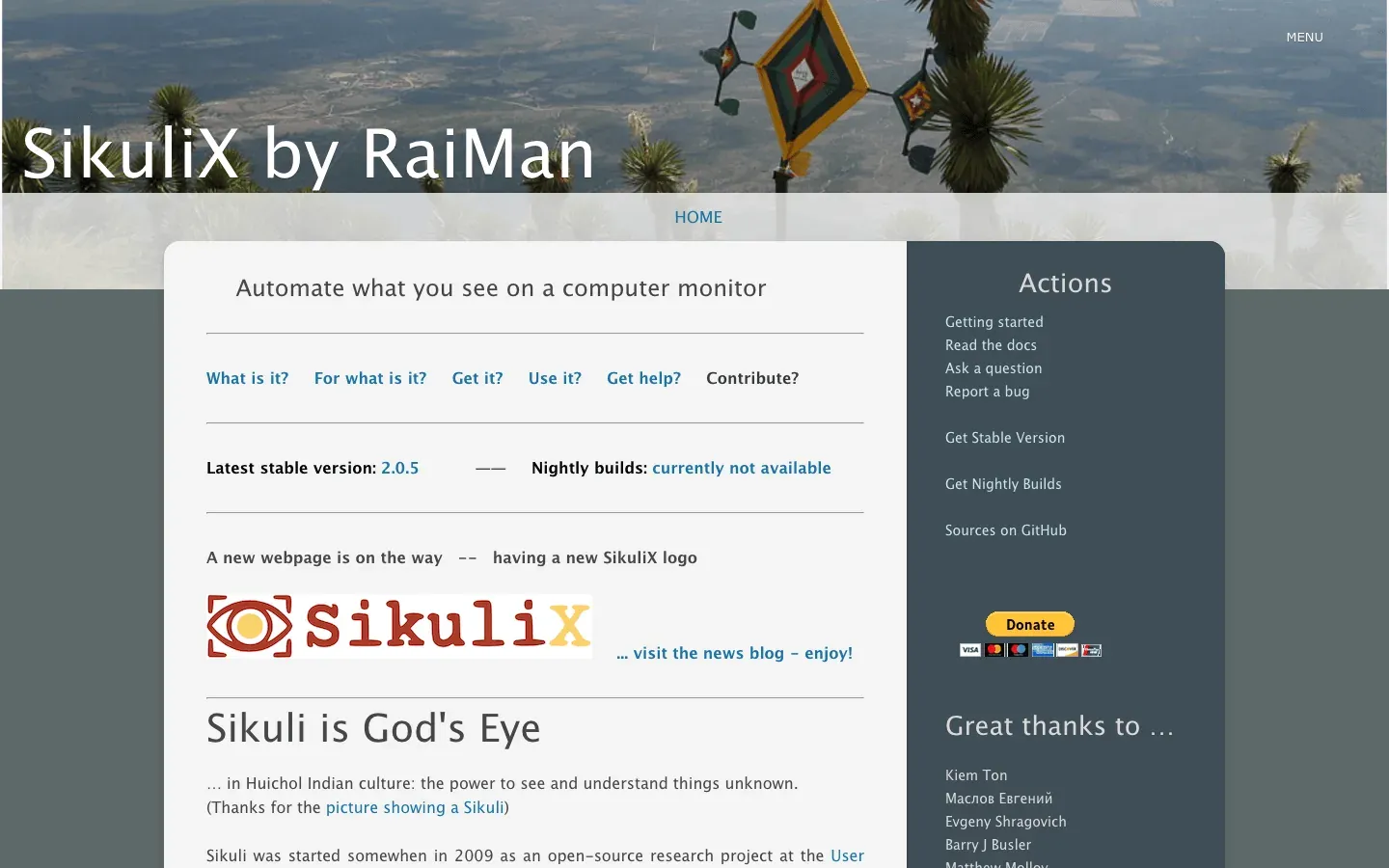 SikuliX uses image recognition to automate anything you can see on your screen.
- Visual Automation: Script actions based on screenshots—great for apps with no APIs.
- Cross-App: Automate legacy software, games, or custom UIs.
- Open-Source: Free and supported by a passionate community.
19. Easy Morph
 Easy Morph is a no-code data automation tool for Windows.
- Visual ETL: Drag-and-drop to clean, merge, and transform data.
- Integrations: Connects to spreadsheets, databases, and cloud apps.
- Free Edition: Unlimited use on one machine.
20. Ansible
 Ansible is a powerhouse for IT automation—yes, it works on Windows too.
- Agentless Automation: Manage Windows servers via simple YAML “playbooks.”
- Common Tasks: Software deployment, configuration management, patching.
- Open-Source: Free and widely used by IT pros.
📊 Feature Comparison Table: Find the Best Free Automation Software for Windows
| Tool Name | Core Function | Best Use Case | Open/Closed Source | Free Version |
|---|---|---|---|---|
| Thunderbit | Web scraping, AI RPA | Data extraction, lead gen | Closed | Yes |
| AutoHotkey | Scripting, macros | Hotkeys, form fill | Open | Yes |
| WinAutomation | Desktop RPA | Business workflow automation | Closed | Yes (via Power Automate Desktop) |
| UI.Vision RPA | Browser/desktop RPA | Web testing, GUI automation | Open | Yes |
| Zabbix | IT monitoring | Server/network alerts | Open | Yes |
| AutoIt | GUI scripting | File mgmt, installer macros | Freeware | Yes |
| IFTTT | Cloud integration | App-to-app automation | Closed | Yes (basic) |
| Task Scheduler | Built-in scheduling | Backups, script runs | Built-in | Yes |
| Zapier | Cloud integration | CRM, email, cloud workflows | Closed | Yes (100 tasks/mo) |
| Selenium | Browser automation | Web testing, scraping | Open | Yes |
| Ninite | App install/update | Bulk software management | Closed | Yes (personal) |
| Power Automate | RPA/workflow | Office, desktop, cloud flows | Closed | Yes (desktop) |
| File Juggler | File automation | Document sorting | Closed | Free trial |
| Actiona | Visual scripting | Custom GUI macros | Open | Yes |
| Keyboard Maestro | Macro automation | Workflow shortcuts | Closed | Mac only |
| Macro Expert | Macro recorder | Batch/report automation | Closed | Free trial |
| ProjectWise | Project automation | Document workflows | Closed | Limited |
| SikuliX | Image-based automation | GUI automation via vision | Open | Yes |
| Easy Morph | Data automation (ETL) | Data cleaning, reporting | Closed | Yes (free ed.) |
| Ansible | IT automation | Server config, patching | Open | Yes |
Choosing the Best Free Automation Tools for Your Windows Workflow
No Scripting, No Selectors Unlike rule-based RPA, there's nothing to rebuild when a site redesigns — the AI re-reads the page each run. Get Started Free
So, which tool should you pick? Here’s my advice:
- For web data extraction: Start with Thunderbit—it’s the easiest way to turn web pages into structured data, no code required.
- For desktop automation: Try AutoHotkey or Power Automate Desktop.
- For IT/ops: Zabbix and Ansible are your best friends.
- For file management: File Juggler and Ninite will keep your files and apps in order.
- For cloud workflows: Zapier and IFTTT make it easy to connect everything.
Pro tip: Don’t be afraid to combine tools. For example, scrape leads with Thunderbit, then use AutoHotkey to process the data, or trigger a Zapier workflow to update your CRM. The best automation stacks are built from a mix of specialized tools.
Most of these tools have active communities, tons of tutorials, and free trials—so experiment and see what fits your workflow best. And remember: start small. Automate one annoying task, then build from there.
For more tips, check out the Thunderbit Blog and our YouTube channel.
Explore Thunderbit's AI Automation Features Scheduled scrapers, subpage enrichment, and exports to Excel, Sheets, Airtable, or Notion at no extra cost. Get Started Free
FAQs
1. What is the best free automation software for Windows in 2026?
There’s no one-size-fits-all answer, but Thunderbit is a top pick for web automation, while AutoHotkey and Power Automate Desktop are excellent for desktop tasks. The best tool depends on your specific needs—data extraction, workflow automation, IT management, or file handling.
2. Can non-technical users automate tasks on Windows?
Absolutely. Tools like Thunderbit, Power Automate Desktop, and Easy Morph are designed for non-coders, with drag-and-drop interfaces and AI-powered features. You don’t need to write code to automate most business workflows.
3. Is it safe to use free automation tools?
Yes, as long as you download from official sources and follow best practices. Open-source tools like AutoHotkey, UI.Vision RPA, and Zabbix have strong communities and transparent code. Always check permissions and avoid sharing sensitive info with untrusted apps.
4. How can I combine multiple automation tools for more powerful workflows?
Many teams use a “stack” approach: for example, scrape data with Thunderbit, process it with AutoHotkey, and sync results to cloud apps with Zapier or IFTTT. Look for tools with good export/import options and integration support.
5. What’s the easiest way to get started with automation on Windows?
Pick a single repetitive task (like copying data from a website or renaming files), choose a tool from this list, and follow a beginner tutorial. Most tools offer free trials or editions, so you can experiment risk-free. For web data, try Thunderbit’s free Chrome extension.
Ready to automate your Windows workflow? Download a tool from this list and start saving time today. And if you want to see what’s possible with AI-powered automation, give Thunderbit a try. Your future, less-busy self will thank you.
Try Thunderbit's AI Web Scraper for Free Get Started Free
Learn More
- Top 15 Desktop Automation Tools to Boost Productivity in 2026
- 15 Browser Automation Tools: From Click-Bots to AI Agents (2026)
- 10 Business Process Automation Tools: Choose the Right Automation Layer
- Automation Statistics 2026: Comprehensive Industry Data and Market Insights
- Top 5 Best Web Data Scraping Software in 2026




