






upwork-scraper

Upwork Scraper

Thunderbit’s Upwork Scraper helps you extract structured data from Upwork freelancer profile listings and freelance job listings using AI. Scrape key fields like name, title, hourly rate, location, skills, job budget, and posting details, then export to Excel, Google Sheets, Airtable, or Notion.
4.8
Monthly users7.2k
AI-Powered
Jobs
Get Started Free
Free tier available

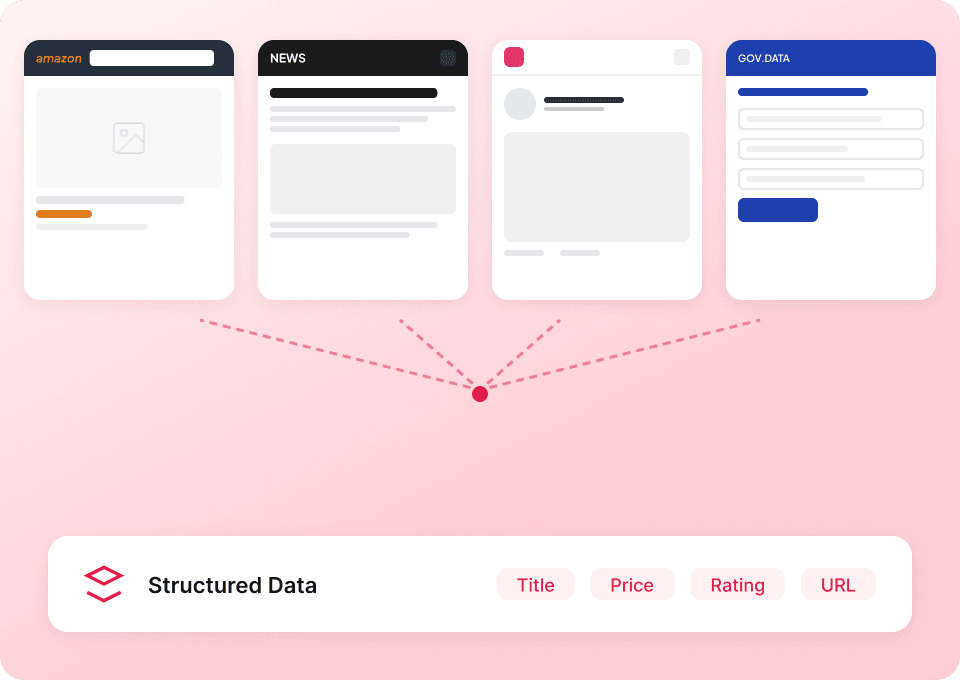
Thunderbit’s AI-Powered Upwork Scraper helps you turn Upwork pages into clean, structured data in minutes. You can use AI to detect the right fields (like hourly rate, skills, location, budget, and job details), scrape listings with pagination, and export to Excel, Google Sheets, Airtable, or Notion. It’s built for business workflows where you need reliable data fast, without writing code.

🤝 What is Upwork Scraper

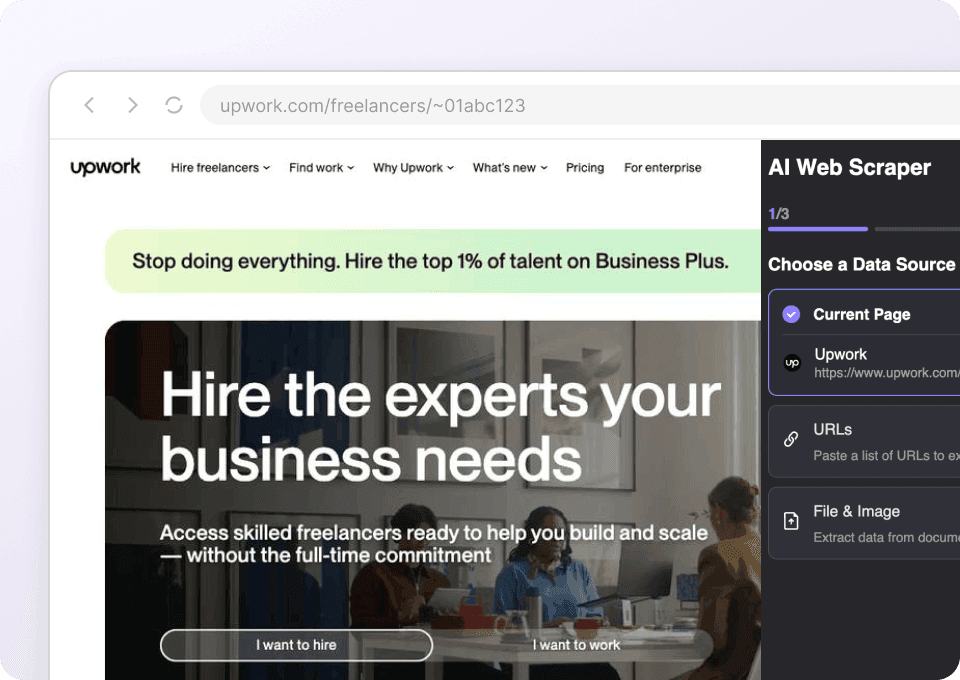
The Upwork Scraper is an that lets you scrape data from using AI to structure the data into a table. You simply open the Upwork page you want, click AI Suggest Columns, then click Scrape in the .

This is especially useful on Upwork because listings can be dynamic and information is spread across cards and subpages. Thunderbit can also visit subpages (like individual freelancer profiles or job posts) to enrich your dataset.

Upwork Screenshot

🧲 What can you scrape with Upwork

Upwork is commonly used for hiring, lead sourcing, market research, and competitive analysis. With Thunderbit, you can scrape both freelancer profile listings and job listings, then export the results to your preferred tool.

👤 Scrape Upwork Freelancer Profiles

Use this scraper on a category page like to build a shortlist of freelancers, compare rates, and analyze skills across the market. This is helpful for recruiting, agencies, and ecommerce teams hiring specialized contractors.

Scrape Freelancer Profiles Screenshot

Steps:

  1. Download the and register an account.
  2. Go to the destination page, for example: .
  3. Click AI Suggest Columns to let AI recommend the best column names and data types.
  4. Click Scrape to run the scraper, then export to Excel, Google Sheets, Airtable, or Notion.

Column names

ColumnDescription
👤 Freelancer NameThe freelancer’s display name shown on the listing card.
🧾 Profile TitleThe headline/title describing what the freelancer does.
🌐 Profile URLDirect link to the freelancer’s Upwork profile page.
💲 Hourly RateThe listed hourly rate (if shown).
📍 LocationCountry/region (and sometimes city) displayed on the profile card.
🧠 SkillsKey skills/tags shown on the listing (e.g., Amazon, APIs, Python).
Job Success / RatingAny visible performance metric such as Job Success Score or rating.
🕒 Hours BilledTotal hours billed (when available on the card).
📝 Overview SnippetShort summary/preview text from the freelancer’s overview.
🖼️ Profile ImageProfile photo URL (useful for Airtable/Notion media fields).

💼 Scrape Upwork Freelance Job Listings

Use this scraper on a job category page like to track demand, budgets, and required skills. This is useful for freelancers, studios, staffing teams, and marketers researching what clients are hiring for.

Scrape Freelance Job Listings Screenshot

Steps:

  1. Download the and register an account.
  2. Go to the destination page, for example: .
  3. Click AI Suggest Columns to generate recommended fields for job posts.
  4. Click Scrape to extract the data and export it to your spreadsheet or database.

Column names

ColumnDescription
🧩 Job TitleThe title of the job post.
🌐 Job URLLink to the full job description page.
💰 Budget / RateBudget for fixed-price jobs or hourly range for hourly jobs (as shown).
🧾 Job TypeFixed-price or hourly (and sometimes experience level).
🏷️ Skills / TagsSkills required or tags listed on the job card.
📝 Description SnippetPreview text from the job description.
📅 Posted TimeWhen the job was posted (relative or exact, depending on page).
🌍 Client LocationClient’s location if displayed.
Payment VerifiedWhether payment verification is shown on the listing.
📊 Proposals / ActivityAny visible activity indicators (e.g., proposals count, interviewing).

🎯 Why Use Upwork Tool

Scraping Upwork data is valuable when you need to make decisions based on real market signals instead of manual browsing.

Common reasons you might scrape Upwork include:

  • Recruiting & talent sourcing: Build a pipeline of freelancers by role, rate, location, and skills, then share it with your team in Google Sheets or Airtable.
  • Sales & agencies: Identify service demand by analyzing job posts, budgets, and recurring skill requirements.
  • Freelancers & studios: Track new opportunities, compare budgets, and spot trends in what clients request.
  • Market research: Quantify how often certain skills appear, how budgets change over time, and which categories are growing.

Thunderbit is designed for business users who want speed and reliability:

  • AI Suggest Columns reads the page and proposes a structured schema for you.
  • Pagination scraping helps you collect more than one page of results (including infinite scroll where supported).
  • Subpage scraping can open each freelancer profile or job post to enrich your table with deeper details.
  • Free export to CSV/JSON, Excel, Google Sheets, Airtable, and Notion.

If you’re new to scraping, these guides can help:

🧩 How to Use Upwork Chrome Extension

  1. Install the Thunderbit Chrome Extension: Get it from the and create your account on .
  2. Navigate to an Upwork page you want to scrape: For example, a freelancer category page like https://www.upwork.com/hire/amazon-backend-developer/ or a job category page like https://www.upwork.com/freelance-jobs/anime/.
  3. Activate AI-Powered Scraper: Click AI Suggest Columns to generate column names, data types, and optional field instructions. You can edit columns to match your workflow (for example, split “Budget” into min/max).
  4. Scrape and export: Click Scrape, then export to Excel, Google Sheets, Airtable, or Notion (export is free).

Tip: If you want deeper details (full job descriptions, full skill lists, portfolio links), use Subpage Scraping so Thunderbit can visit each result’s detail page and append extra columns.

💳 Pricing for Upwork

Thunderbit uses a credit system:

  • 1 credit = 1 output row (one row in your results table).
  • The AI-powered scraping experience (AI Suggest Columns + Scrape) is included, and data export is free.

Free options to get started:

  • Free tier: scrape 6 pages per month.
  • Free trial: scrape 10 pages for free, which is a good way to test Upwork scraping on real workflows.

Paid plans scale with your volume, and the yearly plan is typically the most cost-effective because it includes a discount:

  • Starter: $15 monthly or $9 monthly (billed yearly)
  • Pro tiers increase credits for teams and higher-volume scraping

You can review the latest details on the .

❓ FAQ

  1. What is the AI Powered Upwork Scraper?
    The AI Powered Upwork Scraper is a tool that uses AI to extract structured data from Upwork pages like freelancer listings and job listings. Instead of manually selecting HTML elements, you click AI Suggest Columns and Thunderbit proposes a table schema, then you click Scrape to collect the data.

  2. What is Thunderbit?
    is an AI web scraping and productivity Chrome extension that helps you extract data from websites, PDFs, and images into structured tables. It’s built for business users who want fast setup, reliable scraping, and easy exports to tools like Google Sheets, Airtable, and Notion.

  3. What Upwork pages can I scrape with Thunderbit?
    You can scrape freelancer category pages, job category pages, and many other Upwork listing-style pages. If the data is visible in your browser, Thunderbit can usually structure it into rows and columns, and you can also enrich results by scraping subpages.

  4. Can Thunderbit scrape freelancer profile details beyond the listing card?
    Yes. With Subpage Scraping, Thunderbit can open each freelancer’s profile URL and extract additional fields like longer overview text, portfolio items, employment history, or more detailed skill sections (depending on what’s visible). This is useful when the listing page only shows a summary.

  5. Can Thunderbit scrape full job descriptions from Upwork job posts?
    Yes, you can scrape job listing pages and then use subpage scraping to visit each job URL to capture the full description, client details, and other fields shown on the job page. This approach is helpful when you need richer text for analysis, categorization, or lead qualification.

  6. How does pagination work for Upwork scraping?
    Thunderbit supports scraping pages with pagination and many infinite-scroll experiences. You can choose how many pages to scrape, and Thunderbit will continue collecting rows across pages so you don’t have to copy and paste results manually.

  7. What formats can I export Upwork data to?
    You can export to Excel, Google Sheets, Airtable, or Notion, and you can also download CSV or JSON. Export is free, which makes it easy to share results with your team or plug the data into your workflow.

  8. What’s the difference between Cloud Scraping and Browser Scraping for Upwork?
    Browser Scraping runs in your Chrome session, which is helpful when a site requires login or when you want the scraper to behave like your current browser. Cloud Scraping can be faster for public pages because it runs in the cloud and can process batches of pages quickly; the best option depends on the page and access requirements.

  9. How many rows can I scrape, and what does “500 max rows” mean?
    The practical limit depends on the page structure, how many results are available, and your credits. “500 max rows” is a common target for a single run on many listing pages, and Thunderbit’s credit system makes it predictable: each output row costs one credit, so you can plan your runs based on the dataset size you need.

📚 Learn More

  • Get the extension:
  • Explore product details:
  • Pricing and credits:
  • Guides and tutorials:
  • Recommended reads:
  • Video tutorials: