
Last week, I watched a friend spend an entire Saturday afternoon tabbing between five Shopify stores, copying product names and prices into a Google Doc. By hour three, he had 47 rows and a headache. That's when he texted me: "There has to be a better way."
There is. I've spent years building data tools at Thunderbit, and before that I worked on automation at Automation Anywhere and ecommerce at Jet.com. Competitor analysis was always part of the job, but the manual version—browsing, copying, pasting, reformatting—never scaled. The Shopify ecosystem alone has somewhere between 2.8 million verified live stores and 6.8 million Shopify-detected websites, depending on how you count.
With that many stores fighting for the same customers, "winging it" on competitor intelligence is a luxury most merchants can't afford. Crayon's 2025 State of Competitive Intelligence report found that 44% of companies have zero competitor visibility in their CRM, and sellers encounter competitors in 68% of deals. The gap between businesses that run structured competitive analysis and those that don't shows up directly in revenue.
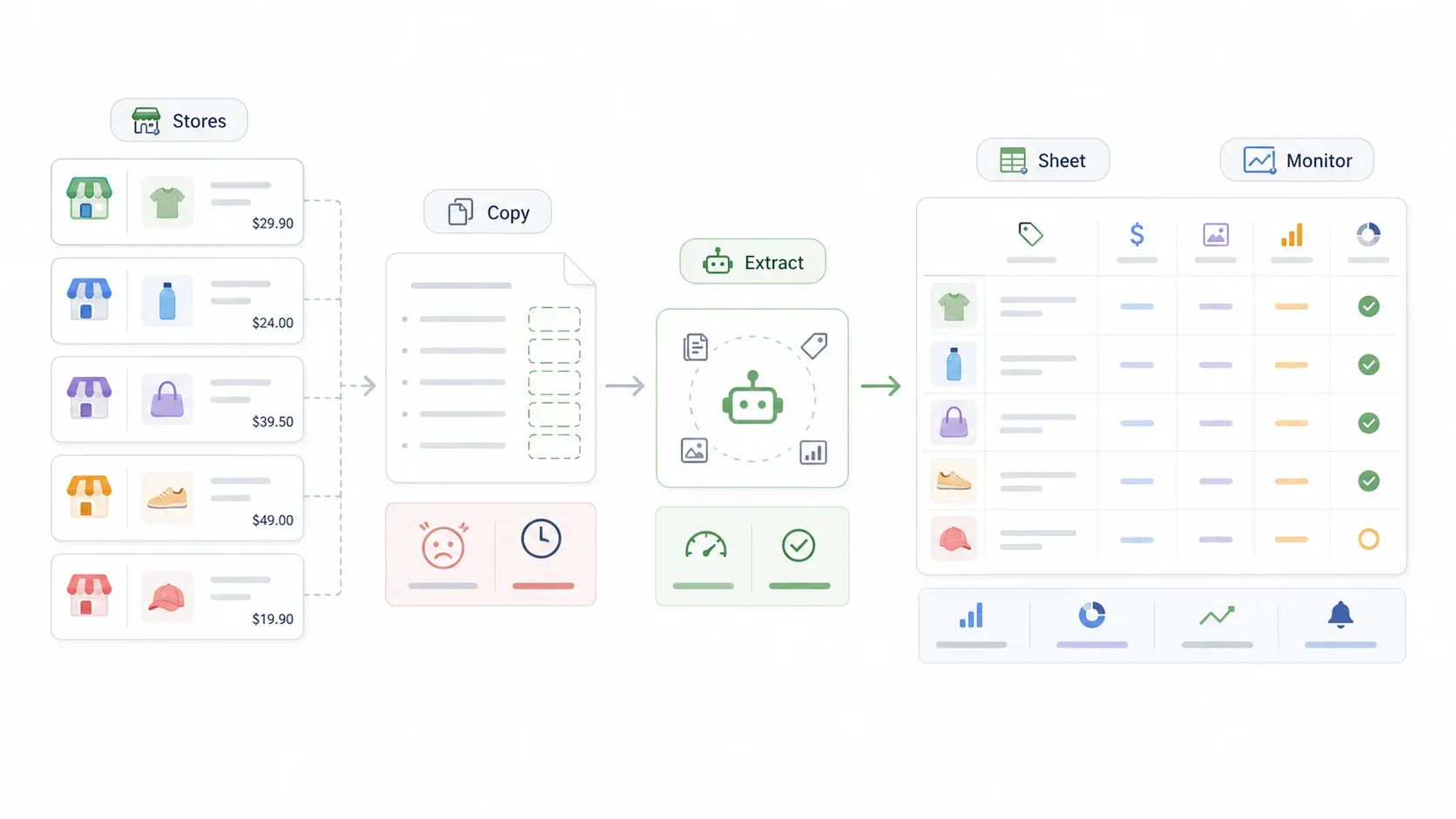
This guide walks through my actual process—from free browser tricks to automated weekly monitoring—so you can run a thorough Shopify store competitor analysis without burning your weekends.
Try Thunderbit for Shopify competitor analysis
What Is Shopify Store Competitor Analysis (and Why Should You Care)?
Shopify store competitor analysis is the process of systematically studying rival Shopify stores—their products, pricing, discounts, tech stack, marketing, shipping policies, and customer experience—to make smarter decisions about your own business. It's not just "checking out the competition." It's building a repeatable system that feeds your pricing, merchandising, and marketing strategy with real data instead of gut feelings.
A few distinctions matter here:
- Direct competitors sell similar or identical products to the same audience. If you sell vitamin C serum to women aged 25–40, another DTC skincare brand doing the same thing is a direct competitor.
- Indirect competitors sell different products but compete for the same wallet. A wellness supplement brand targeting "glow from within" beauty buyers is indirect—they're not selling serum, but they're capturing the same customer's attention and budget.
- Aspirational competitors are bigger brands you want to learn from, even if you're not at their scale yet.
What makes Shopify-specific analysis different from generic competitive analysis? Shopify stores share a common platform architecture. That means shared data structures, detectable themes and apps, and—this is the part most guides skip—publicly accessible product data endpoints. More on that in a minute.
Why Shopify Store Competitor Analysis Is Worth Your Time
I've seen merchants spend weeks agonizing over a pricing decision that five minutes of competitor data would have resolved. The ROI of structured competitor analysis isn't abstract—it shows up in better prices, smarter product launches, and fewer wasted ad dollars.
Here's a quick breakdown of the use cases that actually pay off:
| Use Case | What You Learn | Business Impact |
|---|---|---|
| Pricing benchmarking | Competitor price ranges, discount patterns, subscription pricing | Set competitive prices, protect margins |
| Product gap identification | Categories, variants, bundles competitors carry that you don't | New revenue opportunities |
| Marketing & ad strategy | Ad creatives, email capture offers, SEO keywords | Faster campaign ideation |
| Customer experience audit | Shipping policies, review sentiment, loyalty programs | Improve retention, reduce churn |
| Tech stack detection | Themes, apps, and tools competitors rely on | Smarter tool investments |
| Stock & availability monitoring | When competitors run out of key SKUs | Capture demand they can't fill |
Shopify's own pricing guidance recommends researching competitor pricing to understand the range customers will pay. Their 2026 pricing article goes further, recommending quarterly reviews to catch cost changes, competitor movements, and demand shifts before they erode margins.
Without a structured approach, store owners waste hours on manual browsing and note-taking. For a 5-store, ~200-product-per-store review, manual copy-paste can easily become an 8–12 hour project—and that's before you try to format, deduplicate, or track changes over time.
The Free Data Trick Most Guides Skip: Shopify's /products.json Endpoint
Most Shopify stores expose structured product data at publicly accessible endpoints—and almost no competitor analysis guide mentions it. No tools. No login. No cost.
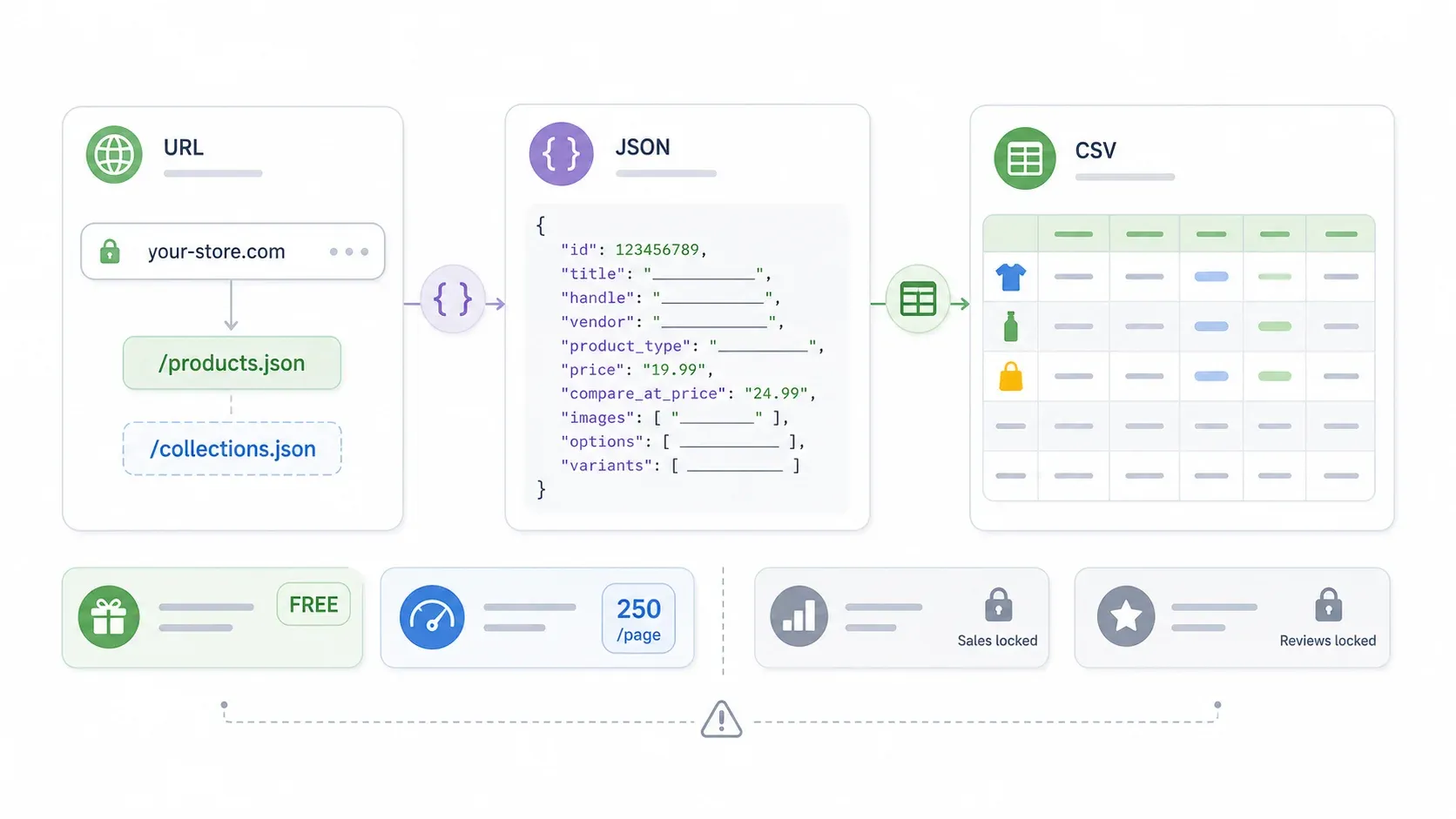
Try it right now. Take any Shopify store URL—say, allbirds.com—and append /products.json to it in your browser:
https://www.allbirds.com/products.json?limit=250&page=1
You'll get a wall of JSON data containing product titles, descriptions, prices, variants, images, tags, inventory status, and more. I tested this on 2026-05-25 and got back 250 product records in a single request, each with fields like title, handle, body_html, vendor, product_type, created_at, updated_at, tags, variants (with price, SKU, and availability), and images.
You can also try /collections.json to see how a competitor organizes their catalog—collection names, product counts, descriptions, and images.
To paginate through a larger catalog, just increment the page number:
https://competitor-store.com/products.json?limit=250&page=2
https://competitor-store.com/products.json?limit=250&page=3
What Data You Can (and Can't) Get for Free
| Available from Public Endpoints | Usually Not Available |
|---|---|
| Product names and handles | Actual sales volume |
| Descriptions (body HTML) | Traffic and conversion rate |
| Price and compare-at price | Ad spend |
| Variants, SKU strings, availability | Customer-level data |
| Images and image URLs | Full review content/count |
| Tags, vendor, product type | App/theme stack |
| Created/updated/published dates | Exact inventory quantities |
| Collection names and product counts | Email/SMS flows |
A few honest caveats: the endpoint caps at 250 products per page, some stores restrict or disable it, and you won't get sales volume, traffic data, or customer reviews. Treat the available field as a storefront availability signal, not a precise inventory count.
For quick formatting, paste the JSON into a free JSON-to-CSV converter or use a browser JSON viewer extension. This works great for a handful of competitors, but once you're dealing with multiple stores and thousands of SKUs, the manual formatting starts eating your time—which is where scraping tools come in.
My Shopify Store Competitor Analysis Toolstack (Sorted by Budget)
A flat list of tools isn't very helpful when a brand-new store and a scaling DTC brand have wildly different budgets. I organize my toolstack by analysis type and spend level instead:
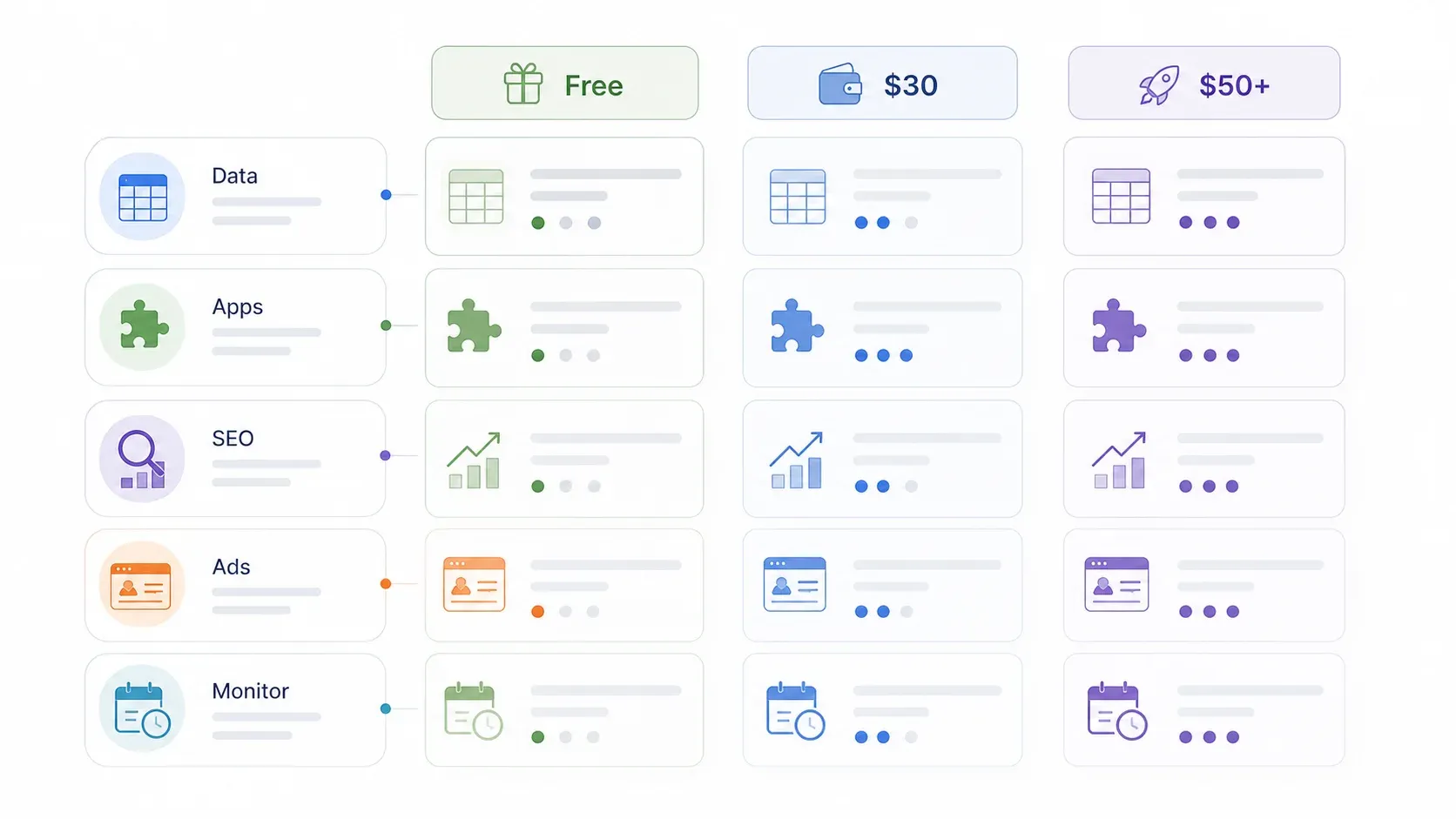
| Analysis Type | Free / DIY | Under $30/mo | Power User ($50+/mo) |
|---|---|---|---|
| Product & pricing data | /products.json endpoint | Thunderbit free tier → Starter | Thunderbit Pro + custom scripts |
| Apps & theme detection | View source, free detector extensions | Koala Inspector Pro | BuiltWith |
| Traffic & SEO | Google Search, SimilarWeb free | Keysearch | Semrush / Ahrefs |
| Ad creative spy | Meta Ad Library (free) | BigSpy | AdSpy |
| Ongoing monitoring | Manual + calendar reminders | Thunderbit scheduled scraper | Store Leads + Thunderbit |
Thunderbit shows up across multiple tiers because our free tier includes free export to Excel, Google Sheets, Airtable, and Notion, and the AI field detection works on any Shopify store. But I'll be upfront: Thunderbit is our tool, so I'll show where it fits honestly and compare it against free endpoints and custom scripts so you can decide what makes sense for your stage.
Picking Tools That Match Your Store's Stage
- Brand-new store, zero budget: Stick to
/products.json, Meta Ad Library, Google Search, and free theme detector extensions. You can do a lot before spending a dollar. - Growing store, ready to invest $15–30/mo: Add Thunderbit Starter for bulk scraping and one SEO/traffic tool like Keysearch or SimilarWeb Pro.
- Scaling store, building a full intelligence stack: Combine Thunderbit Pro with Semrush or Ahrefs, BuiltWith for deep tech detection, and a paid ad-spy tool.
The rest of this article focuses on the product and pricing data layer—the foundation of any Shopify store competitor analysis.
Before You Start
- Difficulty: Beginner
- Time Required: ~30 minutes for your first full competitor analysis (faster after setup)
- What You'll Need: Chrome browser, Thunderbit Chrome Extension (free tier works), a list of 3–5 competitor Shopify store URLs
Step 1: Identify 3–5 Competitor Shopify Stores
Before you scrape anything, you need to know who you're analyzing. I usually aim for a mix: 2–3 direct competitors, 1 aspirational brand, and 1 fast-moving newcomer.
How to find them:
- Google search your product keywords with modifiers like "buy," "best," "bundle," "free shipping," plus your niche terms. Note which Shopify stores appear on page one.
- Browse social ads. Scroll your Instagram and TikTok feeds with your "customer hat" on—brands advertising to your audience are competitors, even if you haven't heard of them.
- Check Meta Ad Library. Search your product category and see which Shopify brands are running active ads.
- Ask your customers. Post-purchase surveys with "Which other brands did you consider?" surface competitors you might miss.
How to confirm a store runs on Shopify:
- View the page source (Ctrl+U or Cmd+U) and search for
cdn.shopify.comorShopify.theme. - Append
/products.json?limit=1to the URL—if you get a valid JSON response, it's Shopify. - Use free tools like BuiltWith or Shopify theme/app detector extensions.
For this guide, I'll use a fictional DTC skincare brand as our example store, with three fictional competitors: A (premium, subscription-led), B (budget, social-first), and C (mid-range, bundle-focused).
Step 2: Scrape Competitor Product Catalogs with Thunderbit
This is where hours collapse into minutes. Instead of clicking through hundreds of product pages, you extract an entire competitor catalog in one sitting.
- Open a competitor's Shopify collection page in Chrome (e.g., their "All Products" or a specific collection).
- Click the Thunderbit extension icon in your toolbar, then click "AI Suggest Fields." Thunderbit's AI scans the page and recommends columns—product name, price, compare-at price, product URL, image URL, variant count, rating, review count, and more.
- Review and adjust the suggested columns. Remove fields you don't need, or add custom ones by clicking "+ Add Column" and describing what you want in plain English (e.g., "subscription badge" or "free shipping label").
- Click "Scrape." Thunderbit extracts the data from the listing page. For public Shopify stores, use Cloud Scraping—it's faster and can handle up to 50 pages at a time.
- Repeat for each competitor store.
You should now see a table preview with your configured columns, filled with competitor product data.
Here's how the methods compare for extracting data from 5 stores with ~200 products each:
| Method | Time for 5 Stores (~200 Products Each) | Cost | Data Quality |
|---|---|---|---|
| Manual browsing + note-taking | 8–12 hours | Free | Inconsistent, error-prone |
/products.json endpoint | 1–2 hours (manual formatting) | Free | Structured but limited fields |
| Thunderbit AI scraper | 15–30 minutes | Free tier available | Structured, enriched via subpages |
| Custom Python script | 3–6 hours (incl. setup) | Free (dev time) | Structured but requires maintenance |
Scrape Shopify product catalogs with AI Get Started Free
Step 3: Enrich Data with Subpage Scraping
Collection pages are thin—thumbnail, title, price, maybe a badge. The real competitive intelligence lives on individual product pages: full descriptions, ingredient lists, specs, variant-level pricing, subscription options, bundle details, review counts, shipping promises, and cross-sells.
After scraping the listing page, click "Scrape Subpages" in Thunderbit. The AI visits each product detail page and pulls additional fields into your table—descriptions, specifications, review counts, variant details, and more.
This is particularly useful for Shopify stores where the listing page is sparse but the product page is rich. In my experience, the detail-page data is often where you find the real competitive insights: how a competitor frames their product, what claims they make, what trust signals they use, and how they handle bundles or subscriptions.
Fields to look for on product detail pages:
- Full product description and claims
- Ingredient/specification table
- Variant names and sizes
- Subscription option and discount
- Bundle components
- Review count and average rating
- Shipping promise (e.g., "Free shipping over $40")
- Returns/warranty text
- Upsell/cross-sell products
Step 4: Export and Organize Your Data
Click Export in Thunderbit and send your data to Google Sheets, Excel, Airtable, or Notion—all free export options.
I recommend setting up your spreadsheet like this:
| Tab | Purpose |
|---|---|
| Raw – Your Store | Your current catalog snapshot |
| Raw – Competitor A | One raw export per competitor |
| Raw – Competitor B | Same |
| Raw – Competitor C | Same |
| Normalized Catalog | Standardized fields across all stores |
| Price Benchmarks | Price index, median, min/max by category |
| New Products | Products seen in latest scrape but not prior scrape |
| Stock Changes | Availability changes by SKU/product |
| SWOT | Strategic interpretation |
| Action Items | Owners, priority, next step, deadline |
Use consistent column names across all competitor tabs so you can compare with formulas, pivots, and conditional formatting later.
Step 5: Analyze and Compare Side by Side
With all competitor data in one place, the actual analysis becomes straightforward. Here's what I look for:
- Price index:
Your price / competitor median pricefor each product category. If your serum is $28 and the category median is $32, you're positioned 12% below—useful for messaging. - Discount patterns: Compare current price vs. compare-at price to see who's running deep discounts.
- Category breadth: Pivot table counting products by category per store. Gaps here are potential opportunities.
- Outlier detection: Conditional formatting for prices 20%+ above or below the category median.
- New SKU detection: Compare current product URLs against the prior scrape with
COUNTIForXLOOKUP. Anything new is worth investigating. - Shipping threshold comparison: Pull from policy pages or scraped homepage banners. A lower threshold than yours might explain higher conversion.
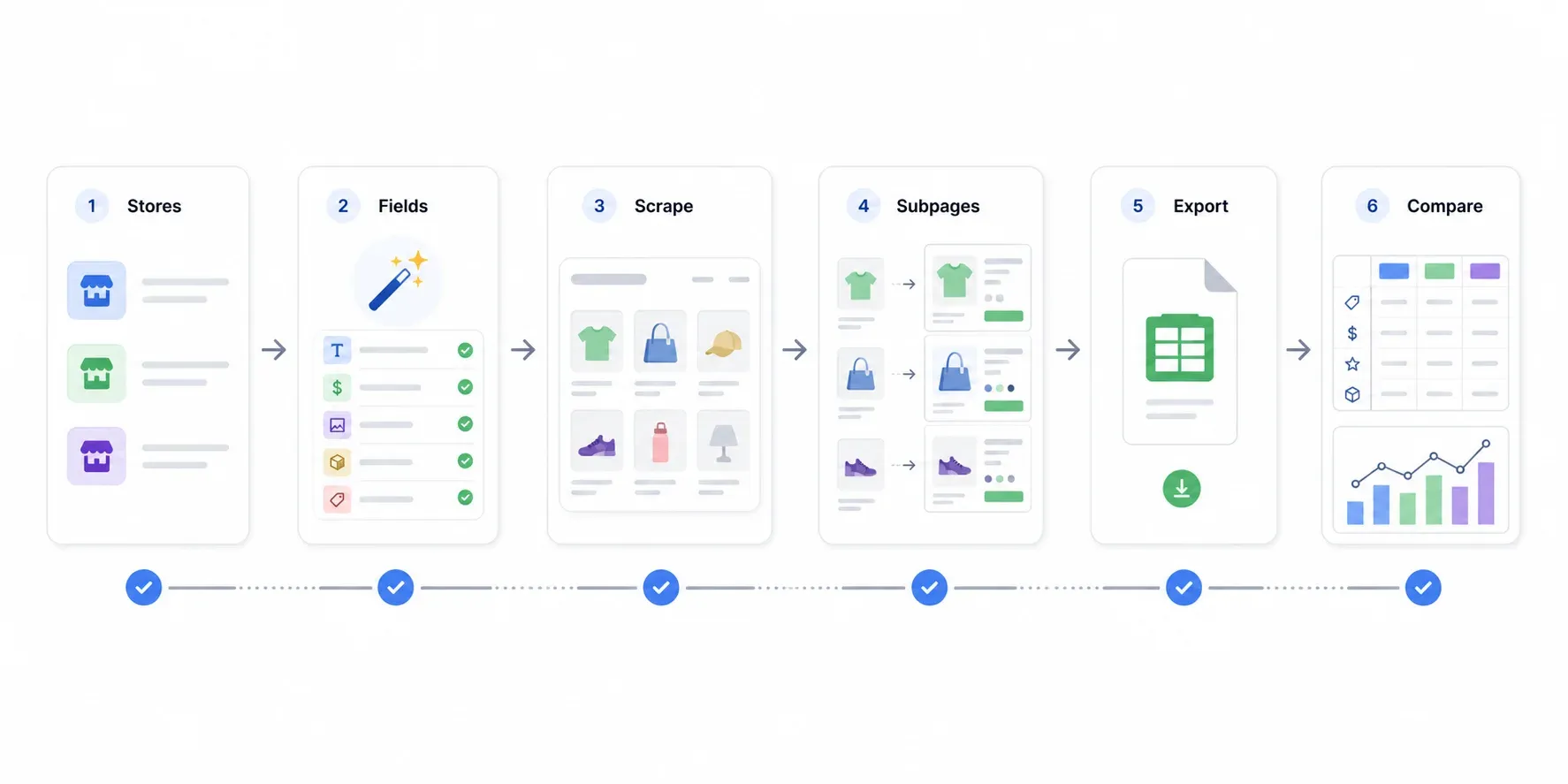
One thing I've learned: don't just look at prices. The most useful insights often come from noticing what competitors bundle, which products they push hardest (top of collection, featured badges), and what trust signals they use on product pages.
Setting Up Automated Shopify Competitor Monitoring (So You Never Fall Behind)
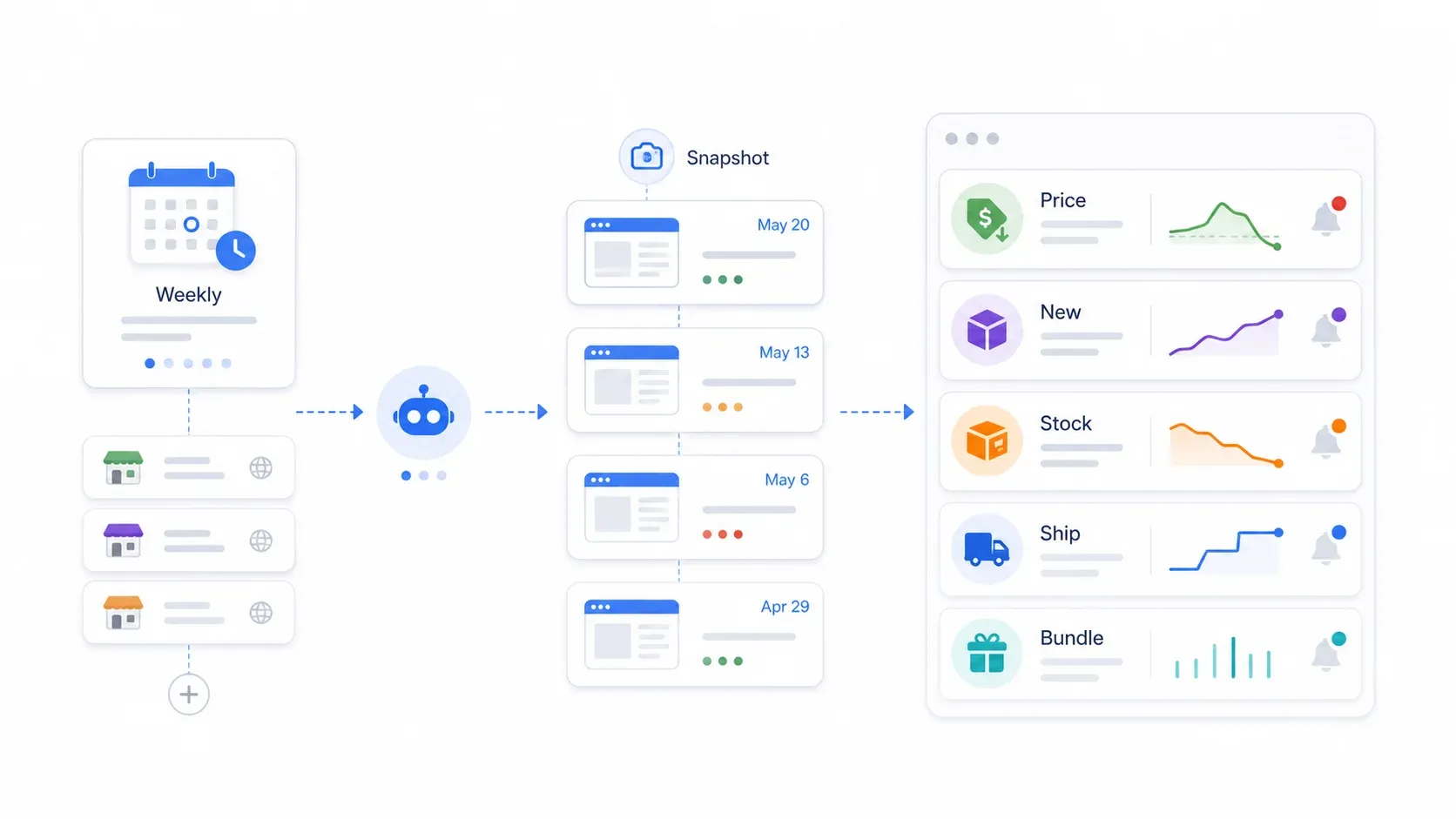
A one-time competitor analysis is useful. A recurring one is a moat. Shopify competitors change prices, add SKUs, run flash promos, adjust shipping thresholds, and go out of stock without sending you a courtesy email. If your last analysis is more than a few weeks old in a fast-moving category, it's already stale.
Pick the Data Points That Matter Most
Tracking everything leads to dashboard fatigue. I focus on 3–5 high-impact metrics:
- Price changes (especially drops > 10%)
- New product launches
- Out-of-stock / back-in-stock events
- Free shipping threshold changes
- New collection or bundle additions
Trying to monitor every field leads to dashboard fatigue. Pick the signals that actually change your decisions.
Set Up Scheduled Scraping with Thunderbit
Thunderbit's scheduled scraper lets you describe the interval in plain English—"every Monday at 9am" or "every weekday at 8am"—input your competitor store URLs, and click Schedule. The scraper runs automatically and exports updated data to your connected Google Sheet or Airtable.
My setup: I monitor 3 competitors' pricing weekly, with each scrape appending a date-stamped snapshot to a Google Sheet. Conditional formatting flags price drops greater than 10% and highlights new product URLs that weren't in the previous scrape. It takes about 5 minutes to set up and zero minutes to maintain after that.
Build a Living Competitor Dashboard
A simple Google Sheets dashboard can include:
| Dashboard Element | How to Build |
|---|---|
| Price trend table | Rows by product URL, columns by scrape date |
| Price-drop alert | Conditional formatting for drops > 10% |
| New products | Compare current URL list vs. previous URL list |
| Stock-out watchlist | Filter availability changes |
| Category breadth chart | Pivot by store and category |
| Promo monitor | Track homepage banner/free-shipping threshold |
Free Alternatives for Zero-Budget Monitoring
If you're not ready to invest in a tool:
- Set a recurring calendar reminder to pull
/products.jsonweekly. - Paste into date-stamped tabs in a Google Sheet.
- Use Google Alerts for competitor brand names and product keywords.
- Subscribe to competitor emails/SMS with a separate inbox to track promotions.
This is labor-intensive, but it works for merchants with more time than budget.
Putting It All Together: A Filled-In SWOT for a DTC Skincare Brand
Most competitor analysis guides hand you a blank SWOT template and wish you luck. Not very useful. Below is what a filled-in SWOT looks like when populated with data actually scraped from competitors.
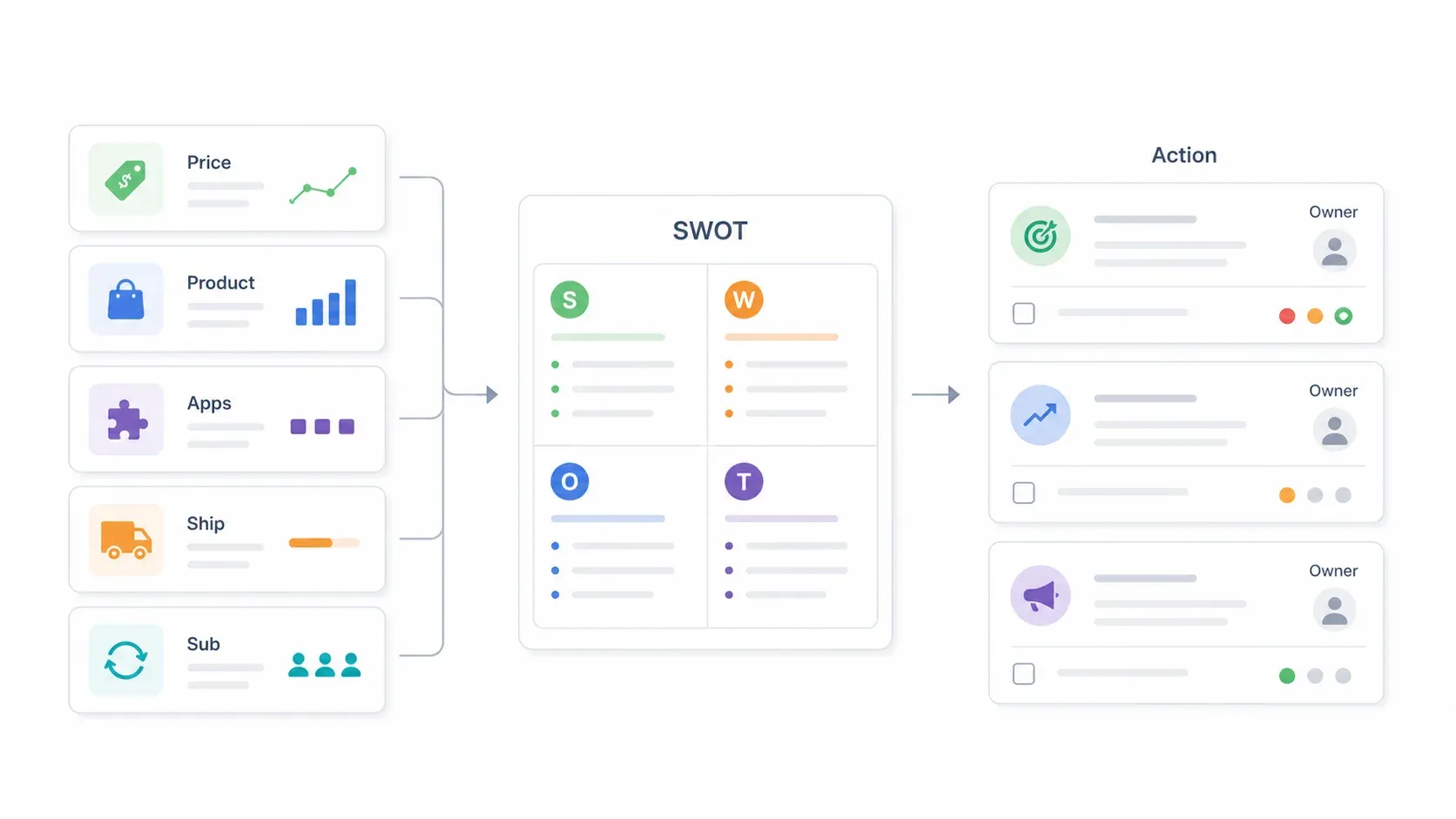
Scenario: You run a mid-range DTC skincare Shopify store with 45 products, $28 average price, targeting customers aged 25–40.
| Dimension | Your Store | Competitor A | Competitor B | Competitor C |
|---|---|---|---|---|
| Product count | 45 | 120 | 32 | 78 |
| Avg. price point | $28 | $35 | $22 | $30 |
| Shopify theme | Dawn | Prestige | Minimal | Custom |
| Key apps detected | Klaviyo, Loox | Yotpo, ReCharge | Judge.me | Stamped, Bold |
| Free shipping threshold | $50 | $75 | None | $40 |
| Subscription offer | No | Yes, 15% off | No | Yes, bundle-only |
| Est. monthly traffic | 12K | 85K | 8K | 45K |
Now the SWOT:
| Helpful | Harmful | |
|---|---|---|
| Internal | Strengths: Lower price point than Competitor A, faster shipping, simple/focused catalog | Weaknesses: Smaller product range, no subscription option, fewer reviews |
| External | Opportunities: Competitor B has no loyalty program, gap in starter kit/bundle pricing, Competitor A's high shipping threshold leaves mid-market space | Threats: Competitor C bundles aggressively, Competitor A has 7x traffic and a subscription engine, TikTok Shop sellers compress prices |
Turning SWOT Insights Into Action Items
- Strength → Action: Emphasize "premium routine without premium markup" in ad copy. Your $28 price point is a real differentiator against Competitor A's $35.
- Weakness → Action: Launch a subscription test on your top 3 replenishable SKUs. Competitor A's ReCharge integration and 15% subscription discount are likely driving repeat purchases you're missing.
- Opportunity → Action: Create a starter kit at a price point between Competitor B ($22) and Competitor C ($30). Neither competitor offers one.
- Threat → Action: Monitor Competitor C's bundle launches weekly. If they drop a new bundle at $40 with free shipping, you need to respond within days, not months.
A SWOT is only useful if it leads to decisions. Every cell should connect to a specific next step.
Common Mistakes to Avoid in Shopify Store Competitor Analysis
I've made most of these mistakes myself, so consider this a hard-won list:
- Analyzing too many competitors at once. Start with 3–5. If you try to track 15 stores, you'll drown in data and act on none of it.
- Copying competitors instead of differentiating. Shopify's own guidance warns against becoming "bogged down" mimicking others. Use competitor data to find gaps, not to clone another store.
- Treating analysis as a one-time project. Pricing, catalogs, and ads change constantly. Do a full deep dive quarterly and run automated monitoring weekly or biweekly.
- Focusing only on price. Customer experience, shipping speed, trust signals, reviews, bundles, content, and retention tools often explain why a higher-priced competitor wins.
- Trusting traffic/sales estimates as gospel. Tools like SimilarWeb and ad-spy databases are directional, not exact. Use them for relative comparisons, not absolute numbers.
Wrapping Up: My Shopify Store Competitor Analysis Checklist
Here's the process in summary:
- Identify 3–5 competitor Shopify stores (mix of direct, aspirational, and newcomers).
- Use
/products.jsonfor a free, quick scan of each competitor's catalog. - Scrape full product catalogs with Thunderbit—listing pages plus subpage enrichment.
- Export to Google Sheets and organize with one tab per competitor plus comparison tabs.
- Analyze pricing, product breadth, UX, marketing, and tech stack side by side.
- Build a filled-in SWOT with concrete action items.
- Set up automated weekly monitoring so you never fall behind.
Shopify store competitor analysis doesn't require a big budget or a data team. Free endpoints, AI-powered scraping, and scheduled monitoring mean you can go from "I should probably check what my competitors are doing" to "I have a live dashboard tracking their every move" in under an hour.
Want to try it? Thunderbit's free tier lets you scrape your first competitor store in a few minutes. For a visual walkthrough of the scraping workflow, check out our Thunderbit YouTube channel.
Try AI Web Scraper for Shopify competitor analysis Get Started Free
FAQs
How do I do Shopify store competitor analysis on a small budget?
Start with free methods: /products.json for product data, Meta Ad Library for ad creatives, Google Search for SEO positioning, and free Shopify theme/app detector extensions. When manual formatting becomes the bottleneck, Thunderbit's free tier includes free export to Google Sheets, Excel, Airtable, and Notion—so you can scrape and organize competitor data at zero cost.
How often should I run a Shopify store competitor analysis?
I recommend a full deep-dive analysis quarterly and automated price/product monitoring weekly or biweekly. Shopify's own pricing article recommends quarterly reviews to catch cost changes and competitor movements. For fast-moving categories (fashion, beauty, supplements), weekly monitoring is worth the small time investment.
Can I see what apps and theme a Shopify competitor is using?
Often, yes. Check the page source for Shopify.theme and app script tags. Free tools like Koala Inspector, StoreSpy, and BuiltWith can detect themes, apps, and pixels. Keep in mind that custom themes and some app implementations may not be fully detectable.
Is it legal to scrape competitor Shopify store data?
Scraping publicly accessible ecommerce pages and product data (like what you see in a browser or at /products.json) is generally treated differently from bypassing login walls or collecting personal data. U.S. case law (notably hiQ v. LinkedIn) supports the idea that accessing public web data is less likely to violate the CFAA. That said, always respect robots.txt, rate limits, site terms of service, and avoid scraping personal data. This isn't legal advice—consult a lawyer if you're unsure.
What's the fastest way to extract product data from a competitor's Shopify store?
For one store and basic fields, /products.json?limit=250 is the fastest and free. For multiple stores, detail-page enrichment, pagination, and organized exports, an AI scraper like Thunderbit is faster—it suggests fields automatically, scrapes listing and detail pages, and exports to Sheets, Excel, Airtable, or Notion in a couple of clicks. You can also check out our guide on scraping products from ecommerce sites for more detail.
Learn More