zoominfo-scraper

ZoomInfo Scraper

Scrape ZoomInfo company and people profiles into a structured table using Thunderbit’s AI. Extract key firmographics, contact details, and role information from profile pages, then export to Excel, Google Sheets, Airtable, or Notion.
4.9
Monthly users13.8k
AI-Powered
Lead Generation
Get Started Free
Free tier available

Thunderbit’s ZoomInfo Scraper helps you turn ZoomInfo pages into a clean, structured dataset using AI. You can extract firmographics from company profiles and role details from people profiles, then export to Excel, Google Sheets, Airtable, or Notion. With AI Suggest Columns, Thunderbit reads the page layout and recommends the best fields to capture, so you spend less time setting up and more time using the data.

🤖 What is ZoomInfo Scraper

The ZoomInfo Scraper is an AI Web Scraper built into the Chrome Extension that helps you scrape data from using AI. You simply open the ZoomInfo page you want, click AI Suggest Columns, adjust any fields if needed, and click Scrape to generate a structured table.

ZoomInfo — The Go-To-Market Intelligence Platform

Thunderbit is designed for business workflows like lead generation, account research, and CRM enrichment. It also supports pagination, subpage scraping, and exports to the tools you already use.

🧲 What can you scrape with ZoomInfo

ZoomInfo is commonly used for B2B prospecting and account research. With Thunderbit, you can scrape structured data from profile pages and use it for:

  • Sales prospecting and list building
  • Account planning and territory research
  • CRM enrichment and data cleanup
  • Market research and segmentation

Below are two common scraping workflows.

🏢 Scrape Company Profiles from ZoomInfo

Use this workflow to extract company-level details (firmographics) from a ZoomInfo company profile page like:

This is useful when you’re building target account lists, enriching company records, or tracking changes in headcount, industry, and location.

Scrape Company Profiles from ZoomInfo

Steps:

  1. Download the and register an account.
  2. Go to the destination page, for example: .
  3. Click AI Suggest Columns to generate recommended column names and data types.
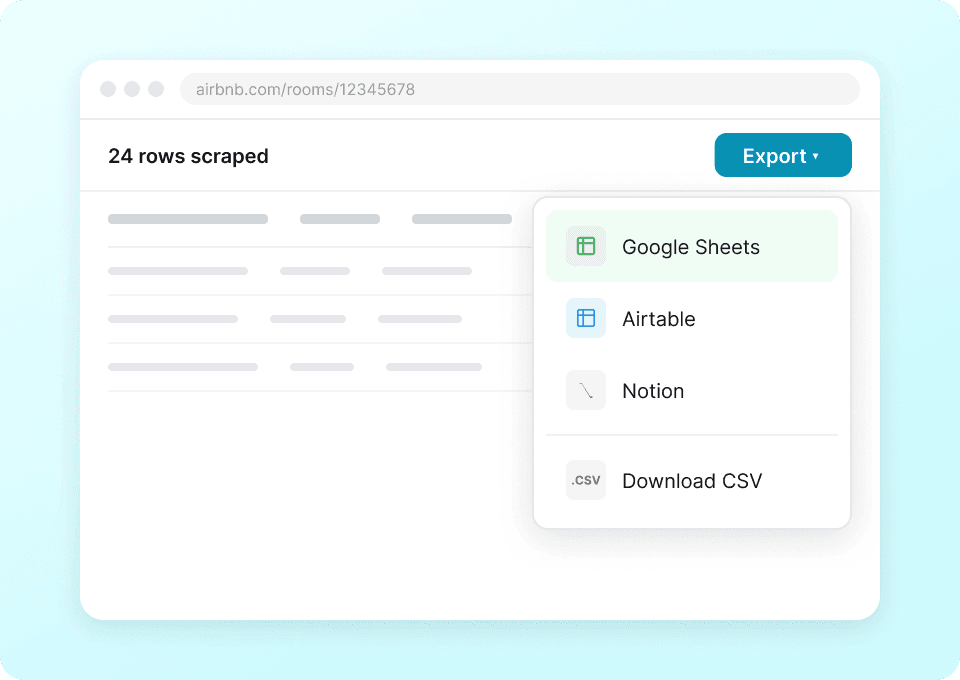
  4. Click Scrape to run the scraper, then export to Excel, Google Sheets, Airtable, or Notion.

Column names

ColumnDescription
🏢 Company NameThe company name shown on the ZoomInfo profile.
🌐 Company Profile URLThe URL of the company profile page you scraped.
🏷️ IndustryThe primary industry/category listed for the company.
🧩 Sub-IndustryA more specific industry classification when available.
📍 Headquarters LocationThe HQ city/state/country shown on the profile.
🗺️ AddressThe full address if displayed (street, city, region, postal code).
👥 Employee CountThe company size/headcount shown on the page.
📈 Revenue RangeThe estimated revenue or revenue band when available.
🏛️ Company TypePublic/private and other organization type indicators when available.
🗓️ Founded YearThe year the company was founded if listed.
🔗 WebsiteThe company’s website URL shown on the profile.
🧑‍💼 Key ExecutivesNames/titles of highlighted leadership when available.
🧾 DescriptionThe company summary/overview text on the profile.

👤 Scrape People Profiles from ZoomInfo

Use this workflow to extract person-level details from a ZoomInfo people profile page like:

This is helpful for lead research, org chart mapping, and building outreach lists where you want consistent fields like title, company, and location.

Scrape People Profiles from ZoomInfo

Steps:

  1. Download the and register an account.
  2. Go to the destination page, for example: .
  3. Click AI Suggest Columns to generate recommended column names and data types.
  4. Click Scrape to run the scraper, then export your data.

Column names

ColumnDescription
👤 Full NameThe person’s name shown on the profile.
🔗 Profile URLThe URL of the people profile page you scraped.
🧑‍💼 Job TitleThe current role/title listed on the profile.
🏢 CompanyThe company associated with the person’s current role.
🌐 Company WebsiteThe company website if shown/linked on the profile.
📍 LocationThe person’s location (city/region/country) when available.
🧭 DepartmentDepartment or function (e.g., Sales, IT, Finance) when available.
🧱 SenioritySeniority level (e.g., Manager, Director, VP) when available.
📞 PhonePhone number if displayed on the page.
✉️ EmailEmail address if displayed on the page.
🤝 LinkedIn URLLinkedIn profile link when available.
📝 Bio / SummaryAny profile summary text shown on the page.

🎯 Why Use ZoomInfo Tool

Scraping ZoomInfo into a structured table helps you move faster when you’re doing repetitive research across many accounts or contacts.

Common reasons teams use a ZoomInfo scraper:

  • Sales teams: Build lead lists, enrich CRM records, and prep for outbound campaigns with consistent fields.
  • RevOps teams: Standardize account and contact data, reduce manual copy/paste, and support routing/segmentation.
  • Marketing teams: Create ICP-based lists, analyze firmographics, and support ABM targeting.
  • Recruiting and research: Track company growth signals and map roles across organizations.

Thunderbit is especially useful when you need to:

  • Extract data from multiple pages (and handle pagination)
  • Enrich a table by visiting subpages (Subpage Scraping)
  • Export quickly to Excel, Google Sheets, Airtable, or Notion with free export options

If you’re new to scraping, these guides can help:

🧩 How to Use ZoomInfo Chrome Extension

  1. Install the Thunderbit Chrome Extension: Get it from the and create your account.
  2. Navigate to a ZoomInfo page: Open a company profile (example: ) or a people profile (example: ).
  3. Activate AI-Powered Scraper: Click AI Suggest Columns to generate fields, then customize column names, data types, or add a Field AI Prompt if you want formatting or labeling.
  4. Scrape and export: Click Scrape, then export to Excel/CSV/JSON or send to Google Sheets, Airtable, or Notion.

Tip: If the data you need is on linked pages, use Subpage Scraping to have AI visit each subpage and enrich your table automatically.

💳 Pricing for ZoomInfo

Thunderbit uses a simple credit system:

  • 1 credit = 1 output row in your results table
  • AI Suggest Columns is part of the AI-powered scraping flow, and you can try it on the Free tier

What you can try for free:

  • Free tier: scrape 6 pages per month
  • Free trial: scrape 10 pages for free before choosing a paid plan

If you scrape ZoomInfo profiles into a table with 200 rows, that typically uses 200 credits (because you produced 200 rows). This makes it easy to estimate cost before you scale.

Paid plans (monthly and yearly) are designed for different volumes, and the yearly plan is more cost effective with a discounted monthly equivalent:

  • Starter: good for light lead research and small lists
  • Pro tiers: better for ongoing prospecting, enrichment, and monitoring workflows

You can review options on .

❓ FAQ

  1. What is the AI Powered ZoomInfo Scraper?
    The AI Powered ZoomInfo Scraper is a scraping workflow in Thunderbit that uses AI to read ZoomInfo pages and convert the content into structured columns and rows. You click AI Suggest Columns to generate fields, then click Scrape to collect the data into a table you can export.

  2. What is Thunderbit?
    is an AI web scraper Chrome Extension that helps you extract data from websites, PDFs, and images into structured formats. It’s built for business teams who want fast setup, reliable extraction, and easy exports to tools like Google Sheets, Airtable, and Notion.

  3. Do I need coding skills to scrape ZoomInfo?
    No. Thunderbit is designed for non-technical workflows, so you can scrape by clicking AI Suggest Columns and Scrape. If you want more control, you can rename columns, change data types, and add field instructions without writing code.

  4. Can Thunderbit scrape both company profiles and people profiles on ZoomInfo?
    Yes. You can scrape firmographics from company pages and role/contact details from people pages, depending on what’s visible on the page you open. Many teams use both to connect account research with contact research in one dataset.

  5. How does Subpage Scraping help with ZoomInfo research?
    Subpage Scraping lets AI open linked pages (for example, from a list to individual profiles) and append extra fields back into your main table. This is useful when the listing page has limited details but the profile page contains richer information you want to capture.

  6. Can I export ZoomInfo data to Google Sheets or Excel?
    Yes. Thunderbit supports free export to Excel/CSV/JSON, and you can also send data directly to Google Sheets, Airtable, or Notion. This makes it easy to share lists with your team or import them into your CRM workflow.

  7. What’s the difference between Cloud Scraping and Browser Scraping for ZoomInfo?
    Browser Scraping runs in your Chrome session, which is helpful when a site requires you to be logged in. Cloud Scraping runs faster for public pages and can process batches (up to 50 pages at a time), but for authenticated experiences you’ll typically prefer Browser Scraping.

  8. How many rows can I scrape per run?
    The practical limit depends on the page structure and your plan credits, but many workflows target hundreds of rows at a time (often up to around 500 rows for a single run depending on the page). Since 1 credit equals 1 row, you can control usage by limiting pages or rows.

  9. Is it okay to scrape ZoomInfo data?
    You should always follow applicable laws, privacy requirements, and the website’s terms. Thunderbit is a tool for extracting data you have access to, and it’s your responsibility to use it in a compliant way, especially when handling personal data.

📚 Learn More

  • Get the extension:
  • Explore product details:
  • Read tutorials and strategies:
  • Helpful guides:
  • Watch workflows:

Ready to build lead lists and enrich records faster with an AI Web Scraper: and try scraping your first ZoomInfo profile pages today.