investing-com-scraper

Investing.com Scraper

Thunderbit’s Investing.com Scraper lets you extract structured stock market quotes, company metrics, and currency exchange rates using AI. Scrape listing pages and enrich your dataset with details from each instrument’s page, then export to Excel, Google Sheets, Airtable, or Notion.
4.8
Monthly users5.6k
AI-Powered
News
Get Started Free
Free tier available

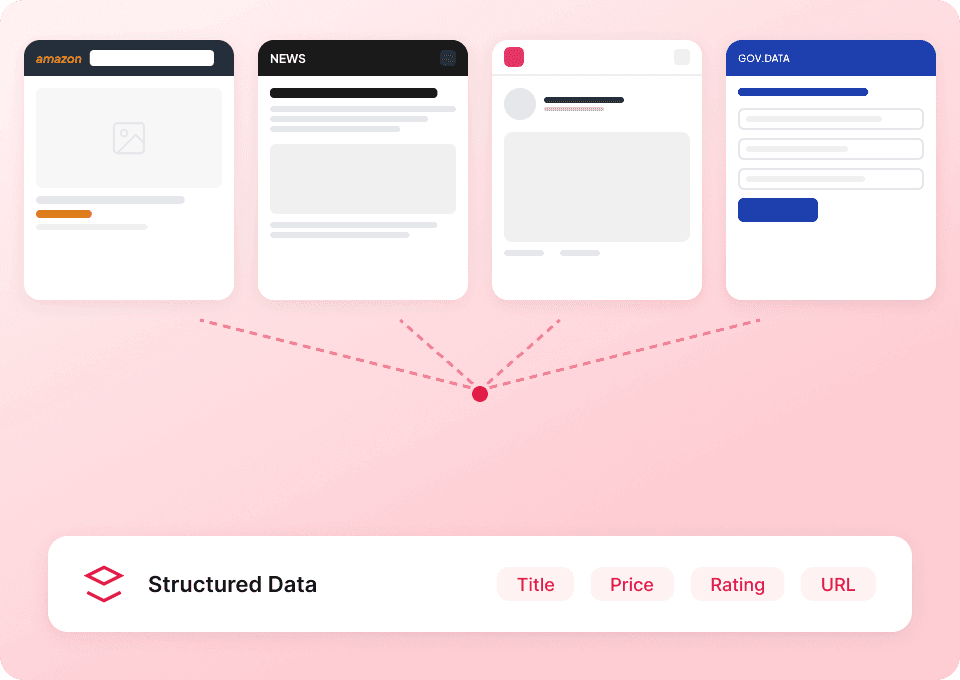
Thunderbit’s Investing.com Scraper helps you turn fast-moving market pages into clean, structured datasets using AI. You can extract stock market quotes, company metrics, and currency exchange rates from Investing.com, then export to Excel, Google Sheets, Airtable, or Notion. It’s built for speed on listing pages and accuracy on detail pages, with AI that understands the page layout and structures the data for you.

🧠 What is Investing.com Scraper

The Scraper is an AI Web Scraper that lets you scrape Investing.com pages with the Chrome Extension. You simply open the page you want (like equities or currencies), click AI Suggest Columns, then click Scrape to extract structured data.

Investing.com — Stock Market Quotes & Financial News Screenshot

Thunderbit also supports pagination and subpage scraping, so you can scrape a list (like equities) and then have AI visit each instrument’s page to enrich your table with deeper metrics.

🧾 What can you scrape with Investing.com

Investing.com is packed with frequently updated financial data. With Thunderbit’s AI Web Scraper (https://thunderbit.com/), you can collect:

  • Equities listings: price, daily change, volume, market cap, and more
  • Currency exchange rates: bid/ask, daily range, open, and performance
  • Subpage enrichment: pull extra fields from each stock/FX pair detail page (fundamentals, technicals, historical stats, etc., depending on what’s visible)

Below are two common workflows you can run in minutes.

📈 Scrape Stock Market Data from Investing.com

Use this to extract stock listings from the . This is useful for building watchlists, tracking competitors, monitoring price moves, or creating a dataset for analysis.

Scrape Stock Market Data from Investing.com Screenshot

Steps:

  1. Download the and register an account.
  2. Go to the destination page, for example: .
  3. Click AI Suggest Columns to let AI recommend column names and data types.
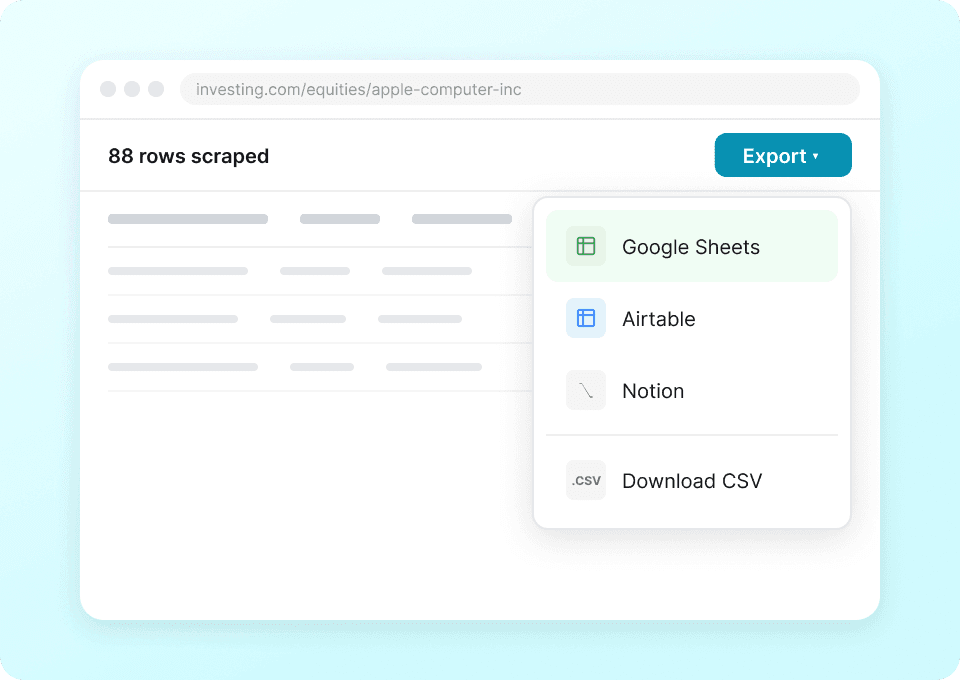
  4. Click Scrape to run the scraper, then export to Excel, Google Sheets, Airtable, or Notion.

Column names

ColumnDescription
🏷️ Company / Instrument NameThe equity name shown in the listing (company or instrument label).
🔗 Instrument URLThe link to the equity’s detail page (useful for subpage scraping).
💲 Last PriceThe most recent traded/quoted price displayed.
📉 Daily ChangeThe absolute price change for the day/session.
📊 Change %The percentage move for the day/session.
⏱️ TimeThe timestamp shown for the quote update (as displayed on the page).
📦 VolumeTrading volume shown in the listing (if available for that market).
🧮 Market CapMarket capitalization shown in the table (if available).
🏛️ Exchange / MarketThe exchange/market context when shown (varies by view/filters).
🧾 CurrencyThe quote currency when displayed.

Tip: After scraping the listing, use Subpage Scraping to open each Instrument URL and enrich your dataset with additional fields (for example: valuation ratios, 52-week range, technical indicators, or company profile fields—depending on what’s available on the detail page).

💱 Scrape Currency Exchange Rates from Investing.com

Use this to extract FX rates from the . This is ideal for finance teams, analysts, and operators who need a reliable dataset for monitoring currency movements.

Scrape Currency Exchange Rates from Investing.com Screenshot

Steps:

  1. Download the and register an account.
  2. Go to the destination page, for example: .
  3. Click AI Suggest Columns to generate recommended columns for exchange-rate tables.
  4. Click Scrape to extract the data and export it to your preferred tool.

Column names

ColumnDescription
💱 Currency PairThe FX pair name (for example, EUR/USD) as shown in the list.
🔗 Pair URLThe link to the currency pair’s detail page for enrichment.
💲 LastThe latest exchange rate displayed.
📉 ChangeThe absolute change for the selected period/session.
📊 Change %The percentage change for the selected period/session.
🟢 BidThe bid price when shown in the table.
🔴 AskThe ask price when shown in the table.
📈 HighThe session/day high shown.
📉 LowThe session/day low shown.
🕒 TimeThe last update time displayed on the page.

Tip: If you need more than the listing provides, run Subpage Scraping on Pair URL to capture additional fields like technical summaries, forward rates, or historical performance (based on what’s visible on the detail page).

🎯 Why Use Investing.com Tool

Scraping Investing.com can help you build a repeatable data pipeline for market monitoring and reporting—without manual copy/paste.

Common reasons teams scrape Investing.com:

  • Investors & analysts: Build watchlists, track movers, and compare instruments across markets in a spreadsheet.
  • Sales & partnerships: Enrich lead research with market context (public company performance, sector signals, macro trends).
  • Ecommerce & operations: Monitor FX rates for pricing, margin planning, and cross-border reporting.
  • Marketing & content teams: Create data-backed market updates and dashboards using fresh quotes and rate changes.
  • Real estate & finance teams: Track macro indicators (like currency moves) that impact demand, costs, and investment flows.

Thunderbit’s advantage is that it uses AI to structure the data, and it can keep working even when pages change layout—plus you can export anywhere you work.

🧩 How to Use Investing.com Chrome Extension

  1. Install the Thunderbit Chrome Extension: Get it from the and create your account.
  2. Navigate to an Investing.com page: For example, open or .
  3. Activate AI-Powered Scraper: Click AI Suggest Columns to generate fields, adjust column names/data types if needed, then click Scrape.

If your target table spans multiple pages or uses infinite scroll, Thunderbit can handle pagination scraping. If you want deeper fields, use subpage scraping to visit each instrument page and append extra columns to the same dataset.

💳 Pricing for Investing.com

Thunderbit uses a credit system designed to match how much data you extract:

  • AI-powered scraping is included (you can use AI Suggest Columns and customize fields anytime).
  • 1 credit = 1 output row in your results table.
  • Free tier: scrape 6 pages per month at no cost.
  • Free trial: scrape 10 pages for free, which is a good way to test equities and currencies workflows end-to-end.

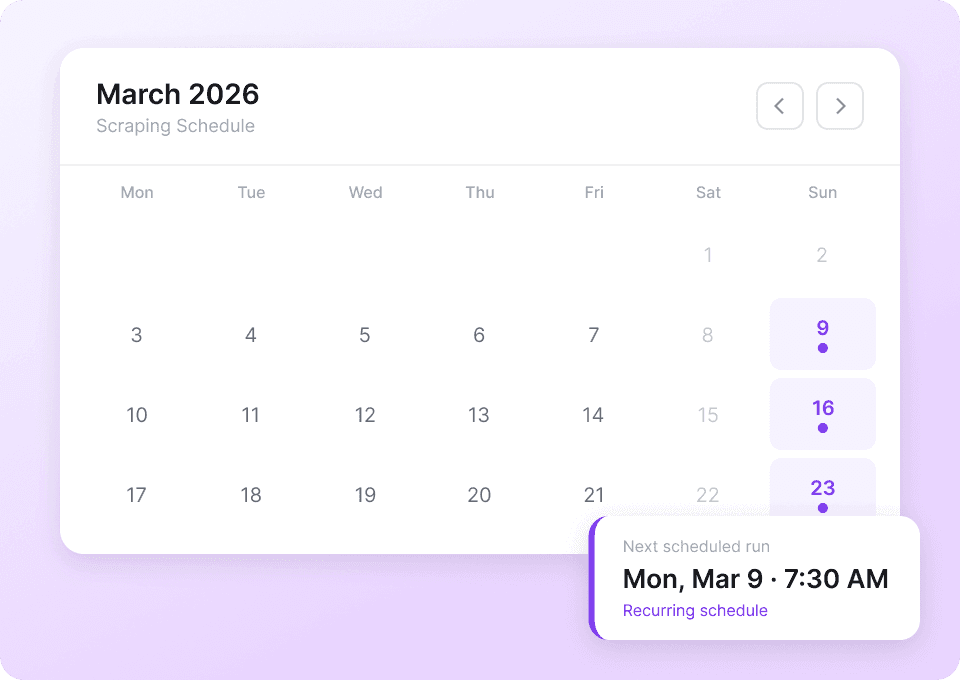
If you scrape market data regularly (daily/weekly monitoring), a paid plan gives you more credits and better throughput. The yearly plan is more cost effective and includes a discount compared to paying monthly.

You can compare plans and pick the right credit volume on the page.

❓ FAQ

  1. What is the AI Powered Investing.com Scraper?
    The AI Powered Investing.com Scraper is a workflow in Thunderbit that extracts structured data from Investing.com pages like equities listings and currency exchange rate tables. You click AI Suggest Columns so AI understands the page and proposes fields, then click Scrape to generate a downloadable dataset.

  2. What is Thunderbit?
    is an AI Web Scraper Chrome Extension that helps you extract data from websites, PDFs, and images into structured tables. It’s designed for business teams who want fast results without writing code, and it supports exports to Excel, Google Sheets, Airtable, and Notion.

  3. Can I scrape both listing pages and detail pages on Investing.com?
    Yes. You can scrape listing pages (like equities or currencies) and then use Subpage Scraping to visit each instrument’s detail page and enrich your dataset with additional columns. This is useful when the list view doesn’t include the metrics you need.

  4. How do I export Investing.com data to Excel or Google Sheets?
    After scraping, Thunderbit lets you export your results as CSV/JSON or send the table directly to tools like Google Sheets, Airtable, and Notion. Data export is free, so you can focus your credits on extraction rather than downloads.

  5. What columns should I scrape for stock market monitoring?
    Most teams start with instrument name, URL, last price, daily change, change percent, volume, and market cap (when available). If you’re building a richer model, add subpage fields like valuation ratios, 52-week range, sector, or technical indicators depending on what Investing.com shows on the detail page.

  6. Does Thunderbit support pagination and infinite scroll on Investing.com?
    Yes. Thunderbit supports pagination scraping for both click-based pagination and infinite scroll experiences. This matters for large directories where you want to capture more than the first page of results.

  7. Should I use Cloud Scraping or Browser Scraping for Investing.com?
    If the pages are publicly accessible, Cloud Scraping is usually faster because it can process many pages in batches. If you need to stay logged in, access personalized views, or handle content that depends on your browser session, Browser Scraping is the better option.

  8. How accurate is AI Suggest Columns on financial tables?
    AI Suggest Columns is designed to recognize table-like layouts and map them into structured fields with appropriate data types (text, number, date, URL). You can also rename columns and add field instructions if you want formatting like numeric cleanup, symbol extraction, or standardized timestamps.

  9. Is it okay to scrape Investing.com data?
    You should always follow applicable laws, respect privacy, and review Investing.com’s terms and policies before scraping. Thunderbit is a tool that helps you extract data you have access to, and you’re responsible for using it in a compliant way.

📚 Learn More

  • Get started with the
  • Read:
  • Read:
  • Read:
  • Read:
  • Explore more guides on the
  • See tutorials on the

If you want to build a repeatable market dataset from Investing.com—equities, FX, and beyond—start with Thunderbit, click AI Suggest Columns, and scrape your first pages in minutes.