

Thunderbit’s Framer Scraper helps you turn Framer template listings and showcase pages into clean, structured data using AI. You open a Framer page, click AI Suggest Columns, and Thunderbit’s AI reads the page and builds a table for you. Then you click Scrape to collect rows you can export to Excel, Google Sheets, Airtable, or Notion.
🧩 What is Framer Scraper
A Framer Scraper is an AI Web Scraper that extracts data from Framer pages like template categories and the Framer Showcase, then structures the results into a spreadsheet-ready table. With Thunderbit (an AI web scraping Chrome extension), you can scrape listing pages, handle pagination, and even use Subpage Scraping to visit each template or showcase detail page to enrich your dataset with metadata like tags, descriptions, preview links, and more.
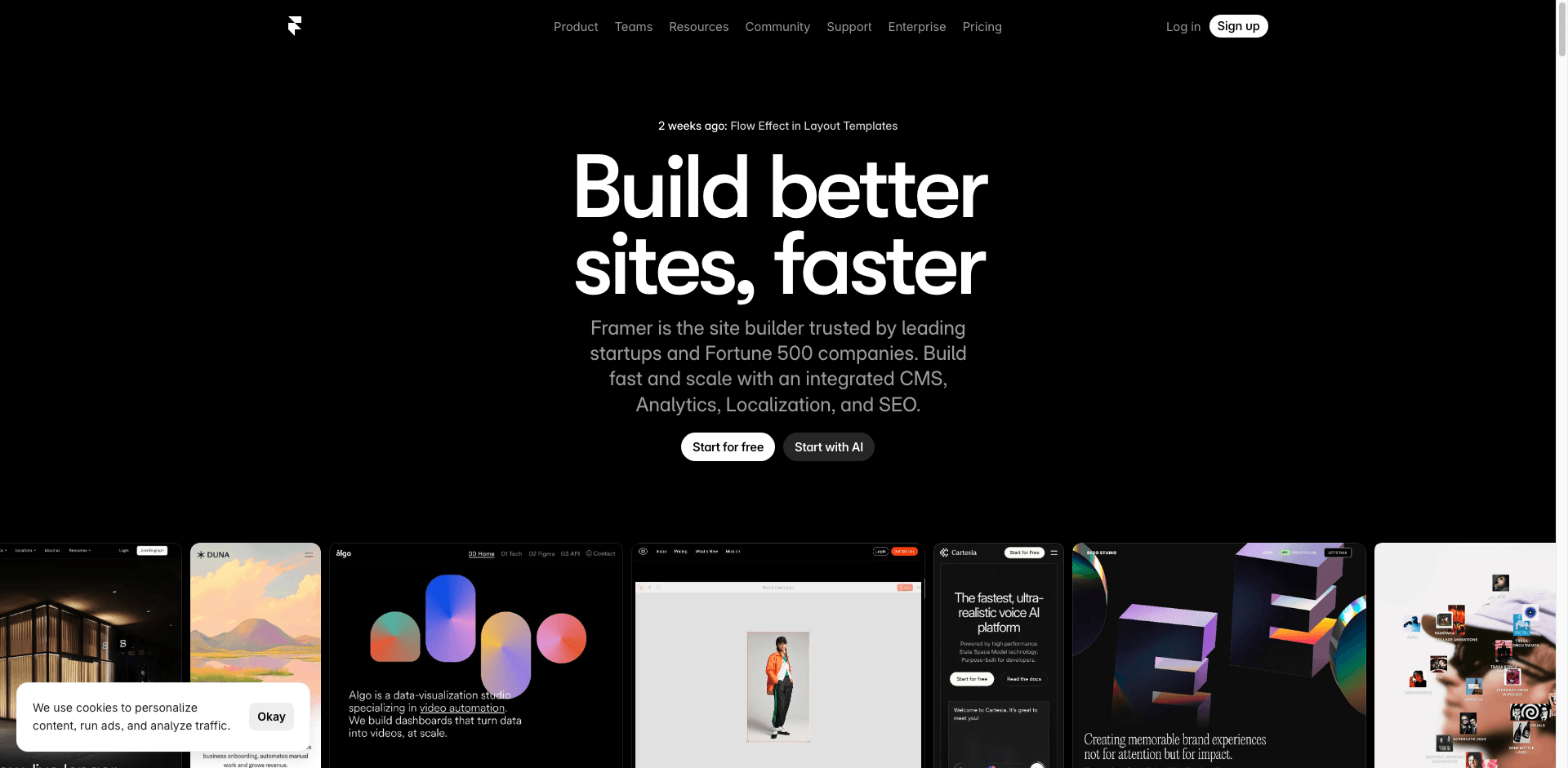
🧲 What can you scrape with Framer
Framer is packed with inspiration and reusable assets, but it’s not designed for bulk exporting. With Thunderbit’s AI Web Scraper, you can collect template and showcase data for competitive research, design trend tracking, content planning, and internal libraries.
Category-Specific Design Trends
Scrape Framer’s category pages (like Portfolio templates) to analyze design patterns, tags, layouts, and positioning across a focused niche.
Target page: https://www.framer.com/templates/category/portfolio/
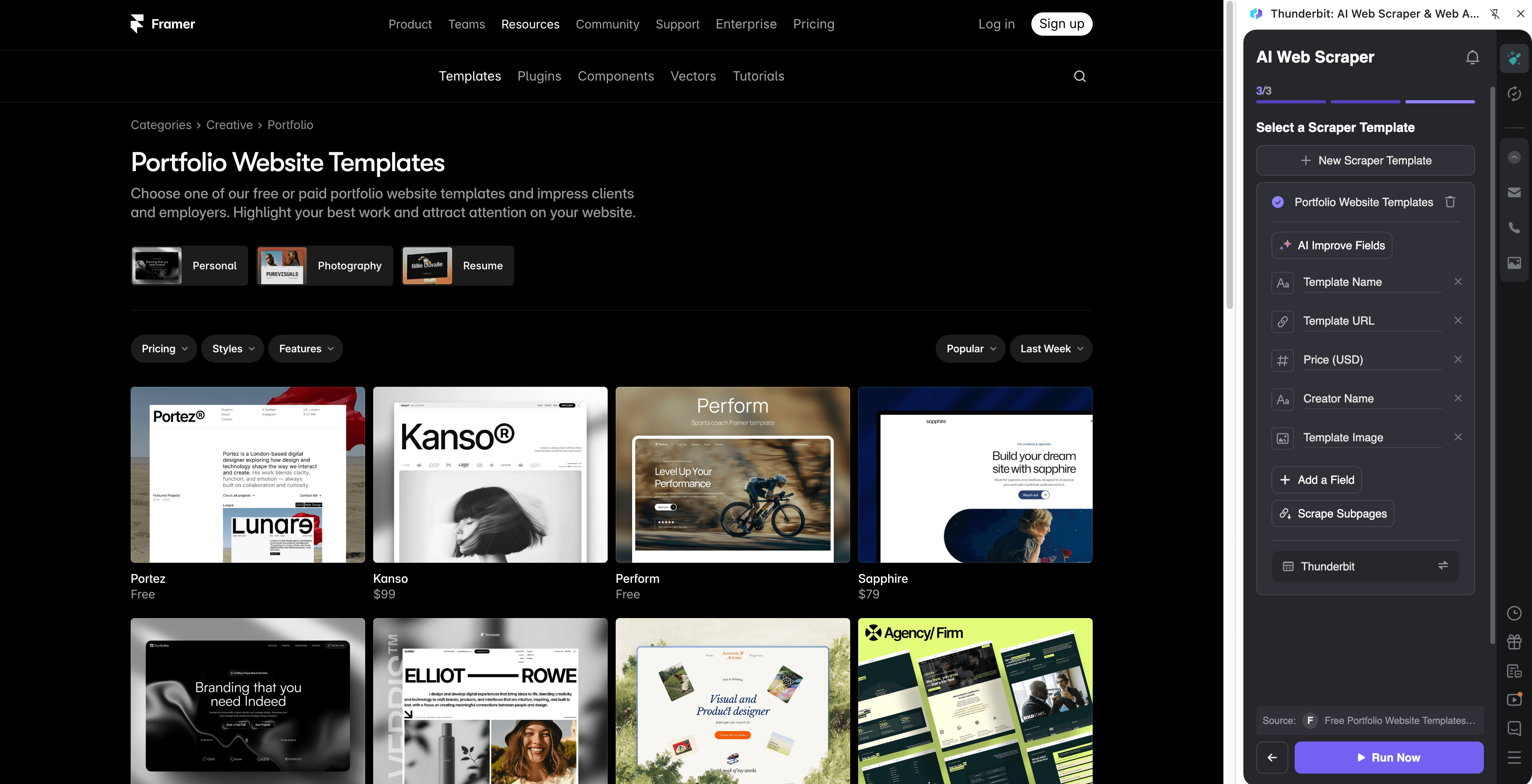
Steps:
- Download the Thunderbit Chrome Extension and register an account.
- Go to the destination page, for example: Framer Portfolio Templates category.
- Click AI Suggest Columns to get recommended column names and data types.
- Click Scrape to run the scraper, then export to Excel, Google Sheets, Airtable, or Notion.
Column names
| Column | Description |
|---|---|
| 🏷️ Template Title | The name of the template shown on the category listing. |
| 🔗 Template URL | The link to the template detail page (useful for Subpage Scraping). |
| 🧩 Category | The template category (e.g., Portfolio). |
| 🏷️ Tags | Tags/labels shown on the card (style, use case, industry, etc.). |
| 🖼️ Thumbnail Image | Preview image URL for the template card. |
| 👤 Creator/Studio | The author or studio name when available on the listing. |
| 🧾 Short Description | The short summary text shown on the listing card (if present). |
| 🌐 Live Preview URL | Link to preview/demo when available. |
| 📅 Last Updated | Any visible update date or recency indicator (if shown). |
| ⭐ Featured/Badge | Any badge like featured, popular, new, etc. (if present). |
High-End Showcase Site Analysis
Scrape the Framer Showcase to build a dataset of high-quality sites for inspiration, outreach, or competitive benchmarking. This is especially useful if you want to categorize examples by style, industry, or interaction patterns.
Target page: https://www.framer.com/showcase/
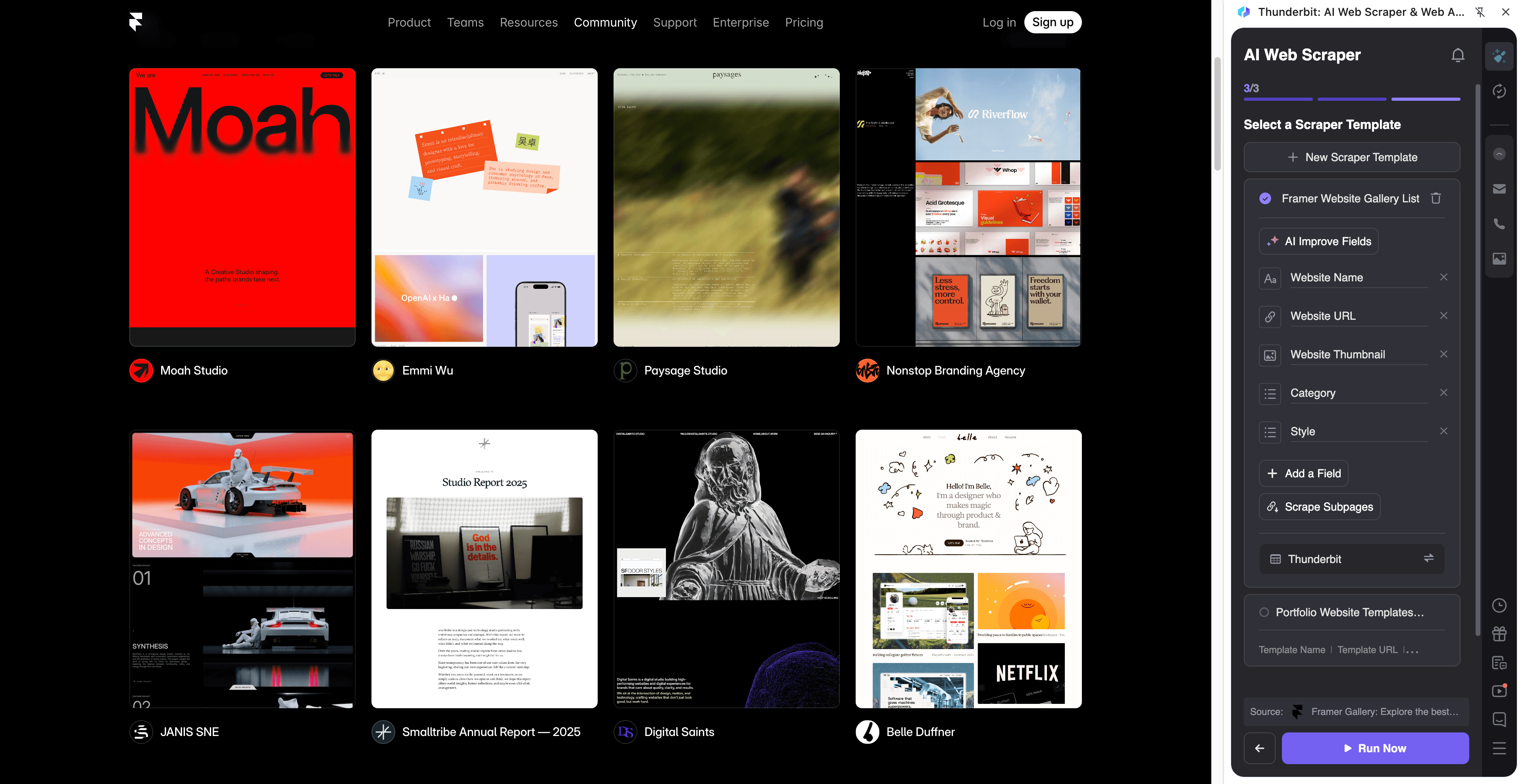
Steps:
- Download the Thunderbit Chrome Extension and register an account.
- Go to the destination page, for example: Framer Showcase.
- Click AI Suggest Columns to generate a structured table from the page.
- Click Scrape to collect the results, then download as CSV/JSON or export to your tools.
Column names
| Column | Description |
|---|---|
| 🏆 Showcase Site Name | The name/title of the showcased website. |
| 🔗 Showcase URL | The link to the showcase detail page (great for Subpage Scraping). |
| 🌐 Website URL | The external link to the live site (if available). |
| 🏷️ Industry/Type | Any category or label shown (agency, portfolio, product, etc.). |
| 🧠 Design Tags | Tags describing style, interactions, or theme (if present). |
| 🖼️ Preview Image | The main thumbnail/cover image URL. |
| ✍️ Description | Short description or caption text shown on the listing or detail page. |
| 🧑🎨 Creator/Team | Studio, designer, or team attribution when available. |
| 📍 Location | Location metadata if shown on the detail page. |
| 📅 Published Date | Date metadata if shown on the detail page. |
🎯 Why Use Framer Tool
Scraping Framer can help you move from browsing to building a reusable dataset you can search, filter, and share.
- Design teams: Build an internal inspiration library from the Framer Showcase and tag examples by layout, typography, or interaction patterns.
- Agencies: Track competitor positioning and collect references for proposals, mood boards, and client discovery.
- Marketing teams: Analyze how top sites structure headlines, social proof, pricing, and CTAs across categories like Portfolio templates.
- Ecommerce operators: Collect template options and compare patterns for product pages, landing pages, and conversion flows.
- Sales and partnerships: Create a list of studios/creators and enrich it with subpage details for outreach (while respecting site terms and privacy).
Thunderbit is designed for business workflows: you can scrape, structure, and export in minutes, without writing code.
🧭 How to Use Framer Chrome Extension
- Install the Thunderbit Chrome Extension: Get it from the Chrome Web Store and create your account.
- Navigate to a Framer page you want to extract: For example, a category page like Portfolio templates or the Showcase.
- Activate AI-Powered Scraper: Click AI Suggest Columns to generate fields, adjust column names/data types if needed, then click Scrape.
Tip: After scraping a listing, use Subpage Scraping to have Thunderbit visit each template/showcase detail page and append extra fields (like full descriptions, external links, or metadata). This is one of the fastest ways to go from “list of cards” to “analysis-ready dataset.”
💳 Pricing for Framer
Thunderbit uses a simple credit system:
- 1 credit = 1 output row in your results table.
- The AI-powered scraping experience (including AI Suggest Columns) is available starting on the free tier.
- You can scrape 6 pages for free each month, and if you start a free trial you can scrape 10 pages for free before choosing a paid plan.
If you’re scraping Framer categories or the Showcase with pagination and subpages, credits scale with how many rows you collect (and how many subpages you enrich).
Paid plans (monthly and yearly) are designed for different volumes, and the yearly plan is typically the most cost-effective if you scrape regularly. You can compare options on Thunderbit Pricing.
You also get free exports to CSV/JSON plus direct exports to Excel, Google Sheets, Airtable, and Notion.
❓ FAQ
-
What is the AI Powered Framer Scraper?
The AI Powered Framer Scraper is a scraper built with Thunderbit’s AI Web Scraper that extracts structured data from Framer pages like template categories and the Showcase. Instead of manually copying cards and links, you click AI Suggest Columns and Thunderbit’s AI turns the page into a table you can export. -
What is Thunderbit?
Thunderbit is an AI web scraping Chrome extension that helps you extract data from websites, PDFs, and images into structured formats. It’s built for business users who want fast setup, reliable extraction, and easy exports to tools like Google Sheets, Airtable, and Notion. -
Can I scrape both template listing pages and individual template detail pages?
Yes. You can scrape a listing page first (to capture titles, tags, and URLs), then use Subpage Scraping to visit each template detail page and add more fields. This approach is useful when the listing cards don’t show everything you need. -
How does Thunderbit handle pagination or infinite scroll on Framer pages?
Thunderbit supports Pagination Scraping, including click-based pagination and infinite scroll patterns. If the Framer page loads more items as you scroll, you can configure Thunderbit to keep collecting rows as the list expands. -
What data can I export from Framer into spreadsheets?
You can export text fields (titles, tags, descriptions), URLs (template links, preview links, external site links), and images (thumbnails/cover images). Thunderbit supports common data types like text, number, date, URL, and image, so your dataset stays clean in Excel or Google Sheets. -
Can I export Framer images to Airtable or Notion?
Yes. When you export image fields to Airtable or Notion, Thunderbit can upload images into the destination’s media library so you can view them directly in your base or workspace. This is helpful for building a visual inspiration database. -
How accurate is AI Suggest Columns on design galleries like Framer?
AI Suggest Columns is designed to read the page structure and propose fields that match what’s visible (like title, tags, and links). If you want more specific extraction—like turning tags into a normalized list or extracting a specific metadata label—you can rename columns and refine the field setup before scraping. -
Is it possible to schedule Framer scraping for ongoing monitoring?
Yes. With Scheduled Scraper, you can set up recurring runs to monitor changes—like new templates in a category or new showcase entries over time. This is useful for trend tracking, competitive monitoring, and keeping an internal library up to date. -
What’s the best way to scrape up to 500 rows from Framer?
Start with the listing page, enable pagination/infinite scroll collection, and keep your columns focused on what you need. Then selectively run Subpage Scraping only for rows that require enrichment, which helps you control credits and keep runtime predictable.
📚 Learn More
- Get started with the Thunderbit Chrome Extension
- Explore guides on the Thunderbit Blog
- Read: How to Scrape Any Website Using AI
- Read: What Is Data Scraping and How to Do It in 2025
- Read: What Is List Crawling and How to Do It Using AI
- Read: How to Scrape Website Data into Excel using AI
- Compare tooling: The Best Web Scraping Tools & Software in 2025
- Check plans: Thunderbit Pricing