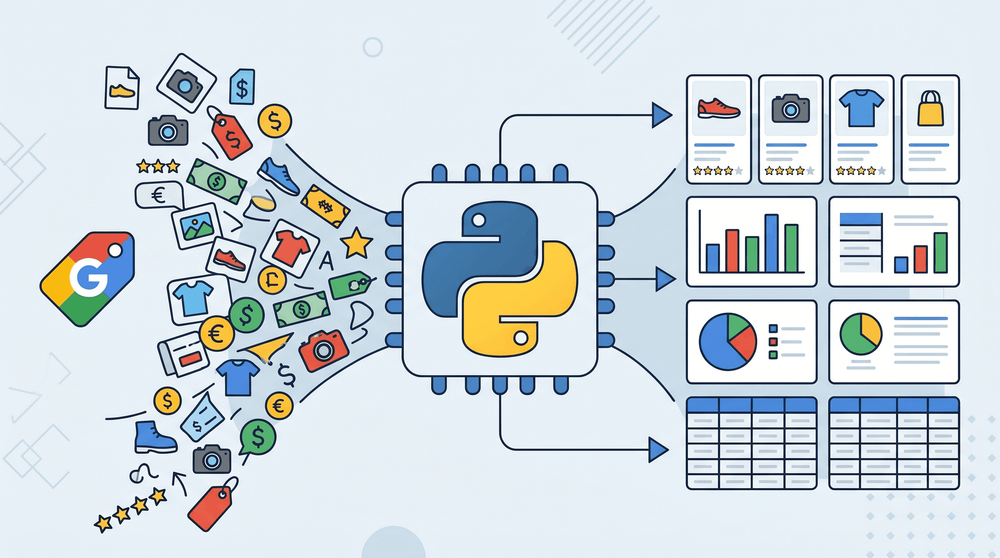
Google Shopping हर महीने 1.2 अरब से अधिक प्रोडक्ट सर्च प्रोसेस करता है। इसका मतलब है कि आपके ब्राउज़र में ही हजारों रिटेलर्स से इकट्ठा किया गया भारी मात्रा में प्राइसिंग डेटा, प्रोडक्ट ट्रेंड्स और विक्रेता जानकारी मौजूद होती है।
लेकिन उस डेटा को Google Shopping से निकालकर स्प्रेडशीट में लाना? यहीं से असली झंझट शुरू होती है। मैंने इस काम के लिए अलग-अलग तरीकों को काफी समय तक टेस्ट किया है — नो-कोड ब्राउज़र एक्सटेंशन से लेकर पूरे Python स्क्रिप्ट्स तक — और अनुभव कभी "वाह, यह तो बहुत आसान था" जैसा लगता है, तो कभी "तीन दिन से CAPTCHA डिबग कर रहा हूँ, अब छोड़ देना चाहता हूँ" जैसा। इस विषय पर ज़्यादातर गाइड मानकर चलते हैं कि आप Python डेवलपर हैं, लेकिन मेरे अनुभव में Google Shopping डेटा की ज़रूरत रखने वाले ज़्यादातर लोग ecommerce ऑपरेटर, pricing analyst, और marketer होते हैं — जिन्हें सिर्फ नंबर चाहिए, कोड लिखना नहीं। इसलिए यह गाइड तीन तरीकों को कवर करती है, सबसे आसान से लेकर सबसे तकनीकी तक, ताकि आप अपनी स्किल और समय के हिसाब से सही रास्ता चुन सकें।
Google Shopping डेटा क्या होता है?
Google Shopping एक प्रोडक्ट सर्च इंजन है। "wireless noise-cancelling headphones" टाइप करें और Google दर्जनों ऑनलाइन स्टोर्स की लिस्टिंग्स दिखा देता है — प्रोडक्ट टाइटल, कीमतें, विक्रेता, रेटिंग, इमेज, लिंक। इंटरनेट पर बिक्री के लिए उपलब्ध चीज़ों का एक लाइव, लगातार अपडेट होने वाला कैटलॉग।
Google Shopping डेटा स्क्रैप क्यों करें?
एक अकेला प्रोडक्ट पेज आपको लगभग कुछ नहीं बताता। लेकिन जब सैकड़ों पेज एक स्प्रेडशीट में व्यवस्थित हों — तभी पैटर्न दिखने लगते हैं।
ये कुछ सबसे आम उपयोग हैं जो मैंने देखे हैं:
| उपयोग का मामला | किसे फायदा होता है | आप क्या देख रहे होते हैं |
|---|---|---|
| प्रतिस्पर्धी मूल्य विश्लेषण | Ecommerce टीमें, pricing analysts | प्रतियोगियों की कीमतें, सेल पैटर्न, समय के साथ कीमत में बदलाव |
| प्रोडक्ट ट्रेंड खोज | मार्केटिंग टीमें, प्रोडक्ट मैनेजर | नए प्रोडक्ट, बढ़ती कैटेगरी, रिव्यू की गति |
| Ad intelligence | PPC managers, growth teams | Sponsored listings, कौन से विक्रेता बोली लगा रहे हैं, ad frequency |
| Seller/lead research | Sales teams, B2B | सक्रिय व्यापारी, किसी कैटेगरी में नए विक्रेता |
| MAP monitoring | Brand managers | Minimum advertised price policy तोड़ने वाले रिटेलर्स |
| Inventory और assortment tracking | Category managers | स्टॉक उपलब्धता, प्रोडक्ट assortment gaps |
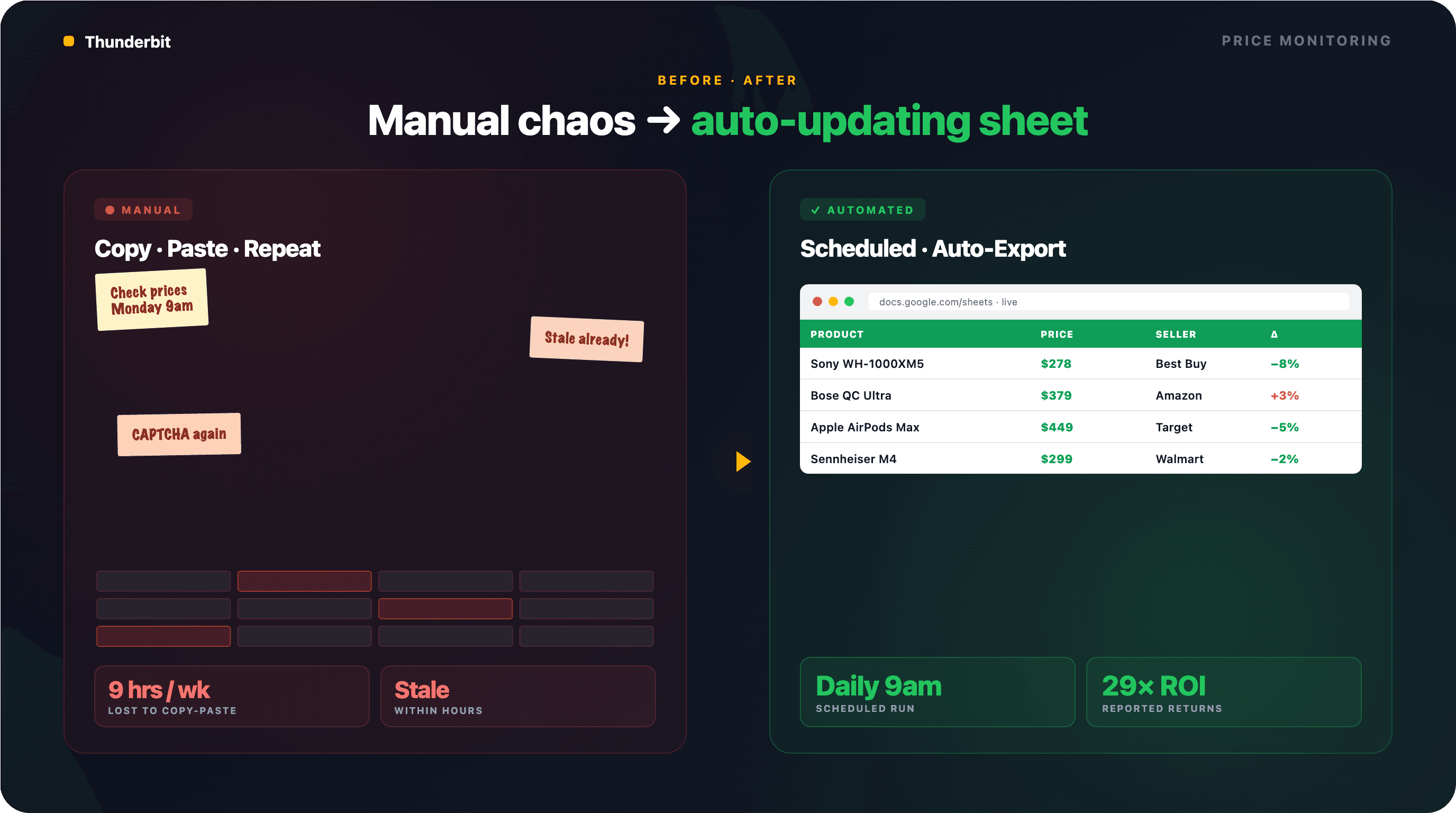
78% अमेरिकी रिटेलर्स अब AI-enabled pricing tools का इस्तेमाल करते हैं। प्रतिस्पर्धी मूल्य intelligence में निवेश करने वाली कंपनियों ने 29x तक रिटर्न रिपोर्ट किया है। Amazon लगभग हर 10 मिनट में कीमतें अपडेट करता है। अगर आप अब भी competitors की कीमतें हाथ से चेक कर रहे हैं, तो गणित आपके पक्ष में नहीं है।
AI की मदद से Google Shopping डेटा स्क्रैप करें Get Started Free
Thunderbit एक AI Web Scraper Chrome Extension है जो बिज़नेस यूज़र्स को AI की मदद से वेबसाइटों से डेटा स्क्रैप करने में मदद करता है। यह ecommerce ऑपरेटर, pricing analysts, और marketers के लिए खास तौर पर उपयोगी है, जिन्हें बिना कोड लिखे structured Google Shopping डेटा चाहिए।
आप Google Shopping से असल में क्या-क्या डेटा स्क्रैप कर सकते हैं?
टूल चुनने या एक भी लाइन कोड लिखने से पहले यह जान लेना उपयोगी है कि कौन-कौन से fields मिल सकते हैं — और किन्हें निकालने में अतिरिक्त मेहनत लगती है।
Google Shopping Search Results से मिलने वाले Fields
जब आप Google Shopping पर सर्च करते हैं, तो results page के हर product card में ये जानकारी होती है:
| Field | Type | Example | Notes |
|---|---|---|---|
| Product Title | Text | "Sony WH-1000XM5 Wireless Headphones" | हमेशा मौजूद |
| Price | Number | $278.00 | sale price + original price भी दिख सकती है |
| Seller/Store | Text | "Best Buy" | एक प्रोडक्ट के लिए कई sellers हो सकते हैं |
| Rating | Number | 4.7 | 5 stars में से; हमेशा नहीं दिखता |
| Review Count | Number | 12,453 | नए प्रोडक्ट्स में कभी-कभी गायब होता है |
| Product Image URL | URL | https://... | शुरुआती लोड पर base64 placeholder मिल सकता है |
| Product Link | URL | https://... | Google product page या direct store link |
| Shipping Info | Text | "Free shipping" | हमेशा मौजूद नहीं |
| Sponsored Tag | Boolean | Yes/No | paid placement को दिखाता है — ad intel के लिए उपयोगी |
Product Detail Pages से मिलने वाले Fields (Subpage Data)
अगर आप Google Shopping में किसी प्रोडक्ट के detail page पर जाते हैं, तो और समृद्ध डेटा मिल सकता है:
| Field | Type | Notes |
|---|---|---|
| Full Description | Text | प्रोडक्ट पेज खोलना ज़रूरी |
| All Seller Prices | Number (multiple) | अलग-अलग रिटेलर्स की side-by-side price comparison |
| Specifications | Text | प्रोडक्ट कैटेगरी के अनुसार बदलता है (dimensions, weight, आदि) |
| Individual Review Text | Text | खरीदारों के पूरे review content |
| Pros/Cons Summaries | Text | Google कभी-कभी इन्हें अपने आप बनाता है |
इन fields तक पहुँचने के लिए search results स्क्रैप करने के बाद हर प्रोडक्ट की subpage पर जाना पड़ता है। subpage scraping सपोर्ट करने वाले टूल यह काम अपने आप कर देते हैं — नीचे मैं पूरा workflow समझाऊँगा।
Google Shopping डेटा स्क्रैप करने के तीन तरीके (अपना रास्ता चुनें)
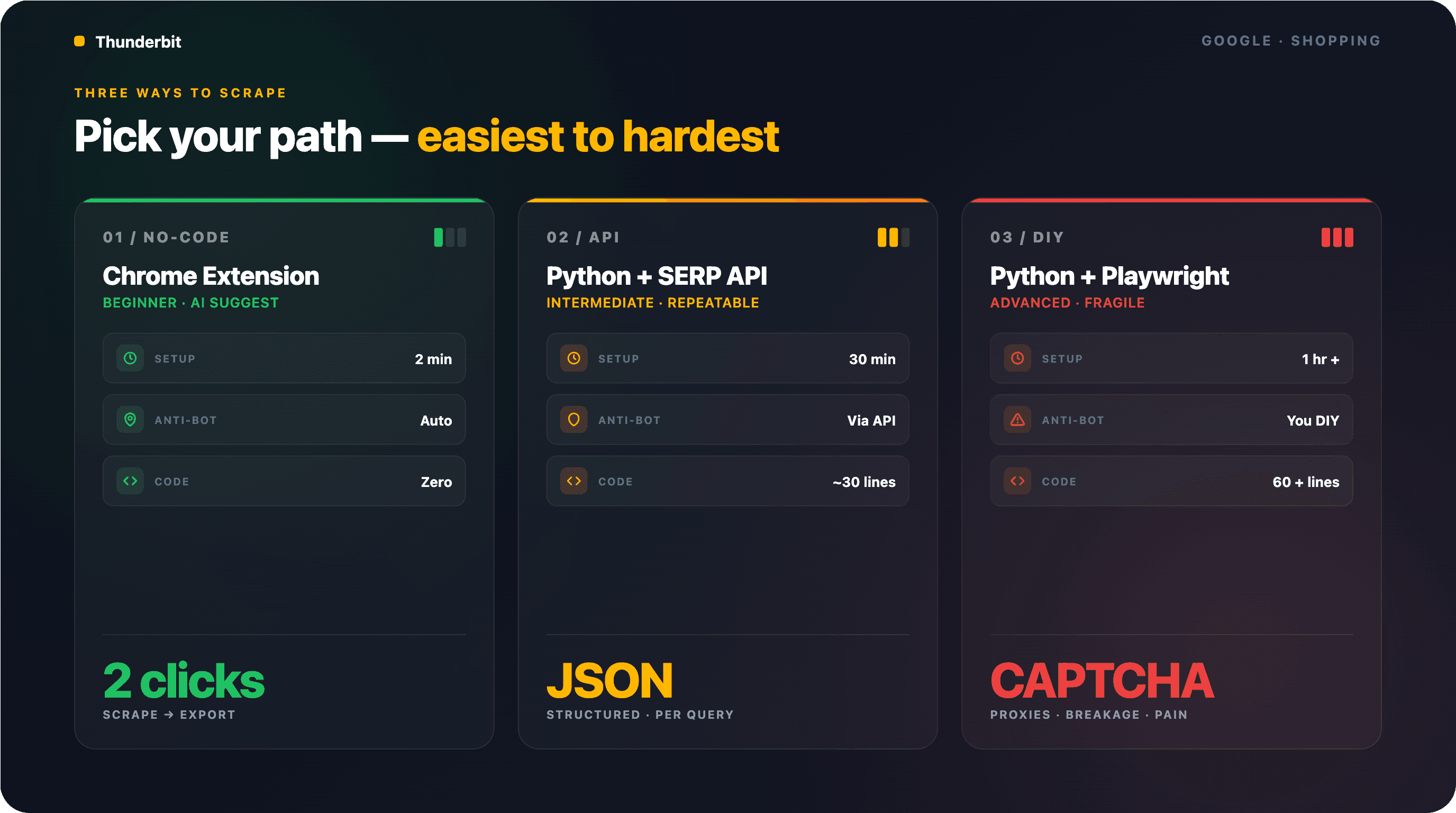
तीन तरीके, आसान से लेकर तकनीकी तक। अपनी स्थिति से मेल खाने वाली पंक्ति चुनें और आगे बढ़ें:
| Method | Skill Level | Setup Time | Anti-Bot Handling | Best For |
|---|---|---|---|---|
| No-code (Thunderbit Chrome Extension) | Beginner | ~2 minutes | Automatic रूप से संभाला जाता है | Ecommerce ops, marketers, एक बार की रिसर्च |
| Python + SERP API | Intermediate | ~30 minutes | API संभालता है | Developers जिन्हें programmatic, repeatable access चाहिए |
| Python + Playwright (browser automation) | Advanced | ~1 hour+ | आपको खुद संभालना होगा | Custom pipelines, edge-case handling |
तरीका 1: बिना कोड के Google Shopping डेटा स्क्रैप करें (Thunderbit के साथ)
- Difficulty: Beginner
- Time Required: ~2–5 minutes
- What You'll Need: Chrome browser, Thunderbit Chrome Extension (free tier काम करता है), Google Shopping search query
"मुझे Google Shopping डेटा चाहिए" से लेकर "लो, आपकी spreadsheet" तक का सबसे तेज़ रास्ता। न कोड, न API keys, न proxy configuration। मैंने दर्जनों बार गैर-तकनीकी साथियों को यह workflow समझाया है — कोई भी अटकता नहीं।
Step 1: Thunderbit इंस्टॉल करें और Google Shopping खोलें
Chrome Web Store से Thunderbit AI Web Scraper इंस्टॉल करें और एक free account बना लें।
फिर Google Shopping पर जाएँ। आप सीधे shopping.google.com खोल सकते हैं या सामान्य Google search के Shopping tab का इस्तेमाल कर सकते हैं। जिस प्रोडक्ट या कैटेगरी में रुचि हो, उसे सर्च करें — जैसे, "wireless noise-cancelling headphones"।
आपको कीमतों, sellers, और ratings के साथ product listings का grid दिखना चाहिए।
Step 2: कॉलम अपने-आप पहचानने के लिए "AI Suggest Fields" पर क्लिक करें
Thunderbit extension icon पर क्लिक करके sidebar खोलें, फिर "AI Suggest Fields" दबाएँ। AI Google Shopping page को स्कैन करके Product Title, Price, Seller, Rating, Review Count, Image URL, Product Link जैसे columns सुझाता है।
सुझाए गए fields की जाँच करें। आप columns का नाम बदल सकते हैं, जिनकी ज़रूरत नहीं उन्हें हटा सकते हैं, या custom fields जोड़ सकते हैं। अगर आप किसी खास चीज़ पर ध्यान देना चाहते हैं — जैसे, "currency symbol के बिना सिर्फ numeric price निकालना" — तो उस column में Field AI Prompt जोड़ सकते हैं।
Thunderbit panel में आपको column structure का preview दिखना चाहिए।
Step 3: "Scrape" पर क्लिक करें और परिणाम देखें
नीला "Scrape" बटन दबाएँ। Thunderbit हर दिखाई देने वाली product listing को structured table में खींच लाएगा।
कई pages हैं? Thunderbit pagination अपने-आप संभालता है — layout के हिसाब से pages पर क्लिक करके या और results लोड करने के लिए scroll करके। अगर results बहुत ज़्यादा हों, तो आप Cloud Scraping (तेज़, एक बार में 50 pages तक, Thunderbit की distributed infrastructure से चलता है) या Browser Scraping (आपके अपने Chrome session का इस्तेमाल — region-specific results या login की ज़रूरत होने पर उपयोगी) चुन सकते हैं।
मेरे परीक्षण में 50 product listings स्क्रैप करने में लगभग 30 seconds लगे। यही काम हाथ से — हर listing खोलना, title, price, seller, rating कॉपी करना — मुझे 20+ minutes ले जाता।
Step 4: Subpage Scraping से डेटा समृद्ध करें
पहली स्क्रैपिंग के बाद Thunderbit panel में "Scrape Subpages" पर क्लिक करें। AI हर प्रोडक्ट के detail page पर जाता है और additional fields — full descriptions, all seller prices, specifications, और reviews — मूल table में जोड़ देता है।
अलग से कोई configuration नहीं चाहिए — AI हर detail page की structure समझकर relevant data निकाल लेता है। मैंने इसी तरीके से 40 products के लिए 5 minutes से भी कम समय में एक पूरी competitive pricing matrix (product + all seller prices + specs) बनाई थी।
Google Shopping scraping के लिए Thunderbit आज़माएँ
Step 5: Google Sheets, Excel, Airtable, या Notion में Export करें
"Export" पर क्लिक करें और अपना destination चुनें — Google Sheets, Excel, Airtable, या Notion। सब free। CSV और JSON downloads भी उपलब्ध हैं।
Scrape करने के लिए दो क्लिक, export के लिए एक क्लिक। वही काम Python script में? लगभग 60 lines का code, proxy configuration, CAPTCHA handling, और लगातार maintenance।
तरीका 2: Python + SERP API से Google Shopping डेटा स्क्रैप करें
- Difficulty: Intermediate
- Time Required: ~30 minutes
- What You'll Need: Python 3.10+,
requestsऔरpandaslibraries, एक SERP API key (ScraperAPI, SerpApi, या समान)
अगर आपको Google Shopping डेटा तक programmatic और repeatable access चाहिए, तो SERP API सबसे भरोसेमंद Python-based तरीका है। Anti-bot measures, JavaScript rendering, proxy rotation — सब बैकग्राउंड में संभल जाता है। आप एक HTTP request भेजते हैं, और structured JSON वापस मिलता है।
Step 1: Python environment सेट करें
Python 3.12 इंस्टॉल करें (2025–2026 में production के लिए सबसे सुरक्षित default) और ज़रूरी packages:
pip install requests pandas
किसी SERP API provider पर sign up करें। SerpApi 100 free searches/month देता है; ScraperAPI 5,000 free credits देता है। Dashboard से अपनी API key लें।
Step 2: API request configure करें
यह ScraperAPI के Google Shopping endpoint का एक minimal example है:
import requests
import pandas as pd

API_KEY = "YOUR_API_KEY"
query = "wireless noise cancelling headphones"

resp = requests.get(
    "https://api.scraperapi.com/structured/google/shopping",
    params={"api_key": API_KEY, "query": query, "country_code": "us"}
)
data = resp.json()
API structured JSON लौटाता है जिसमें title, price, link, thumbnail, source (seller), और rating जैसे fields होते हैं।
Step 3: JSON response parse करें और fields निकालें
products = data.get("shopping_results", [])
rows = []
for p in products:
    rows.append({
        "title": p.get("title"),
        "price": p.get("price"),
        "seller": p.get("source"),
        "rating": p.get("rating"),
        "reviews": p.get("reviews"),
        "link": p.get("link"),
        "thumbnail": p.get("thumbnail"),
    })
df = pd.DataFrame(rows)
Step 4: CSV या JSON में export करें
df.to_csv("google_shopping_results.csv", index=False)
Batch-friendly: 50 keywords पर loop चलाएँ और एक ही script run में पूरा dataset बना लें। लेकिन tradeoff है लागत — SERP APIs प्रति query शुल्क लेते हैं, और रोज़ हजारों queries होने पर bill बढ़ जाता है। नीचे pricing पर और बात करेंगे।
तरीका 3: Python + Playwright से Google Shopping डेटा स्क्रैप करें (Browser Automation)
- Difficulty: Advanced
- Time Required: ~1 hour+ (plus ongoing maintenance)
- What You'll Need: Python 3.10+, Playwright, residential proxies, धैर्य
यह "पूरी तरह control" वाला तरीका है। आप असली browser लॉन्च करते हैं, Google Shopping पर जाते हैं, और rendered page से डेटा निकालते हैं। सबसे flexible, लेकिन सबसे fragile भी — Google के anti-bot systems बहुत सख्त हैं, और page structure साल में कई बार बदलता है।
सीधे शब्दों में: मैंने ऐसे users से बात की है जिन्होंने इस तरीके से CAPTCHAs और IP blocks से जूझते हुए हफ्ते बर्बाद कर दिए। यह काम करता है, लेकिन ongoing maintenance की उम्मीद रखें।
Step 1: Playwright और proxies सेट करें
pip install playwright
playwright install chromium
आपको residential proxies चाहिए होंगे। Datacenter IPs लगभग तुरंत block हो जाते हैं — एक forum user ने साफ कहा था: "पहले 1/2 results के बाद सभी AWS IPs block हो जाएँगे या CAPTCHA दिखेगा." Bright Data, Oxylabs, या Decodo जैसी सेवाएँ लगभग $1–5/GB से residential proxy pools देती हैं।
Playwright को एक realistic user-agent और proxy के साथ configure करें:
from playwright.sync_api import sync_playwright

with sync_playwright() as p:
    browser = p.chromium.launch(
        headless=True,
        proxy={"server": "http://your-proxy:port", "username": "user", "password": "pass"}
    )
    context = browser.new_context(
        user_agent="Mozilla/5.0 (Windows NT 10.0; Win64; x64) AppleWebKit/537.36 ..."
    )
    page = context.new_page()
Step 2: Google Shopping पर जाएँ और anti-bot measures संभालें
Google Shopping URL बनाकर navigate करें:
query = "wireless noise cancelling headphones"
url = f"https://www.google.com/search?udm=28&q={query}&gl=us&hl=en"
page.goto(url, wait_until="networkidle")
अगर EU cookie consent popup आए तो उसे संभालें:
try:
    page.click("button#L2AGLb", timeout=3000)
except:
    pass
Actions के बीच human-like delays डालें — page loads के बीच 2–5 seconds का random wait time। Google की detection systems तेज़, एक-सा request pattern पकड़ लेती हैं।
Step 3: Scroll करें, paginate करें, और product data निकालें
Google Shopping results dynamic तरीके से लोड करता है। Lazy loading trigger करने के लिए scroll करें, फिर product cards extract करें:
import time, random

# सभी results लोड करने के लिए scroll करें
for _ in range(3):
    page.evaluate("window.scrollBy(0, 1000)")
    time.sleep(random.uniform(1.5, 3.0))

# Product cards extract करें
cards = page.query_selector_all("[jsname='ZvZkAe']")
results = []
for card in cards:
    title = card.query_selector("h3")
    price = card.query_selector("span.a8Pemb")
    # ... अन्य fields निकालें
    results.append({
        "title": title.inner_text() if title else None,
        "price": price.inner_text() if price else None,
    })
एक ज़रूरी बात: ऊपर दिए गए CSS selectors अनुमानित हैं और बदलेंगे। Google class names को अक्सर बदलता है। 2024–2026 के बीच ही इसके लिए तीन अलग-अलग selector sets दर्ज किए गए हैं। class names पर निर्भर रहने के बजाय jsname, data-cid, <h3> tags, और img[alt] जैसे अधिक स्थिर attributes पर भरोसा करें।
Step 4: CSV या JSON में सेव करें
import json
from datetime import datetime

filename = f"shopping_{datetime.now().strftime('%Y%m%d_%H%M')}.json"
with open(filename, "w") as f:
    json.dump(results, f, indent=2)
इस script को नियमित रूप से maintain करने के लिए तैयार रहें। जब Google page structure बदलता है — और यह साल में कई बार होता है — आपके selectors टूट जाते हैं और आप फिर से debugging में लौट आते हैं।
सबसे बड़ी परेशानी: CAPTCHAs और Anti-Bot Blocks
एक forum से दूसरे forum तक एक ही कहानी: "मैंने कुछ हफ्ते लगाए, लेकिन Google के anti-bot methods के सामने हार मान ली." CAPTCHAs और IP blocks DIY Google Shopping scrapers छोड़ने की सबसे बड़ी वजह हैं।
Google scrapers को कैसे रोकता है (और उससे निपटना कैसे है)
| Anti-Bot Challenge | Google क्या करता है | Workaround |
|---|---|---|
| IP fingerprinting | कुछ requests के बाद datacenter IPs block करता है | Residential proxies या browser-based scraping |
| CAPTCHAs | तेज़ या automated request patterns पर trigger होते हैं | Rate limiting (requests के बीच 10–20 seconds), human-like delays, CAPTCHA-solving services |
| JavaScript rendering | Shopping results JS से dynamically लोड होते हैं | Headless browser (Playwright) या JS-rendering वाला API |
| User-agent detection | आम bot user-agents block करता है | Realistic, up-to-date user-agent strings rotate करें |
| TLS fingerprinting | non-browser TLS signatures पहचानता है | Browser impersonation के साथ curl_cffi या real browser इस्तेमाल करें |
| AWS/cloud IP blocking | Cloud provider IP ranges block करता है | Datacenter IPs से पूरी तरह बचें |
January 2025 में Google ने SERP और Shopping results के लिए JavaScript execution अनिवार्य कर दिया, जिससे कई static-HTML scrapers टूट गए — इनमें SemRush और SimilarWeb द्वारा इस्तेमाल होने वाले pipelines भी शामिल थे। फिर September 2025 में Google ने legacy product detail page URLs को बंद करके उन्हें एक नए "Immersive Product" surface पर redirect कर दिया, जो async AJAX से load होता है। late 2025 से पहले लिखी गई कोई भी tutorial अब काफी हद तक पुरानी हो चुकी है।
हर तरीका इन चुनौतियों को कैसे संभालता है
SERP APIs बैकग्राउंड में सब कुछ संभाल लेते हैं — proxies, rendering, CAPTCHA solving। आपको इसके बारे में सोचना नहीं पड़ता।
Thunderbit Cloud Scraping US, EU, और Asia में distributed cloud infrastructure का इस्तेमाल करके JS rendering और anti-bot measures अपने-आप संभालता है। Browser Scraping mode आपका अपना authenticated Chrome session उपयोग करता है, जिससे detection लगभग बायपास हो जाती है क्योंकि यह सामान्य user browsing जैसा दिखता है।
DIY Playwright में पूरा बोझ आप पर होता है — proxy management, delay tuning, CAPTCHA solving, selector maintenance, और टूट-फूट की लगातार निगरानी।
Google Shopping डेटा स्क्रैप करने की असली लागत: एक ईमानदार तुलना
"20k requests के लिए $50… मेरे hobby project के लिए थोड़ा ज़्यादा है." यह शिकायत forums में लगातार दिखती है। लेकिन बातचीत अक्सर सबसे बड़ी लागत को अनदेखा कर देती है।
Cost Comparison Table
| Approach | Upfront Cost | Per-Query Cost (est.) | Maintenance Burden | Hidden Costs |
|---|---|---|---|---|
| DIY Python (no proxy) | Free | $0 | HIGH (breakage, CAPTCHAs) | Debugging में आपका समय |
| DIY Python + residential proxies | Free code | ~$1–5/GB | MEDIUM-HIGH | Proxy provider fees |
| SERP API (SerpApi, ScraperAPI) | Free tier सीमित | ~$0.50–5.00/1K queries | LOW | Volume बढ़ने पर जल्दी महँगा |
| Thunderbit Chrome Extension | Free tier (6 pages) | Credit-based, ~1 credit/row | VERY LOW | Volume के लिए paid plan |
| Thunderbit Open API (Extract) | Credit-based | ~20 credits/page | LOW | Extraction के हिसाब से भुगतान |
वह छुपी हुई लागत जिसे सब नज़रअंदाज़ करते हैं: आपका समय
एक $0 DIY solution जो 40 घंटे debugging में खा जाए, मुफ्त नहीं है। $50/hour के हिसाब से यह $2,000 labor बन जाता है — ऐसे scraper के लिए जो अगले महीने Google के DOM बदलते ही फिर टूट सकता है।
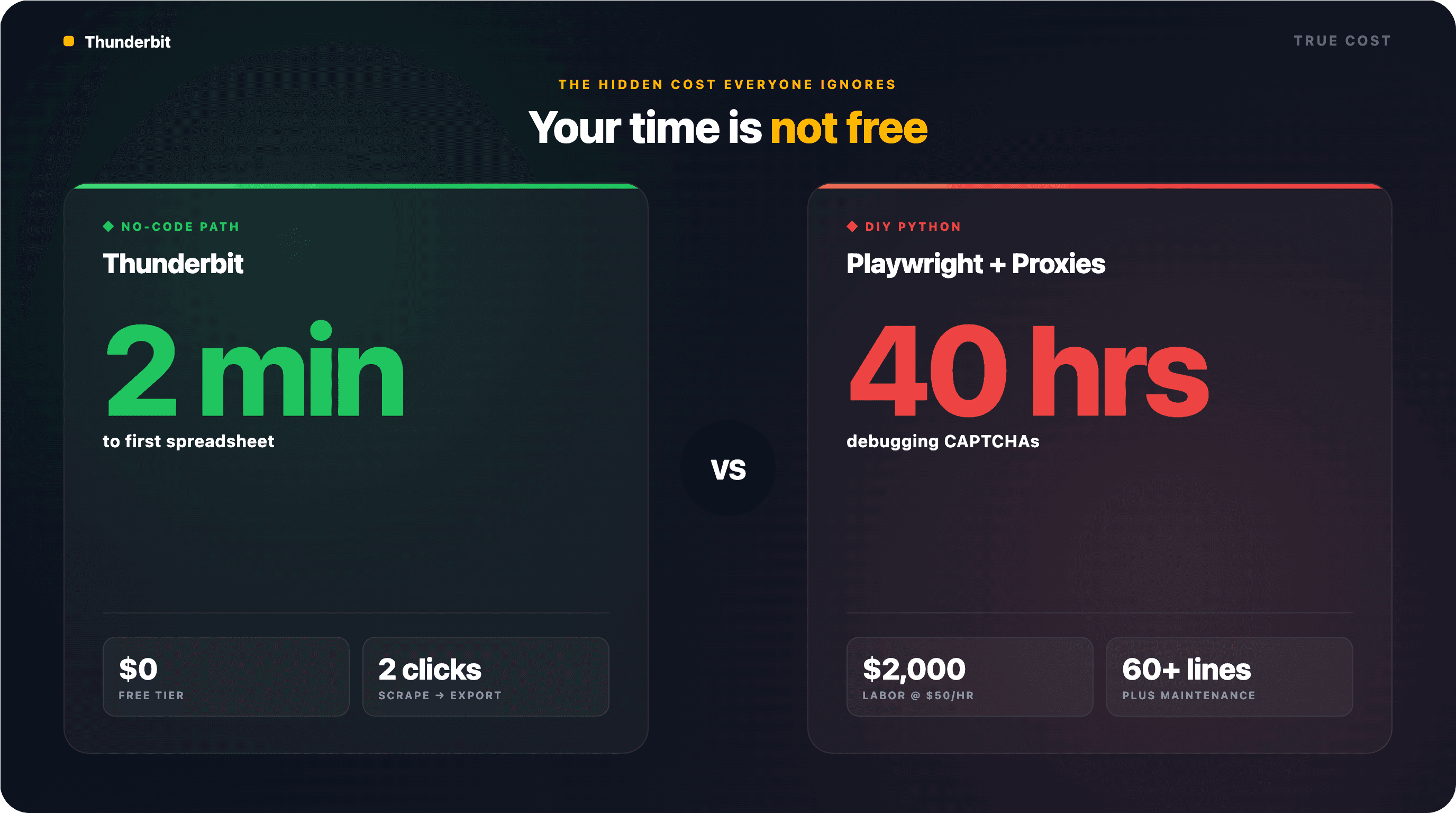
McKinsey's Technology Outlook के अनुसार build/buy breakeven केवल 3.6 million daily requests से ऊपर आता है। इससे नीचे, in-house solution बनाना "budget खाता है लेकिन ROI नहीं देता।" अधिकांश ecommerce teams जो हफ्ते में कुछ सौ से कुछ हज़ार lookups करती हैं, उनके लिए no-code tool या SERP API अपनी खुद की solution बनाने से कहीं अधिक cost-effective होता है।
Automated Google Shopping Price Monitoring कैसे सेट करें
ज़्यादातर गाइड scraping को एक बार के काम की तरह देखते हैं। Ecommerce teams के लिए असली use case है लगातार, automated monitoring। आपको सिर्फ आज की कीमतें नहीं, बल्कि कल, पिछले हफ्ते, और आने वाले समय की भी ज़रूरत होती है।
Thunderbit के साथ Scheduled Scraping सेट करना
Thunderbit's Scheduled Scraper आपको time interval को सामान्य भाषा में लिखने देता है — "हर दिन सुबह 9 बजे" या "हर सोमवार और गुरुवार दोपहर 12 बजे" — और AI उसे recurring schedule में बदल देता है। अपने Google Shopping URLs डालें, "Schedule" पर क्लिक करें, और काम पूरा।
हर run अपने-आप Google Sheets, Airtable, या Notion में export हो जाता है। अंतिम नतीजा: एक ऐसी spreadsheet जो हर दिन competitor prices से अपने आप भरती रहती है, pivot tables या alerts के लिए तैयार।
न cron jobs। न server management। न Lambda function की परेशानी। (मैंने forum posts देखे हैं जहाँ developers ने AWS Lambda पर Selenium चलाने में कई दिन लगा दिए — Thunderbit का scheduler यह सब छोड़ देता है।)
price monitoring workflows बनाने के बारे में और जानने के लिए हमारी अलग deep dive देखें।
Python के साथ Scheduling (Developers के लिए)
अगर आप SERP API approach इस्तेमाल कर रहे हैं, तो runs को cron jobs (Linux/Mac), Windows Task Scheduler, या AWS Lambda और Google Cloud Functions जैसे cloud schedulers से schedule कर सकते हैं। APScheduler जैसी Python libraries भी काम आती हैं।
लेकिन tradeoff यह है कि अब script की health, failures, schedule के अनुसार proxy rotation, और Google के page बदलने पर selectors अपडेट करने की ज़िम्मेदारी आपकी है। ज़्यादातर teams के लिए scheduled Python scraper को maintain करने में लगा engineering time, dedicated tool की लागत से अधिक पड़ता है।
Google Shopping डेटा स्क्रैप करने के सुझाव और best practices
तरीका कोई भी हो, कुछ बातें आपकी परेशानियाँ कम करेंगी।
Rate Limits का सम्मान करें
Google पर सैकड़ों तेज़ requests न झोंकें — block हो जाएँगे, और आपका IP कुछ समय के लिए flagged रह सकता है। DIY methods में requests के बीच 10–20 seconds का gap रखें और random jitter जोड़ें। Tools और APIs यह अपने-आप करते हैं।
अपनी Volume के हिसाब से तरीका चुनें
एक तेज़ decision guide:
- < 10 queries/week → Thunderbit free tier या SerpApi free tier
- 10–1,000 queries/week → SERP API paid plan या Thunderbit paid plan
- 1,000+ queries/week → SERP API enterprise plan या Thunderbit Open API
अपने डेटा को साफ़ और validate करें
Prices में currency symbols, locale-specific formatting (1.299,00 € vs $1,299.00), और कभी-कभी बेकार characters भी होते हैं। Thunderbit के Field AI Prompts से extraction के समय ही normalization करें, या बाद में pandas से साफ करें:
df["price_num"] = df["price"].str.replace(r"[^\d.]", "", regex=True).astype(float)
Organic और sponsored listings के बीच duplicates देखें — वे अक्सर overlap करते हैं। (title, price, seller) tuple के आधार पर deduplicate करें।
कानूनी स्थिति समझें
Publicly available product data को scrape करना सामान्यतः कानूनी माना जाता है, लेकिन legal landscape तेज़ी से बदल रहा है। हाल की सबसे महत्वपूर्ण घटना: Google ने दिसंबर 2025 में SerpApi पर मुकदमा किया DMCA § 1201 के तहत, Google के "SearchGuard" anti-scraping system को bypass करने के आरोप में। यह एक नया enforcement vector है जो hiQ v. LinkedIn और Van Buren v. United States जैसे पुराने मामलों में स्थापित defenses को दरकिनार करता है।
व्यावहारिक दिशानिर्देश:
- सिर्फ publicly available data scrape करें — restricted content के लिए login न करें
- personal information न निकालें (reviewer names, account details)
- ध्यान रखें कि Google की Terms of Service automated access को मना करती हैं — SERP API या browser extension जोखिम कम करते हैं, लेकिन पूरी तरह खत्म नहीं
- EU operations के लिए GDPR को ध्यान में रखें, हालांकि product listings ज़्यादातर non-personal commercial data होती हैं
- अगर आप scraped data पर commercial product बना रहे हैं, तो legal counsel से सलाह लें
web scraping legal considerations पर और गहराई से जानने के लिए हमने यह विषय अलग से कवर किया है।
Google Shopping डेटा स्क्रैप करने के लिए कौन-सा तरीका चुनें?
एक ही product categories पर तीनों तरीकों को आज़माने के बाद, मेरा निष्कर्ष यह रहा:
अगर आप non-technical user हैं और जल्दी डेटा चाहिए — Thunderbit इस्तेमाल करें। Google Shopping खोलें, दो क्लिक करें, export करें। 5 minutes से कम में साफ़ spreadsheet मिल जाएगी। free tier बिना commitment के इसे आज़माने देता है, और subpage scraping feature आपको ज़्यादातर Python scripts से ज़्यादा समृद्ध डेटा देता है।
अगर आप developer हैं और repeatable, programmatic access चाहिए — SERP API चुनें। इसकी reliability per-query cost के लायक है, और anti-bot झंझटों से भी छुटकारा मिलता है। SerpApi की documentation सबसे अच्छी है; ScraperAPI का free tier सबसे उदार है।
अगर आपको maximum control चाहिए और custom pipeline बना रहे हैं — Playwright काम करता है, लेकिन पूरी तैयारी के साथ जाएँ। proxy management, selector maintenance, और CAPTCHA handling के लिए पर्याप्त समय अलग रखें। 2025–2026 में minimum viable bypass stack है curl_cffi + Chrome impersonation + residential proxies + 10–20 second pacing। सिर्फ rotating user-agents वाली plain requests script अब लगभग बेकार है।
सबसे अच्छा तरीका वही है जो accurate data दे और आपका पूरा हफ्ता न खा जाए। ज़्यादातर लोगों के लिए वह 60-line Python script नहीं, बल्कि दो क्लिक हैं।
अगर आपको volume चाहिए तो Thunderbit की pricing देखें, या workflow को असल में काम करते देखने के लिए Thunderbit YouTube Channel पर हमारे tutorials देखें।
Google Shopping scraping के लिए Thunderbit आज़माएँ Get Started Free
FAQs
क्या Google Shopping डेटा स्क्रैप करना कानूनी है?
सार्वजनिक रूप से उपलब्ध product data को scrape करना आम तौर पर hiQ v. LinkedIn और Van Buren v. United States जैसे precedents के तहत कानूनी माना जाता है। लेकिन Google की Terms of Service automated access को मना करती हैं, और दिसंबर 2025 में SerpApi के खिलाफ Google का मुकदमा DMCA § 1201 anti-circumvention theory लेकर आया। भरोसेमंद tools और APIs का इस्तेमाल जोखिम कम करता है। commercial use cases के लिए legal counsel से सलाह लें।
क्या मैं Google Shopping को block हुए बिना scrape कर सकता हूँ?
हाँ, लेकिन तरीका मायने रखता है। SERP APIs anti-bot measures अपने-आप संभालते हैं। Thunderbit का Cloud Scraping distributed infrastructure का उपयोग करके blocks से बचता है, जबकि Browser Scraping mode आपका अपना Chrome session इस्तेमाल करता है (जो सामान्य browsing जैसा दिखता है)। DIY Python scripts में residential proxies, human-like delays, और TLS fingerprint management की ज़रूरत होती है — फिर भी blocks आम हैं।
Google Shopping डेटा स्क्रैप करने का सबसे आसान तरीका क्या है?
Thunderbit का Chrome Extension। Google Shopping खोलें, "AI Suggest Fields" पर क्लिक करें, "Scrape" दबाएँ, और Google Sheets या Excel में export करें। न कोड, न API keys, न proxy configuration। पूरी प्रक्रिया लगभग 2 minutes में हो जाती है।
Price monitoring के लिए Google Shopping को कितनी बार scrape किया जा सकता है?
Thunderbit's Scheduled Scraper के साथ आप plain English descriptions का उपयोग करके daily, weekly, या custom interval monitoring सेट कर सकते हैं। SERP APIs में frequency आपके plan की credit limits पर निर्भर करती है — ज़्यादातर providers कुछ सौ SKUs की daily monitoring के लिए पर्याप्त देते हैं। DIY scripts जितनी बार आपका infrastructure allow करे उतनी बार चल सकते हैं, लेकिन frequency बढ़ने पर anti-bot परेशानियाँ भी बढ़ती हैं।
क्या मैं Google Shopping डेटा Google Sheets या Excel में export कर सकता हूँ?
हाँ। Thunderbit सीधे Google Sheets, Excel, Airtable, और Notion में free export करता है। Python scripts CSV या JSON में export कर सकते हैं, जिन्हें आप किसी भी spreadsheet tool में import कर सकते हैं। लगातार monitoring के लिए Thunderbit के scheduled exports Google Sheets में एक live, auto-updating dataset बनाते हैं।
- और जानें