

Wget proxy setup looks like a five-second job — until you spend an hour figuring out why your requests are bypassing the proxy entirely, with zero error messages. I've watched this happen to seasoned sysadmins and junior devs alike.
The root cause is almost never the proxy itself. It's the four different places Wget can read proxy settings, the silent failures when you use the wrong variable casing, and the corporate-network quirks that no man page bothers to explain. This guide covers every method for configuring Wget with a proxy, the exact precedence rules when multiple methods conflict, real terminal output for every common error, and a dedicated section for Windows and corporate firewall users — the audience that nearly every other tutorial pretends doesn't exist.
- Difficulty: Beginner to Intermediate
- Time Required: ~15 minutes to read and configure; ~2 minutes once you know what you're doing
- What You'll Need: A working Wget installation (instructions below), a proxy address (host + port), and optionally proxy credentials
Try Thunderbit for Structured Data Extraction
What Is Wget and Why Would You Use It With a Proxy?
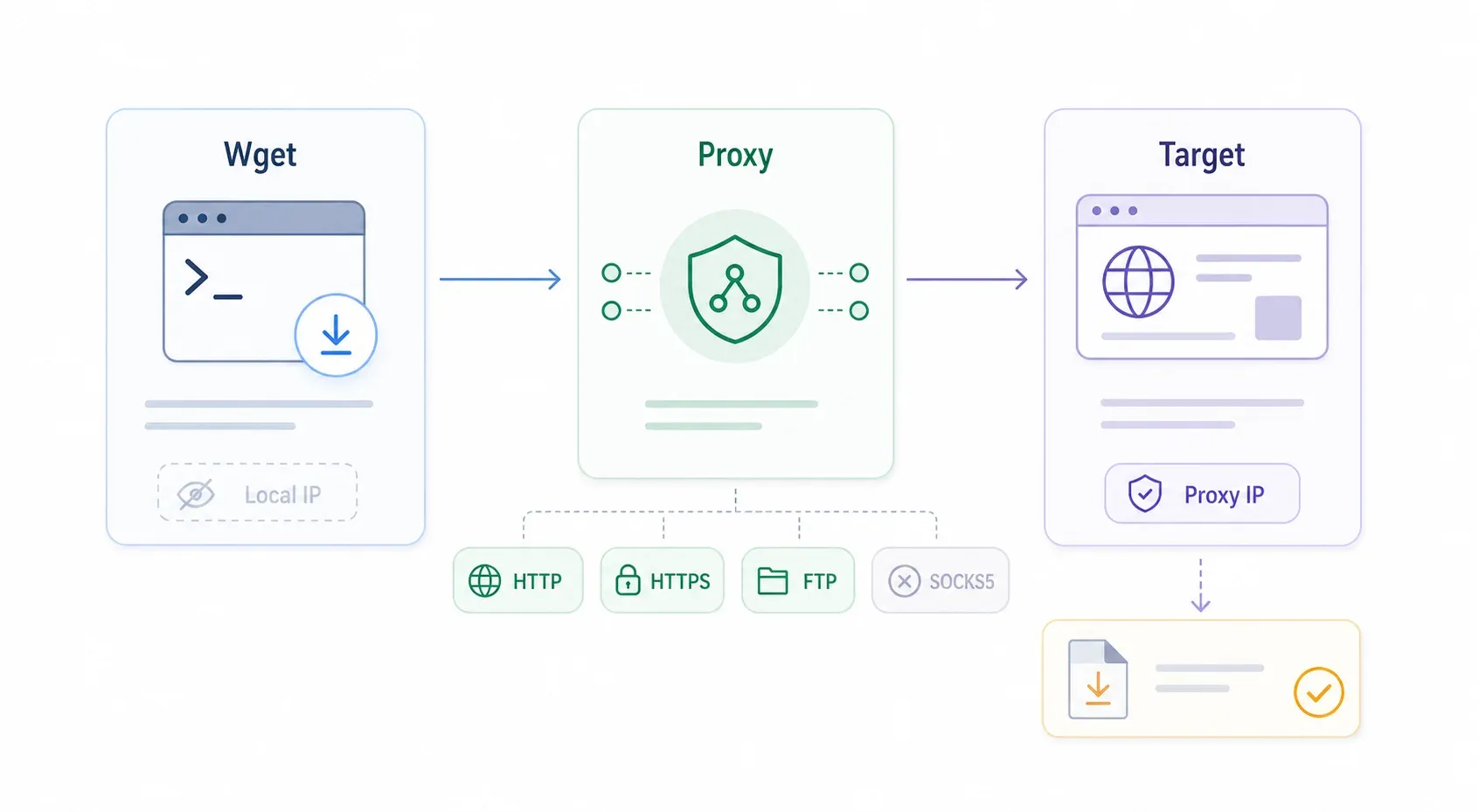
Wget is a command-line tool that downloads files and web pages from the internet without a browser. GNU's own description calls it a "non-interactive network downloader" — meaning it runs in the background, resumes broken transfers, and handles recursive downloads without needing a human to click anything.
A proxy, in this context, is a middleman server. Instead of your machine connecting directly to a target website, Wget sends the request to the proxy, and the proxy forwards it. The main reasons you'd want this:
- Corporate firewall compliance — your company requires all outbound traffic to go through an approved proxy
- Privacy and IP management — requests appear from the proxy's IP, not yours
- Geo-testing — fetch region-locked resources or test CDN behavior from a specific geography
- Data collection pipelines — download HTML through rotating proxies for research or monitoring
- CI/CD environments — build runners on locked-down networks that can only reach the internet via a proxy
Wget natively supports HTTP, HTTPS, and FTP proxies. It does not support SOCKS5. If you need SOCKS5, curl has native support for socks4://, socks5://, and socks5h:// schemes — or you can wrap Wget with a tool like proxychains4.
How to Install Wget on Linux, macOS, and Windows
Before configuring proxies, you need Wget on your machine. This section is quick — it's a prerequisite, not the main event.
Linux (Debian/Ubuntu and RHEL/CentOS)
# Debian/Ubuntu
sudo apt update
sudo apt install wget

# RHEL/CentOS/Fedora
sudo dnf install wget

# Verify
wget --version
Ubuntu 24.04 LTS ships Wget 1.21.4, while Debian Trixie has 1.25.0. CentOS Stream 10 packages show 1.24.5.
macOS (Homebrew)
brew install wget
wget --version
Homebrew's formula currently serves stable Wget 1.25.0, with 396,818 installs over the past year.
Windows (Chocolatey and Manual Install)
choco install wget
wget --version
Chocolatey's GNU Wget package reports over 10 million total downloads, though it's currently at version 1.21.4. The binary typically lands under C:\ProgramData\chocolatey\bin\wget.exe.
One heads-up for Windows users: where Wget looks for .wgetrc varies by build. Details in the Windows section below.
4 Ways to Use Wget With a Proxy (And Which One to Pick)
Four methods, each with a different scope and precedence level:
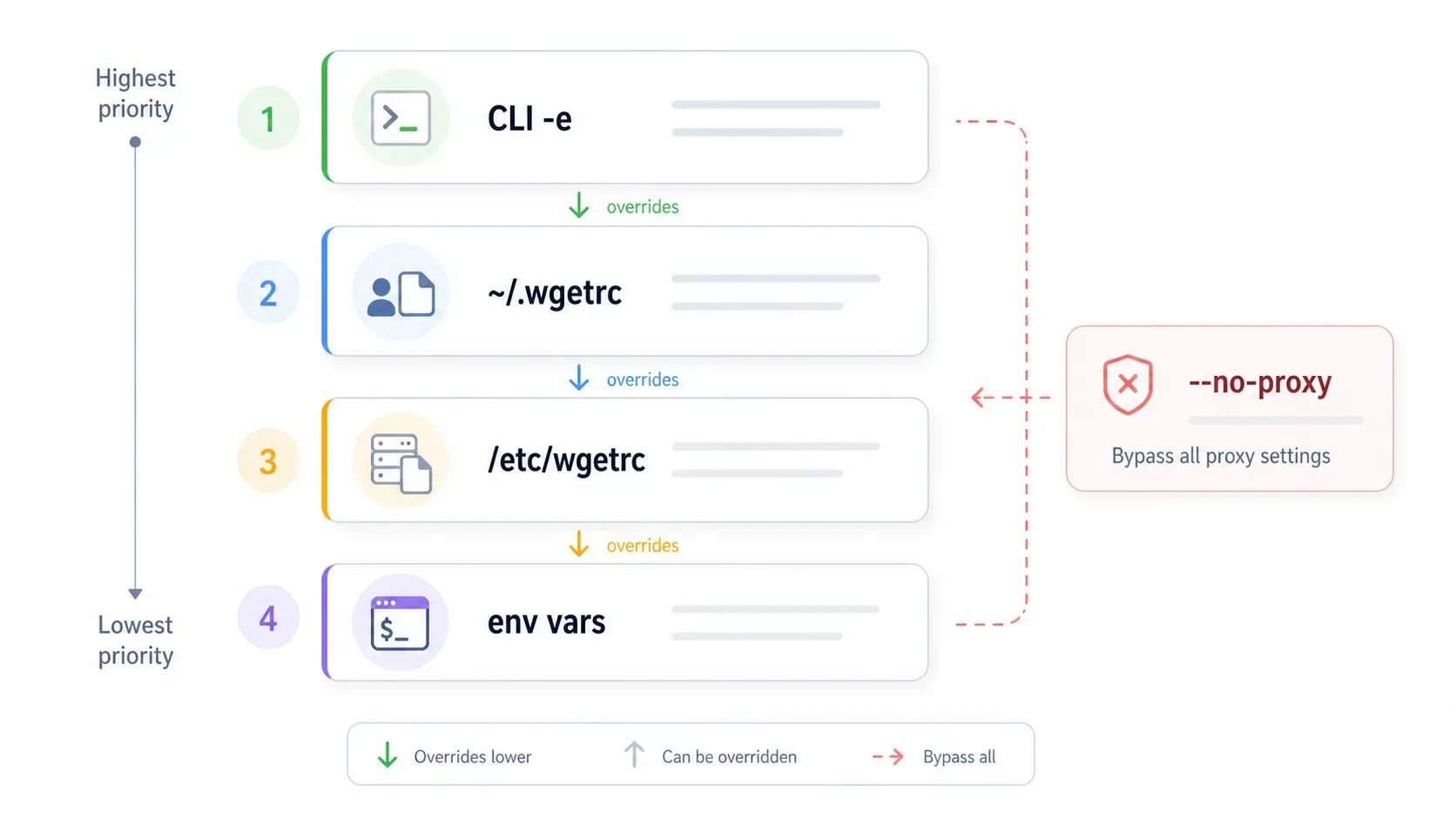
- Command-line
-eflags — one-off, single command - User config file (
~/.wgetrc) — applies to every Wget command you run - System config file (
/etc/wgetrc) — applies to all users on the machine - Environment variables (
http_proxy,https_proxy) — applies to the entire shell session
Method 1: Command-Line Flags (One-Off Proxy)
Best for quick tests. Settings vanish after the command finishes.
wget -e use_proxy=on -e http_proxy=http://HOST:PORT/ http://example.com/file.zip
For HTTPS targets:
wget -e use_proxy=on -e https_proxy=http://HOST:PORT/ https://example.com/
Quick smoke test — fetch your apparent IP through the proxy:
wget -qO- -e use_proxy=on -e http_proxy=http://HOST:PORT/ http://ifconfig.me
If the output shows the proxy's IP instead of yours, you're in business.
Method 2: User Config File (~/.wgetrc)
Add these lines to ~/.wgetrc (create the file if it doesn't exist):
use_proxy = on
http_proxy = http://proxy.company.com:8080/
https_proxy = http://proxy.company.com:8080/
no_proxy = localhost,127.0.0.1,.internal.company.com
Note the spaces around = — that's the documented .wgetrc syntax. Every Wget command you run as this user will now go through the proxy.
Method 3: System-Wide Config (/etc/wgetrc)
Same directives as ~/.wgetrc, but placed in the system config file. GNU documents this as a global startup file — the exact path depends on your install prefix. Common locations:
/etc/wgetrc(most Linux package managers)/usr/local/etc/wgetrc(some Homebrew builds)- The path shown in
wget --versionoutput under "Wgetrc:"
This is useful for shared servers, Docker containers, or any environment where every user should route through the same proxy.
Method 4: Environment Variables (http_proxy / https_proxy)
export http_proxy=http://HOST:PORT/
export https_proxy=http://HOST:PORT/
export no_proxy=localhost,127.0.0.1,.internal.company.com
These affect your entire shell session — not just Wget. Tools like curl will also pick them up.
Critical warning: Wget only reads lowercase environment variable names. HTTP_PROXY (uppercase) is silently ignored. No error, no warning, nothing. I'll show the exact terminal output in the gotchas section, but this is worth burning into memory now.
Proxy Method Precedence: What Overrides What When Multiple Methods Are Set
If you have a proxy configured in your environment variables and in .wgetrc and on the command line, which one wins? Nobody spells this out clearly, so I tested it.
Here's the tested and documented precedence:
| Priority | Method | Scope | Overrides |
|---|---|---|---|
| 1 (highest) | -e CLI flags | Single command | Everything |
| 2 | ~/.wgetrc | Current user | System config + env vars |
| 3 | /etc/wgetrc | System-wide | Env vars only |
| 4 (lowest) | http_proxy / https_proxy env vars | Shell session | Nothing |
I verified this on Wget 1.25.0 by setting conflicting proxies at each level. With the environment pointing to port 3128, the config file pointing to 3129, and the CLI pointing to 3130:
- Config beats environment: Wget connected to port 3129, ignoring 3128.
- CLI beats config: Wget connected to port 3130, ignoring both 3129 and 3128.
The escape hatch is --no-proxy. It bypasses every proxy setting regardless of where it was configured:
wget --no-proxy https://internal-server.company.com/report.pdf
Practical scenario: your sysadmin set a proxy in /etc/wgetrc, but you need to reach an internal server directly. Use --no-proxy for that one command instead of editing the system config.
How to Use Wget With an Authenticated Proxy
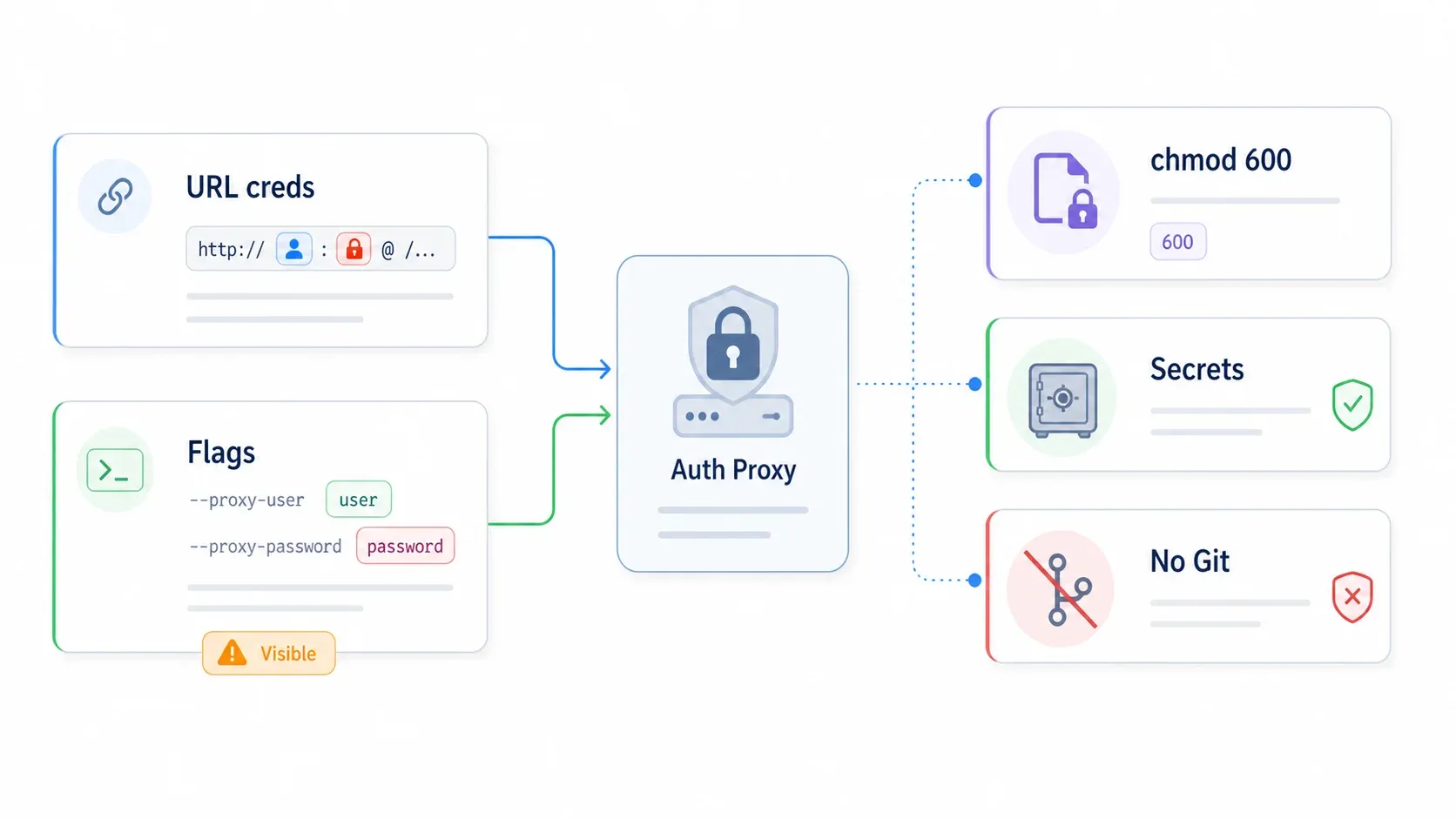
Most business and residential proxies require a username and password. Wget supports this through two approaches, both using HTTP Basic authentication for proxy credentials.
Inline Credentials in the Proxy URL
wget -e use_proxy=on \
  -e http_proxy=http://USERNAME:PASSWORD@proxy.company.com:8080/ \
  http://example.com/file.zip
This also works in .wgetrc:
http_proxy = http://USERNAME:PASSWORD@proxy.company.com:8080/
https_proxy = http://USERNAME:PASSWORD@proxy.company.com:8080/
Using --proxy-user and --proxy-password Flags
wget --proxy-user=USERNAME --proxy-password=PASSWORD \
  -e use_proxy=on \
  -e http_proxy=http://proxy.company.com:8080/ \
  http://example.com/file.zip
These flags override any user:pass@ embedded in the proxy URL.
Keeping Credentials Safe
Both methods leak credentials. GNU warns that passwords on the command line are visible through ps or process-list tools. Mitigations:
- Single-user machines: Store credentials in
~/.wgetrcand lock the file:chmod 600 ~/.wgetrc - CI/CD pipelines: Use GitHub Actions encrypted secrets or your platform's equivalent. Pass them as lowercase environment variables in the step definition — never hardcode in YAML.
- Docker builds: Do not use
ARGorENVfor secrets. Docker's docs explicitly warn that build arguments can persist in the final image. Use BuildKit secret mounts instead. - Version control: Never commit
.wgetrcwith credentials. Add it to.gitignore.
One Wget-specific nuance for GitHub Actions: secret names are stored uppercase by convention, but the environment variables you expose to Wget must be lowercase (http_proxy, not HTTP_PROXY).
How to Use Wget With a Proxy on Windows and Behind Corporate Firewalls
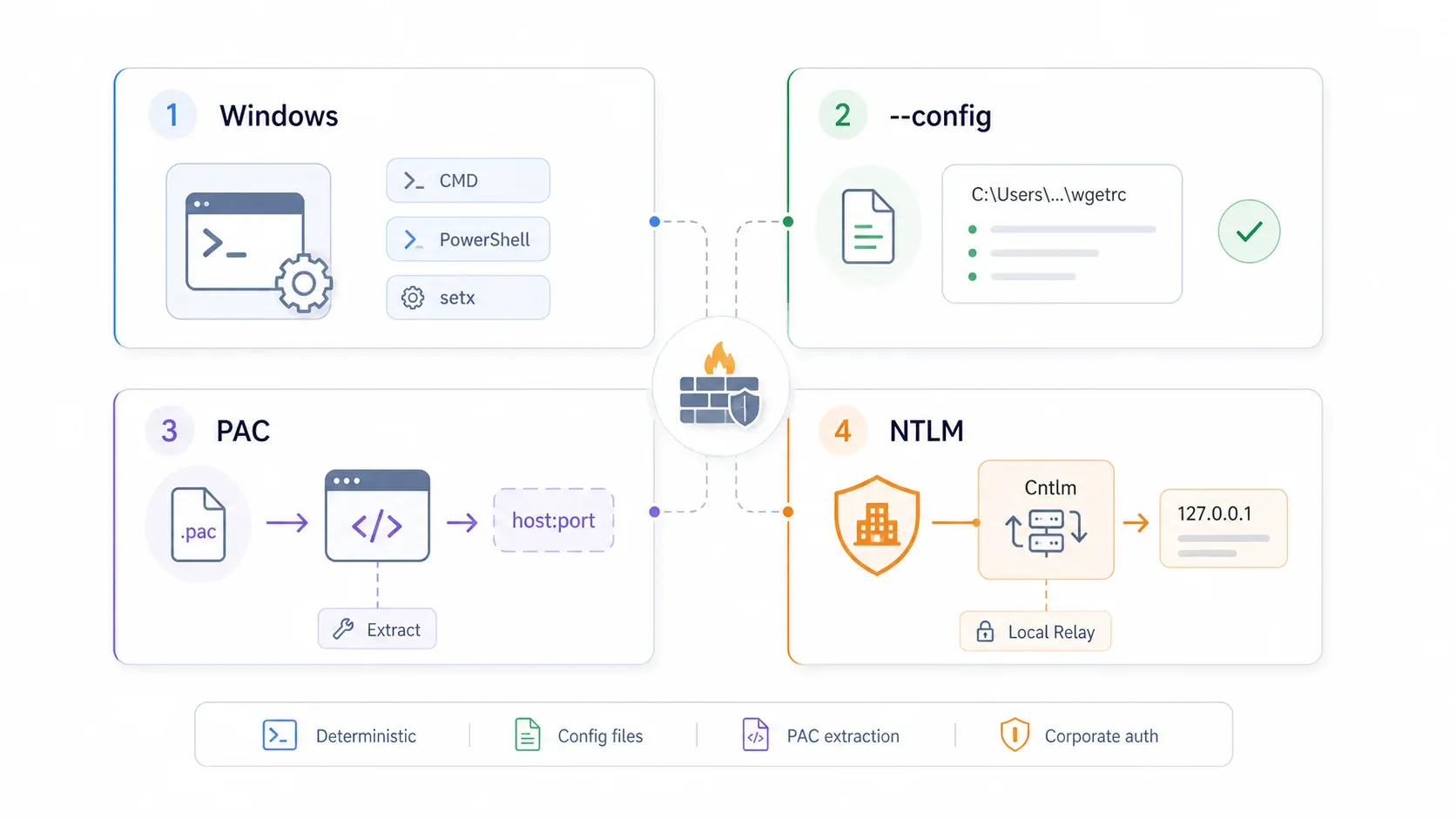
Most articles on this topic stop at "install with Chocolatey." If you're on Windows or behind a corporate proxy, that's where your problems start.
Where Windows Looks for .wgetrc
The GNU documentation says Wget reads $HOME/.wgetrc unless the WGETRC environment variable points elsewhere. On Windows, $HOME may map to %USERPROFILE% (e.g., C:\Users\alice), or it may not — depending on whether you're using the Chocolatey build, an MSYS2 build, Git Bash, or a standalone binary.
My recommendation: skip the guessing and use the --config flag for deterministic behavior:
wget --config=C:\Users\alice\wgetrc https://example.com/file.zip
To test whether your build reads a config file from a specific location, create a test file that points to a known-bad proxy:
; C:\Users\alice\wget-test.rc
use_proxy = on
http_proxy = http://127.0.0.1:3128/
Then run:
wget --config=C:\Users\alice\wget-test.rc --spider http://example.com/
If Wget tries to connect to 127.0.0.1:3128, it read the file.
Setting Proxy Environment Variables on Windows
CMD (session only):
set http_proxy=http://HOST:PORT/
set https_proxy=http://HOST:PORT/
wget http://example.com/
PowerShell (session only):
$env:http_proxy = "http://HOST:PORT/"
$env:https_proxy = "http://HOST:PORT/"
wget http://example.com/
Permanent (survives reboots):
setx http_proxy http://HOST:PORT/
setx https_proxy http://HOST:PORT/
After setx, you need to open a new terminal window. The current session won't see the change.
Corporate Proxy Gotchas: PAC Files, NTLM Auth, and Finding Your Proxy Address
Three things that consistently trip up corporate users:
PAC files: Many enterprises use Proxy Auto-Configuration (PAC) files — JavaScript-based scripts that tell browsers which proxy to use for which URL. Wget has no JavaScript interpreter, so it cannot read PAC files. Curl's documentation makes the same point. The workaround: open the PAC file (or ask IT), find the PROXY host:port result for your target domain, and configure that static address in Wget.
NTLM authentication: Wget's proxy authentication only implements Basic auth. If your corporate proxy requires NTLM and you're getting 407 Proxy Authentication Required, don't waste time trying different --proxy-user syntax. Install Cntlm — a local relay that handles NTLM/NTLMv2 authentication and presents a Basic-auth interface to Wget. Cntlm is still maintained (last update October 2025, ~395 downloads/week).
Decision tree for corporate proxy users:
- Try
set http_proxy=http://YOUR_PROXY:PORT/and run Wget. - If you get a
407error and your company uses NTLM → install Cntlm, configure it with your domain credentials, and point Wget at Cntlm's local port (typicallyhttp://127.0.0.1:3128/). - If the company uses a PAC file → extract the actual
PROXY host:portfrom the PAC file or ask IT for the static proxy address.
Common corporate proxy ports: 3128 (Squid-style), 8080 (general HTTP proxy), 8888 (debugging proxies like Fiddler/Charles). These are conventions, not guarantees.
Common Gotchas When Using Wget With a Proxy (With Real Error Output)
Now for the payoff promised in the title. Every output below was reproduced on Wget 1.25.0 (macOS, Homebrew) on 2026-06-01.
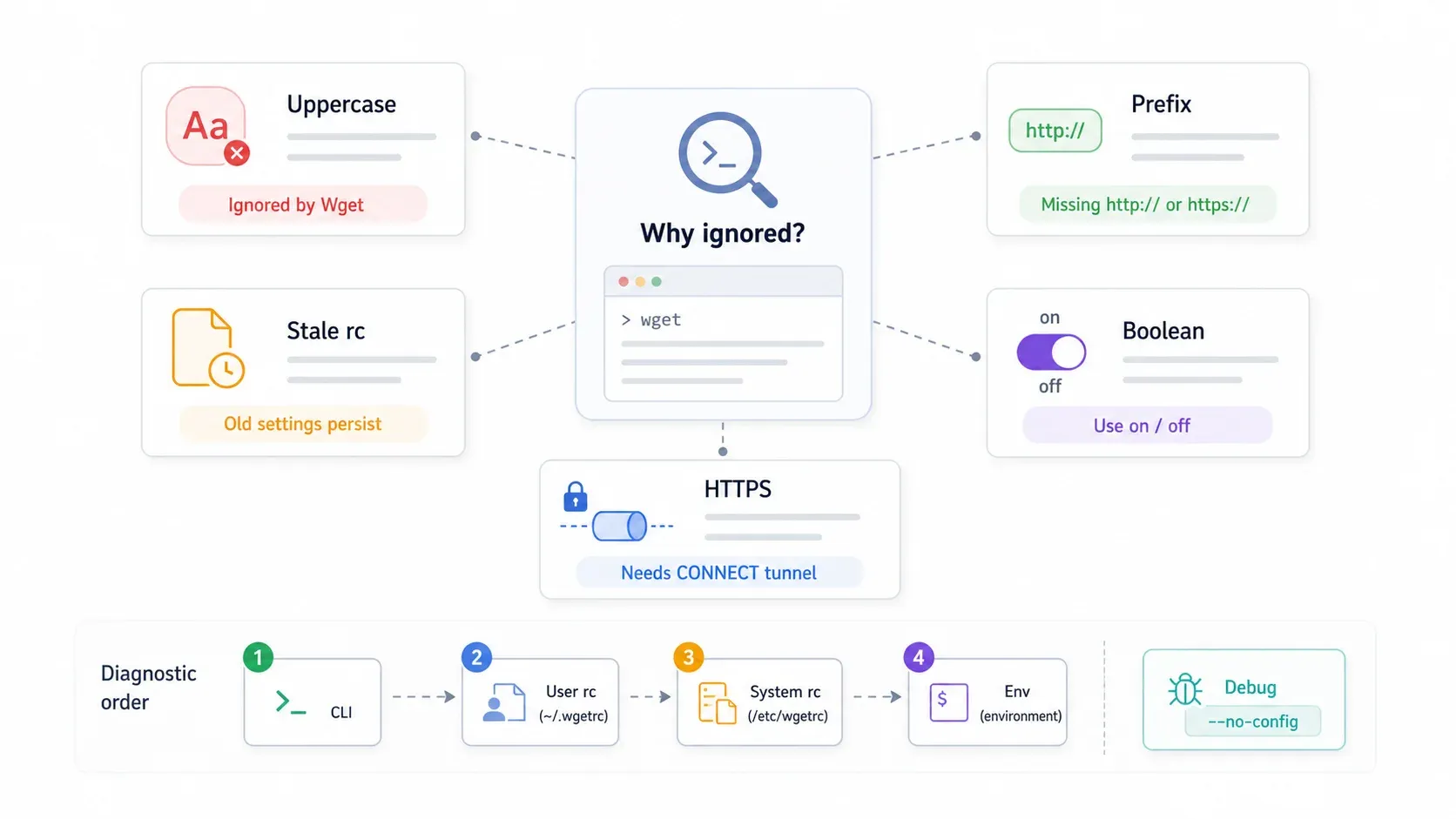
Gotcha 1: Missing http:// Prefix
Some older guides claim this always breaks. In Wget 1.25.0, setting http_proxy=127.0.0.1:3128 actually works — Wget silently prepends http://:
Prepended http:// to '127.0.0.1:3128'
Spider mode enabled. Check if remote file exists.
--2026-06-01 10:38:15--  http://example.com/
Connecting to 127.0.0.1:3128... failed: Operation not permitted.
It still connected to the right proxy. But I recommend always including the http:// prefix and a trailing slash anyway. It avoids ambiguity across Wget versions and makes credential syntax (http://user:pass@host:port/) unambiguous.
Gotcha 2: use_proxy=yes vs. use_proxy=on
Both yes and on worked in my Wget 1.25.0 tests. But invalid values fail with a clear error:
wget: use_proxy: Invalid boolean 'true'; use `on' or `off'.
Use on for broadest compatibility — it matches the manual's documented boolean format and Wget's own error hint.
Gotcha 3: Uppercase HTTP_PROXY Silently Ignored
This is the most frustrating gotcha because there is no error at all. Wget just connects directly, as if you never set a proxy.
Uppercase (broken — no proxy used):
HTTP_PROXY=http://127.0.0.1:3128/ wget --no-config --spider http://example.com/
Spider mode enabled. Check if remote file exists.
--2026-06-01 10:40:06--  http://example.com/
Resolving example.com (example.com)... 198.18.58.61
Connecting to example.com (example.com)|198.18.58.61|:80... connected.
HTTP request sent, awaiting response... 200 OK
Lowercase (working — proxy attempted):
http_proxy=http://127.0.0.1:3128/ wget --no-config --spider http://example.com/
Spider mode enabled. Check if remote file exists.
--2026-06-01 10:40:16--  http://example.com/
Connecting to 127.0.0.1:3128... failed: Connection refused.
See the difference? The uppercase version resolved example.com directly. The lowercase version tried the proxy. No warning either way. Curl has a similar quirk — it accepts uppercase for most proxy variables but explicitly rejects uppercase HTTP_PROXY for security reasons.
Fix: Always use lowercase http_proxy and https_proxy.
Gotcha 4: Stale Proxy in .wgetrc Causing "Connection Refused"
If you (or your sysadmin, or a Docker image) left an old proxy address in a config file, you'll see something like this:
Spider mode enabled. Check if remote file exists.
--2026-06-01 10:39:10--  http://example.com/
Connecting to 127.0.0.1:3128... failed: Connection refused.
The error points at the old proxy IP, not the target site. Diagnostic order (following the precedence hierarchy):
- Check your command for
-eflags or shell aliases - Check
~/.wgetrc(or the file named byWGETRC) - Check the system config (path shown by
wget --version) - Check environment:
env | grep -i proxy
For debugging, --no-config is your friend — it tells Wget to skip all config files:
wget --no-config --spider http://example.com/
If that works, the problem is in a config file.
Gotcha 5: HTTPS Proxy Syntax Confusion
This trips up a lot of people. When you set https_proxy, the proxy URL itself is usually http://, not https://. That's because Wget sends an HTTP CONNECT request through the proxy to create a tunnel for the encrypted HTTPS session.
Correct:
https_proxy=http://proxy.company.com:8080/
wget https://example.com/
Wget sends CONNECT example.com:443 HTTP/1.1 to the proxy, then tunnels HTTPS through it.
Incorrect (for HTTP target URLs with an HTTPS proxy endpoint):
http_proxy=https://127.0.0.1:18082/
wget http://example.com/
Error in proxy URL https://127.0.0.1:18082/: Must be HTTP.
Wget 1.25.0 rejects https:// as a proxy URL for HTTP targets outright. Use https_proxy=http://HOST:PORT/ unless your organization has specifically documented an HTTPS proxy endpoint and you've tested it with your Wget build.
Wget Proxy Command Cheat Sheet (Bookmarkable Quick Reference)
Bookmark this table. It consolidates every proxy-related Wget flag and config directive in one place.
| Flag / Directive | Context | Example | Notes |
|---|---|---|---|
-e use_proxy=on | CLI | -e use_proxy=on | on is safest; some builds also accept yes |
-e http_proxy= | CLI | -e http_proxy=http://proxy:8080/ | Include http:// prefix and trailing / |
-e https_proxy= | CLI | -e https_proxy=http://proxy:8080/ | Proxy URL is usually http:// even for HTTPS targets |
--proxy-user | CLI | --proxy-user=admin | Overrides inline user:pass@ |
--proxy-password | CLI | --proxy-password=secret | Visible in ps — avoid on shared systems |
--no-proxy | CLI | --no-proxy | Bypasses ALL proxy settings from every source |
--no-config | CLI | --no-config | Skips all config files — useful for debugging |
--config=FILE | CLI | --config=/tmp/wgetrc | Deterministic config path — great for Windows and CI |
http_proxy | .wgetrc / env | http_proxy = http://proxy:8080/ | Config file uses spaces around =; env var uses lowercase |
https_proxy | .wgetrc / env | https_proxy = http://proxy:8080/ | Same format as http_proxy |
ftp_proxy | .wgetrc / env | ftp_proxy = http://proxy:8080/ | For FTP retrievals |
no_proxy | .wgetrc / env | no_proxy = localhost,127.0.0.1,.corp | Comma-separated domain list |
proxy_user | .wgetrc | proxy_user = admin | Equivalent to --proxy-user |
proxy_password | .wgetrc | proxy_password = secret | Protect file with chmod 600 |
When Wget + Proxy Isn't the Right Tool (And What to Use Instead)
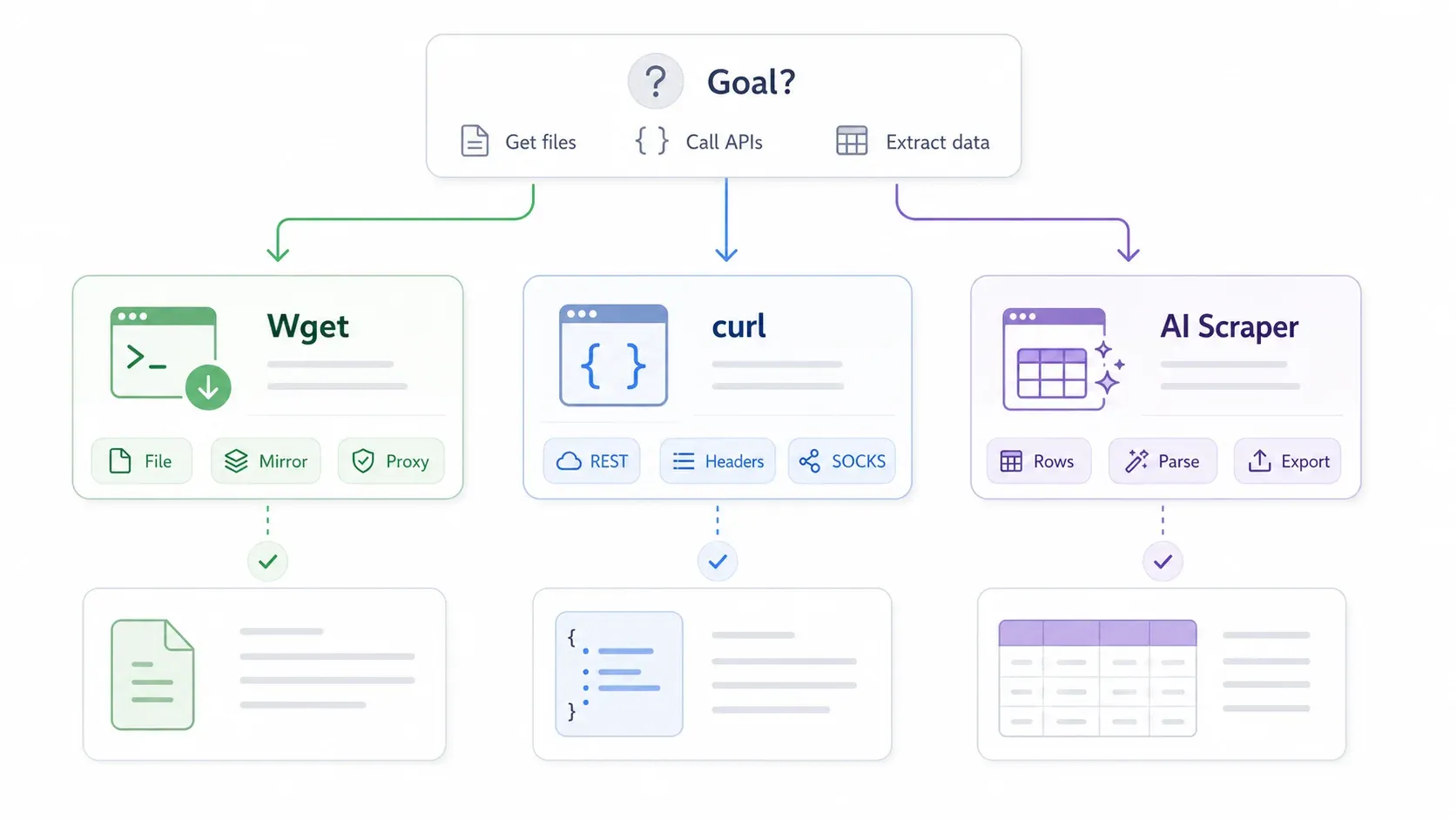
After all that proxy configuration, here's a contrarian take: sometimes you shouldn't bother.
A lot of people searching "wget proxy" aren't actually trying to download a single file. They're trying to collect structured data from websites — product prices, contact lists, real estate listings — and they've defaulted to Wget because it's the command-line tool they know. The problem is that Wget gives you raw HTML. You still need to parse it, clean it, and structure it. And if you're rotating proxies to avoid blocks, you're now maintaining a proxy list, a download script, a parser, and an export pipeline.
| Your Goal | Best Tool | Why |
|---|---|---|
| Download a single file through a proxy | wget with proxy flags | Simple, one command |
| Mirror a site or directory through a proxy | wget --recursive + proxy config | Wget's recursive retrieval is a core strength |
| Scrape structured data (tables, listings, contacts) | Thunderbit | Wget gives you raw HTML — you still need to parse it. Thunderbit's AI reads the page and outputs structured data to Excel, Google Sheets, Airtable, or Notion with no code. Its cloud scraping handles IP rotation and anti-bot measures, so you skip proxy setup entirely. |
| REST API calls through a proxy | curl | Better header control, native JSON support, SOCKS5 support |
| Ongoing scheduled data collection | Thunderbit Scheduled Scraper or cron + wget | Thunderbit adapts when page layouts change; cron + wget scripts break silently |
Wget is great at file downloads. But the workflow of "configure proxy → rotate IPs → download HTML → write a parser → export to spreadsheet" is a lot of moving parts when what you actually want is a table of data. If that sounds like your situation, our Chrome extension handles the whole pipeline in two clicks. For more on this approach, see our guides on AI web scraping and web scraping without coding.
But if your goal is "download this ZIP file through a corporate proxy" — Wget is still the right tool, and now you know how to configure it properly.
Key Takeaways
The short version:
- Four methods, clear precedence: CLI flags override user config, which overrides system config, which overrides environment variables.
--no-proxyoverrides everything. - Always use lowercase for environment variables (
http_proxy, notHTTP_PROXY). Uppercase is silently ignored. - Always include
http://in your proxy URL, even forhttps_proxy. The proxy endpoint is HTTP; it tunnels HTTPS via CONNECT. - Use
onfor boolean values in.wgetrcand-eflags. It's the safest choice across Wget versions. - Windows users: Use
--config=C:\path\to\wgetrcto avoid config-file ambiguity. Useset(CMD) or$env:(PowerShell) for session proxy variables. - Corporate proxy users: Wget can't read PAC files and doesn't support NTLM auth natively. Use Cntlm as a local relay if needed.
- Bookmark the cheat sheet above — it'll save you from re-reading this article every time you need a flag name.
If your actual goal is structured data extraction, Thunderbit or curl might be a better fit. The best debugging session is the one you never have to start.
FAQs
1. Does Wget support SOCKS5 proxies?
No. GNU Wget 1.x only supports HTTP, HTTPS, and FTP proxies. The Wget2 project has had SOCKS5 as a feature request, but it's not a standard documented option. For SOCKS5, use curl with its native socks5:// or socks5h:// schemes, or wrap Wget with proxychains4 to force SOCKS routing.
2. Why does my proxy setting get ignored when I use uppercase HTTP_PROXY?
Wget only reads lowercase environment variable names (http_proxy, https_proxy, ftp_proxy, no_proxy). Uppercase variants like HTTP_PROXY are silently ignored — no error, no warning. This is one of the most common and frustrating issues because there's no indication anything is wrong. Always use lowercase.
3. How do I bypass the proxy for specific domains?
Use the no_proxy directive, either as an environment variable or in .wgetrc:
export no_proxy=localhost,127.0.0.1,.mycompany.com
Or in ~/.wgetrc:
no_proxy = localhost,127.0.0.1,.mycompany.com
Domains are comma-separated. A leading dot (.mycompany.com) matches all subdomains.
4. Can I use Wget with rotating proxies?
Wget itself has no built-in proxy rotation. You have two options: use a proxy provider that rotates IPs server-side (so you always hit the same gateway address, but the exit IP changes), or write a shell script that picks a random proxy from a list and passes it via -e http_proxy=... on each invocation. For anything more complex — automatic rotation, retry logic, anti-bot handling — a dedicated scraping tool is usually a better fit.
5. What is the difference between http_proxy and https_proxy in Wget?
http_proxy is used when the target URL is http://. https_proxy is used when the target URL is https://. In both cases, the proxy URL itself is typically an http:// address. For HTTPS targets, Wget sends an HTTP CONNECT request through the proxy to establish a tunnel, and the actual HTTPS encryption happens end-to-end between Wget and the target server. The proxy sees the hostname (from the CONNECT request) but cannot read the encrypted traffic.
Try Thunderbit for AI Web Scraping Get Started Free
Learn More