
cURL runs on an estimated 20 billion installations worldwide — it's baked into macOS, most Linux distros, and Windows 10/11 by default. And yet, ask ten developers how to route a cURL request through a proxy correctly, and you'll get ten slightly different answers, half of which break the moment authentication or SOCKS gets involved.
That's the gap I want to close here. Most tutorials show you one command, tell you it works, and move on. They don't show you how to confirm the proxy is actually doing anything (spoiler: sometimes it isn't), and they definitely don't walk you through the error codes that show up the second your setup deviates even slightly from the happy path. This guide covers the full range — HTTP/HTTPS proxies, SOCKS4/SOCKS5/socks5h, environment variables (and their very specific pitfalls), a proper troubleshooting table, and what to do when cURL and a proxy simply can't get the job done anymore.
What Is cURL and Why Use It With a Proxy?
cURL is a command-line tool for transferring data to and from a URL. That's it — no GUI, no bells, just a program that speaks HTTP, HTTPS, FTP, and a handful of other protocols. The simplest possible invocation is:
curl https://example.com
That fetches the page and dumps the raw HTML to your terminal. Useful on its own, but the real reason developers and technical business users reach for cURL is testing APIs, scraping data, checking geo-restricted content, and running requests inside CI/CD pipelines.
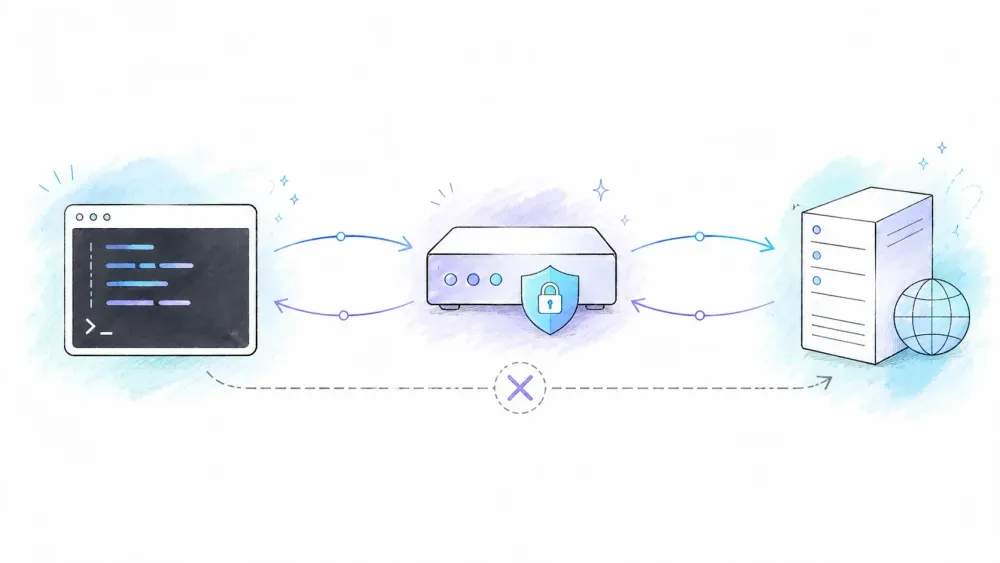
A proxy sits between your machine and the destination server, forwarding your request on your behalf. The destination sees the proxy's IP, not yours. This matters for a handful of legitimate reasons: testing how your site looks from a different country, working around rate limits during QA, or routing traffic through your company's required corporate gateway. cURL supports the full range of proxy protocols — HTTP, HTTPS, SOCKS4, and SOCKS5 — and the flags you'll see over and over in this guide are -x / --proxy (the proxy address itself), -v (verbose output, your best debugging friend), and -k (skip SSL verification, which you should basically never use outside of testing).
One quick note before we go further: this guide is about the network mechanics of using a proxy with cURL. It's not permission to ignore a target site's terms of service or your organization's security policy. A proxy changes your network path — it doesn't change what's legal or allowed.
Before You Start
Difficulty: Beginner to Intermediate Time Required: ~15 minutes to work through the core examples What You'll Need:
- cURL installed (check with
curl --version— if you're on macOS, Linux, or Windows 10/11, it's almost certainly already there) - Proxy credentials from your provider: host, port, protocol (HTTP/HTTPS/SOCKS), and username/password if required
- A terminal (Terminal on macOS, any shell on Linux, PowerShell or CMD on Windows)
If cURL isn't installed for some reason, it's a one-liner: brew install curl on macOS via Homebrew, sudo apt install curl on Debian/Ubuntu, or sudo yum install curl on RHEL/CentOS. On Windows, it's bundled with the OS since Windows 10 build 17063.
Throughout this guide I'll use placeholder values — proxy.example:8080 for the proxy address and user:pwd for credentials. Swap those for your actual proxy details, and never paste real credentials into shell history, a screenshot, or a Slack message. I've seen more leaked proxy passwords in Slack channels than I'd like to admit.
How to Use cURL With an HTTP or HTTPS Proxy
This is the most common setup, and the one you'll use for the vast majority of proxy tasks.
Using the -x / --proxy Flag
The basic syntax looks like this:
curl -x "http://user:pwd@proxy.example:8080" "https://httpbin.org/ip"
-x and --proxy do exactly the same thing — pick whichever you find easier to remember. Since HTTP is cURL's default proxy scheme, you can technically drop the http:// prefix and just write proxy.example:8080. I'd still write it explicitly, though, because six months from now you'll thank yourself for the clarity.
Wrap the whole URL in double quotes. If your password contains an @, #, or &, an unquoted string will get mangled by your shell before cURL ever sees it.
Connecting Through an HTTPS Proxy
Some providers run the connection to the proxy itself over TLS, not just the connection from the proxy to your target. That's a different thing from scraping an HTTPS site — the proxy protocol and the target protocol are independent variables. To specify it:
curl -x "https://user:pwd@proxy.example:8080" "https://httpbin.org/ip"
If you get a certificate error here, resist the urge to slap -k on it and move on. That flag disables SSL certificate verification entirely, which is fine for a five-minute local test and a genuinely bad idea for anything touching production or real user data. If you're dealing with a corporate proxy that intercepts TLS (a MITM setup, common in enterprise environments), the correct fix is importing the proxy's CA certificate, not disabling verification.
Authenticating With --proxy-user
You can also split credentials out into their own flag instead of cramming them into the URL:
curl -x "http://proxy.example:8080" --proxy-user "user:pwd" "https://httpbin.org/ip"
Note the capital -U isn't the same as target-site auth (-u / --user, lowercase) — mixing those up is an easy way to send your proxy password to the wrong destination. For corporate environments running NTLM or Digest auth instead of Basic, add --proxy-ntlm or --proxy-digest alongside --proxy-user.
How to Use cURL With a SOCKS Proxy: SOCKS4 vs. SOCKS5 vs. socks5h
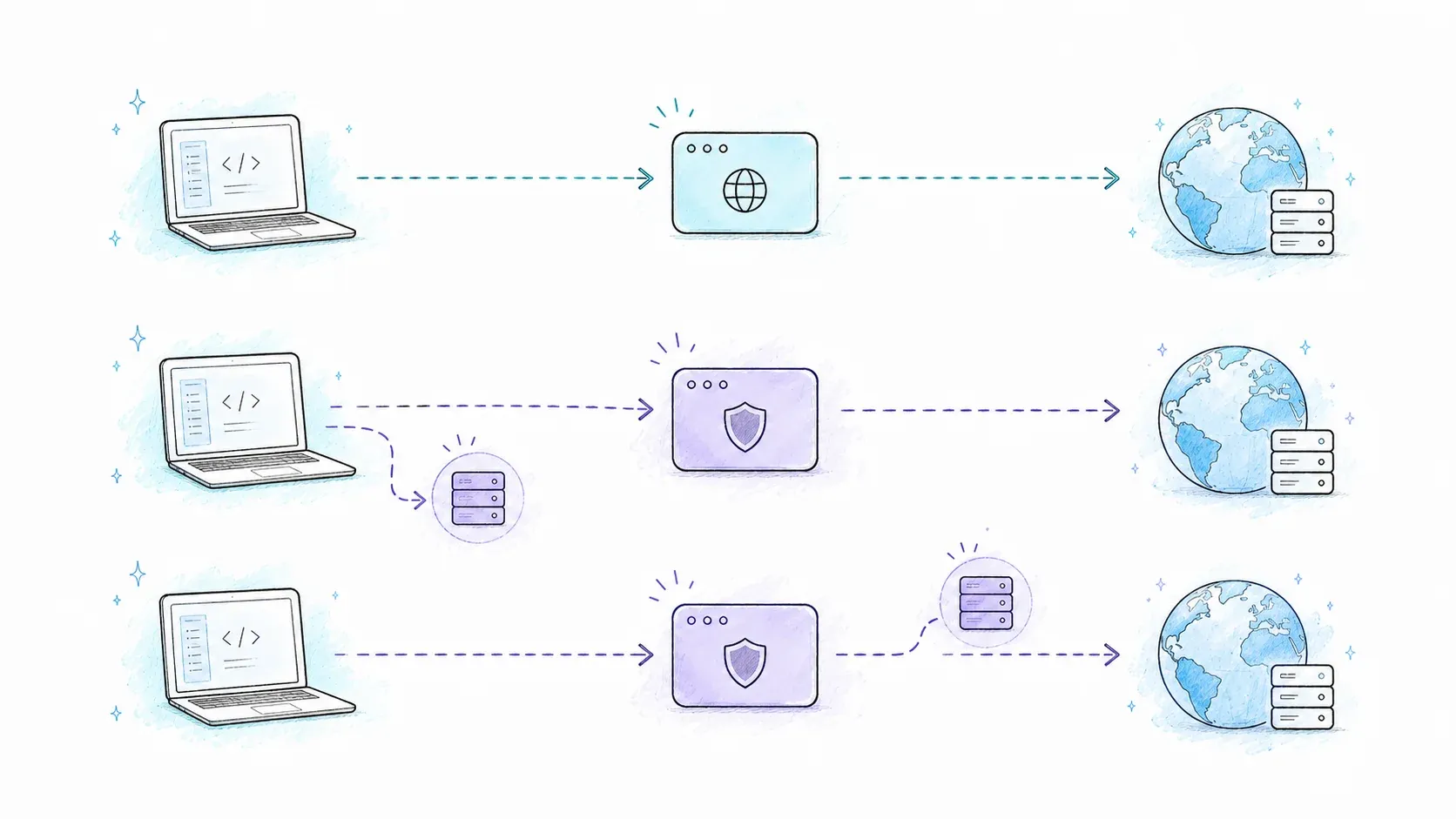
SOCKS proxies work at a lower level than HTTP proxies — they don't care what protocol you're tunneling, which makes them useful for non-HTTP traffic, Tor circuits, and anything privacy-sensitive. Most competitor guides give this a single command and move on. That's a mistake, because the differences between SOCKS4, SOCKS5, and socks5h:// genuinely matter.
| Feature | SOCKS4 | SOCKS5 | socks5h:// |
|---|---|---|---|
| TCP support | Yes | Yes | Yes |
| UDP support | No | Yes | Yes |
| Authentication | No | Yes | Yes |
| Remote DNS resolution | No | No (local DNS) | Yes (proxy resolves) |
| Tor compatible | No | Risky (DNS leak) | Yes |
The DNS resolution row is the one people actually get burned by. With socks5://, your machine resolves the hostname before handing the connection to the proxy — meaning your local DNS resolver (and by extension, your ISP) sees exactly what domain you're trying to reach, even though the actual HTTP traffic goes through the proxy. socks5h:// fixes that by having the proxy do the hostname resolution instead, so nothing about the destination leaks locally. This is the whole reason Tor documentation insists on socks5h:// — using plain socks5:// defeats a good chunk of the anonymity Tor is supposed to provide.
Here's each variant in cURL:
curl --socks4 "proxy.example:1080" "http://example.com"
curl -x "socks5://user:pwd@proxy.example:1080" "http://example.com"
curl -x "socks5h://user:pwd@proxy.example:1080" "http://example.com"
Unless you have a specific reason not to, default to socks5h://. It costs nothing extra and closes a leak you'd otherwise never notice.
Setting Proxy With Environment Variables (And Avoiding the Traps)
Setting -x on every single command gets old fast. Environment variables let you set the proxy once per shell session and have every subsequent cURL call inherit it automatically — cURL's manual documents http_proxy, HTTPS_PROXY, ALL_PROXY, and NO_PROXY as the supported set.
The Basics
export http_proxy="http://user:pwd@proxy.example:8080"
export HTTPS_PROXY="http://user:pwd@proxy.example:8080"
export ALL_PROXY="socks5h://proxy.example:1080"
Here's the part that trips people up constantly: the variable name refers to the target URL's protocol, not the proxy's protocol. So http_proxy governs requests to http:// URLs, and HTTPS_PROXY governs requests to https:// URLs — you can point both at the exact same HTTP proxy server, and that's completely normal.
Bypassing With NO_PROXY
export NO_PROXY="localhost,127.0.0.1,.internal.example"
Comma-separated, and the leading dot on .internal.example acts as a wildcard for any subdomain. NO_PROXY overrides everything else — even if -x is explicitly set on the command line, a match in NO_PROXY will bypass the proxy for that request.
The Pitfalls That Actually Trip People Up
- Forgetting
export. If you just typehttp_proxy=http://...withoutexport, the variable lives only in your current shell and is completely invisible to cURL as a child process. This is, in my experience, the single most common reason behind "the proxy isn't working" support tickets. - Case sensitivity. cURL specifically checks for lowercase
http_proxyfirst and gives it priority if both cases exist. Some other tools only read uppercase. If you're debugging why a variable "isn't being picked up," check for a duplicate with mismatched casing. - The PowerShell alias trap. In PowerShell 5.1, typing
curldoesn't call cURL at all — it invokesInvoke-WebRequest, a completely different tool with different flags. If your-xflag is throwing bizarre errors on Windows, typecurl.exeexplicitly to make sure you're actually running cURL. - Windows syntax differences. CMD uses
set http_proxy=...; PowerShell uses$env:http_proxy = "...". Mixing these up between terminal sessions is an easy way to lose an afternoon. - Stale variables.
unset http_proxyandunset https_proxyclear a dead proxy config that's silently routing (and failing) every request.
For quick toggling, a couple of aliases in your .bashrc save real time:
alias proxyon='export http_proxy="http://proxy.example:8080"; export https_proxy="http://proxy.example:8080"'
alias proxyoff='unset http_proxy; unset https_proxy'
Making cURL Always Use a Proxy (Config File)
If you're behind a corporate proxy 95% of the time, a .curlrc file (on Unix-like systems, in your home directory) or _curlrc (Windows, in the app-data folder) sets a persistent default without touching environment variables at all:
proxy="http://proxy.example:8080"
For any one-off request where you need to skip it, --noproxy "*" overrides the config for that single invocation. Precedence generally runs command-line flag > environment variable > config file, so -x on the command line always wins if there's a conflict.
One important caution: don't put a plaintext password inside .curlrc if it's stored anywhere that might get synced, backed up, or committed to a repo by accident. For CI pipelines, use your platform's secret manager and inject credentials as masked environment variables instead.
How to Verify Your Proxy Is Actually Working
This is the section almost every other guide skips, and it's the one that saves the most debugging time. Setting up a proxy and assuming it's routing traffic is how people spend hours troubleshooting a scraper that was never actually using the proxy in the first place.
Method 1: Compare Your Outbound IP
Run the same IP-echo request twice — once direct, once through the proxy — and compare:
curl https://httpbin.org/ip
curl -x "http://user:pwd@proxy.example:8080" https://httpbin.org/ip
If both commands return the same IP address, your proxy isn't doing anything. Check your flag syntax, your environment variables, or whether NO_PROXY is accidentally matching your target.
Method 2: Read the Verbose Output
Add -v to any proxy request and cURL will print the entire handshake:
curl -v -x "http://user:pwd@proxy.example:8080" https://httpbin.org/ip
Look for a line like * Connected to proxy.example (xx.xx.xx.xx) port 8080, followed by > CONNECT httpbin.org:443 HTTP/1.1 and eventually < HTTP/1.1 200 Connection established. That sequence — connect to proxy, then CONNECT tunnel to target — is the HTTP CONNECT method at work, and it's exactly what should happen when an HTTPS target is routed through an HTTP proxy. If that CONNECT line never shows up, the proxy flag isn't being applied. One caution while you're in here: only run -v while actively debugging, and redact the output before sharing it anywhere — verbose mode can print proxy credentials in plain text.
Method 3: Side-by-Side Diff
For geo-testing specifically, save both outputs to files and diff them:
curl https://httpbin.org/ip > direct.json
curl -x "http://user:pwd@proxy.example:8080" https://httpbin.org/ip > proxied.json
diff direct.json proxied.json
If the response bodies (or headers, for geo-restricted content) differ, you've got visual confirmation the proxy is actually changing your network path — a quick, low-effort way to settle any doubt before you dig further.
Troubleshooting Common cURL Proxy Errors
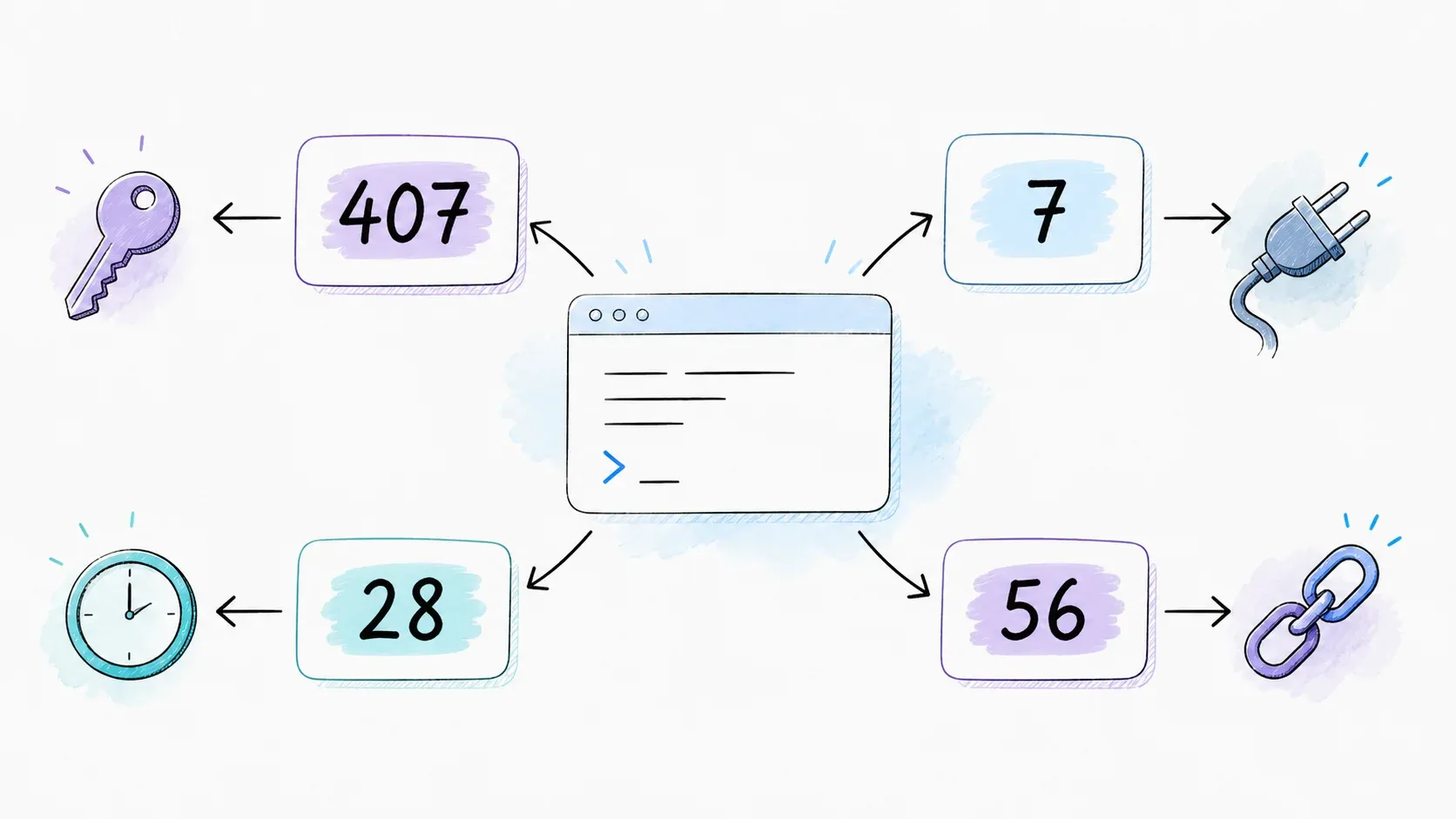
Most guides wave their hands here and mention -k once. This topic deserves a real reference table.
| Error | Likely Cause | Fix |
|---|---|---|
curl: (7) Failed to connect | Wrong proxy host/port, or the proxy is down | Verify the address; test raw connectivity with telnet host port or nc -zv host port |
407 Proxy Authentication Required | Missing or incorrect proxy credentials | Add --proxy-user user:pass; check if the provider requires NTLM/Digest/Negotiate instead of Basic |
curl: (56) Recv failure: Connection reset by peer | Proxy dropped the connection mid-transfer | Check proxy stability with the provider; if it's a TLS-terminating proxy, verify cert handling rather than force-disabling it |
curl: (28) Connection timed out | Firewall blocking, stale proxy, or wrong port | Run env | grep -i proxy to check for leftover variables; unset stale ones; test a direct request to isolate the cause |
| Certificate verification failure | Untrusted or intercepting proxy certificate | Get the correct CA chain and use --proxy-cacert; avoid disabling verification outside of a one-off diagnostic |
The universal first move for any of these is adding -v. It tells you exactly where the connection is breaking — DNS resolution, TCP connect, TLS handshake, or the proxy authentication exchange — instead of leaving you guessing based on a three-digit error code.
For corporate proxies specifically, --proxy-ntlm and --proxy-negotiate cover Windows-domain authentication schemes. One thing cURL genuinely doesn't handle natively: PAC files (Proxy Auto-Config scripts some enterprises use to dynamically assign proxies). If your company uses one, you'll need to extract the actual proxy host and port manually — usually from your browser's network settings — since cURL has no built-in PAC parser.
When cURL + a Proxy Isn't Enough
cURL with a proxy handles static HTML, REST API calls, and simple data fetches about as well as anything can. Where it falls apart is the modern web's favorite defenses: JavaScript-rendered single-page apps, anti-bot systems like Cloudflare or Akamai, and CAPTCHA walls. Point cURL at a React or Vue app behind one of these, and you'll get back an empty <div id="root"></div> — technically a successful request, practically useless data. That's not a cURL bug. It's just not a browser, and it never pretended to be.
If you're already comfortable running cURL from a terminal and you hit that wall, the natural next step isn't switching to a completely different toolchain — it's adding a layer that handles rendering and structure for you. That's the gap Thunderbit's developer tools are built to close.
| Scenario | cURL + Proxy | Thunderbit API (POST /extract) |
|---|---|---|
| Static HTML page | Works perfectly | Works, returns structured data too |
| JS-rendered SPA | Gets empty/partial HTML | renderMode: "full" handles the JS |
| Anti-bot / CAPTCHA | Blocked | Built-in handling |
| Structured data output | Raw HTML — parse it yourself | JSON via your own schema |
| Batch (100+ URLs) | Manual loop + your own rate limiting | POST /batch/extract |
Thunderbit's Open API exposes an /extract endpoint that returns schema-matched JSON straight out of JS-heavy pages, and a /distill endpoint for clean Markdown conversion — both are callable from the exact same terminal session where you've been running cURL commands all along. There's also an MCP server for AI coding assistants like Claude or Cursor, and a CLI (npx @thunderbit/thunderbit-cli extract <url> --schema fields.json) if you'd rather stay entirely in scripts. None of this replaces cURL for the jobs cURL is good at — it just picks up where cURL structurally can't go further. If you want the broader picture on where AI-assisted extraction fits versus writing your own scraper logic, our AI web scraping rundown and our best AI web scrapers comparison cover that in more depth, and our web scraping without coding piece is a good primer if you're coming at this from a business rather than engineering angle.
Wrapping Up
Getting cURL and a proxy talking to each other correctly isn't hard once you know where the actual failure points are — and it turns out almost none of them are the proxy itself. Forgetting export. Confusing -u with -U. Using socks5:// when you meant socks5h://. Running PowerShell's curl alias instead of curl.exe. Every one of these produces a confusing, generic-looking error that has nothing to do with the proxy provider.
The habit that saves the most time: verify before you troubleshoot. Run the IP-echo check, glance at -v output, confirm the proxy is even in the request path before assuming something's broken downstream. And when your target starts throwing JavaScript at you instead of clean HTML, that's not a cURL problem to solve with more flags — it's a signal to reach for a tool built for rendering, like Thunderbit's API, which offers a free tier if you want to see the JSON-out-instead-of-raw-HTML difference for yourself.
FAQs
Does cURL use a proxy by default?
No. Unless you've set http_proxy / HTTPS_PROXY environment variables or configured a .curlrc file, cURL connects directly to the target with no proxy involved.
How do I stop cURL from using a proxy for one request?
Add --noproxy "*" to that specific command. To clear it for the whole shell session, run unset http_proxy && unset https_proxy.
Can I use cURL with rotating proxies?
Yes — if your provider offers a rotating gateway (a single endpoint that assigns a fresh IP per request), just point -x at that gateway address like any other proxy. For more complex rotation logic against JS-rendered targets, an API layer like Thunderbit's handles the rotation and anti-bot side internally, so you're not managing retry logic by hand.
Why does socks5:// leak my DNS requests but socks5h:// doesn't?
With socks5://, your local machine resolves the destination hostname before sending the connection request to the proxy — meaning your ISP's DNS resolver sees the domain you're visiting. socks5h:// pushes hostname resolution to the proxy itself, so nothing about the destination is visible locally.
Is it legal to use cURL with a proxy? Using a proxy is legal in most jurisdictions on its own. What matters is what you do with it — always respect the target site's terms of service, robots.txt where applicable, and any relevant data-privacy law. This guide covers the technical mechanics only, not a legal green light for any particular use case.
Learn More