
I've spent a stupid number of late nights debugging scripts that were supposed to just "grab a file and move on." Nine times out of ten, the culprit was cURL doing exactly what I told it to do, not what I actually wanted. Turns out there's a big gap between "curl -O works" and "curl -O works reliably in production."
That gap is what this guide is for. cURL ships pre-installed on macOS, most Linux distros, and Windows 10 and later, which means you almost certainly already have it sitting on your machine right now. But between silent redirect failures, mystery 403s, and the jump from "download one file" to "download 500 files without melting your terminal," there's a lot of room to get stuck. I'm going to walk through the flags that matter, the step-by-step commands I actually use, the errors that trip people up most, and the point where cURL genuinely can't help you anymore — and what to reach for instead.
What Is cURL (and Why Should You Care)?
cURL is a free, open-source command-line tool for transferring data to or from a server using a URL. It speaks HTTP, HTTPS, FTP, SFTP, and a long list of other protocols, which is why it shows up everywhere from bash scripts to Dockerfiles to CI pipelines. Under the hood, the curl command you type into your terminal uses libcurl, the C transfer library that many applications and language bindings embed. PHP's cURL extension is one example; Python's popular Requests library is a separate HTTP client built on urllib3, not libcurl.
The current stable release as of writing is curl 8.21.0, released in June 2026 — though don't assume your OS ships that exact build. Distro-packaged versions of curl often lag behind the upstream project by months, sometimes longer, so it's worth running curl --version before you assume a flag like --parallel is available to you.
Why Download Files With cURL? Top Use Cases
I get asked pretty often why anyone would bother with a command-line tool when browsers can download files just fine. The honest answer: browsers are great until you need to automate anything.
| Use Case | Why cURL Shines |
|---|---|
| Downloading binaries in CI/CD pipelines | Scriptable, no GUI needed |
| Fetching API responses or data exports | Supports custom headers, auth, and output piping |
| Resuming large file downloads over SSH | Built-in resume support (-C -) |
| Automating recurring downloads (cron jobs) | Lightweight, composable with shell scripts |
| Grabbing files behind authentication | Flexible auth flags (basic, token, cookies, .netrc) |
A browser download is a one-off, manual click. cURL turns that same action into something you can schedule, chain into a pipeline, retry on failure, and run identically on a hundred servers at once. That's the whole appeal — it's not fancier, it's just repeatable.
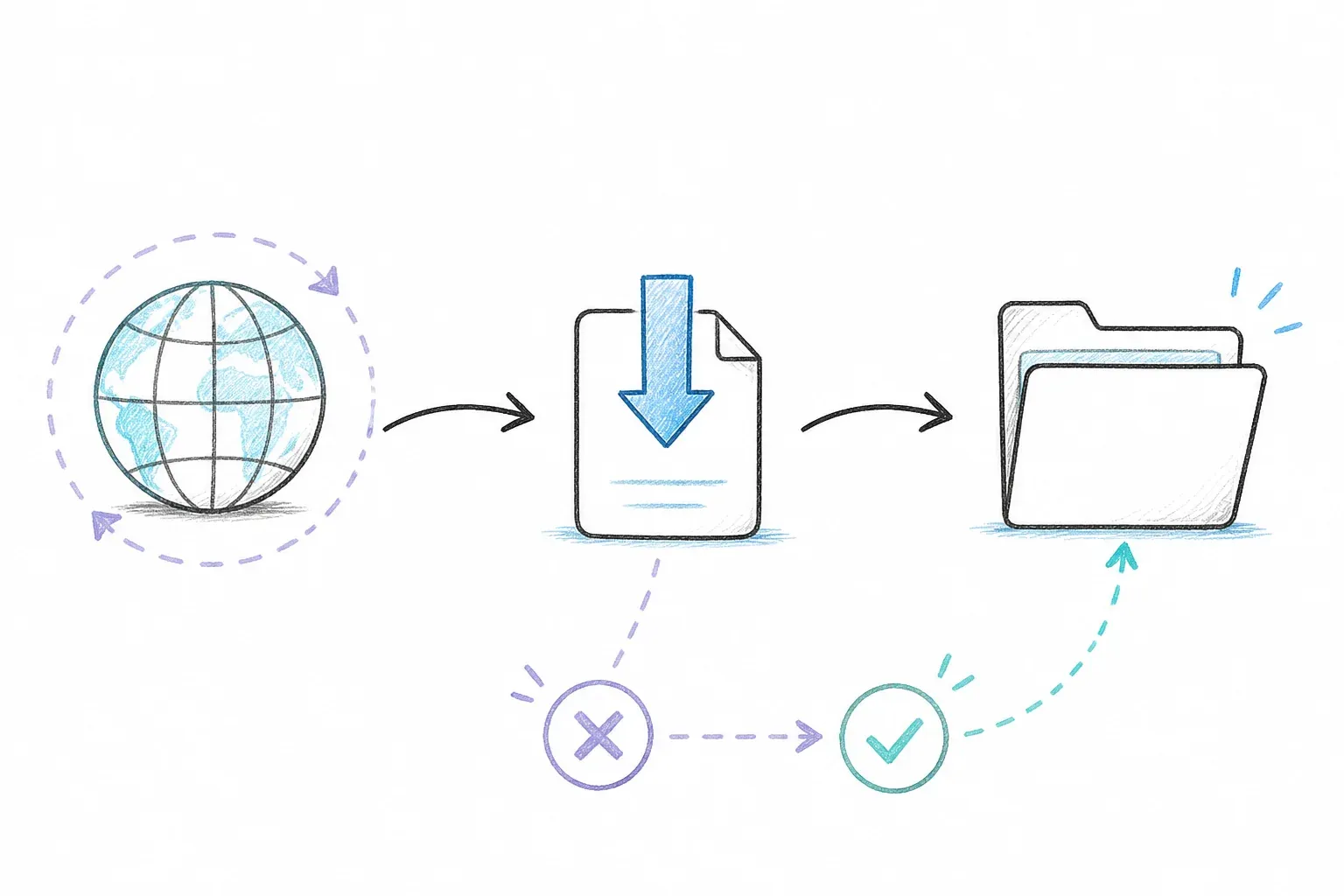
The Essential cURL Flags for Downloading Files
I keep coming back to the same dozen or so flags for 90% of what I do. Here's the cheat sheet I wish someone had handed me years ago, grouped by what they actually do.
Output and File-Saving Flags
-O(--remote-name) saves the file using the last part of the URL as the filename. Handy, but it can silently overwrite an existing file of the same name.-o <filename>(--output) lets you pick the exact filename yourself:curl -o report.pdf https://example.com/downloads/file.pdf.-J(--remote-header-name) uses the filename from the server'sContent-Dispositionheader instead of the URL. This one's convenient for API downloads, but treat server-supplied filenames as untrusted input — download into a dedicated folder rather than your home directory, per curl's own security guidance.
Behavior Flags Every Download Needs
-L(--location) tells curl to follow HTTP redirects. Without it, a 3xx response gets saved as a tiny HTML redirect page instead of your actual file — this is the single most common "why is my download broken" mistake I see.-C -(--continue-at -) resumes an interrupted download from where it left off.-s/-Srun silently but still show errors — good for scripts where you don't want a progress bar cluttering your logs.--limit-rate 1Mthrottles bandwidth (useful on shared connections or when you don't want to hog a metered network).--connect-timeout 10and--max-time 300stop a hung connection from freezing your script forever.--retry 3and--retry-delay 5automatically retry on transient failures — per the curl man page, pair this with--retry-all-errorsonly when repeating the exact same request is genuinely safe to do.
Progress and Debugging Flags
-#gives you a simple progress bar instead of the default stats table.-vdumps verbose output, including the full request/response headers — my go-to when something's misbehaving.-I(--head) fetches just the response headers, which is a great pre-flight check before committing to a big download.-wlets you print custom output after the transfer, likecurl -o /dev/null -s -w "%{http_code}\n" <url>to just check a status code.
Before You Start
- Difficulty: Beginner to Intermediate (the batch and auth sections get a bit more advanced)
- Time Required: About 15-20 minutes to work through the core commands
- What You'll Need: A terminal (macOS Terminal, Linux shell, or Windows PowerShell/WSL), curl installed (check with
curl --version), and a test URL — I'll use a public GitHub release asset as an example since it's stable and freely accessible
How to Download Files With cURL: Step-by-Step
Step 1: Download a Single File
The absolute basics: curl -O <url> saves the file under its original name, while curl -o myfile.zip <url> lets you rename it on the way in.
curl -LO https://github.com/curl/curl/releases/download/curl-8_21_0/curl-8.21.0.tar.gz
I add -L by default now, always, no exceptions — I've been burned too many times by a redirect quietly turning my "download" into a 400-byte HTML file. You should see a progress meter tick up in your terminal, ending with the file sitting in your current directory.
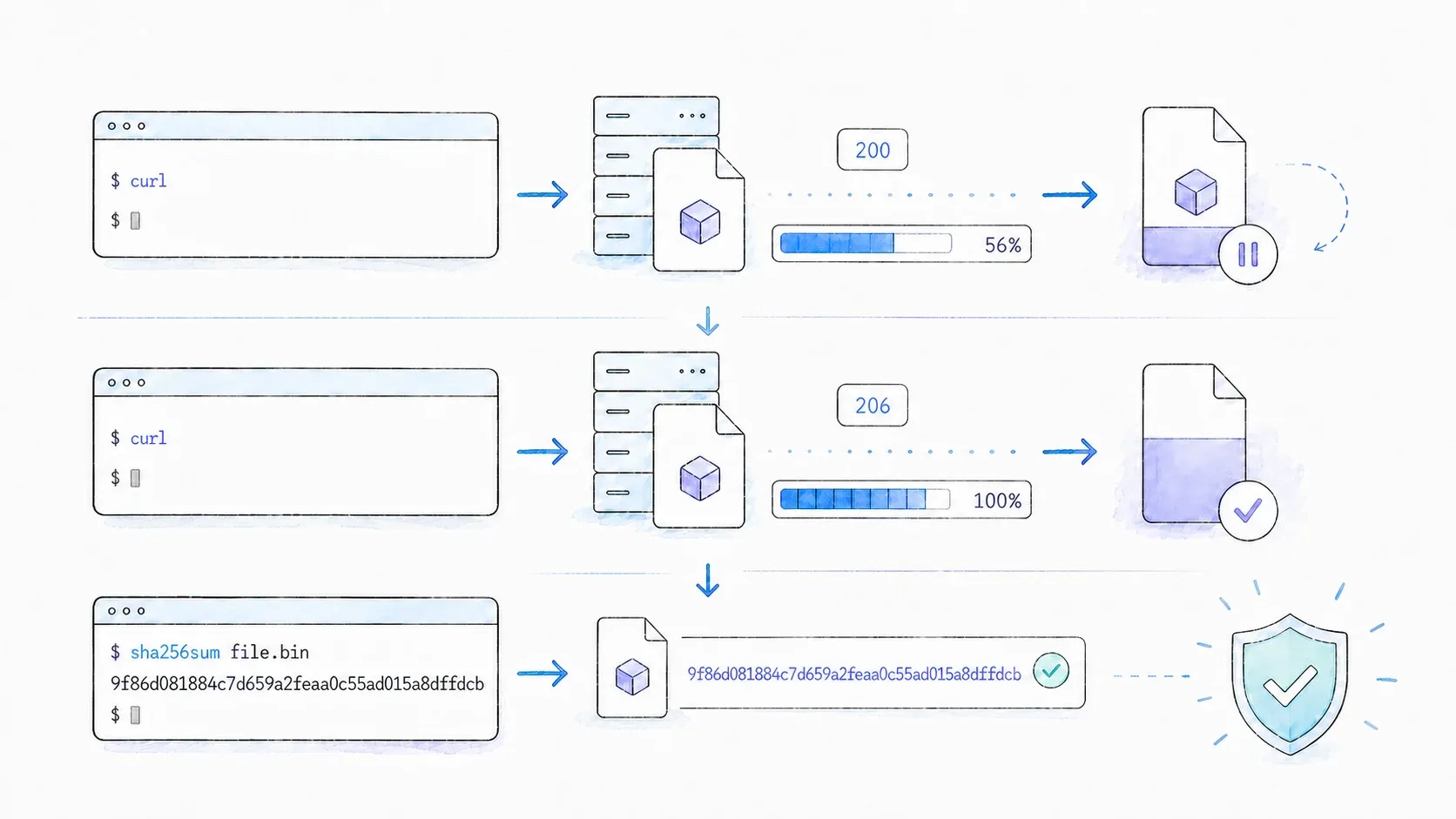
When the command succeeds, the progress meter reaches 100% and curl-8.21.0.tar.gz appears in the current directory. Confirm the file before using it:
ls -lh curl-8.21.0.tar.gz
Step 2: Download and Rename the File
Use -o when you want a specific local filename instead of whatever the URL happens to end in:
curl -L -o curl-latest.tar.gz -S https://github.com/curl/curl/releases/download/curl-8_21_0/curl-8.21.0.tar.gz
The -S here re-enables error display in case you've also passed -s elsewhere in a script. This combo — -L -o <name> -S — is basically my default single-file download command.
Step 3: Resume an Interrupted Download
If a big download drops halfway through (bad wifi, VPN hiccup, whatever), don't start over. Run:
curl -C - -LO https://example.com/large-file.iso
The catch: this only works if the server honors byte-range requests. Accept-Ranges: bytes is a useful positive signal, but its absence does not prove that ranges are unsupported. The reliable check is the server's response to an actual range request: a resumable response normally returns 206 Partial Content with a valid Content-Range. Run the resume command and inspect the status with -v or -D -; if the server ignores the range or rejects the offset, restart deliberately rather than assuming the partial file is safe.
Step 4: Download With a Progress Bar (or Silently)
For a cleaner visual in an interactive terminal: curl -# -LO <url>. For scripts and cron jobs where you just want errors, not noise: curl -sS -LO <url>. I use the silent version almost everywhere except when I'm debugging by hand.
Step 5: Limit Download Speed
On a shared office connection (or when I don't want to be "that person" hogging bandwidth during a video call), I throttle with:
curl --limit-rate 1M -LO https://example.com/big-dataset.zip
Units are K, M, and G for kilobytes, megabytes, and gigabytes per second respectively.
Step 6: Save Response Headers Alongside the File
Sometimes I need to know exactly what the server sent back — content type, cache headers, that sort of thing — without cluttering the terminal:
curl -L -D headers.txt -o file.zip https://example.com/file.zip
This drops the response headers into headers.txt while the actual file goes into file.zip. Great for debugging content-type mismatches or verifying a CDN is actually caching what you think it's caching.
Tips & Common Pitfalls
- Tip: Always default to
-L. I genuinely can't think of a downside to including it, and I've lost hours to forgetting it. - Tip: When scripting, combine
--failwith your download command so a non-2xx response actually causes the script to exit with an error, instead of silently saving an error page as if it were your file. - Pitfall: Don't pair
-C -with--remove-on-error— curl documents these as incompatible, since resume needs the partial file to still be there. - Pitfall:
-Ocan overwrite files without warning. If you're batch-downloading into a shared directory, use--output-dirto keep things contained.
How to Download Multiple Files and Batch Downloads With cURL
Single-file examples are the easy part. The real workflows I've built — pulling nightly data exports, syncing binaries across build servers — needed concurrency, and this is where most tutorials just... stop. There are three approaches worth knowing, each a step up in complexity.
Approach 1: Multiple URLs in One cURL Command
The simplest option is just listing URLs:
curl -LO https://example.com/a.zip -LO https://example.com/b.zip -LO https://example.com/c.zip
This works, but it's sequential — curl finishes one file completely before starting the next. Fine for three files, painful for three hundred.
Approach 2: Parallel Downloads With --parallel (curl 7.66+)
Since curl 7.66, you can add --parallel (or -Z) to fetch multiple URLs concurrently:
curl --parallel --parallel-max 5 --remote-name-all \
  https://example.com/a.zip https://example.com/b.zip https://example.com/c.zip
Worth knowing: the default parallel max is actually 50, which is way more concurrent connections than most servers (or your own network) will thank you for. I keep --parallel-max explicit and conservative — usually 4 to 8 — rather than trusting the default.
Approach 3: xargs and Bash Loops for Concurrency From a URL List
For a big list of URLs sitting in a text file, I usually reach for xargs:
cat urls.txt | xargs -n1 -P 8 curl -O -L
Or, if I want more control over what happens to each job, a background-process bash loop:
while read -r url; do
  curl -O -L "$url" &
done < urls.txt
wait
The wait at the end matters — without it, your script exits before the background downloads finish.
When to Reach for wget or aria2 Instead
I'll be straight about this: cURL isn't always the right tool. If you need to mirror an entire website directory tree, wget -r does recursive crawling out of the box in a way cURL simply wasn't built for. If you need multi-source, segmented downloads for maximum throughput on a single huge file, aria2c is genuinely faster.
| Tool | Best For |
|---|---|
| cURL | Precision, scripting, single-file or small-batch downloads, API interaction |
| wget | Recursive/mirrored site downloads, simpler bulk static-file grabs |
| aria2 | Multi-source/segmented downloads, maximizing throughput on large files |
cURL's strength has always been precision and composability — piping, scripting, protocol flexibility — not brute-force crawling.
How to Download Protected Files With cURL: Authentication Patterns
Most cURL tutorials stop at -u user:pass and call it a day. That's a relic of an earlier internet. In 2026, the files I'm actually downloading come from REST APIs, session-based dashboards, and CI systems — and each of those wants a different kind of credential.
Basic Auth
curl -u username:password -O https://legacy-server.example.com/file.zip
Fine for old-school FTP servers or simple HTTP endpoints. Just know the password shows up in your shell history and process list unless you're careful — not something I'd use for anything sensitive.
Bearer / OAuth Token Auth
This is the one that's genuinely underrepresented in most guides, and it's the one I use most often now:
curl -H "Authorization: Bearer $GITHUB_TOKEN" \
  -LO https://api.github.com/repos/curl/curl/releases/assets/12345
That's a real pattern for pulling a private GitHub release asset — swap in your token and asset ID. REST APIs and OAuth2-protected resources basically all speak this language now.
Cookie-Based Session Auth
For web apps where logging in creates a session, save the cookie jar on login and reuse it on the download:
curl -c cookies.txt -d "user=me&pass=secret" https://example.com/login
curl -b cookies.txt -O https://example.com/protected/file.zip
.netrc File for Scripted and CI Environments
My preferred method for anything that runs unattended. Create a ~/.netrc file (or _netrc on Windows):
machine example.com
login myusername
password mypassword
Lock it down with chmod 600 ~/.netrc, then reference it with:
curl --netrc -LO https://example.com/protected-file.zip
The advantage is credentials never touch your shell history or script source — genuinely important in CI/CD where scripts often get logged in full.
| Auth Method | Flag/Option | Best For |
|---|---|---|
| Basic auth | -u user:pass | Legacy FTP, simple HTTP |
| Bearer token | -H "Authorization: Bearer <token>" | REST APIs, OAuth2 |
| Cookie auth | -b cookies.txt (+ -c to save) | Session-based web apps |
.netrc file | --netrc or --netrc-file | CI/CD, scripted environments |
Troubleshooting Common cURL Download Failures
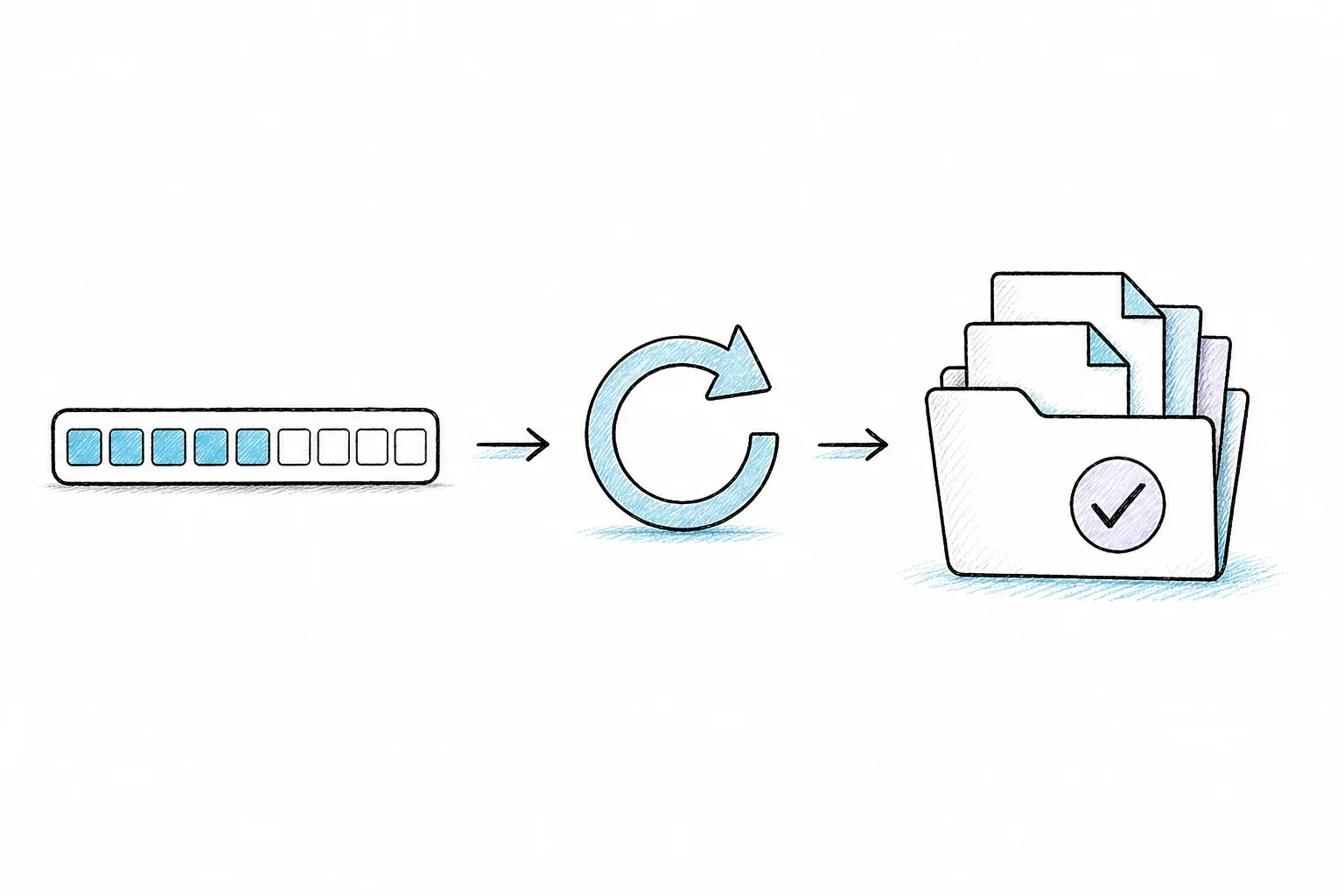
This is the section I actually wish existed when I was starting out, because almost nobody covers it. "Why isn't my curl download working" is a real, frequent, high-frustration search — and the fixes are usually a one-liner once you know the cause.
| Symptom | Likely Cause | Fix |
|---|---|---|
curl: (60) SSL certificate problem | Self-signed or expired cert | --cacert <file> or -k (dev only) |
403 Forbidden / empty file | Server blocks default curl user agent | -A "Mozilla/5.0..." or -H "User-Agent: ..." |
Download restarts from 0 with -C - | Server doesn't support Range | Check with curl -I <url> for Accept-Ranges: bytes |
| 0-byte file saved | Redirect not followed | Add -L flag |
curl: (28) Operation timed out | Slow server or network issues | --connect-timeout 10 --max-time 300 + --retry 3 |
| HTML page saved instead of file | Page requires JavaScript rendering | curl can't execute JS — see the section below |
SSL Certificate Errors: What They Mean and How to Fix Them
Error 60 means curl couldn't verify the server's SSL certificate — usually because it's self-signed, expired, or issued by a CA curl doesn't trust. If you control the server, point curl at the right CA bundle with --cacert /path/to/ca.pem. The -k (--insecure) flag skips verification entirely, which is fine for a local dev environment and a genuinely bad idea for anything touching production or real user data.
403 Forbidden and Empty Downloads
A surprising number of servers block requests that identify themselves as curl/8.21.0 (curl's default User-Agent string), assuming they're bots or scrapers. The fix is usually just pretending to be a browser:
curl -A "Mozilla/5.0 (Windows NT 10.0; Win64; x64)" -LO https://example.com/file.zip
To check what's actually coming back before committing to a full download, I run: curl -o /dev/null -s -w "%{http_code}\n" <url>.
Timeouts, Retries, and Flaky Connections
This is the command I'd tattoo on my arm if I were braver about tattoos.
My go-to download command, the one I actually use in production scripts, layers all the reliability flags together:
curl -L -C - --retry 5 --retry-delay 3 --connect-timeout 10 --max-time 600 --fail -O <url>
That's redirect-following, resume, five retries with a 3-second delay, a 10-second connection timeout, a 10-minute overall cap, and a hard fail on bad HTTP status — basically everything I've learned the hard way to include.
cURL in Real Automation: CI/CD Pipelines, Piping, and Script Safety
Piping cURL Output to Other Tools
curl doesn't have to save anything to disk at all — piping straight into another command is one of its most underrated features:
curl -sL https://example.com/archive.tar.gz | tar xz
curl -s https://api.example.com/data | jq '.results'
Download and extract, or download and parse, in a single line. This is the pattern I use constantly for one-off data pulls.
Using cURL in GitHub Actions and CI/CD
A minimal GitHub Actions step that downloads a binary with retry logic and fails loudly on error:
- name: Download binary
  run: |
    curl -L --fail --retry 3 --retry-delay 5 \
      -o app-binary "https://example.com/releases/app-binary"
Store any tokens as CI secrets and reference them as environment variables — never hardcode them into the script itself. And use --fail (or --fail-with-body if you need to see the error body for debugging) so a broken download actually breaks the build instead of quietly succeeding with garbage.
The curl | sh Security Question
This one comes up in nearly every developer forum I've read, and for good reason: piping curl straight into sh means executing remote code you haven't looked at, based entirely on trust that the server hasn't been compromised and the connection hasn't been tampered with. That's the actual risk — not paranoia, just a straightforward supply-chain concern.
The safer pattern is to download first, inspect the script, verify a checksum or GPG signature if one's provided, and only then run it:
curl -sL https://example.com/install.sh -o install.sh
cat install.sh   # actually read it
sha256sum install.sh   # compare against published checksum if available
bash install.sh
Well-known installers like rustup and Homebrew still use the curl | sh pattern, and it's generally accepted for those specific cases because the maintainers and distribution channel are well-established. I'd still rather spend the extra ten seconds inspecting a script than find out the hard way that I shouldn't have trusted it.
When cURL Isn't Enough: JS-Rendered Pages, Anti-Bot Sites, and Structured Data
Here's a failure mode that trips up a lot of people, and it's rarely their fault: you run curl -O against what looks like a normal page, and instead of the content you expected, you get an empty HTML shell, or a Cloudflare challenge page, or something that looks like garbage. curl did exactly what it was built to do — fetch the raw HTTP response — it just can't execute JavaScript, solve a CAPTCHA, or get past an anti-bot fingerprinting system. Those aren't bugs in curl; they're outside its job description entirely.
Why cURL Fails on Modern Web Pages
Modern single-page apps often return a nearly-empty HTML skeleton, with the actual content rendered client-side by JavaScript after the page loads — something curl never executes. On top of that, systems like Cloudflare and Akamai actively serve challenge pages to anything that doesn't look like a real browser, and repeated curl requests from the same IP can get rate-limited or fingerprinted as bot traffic pretty quickly.
The Next Step: AI Scraping APIs for Developers
I'd say curl is the right tool for about 80% of file and data downloads out there — static assets, API responses, anything served as a plain HTTP resource. It's the other 20%, the JavaScript-heavy or bot-protected pages, where I've watched developers spend hours fighting headers and user-agent strings before eventually giving up and reaching for a different layer entirely.
That's genuinely the gap my team built Thunderbit to close, alongside the Chrome extension most people know us for. On the developer side, Thunderbit's Open API gives you POST /distill, which returns clean, LLM-ready Markdown from a URL — with page rendering handled by the service — and POST /extract, which returns schema-matched structured JSON when you need actual fielded data instead of readable text. There's also an MCP server so agents in Claude or Cursor can call thunderbit_distill and thunderbit_extract mid-task, and a CLI (npx @thunderbit/thunderbit-cli distill <url>) that behaves a lot like curl in your terminal. Pipe JSON output to jq, for example thunderbit distill <url> --format json | jq -r '.data.markdown'; send --format markdown output to a text tool or a file instead.
Side by side, the difference is stark. A curl request against a JS-rendered product page might return a mostly-blank <div id="root"></div>. The equivalent thunderbit distill command returns rendered page content as clean Markdown. Distill runs at 1 credit per URL and Extract at 20 credits per URL. The current endpoint-specific limits differ: Batch Distill supports up to 100 URLs per job, while Batch Extract accepts up to 50 URLs with one shared schema. Check the current API documentation before sizing a production queue.
If you're newer to the concept generally, our own explainer on what web scraping actually involves is a decent starting point, and the no-code scraping guide covers the non-developer side of this same problem for anyone on your team who isn't going to touch a terminal. For a broader comparison of tools in this space, we also put together a rundown of the best AI web scrapers worth knowing about.
Quick Reference: cURL Download Cheat Sheet
| Task | Command |
|---|---|
| Basic download | curl -LO <url> |
| Custom filename | curl -L -o myfile.zip <url> |
| Resume download | curl -C - -LO <url> |
| Silent with errors shown | curl -sSL -O <url> |
| Parallel downloads | curl --parallel --parallel-max 5 -O <url1> -O <url2> |
| Bearer token auth | curl -H "Authorization: Bearer <token>" -LO <url> |
| Go-to scripted download | curl -LO --retry 5 --retry-delay 3 --max-time 600 --fail <url> |
| Pipe to extraction tool | curl -sL <url> | tar xz |
Conclusion and Key Takeaways
Downloading a file with curl starts simple — curl -O and you're mostly done — but the real skill is in the layers underneath: knowing when to add -L, when to resume instead of restart, which auth pattern actually fits your workflow, and what to do the moment a 403 or a blank HTML shell shows up instead of your expected file. I've leaned on every single one of these patterns at some point, usually right after learning the hard way why it mattered.
curl remains, hands down, my default tool for straightforward file downloads and scriptable HTTP work — it's fast, it's everywhere, and it composes beautifully with the rest of a shell pipeline. But when you hit a JavaScript-rendered page or an anti-bot wall, that's not a curl problem to solve with more flags; it's a sign you need a different layer, and that's exactly where an API like Thunderbit's picks up the work without forcing you out of your terminal.
Bookmark the cheat sheet, try the retry-and-resume command on your next flaky download, and if you hit that wall where curl just returns garbage, you know what the next step looks like — Thunderbit's pricing page has the current credit breakdown if you want to see what that escalation actually costs, and our YouTube channel has walkthroughs if you'd rather watch than read.
FAQs About Downloading Files With cURL
How do I download a file with cURL and save it with a specific name?
Use -o followed by your desired filename: curl -L -o yourname.ext <url>. Add -L so redirects don't derail the download.
How do I resume a failed cURL download?
Run curl -C - -LO <url>. This only works if the server supports range requests — check first with curl -I <url> and look for Accept-Ranges: bytes in the response.
Can cURL download files that require login?
Yes, in four main ways: basic auth (-u user:pass), bearer tokens (-H "Authorization: Bearer <token>"), cookie-based sessions (-b cookies.txt), or a .netrc file for scripted environments. See the authentication section above for the full breakdown and when each one fits.
What is the difference between cURL and wget for downloading files?
cURL supports more protocols and is generally better for scripting, piping, and precise single-file or small-batch downloads. wget is built for recursive crawling and mirroring entire site directories, which makes it the better pick for bulk static-site grabs.
Why does cURL download an HTML page instead of the actual file?
Two usual suspects: you forgot the -L flag and the server redirected you somewhere else, or the page requires JavaScript to render its actual content — something curl simply can't execute. In the second case, you'll need a rendering-capable tool rather than more curl flags.