XML to CSV Converter

By
Turn XML into a clean CSV table for spreadsheets. Pick the node to extract and choose fields or attributes. Download structured rows ready for analysis.
Convert XML File to CSV
Convert Pasted XML to CSV
PRODUCT HUNT#1 Product of the Week
Accenture logoCriteo logoGrammarly logoVerisk logoklook logoPuma logoRingCentral logoAccenture logoCriteo logoGrammarly logoVerisk logoklook logoPuma logoRingCentral logoAccenture logoCriteo logoGrammarly logoVerisk logoklook logoPuma logoRingCentral logoAccenture logoCriteo logoGrammarly logoVerisk logoklook logoPuma logoRingCentral logoAccenture logoCriteo logoGrammarly logoVerisk logoklook logoPuma logoRingCentral logoAccenture logoCriteo logoGrammarly logoVerisk logoklook logoPuma logoRingCentral logo
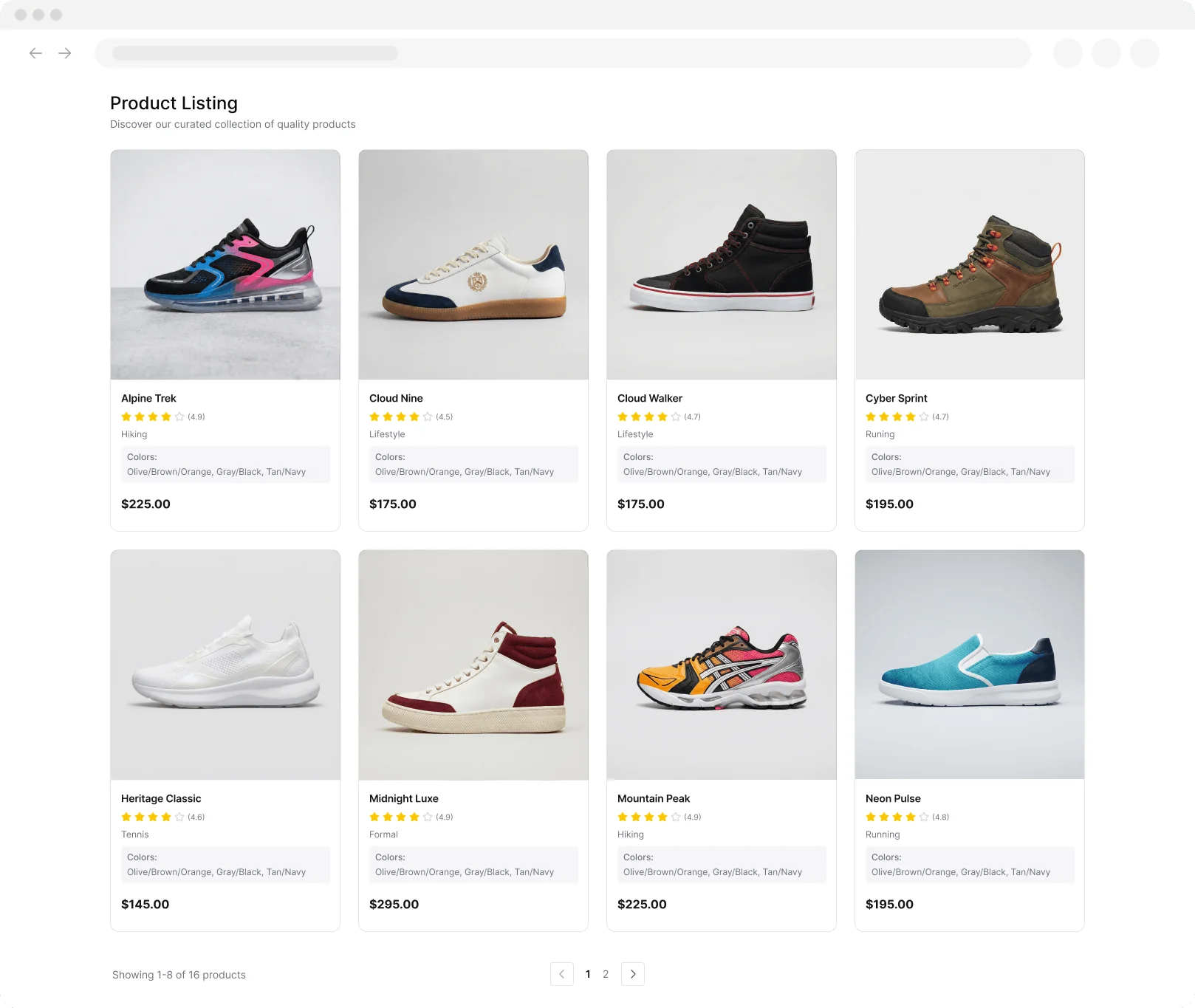
Product Listing
Extracted Data Table
Just Click to Extract
Convert Web Data into Clean TablesUse Thunderbit to scrape pages, subpages, PDFs, docs, and images, then extract structured fields fast. Export results to Google Sheets, Airtable, or Notion with minimal setup.
chrome-web-store
Install fromChrome Web Store

Convert Web Data into Clean Tables

Collect data from websites in a repeatable way using Thunderbit’s AI Web Scraper Chrome extension. Click AI Suggest Fields to detect the right columns, scrape paginated lists, and enrich results by visiting subpages, including PDFs, docs, and images. Clean up your dataset as you extract it by summarizing, categorizing, and formatting fields into a consistent table. Export to Google Sheets, Airtable, or Notion, or download as CSV or JSON for downstream workflows.

How to Convert XML to CSV Using Thunderbit

step_01.png
STEP 1Download and InstallDownload and install the Thunderbit Chrome Extension from the Thunderbit Chrome Extension Download Page. Once installed, log in or create a free account to get started.
step_02.png
STEP 2Open ExtensionOpen the Thunderbit Chrome Extension, then open the XML to CSV Converter tool. Choose one input method: (1) In the "Upload an XML File" tab, upload a single XML file using the "xml_file" field, or (2) in the "Paste XML Text" tab, paste your XML into the "xml_text" field. In the "record_node_path" field, enter the XPath-like path to the repeating record node you want to convert into rows (for example, /root/items/item). Optionally, enter a list of fields and/or attributes in "fields_or_attributes" (one per line, using @attr for attributes such as @id). If your records contain nested elements, set "include_nested_as_json" to "serialize_as_json" to keep nested data in one cell, or choose "ignore_nested" to omit nested structures.
step03.png
STEP 3Click the Convert XML to CSV ButtonClick the "Convert XML to CSV" button. Thunderbit will parse the XML, find the repeating record nodes based on your record_node_path (or infer the best match if the path is not valid), and generate a table where each record becomes a row and each selected field or attribute becomes a column header. When the results appear, download the generated CSV file, or export the table to Excel, Google Sheets, Airtable, or Notion.

Learn how to convert XML files into CSV tables for analysis

Convert XML into CSV rows and columns

Turn XML data into a CSV-ready table so you can work with it in spreadsheet tools and BI workflows. Upload an XML file or paste XML text, then choose the repeating record node (for example, /root/items/item) to define what becomes a row. This is built for analysts, operations, and developers who need a clean table from structured XML without manual copy-paste.
Get Started Free
section1_xml_to_csv.png

Control fields, attributes, and nested data handling

Choose exactly which child elements and attributes become CSV columns, or leave it blank to auto-detect headers across all records. Attributes are supported using @attr notation (such as @id). For nested elements, you can serialize the subtree into a compact JSON string in a single cell or ignore nested structures to keep the output strictly tabular. This helps keep exports consistent and reduces cleanup work.
Get Started Free
section2_fields_attributes.png

Prepare exports for spreadsheets and reporting

Generate a downloadable CSV with headers based on your selected fields or detected schema, where each XML record becomes one row. The output is designed to open cleanly in Excel and import into Google Sheets for sorting, filtering, pivot tables, and charting. By standardizing XML into a flat table, teams can compare records, validate feeds, and run recurring reports with fewer formatting issues.
Get Started Free
section3_export_spreadsheet.png

Support common business and technical workflows

Use the converter to process product catalogs, order exports, inventory feeds, system logs, and vendor integrations that arrive in XML. Operations teams can audit transactions, ecommerce teams can review SKUs and pricing fields, and data teams can stage XML extracts for downstream pipelines. When a node path is unclear, the tool can infer likely repeating records, helping you move forward even with unfamiliar XML.
Get Started Free
section4_business_workflows.png

What users say about Thunderbit

Taryn W.Growth Strategist@Thunderbit changed how I run competitor research. I click 'AI Suggest Fields,' and it builds a clean table across paginated results—no coding, no CSS. Huge time-saver when analyzing product data from long-tail marketplaces.
Miles T.Sales Development ConsultantI use Thunderbit to grab emails and phone numbers from directories. It extracts clean contact info in one click, and exporting to Sheets or Notion takes seconds. No extra setup, no coding—just usable data ready to work with.
Rhea C.E-commerce AnalystThunderbit helps me monitor SKU data across multiple pages. I scrape the listings, then use Subpage Scraping to pull full product specs, pricing, reviews, and stock. The AI organizes everything into columns I define.
Cassian B.Real Estate AdvisorThunderbit's Scheduled Scraper makes real estate tracking easier. I describe the interval in plain English, and it automatically pulls updated listings, prices, and links without touching the setup again. Simple and very practical.
Dorian B.Content & SEO SpecialistI use Thunderbit's Field AI Prompts to clean and tag scraped blog content. It extracts titles, authors, and even suggests categories. Works great across dynamic sites and subpages—perfect for building structured SEO datasets.
Lina K.Marketplace Operations LeadWe track SKUs from niche stores using Thunderbit. Cloud Scraping handles 50 pages at a time, and for login-required sites, we switch to browser mode. It’s fast, flexible, and doesn’t need ongoing maintenance or manual edits.
Jorge F.Inbound Sales ManagerThunderbit’s AI Autofill is a lifesaver. After scraping contact info, I use it to fill lead forms directly in my browser. I just select the tab, and it fills everything using the scraped row. No manual input needed.
Alina D.Freelance ResearcherI rely on Thunderbit for extracting data from PDFs, image-based sites, and infinite scroll pages. It handles messy formats with AI and delivers ready-to-export tables I can send to Google Sheets or Airtable in seconds.
Taryn W.Growth Strategist@Thunderbit changed how I run competitor research. I click 'AI Suggest Fields,' and it builds a clean table across paginated results—no coding, no CSS. Huge time-saver when analyzing product data from long-tail marketplaces.
Miles T.Sales Development ConsultantI use Thunderbit to grab emails and phone numbers from directories. It extracts clean contact info in one click, and exporting to Sheets or Notion takes seconds. No extra setup, no coding—just usable data ready to work with.
Rhea C.E-commerce AnalystThunderbit helps me monitor SKU data across multiple pages. I scrape the listings, then use Subpage Scraping to pull full product specs, pricing, reviews, and stock. The AI organizes everything into columns I define.
Cassian B.Real Estate AdvisorThunderbit's Scheduled Scraper makes real estate tracking easier. I describe the interval in plain English, and it automatically pulls updated listings, prices, and links without touching the setup again. Simple and very practical.
Dorian B.Content & SEO SpecialistI use Thunderbit's Field AI Prompts to clean and tag scraped blog content. It extracts titles, authors, and even suggests categories. Works great across dynamic sites and subpages—perfect for building structured SEO datasets.
Lina K.Marketplace Operations LeadWe track SKUs from niche stores using Thunderbit. Cloud Scraping handles 50 pages at a time, and for login-required sites, we switch to browser mode. It’s fast, flexible, and doesn’t need ongoing maintenance or manual edits.
Jorge F.Inbound Sales ManagerThunderbit’s AI Autofill is a lifesaver. After scraping contact info, I use it to fill lead forms directly in my browser. I just select the tab, and it fills everything using the scraped row. No manual input needed.
Alina D.Freelance ResearcherI rely on Thunderbit for extracting data from PDFs, image-based sites, and infinite scroll pages. It handles messy formats with AI and delivers ready-to-export tables I can send to Google Sheets or Airtable in seconds.

Frequently Asked Questions

Extract Data using AI
Easily transfer data to Google Sheets, Airtable, or Notion
PRODUCT HUNT#1 Product of the Week