

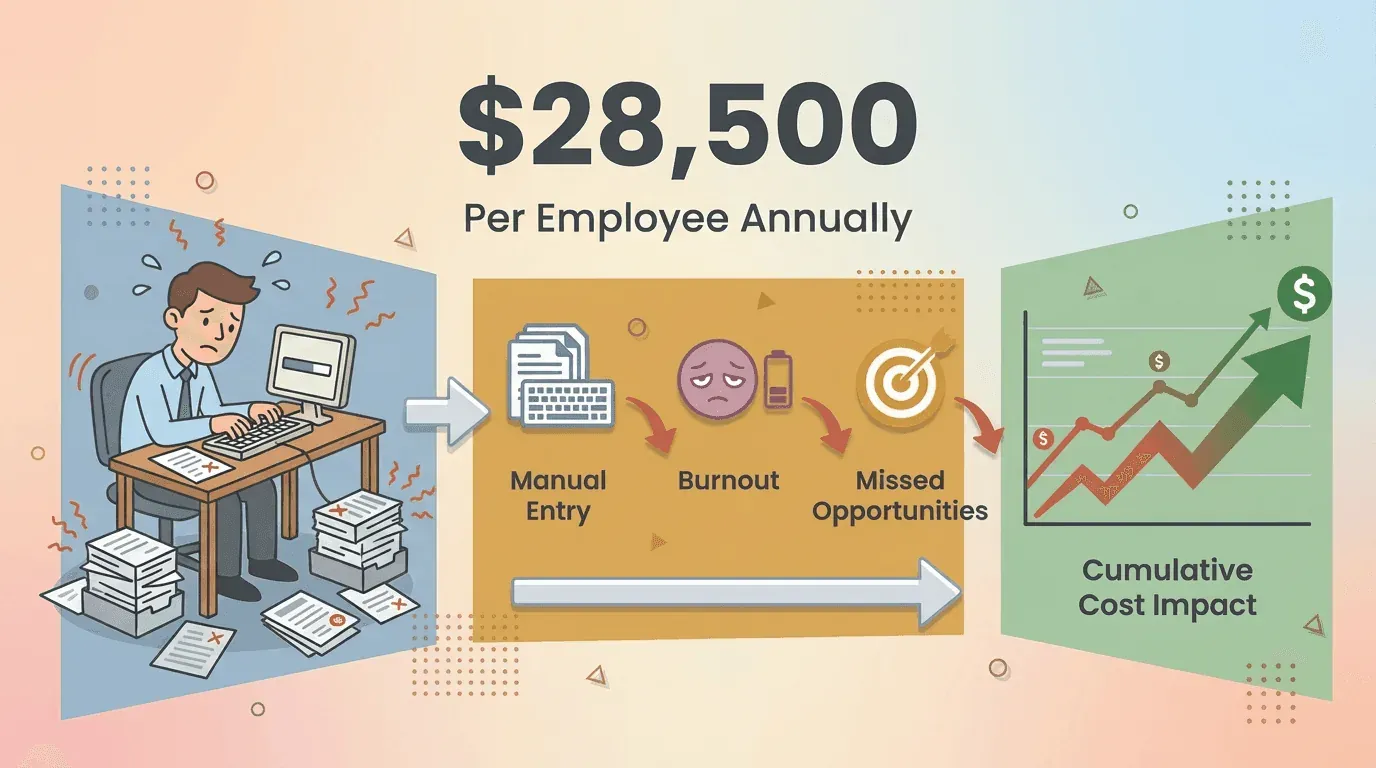
העובד העסקי הממוצע מבלה יותר מ־9 שעות בשבוע בהזנת נתונים ידנית — העתקה, הדבקה והקלדה מחדש של אותה אינפורמציה שוב ושוב בטפסים, בגיליונות אלקטרוניים ובאפליקציות ווב. זה יותר זמן ממה שרובנו מבלים בחדר הכושר, והרבה פחות כיף. ראיתי מקרוב איך “מסלול הריצה של הנתונים” הזה שוחק אנשים: זה מייגע, מועד לטעויות, ופוגע קשות בפרודוקטיביות. למעשה, חברות מפסידות בערך 28,500 דולר לעובד בכל שנה רק בגלל הזנת נתונים ידנית — וזה עוד לפני שדיברנו על העלות הסמויה של שחיקת עובדים והחמצת הזדמנויות (Parseur).
אוטומציה של הזנת נתונים עם Thunderbit AI Get Started Free
אבל הנה החדשות הטובות: כלי מילוי אוטומטי משנים את כללי המשחק עבור צוותים עסקיים. העוזרים הדיגיטליים האלה יכולים למלא טפסים, לעדכן CRM ולטפל בערכים חוזרים בזמן קצר בהרבה — לפעמים בלחיצה אחת בלבד. ב־2026, עם פתרונות מבוססי AI כמו Thunderbit, אפשר לאוטומט אפילו את הזרימות המורכבות ביותר, ולפנות אותך ואת הצוות שלך לעבודה שבאמת חשובה. בואו נצלול למה זה Auto Filler, למה הוא חיוני, ואיך אפשר להשתמש בו כדי לחסוך שעות בכל שבוע — בלי שום ידע טכני.
מהו Auto Filler ולמה הוא חשוב בעסקים מודרניים?
חשבו על Auto Filler כעל שותף דיגיטלי להזנת נתונים. זהו כלי — בדרך כלל תוסף לדפדפן או אפליקציה — ש“זוכר” את המידע שלכם (שמות, מיילים, כתובות, פרטי מוצרים, כל מה שתרצו) וממלא אותו אוטומטית בטפסים מקוונים או במערכות עסקיות בכל פעם שצריך (Thunderbit Blog). במקום להקליד את אותם פרטים שוב ושוב, ה־Auto Filler מזהה שדות בטופס ומזין את הנתונים בתוך שניות.
הנה איפה זה נהיה מעניין במיוחד עבור משתמשים עסקיים:
- צוותי מכירות יכולים להזין לידים ל־CRM מיידית — בלי להקליד שמות ומיילים אחד־אחד.
- תפעול אי־קומרס יכול למלא בכמות טפסי הזמנות לספקים, רשומות מוצרים או עדכוני מלאי בלחיצה.
- HR ומנהלה יכולים לקלוט עובדים חדשים בכמה מערכות בלי להזין את אותו מידע מחדש.
- תמיכת לקוחות יכולה למלא במהירות טפסי פניות או סקרי משוב, כך ששום דבר לא נופל בין הכיסאות.
בקיצור, Auto Filler הוא נשק סודי לכל מי שטובע בהזנת נתונים חוזרת. הוא לא רק חוסך זמן — הוא מצמצם טעויות, משפר עקביות, ומאפשר להתמקד בעבודה שבאמת מזיזה את המחט.
הזנת נתונים ידנית מול Auto Filler: מהי העלות האמיתית?
בואו נהיה כנים — הזנת נתונים ידנית הורגת פרודוקטיביות. זה איטי, משעמם, ומפוצץ בטעויות. הנה איך זה נראה מול שימוש ב־Auto Filler:
| גורם | הזנת נתונים ידנית | שימוש בכלי Auto Filler |
|---|---|---|
| זמן עבודה | כ־9 שעות בשבוע לעובד (Parseur). מילוי 100 רשומות יכול לקחת שעות. | דקות ספורות כדי למלא אותו נפח. אפשר להשלים אצוות של 100 רשומות אוטומטית ולחסוך שעות (Thunderbit Blog). |
| שיעור שגיאות | שיעור שגיאות של 1–4% (טעויות הקלדה, שדות חסרים, חוסר אחידות) (DocuClipper). | דיוק כמעט מושלם (~0.01% שגיאות). אוטומציה מדויקת פי 100 (DocuClipper). |
| עקביות | משתנה מאדם לאדם — עיצוב ונתונים עלולים להיות לא אחידים. שדות לעיתים נשמטים. | ערכים אחידים בכל פעם. שום שדה לא נשמט. הנתונים מוזנים בפורמט סטנדרטי. |
| השפעה על העובדים | עבודה מונוטונית וחוזרת מובילה לעייפות ולשחיקה (Thunderbit Blog). | משחרר את העובדים מעבודה סיזיפית. מפחית שחיקה ותסכול. הצוות יכול להתמקד במשימות בעלות ערך גבוה יותר. |
| עלות טעויות ועיכובים | גבוהה — טעויות יוצרות עבודה מחדש, ועיכובים בהזנה מאטים תהליכים עסקיים. יותר מ־50% מהמקצוענים אומרים שהזנה ידנית מובילה לטעויות יקרות (Parseur). | נמוכה — אוטומציה מפחיתה משמעותית טעויות ועיכובים, ועוזרת להימנע מסיכוני ציות והפסדים כספיים. |
השורה התחתונה? Auto Filler מנצח את ההזנה הידנית בכל מדד חשוב. הוא מהיר יותר, מדויק יותר, ומשחרר את הזמן והקשב של הצוות לעבודה שבאמת חשובה.
היתרונות המרכזיים של כלי Auto Filler לצוותים עסקיים
למה Auto Filler הופך לחובה עבור צוותים מודרניים? הנה היתרונות הגדולים:
- חיסכון משמעותי בזמן: גם משתמשים קלים חוסכים בערך 30 דקות בשבוע (GetMagical), בעוד שמשתמשים כבדים מדווחים על חיסכון של 7+ שעות בשבוע. תכפילו את זה בצוות, ותקבלו ימים של פרודוקטיביות נוספים בכל חודש.
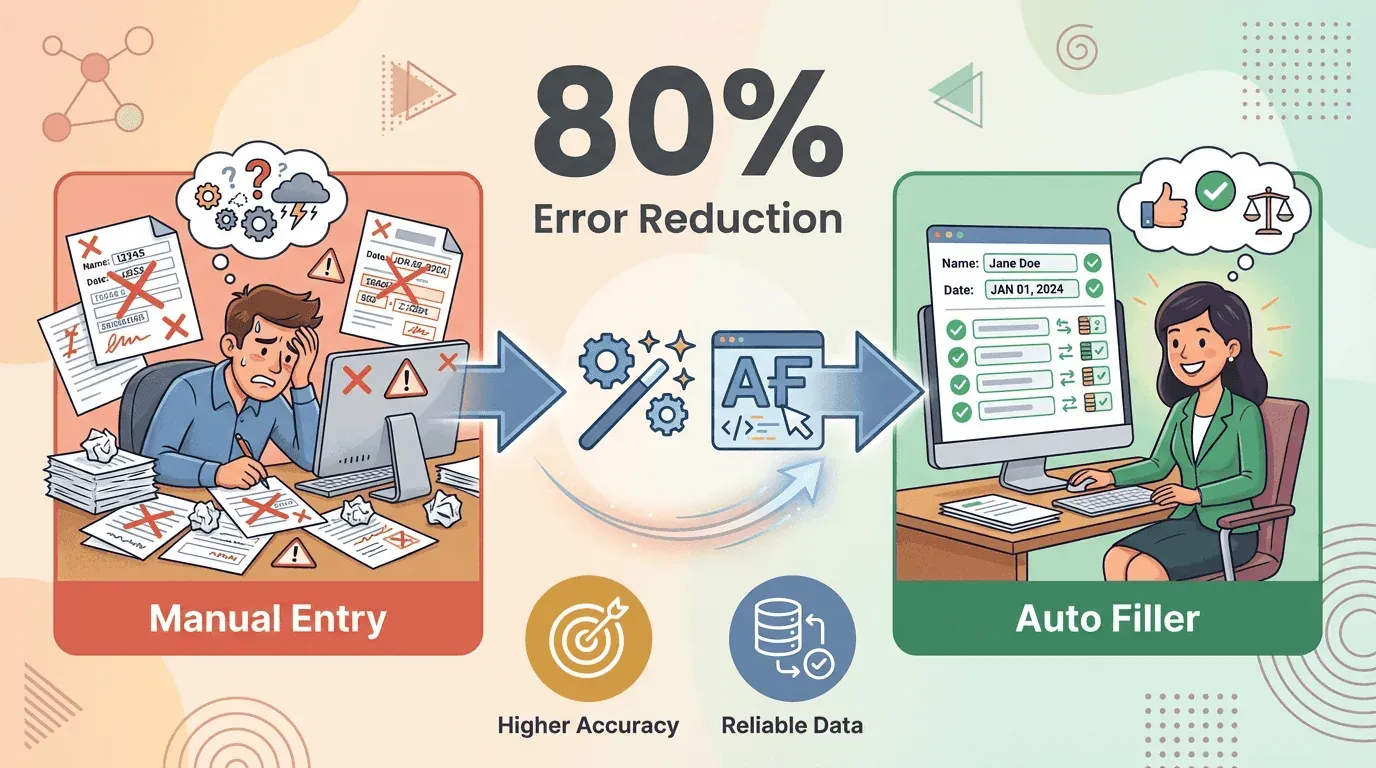
- פחות טעויות, יותר דיוק: כלי Auto Filler יכולים להפחית שגיאות במילוי טפסים עד 80% (GetMagical), וכך להבטיח נתונים נקיים ואמינים במערכות שלכם.
- עקביות נתונים משופרת: כל טופס ממולא באותה צורה, בכל פעם. זה קריטי לציות, לדוחות ולאוטומציה בהמשך.
- יעילות תפעולית: צוותי מכירות, תמיכה ותפעול יכולים לעבד יותר עבודה בפחות זמן, בלי צווארי בקבוק או הצטברויות.
- פחות שחיקה: הסרת משימות חוזרות מהכתפיים של העובדים יוצרת צוותים מרוצים ומעורבים יותר (Thunderbit Blog).
- אבטחה וציות טובים יותר: הרבה כלי Auto Filler מצפינים נתונים שמורים ומפחיתים את הסיכון לטעויות העתק-הדבק שעלולות לחשוף מידע רגיש. חשוב לבחור כלים עם בקרות פרטיות חזקות ויומני מעקב (Thunderbit Blog).
ה־AI Auto Filler של Thunderbit: לקחת אוטומציה לרמה הבאה
עכשיו בואו נדבר על החלק המעניין — איך Thunderbit דוחף את טכנולוגיית ה־Auto Filler קדימה. Thunderbit הוא לא רק ממלא טפסים בסיסי שמכניס כתובות שמורות. הוא יותר כמו עוזר וירטואלי חכם שבאמת מבין את הטפסים שאתם עובדים איתם, בזכות AI.
מה מייחד את Thunderbit?
- זיהוי שדות מבוסס AI: ה־AI של Thunderbit לא מחפש רק שמות שדות מדויקים. הוא ממש קורא את הדף — כמו אדם — ומבין איזה שדה הוא “שם החברה” ואיזה הוא “כתובת לחיוב”, גם אם התוויות לא סטנדרטיות או בשפה אחרת (Thunderbit Blog).
- מקורות נתונים גמישים: אפשר למלא אוטומטית מתוך לשונית בדפדפן, גיליון אלקטרוני, PDF, תמונה, או אפילו מידע שזה עתה נגרד מאתר אחר (Thunderbit AI Autofill).
- הזנות בכמות ובאצווה: צריכים להזין 100 אנשי קשר ל־CRM? Thunderbit יכול לרוץ בלולאה, למלא ולהגיש כל רשומה אוטומטית (Thunderbit Blog).
- ניווט רב־שלבי ותתי־עמודים: Thunderbit יודע להתמודד עם טפסים מרובי עמודים, ללחוץ על “Next” ולהעביר נתונים בין שלבים. הוא אפילו יכול לעקוב אחרי קישורים לתת־עמודים כדי לאסוף או למלא מידע נוסף (Thunderbit Blog).
- אימות והמרת נתונים: ה־AI יכול לנקות, לעצב ולאמת נתונים תוך כדי מילוי — למשל לוודא שמיילים נראים כמו מיילים ומספרי טלפון בפורמט נכון.
- ללא קוד, נוח לשימוש: לא צריך לכתוב סקריפטים או קוד. פשוט מתקינים את Thunderbit Chrome Extension, לוחצים על “AI Suggest Fields”, ונותנים ל־AI לעשות את העבודה הקשה.
- תמיכה ב־34 שפות: מושלם לצוותים גלובליים או לכל מי שעובד עם נתונים בינלאומיים (Thunderbit Blog).
- לשימוש חינמי: תכונת ה־AI autofill של Thunderbit היא לחלוטין חינמית, אפילו בתוכנית החינמית (Thunderbit Blog).
נסו את Thunderbit AI Autofill בחינם
איך ה־AI Auto Filler של Thunderbit עובד
כך נראה תהליך העבודה בפועל (וכן, זה באמת קל כמו שזה נשמע):
- בחרו את מקור הנתונים שלכם: בחרו גיליון, PDF, לשונית דפדפן או נתונים שנגרדו.
- פתחו את הטופס היעד: עברו לטופס הווב שאתם רוצים למלא.
- הפעילו את Thunderbit AI: לחצו על התוסף, בחרו “AI Autofill”, ותנו ל־AI לסרוק את הטופס.
- מיפוי נתונים לשדות: השתמשו ב־“AI Suggest Fields” כדי למפות אוטומטית בין עמודות הנתונים לשדות הטופס. התאימו לפי הצורך.
- הריצו את המילוי: לחצו על “Fill” וצפו ב־Thunderbit ממלא את השדות — מיידית ובדיוק גבוה.
- טפסים מרובי שלבים: Thunderbit יכול ללחוץ על “Next” ולמלא את העמודים הבאים, תוך העברת הנתונים קדימה.
- ייצוא תוצאות: צריכים לשמור אישורים או לוגים? Thunderbit יכול לייצא ל־Google Sheets, Airtable, Notion או Excel (Thunderbit Docs).
ראיתי צוותים עוברים ממצב שבו הם מבלים כל אחר הצהריים בהזנת נתונים למצב שבו אותה משימה מסתיימת תוך דקות עם Thunderbit. זה שדרוג פרודוקטיביות שמרגישים מיד.
איך מגדירים Auto Filler: מדריך שלב־אחר־שלב
מוכנים להתחיל? הנה איך להגדיר את Thunderbit (או כל Auto Filler מודרני) לזרימת העבודה העסקית שלכם:
1. התקינו את התוסף
- הורידו את Thunderbit Chrome Extension והירשמו לחשבון חינמי.
2. הכינו את מקור הנתונים
- אספו את הנתונים שלכם — בין אם הם בגיליון, ב־PDF או בלשונית ווב פתוחה. נקו טעויות הקלדה או חוסר עקביות כדי לקבל תוצאות טובות יותר.
3. פתחו את הטופס היעד
- עברו לאתר או לאפליקציה שבה אתם צריכים למלא טופס.
4. הגדירו את תבנית ה־Auto Fill
- לחצו על “AI Suggest Fields” כדי לאפשר ל־AI של Thunderbit לסרוק את הטופס ולהציע מיפוי שדות.
- עברו על השדות המוצעים והתאימו אותם. אפשר לשנות שם, להסיר או להוסיף שדות לפי הצורך.
- התאימו סוגי נתונים (טקסט, מספר, תאריך וכו’) והוסיפו הוראות מותאמות לעיצוב.
5. הריצו את המילוי האוטומטי
- לחצו על “Fill” ותראו את Thunderbit בפעולה. עבור הזנות באצווה, הוא ירוץ על הנתונים שלכם אוטומטית בלולאה.
6. ייצאו או שמרו תוצאות
- ייצאו כל תוצאה או אישור לפלטפורמה המועדפת עליכם — Google Sheets, Airtable, Notion או Excel.
7. שמרו ותשתמשו שוב בתבניות
- שמרו את התבנית לשימוש עתידי. בפעם הבאה תוכלו להריץ את אותה אוטומציה בתוך שניות.
התאמה אישית של תבניות Auto Filler לזרימת העבודה שלכם
תבניות הן המרכיב הסודי שגורם ל־Auto Filler לעבוד בדיוק כמו שאתם רוצים. כך תתאימו אותן לצרכים שלכם:
- הגדירו שדות משלכם: קבעו ידנית שמות שדות וסוגי נתונים כדי לשמור על בהירות ועקביות (Thunderbit Docs).
- השתמשו בהצעות AI: התחילו עם “AI Suggest Fields” ושפרו לפי הצורך. הסירו שדות מיותרים, הוסיפו חסרים, והתאימו פורמטים.
- הוסיפו ערכים קבועים: לשדות שלא משתנים לעולם (כמו “Account Manager Email”), הגדירו ערך ברירת מחדל בתבנית.
- עיצוב ואימות: השתמשו בהוראות מותאמות כדי לעצב נתונים (למשל, לכתוב שמות באות ראשית, לעצב מספרי טלפון).
- טיפול בטפסים מרובי שלבים: הגדירו את התבנית כך שתמלא כמה עמודים או שלבים.
- שימוש חוזר ושיתוף: שמרו תבניות למשימות חוזרות ושתפו אותן עם הצוות כדי לשמור על אחידות.
שיטות מומלצות: איך להימנע מטעויות נפוצות ב־Auto Filler
כמה טיפים כדי לשמור על חוויית עבודה חלקה ובטוחה:
- בדקו שוב את מיפוי השדות: תמיד ודאו שהנתונים נכנסים לשדות הנכונים, במיוחד בהרצה הראשונה.
- בדקו בהיקף קטן: נסו כמה רשומות לפני שאתם מריצים אצווה גדולה.
- שמרו על נתונים נקיים ומעודכנים: מה שנכנס — זה מה שיוצא. נקו את נתוני המקור לתוצאות טובות יותר.
- עקבו אחרי הרצות ראשונות: צפו בתהליך כדי לזהות בעיות מוקדם.
- היזהרו עם מידע רגיש: השתמשו רק בכלים מהימנים ואבטחו את הנתונים שלכם עם סיסמאות חזקות והצפנה (Thunderbit Blog).
- שמרו על ציות: ודאו שיש לכם הסכמה לשימוש ולאחסון של מידע אישי. עמדו בתקנות כמו GDPR.
- השתמשו בתוספים אמינים: התקינו רק ממקורות מוכרים ושמרו על העדכון של הכלים.
- מנעו דריסות לא מכוונות: ודאו שאתם נמצאים בעמוד הנכון לפני הרצת autofill.
- הדריכו את הצוות: ודאו שכולם יודעים לעבוד עם תבניות ולבדוק את התוצאות.
שילוב Auto Filler בזרימת העבודה העסקית שלכם עם Thunderbit
למדו עוד על ממלאי טפסים ל־Chrome Get Started Free
הקסם האמיתי קורה כשמכניסים מילוי אוטומטי כחלק קבוע מהתהליך:
- אוטומציה מתוזמנת: השתמשו בתכונת התזמון של Thunderbit כדי להריץ משימות אוטומטית — מדי יום, שבוע או לפי לוח הזמנים המותאם שלכם (Thunderbit Blog).
- פעולות לפי טריגר: הגדירו זרימות שבהן מילוי אוטומטי מופעל על ידי אירועים עסקיים (כמו ליד חדש שנקלט או הזמנה שהתקבלה).
- ייצוא ישיר: שלחו נתונים שמולאו ישירות ל־Google Sheets, Airtable, Notion או Excel להמשך עיבוד או דיווח.
- שילוב בין גרידה למילוי: גרדו נתונים ממערכת אחת ומלאו אותם אוטומטית במערכת אחרת, כדי ליצור צינור אוטומציה מקצה לקצה.
לדוגמה, אפשר לגרד כל בוקר לידים חדשים מהאתר שלכם, למלא אותם אוטומטית ל־CRM, ולייצא סיכום לגיליון של הצוות — עוד לפני שסיימתם את כוס הקפה הראשונה.
השוואת כלי Auto Filler: Thunderbit מול פתרונות אחרים
| כלי | Thunderbit (AI Autofill) | Text Blaze | Browser Autofill (Chrome) | Uniqkey (Business Autofill) |
|---|---|---|---|---|
| נוחות שימוש | ללא קוד, הצעות AI, הגדרה מהירה (Thunderbit Blog) | קל לטקסט, בינוני לטפסים מורכבים | מאוד קל, אבל מוגבל | קל למשתמשים, ההגדרה מיועדת ל־IT |
| אינטליגנציה של AI | כן — קורא ומבין טפסים, תומך ב־34 שפות | חלקי — מבוסס כללים, לא AI אמיתי | אין AI, מתאים לפי שם שדה | אין AI, מתמקד בפרטי התחברות |
| סוגי נתונים | טקסט, מספרים, תאריכים, מיילים, טלפונים, תמונות, קבצים, בחירה מרובה | טקסט, חלק משדות הטופס | מידע אישי בלבד | פרטי גישה, קודי 2FA |
| אינטגרציה | ייצוא ל־Sheets, Airtable, Notion, Excel; תזמון; גרידה | הכנסת טקסט, כמה תהליכי עבודה בין אפליקציות | רק בדפדפן | מערכות התחברות ארגוניות |
| יתרונות ייחודיים | AI + גרידה + מילוי, עבודה באצווה, שלבים מרובים, תוכנית חינמית | הרחבת טקסט, snippets, חוצה אפליקציות | פשטות, תמיד פעיל | אבטחה, ניהול סיסמאות/2FA |
| מחיר | תוכנית חינמית (כוללת AI Autofill); Starter מ־$9 לחודש בחיוב שנתי (Thunderbit Pricing) | חינמי, Pro מ־$2.99 לחודש | חינם | תמחור מותאם אישית (פנייה למכירות) |
Thunderbit הוא הבחירה הטובה ביותר אם אתם רוצים אוטומציית ווב חכמה מקצה לקצה — במיוחד למשימות עסקיות מורכבות או בהיקף גדול. Text Blaze מצוין לקיצורי טקסט, autofill של הדפדפן שימושי לשימוש אישי, ו־Uniqkey מתאים במיוחד להתחברויות מאובטחות בארגונים.
סיכום ותובנות מרכזיות
כלי Auto Filler כבר לא “נחמד שיהיה” — הם הכרחיים לכל עסק שרוצה לעבוד חכם יותר, לא קשה יותר. הנתונים ברורים: הזנת נתונים ידנית היא יקרה, איטית, ומקור משמעותי לטעויות ולשחיקה. Auto Filler כמו Thunderbit מחזירים לכם שעות בכל שבוע, משפרים את איכות הנתונים, ומאפשרים לצוות להתמקד במה שבאמת חשוב.
מה חשוב לזכור:
- Auto Filler חוסך זמן ושפיות: אוטומציה של הזנת נתונים חוזרת מחזירה לכם את יום העבודה.
- ה־AI של Thunderbit מוביל את התחום: עם זיהוי שדות חכם, תמיכה באצוות, ואינטגרציה חלקה, זהו הפתרון המתקדם ביותר למשתמשים עסקיים.
- קל להתחיל: בלי קוד — פשוט מתקינים, מגדירים את התבנית, ונותנים ל־AI לעשות את השאר.
- אינטגרציה מגדילה את ההשפעה: השתמשו בתזמון, טריגרים וייצוא כדי להפוך את המילוי האוטומטי לחלק מרכזי בזרימת העבודה.
- בחרו את הכלי הנכון למשימה: Thunderbit לאוטומציה עסקית, Text Blaze לקיצורי טקסט, autofill של הדפדפן לשימוש אישי, ו־Uniqkey לאבטחה ארגונית.
מוכנים להיפרד מהזנת הנתונים הידנית לתמיד? הורידו את Thunderbit וראו כמה זמן אפשר לחסוך — העצמי העתידי שלכם (והצוות שלכם) יודו לכם. לעוד טיפים ומדריכים, בקרו ב־Thunderbit Blog.
הורידו את תוסף Thunderbit ל־Chrome
שאלות נפוצות
1. מה זה Auto Filler ואיך הוא עובד?
Auto Filler הוא כלי שממלא אוטומטית טפסים ושדות מקוונים עם הנתונים השמורים שלכם (כמו שמות, מיילים, כתובות וכו’). הוא מזהה שדות בדפי ווב ומכניס את המידע הנכון, כך שאתם לא צריכים להקליד שוב ושוב.
2. כמה זמן באמת אפשר לחסוך עם Auto Filler?
רוב המשתמשים חוסכים לפחות 30 דקות בשבוע, ומשתמשים כבדים יכולים לחסוך כמה שעות. עבור צוותים, זה מצטבר לימים של פרודוקטיביות בכל חודש (GetMagical).
3. מה מייחד את ה־AI auto filler של Thunderbit מכלים אחרים?
Thunderbit משתמש ב־AI כדי לקרוא ולהבין טפסים, תומך בכמה מקורות נתונים (גיליונות, PDF, נתונים שנגרדו), מטפל בזרימות מרובות שלבים, ומשתלב עם פלטפורמות עסקיות כמו Google Sheets ו־Airtable — והכול בממשק ללא קוד.
4. האם זה בטוח להשתמש ב־auto fillers עבור נתונים עסקיים רגישים?
כן, כל עוד משתמשים בכלים אמינים עם אבטחה והצפנה חזקות. Thunderbit שומר נתונים מקומית ומוצפנת, ואתם שולטים מה ימולא ולאן (Thunderbit Blog).
5. האם אפשר לאוטומט משימות חוזרות עם ה־auto filler של Thunderbit?
בהחלט. Thunderbit תומך באוטומציה מתוזמנת, כך שאפשר להגדיר משימות חוזרות (כמו הזנת לידים יומית או הגשת דוחות שבועית) ולתת לכלי לטפל בהן אוטומטית (Thunderbit Blog).
מוכנים לעבוד חכם יותר ב־2026? נסו את ה־AI auto filler של Thunderbit ותראו כמה זמן אתם יכולים להחזיר לעצמכם. למדו עוד
- מהו ממלא טפסים ל־Chrome? שדרוג היעילות אונליין
- איך להשתמש ב־Auto Fill ב־Chrome ליעילות טובה יותר
- 7 התוספים הטובים ביותר ל־Autofill בפרודוקטיביות של 2026
- אוטומציה של טפסים: המדריך המלא לעיבוד חכם יותר
- AI להזנת נתונים: 10 הכלים המובילים לאוטומציה של עבודה ידנית
נסו את Thunderbit AI Autofill בחינם Get Started Free




