
The world moves fast, and so does the web. In my years working with SaaS and automation, I’ve seen one universal truth: sometimes, the best way to get ahead is to learn from what’s already out there. Whether you’re sizing up a competitor, building a new product, or just need a backup of your own site, the ability to clone any website—to capture its content, structure, or even functionality—can be a massive accelerator for business teams. And thanks to the rise of AI-powered tools like Thunderbit, what used to be a developer’s secret weapon is now accessible to anyone who can use a browser.
But let’s be real: cloning a website isn’t just about hitting “Save As” and calling it a day. Modern sites are dynamic, interactive, and sometimes as slippery as a greased pig at a county fair. In this guide, I’ll walk you through what “clone any website” really means, why it matters for business users, the challenges you’ll face, and—most importantly—how you can do it safely, efficiently, and legally with advanced tools like Thunderbit.
Clone Any Website: What Does It Really Mean?
Let’s start with the basics. When people talk about “cloning a website,” they might mean a few different things:
- Cloning the design: Making a site that looks and feels the same as the original.
- Cloning the content: Copying text, images, product info, and other visible data.
- Cloning the functionality: Replicating features like search bars, forms, or interactive elements.
For most business users, the real value is in copying the visible content and data—the stuff you can see and analyze, not necessarily the backend code or proprietary logic. Think of it as taking a snapshot of a website’s public face and turning it into a structured dataset you can use for analysis, prototyping, or archiving.
And before you ask: no, cloning isn’t about stealing or plagiarizing. In fact, most use cases are totally legitimate—like competitive research, rapid prototyping, or creating an offline archive for compliance. The goal is to save time and gain insights by capturing what’s already working, not to reinvent the wheel or step on anyone’s toes.
Why Clone Any Website? Key Business Use Cases
You might be surprised how many teams rely on website cloning for their day-to-day work. Here’s a quick look at some of the most common business use cases:
| Use Case | Description & Business Benefit |
|---|---|
| Competitor Price Monitoring | Scrape competitor product pages to track prices and stock. Enables dynamic pricing—one UK retailer saw a 4% sales boost. |
| Lead Generation & CRM Enrichment | Clone directories or LinkedIn pages to gather leads. Automating this can save up to 80% of the time. |
| Content Repurposing | Duplicate FAQs, blog posts, or reviews to curate insights or repackage info for your own audience. |
| Rapid Prototyping & Design | Clone the front-end of existing sites to jump-start new projects—prototype in days instead of weeks. |
| Backup & Archiving | Create full copies of websites for compliance or record-keeping. |
And that’s just scratching the surface. Researchers might clone social media pages to analyze trends, SEO analysts might copy site structures for offline analysis, and nearly 2,700 price comparison websites rely on scraped web data to operate. The return on investment comes from speed and insight—instead of manually gathering data or recreating design elements, you get the whole package in one go.
The Challenges of Cloning Any Website: More Than Just Copy-Paste
If cloning a website were as easy as “Copy > Paste,” everyone would be doing it. But as anyone who’s tried knows, the reality is a bit messier.
Why Simple Copying Falls Short
- Dynamic Content: Many sites load data via JavaScript, which means a basic “Save Page As” might leave you with a skeleton—no images, no live data, just a sad, broken page (see this experiment).
- APIs and Scripts: Some content is fetched from APIs after the page loads. Copying the HTML won’t grab that data.
- Login Requirements: If the info you need is behind a login, you’ll need a tool that can work with authenticated sessions.
- Anti-Scraping Measures: Sites may use CAPTCHAs, rate limiting, or bot detection to block automated copying.
- Legal and Ethical Boundaries: Just because you can copy something doesn’t mean you should. Copyright and terms of service matter—a lot.
In short, cloning a website is about navigating both technical hurdles and ethical boundaries. It’s not just about getting the data, but getting it right—and doing so responsibly.
Comparing Website Cloning Solutions: From Manual to AI-Powered Tools
Let’s talk tools. There are a few main approaches to cloning a website, each with its own pros and cons:
| Method | Ease of Use | Accuracy | Dynamic Content | Export Options | Legal Compliance | Maintenance |
|---|---|---|---|---|---|---|
| Manual Copy/Download | Moderate | Low | Poor | HTML/CSS/JS | User-dependent | High (breaks easily) |
| Traditional Web Scraping | Low | High* | Good* | CSV/Excel/JSON | User-dependent | High (fragile) |
| AI-Powered Tools (Thunderbit) | Very High | High | Excellent | Excel/Sheets/Notion | User-friendly | Low |
*If you know what you’re doing and set it up right.
Manual Copy/Download
Tools like HTTrack or your browser’s “Save Page As” can work for simple static sites, but they’re labor-intensive and break on anything dynamic. You’ll often end up with missing images, broken styles, and a folder full of files that are more confusing than helpful.
Traditional Web Scraping
This includes writing scripts (Python, BeautifulSoup, etc.) or using visual scrapers where you click to define what to extract. Powerful, but requires coding or lots of setup. Maintenance is a headache—if the site changes, your scraper probably breaks.
AI-Powered Tools (Thunderbit)
This is where things get exciting. Thunderbit uses AI to “understand” the page, so you don’t have to specify every detail. Just click “AI Suggest Fields,” let it auto-detect the data, and you’re off to the races. It handles dynamic content, multi-page navigation, and exports directly to Excel, Google Sheets, Airtable, or Notion. Plus, it’s designed for non-technical users—no coding required.
For a deeper dive into web scraper Chrome extensions, check out this comparison.
Step-by-Step: How to Clone Any Website Using Thunderbit
How to Scrape Any Website Using AI Get Started Free
Ready to roll up your sleeves? Here’s how I clone any website using Thunderbit, step by step.
Step 1: Install and Set Up Thunderbit
First, head to the Thunderbit website and sign up for a free account. Then, install the Thunderbit AI Web Scraper Chrome Extension. The process is as easy as adding any other extension—just a couple of clicks.
Once installed, you’ll see the Thunderbit icon in your Chrome toolbar. Click it, log in, and you’re ready to start your first project. Pro tip: pin the extension icon so it’s always handy. If you’re scraping a site that requires login, make sure you’re logged in on that site before you start—Thunderbit works with your current browser session.
Try Thunderbit AI Web Scraper for Free
Step 2: Use AI to Identify and Structure Data
Navigate to the website you want to clone (say, a competitor’s product page). Open the Thunderbit side panel and start a new scraping project. Here’s where the magic happens: click “AI Suggest Columns” (sometimes called “AI Suggest Fields”), and Thunderbit’s AI will scan the page, automatically proposing a set of data fields—like Product Name, Price, Image URL, Rating, and more.
You can review, tweak, or add columns as needed. Want to grab an extra field, like “Availability” or “SKU number”? Just add it, and the AI will do its best to fill it in. No HTML knowledge required—the AI handles the heavy lifting.
Step 3: Scrape and Export Website Data
Once your columns are set, hit “Scrape” (or “Start”). Thunderbit will extract all the data for the selected fields, row by row. If the page has multiple items (like a product list), it’ll grab them all.
What about pagination or infinite scroll? Thunderbit handles most cases automatically—if there’s a “Next” button or a scroll-to-load pattern, it’ll keep going. For really tricky cases, you might need to scroll manually or use advanced settings, but for most business sites, it’s smooth sailing.
When the scrape is done, you’ll see your data in a neat table. Exporting is a breeze: send it straight to Excel, Google Sheets, Airtable, or Notion. No more CSV gymnastics—just structured data, ready to use.
For more details, check out Thunderbit’s guide on scraping any website using AI.
Boosting Your Clone: Subpage Scraping for Complete Website Copies
Subpage Scraping with Thunderbit Get Started Free
Here’s where Thunderbit really shines: subpage scraping. Many websites show summaries on the main page (like product names and prices), but the juicy details—descriptions, specs, reviews—are tucked away on individual subpages.
Thunderbit’s subpage scraping lets you go deeper. Enable this feature, and the AI will follow links from the main page to each detail page, grab the extra info, and merge it back into your main dataset. For example, if you’re cloning an e-commerce “winter jackets” category, Thunderbit can click into each jacket’s page and pull out materials, availability, customer reviews, and more—giving you a complete, structured clone of the entire product set.
This is a huge time-saver for business users. Whether you’re building a comprehensive lead list, archiving a knowledge base, or analyzing a full product catalog, subpage scraping means you don’t miss a thing.
For a real-world walkthrough, see Thunderbit’s subpage scraping in action.
Ensuring Compliance: Clone Any Website Legally and Safely
Let’s talk about the elephant in the room: Is it legal to clone any website?
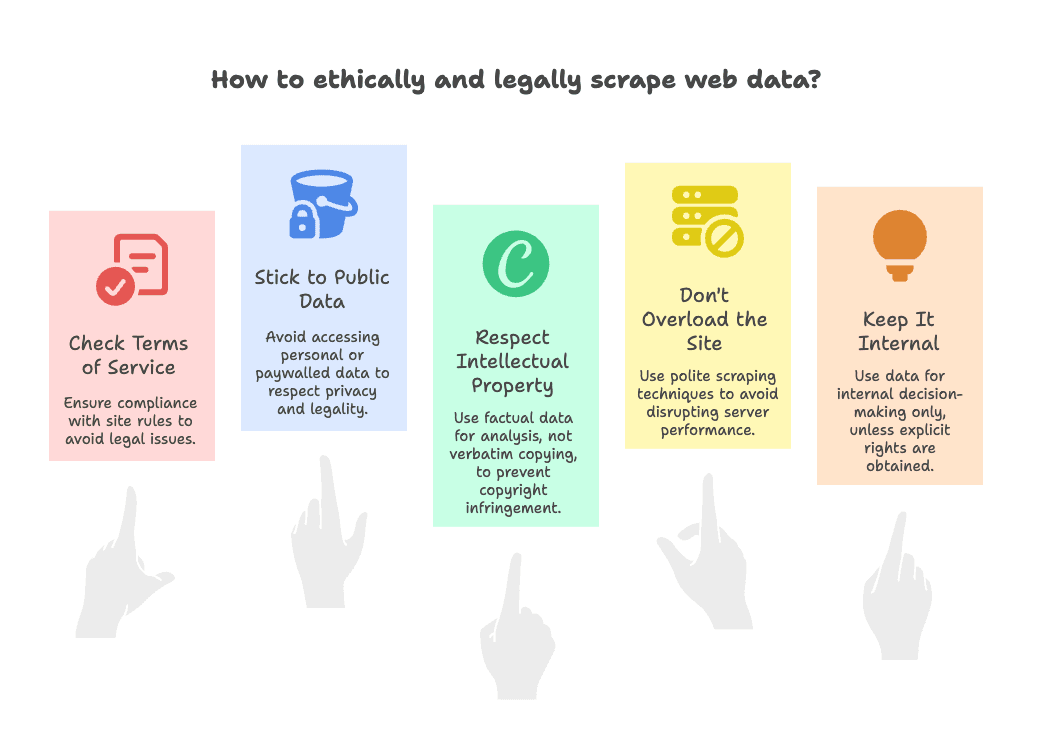
The short answer: usually yes, as long as you follow some common-sense rules. Here’s my compliance checklist:
- Check the Terms of Service: Some sites explicitly forbid scraping. If that’s the case, proceed with caution—use the data internally, not for public republishing (more on legal risk).
- Stick to Public Data: Only scrape what’s visible without logging in. Avoid personal data, emails, or anything behind paywalls (see legal guidelines).
- Respect Intellectual Property: Factual data (prices, product names) is usually fine. Copying creative content verbatim (like blog posts or images) can be a copyright issue—use it for analysis, not for creating a clone site (more on IP).
- Don’t Overload the Site: Use polite scraping—don’t hammer the server with thousands of requests in seconds. Thunderbit has built-in rate limiting, but always be considerate (robots.txt info).
- Keep It Internal: Unless you have explicit rights, use cloned data for internal decision-making, not public redistribution.
Thunderbit helps with compliance by making it easy to export data directly to secure platforms like Google Sheets or Airtable, keeping your data managed and shareable within your organization. For more legal tips, check out this comprehensive guide.
Advanced Tips: Getting the Most Out of Thunderbit When Cloning Any Website
Once you’ve mastered the basics, here are some pro moves to take your website cloning to the next level:
- Tackle Dynamic and Interactive Sites: For content that appears after interactions (like “Show All Reviews”), perform the action yourself, then run Thunderbit. The AI will capture what’s visible. For infinite scroll, scroll in chunks or use built-in pagination support (more tips here).
- Custom AI Prompts: Guide the AI by naming columns specifically—like “Author (text after By:)” or “Pros Summary.” Thunderbit’s AI is trained to recognize context, so clear column names act as mini-instructions (see examples).
- AI for Data Transformation: Use Thunderbit’s AI Summarize feature or connect with tools like ChatGPT to analyze, categorize, or translate data on the fly (integration ideas).
- Scheduling for Ongoing Clones: Set up scheduled scrapes to monitor sites over time—perfect for tracking competitor prices or new job listings (cloud scraping info).
- Bulk URL Scraping: Feed Thunderbit a list of URLs, and it’ll scrape each one automatically—great for when you’ve already gathered links elsewhere.
- Templates for Popular Sites: Use Thunderbit’s instant templates for sites like Amazon or Zillow, then customize as needed (template details).
- Handling Edge Cases: If you hit CAPTCHAs or weird layouts, try running the scraper in two passes or tweak your columns. Thunderbit’s AI is robust, but a quick spot-check never hurts.
For even more advanced workflows, check out Thunderbit’s API and integration options.
Clone Any Website with Thunderbit AI
Conclusion & Key Takeaways: Clone Any Website with Confidence
Cloning any website isn’t just for developers anymore—it’s a practical, accessible technique that empowers business users across sales, marketing, and operations. Here’s what I hope you take away:
- Business Value: Website cloning delivers real ROI—whether it’s outperforming competitors, saving time, or making smarter decisions (industry stats).
- Challenges & Solutions: Modern sites are complex, but advanced tools like Thunderbit make cloning accurate, fast, and easy—even for non-technical users.
- Thunderbit Advantage: With features like “AI Suggest Columns” and subpage scraping, Thunderbit turns hours of manual work into a two-click process.
- Compliance Matters: Always clone responsibly—stick to public data, respect IP, and use the data for analysis or internal decision-making.
- Go Further: With advanced tips and integrations, Thunderbit can handle even the trickiest sites and workflows.
So, next time you’re staring at a competitor’s product page, a directory of leads, or a knowledge base you wish you could analyze—remember, you have the tools to clone that website’s data with confidence. Just use your new powers wisely, and may your data-driven projects thrive.
Try Thunderbit AI Web Scraper Now Get Started Free
FAQs
1. Is it legal to clone any website for business use?
Generally, yes—if you stick to public data, respect intellectual property, and use the data internally. Always check the site’s terms of service and avoid scraping personal or copyrighted content without permission. For more, see this legal guide.
2. What’s the difference between cloning a website and scraping it?
Cloning usually means making a copy of a site’s content, structure, or design, while scraping is the process of extracting specific data from a site. With tools like Thunderbit, the line blurs—you can scrape and structure data to effectively “clone” the parts you need.
3. Can Thunderbit handle dynamic content and subpages?
Yes! Thunderbit’s AI is designed to handle dynamic content (like JavaScript-loaded data) and can follow links to scrape subpages, merging all the info into a single dataset. It’s one of the easiest ways to get a complete website clone.
4. How do I export cloned website data to Excel or Google Sheets?
After scraping with Thunderbit, you can export your data directly to Excel, Google Sheets, Airtable, or Notion with just a couple of clicks. No manual formatting required—your data is ready to analyze or share.
5. What are some advanced tips for cloning tricky websites?
Use custom AI prompts for precise field extraction, schedule regular scrapes for ongoing monitoring, and leverage Thunderbit’s bulk URL and template features for efficiency. For interactive sites, perform actions manually before scraping, and always review your data for accuracy.




