
If you’ve ever found yourself squinting at a photo of a receipt, retyping numbers from a business card, or wrestling with a PDF catalog just to get the data you need, you’re not alone. In today’s digital world, more and more business-critical information is locked away in images—think invoices, product sheets, ID cards, and even those infamous handwritten notes from the last sales meeting. The kicker? About 80–90% of enterprise data is now unstructured, much of it trapped in pictures and scanned documents (). That’s a mountain of information that’s tough to use—unless you have the right tools.
I’ve seen firsthand how manual data entry can eat up hours, cause errors, and make even the most patient team member want to throw their laptop out the window. But here’s the good news: modern picture-to-data tools (like ) are making it possible to turn those images into clean, structured data in just a few clicks. Let’s dive into how this works, why it matters, and how you can start extracting data from pictures—no coding, no headaches, and definitely no more squinting.
What Does “Picture to Data” Mean for Your Business?
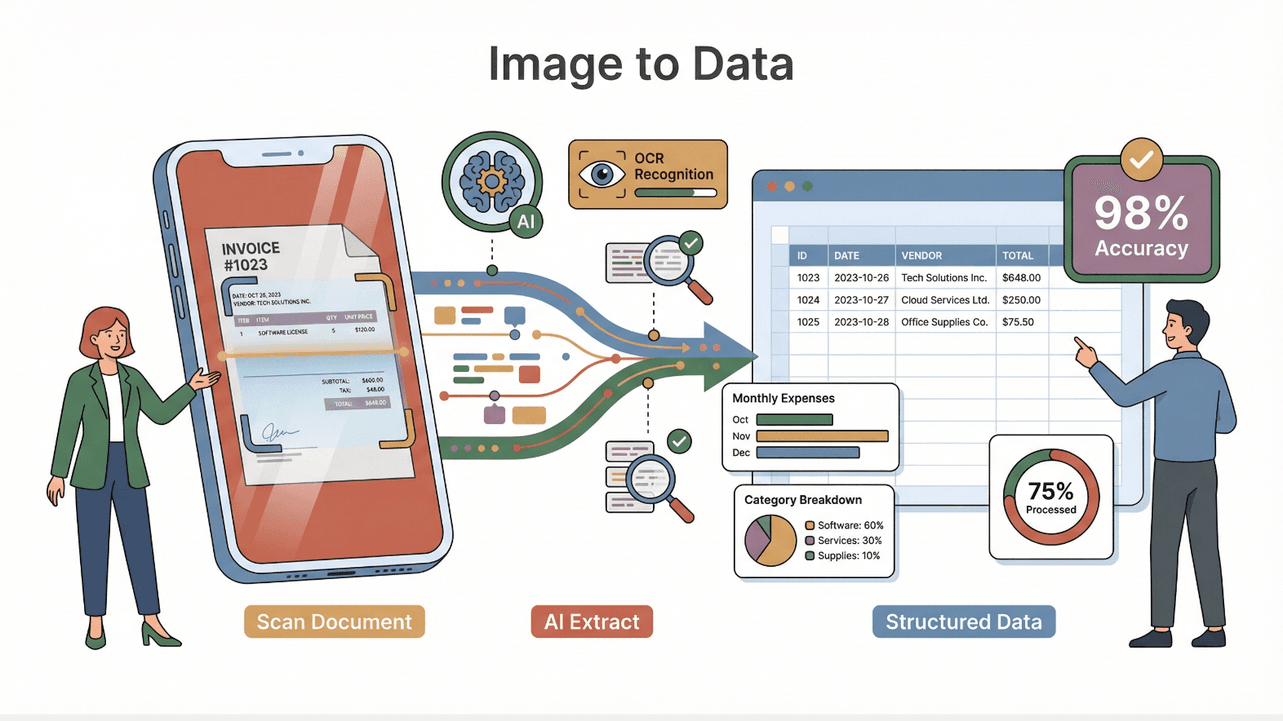
Let’s keep it simple: “picture to data” is the process of turning information found in images—photos, scans, screenshots, or PDFs—into structured, usable data. Instead of staring at a JPEG of an invoice and typing numbers into a spreadsheet, you use software to pull out the text, numbers, and even tables, then organize it all into rows and columns.
Why is this a big deal for business? Because so much of our daily workflow depends on information that arrives as images:
- Invoices and receipts (scanned or photographed)
- Product catalogs and spec sheets (PDFs, photos)
- Business cards (from networking events)
- ID cards, forms, contracts, and handwritten notes
- Screenshots of dashboards or reports
The goal is to make this information searchable, editable, and ready for analysis—so you can spend less time typing and more time making decisions.
Why Extract Data From Pictures? Key Benefits for Teams
Let’s be honest: nobody wakes up excited to do manual data entry. But the pain is real—businesses lose about to manual data entry inefficiencies, and over half of workers report errors or delays because of it. Here’s why extracting data from pictures is a must-have for modern teams:
- Speed and Efficiency: Automating image-based data extraction can make document-heavy workflows 50% faster (). No more retyping—just upload and go.
- Accuracy: Modern OCR and AI tools achieve 98–99% accuracy on clear printed text (), and AI can reduce error rates by 61% compared to manual entry ().
- Cost Savings: Automating data extraction can cut operating costs by about 30% year-over-year ().
- Better Decision-Making: When data is extracted quickly and accurately, teams can make smarter, faster decisions—whether it’s following up on leads, processing invoices, or updating inventory.
- Collaboration: Structured data can be shared instantly via Google Sheets, Airtable, Notion, or Excel, making teamwork smoother and more transparent.
Here’s a quick table of common use cases:
| Use Case | Image Type | Benefit |
|---|---|---|
| Lead capture | Business cards | Instantly add to CRM |
| Invoice processing | Scanned invoices | Faster, error-free accounting |
| Inventory updates | Product photos | Real-time stock management |
| Catalog digitization | PDF catalogs | Easier product uploads |
| Expense tracking | Receipt images | Automated reimbursement |
With about , picture-to-data isn’t just a trend—it’s the new normal.
Overview of Picture to Data Extraction Technologies
So, how do these tools actually work? There are two main approaches:
- Traditional OCR (Optical Character Recognition)
- AI-Powered Extraction (using machine learning and natural language processing)
Let’s break down what each one does—and where they shine (or stumble).
Traditional OCR: The Basics
OCR is like the grandparent of picture-to-data. It scans an image, looks for shapes that resemble letters or numbers, and spits out the text. It’s great for:
- Clean, printed documents (think: typed invoices, forms)
- Fast, bulk conversion of scanned pages
But OCR has its limits:
- Struggles with complex layouts: Tables, multi-column documents, or forms can get jumbled.
- Handwriting is tough: Even the best OCR engines can fumble cursive or messy handwriting.
- No context: OCR doesn’t “understand” what it’s reading. It just copies the text, so you often end up with a blob of words that still needs sorting.
For example, if you scan an invoice with a table of line items, OCR might give you a wall of text, and you’ll still have to separate out the columns and totals yourself.
AI-Powered Picture to Data: Smarter Extraction
Here’s where things get exciting. AI-powered tools build on OCR by adding context, structure, and a bit of “smarts.” They can:

- Handle complex layouts: AI can recognize tables, columns, and even multi-section documents, outputting structured data (like a spreadsheet) instead of just text.
- Understand context: AI models can figure out that “INV-1001” is an invoice number, or that a string of numbers is a phone number or a date.
- Adapt to different formats: AI can learn from examples, so it can extract data from invoices, receipts, or business cards—even if each one looks a little different.
- Recognize handwriting: Modern AI models can achieve up to 90% accuracy on neat handwriting (), far better than old-school OCR.
Here’s a quick comparison:
| Feature | Traditional OCR | AI-Based Extraction |
|---|---|---|
| Accuracy (printed text) | High (98–99%) | High (plus context) |
| Handles tables/layouts | Weak | Strong |
| Handwriting | Weak | Improving |
| Context/field labeling | None | Strong |
| Automation | Manual setup | Template-free, learns |
| Cost | Lower | Higher (but falling) |
In short: OCR is great for simple jobs, but AI is the way to go for anything complex, messy, or high-volume.
Thunderbit: Natural Language AI for Picture to Data Extraction
This is where Thunderbit comes in—and, yes, I’m a little biased, but for good reason. Thunderbit is an that makes extracting data from pictures as easy as describing what you want in plain English.
How does it work? Instead of fiddling with templates or writing code, you just upload your image (or PDF, or screenshot), click “AI Suggest Fields,” and let Thunderbit’s AI do the heavy lifting. You can even type instructions like “Extract product names and prices from this catalog” or “Pull all contact info from these business cards,” and Thunderbit figures out the rest.
What makes Thunderbit different?
- Handles complex images and non-standard layouts: Whether it’s a messy table, a multi-section form, or a product sheet with mixed content, Thunderbit’s AI can structure the data for you.
- Natural language prompts: Just tell Thunderbit what you want, and it suggests fields and data types automatically.
- Batch processing and scheduling: Upload a whole folder of images, or set up a recurring job to process new files every day—Thunderbit can handle it.
- Export to anywhere: Send your data straight to Excel, Google Sheets, Airtable, Notion, CSV, or JSON—no extra steps.
- Field AI Prompts: For each field, you can add custom instructions (“Format date as YYYY-MM-DD,” “Translate to English,” “Categorize product type”), and Thunderbit will process the data as it extracts.
I’ve seen teams go from hours of manual entry to having a clean spreadsheet in under five minutes. It’s honestly a little addictive.
How Thunderbit Handles Complex and Non-Standard Images
Business images are rarely tidy. Maybe you have a photo of a receipt taken at an angle, a scanned form with multiple sections, or a PDF catalog with tables and images. Thunderbit’s AI is built to handle all of this:
- Multi-column and tabular data: Thunderbit preserves the structure—columns, headers, rows—so your output looks like a real spreadsheet, not a jumbled mess.
- Mixed content: Got a form with a top section for customer info and a bottom section for orders? Thunderbit can separate and label each part.
- Multiple languages: Thunderbit’s OCR and AI work with dozens of languages, and you can even translate fields on the fly.
- Batch and scheduled processing: Need to process 100 invoices every week? Thunderbit can run jobs automatically and export the results to your team’s shared platform.
And if you want to get fancy, you can use Field AI Prompts to clean, format, or categorize your data as it’s extracted—no post-processing needed.
Step-by-Step Guide: Extract Data From Pictures Using Thunderbit
Let’s get practical. Here’s how you can go from “I have a folder of images” to “Here’s my spreadsheet” in just a few steps.
Step 1: Upload or Select Your Picture
- Supported formats: Thunderbit works with JPEG, PNG, PDF, and most common image types.
- How to add images: Drag and drop files into the Thunderbit extension, use the upload button, or even paste a screenshot directly.
- Batch upload: Select multiple files at once for batch processing.
Step 2: Describe the Data You Need
- Use natural language prompts (“Extract invoice number, date, and total”).
- Or, pick from templates for common scenarios (invoices, business cards, product catalogs).
- Thunderbit’s AI will scan your image and suggest relevant fields and data types.
Step 3: Let AI Suggest Fields and Extract Data
- Click “AI Suggest Fields.” Thunderbit will analyze the image, propose columns (e.g., “Product Name,” “Price,” “Date”), and show a preview.
- Review and adjust fields as needed—rename, add, or remove columns, or add custom Field AI Prompts for formatting or categorization.
- Click “Scrape” to extract the data. Thunderbit will process the image(s) and display a structured table.
Step 4: Export Structured Data for Your Workflow
- Export options: Excel, Google Sheets, Airtable, Notion, CSV, or JSON.
- Data is ready for analysis, sharing, or uploading to your CRM, ERP, or any other business system.
- For teams, export directly to shared platforms so everyone has access to the latest data.
That’s it—no code, no templates, just a few clicks and you’re done.
Real-World Applications: Picture to Data in Action
Let’s look at how this plays out in real business scenarios:
1. Invoice Processing (Finance Teams)
- The challenge: Manually entering invoice data is slow and error-prone. Invoices account for about 28% of all documents employees process ().
- With Thunderbit: Drag a batch of invoice images or PDFs into Thunderbit, use the Invoice OCR template, and extract all key fields (vendor, date, total, line items) in seconds. Export to Excel or Google Sheets for upload to your accounting system.
- The impact: What used to take 15 minutes per invoice now takes seconds, with higher accuracy and fewer headaches.
2. Product Catalog Digitization (Ecommerce Operations)
- The challenge: Suppliers send product lists as PDFs or photos. Typing up hundreds of SKUs is nobody’s idea of fun.
- With Thunderbit: Upload the catalog images, let AI suggest fields (product name, SKU, price, description), and export a ready-to-use spreadsheet.
- The impact: Update your online store or inventory system in minutes, not days.
3. Business Card Capture (Sales Teams)
- The challenge: After a trade show, 88% of business cards never make it into the CRM ().
- With Thunderbit: Snap photos of cards, upload to Thunderbit, and extract names, emails, phone numbers, and company info. Export to Google Sheets or your CRM.
- The impact: Capture every lead, follow up faster, and never lose a contact again.
Automating Picture to Data for Teams: Collaboration and Scale
Thunderbit isn’t just for one-off jobs. Here’s how teams can scale up:
- Batch processing: Upload dozens (or hundreds) of images at once. Thunderbit processes them in parallel, saving hours.
- Scheduled extraction: Set up recurring jobs (e.g., process new receipts every night) using Thunderbit’s Scheduler. Just describe the schedule in plain English, and Thunderbit takes care of the rest.
- Shared data tables: Export results directly to Google Sheets, Airtable, or Notion, so everyone on the team has access to the latest data.
- Role-based access: Control who can view, edit, or export data—perfect for larger teams or sensitive information.
For example, an ecommerce team could schedule Thunderbit to process new product photos every week, updating their inventory spreadsheet automatically. Or a finance team could have all scanned invoices processed and exported to a shared Google Sheet for review.
For more advanced use cases, check out our guide on .
Tips for Getting the Best Results from Picture to Data Tools
Want the best accuracy and the smoothest workflow? Here are my top tips:
- Use high-quality images: Clear, well-lit, and straight-on photos work best. If you’re scanning, aim for at least 300 DPI.
- Boost contrast: If your document is faint or has a busy background, increase contrast or use a scanner app’s “document mode.”
- Review critical fields: Always double-check important numbers (like totals or invoice numbers) for accuracy.
- Leverage Field AI Prompts: Use custom instructions to format, categorize, or translate data as it’s extracted.
- Batch similar documents: If you’re processing a stack of invoices or cards with the same layout, process them together for best results.
- Validate outputs: Use formulas or data validation in Excel/Sheets to catch anomalies (like totals that don’t add up).
- Stay secure: For sensitive data, use Thunderbit’s browser mode to keep everything local, or manage permissions on shared platforms.
And if you ever hit a tricky image, try splitting it into sections or tweaking your prompts—Thunderbit’s AI is smart, but a little guidance goes a long way.
Conclusion & Key Takeaways
Extracting data from pictures isn’t just a cool trick—it’s a game plan for modern, efficient business. With so much valuable information locked away in images, teams that embrace picture-to-data tools like Thunderbit are saving time, cutting costs, and making smarter decisions every day.
Here’s what to remember:
- Picture-to-data is now essential: With 80–90% of business data unstructured, tools that turn images into data are a must-have.
- Thunderbit makes it easy: Natural language prompts, AI-suggested fields, and one-click exports mean anyone can do it—no coding, no templates.
- Real business impact: From finance to sales to operations, picture-to-data tools are driving faster workflows, better accuracy, and happier teams.
- Automation and collaboration: Batch processing, scheduling, and seamless exports make it easy to scale up and keep everyone on the same page.
So, next time you’re staring at a pile of receipts, a PDF catalog, or a stack of business cards, don’t reach for the coffee—reach for Thunderbit. Try it out on your next data challenge and see how much time (and sanity) you can save.
Want to learn more? Check out the for more tips, guides, and real-world examples. Or and give it a spin yourself. Your spreadsheets (and your team) will thank you.
FAQs
1. What types of images can Thunderbit extract data from?
Thunderbit works with JPEG, PNG, PDF, and most common image formats. You can upload scanned documents, photos, screenshots, or even paste images directly into the extension.
2. How accurate is Thunderbit’s picture-to-data extraction?
Thunderbit combines advanced OCR and AI, achieving 98–99% accuracy on clear printed text and strong results even with complex layouts or neat handwriting. Reviewing and adjusting field prompts can further improve accuracy.
3. Can Thunderbit handle batch processing or scheduled jobs?
Absolutely. Thunderbit supports batch uploads for processing multiple images at once, and its Scheduler lets you automate recurring extraction tasks—perfect for teams with ongoing data needs.
4. What export options does Thunderbit offer?
You can export structured data directly to Excel, Google Sheets, Airtable, Notion, CSV, or JSON. This makes it easy to integrate with your team’s existing workflows and tools.
5. Is Thunderbit suitable for non-technical users?
Yes! Thunderbit is designed for everyone. With natural language prompts, AI-suggested fields, and a user-friendly interface, anyone can extract data from pictures—no coding or technical setup required.
Ready to see what picture-to-data can do for your business? and turn your images into actionable data in minutes.
Learn More