
Let’s get real for a second—if you’ve ever had to pull data from a website into Excel, you know it’s not exactly a party. I’ve seen teams spend hours (sometimes days!) copying and pasting rows from websites, only to end up with messy spreadsheets, missed updates, and a strong desire to never see another “Ctrl+C” again. In today’s data-driven world, that just doesn’t cut it. Businesses need fast, accurate, and structured data for reporting, sales, and operations—and Excel is still the go-to tool for making sense of it all.
But here’s the good news: with modern web scraping tools, you can skip the manual grind and import website data to Excel in minutes, no coding required. Whether you’re tracking competitor prices, building lead lists, or just tired of copy-paste marathons, web scraping to Excel is the shortcut you’ve been looking for. In this guide, I’ll walk you through exactly how to do it—step by step, with a special focus on how makes the whole process as easy as clicking a button (because, well, it is).
Web Scraping to Excel: What Is It and Why Should You Care?
Let’s start with the basics. Web scraping is the process of automatically extracting data from websites—think of it as hiring a super-fast assistant who can visit hundreds of pages, grab the info you need, and drop it neatly into a spreadsheet. When you combine web scraping with Excel, you get a workflow that turns messy online data into clean, structured tables you can actually use.
Why does this matter?

Because the amount of data businesses need to collect is exploding. According to a recent report, , even as the volume of information they need to track grows exponentially. And it’s not just manufacturing—across industries, teams spend , much of it copying data from websites into Excel.
So, why should you care about web scraping to Excel? Here’s what you get:
- Speed: Automate hours of manual work and get your data in minutes.
- Accuracy: Reduce human error and get consistent, structured results.
- Scalability: Pull data from hundreds (or thousands) of pages at once.
- Actionable Insights: Use Excel’s tools—sorting, filtering, charts—to turn raw data into business intelligence.
Whether you’re in sales, operations, ecommerce, or research, web scraping to Excel is the secret weapon for anyone who needs fresh, reliable data—without the copy-paste headache.
The Power of Importing Website Data to Excel
Let’s talk ROI. Automating website data collection into Excel isn’t just about saving time (though that’s a big one). It’s about unlocking insights and making better decisions, faster. Here are some real-world scenarios where web scraping to Excel makes a difference:
| Use Case | Manual Pain Point | Impact of Web Scraping to Excel |
|---|---|---|
| Sales Lead Generation | Copying contact info one by one | Instantly build lead lists, ready for outreach |
| Competitor Price Tracking | Daily manual checks, missed updates | Automated price monitoring, real-time alerts |
| Market Research | Collecting reviews/articles by hand | Aggregate data for analysis in one spreadsheet |
| Real Estate Listings | Manually aggregating listings | Unified, up-to-date property database |
| Product Data Management | Merging info from multiple sources | Consistent, structured product catalogs |
The bottom line? Web scraping to Excel gives you faster reporting, up-to-date insights, and fewer errors—all in a tool your team already knows how to use.
Comparing Web Scraping to Excel Solutions: Which Fits Your Workflow?
There are a few ways to get website data into Excel, but not all are created equal. Here’s a quick rundown of your options:
| Method | Ease of Use | Setup Time | Handles Dynamic Sites | Automation Potential | Best For |
|---|---|---|---|---|---|
| Manual Copy-Paste | Easy | None | No | None | One-off, small jobs |
| Excel Web Queries/Power Query | Medium | Medium | Limited | Some | Static tables, simple sites |
| VBA Scripts | Hard | High | Limited | High (if coded) | Developers, custom tasks |
| No-Code Web Scrapers (Thunderbit) | Very Easy | Low | Yes (AI-powered) | High | Frequent, large, or complex jobs |
Manual methods are fine for tiny tasks, but they fall apart when you need to scale or automate. Excel’s built-in tools (like Power Query) are great for static tables, but struggle with dynamic content, logins, or multi-page lists. Coding with VBA or Python is powerful, but let’s be honest—not everyone wants to become a programmer just to get data into Excel.
That’s where no-code web scrapers like come in. With Thunderbit, you can scrape and import website data to Excel in just a couple of clicks—no scripts, no templates, no headaches. It’s built for business users who want results, not a new hobby in coding.
Thunderbit: The No-Code Solution for Web Scraping to Excel
Alright, let’s talk about what makes different. As someone who’s spent years building SaaS and automation tools, I wanted to create a web scraper that anyone could use—no technical skills required.
Here’s what sets Thunderbit apart:
- AI Suggest Fields: Just click “AI Suggest Fields” and Thunderbit’s AI reads the page, recommends the best columns (like Name, Price, Email), and sets up the extraction for you.
- Subpage Scraping: Need more details? Thunderbit can visit each subpage (like product details or LinkedIn profiles) and enrich your table automatically.
- Handles Complex Sites: Dynamic content, infinite scroll, PDFs, images—Thunderbit’s AI adapts to it all.
- Instant Export to Excel: Once your data is scraped, export it directly to Excel, Google Sheets, Airtable, or Notion. No extra formatting needed.
- Templates for Popular Sites: For sites like Amazon, Zillow, or Shopify, Thunderbit has instant templates—just pick and scrape.
- Free Data Export: Export and download is completely free, no matter how much you scrape (within your plan’s limits).
Thunderbit is trusted by over , from sales teams to ecommerce operators to real estate pros. And yes, there’s a free tier—so you can try it out before you commit.
Step-by-Step Guide: Import Website Data to Excel Without Coding
Let’s get hands-on. Here’s how to go from website to Excel in just a few clicks with Thunderbit.
Step 1: Install Thunderbit Chrome Extension
Start by installing the . Just head to the Chrome Web Store, search for “Thunderbit AI Web Scraper,” and click “Add to Chrome.” It works on any Chromium-based browser (Chrome, Edge, Brave, etc.), and setup takes less than a minute.
Step 2: Open Your Target Website and Launch Thunderbit
Navigate to the website you want to scrape. This could be a product listing, a directory, a real estate portal—any page with the data you need. Click the Thunderbit icon in your browser toolbar to launch the extension.
Pro tip: Make sure you’re on the page that lists the data you want (e.g., a table of products, not just the homepage).
Step 3: Use AI Suggest Fields to Identify Data for Excel
Click “AI Suggest Fields.” Thunderbit’s AI will scan the page and suggest columns—like Name, Price, Email, Phone, etc.—based on what it finds. You can review, rename, or add columns as needed. If you want to get fancy, you can even add custom AI prompts to extract or format data just the way you want.
For example, if you’re scraping a product page, Thunderbit might suggest:
- Product Name
- Price
- SKU
- Availability
- Image URL
You can tweak these or add more fields as needed.
Step 4: Scrape Data and Export to Excel
Ready? Click “Scrape.” Thunderbit will extract the data, handle pagination (next buttons or infinite scroll), and pull everything into a structured table. Once it’s done, you’ll see a preview of your results.
Click “Export” and choose Excel (CSV or XLSX). You can also export directly to Google Sheets, Airtable, or Notion if that’s your workflow.
Step 5: Review and Use Your Structured Excel Data
Open your exported file in Excel. Check the data for accuracy—Thunderbit’s AI is pretty sharp, but it never hurts to give things a quick look. Now you can sort, filter, create charts, or integrate the data with your CRM or business tools.
Want to get even more value? Use Excel’s built-in features (like PivotTables or conditional formatting) to analyze trends, spot outliers, or build dashboards.
Solving Common Challenges: Formatting, Dynamic Pages, and More
Web scraping isn’t always smooth sailing—websites love to throw curveballs. Here’s how Thunderbit helps you handle the most common challenges:
Handling Dynamic and Paginated Websites
Many modern sites use infinite scroll, “Load More” buttons, or multi-page listings. Thunderbit’s AI detects these patterns and handles them automatically, so you get all the data—not just what’s visible on the first page.
If you hit a stubborn site, try these tips:
- Make sure you’re logged in if the data is behind a login wall.
- Use Thunderbit’s “Browser Scraping” mode for pages that require authentication.
- For tricky pagination, add a custom AI prompt to guide the scraper.
Formatting Data for Excel
Thunderbit automatically formats numbers, dates, emails, and phone numbers for Excel. You can also use custom prompts to clean or transform data as you scrape—no more fixing things after the fact.
Need to extract data from PDFs or images? Thunderbit’s AI can handle that too, pulling text from non-standard formats and dropping it into your spreadsheet.
Subpage Scraping and Data Enrichment
Sometimes the data you want is spread across multiple pages (like a list of companies, each with its own detail page). Thunderbit’s subpage scraping feature lets you visit each link and enrich your main table with extra info—no extra setup required.
Automate Your Workflow: Scheduled Web Scraping to Excel
Want to keep your data fresh without lifting a finger? Thunderbit’s scheduled scraping feature is your new best friend. Here’s how it works:
- Set up your scraper as usual (choose fields, set up subpages, etc.).
- Click “Schedule” and describe how often you want the data updated (e.g., “every Monday at 9am”).
- Thunderbit will automatically scrape the website at your chosen interval and export the latest data to Excel, Google Sheets, or your preferred platform.
This is a lifesaver for:
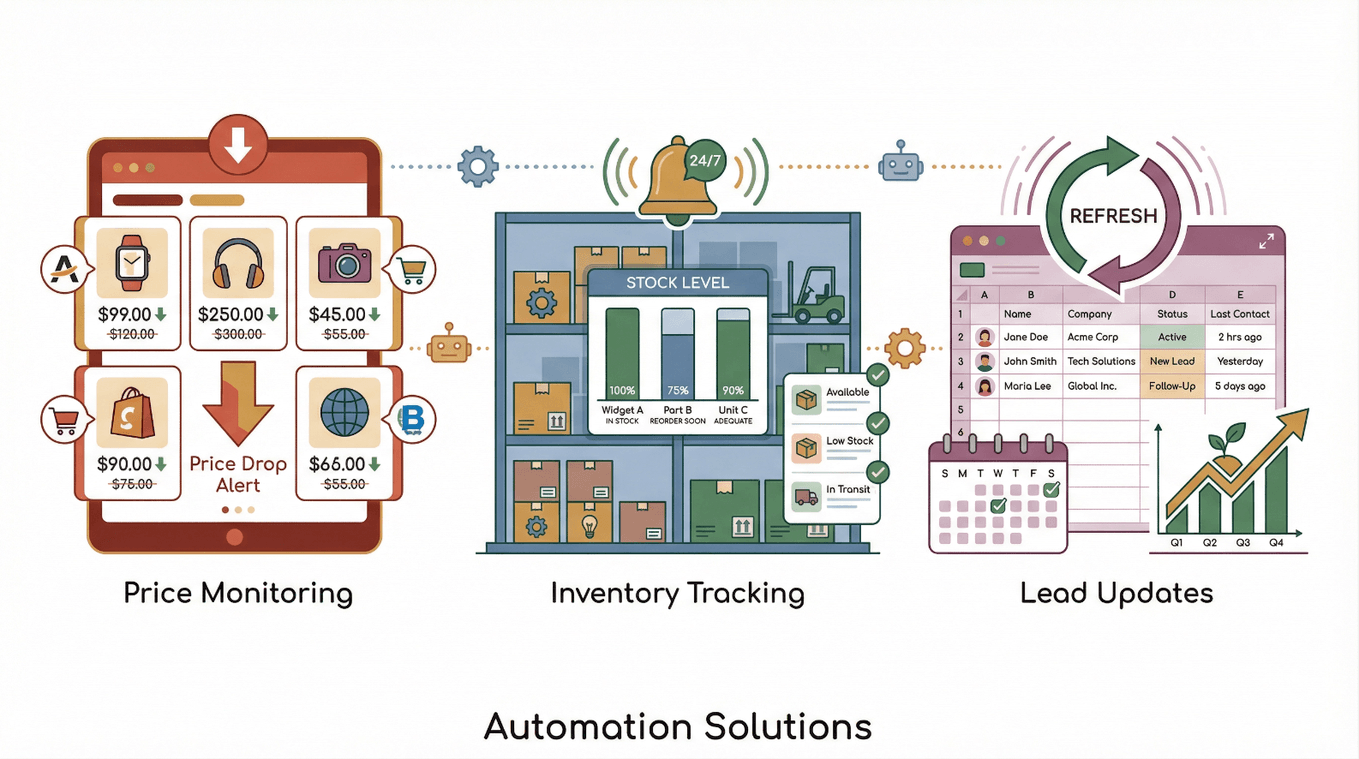
- Price monitoring: Stay on top of competitor prices without daily manual checks.
- Inventory tracking: Get real-time updates on stock levels or product availability.
- Lead list updates: Refresh your prospect list every week, so you’re always working with the latest info.
Automation isn’t just a nice-to-have—it’s a competitive advantage. .
Key Takeaways: Unlocking the Value of Web Scraping to Excel
Let’s recap the big wins:
- Efficiency: Go from hours of manual copy-paste to minutes of automated scraping.
- Accuracy: Get clean, structured data—ready for analysis in Excel.
- Scalability: Handle hundreds or thousands of pages, dynamic sites, and complex formats.
- No Coding Required: Thunderbit’s AI does the heavy lifting, so anyone can use it.
- Automation: Set up scheduled scrapes and keep your data up to date—hands-free.
If you’re tired of wrestling with website data, or just want to work smarter (not harder), is built for you. Try the , and see how easy web scraping to Excel can be. Your future self (and your spreadsheets) will thank you.
Want to dive deeper? Check out these resources:
Happy scraping—and may your Excel sheets always be clean, current, and ready for action.
FAQs
1. What is web scraping to Excel, and who should use it?
Web scraping to Excel is the process of automatically extracting data from websites and importing it into Excel spreadsheets. It’s ideal for sales, operations, market research, ecommerce, and anyone who needs structured online data for analysis or reporting.
2. Do I need to know how to code to use Thunderbit for web scraping to Excel?
No coding required! Thunderbit is designed for non-technical users. Its AI reads the website, suggests fields, and handles the extraction—all you do is click a few buttons.
3. Can Thunderbit handle dynamic websites or pages with infinite scroll?
Yes. Thunderbit’s AI detects and manages dynamic content, pagination, and “Load More” buttons automatically, so you get complete datasets.
4. What file formats can I export to from Thunderbit?
You can export directly to Excel (CSV or XLSX), Google Sheets, Airtable, Notion, or download as JSON. Exporting is free on all plans.
5. How do I set up scheduled web scraping to Excel?
After setting up your scraper in Thunderbit, click “Schedule,” describe your desired interval (e.g., “every Monday at 9am”), and Thunderbit will automatically update your Excel file with fresh data at your chosen times.
Ready to get started? and see how easy web scraping to Excel can be. For more tips and tutorials, visit the .
Learn More