

Thunderbit’s WordPress.org Scraper turns WordPress.org pages into clean, structured datasets using AI. You can extract plugin directory stats and block pattern library metadata, then export to Excel, Google Sheets, Airtable, or Notion. It’s built for speed: click AI Suggest Columns, click Scrape, and let AI structure the data for you.
🧩 What is WordPress.org Scraper
The WordPress.org Scraper is an AI Web Scraper that helps you scrape data from WordPress.org using AI—without writing code. You simply open the page you want (like the plugin directory or pattern library), click AI Suggest Columns to generate a ready-to-use schema, then click Scrape to collect rows into a table.
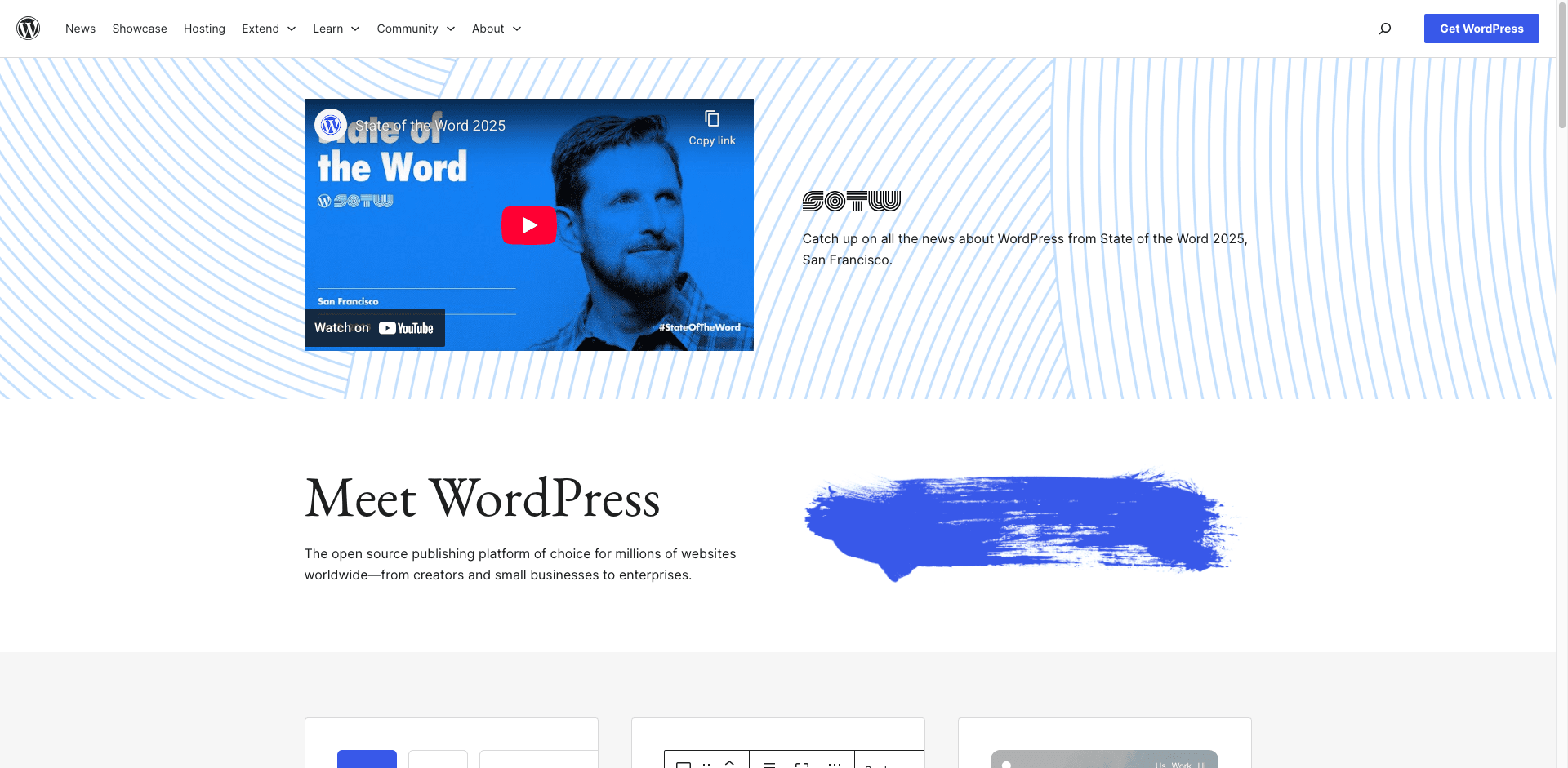
With Thunderbit, you can also use Subpage Scraping to visit each plugin or pattern detail page and enrich your dataset with deeper fields (ratings breakdown, version, last updated, tags, pattern categories, and more). If you’re new to scraping, these guides help: How to Scrape Any Website Using AI and What Is Data Scraping and How to Do It in 2025.
🗂️ What can you scrape with WordPress.org
WordPress.org is packed with structured-but-scattered information: plugin listings, plugin detail pages, pattern galleries, and pattern detail pages. Thunderbit’s AI reads the page layout and suggests columns that match what you need, then you can export the results to your workflow tools.
Below are two common scraping workflows.
📈 Scrape WordPress Plugin Market Share & Growth
From the WordPress popular plugins directory, you can scrape plugin performance signals and track growth over time—great for competitive research, partnership scouting, and product planning.
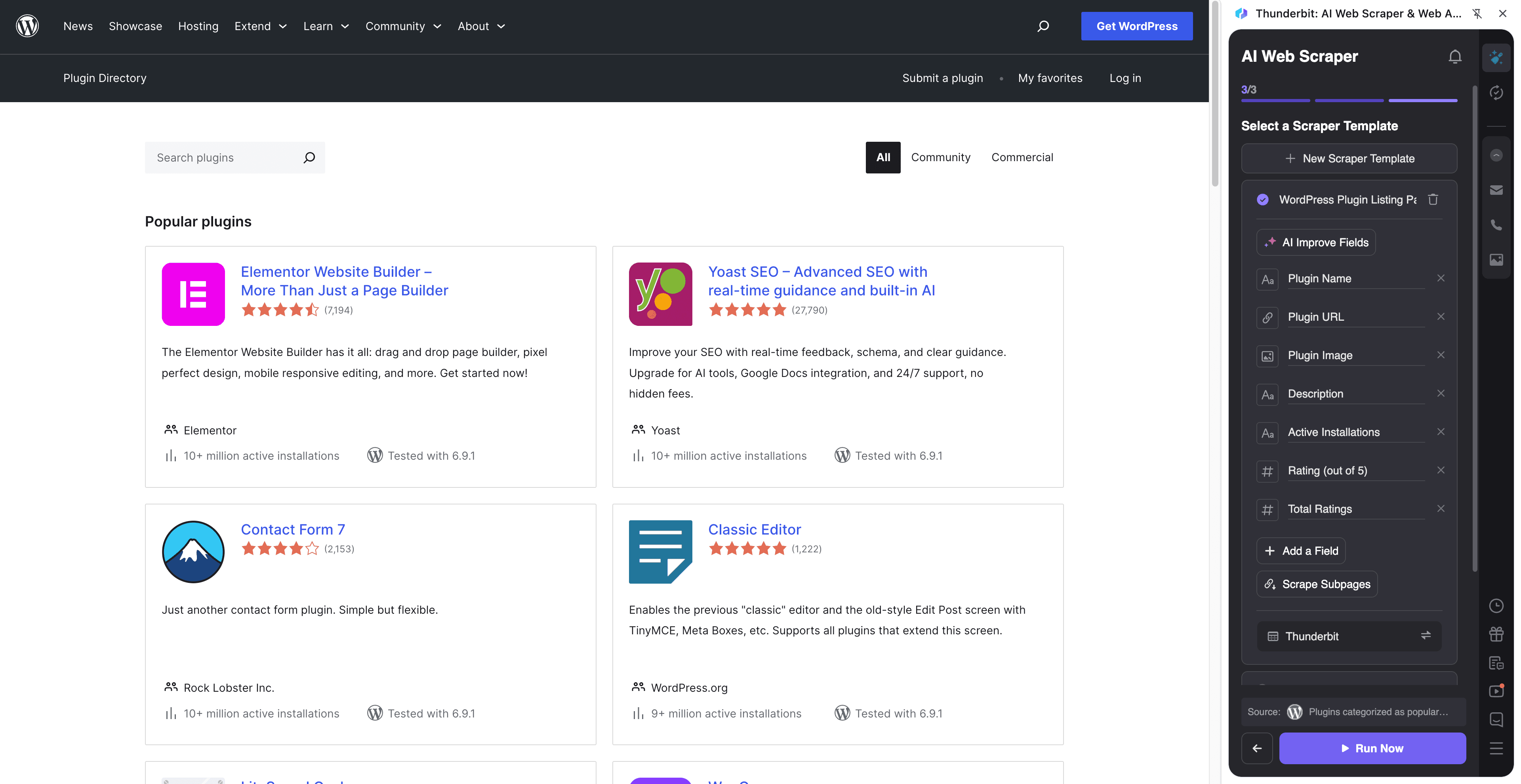
Steps:
- Download the Thunderbit Chrome Extension and register an account.
- Go to the destination page, for example: WordPress Popular Plugins.
- Click AI Suggest Columns, which recommends column names.
- Click Scrape to run the scraper, get data, and download the file.
Column names
| Column | Description |
|---|---|
| 🧩 Plugin Name | The plugin’s display name as shown in the directory listing. |
| 🔗 Plugin URL | The link to the plugin’s detail page (useful for subpage enrichment). |
| 🏷️ Slug | The plugin slug (often used in URLs and internal references). |
| ⭐ Rating | Average star rating shown on the listing. |
| 🗳️ Rating Count | Number of reviews/ratings contributing to the score. |
| ⬇️ Active Installs | Active installation count (a key adoption signal). |
| 🕒 Last Updated | The “Last updated” value shown for the plugin. |
| 🧑💻 Author | Plugin author or organization name. |
| 🧾 Short Description | The one-line summary from the listing card. |
| 🏷️ Tags | Tags/categories associated with the plugin (when available). |
| 🧠 WP Version Tested | Compatibility info such as “Tested up to” (often on subpages). |
| 🧱 Requires PHP / WP | Requirements fields (commonly found on the plugin detail page). |
| 🧾 Current Version | Latest version number (commonly found on the plugin detail page). |
Tip: After scraping the listing, use Scrape Subpages to enrich each row with detail-page fields like full description, changelog highlights, support stats, and compatibility. If you’re tracking changes weekly, pair this with Scheduled Scraper to build a time series.
🎨 Scrape WordPress Block Pattern Library Sourcing
From the WordPress Pattern Library, you can scrape pattern metadata for inspiration, content ops, theme research, or building internal design libraries.
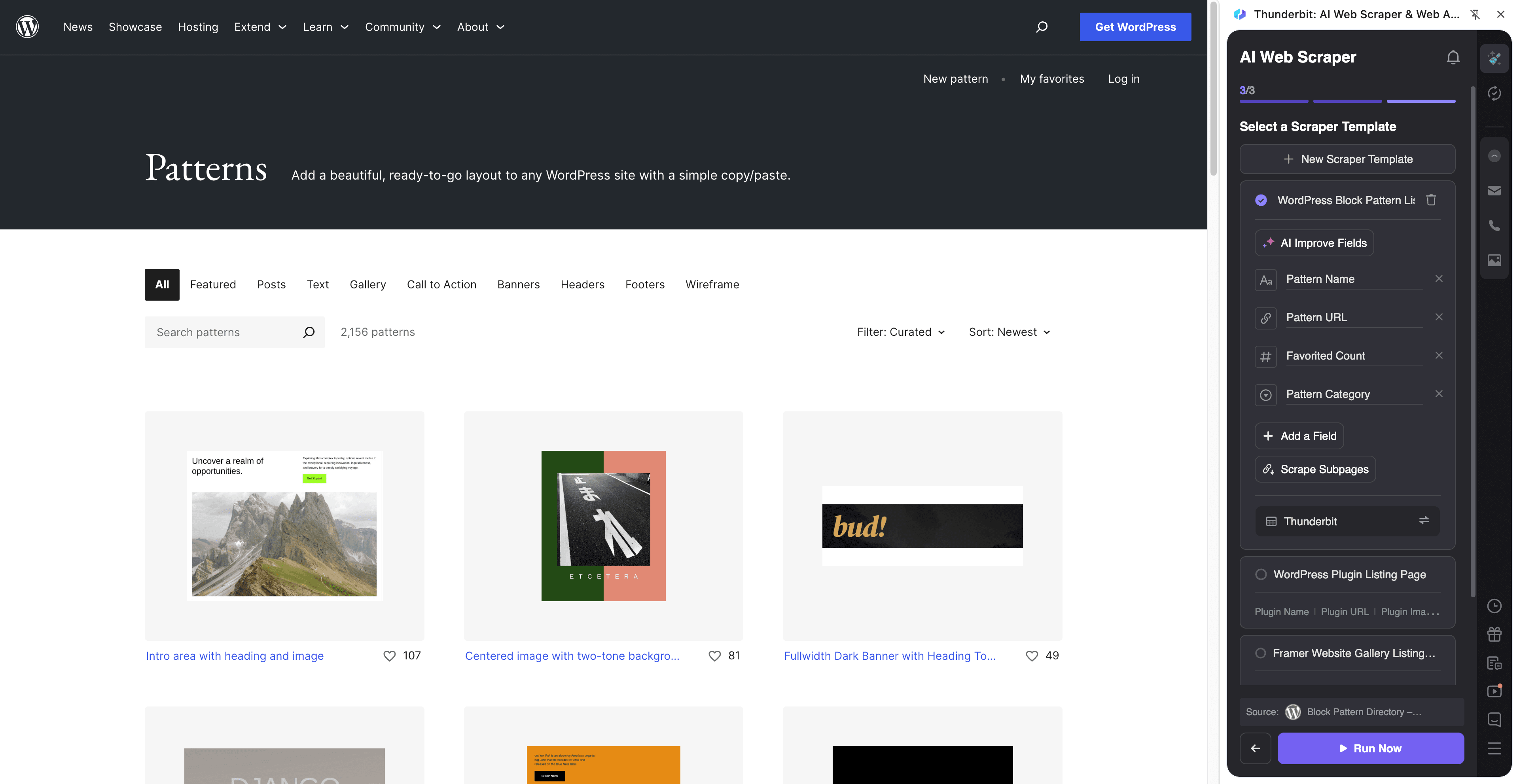
Steps:
- Download the Thunderbit Chrome Extension and register an account.
- Go to the destination page, for example: WordPress Patterns.
- Click AI Suggest Columns, which recommends column names.
- Click Scrape to run the scraper, get data, and download the file.
Column names
| Column | Description |
|---|---|
| 🧩 Pattern Name | The pattern title shown in the library. |
| 🔗 Pattern URL | Link to the pattern detail page for deeper metadata. |
| 🗂️ Category | Pattern category (e.g., headers, testimonials), when shown. |
| 🏷️ Tags | Tags associated with the pattern (often on subpages). |
| 🖼️ Preview Image | Pattern preview thumbnail image URL. |
| 🧱 Block Types | Block types used in the pattern (commonly on the detail page). |
| 🧑🎨 Creator / Source | Attribution or source info if available. |
| 📝 Description | Short description or summary text. |
| 📄 Pattern Content | The pattern markup/content (best captured from the detail page). |
| 🕒 Last Updated | Update timestamp if present on the pattern page. |
Tip: Export to Notion or Airtable to create a searchable internal pattern catalog. Thunderbit supports image fields so previews can stay visual in your database.
🎯 Why Use WordPress.org Tool
Scraping WordPress.org is useful when you need repeatable, structured data for analysis, monitoring, or sourcing—especially when manual copy/paste becomes a recurring task.
Common reasons teams scrape WordPress.org:
- Product & Growth teams: Track plugin adoption signals (active installs, ratings, update cadence) to understand category leaders and emerging tools.
- Ecommerce & agencies: Build shortlists of plugins for client stacks, compare alternatives, and document compatibility requirements.
- Marketing teams: Identify partnership targets (plugin authors/companies), build outreach lists, and monitor competitor positioning.
- Theme and design teams: Source block patterns, categorize them, and build a reusable library for faster page creation.
- Researchers & analysts: Create datasets for trend analysis across categories, tags, and update frequency.
Thunderbit is designed for business workflows: it handles pagination, supports subpage enrichment, and exports to the tools you already use. For more tactics, see What Is List Crawling and How to Do It Using AI and How to Scrape Website Data into Excel using AI.
🧭 How to Use WordPress.org Chrome Extension
- Install the Thunderbit Chrome Extension: Get it from the Chrome Web Store and create your account on Thunderbit.
- Navigate to a WordPress.org page: Open a listing like Popular Plugins or the Pattern Library.
- Activate AI-Powered Scraper: Click AI Suggest Columns to generate column names, adjust data types (text, number, date, URL, image), and add optional field instructions.
- Scrape and export: Click Scrape, then export to Excel/CSV/JSON, Google Sheets, Airtable, or Notion (exports are free).
If you want ongoing monitoring (like plugin install counts or rating changes), use Scheduled Scraper to run automatically on your preferred interval.
💳 Pricing for WordPress.org
Thunderbit uses a credit system where 1 credit = 1 output row. If you scrape 200 plugins from a listing, that’s about 200 credits (subpage enrichment may add more rows only if you create additional tables; enriching the same row typically still counts by output rows you generate).
What you can try for free:
- Free tier: scrape 6 pages per month (page-based free usage).
- Free trial: scrape 10 pages for free before choosing a paid plan.
- The AI-powered scraping experience (AI Suggest Columns + Scrape) is available so you can validate your workflow quickly.
Paid plans (monthly and yearly) scale with your volume, and the yearly plan is more cost effective due to the discount. See full details on Thunderbit Pricing.
| Tier | Monthly Price | Yearly Price (per month) | Yearly Total Price | Credits (Monthly) | Credits (Yearly) |
|---|---|---|---|---|---|
| Free | Free | Free | Free | 6 pages | N/A |
| Starter | $15 | $9 | $108 | 500 | 5,000 |
| Pro 1 | $38 | $16.5 | $199 | 3,000 | 30,000 |
| Pro 2 | $75 | $33.8 | $398 | 6,000 | 60,000 |
| Pro 3 | $125 | $68.4 | $796 | 10,000 | 120,000 |
| Pro 4 | $249 | $137.5 | $1,592 | 20,000 | 240,000 |
❓ FAQ
-
What is the AI Powered WordPress.org Scraper?
The AI Powered WordPress.org Scraper is a workflow in Thunderbit that uses AI to read WordPress.org pages and convert them into structured tables. You click AI Suggest Columns to generate fields, then click Scrape to collect plugin or pattern data you can export. -
What is Thunderbit?
Thunderbit is an AI web scraping and productivity Chrome Extension that helps you extract data from websites, PDFs, and images into structured formats. It’s built for business teams who want fast setup, reliable extraction, and easy exports to tools like Google Sheets, Airtable, and Notion. -
Can I scrape plugin detail pages, not just the listing page?
Yes. After scraping a plugin listing (like Popular), you can use Subpage Scraping to visit each plugin’s detail page and enrich your table with fields like version, requirements, last updated, and more. This is useful when the listing page doesn’t show everything you need. -
Does Thunderbit handle pagination on WordPress.org directories?
Yes. Thunderbit supports pagination scraping, including click-based pagination and infinite scroll patterns when they appear. This helps you collect more than what’s visible on the first page without manual navigation. -
What data can I export from WordPress.org scraping results?
You can export to CSV/JSON for local use, or send data directly to Excel, Google Sheets, Airtable, or Notion. Exports are designed for analysis and operations, so you can build dashboards, track changes, or create internal catalogs. -
How accurate is AI Suggest Columns for plugins and patterns?
AI Suggest Columns typically identifies the main fields on listing cards (names, URLs, ratings, installs, images) and proposes a usable schema in seconds. You can refine column names, set data types, and add field instructions if you want specific formatting (for example, extracting numbers only from “Active installs”). -
Can I monitor plugin growth over time automatically?
Yes. Use Scheduled Scraper to run the same plugin listing scrape on a schedule (daily, weekly, monthly) and export results to a spreadsheet for time-series tracking. This is a practical way to monitor install counts, rating changes, and update cadence. -
Is it okay to scrape WordPress.org?
WordPress.org contains public pages, and many teams collect public web data for research and operations. You should still review WordPress.org’s terms and follow applicable laws, respect rate limits, and avoid collecting sensitive data. -
What if WordPress.org changes its layout—will my scraper break?
Traditional scrapers often break when HTML structure changes, but Thunderbit’s AI reads the page context each run and can adapt to many layout updates. If a page changes significantly, you can re-run AI Suggest Columns to refresh the schema in a minute.
📚 Learn More
- Get started: Thunderbit Chrome Extension Download Page
- Explore guides: Thunderbit Blog
- Learn fundamentals: What Is Data Scraping and How to Do It in 2025
- Scrape lists at scale: What Is List Crawling and How to Do It Using AI
- Export workflows: How to Scrape Website Data into Excel using AI
- Broader tooling overview: The Best Web Scraping Tools & Software in 2025
- Pricing details: Thunderbit Pricing
- Tutorials and demos: Thunderbit YouTube Channel