
Web scraping has become the secret sauce for business teams who want to stay ahead—whether you’re in sales, operations, ecommerce, or real estate. The web is overflowing with data, but getting that data out—especially from dynamic, interactive sites—isn’t always a walk in the park. In fact, by 2025, web scraping is expected to power a global market worth nearly , and now rely on data analytics for decision-making. But here’s the catch: as websites get fancier—think infinite scroll, pop-ups, and JavaScript-loaded content—traditional scraping tools can hit a wall.
That’s where Selenium comes in. Selenium is like the Swiss Army knife for web scraping, letting you automate real browser actions and extract data from even the most stubborn, dynamic sites. If you’ve ever wished you could “just click through the site like a real user and grab the info,” Selenium is your new best friend. In this guide, I’ll walk you through everything you need to know to master web scraping with Selenium—no computer science degree required.
What is Web Scraping with Selenium? Your Friendly Introduction
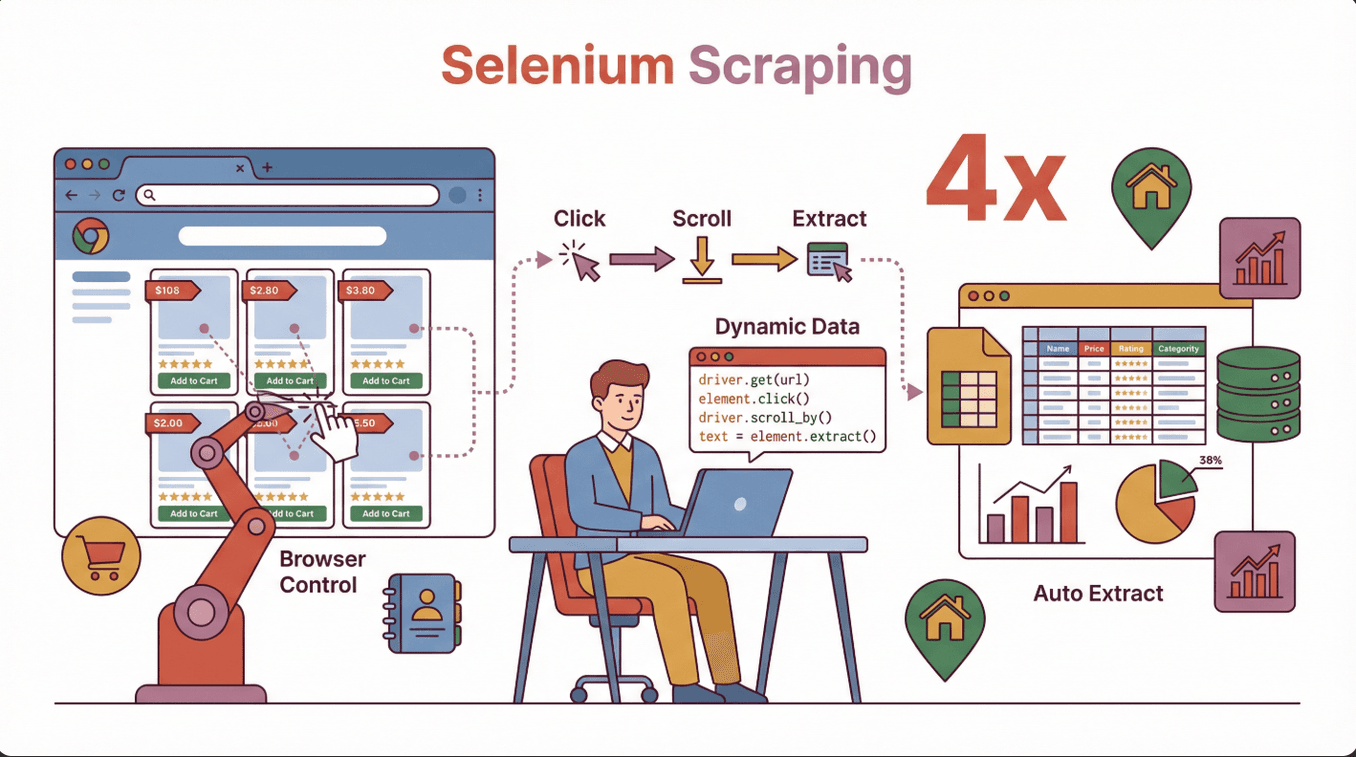 Let’s break it down: web scraping with Selenium means using the Selenium library to control a real web browser (like Chrome or Firefox) through code, mimicking human actions—clicking buttons, filling forms, scrolling, and more. Unlike traditional scrapers that only read static HTML, Selenium can interact with websites just like you do, making it perfect for grabbing data from pages that load content dynamically with JavaScript.
Business scenarios where Selenium shines:
- Ecommerce: Scraping product listings, prices, and reviews from sites that load data as you scroll.
- Sales & Lead Gen: Extracting contact info from directories that require login or multi-step navigation.
- Real Estate: Collecting property details from interactive maps or listings behind pop-ups.
- Market Research: Gathering competitor data from modern, app-like websites.
If you’ve ever tried to scrape a site and found your tool missing half the info, it’s probably because the data was loaded after the page first appeared—Selenium solves that by waiting, clicking, and interacting just like a real user ().
Why Choose Selenium for Web Scraping? Comparing Your Options
There are plenty of web scraping tools out there—BeautifulSoup, Scrapy, , and more. So, why pick Selenium? Here’s the scoop:
| Tool | Best For | Handles JavaScript? | Interactivity | Speed | Ease of Use |
|---|---|---|---|---|---|
| Selenium | Dynamic, interactive sites | Yes | Full | Slower | Moderate |
| BeautifulSoup | Simple, static HTML pages | No | None | Fast | Easy |
| Scrapy | Large-scale, static or semi-dynamic sites | Limited (w/plugins) | Limited | Very Fast | Moderate |
| Thunderbit | Quick, no-code extraction for business | Yes (AI-powered) | Limited | Fast | Very Easy |
Selenium’s strengths:
- Handles JavaScript-heavy sites, infinite scroll, and pop-ups.
- Can log in, click buttons, and fill forms—just like a human.
- Ideal for scraping data that only appears after user actions.
When to use Selenium:
- The data you need loads after the page appears (e.g., via JavaScript).
- You need to interact with the site (log in, click, scroll).
- The site uses complex layouts or Single Page Application (SPA) frameworks.
When to use something else:
- The site is static and simple—use BeautifulSoup or Scrapy for speed.
- You want a no-code, business-friendly tool—Thunderbit is perfect for quick jobs ().
Selenium Installation & Configuration: A No-Fuss Setup Guide
Getting started with Selenium can feel intimidating, but I promise it’s not rocket science. Here’s how to get up and running—without falling into the usual traps.
1. Install Python (if you haven’t already)
Most Selenium guides use Python, but it also works with Java, C#, and others. Download Python from .
2. Install Selenium via pip
Open your terminal or command prompt and run:
1pip install selenium()
3. Download the Browser Driver
Selenium needs a “driver” to control your browser. For Chrome, that’s ChromeDriver; for Firefox, it’s GeckoDriver.
- Find your browser version: Open Chrome, go to
chrome://settings/help. - Download the matching driver: Get .
- Extract and place the driver: Put the driver in a folder and add its path to your system’s PATH variable.
Pro tip: Driver version must match your browser version. Mismatches cause errors like chromedriver executable needs to be available in the path ().
4. Test Your Setup
Try this in Python:
1from selenium import webdriver
2driver = webdriver.Chrome()  # Or Firefox()
3driver.get("https://www.google.com")
4print(driver.title)
5driver.quit()
If the browser opens and prints the title, you’re good!
Common pitfalls:
- PATH not set correctly—double-check your environment variables.
- Driver/browser version mismatch—always update both together.
- Permissions—on Mac/Linux, you might need to
chmod +x chromedriver.
Your First Web Scraping with Selenium Script: Step-by-Step
Let’s write a simple script to scrape product names from a sample ecommerce page. Here’s how to do it, step by step:
1. Import Selenium and Set Up the Driver
1from selenium import webdriver
2from selenium.webdriver.common.by import By
3driver = webdriver.Chrome()
2. Open the Target Page
1driver.get("https://example-ecommerce.com/products")3. Wait for Content to Load (if needed)
For dynamic content, use an explicit wait:
1from selenium.webdriver.support.ui import WebDriverWait
2from selenium.webdriver.support import expected_conditions as EC
3wait = WebDriverWait(driver, 10)
4wait.until(EC.presence_of_element_located((By.CLASS_NAME, "product-title")))
4. Extract Data
1products = driver.find_elements(By.CLASS_NAME, "product-title")
2for product in products:
3    print(product.text)
5. Clean Up
1driver.quit()What’s happening here? Selenium opens the browser, waits for products to load, grabs all elements with the class product-title, and prints their text.
Practical Tips for Scraping Dynamic Content with Selenium
Dynamic sites are everywhere now—think infinite scroll, pop-ups, and content that appears only after clicking. Here’s how to handle them:
1. Waiting for Elements
Websites don’t always load instantly. Use explicit waits to pause until the data appears:
1wait.until(EC.presence_of_element_located((By.ID, "dynamic-content")))2. Scrolling to Load More
For infinite scroll pages:
1driver.execute_script("window.scrollTo(0, document.body.scrollHeight);")Repeat as needed to load more data.
3. Handling Pop-ups
Find and close pop-ups:
1try:
2    close_button = driver.find_element(By.CLASS_NAME, "close-popup")
3    close_button.click()
4except:
5    pass  # No pop-up found
4. Interacting with Forms and Buttons
Fill out search forms or click “next” buttons:
1search_box = driver.find_element(By.NAME, "search")
2search_box.send_keys("laptop")
3search_box.submit()
Real-world example: Scraping real estate listings that load as you scroll, or grabbing product reviews that only appear after clicking a tab.
Avoiding Common Pitfalls: Troubleshooting Selenium Web Scraping
Even seasoned scrapers run into issues. Here are the most common headaches—and how to fix them:
| Problem | Solution |
|---|---|
| Element not found | Use waits, check selectors, or try different locator strategies |
| Timeout errors | Increase wait time, check for slow-loading content |
| CAPTCHA or bot detection | Slow down requests, randomize actions, or use proxies |
| Driver/browser mismatch | Update both to the latest compatible versions |
| Website layout changes | Regularly update your selectors and test scripts |
| Slow performance | Minimize browser actions, use headless mode if possible |
Pro tip: Selenium is slower than other tools because it mimics real user actions (). For large jobs, consider alternatives or split your workload.
Exporting and Using Your Scraped Data
Once you’ve got your data, you’ll want to save it for business use. Here’s a quick workflow:
1. Store Data in a List or DataFrame
1import pandas as pd
2data = []
3for product in products:
4    data.append({"name": product.text})
5df = pd.DataFrame(data)
2. Export to CSV or Excel
1df.to_csv("products.csv", index=False)
2# Or
3df.to_excel("products.xlsx", index=False)()
3. Integrate with Business Tools
- Import your CSV into Google Sheets or Airtable.
- Use Zapier or APIs to automate data flows.
Tip: Clean up inconsistent formats and missing values before importing ().
Selenium and Thunderbit: The Perfect Duo for Complex Data Extraction
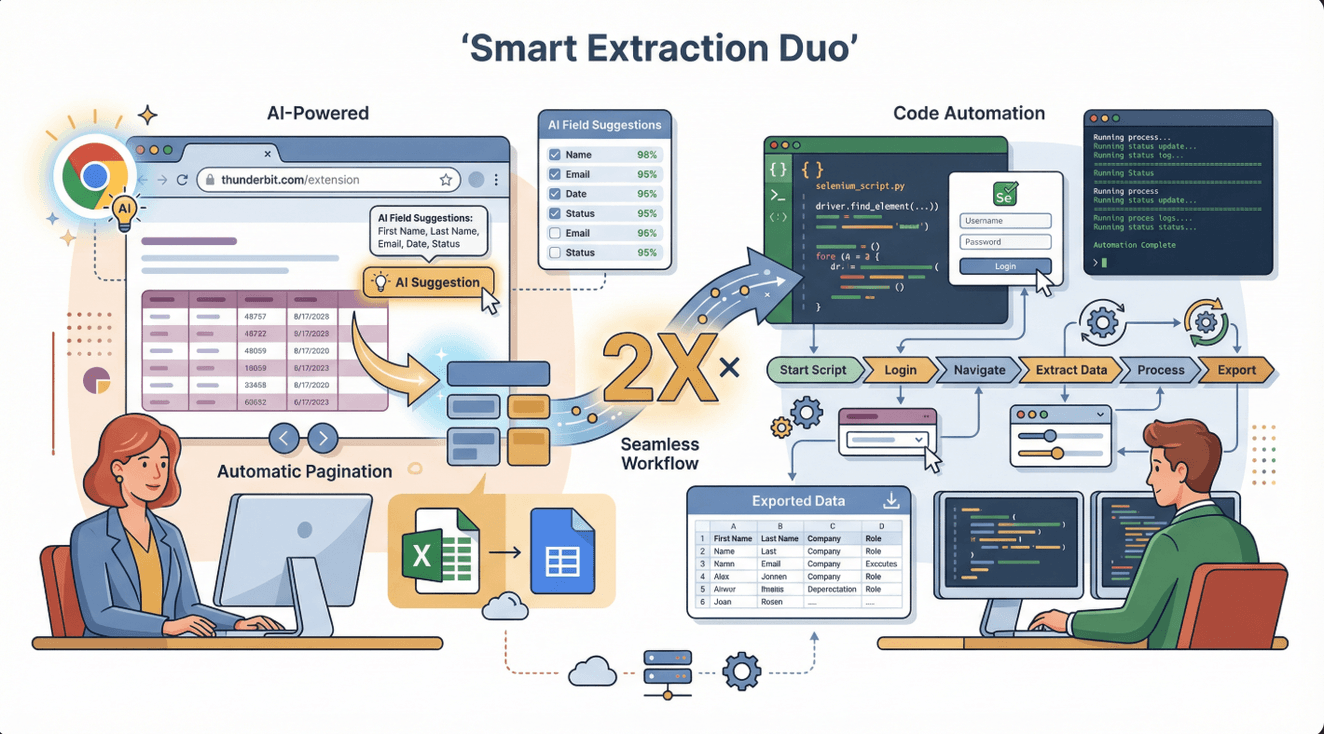 Let’s be real—Selenium is powerful, but it’s not always the fastest or easiest tool for every job. That’s where comes in. Thunderbit is an AI-powered web scraper Chrome Extension that lets you extract data from most websites in just a couple of clicks—no coding, no setup, no headaches.
How do they work together?
- Use Thunderbit for quick, structured data extraction from tables, lists, or simple pages. It’s perfect for sales, ecommerce, or research teams who want results fast.
- Use Selenium when you need to automate complex interactions—logging in, clicking through multi-step flows, or scraping data that only appears after user actions.
Pro workflow: Start with Thunderbit for the easy stuff. If you hit a wall (like a login or interactive content), switch to Selenium for that part. You can even export Thunderbit data and feed it into your Selenium scripts for more advanced processing.
Thunderbit’s strengths:
- AI-powered field suggestions—just click “AI Suggest Fields” and let it do the work.
- Handles pagination, subpages, and exports directly to Excel, Google Sheets, Notion, or Airtable.
- No maintenance—AI adapts to website changes automatically ().
Staying Compliant: Legal and Ethical Web Scraping with Selenium
Web scraping is a powerful tool, but it comes with responsibilities. Here’s how to stay on the right side of the law and avoid headaches:
1. Check the Website’s Terms of Service
Always review the site’s terms before scraping. Some sites explicitly forbid scraping; others allow it for personal use ().
2. Respect robots.txt
The robots.txt file tells you what’s allowed to be crawled or scraped. Find it at https://website.com/robots.txt ().
3. Avoid Sensitive or Personal Data
Don’t scrape health, financial, or private info—this can lead to lawsuits or worse ().
4. Be Polite: Rate Limits and Identification
Don’t overload servers—add delays between requests and identify your scraper if possible.
5. Prefer Official APIs When Available
If a site offers a public API, use it—it’s the safest and most reliable option.
Checklist for compliant scraping:
- [ ] Read and follow the site’s terms and robots.txt.
- [ ] Scrape only public, non-sensitive data.
- [ ] Limit request rates and avoid disrupting the site.
- [ ] Attribute data sources if required.
- [ ] Stay up to date on local laws and regulations ().
Scaling Up: When to Move Beyond Selenium
Selenium is fantastic for small to medium jobs, but it has its limits:
Limitations:
- Slower than other tools (because it runs a real browser).
- Resource-intensive—running many browsers at once can bog down your machine.
- Not ideal for scraping thousands of pages quickly.
When to upgrade:
- You need to scrape at scale (thousands or millions of pages).
- You want to automate scraping in the cloud or on a schedule.
- You need advanced features like proxy rotation, retries, or distributed scraping.
Alternatives:
- Thunderbit: For business users who want fast, no-code scraping with AI ().
- Scrapy: For developers building large-scale, distributed scrapers ().
- Managed APIs: Services like ScraperAPI or Apify for hands-off, scalable scraping ().
| Tool | Best For | Pros | Cons |
|---|---|---|---|
| Selenium | Complex, interactive | Handles any site, full control | Slow, resource-heavy |
| Thunderbit | Quick, business users | No code, AI, easy export | Less control for advanced |
| Scrapy | Large-scale, dev teams | Fast, scalable, customizable | Coding required, less interactivity |
| Managed APIs | Enterprise, automation | Scalable, hands-off | Cost, less flexibility |
Conclusion & Key Takeaways
Web scraping with Selenium is a superpower for anyone who needs data from dynamic, interactive websites. It’s the go-to tool when you need to mimic real user actions—clicking, scrolling, logging in, and more. Here’s what to remember:
- Selenium is best for: Dynamic sites, JavaScript content, and interactive workflows.
- Installation tips: Match your browser and driver versions, set PATH correctly, and use waits for dynamic content.
- Combine with Thunderbit: Use Thunderbit for fast, no-code scraping; switch to Selenium for complex flows.
- Stay compliant: Always check terms, robots.txt, and avoid sensitive data.
- Scale smart: For huge jobs, consider managed APIs or cloud-based tools.
If you’re just starting out, try building a simple Selenium script to scrape product names or prices. Then, experiment with Thunderbit for your next business data project—it’s free to try and can save you hours of manual work ().
Want to go deeper? Check out the for more web scraping guides, or subscribe to our for step-by-step tutorials.
FAQs
1. What makes Selenium different from other web scraping tools?
Selenium controls a real browser, allowing it to interact with dynamic, JavaScript-heavy sites—something traditional scrapers like BeautifulSoup can’t do. It’s ideal for sites that require user actions like clicking or logging in.
2. What are the most common mistakes when setting up Selenium?
The biggest issues are mismatched browser and driver versions, not adding the driver to your PATH, and not using waits for dynamic content. Always double-check versions and use explicit waits.
3. Can I use Selenium and Thunderbit together?
Absolutely. Thunderbit is great for quick, no-code scraping, while Selenium handles complex, interactive flows. Many teams use Thunderbit for simple data and Selenium for advanced tasks.
4. Is web scraping with Selenium legal?
Web scraping is legal when you follow the site’s terms, respect robots.txt, avoid sensitive data, and don’t overload servers. Always check local laws and use scraping responsibly.
5. When should I move beyond Selenium for web scraping?
If you need to scrape thousands of pages quickly or automate scraping in the cloud, consider tools like Thunderbit, Scrapy, or managed APIs. Selenium is best for small to medium, interactive jobs.
Ready to master web scraping? Give Selenium a try for your next project—and don’t forget to check out for the fastest way to extract business data from the web.
Learn More