
Let’s face it: nobody dreams of spending their afternoon copying and pasting data from websites into Excel. Yet, for sales teams, ecommerce managers, and operations folks, this is still a daily grind. I’ve seen firsthand how much time gets lost to this “copy-paste treadmill”—and the stats back it up. The average office worker performs over , wasting . That’s not just boring—it’s expensive, error-prone, and a huge missed opportunity for smarter, faster business.
So, what if you could go from “I need this website’s data in Excel” to “Here’s my spreadsheet, ready to analyze” in just a couple of clicks? In this guide, I’ll break down exactly how to scrape data from a website into Excel—covering both traditional methods and the latest AI-powered solutions like . Whether you’re a non-technical user or a seasoned pro, you’ll find practical steps, real-world examples, and a few time-saving tricks I wish I’d known years ago.
What Does It Mean to Scrape Data from Website into Excel?
At its core, “scraping data from website into Excel” means automatically pulling information from web pages and organizing it into rows and columns in an Excel sheet. Think of it as hiring a robot assistant who reads the web for you and fills out your spreadsheet—no more manual copying, no more missed details.
There are two main approaches:
- Manual Data Collection: You visit a website, highlight the info you need, copy it, and paste it into Excel. It’s simple, but painfully slow and easy to mess up—especially with lots of pages or hidden data.
- Automated Web Scraping: You use a tool or script that reads the website, grabs the data, and outputs it directly into Excel or a CSV file. This is faster, more accurate, and scales to hundreds or thousands of records.
Some key terms you’ll see:
- Extract website data to Excel: The process of pulling info from web pages into a spreadsheet.
- Web scraping to Excel sheet: Using software to automate the extraction and formatting of web data for Excel.
A common misconception is that web scraping is always technical or risky. In reality, modern tools (especially AI-powered ones) make it easy and legal—as long as you’re scraping public data and respecting the site’s terms.
Why Extract Website Data to Excel Matters for Business Users
 Why do so many teams want to extract website data to Excel? Because structured, up-to-date data is the backbone of smart business decisions. Here are some real-world scenarios where web scraping to Excel sheet pays off:
| Team | Web Scraping Use Case | Benefit of Automation |
|---|---|---|
| Sales | Lead generation from directories or LinkedIn, CRM enrichment, competitor monitoring | Build bigger, fresher lists in minutes; up-to-date insights for outreach; more time selling, less data entry |
| Ecommerce | Price monitoring, catalog aggregation, review analysis | Real-time price intelligence; centralize product data; richer marketing and product feedback |
| Operations | Vendor tracking, market intelligence, data migration from legacy systems | Centralized dashboards; save weeks of manual compilation; faster digital transformation |
Automating this process isn’t just about convenience—it’s about ROI. For example, scraping 50 product listings by hand can take , while an automated tool can do it in under 10 minutes. Multiply that across your team, and you’re looking at thousands of dollars and hundreds of hours saved each year.
Other benefits include:
- Fewer errors: Manual entry has a 1–4% error rate—automation copies exactly what’s on the site.
- Always fresh data: Automated scraping can run on a schedule, so your Excel is always up to date.
- Scalability: Need 10x more data? Automation handles it with almost no extra effort.
- Happier teams: say automating repetitive tasks would let them use their skills better.
Overview of Solutions: From Manual to AI-Powered Web Scraping to Excel Sheet
Let’s run through the main ways people get website data into Excel, from old-school to cutting-edge:
| Method | Ease of Use & Setup | Capabilities & Limitations | Maintenance Needs |
|---|---|---|---|
| Manual Copy-Paste | Anyone can do it; no setup | Slow, error-prone, only works for small jobs; misses hidden or multi-page data | Ongoing manual effort |
| Excel “From Web” (Power Query) | Built-in for Windows Excel; point-and-click | Good for simple, static tables; struggles with dynamic or complex sites; limited control | Moderate; breaks if site layout changes |
| Excel VBA or Scripts | Powerful, but needs coding skills | Handles complex logic, but technical and time-consuming; not for beginners | High; must update code if site changes |
| No-Code Scraping Tools | Visual setup, some learning curve | Can extract from many sites, but user must define selectors; templates break if site changes | Needs periodic adjustments |
| AI-Powered Scraper (Thunderbit) | Easiest; 2-click process, no coding | Handles dynamic content, subpages, pagination, multiple data types; adapts to site changes automatically | Low; just re-run AI if site changes |
Manual and basic Excel methods are fine for tiny, one-off jobs. But for anything bigger or recurring, automated tools—especially AI-powered ones—are the way to go. That’s where comes in.
Using Natural Language to Scrape Data from Website into Excel
One of the coolest breakthroughs in web scraping is the ability to use natural language. With Thunderbit, you don’t need to fiddle with code or complicated settings. You just describe what you want—like “Get all product names and prices”—and the AI figures out how to extract it.
This is a game-changer for non-technical users. Instead of mapping fields or inspecting HTML, you’re talking to the tool like you would to a colleague. Thunderbit’s “AI Suggest Fields” button does this automatically: it reads the page, understands the context, and proposes the right columns for your Excel sheet.
Want to get fancy? You can even add custom AI prompts for specific fields—like “extract the phone number and format it as E.164” or “categorize this review as positive or negative.” The AI handles the logic, so you get clean, structured data every time.
Two-Step Web Scraping: AI Suggest Fields and Scrape
Thunderbit simplifies web scraping into just two main steps:
- AI Suggest Fields: Open the website you want to scrape, click the Thunderbit extension, and hit “AI Suggest Fields.” The AI scans the page and instantly suggests columns—like “Product Name,” “Price,” “Rating,” etc.—with the right data types.
- Scrape: Review the suggested fields (tweak or rename if you want), then click “Scrape.” Thunderbit extracts the data and shows you a preview table.
That’s it! No coding, no manual mapping, no trial and error. I’ve seen users go from “I have no idea how to get this data” to “I have a full Excel sheet” in under five minutes.
This two-step process also reduces errors. The AI catches fields you might miss and adapts if the website changes. It’s like having a super-smart assistant who never gets tired or distracted.
Thunderbit and Excel: Direct Data Export and Smart Data Handling
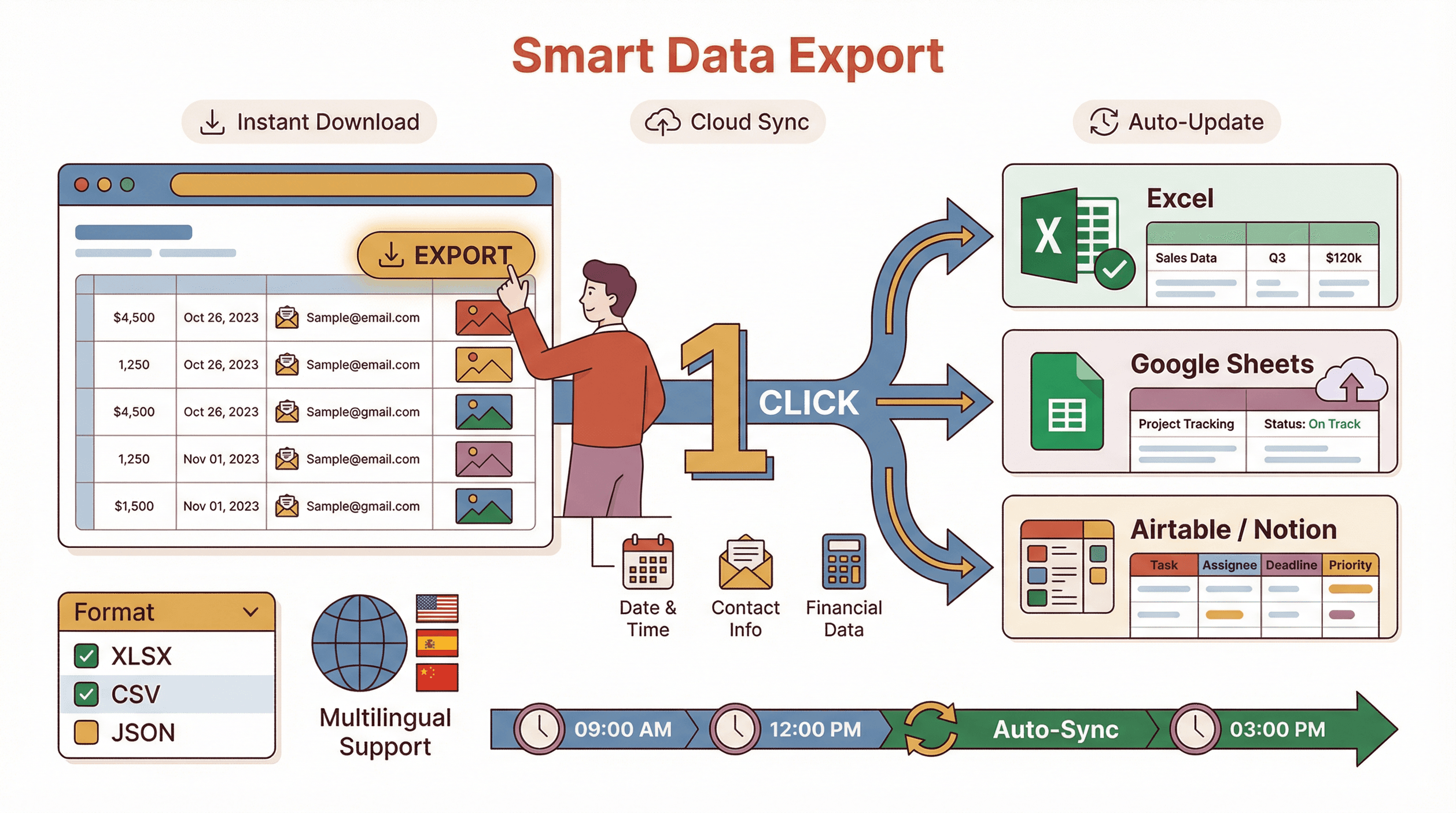 Once you’ve scraped your data, Thunderbit makes it a breeze to get it into Excel. You can:
- Export as Excel (XLSX) or CSV: One click downloads your data in a ready-to-use format.
- Send directly to Google Sheets, Airtable, or Notion: Perfect for teams that work in the cloud.
- Smart formatting: Thunderbit recognizes data types—numbers, dates, emails, images—so your Excel columns are clean and analysis-ready.
- No export limits: Even on the free tier, you can export as much as you scrape.
Thunderbit also supports multiple languages, so you can scrape and export data from non-English sites without a hitch.
Need to keep your data fresh? Just re-run the scrape or set up a schedule. Thunderbit can automatically update your Excel or Google Sheet at regular intervals, so you’re always working with the latest info.
Handling Complex Websites: Subpage and Pagination Scraping for Excel
Websites aren’t always simple lists. Sometimes, data is spread across multiple pages (pagination) or hidden in detail pages (subpages). Thunderbit’s AI is built to handle these scenarios:
- Automatic Pagination: Thunderbit detects “Next” buttons, infinite scroll, or “Load more” links and clicks through all pages, combining the results into one Excel sheet.
- Subpage Scraping: Need more details? Thunderbit can visit each item’s detail page (like a product or profile) and pull extra info—then append it to your main table.
For example, if you’re scraping real estate listings, Thunderbit can grab the address and price from the main page, then dive into each listing for square footage, year built, or agent contact info. All this lands in your Excel sheet, perfectly aligned.
This is a huge time-saver compared to manual methods, which would have you clicking and copying from dozens (or hundreds) of pages.
AI-Enhanced Table Generation: From Messy Web Data to Clean Excel Sheets
Web data is often messy—irregular layouts, missing fields, or unstructured text. Thunderbit’s AI shines here. It interprets context, groups related info, and outputs a standardized, analysis-ready table.
For example:
- Before: You copy a block of text into Excel, then spend hours splitting it into columns.
- After (with Thunderbit): The AI extracts “Job Title,” “Location,” “Salary,” etc., into separate columns—no manual cleanup needed.
Thunderbit can also apply real-time data cleaning—like formatting dates, stripping currency symbols, or categorizing text—so your Excel sheet is ready for pivot tables, charts, or upload to your CRM.
If the website changes, just re-run “AI Suggest Fields” and Thunderbit adapts. No more broken scripts or hours spent fixing templates.
Step-by-Step Guide: Scrape Data from Website into Excel with Thunderbit
Ready to try it yourself? Here’s how to go from website to Excel in minutes:
Step 1: Install Thunderbit Chrome Extension
- Download from the or .
- Sign up or log in (the free plan lets you scrape up to 6 pages, or 10 with a trial).
Step 2: Open Your Target Website
- Navigate to the page with the data you want (e.g., product listings, contact directory, real estate listings).
Step 3: Launch Thunderbit and Use “AI Suggest Fields”
- Click the Thunderbit icon in your browser.
- Hit “AI Suggest Fields.” The AI scans the page and proposes columns (with sample values).
Step 4: Review and Adjust Fields
- Rename, remove, or add columns as needed.
- For advanced needs, add a custom AI prompt to a field (e.g., “extract only the phone number”).
Step 5: Click “Scrape”
- Thunderbit extracts the data, handling pagination or subpages automatically.
- Preview the results in a table.
Step 6: Export to Excel
- Click “Export,” choose Excel (XLSX or CSV), and download your file.
- Open in Excel—your data is ready to use.
Step 7: (Optional) Schedule or Repeat
- Save your configuration for future use.
- Set up a scheduled scrape for automatic updates (great for price monitoring or lead lists).
Tips:
- For login-required sites, use Thunderbit’s Browser Mode.
- If data is missing, try scrolling the page or clicking “Show more” before scraping.
- If the site layout changes, just re-run “AI Suggest Fields.”
For more details and visuals, check out the or our .
Comparing Thunderbit with Traditional Web Scraping to Excel Methods
Let’s recap how Thunderbit stacks up against other approaches:
| Feature | Manual Copy-Paste | Excel Web Query | VBA/Scripts | No-Code Tools | Thunderbit (AI) |
|---|---|---|---|---|---|
| Ease of Use | Easiest | Easy (simple) | Hard | Medium | Easiest (2 clicks) |
| Speed | Slowest | Medium | Fast (after setup) | Fast | Fastest (minutes) |
| Handles Pagination | No | Limited | Yes | Yes | Yes (auto) |
| Handles Subpages | No | No | Yes | Sometimes | Yes (auto) |
| Data Cleaning | Manual | Limited | Manual | Some | AI-powered, built-in |
| Maintenance | High | Medium | High | Medium | Low (AI adapts) |
| Best For | Tiny, one-off | Simple tables | Coders | Power users | Everyone, non-coders |
Thunderbit is ideal for anyone who wants to scrape data from website into Excel—without the hassle of coding, templates, or constant maintenance. Traditional methods still have their place for very simple or highly custom jobs, but for most business users, AI-powered scraping is a huge leap forward.
Conclusion: Key Takeaways for Web Scraping to Excel Sheet
If you’re still copying and pasting data into Excel, it’s time to reclaim your hours (and your sanity). AI-powered tools like make it possible for anyone—yes, even the “I’m not technical” crowd—to extract website data to Excel in just a couple of clicks.
Here’s what I’ve learned (and what our users keep telling us):
- You’ll save hours every week—and get fresher, more accurate data.
- No coding or templates required. Just describe what you want, click, and export.
- Complex sites? No problem. Thunderbit handles pagination, subpages, and messy layouts automatically.
- Your Excel sheets will be cleaner and more actionable—ready for analysis, reporting, or sharing.
- You can finally focus on what matters: selling, analyzing, and making decisions—not wrangling data.
Ready to see the difference for yourself? , try it on your next data project, and let the AI do the heavy lifting. And if you want more tips or inspiration, check out the for guides, case studies, and advanced scraping tricks.
Happy scraping—and may your spreadsheets always be full, accurate, and ready for action.
FAQs
1. Is it legal to scrape data from websites into Excel?
Yes, as long as you’re scraping publicly available data and respecting the website’s terms of service. U.S. courts have upheld that scraping public web data is generally lawful.
2. Do I need to know how to code to use Thunderbit for web scraping to Excel?
No coding required! Thunderbit is designed for non-technical users—just describe what you want, click “AI Suggest Fields,” and go.
3. Can Thunderbit handle websites with multiple pages or hidden details?
Absolutely. Thunderbit’s AI automatically detects and scrapes through pagination (“Next” buttons, infinite scroll) and can visit subpages for extra details.
4. How do I keep my Excel data up to date with website changes?
You can re-run your scrape anytime, or use Thunderbit’s scheduling feature to automate updates. Export to Excel, Google Sheets, or other platforms as needed.
5. What if the website’s layout changes or adds new fields?
Just re-run “AI Suggest Fields” in Thunderbit. The AI adapts to new layouts, so you don’t have to rebuild your scraping logic from scratch.
For more how-to guides and expert tips, visit the or subscribe to our .
Learn More