
If you’ve ever tried to gather product prices, competitor reviews, or a list of leads from the web, you know the drill: click, copy, paste, repeat—until your coffee runs out or your patience does. The truth is, web data extraction has quietly become the secret weapon for sales, operations, and marketing teams everywhere. It’s not just about saving time (though, believe me, it does). It’s about unlocking insights, automating the grunt work, and making smarter decisions—faster than your competitors.
I’ve seen firsthand how a well-tuned web data extraction workflow can turn a week’s worth of manual research into a five-minute task. Whether you’re a complete beginner or looking to level up your scraping game, this tutorial will walk you through the fundamentals, the pitfalls, and the practical steps—using both classic methods and AI-powered tools like . Let’s dive in and turn the web into your personal data goldmine.
What Is Web Data Extraction? The Basics Explained
At its core, web data extraction (sometimes called web scraping) is the process of automatically collecting information from websites and turning it into a structured format—like a spreadsheet or a database—for analysis or business use. Instead of spending hours copying and pasting, a web scraper acts like a digital research assistant: it browses web pages, finds the specific data you need (think: prices, product names, emails, reviews), and neatly organizes it for you ().
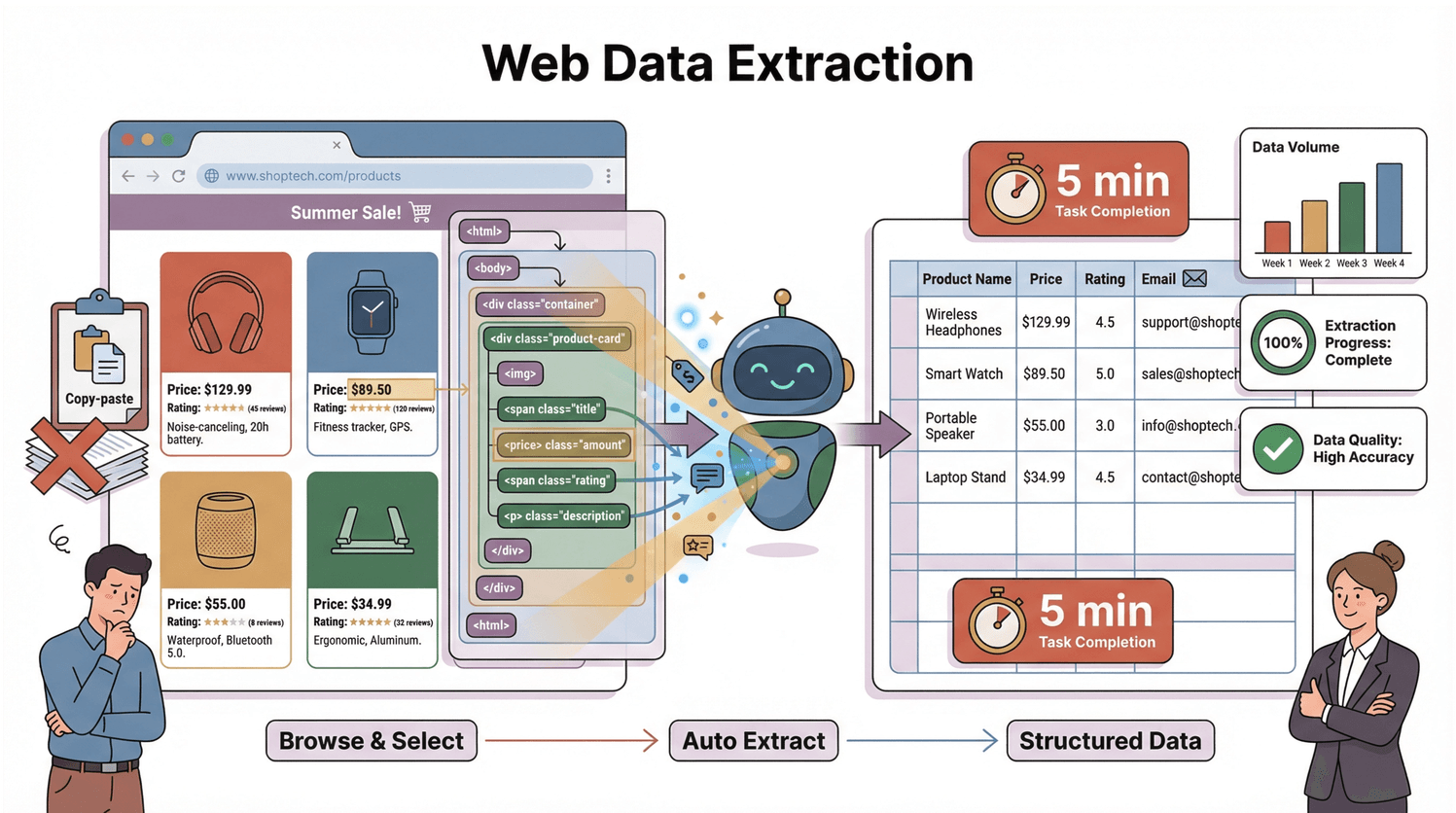
But how does it actually work? Every web page is built on a structure called the DOM (Document Object Model)—think of it as the blueprint that tells your browser (and any scraper) where every piece of content lives. A scraper reads this blueprint, pinpoints the elements you care about, and extracts them into rows and columns. It’s like having a super-organized assistant who never gets tired or distracted by cat videos.
Why Web Data Extraction Matters for Sales and Operations
Let’s get real: web data extraction isn’t just a nerdy hobby—it’s a business superpower. Here’s why teams across sales, ops, and marketing are jumping on board:
| Use Case | Business Benefit | Real-World Impact |
|---|---|---|
| Lead Generation | Fill your pipeline with qualified leads, fast | 70% ROI in 6 months; 40% more high-quality leads; hundreds of hours saved (Grepsr) |
| Price Monitoring | Dynamic pricing, margin protection | 65% ROI in half a year; 12% sales boost; 75% less manual work (Grepsr) |
| Competitor Benchmarking | Real-time market intelligence | 55% ROI for airlines; 68% ROI for e-commerce trend tracking (Grepsr) |
| Operational Monitoring | Prevent stockouts, optimize supply chain | 62% ROI for global retailer; no more surprise inventory shortages (Grepsr) |

And it’s not just about ROI. Automating web data collection means your team can focus on strategy, not spreadsheets. In fact, some companies have cut data collection costs by 40% (), and the global web scraping market is projected to explode from $5 billion in 2023 to over $140 billion by 2032 (). That’s a lot of data—and a lot of opportunity.
How Web Data Extraction Works: From DOM to Data Table
Let’s break down what’s happening under the hood (without making your eyes glaze over):
- Request: The scraper sends a request to the website and grabs the raw HTML content.
- Parse: It reads the page’s DOM—the tree-like structure that organizes every element on the page.
- Extract: It pinpoints the data you want (like prices, names, emails) and pulls them into a structured table (CSV, Excel, Google Sheets, etc.) ().
Understanding the DOM: The Foundation of Web Data Extraction
Think of the DOM as the family tree of a web page. At the top, you have the document, which branches into the <html>, then <head> and <body>, and so on—down to every <div>, <span>, and bit of text (). Each node in this tree is an element you can target.
For example, to grab a product’s price, the scraper might look for a <span class="price"> buried inside a <div> inside the <body>. It’s like telling your assistant, “Go to the kitchen, open the fridge, find the milk.” The DOM is the map; your scraper is the explorer.
But here’s the twist: modern websites often use JavaScript to load content dynamically. That means the data you want might not even exist in the initial HTML—it only appears after the page finishes loading and scripts run. So, your scraper needs to see the rendered DOM, not just the raw HTML (). This is where many classic scrapers stumble (and where modern tools shine).
Common Pitfalls in Web Data Extraction (and How to Avoid Them)
Web scraping isn’t always a walk in the park. Here are the most common traps—and how to sidestep them:
- Dynamic Content & Infinite Scroll: Many sites load data on the fly or require scrolling to reveal more items. If your scraper only grabs the initial HTML, you’ll miss out. Solution: Use tools that can render JavaScript or simulate scrolling (Thunderbit does this automatically) ().
- Pagination & Subpages: Data spread across multiple pages or hidden in detail pages? Make sure your tool can follow “Next” buttons and click into subpages. Thunderbit’s “Scrape Subpages” feature is a lifesaver here ().
- Website Structure Changes: A tiny tweak in a site’s layout can break old-school scrapers. AI-powered tools like Thunderbit adapt automatically, so you’re not constantly fixing broken scripts ().
- Anti-Scraping Measures: CAPTCHAs, IP blocks, and rate limits can stop you cold. Always scrape politely (slow down, randomize requests), use browser-based tools to mimic real users, and respect site terms ().
- Messy or Inconsistent Data: Not all sites are well-structured. Sometimes, you’ll need to use AI prompts or custom rules to extract the right info (Thunderbit’s Field AI Prompt is great for this).
Dealing with Dynamic Pages and JavaScript Rendering
Some pages don’t show all their data right away—they use JavaScript to load more as you scroll or click. Classic scrapers miss this, but browser extensions (like Thunderbit) see what you see and can grab everything, even from infinite scrolls or pop-ups ().
Navigating Anti-Scraping Measures
If you’re getting blocked or seeing CAPTCHAs, slow down your requests, rotate your IPs, and use browser-based tools that look like real users. And always, always check the site’s terms and robots.txt ().
Comparing Web Data Extraction Tools: Thunderbit vs. Traditional Solutions
There are plenty of ways to scrape data—some more painful than others. Here’s how the main approaches stack up:
| Solution | Setup Time | Skills Needed | Maintenance | Features & Export Options |
|---|---|---|---|---|
| Manual Copy-Paste | None | None | Ongoing manual | No automation; error-prone |
| Custom Code (Python, etc.) | Hours–Days | Coding + HTML | High | Flexible; export anywhere; high learning curve |
| Traditional No-Code Tools | ~1 hour/site | Some technical savvy | Medium | Visual setup; supports pagination; moderate learning curve |
| Thunderbit (AI No-Code) | Minutes | None (plain English) | Low (AI adapts) | AI field detection; subpages; scheduling; export to Sheets/Excel/Notion |
Thunderbit stands out for business users because it’s designed for simplicity. You don’t need to know a lick of code—just describe what you want, and the AI does the rest ().
Why Thunderbit Stands Out for Business Users
- Two-Click Simplicity: “AI Suggest Fields,” then “Scrape.” That’s it.
- AI Field Recognition: The AI reads the page and suggests the best columns—no guesswork.
- No-Code, Natural Language: Just type what you want (“Get all product names and prices”), and Thunderbit figures it out.
- Subpage & Pagination Automation: Scrape all pages and detail links with a click.
- Quick Export: Send data straight to Excel, Google Sheets, Notion, or Airtable—no extra fees.
- Cloud or Browser Mode: Scrape in the cloud for speed, or in your browser for logged-in pages.
Thunderbit is built for the real world—where websites change, data is messy, and business users need results, not headaches.
Step-by-Step Web Data Extraction Tutorial with Thunderbit
Ready to get your hands dirty (without actually getting dirty)? Here’s how to extract data from any website using :
Step 1: Install Thunderbit Chrome Extension
Head to the and add Thunderbit. Sign up for a free account—the free tier lets you scrape a handful of pages to test things out.
Step 2: Navigate to Your Target Website
Open the site you want to scrape. Log in if needed, and scroll or click to make sure all the data you want is visible.
Step 3: Open Thunderbit and Describe Your Data Needs
Click the Thunderbit icon. You can:
- Click “AI Suggest Fields” to let the AI scan and suggest columns.
- Or, type a custom prompt: “Extract product name, price, and reviews.”
Thunderbit will show you a preview of the fields it found. You can rename, delete, or add columns as needed.
Step 4: Run the Scrape
Hit “Scrape.” Thunderbit will extract the data into a table. If there are multiple pages or subpages, it’ll ask if you want to scrape them all—just say yes.
Step 5: Review and Export
Check the results. If something’s missing, try rephrasing your prompt or making sure all content is loaded. When you’re happy, click “Export” to download as CSV, or send directly to Google Sheets, Excel, Notion, or Airtable.
Real-World Example: Extracting Amazon Product Reviews with Thunderbit
Let’s say you want to analyze Amazon product reviews for a competitor’s item. Here’s how Thunderbit makes it a breeze:
- Go to the Amazon product page and click “See all reviews.”
- Activate Thunderbit. If you see the Amazon Reviews Scraper template, use it—it’s pre-configured for all the right fields ().
- Click “Scrape.” Thunderbit grabs reviewer names, ratings, review text, dates, and more—across all pages.
- Export. Now you have a spreadsheet ready for sentiment analysis, competitor benchmarking, or even a quick “What do customers really care about?” report.
Want to customize? Just use a natural language prompt: “Extract reviewer name, star rating, review date, and review text.” Thunderbit’s AI will handle the rest—even if Amazon tweaks its layout.
Advanced Tips: Customizing and Automating Your Web Data Extraction
Once you’ve got the basics, Thunderbit’s advanced features can take your workflow to the next level:
- Field AI Prompts: Add custom instructions for each field (e.g., “Only extract reviews with 1 or 2 stars” or “Translate review text to English”).
- Scheduled Scraping: Set up recurring jobs (daily, weekly, etc.) to keep your data fresh—perfect for price monitoring or lead generation ().
- AI Autofill: Automate form-filling or multi-step workflows (great for sites that require search queries or logins).
- Cloud Scraping: For big jobs, run scrapes in the cloud for speed and reliability.
- Instant Templates: Use pre-built templates for popular sites like Amazon, Zillow, Yelp, LinkedIn, and more ().
You can even integrate Thunderbit with your team’s workflow—export to Google Sheets, share results, or connect to other tools for automated pipelines.
The Future of Web Data Extraction: AI Trends and Business Impact
AI is changing the web data extraction game in a big way:
- Resilience: AI-driven scrapers adapt to site changes automatically, reducing maintenance and downtime ().
- Agentive Scraping: Bots can now navigate, click, and interact with sites like a human—opening up new data sources and workflows.
- Continuous Data Streams: Companies are moving from one-off scrapes to real-time, always-on data pipelines.
- Accessibility: No-code, natural language tools like Thunderbit are making web data extraction available to everyone—not just developers.
- Insight on Demand: The next wave will combine scraping with AI-powered analysis—imagine scraping competitor reviews and instantly getting a summary of top pain points.
The bottom line? AI-powered web data extraction is becoming as essential as spreadsheets or CRM systems. Teams that master it will outpace the competition—while everyone else is still stuck copy-pasting.
Conclusion & Key Takeaways
- Web data extraction turns the internet into your personal database—automating the collection of leads, prices, reviews, and more.
- The DOM is the blueprint of every web page; understanding it is key to effective scraping.
- Common pitfalls (dynamic content, anti-bot measures, messy data) can be avoided with the right tools and a little know-how.
- Thunderbit makes web data extraction accessible to everyone: two clicks, AI field detection, subpage scraping, and instant export to your favorite tools.
- AI is the future—making scraping faster, smarter, and more reliable for business users.
Ready to give it a try? and see how easy web data extraction can be. For more tips, deep dives, and real-world use cases, check out the .
FAQs
1. What is web data extraction and how does it work?
Web data extraction (web scraping) is the automated process of collecting information from websites and turning it into structured data, like a spreadsheet. It works by reading the website’s DOM (Document Object Model), pinpointing the data you want, and exporting it for analysis ().
2. What are the most common challenges in web data extraction?
The biggest hurdles are dynamic content (JavaScript-loaded data), anti-scraping measures (CAPTCHAs, IP blocks), and inconsistent or messy data layouts. Modern tools like Thunderbit use AI and browser-based scraping to overcome these challenges ().
3. How is Thunderbit different from other web scraping tools?
Thunderbit is an AI-powered, no-code web scraper that’s designed for business users. It features two-click setup (“AI Suggest Fields,” then “Scrape”), natural language prompts, subpage scraping, and instant export to Excel, Google Sheets, Notion, and Airtable ().
4. Can I use Thunderbit to scrape data from dynamic or multi-page websites?
Absolutely. Thunderbit automatically handles dynamic content (like infinite scroll or JavaScript-loaded data) and can scrape across multiple pages or subpages with a single click ().
5. Is web data extraction legal?
Scraping public data is generally legal, especially for business intelligence, but always check the site’s terms of service and robots.txt. Avoid scraping personal or private data, and scrape responsibly—don’t overload websites or violate their policies ().
Happy scraping—and may your spreadsheets always be full, your data always fresh, and your copy-paste days a distant memory.
Learn More