

If you’ve ever tried to keep a Google Sheet up to date with the latest Yahoo Finance data, you know it’s a bit like chasing a moving train—by the time you’re done copying and pasting, the numbers have already changed. In today’s business world, where sales and operations teams live and die by the freshness of their data, that just doesn’t cut it. I’ve seen firsthand how a single spreadsheet error can throw off a forecast or lead to a missed opportunity. That’s why I’m obsessed with making financial data flows as smooth—and as automated—as possible.
Automate Yahoo Finance Data Imports with Thunderbit Get Started Free
Google Workspace — which Sheets sits inside — now serves more than 3 billion monthly users per Google's own Cloud Next 2026 disclosure, and more than half of small businesses still prefer Sheets over Excel for day-to-day numbers work (SQ Magazine). But manual entry? Still way too common. Nearly 48% of firms are stuck with spreadsheets or even paper forms, and studies show a jaw-dropping 94% of spreadsheets have at least one error. The solution? Automate your Yahoo Finance data imports—so your team always has the right numbers, right when they need them.
Why Connect Yahoo Finance with Google Sheets?
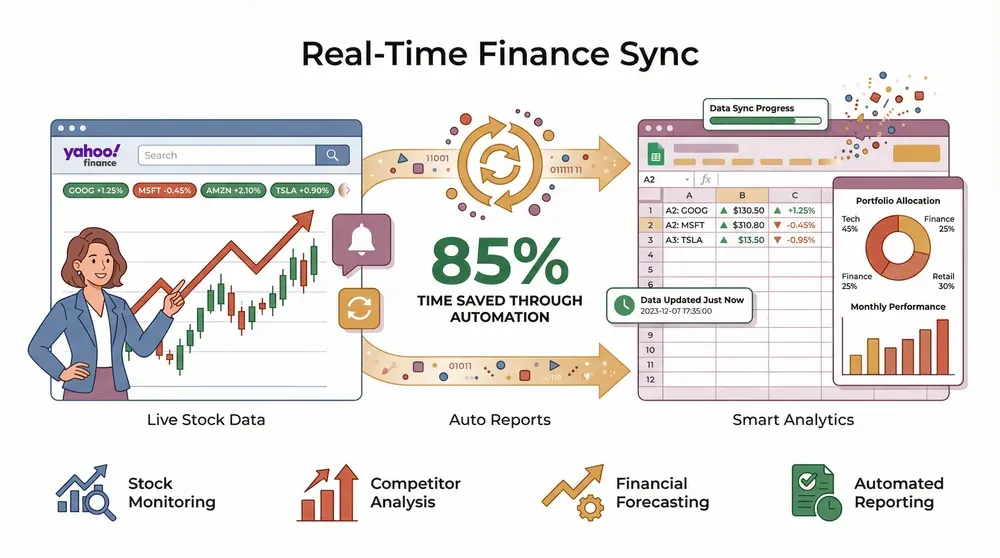 Let’s get real: business moves fast, and stale data is a liability. By integrating Yahoo Finance with Google Sheets, you unlock a whole new level of agility for your team. Here’s why this combo is so powerful:
- Stock Monitoring: Instantly track prices, volumes, and trends for your portfolio or watchlist.
- Competitor Analysis: Keep an eye on rivals’ market caps, earnings, or sector performance—no more guesswork.
- Financial Forecasting: Build live dashboards that update as the market moves, supporting smarter, faster decisions.
- Automated Reporting: Ditch the manual copy-paste routine and let your reports update themselves.
And the ROI? Teams that automate Yahoo Finance imports report saving hours every week, with fewer errors and more collaboration. In sectors like finance, retail, and supply chain, having real-time analytics isn’t just a nice-to-have—it’s a competitive edge.
| Business Benefit | Manual Import | Automated Import (API/Thunderbit) |
|---|---|---|
| Time Savings | ❌ | ✅ |
| Data Accuracy | ❌ (error-prone) | ✅ (AI/data validation) |
| Real-Time Updates | ❌ (static) | ✅ (scheduled/instant) |
| Collaboration | ❌ (version chaos) | ✅ (live, shared sheet) |
| Decision Support | ⚠️ (delayed) | ✅ (up-to-the-minute) |
Overview: All Methods to Import Yahoo Finance Data into Google Sheets
There’s more than one way to get Yahoo Finance data into Google Sheets. Here’s the lay of the land:
- Yahoo Finance API + Google Apps Script: Write a custom script to fetch data from Yahoo’s (unofficial) API endpoints.
- Built-in Google Sheets Formulas: Use
IMPORTHTML,IMPORTXML, orGOOGLEFINANCEformulas. - Third-Party Add-ons: Tools like Coupler or Bardeen offer connectors with scheduling and UI setup.
- Thunderbit (No-Code, AI-Powered): Use Thunderbit’s Chrome Extension for a 2-click, no-code import.
Let’s compare:
| Method | Setup Effort | Automation | Reliability | Cost | Skill Required |
|---|---|---|---|---|---|
| Yahoo Finance API + Apps Script | Moderate | Yes (triggers) | Medium | Free | High (coding) |
| Sheets Formulas (IMPORTXML/GOOGLEFINANCE) | Low | Partial | Low (breaks easily) | Free | Low |
| Third-Party Add-ons (Coupler, etc.) | Low | Yes | High | Paid/free | Low/Medium |
| Thunderbit (AI Web Scraper) | Very Low | Yes (scheduler) | High (AI adapts) | Freemium | Very Low |
Method 1: Batch Import with Yahoo Finance API and Google Apps Script
If you’re comfortable with a little code, the Yahoo Finance API + Apps Script route gives you a lot of control. Here’s how it works:
Setting Up API Access
Yahoo’s official API is long gone, but their internal endpoints are still accessible (no API key needed). For example, to get Apple’s price:
function yahooF(ticker) {
  var url = 'https://query1.finance.yahoo.com/v8/finance/chart/' + ticker;
  var resp = UrlFetchApp.fetch(url);
  var data = JSON.parse(resp.getContentText());
  return data.chart.result[0].meta.regularMarketPrice;
}
Just pop this into your Script Editor, then use =yahooF("AAPL") in your sheet (Bardeen). The query1.finance.yahoo.com/v8/finance/chart/{ticker} endpoint still returns JSON as of May 2026 — regularMarketPrice lives at chart.result[0].meta.regularMarketPrice. You can pull other fields the same way (meta.regularMarketDayHigh, indicators.quote[0].volume, etc.).
Note: Yahoo's internal endpoints aren't an officially supported API, so rate limits aren't published. Community wrappers like yfinance have flagged more aggressive throttling through 2026 — expect to get blocked well before a few hundred requests/day on a noisy IP. If you're running this in Apps Script, keep your trigger interval to once an hour or longer for anything beyond a handful of tickers.
Automating Data Refresh
To keep your data fresh, set up a time-driven trigger in Apps Script:
- In the Script Editor, go to Triggers > Add Trigger.
- Choose your function (e.g.,
yahooF), set the event type to Time-driven, and pick your schedule (hourly, daily, etc.).
Or, in your Sheet, set recalculation to “On change” or “Every minute” (Ben Collins). Now your sheet updates itself—no more manual refresh.
Common Pitfalls:
- API rate limits: Slow down your triggers if you get errors.
- Data structure changes: Yahoo sometimes tweaks their API responses—double-check your script if things break.
Method 2: Solving Data Import Challenges—From Errors to Formatting
Let’s face it: importing data isn’t always smooth sailing. Here are the most common headaches:
- Authorization issues: Some Yahoo pages require login or block bots.
- Data format mismatches: Numbers come in as text, dates are all over the place, or you get weird symbols.
- Incomplete or broken imports: A small change in Yahoo’s HTML can break your
IMPORTXMLformula, leaving you with empty cells.
Thunderbit’s Natural Language Data Parsing
This is where Thunderbit shines. Thunderbit’s AI doesn’t just grab data—it understands it. With “AI Suggest Fields,” Thunderbit reads the Yahoo Finance page and proposes the right columns (like “Price,” “Volume,” “Market Cap”), and even formats them for you (Thunderbit Docs). Want to strip out currency symbols or standardize dates? Just add a prompt like “output number only” or “format as YYYY-MM-DD,” and Thunderbit does the cleanup as it scrapes (Thunderbit Blog).
Troubleshooting Tips:
- If a scrape fails, rerun “AI Suggest Fields”—the AI adapts to layout changes.
- Switch between Browser mode (for login-required pages) and Cloud mode (for public data, up to 50 pages at once).
- Always spot-check your output—Thunderbit’s AI is good, but a quick review never hurts.
Method 3: No-Code Data Import—Thunderbit’s 2-Click Solution
Now for my favorite part: importing Yahoo Finance data with almost zero effort. Thunderbit’s Chrome Extension is designed for business users who want results, not headaches.
Here’s how it works:
- Install Thunderbit: Download the extension and sign up (free tier available).
- Open Yahoo Finance: Navigate to your target page—stock summary, historical data, or even a list of tickers.
- Click “AI Suggest Fields”: Thunderbit’s AI scans the page and suggests the best columns and data types.
- Click “Scrape”: Instantly extract the data into a structured table.
- Export to Google Sheets: One click and your data lands in your Sheet, perfectly formatted.
You can even use bulk URL import—paste a list of Yahoo Finance links, and Thunderbit will scrape them all in parallel. And if you need more details (like company profiles), just use Subpage Scraping to enrich your table.
AI-Powered Field Suggestions and Templates
Thunderbit’s AI doesn’t just guess—it knows finance. It recognizes fields like “Open,” “Close,” “PE Ratio,” and “Dividend Yield,” and can even recommend templates for common financial tasks. Whether you’re building a stock tracker, a sector dashboard, or a currency monitor, Thunderbit’s got you covered.
Import Yahoo Finance Data to Google Sheets Instantly
Method 4: Beginner-Friendly Walkthrough—From Setup to Scheduled Data
You don’t need to be a spreadsheet ninja to master this. Here’s a step-by-step for total beginners:
- Install Thunderbit: Get the Chrome Extension.
- Open Yahoo Finance: Go to the page you want to scrape.
- Launch Thunderbit: Click the Thunderbit icon in your Chrome toolbar.
- Select Data Source: Choose “Current Page” or paste a list of URLs.
- AI Suggest Fields: Let Thunderbit recommend columns, or add your own.
- Scrape: Click “Scrape” and watch the data fill in.
- Export: Send your data straight to Google Sheets, Excel, Notion, or Airtable.
Scheduling Automatic Data Updates
Want your data to refresh every morning? Thunderbit’s Scheduled Scraper makes it easy:
- Set your schedule in plain English (“every weekday at 8am”).
- Thunderbit will re-run the scrape and update your Google Sheet automatically (Thunderbit Blog).
- Perfect for daily price monitoring, weekly reports, or monthly reviews.
How to Schedule Yahoo Finance Data Imports Get Started Free
Thunderbit’s scheduler is a game-changer for anyone who needs up-to-date financial data without the hassle.
Method 5: From Data to Insights—Transforming Yahoo Finance Data into Decisions
Getting the data is just the start. The real magic happens when you turn it into insights:
- Dynamic Single/Multi-Select Fields: Filter by ticker, sector, or date range with dropdowns.
- Charts and Dashboards: Use Google Sheets’ built-in charts or pivot tables to visualize trends, compare stocks, or track KPIs.
- Automated Alerts: Set up conditional formatting or formulas to flag big price swings or threshold breaches.
Thunderbit’s exports are ready for analysis—no cleanup required. You can go from raw Yahoo Finance data to a decision-ready dashboard in minutes.
Creating Interactive Dashboards in Google Sheets
- Import your data with Thunderbit.
- Insert a chart: Highlight your data, click “Insert > Chart,” and pick your favorite style (line, bar, candlestick, etc.).
- Add filters: Use Data > Create a filter, or build dropdowns for interactive selection.
- Automate updates: With Thunderbit’s scheduler, your dashboard always reflects the latest market moves.
Troubleshooting: Common Pitfalls When Importing Yahoo Finance Data
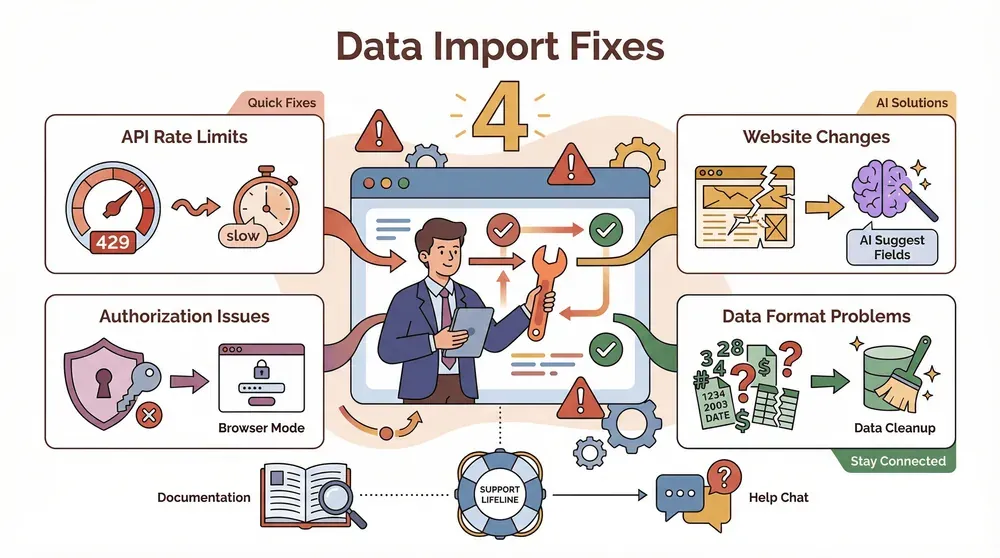 Even the best tools hit a snag now and then. Here’s how to handle the most common issues:
- API Rate Limits: Yahoo may block you after a few hundred requests/day. Slow down your triggers or split your queries.
- Website Changes: If Yahoo updates their layout, formulas or scripts might break. Rerun “AI Suggest Fields” in Thunderbit to adapt.
- Authorization Issues: For login-required pages, use Thunderbit’s Browser mode.
- Data Format Problems: Use Thunderbit’s AI prompts to clean up numbers, dates, or symbols as you scrape.
Thunderbit’s documentation and support team are always there if you get stuck.
Comparing All Import Methods: Which Is Right for Your Team?
| Method | Best For | Pros | Cons |
|---|---|---|---|
| Yahoo Finance API + Script | Developers, custom workflows | Full control, automation | Coding required, maintenance |
| Sheets Formulas | Light users, simple needs | No code, quick setup | Brittle, limited data points |
| Third-Party Add-ons | Business users, recurring jobs | UI setup, scheduling, support | Paid plans for large jobs |
| Thunderbit (AI Web Scraper) | Anyone, bulk or custom imports | 2-click, no code, AI parsing, free export, scheduling | Credit system for high volume |
My take: For most business teams—especially those without a dedicated IT or analytics team—Thunderbit offers the best mix of speed, reliability, and ease of use. If you need custom logic or massive scale, a script or add-on might make sense. But for 95% of use cases, Thunderbit’s no-code workflow is a game-changer.
Conclusion & Key Takeaways
Importing Yahoo Finance data into Google Sheets doesn’t have to be a chore—or a coding project. Whether you’re tracking stocks, analyzing competitors, or building live dashboards, there’s a solution for every skill level. But if you want the fastest, most reliable, and most user-friendly way to keep your Sheets up to date, Thunderbit is the tool I recommend.
- No code required: Just click, scrape, and export.
- AI-powered: Thunderbit understands financial data and formats it for you.
- Automated scheduling: Your Sheets stay fresh, no manual work.
- Free exports: Send data to Google Sheets, Excel, Notion, or Airtable.
Try Thunderbit for Yahoo Finance Imports
Ready to upgrade your financial workflows? Try Thunderbit’s free tier and see how easy it is to automate your Yahoo Finance imports. Your future self (and your team) will thank you.
For more tips and deep dives on web scraping, automation, and business analytics, check out the Thunderbit Blog.
Automate Yahoo Finance Data to Google Sheets with Thunderbit Get Started Free
FAQs
1. Can I import Yahoo Finance data into Google Sheets without coding?
Absolutely. With Thunderbit’s Chrome Extension, you can scrape and export Yahoo Finance data to Google Sheets in just a couple of clicks—no coding required.
2. What’s the difference between using Google Sheets formulas and Thunderbit?
Formulas like IMPORTXML or GOOGLEFINANCE are easy to set up but often break when Yahoo changes its layout, and they’re limited in the data they can pull. Thunderbit uses AI to adapt to layout changes, supports bulk imports, and can extract any field you see on the page.
3. How do I keep my Yahoo Finance data in Google Sheets up to date?
Thunderbit’s Scheduled Scraper lets you set up automatic refreshes (daily, weekly, etc.), so your Sheets always have the latest data—no manual work needed.
4. What if Yahoo Finance changes their website or API?
Thunderbit’s AI adapts to layout changes automatically. If a scrape fails, just rerun “AI Suggest Fields” and the tool will re-map the data for you.
5. Is Thunderbit free to use for Yahoo Finance imports?
Thunderbit offers a free tier (scrape up to 6 pages, or 10 with a trial boost), and all data exports are free. For higher volume or advanced features, paid plans are available, but most business users find the free tier more than enough for regular Yahoo Finance imports.
Ready to make your financial data work for you? Download Thunderbit and start automating your Yahoo Finance to Google Sheets workflow today.
Learn More




