

The internet is overflowing with data—so much that it’s become the lifeblood of modern business. Whether you’re in sales, e-commerce, real estate, or just trying to keep tabs on your competitors, having the right data at your fingertips can make all the difference. But let’s be honest: nobody wants to spend hours copy-pasting information from websites into spreadsheets. That’s where web scraping comes in, and trust me, it’s a lot less intimidating than it sounds.
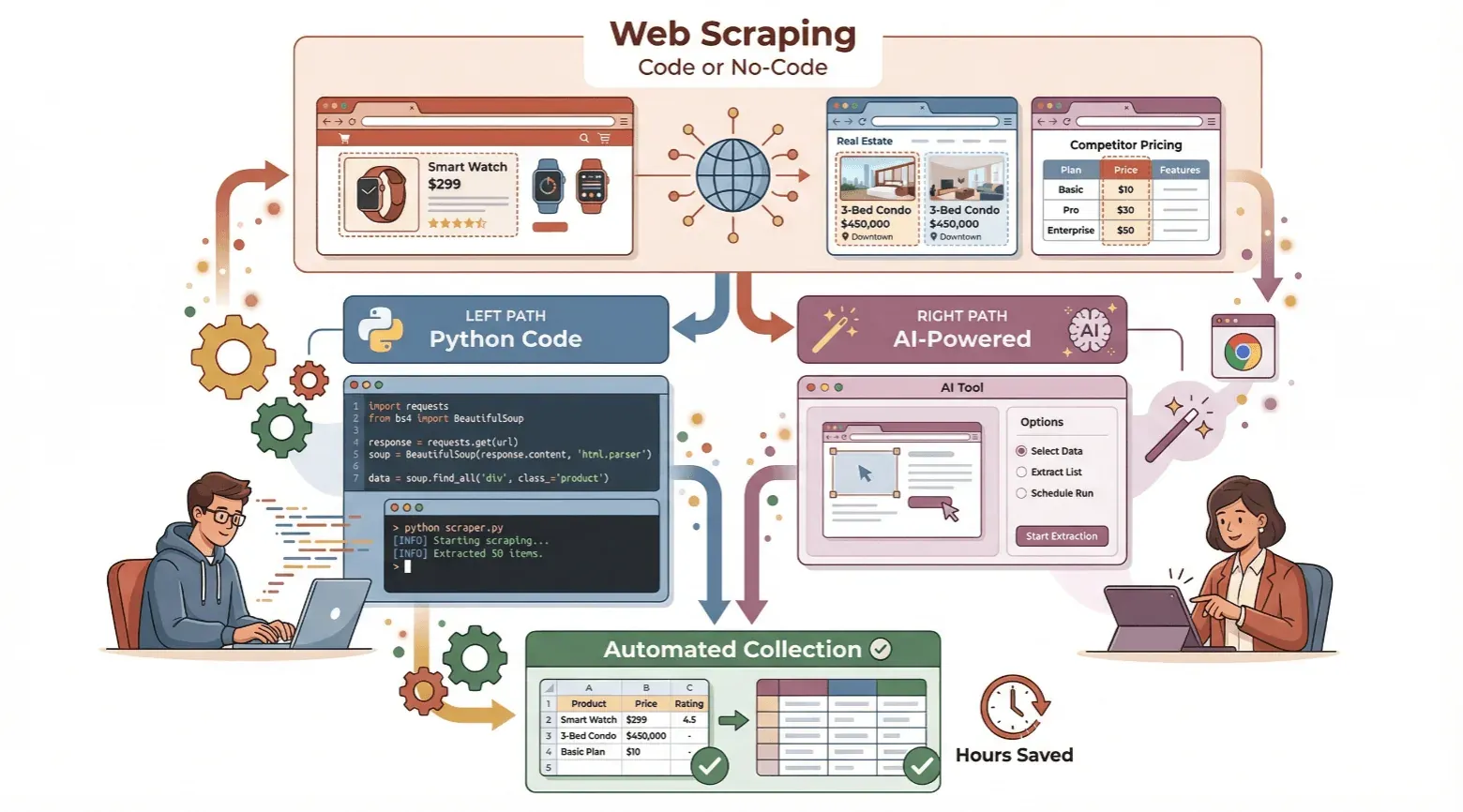
In this guide, I’ll walk you through how to create a web scraper—whether you’re a beginner who wants to try coding in Python, or you’d rather skip the code and use a no-code, AI-powered tool like Thunderbit. I’ll break down the basics, show you both approaches step by step, and help you decide which path fits your needs. Ready to save time and unlock the power of automated data collection? Let’s dive in.
What Is a Web Scraper? Understanding the Basics
A web scraper is simply a tool—software or service—that automatically extracts information from websites. Imagine you need a list of all the coffee shops in your city, complete with addresses and phone numbers. You could spend hours clicking through pages and copying each detail by hand (hello, Ctrl+C fatigue), or you could let a web scraper do the heavy lifting for you.
Think of a web scraper as a digital assistant that reads web pages, finds the data you want (like prices, product names, or contact info), and organizes it neatly into a spreadsheet or database. Instead of manually switching between browser tabs and Excel, the scraper automates the process—fetching, parsing, and saving the data in a fraction of the time.
Here’s how it works under the hood:
- Request: The scraper sends a request to a webpage and downloads the raw HTML.
- Parse: It analyzes the HTML to find the specific data you’re after (like the price inside a
<span>tag). - Extract: It pulls out the data and saves it in a structured format (CSV, Excel, Google Sheets, etc.).
Manual copy-paste is like digging a hole with a spoon. Web scraping is bringing in a backhoe.
Why Creating a Web Scraper Matters for Business
Web scraping isn’t just for techies or data scientists—it’s become a must-have for anyone who needs reliable, up-to-date information. Nearly 97% of large organizations now invest in data-driven decision-making, and analyst coverage of the web scraping market consistently projects continued multi-year growth through the end of the decade.
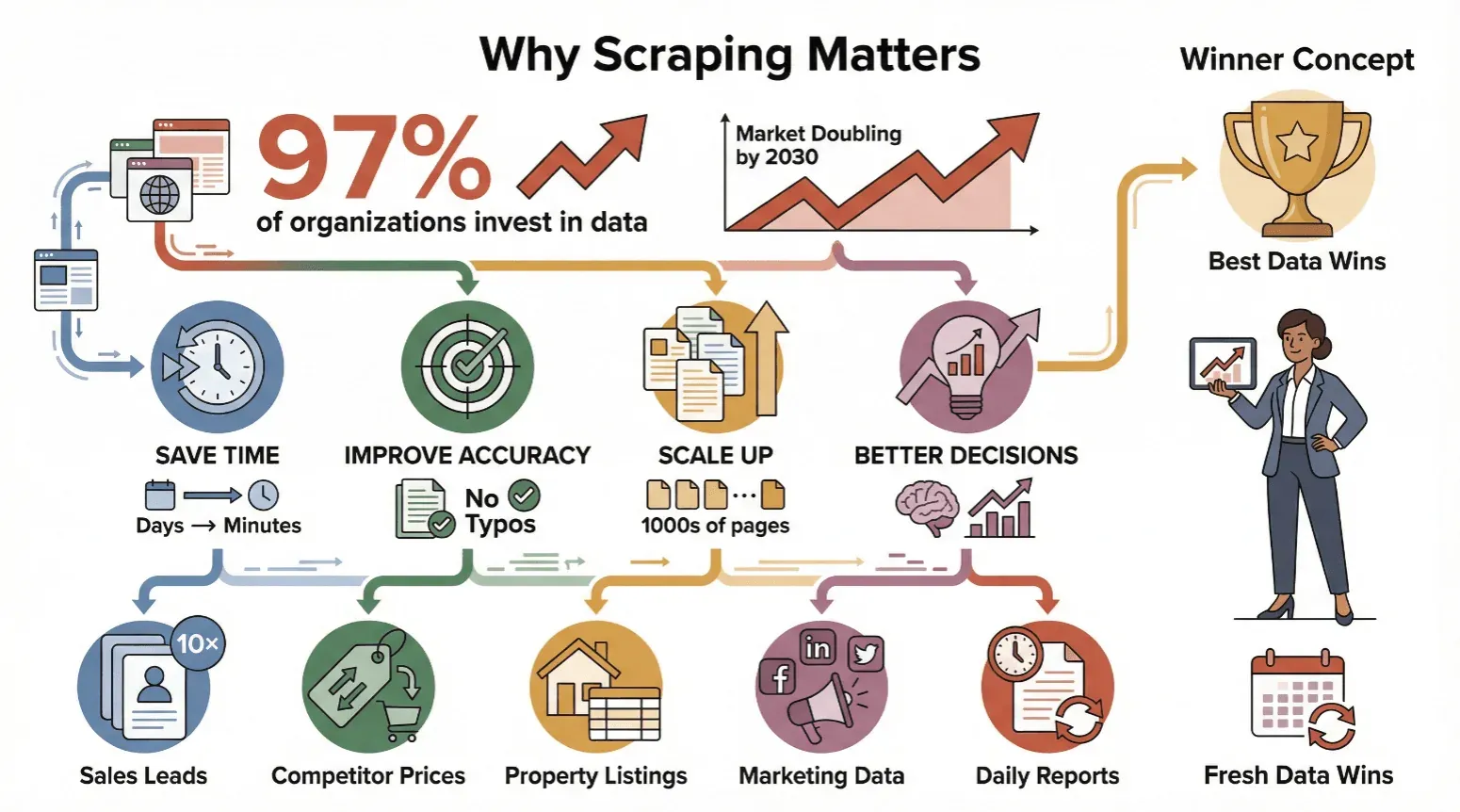
Here’s why businesses of all sizes are embracing web scraping:
- Save Time: Automated scraping turns days of manual work into minutes.
- Improve Accuracy: Software doesn’t get tired or make typos.
- Scale Up: Scrape thousands of pages, not just a handful.
- Drive Better Decisions: Fresh data means smarter moves—whether you’re adjusting prices, finding leads, or tracking trends.
Let’s look at some real-world use cases:
| Use Case | Who Benefits | Typical Outcome |
|---|---|---|
| Extracting sales leads from directories | Sales teams | 10× more leads, hours saved on prospecting |
| Monitoring competitor prices on e-commerce sites | E-commerce managers | Real-time price adjustments, margin protection |
| Aggregating property listings from real estate | Real estate agencies | Faster deal discovery, up-to-date market data |
| Collecting marketing data from web/social media | Marketing teams | Better targeted campaigns, improved performance tracking |
| Automating daily web data reports | Operations, Analysts | Reduced labor costs, fewer errors, consistent and timely reporting |
In short: whoever has the best, freshest data wins.
Beginner’s Guide: How to Create a Simple Web Scraper with Python
If you’re curious about how web scraping works “under the hood,” Python is a great place to start. Even if you’re new to coding, you can build a basic scraper in just a few steps. Here’s how:
Setting Up Your Environment
First, you’ll need Python installed on your computer. Download the latest version from python.org and follow the instructions for your operating system (Windows or Mac). Be sure to check “Add Python to PATH” during installation.
Next, open your terminal or command prompt and install the libraries you’ll need:
pip install requests
pip install bs4
pip install pandas
requestslets you fetch web pages.bs4(Beautiful Soup) helps you parse HTML.pandasis great for saving data to CSV or Excel.
Inspecting Website Structure
Before writing any code, you need to know where your data lives in the HTML. Open your target website in Chrome, right-click on the data you want (like a job title), and select “Inspect.” You’ll see the HTML element highlighted—maybe an <a> tag with a class like jobtitle. Take note of these tags and classes; you’ll use them to tell your scraper what to look for.
Writing and Running the Scraper
Let’s say you want to scrape job titles and company names from a job listings page. Here’s a simple script:
import requests
from bs4 import BeautifulSoup
import pandas as pd

URL = "https://example.com/jobs"  # Replace with your target URL
response = requests.get(URL)
soup = BeautifulSoup(response.text, 'html.parser')

# Find all job titles and company names (update selectors as needed)
titles = [t.get_text().strip() for t in soup.find_all('a', class_='jobtitle')]
companies = [c.get_text().strip() for c in soup.find_all('div', class_='company')]

# Save to CSV
df = pd.DataFrame({'Job Title': titles, 'Company': companies})
df.to_csv('jobs.csv', index=False)
print("Scraping complete! Data saved to jobs.csv")
- Adjust the URL and class names to match your target site.
- Run the script in your terminal:
python yourscript.py - Open
jobs.csvto see your results.
Pro tip: For more complex sites (with pagination or dynamic content), you’ll need to add loops or use tools like Selenium. But for many static pages, this approach works just fine.
No-Code Simplicity: How to Create a Web Scraper with Thunderbit
Now, what if you don’t want to mess with code at all? That’s where Thunderbit comes in—a no-code, AI-powered web scraper designed for business users. For straightforward, well-structured pages, Thunderbit can take you from "I need this data" to a usable spreadsheet in a couple of clicks — heavier sites with logins, anti-bot defenses, or unusual layouts still take a bit of tuning, but the floor is much lower than hand-writing a parser.
Scrape data from any website using AI Get Started Free
Here’s how it works:
Step 1: Install Thunderbit Chrome Extension
Head over to the Thunderbit Chrome Extension Download Page and add it to your browser. Sign up for a free account (the free tier lets you scrape a few pages to try it out).
Step 2: Navigate to Your Target Website
Open the page you want to scrape in Chrome. Log in if needed, and scroll down to load any dynamic content.
Step 3: Describing Your Data Needs
Click the Thunderbit icon to open the sidebar. You can either:
- Click “AI Suggest Fields” and let Thunderbit’s AI scan the page and propose columns (like “Product Name,” “Price,” “Image”).
- Or, type a plain-English prompt (e.g., “Extract all book titles and authors from this page”).
Thunderbit’s AI will recommend fields and data types automatically. You can rename, add, or delete fields as needed.
Step 4: Running Your First Scrape
Once your fields are set, just hit “Scrape.” Thunderbit will extract the data, handle pagination if needed, and display everything in a neat table. If you want more details from subpages (like individual product pages), click “Scrape Subpages”—Thunderbit will visit each link and grab extra info.
Step 5: Review and Export Results
Check your data in the Thunderbit table. When you’re happy, click “Export” and choose your format: Excel, CSV, Google Sheets, Airtable, Notion, or JSON. Exports are free and unlimited.
That’s it. No code, no templates, no headaches.
Try Thunderbit AI Web Scraper for Free
Comparing Traditional vs. No-Code Web Scraper Solutions
Let’s see how the two approaches stack up:
| Solution | Setup Time | Skills Needed | Maintenance | Flexibility | Export Options |
|---|---|---|---|---|---|
| Python + Beautiful Soup | Hours/days | Coding, HTML basics | High (breaks easily) | Very high | CSV, Excel, JSON (via code) |
| Older No-Code Tools | 30-60 min | Some tech knowledge | Medium (manual fix) | Good for static | CSV, Excel |
| Thunderbit (AI No-Code) | Minutes | None (plain English) | Low (AI adapts) | High (dynamic sites) | Excel, CSV, Sheets, Notion... |
Thunderbit’s AI-driven approach means you spend less time setting up and fixing scrapers, and more time actually using your data.
Overcoming Traditional Web Scraper Challenges
Traditional scrapers have a few notorious pain points:
- Website Changes: If a site updates its layout, your code can break. Thunderbit’s AI adapts automatically to most changes, so you don’t have to recode anything.
- Anti-Bot Measures: Many sites block automated scripts. Thunderbit can run in your browser (using your login/session) or in the cloud for speed.
- Dynamic Content: Pages with infinite scroll or “Load More” buttons can stump basic scrapers. Thunderbit’s AI handles auto-scrolling and interactive elements by default.
- Login-Required Data: With Thunderbit’s browser mode, if you can see it in Chrome, you can scrape it.
In short, Thunderbit is designed to handle the messy realities of modern websites—so you don’t have to.
Boosting Efficiency: Thunderbit’s Advanced Web Scraping Features
Thunderbit isn’t just about getting data—it’s about getting it fast, clean, and ready to use. Here are a few features I love:
Auto-Pagination and Subpage Scraping
Need to scrape hundreds of products across multiple pages? Thunderbit detects pagination (Next buttons, infinite scroll) and grabs everything in one go. Want more details from subpages? Click “Scrape Subpages” and Thunderbit will visit each link, pulling in extra fields (like seller info or product specs).
AI Field Suggestions and Data Structuring
Thunderbit’s AI doesn’t just guess at columns—it understands context. It can label columns, assign data types (text, number, image, email), and even apply custom instructions (like “only prices above $100” or “translate descriptions to English”). You can add prompts to categorize, summarize, or reformat data as it’s scraped.
Templates and Instant Scraping
For popular sites (Amazon, Zillow, Google Maps, Instagram), Thunderbit offers instant templates—just pick your site, and all the fields are pre-configured. No setup required.
Scheduling and Automation
Need fresh data every day? Set up a schedule (“every Monday at 9am”) and Thunderbit will scrape automatically, updating your Google Sheet or database without you lifting a finger.
Cloud vs. Local Scraping
Choose between running scrapes in your browser (great for logged-in or interactive sites) or in the cloud (faster for public data—up to 50 pages at a time).
What Is Data Scraping and How to Do It in 2025 Get Started Free
Thunderbit’s advanced features make it a top choice for business users who need reliable, scalable, and easy-to-use web scraping.
Step-by-Step Guide: How to Create a Web Scraper with Thunderbit
Here’s your quick-start checklist:
- Install Thunderbit: Add the Chrome extension and sign up.
- Open Your Target Website: Log in if needed, scroll to load content.
- Open Thunderbit Sidebar: Click the extension icon.
- Describe Your Data: Click “AI Suggest Fields” or type your prompt.
- Review Fields: Rename, add, or delete columns as needed.
- Click “Scrape”: Let Thunderbit do its thing.
- (Optional) Scrape Subpages: For deeper data, click “Scrape Subpages.”
- Review Results: Check the table for accuracy.
- Export Data: Choose Excel, CSV, Google Sheets, Notion, Airtable, or JSON.
- Save/Template/Schedule: Save your setup for next time or schedule recurring scrapes.
Troubleshooting tips:
- If data is missing, try rewording your prompt or using custom instructions.
- For dynamic content, make sure you’re in browser mode.
- If you hit a free tier limit, consider upgrading for more pages.
See Thunderbit Pricing and Plans
Conclusion & Key Takeaways
Creating a web scraper isn’t just for coders anymore. Whether you want to roll up your sleeves and write Python, or you’d rather let AI handle the heavy lifting, the tools are more accessible than ever.
Here’s what to remember:
- Web scraping saves time, boosts accuracy, and unlocks data-driven decisions.
- Python is great for learning and custom projects, but requires coding and maintenance.
- Thunderbit offers a fast, no-code solution—just describe what you want and click “Scrape.”
- Advanced features like auto-pagination, subpage scraping, and AI field suggestions make Thunderbit a powerhouse for business users.
- You can try Thunderbit for free and see results in minutes.
Ready to stop copy-pasting and start automating? Download Thunderbit and see how easy web scraping can be. And if you want to dig deeper, check out the Thunderbit Blog for more tutorials and tips.
Try Thunderbit AI Web Scraper for Free Get Started Free
FAQs
1. Do I need to know how to code to create a web scraper?
No! While coding (like Python + Beautiful Soup) gives you full control, no-code tools like Thunderbit let anyone create powerful web scrapers using plain English prompts and a couple of clicks.
2. What kind of data can I scrape with Thunderbit?
Thunderbit can extract text, numbers, images, emails, phone numbers, and more from almost any website—including paginated lists and subpages. You can also use templates for popular sites.
3. How does Thunderbit handle websites that change their layout?
Thunderbit’s AI adapts to most layout changes automatically. Unlike traditional scrapers that break when a site updates, Thunderbit uses semantic understanding to keep working with minimal adjustment.
4. Is web scraping legal and safe?
Web scraping is legal when you collect publicly available data and respect a site’s terms of service. Thunderbit encourages responsible use and offers features to help you stay compliant.
5. Can I schedule recurring scrapes or automate exports?
Yes! Thunderbit lets you schedule scrapes at any interval (daily, weekly, etc.) and export results directly to Google Sheets, Notion, Airtable, Excel, or CSV—no manual work required.
Ready to automate your data collection? Try Thunderbit for free and see how easy web scraping can be for everyone.
Learn More




