
If you work in sales, operations, or marketing and you’re on a Mac, you’ve probably run into this: you need a list of leads, competitor prices, or maybe the latest market data, but all the best web scraping tools seem to be built for Windows. Meanwhile, your MacBook is sitting there, sleek and powerful, but you’re stuck copy-pasting data like it’s 2005. Trust me, I’ve been there. As Mac adoption in business keeps skyrocketing—Apple now powers and —the need for a reliable, efficient web scraper for Mac has never been more urgent.
But here’s the good news: with the right approach (and the right tool), you can turn your Mac into a data-gathering powerhouse—no Windows VM, no clunky workarounds, and definitely no more endless copy-paste marathons. In this guide, I’ll share what I’ve learned about mastering web scraping on Mac, including how , an AI-powered Chrome extension, is changing the game for Mac users like me who want to turn web data into business insights—fast.
Why Choosing the Right Web Scraper for Mac Matters
Let’s get real: not all web scrapers are created equal, especially if you’re on a Mac. Historically, most web scraping tools were built for Windows or required some kind of PC-only software. I’ve seen Mac users try to run Windows apps in virtual machines, or mess with browser automation scripts, just to get basic data out of a website. It’s like trying to fit a square peg in a round hole—frustrating, slow, and prone to breaking.
The stakes are high for business users. If your web scraper isn’t fully compatible with macOS, you risk crashes, missing data, or even security headaches (macOS loves to block unknown apps). Worse, you could spend hours troubleshooting instead of actually analyzing your data. And in today’s world, where web scraping can , a slow or unreliable tool means you’re falling behind your competitors.
So, picking the right web scraper for Mac isn’t just about convenience—it’s about staying productive, competitive, and, honestly, keeping your sanity.
Key Criteria: How to Effectively Select a Web Scraper for Mac
If you’re a Mac user shopping for a web scraper, here’s what you should look for:
| Criteria | Why It Matters for Mac Users |
|---|---|
| Full macOS Compatibility | No more virtual machines or Windows hacks—choose a Chrome extension or web-based platform that runs natively on Mac. |
| Ease of Use / No-Code Interface | Business users need a tool that’s intuitive, with point-and-click or AI-assisted extraction—no coding, no HTML selectors. |
| Performance on Dynamic Sites | Your scraper should handle JavaScript-heavy sites, infinite scroll, and pagination as smoothly on Mac as on Windows. |
| Support for Diverse Data Types | Look for the ability to scrape not just web pages, but also PDFs, images, emails, and phone numbers. |
| Output and Integration Options | Export directly to Excel, Google Sheets, Airtable, or Notion—ideally with unlimited free exports. |
| Stability and Support | Choose a tool that’s actively maintained and has solid support for Mac users. Chrome extensions are a safe bet here. |
Some of the older desktop tools — Mozenda is the one I see Mac users get burned by most often — were built Windows-first, so on a Mac you end up wrestling a VM or Parallels just to open the thing. The landscape has moved on a bit: Octoparse, one of the longer-running no-code scrapers, now ships a native Mac client (), so the old "tricky for Mac users" story doesn't really apply there anymore. The bigger shift, though, is that Chrome-extension and cloud-based scrapers (like Thunderbit) sidestep the whole desktop-app question — if you can run Chrome, you can run them, and you don't have to think about the macOS app sandbox at all.
Thunderbit: Elevating the Web Scraper for Mac Experience
Let me introduce you to , the Chrome Extension-based AI web scraper that my team and I built specifically with business users (and Mac users!) in mind. Because it runs as a Chrome extension, Thunderbit is inherently OS-agnostic—if you can run Chrome, you can run Thunderbit. That means no more worrying about whether your tool will work after the next macOS update, or if you’ll need to install some weird Windows emulator just to get your data.
But what really sets Thunderbit apart for Mac users is how it leverages AI to make web scraping almost effortless:
- AI Suggest Columns: Just load your target page and click “AI Suggest Columns.” Thunderbit’s AI will analyze the page and propose the best way to extract data—no fiddling with selectors or code.
- 2-Click Scraping: Once you’ve reviewed the suggested fields, just click “Scrape.” Thunderbit handles the rest, even on complex or dynamic sites.
- Subpage Scraping: Need data from product detail pages or sub-listings? Thunderbit’s AI can click through and enrich your table automatically.
- Document & Image Parsing: Scrape data not just from web pages, but also from PDFs, Word docs, and images—directly within the extension.
- One-Click Contact Extraction: Instantly pull all emails, phone numbers, or images from any page—perfect for sales or lead gen.
- Cloud or Local Scraping: Run scrapes in your browser (great for logged-in sites) or offload big jobs to Thunderbit’s cloud servers (which can scrape 50 pages at a time—without taxing your Mac’s CPU).
- Unlimited Free Exports: Export your data to Excel, Google Sheets, Airtable, or Notion—no extra charges, ever.
Thunderbit is designed to be as “Mac-like” as possible: intuitive, powerful, and always up-to-date. And because it’s a Chrome extension, you don’t have to worry about macOS permissions or weird security pop-ups—just install and go.
Simplifying Data Extraction on Mac with Thunderbit’s AI
Here’s where things get fun. With Thunderbit, you don’t need to be a developer (or even particularly tech-savvy) to scrape data from the web. The AI does the heavy lifting:
- AI-Suggested Fields: Thunderbit reads the page and suggests what to extract—like “Product Name,” “Price,” “Image URL,” or “Contact Email.” No more guessing at HTML classes or XPath.
- Natural Language Prompts: Want to categorize products or format phone numbers? Just describe what you want in plain English, and Thunderbit’s AI will handle it during extraction.
- No More Trial-and-Error: The AI adapts to changing page layouts, so if a website updates, you can just re-run “AI Suggest Columns” and keep going—no need to debug broken scripts.
For example, I’ve seen Mac users go from zero to a fully structured spreadsheet of competitor prices in under five minutes—something that would have taken hours with manual setup or a more technical tool. And because the AI can handle subpage navigation, even complex workflows (like scraping a list of products and then visiting each product page for details) are reduced to a couple of clicks.
Organizing Web Scraping Results: From Data to Insights on Mac
Scraping is just the first step—the real value comes from turning that data into business insights. Here’s how to make the most of your scraped data on Mac:
- Structure Your Data During Extraction: Use Thunderbit’s AI to define clear columns and data types before you scrape. This means less cleanup later in Excel or Google Sheets.
- Clean and Normalize Data: Apply formatting or categorization rules as part of the extraction process. For example, standardize phone numbers or split addresses into city/state columns.
- Export to Your Favorite Tools: Thunderbit lets you export directly to Excel, Google Sheets, Airtable, or Notion. For Mac users, this means your data is instantly available in the tools you already use for analysis and collaboration.
- Integrate with Business Workflows: Don’t let your data sit in a silo. Feed scraped leads into your CRM, push price data into your pricing dashboard, or share insights with your team in Notion.
- Maintain Data Hygiene: Use consistent file naming, keep a data dictionary, and document your scraping templates—so you (or your teammates) always know what’s what.
By following these steps, you can go from raw web data to actionable insights—without ever leaving your Mac.
Common Challenges When Using a Web Scraper for Mac (and How to Solve Them)
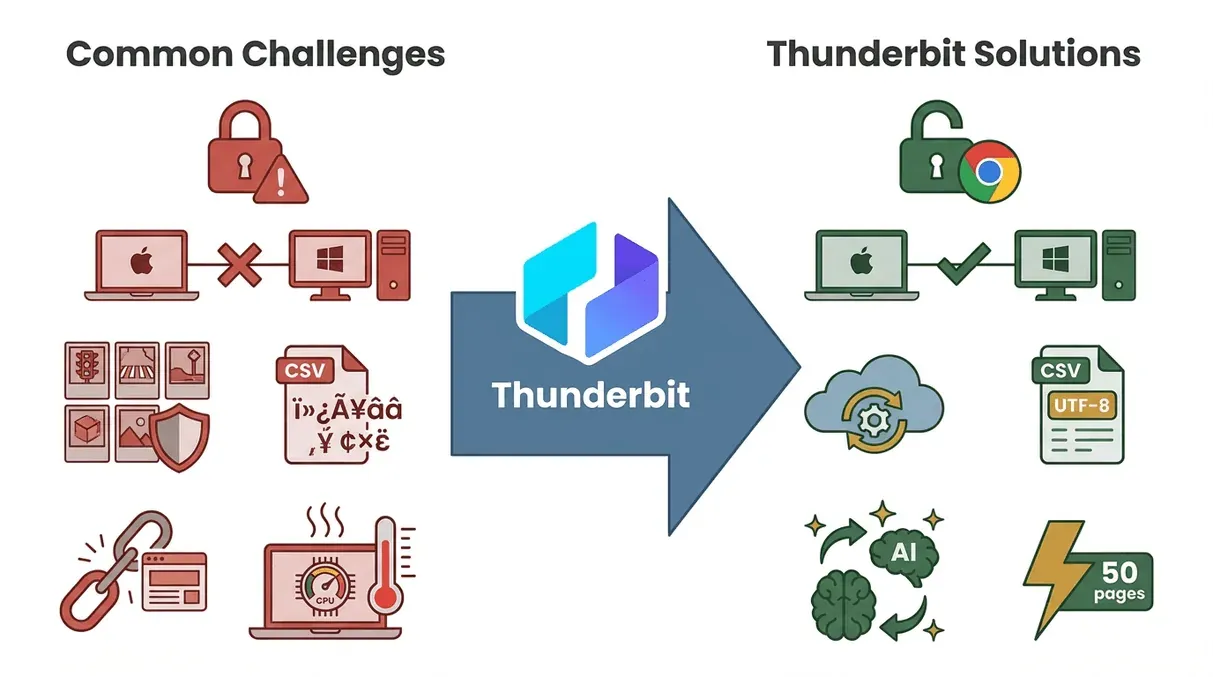 Even with the best tools, Mac users can run into a few common issues when scraping data. Here’s what I’ve seen—and how Thunderbit helps solve them:
- Browser & Permission Issues: macOS is strict about security, but Chrome extensions like Thunderbit run inside Chrome, so you avoid most permission headaches. If you ever hit a snag, just check that the extension has access to the site you’re scraping.
- Tool Compatibility Glitches: Some scrapers behave differently on Mac vs. Windows. With Thunderbit, this isn’t an issue—Chrome handles the cross-platform compatibility. If a cloud scrape fails, try browser mode (or vice versa).
- Anti-Scraping Blocks: Sites may block scraping with CAPTCHAs or rate limits. Thunderbit’s cloud mode can help, but if you’re scraping aggressively, consider slowing down your schedule or using a proxy service for heavy-duty jobs.
- Data Formatting Woes: CSVs sometimes open weirdly in Excel for Mac. Thunderbit exports in standard UTF-8, but if you see strange characters, try importing the file via Excel’s Data > Import feature and set the encoding to UTF-8.
- Site Changes Break Scrapes: Websites update their layouts all the time. With Thunderbit, just re-run “AI Suggest Columns” and the AI will adapt—no need to rebuild your scraper from scratch.
- Performance Issues: Scraping thousands of pages locally can tax your Mac’s CPU. Offload big jobs to Thunderbit’s cloud scraping feature, which can handle 50 pages at a time—no need to keep your Mac awake all night.
Thunderbit’s no-code interface and AI-driven setup mean most problems are solved with a click or two. And if you ever get stuck, there’s solid documentation and support to help you out.
Boosting Efficiency: Thunderbit’s Automation and Scheduling for Mac Users
One of my favorite features in Thunderbit is the Scheduled Scraper. Here’s why automation is a game-changer for Mac users:
- Set It and Forget It: Schedule a scrape once (e.g., “every day at 9am”) and Thunderbit will run it automatically—even if your Mac is closed, thanks to cloud scraping.
- Real-World Use Cases:
- Price Monitoring: Track competitor prices daily and export the results to a shared Google Sheet.
- Lead Generation: Scrape new business listings or directories every week to keep your sales pipeline fresh.
- Content Monitoring: Pull new blog posts or news headlines every morning for your marketing team.
- Inventory Checks: Monitor supplier stock levels and get alerts when items go out of stock.
The time savings are real: what used to take hours of manual work can now be automated, freeing you (and your Mac) for higher-value tasks. And because Thunderbit’s scheduling is so simple—just describe the interval in plain English—you don’t need to mess with cron jobs or system scripts.
Best Practices for Using a Web Scraper for Mac in Business Workflows
 Want to get the most out of web scraping on your Mac? Here are my top tips:
- Start with Clear Goals: Know what data you need and why. This helps you set up your scraper efficiently and avoid data overload.
- Pilot First, Scale Later: Test your scraper on a small dataset before running it at scale. Use Thunderbit’s preview feature to check your results.
- Integrate with Your Tools: Export data directly to the platforms your team uses—Excel, Sheets, Notion, Airtable, or your CRM.
- Maintain Data Hygiene: Keep your data organized, document your templates, and clean up inconsistencies as you go.
- Stay Legal and Ethical: Only scrape public data, respect website terms, and don’t overload sites with too many requests.
- Automate Where Possible: Use Thunderbit’s scheduling to keep your data fresh and reduce manual work.
- Monitor and Refine: Check your results regularly and update your scraper if websites change.
- Share Knowledge: Teach your team how to use the scraper and share templates—Thunderbit supports 34 languages, so everyone can get involved.
By following these best practices, you’ll turn web scraping from a one-off hack into a core part of your business workflow—right from your Mac.
Conclusion: Unlocking the Full Potential of Web Scraper for Mac
Let’s wrap up with the big picture. Web scraping on Mac has finally come of age. With the right tool—especially an AI-powered, Chrome Extension-based solution like —you can extract, organize, and act on web data just as easily (if not more so) than your Windows-using colleagues. The key is to choose a tool that’s built for Mac compatibility, leverages AI for speed and simplicity, and integrates seamlessly with your business workflows.
One footnote for the developer-leaning Mac crowd reading this: in 2026, a chunk of "I just need to scrape a single page" work has migrated to AI coding agents running in the terminal — Claude Code and OpenAI Codex CLI both install fine on macOS and can write/run a small scraping script from a natural-language prompt. They don't replace a real scraper for anything recurring, multi-page, or login-gated (anti-bot defenses, rate limits, and TOS still bite), but they're worth knowing about alongside a Chrome-extension tool like Thunderbit. The pattern most Mac users I talk to settle into: AI agent for the one-off script, Thunderbit for the repeatable jobs and the export pipeline.
If you’re ready to stop copy-pasting and start turning web data into business gold, give a try. Set up your first scrape, export to your favorite tool, and see how much time you save. And if you want to dive deeper, check out the for more guides, tips, and best practices.
Happy scraping—and may your Mac always be as productive as you are.
FAQs
1. What makes a web scraper for Mac different from other platforms?
A web scraper for Mac needs to be fully compatible with macOS—meaning it should run natively or as a Chrome extension, without requiring Windows emulators or extra setup. Mac users also value stability, ease of use, and seamless integration with tools like Excel, Google Sheets, and Notion.
2. Why is Thunderbit a good choice for Mac users?
Thunderbit is a Chrome Extension-based web scraper that works perfectly on Mac. Its AI-driven setup, no-code interface, and ability to scrape from web pages, PDFs, and images make it ideal for business users who want fast, reliable data extraction without technical headaches.
3. Can Thunderbit handle complex websites and dynamic content on Mac?
Yes. Thunderbit’s AI can handle JavaScript-heavy sites, infinite scroll, and subpage navigation. It adapts to changing page layouts and can extract structured data from even the most complex websites.
4. How can I automate web scraping on my Mac?
With Thunderbit’s scheduling feature, you can set up automated scraping routines that run in the cloud—even if your Mac is closed. Just describe the schedule in plain English, and Thunderbit will handle the rest.
5. What are the best practices for organizing scraped data on Mac?
Start by defining clear columns and data types during extraction, clean and normalize your data, export to your preferred analysis tools, and integrate with your business workflows. Maintain data hygiene, document your templates, and automate regular tasks for maximum efficiency.
Ready to make your Mac a data superpower? and start scraping smarter today.
Learn More