
Amazon shopping in 2026 is a wild ride. One minute you’re eyeing a “lightning deal” on a new espresso machine, the next you’re wondering if that “deal” is just a mirage—because, let’s face it, Amazon prices can change more often than my coffee order. In fact, some products on Amazon have been known to change price over 2,000 times in a single day. So how do you know if you’re actually getting a bargain, or if you’re just falling for a cleverly timed price tag?
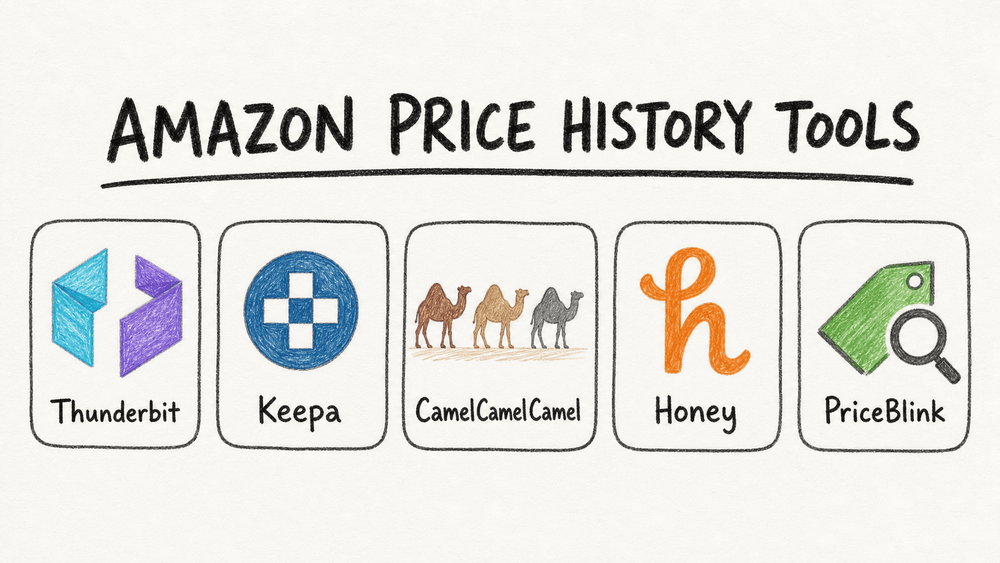
That’s where Amazon price tracking tools come in. As someone who’s spent years building automation and AI tools (and, yes, obsessively tracking my own shopping carts), I can tell you: using the right tool to check price history isn’t just a smart move—it’s essential for anyone who wants to shop smarter, save money, and avoid buyer’s remorse. Let's dive into the five best Amazon price tracking tools for 2026, and I'll show you how each one can help you outsmart the algorithm and score the real deals.
Try Thunderbit for Amazon data extraction
Why Use Amazon Price Tracking Tools for Smarter Shopping?
If you’ve ever bought something on Amazon and then watched the price drop the next day, you know the pain. Amazon’s prices are powered by algorithms that react to everything from time of day to your browsing habits. According to a 2025 study, the highest prices paid for the 100 most frequently ordered products were, on average, 136% higher than the lowest prices paid for the same items—sometimes on the very same day.
So why bother with price tracking tools? Here’s what they can do for you:
- Save money: By tracking price history, you can spot real discounts and avoid overpaying.
- Time your purchases: Tools can alert you when prices drop, so you buy at the right moment—especially handy for big-ticket items or holiday sales.
- Compare across sellers and platforms: Some tools let you see if a better deal exists elsewhere, or if a coupon could sweeten the pot.
- Avoid regret: No more second-guessing if you got a good deal. The data is right there.
And shoppers are catching on: 53% of Prime Day shoppers compared Amazon’s prices with other retailers before buying, and 75% of holiday shoppers planned to hunt for deals across multiple events (Deloitte). In a world where prices can shift in the blink of an eye, these tools are your secret weapon.
How We Selected the Best Amazon Price Tracking Tools
Not all price trackers are created equal. Some focus on deep-dive historical charts, others on coupon hunting, and some (like Thunderbit) let you extract and analyze all kinds of Amazon data—not just prices. Here’s what I looked for in this list:
- Ease of use: Can you get started in minutes, or do you need a PhD in spreadsheets?
- Depth of price history: Does it show years of data, or just a quick snapshot?
- Alert options: Can you set up price-drop notifications, or even automate your shopping?
- Platform compatibility: Does it work on Chrome, Firefox, mobile, or all of the above?
- Unique features: Does it go beyond price tracking—like extracting reviews, comparing sellers, or exporting data for analysis?
- User trust: High ratings, active development, and a solid user base.
I’ve personally tested these tools, read through user reviews, and dug into their documentation to make sure you’re getting the real scoop—not just marketing fluff.
1. Thunderbit: More Than Just an Amazon Price Tracking Tool
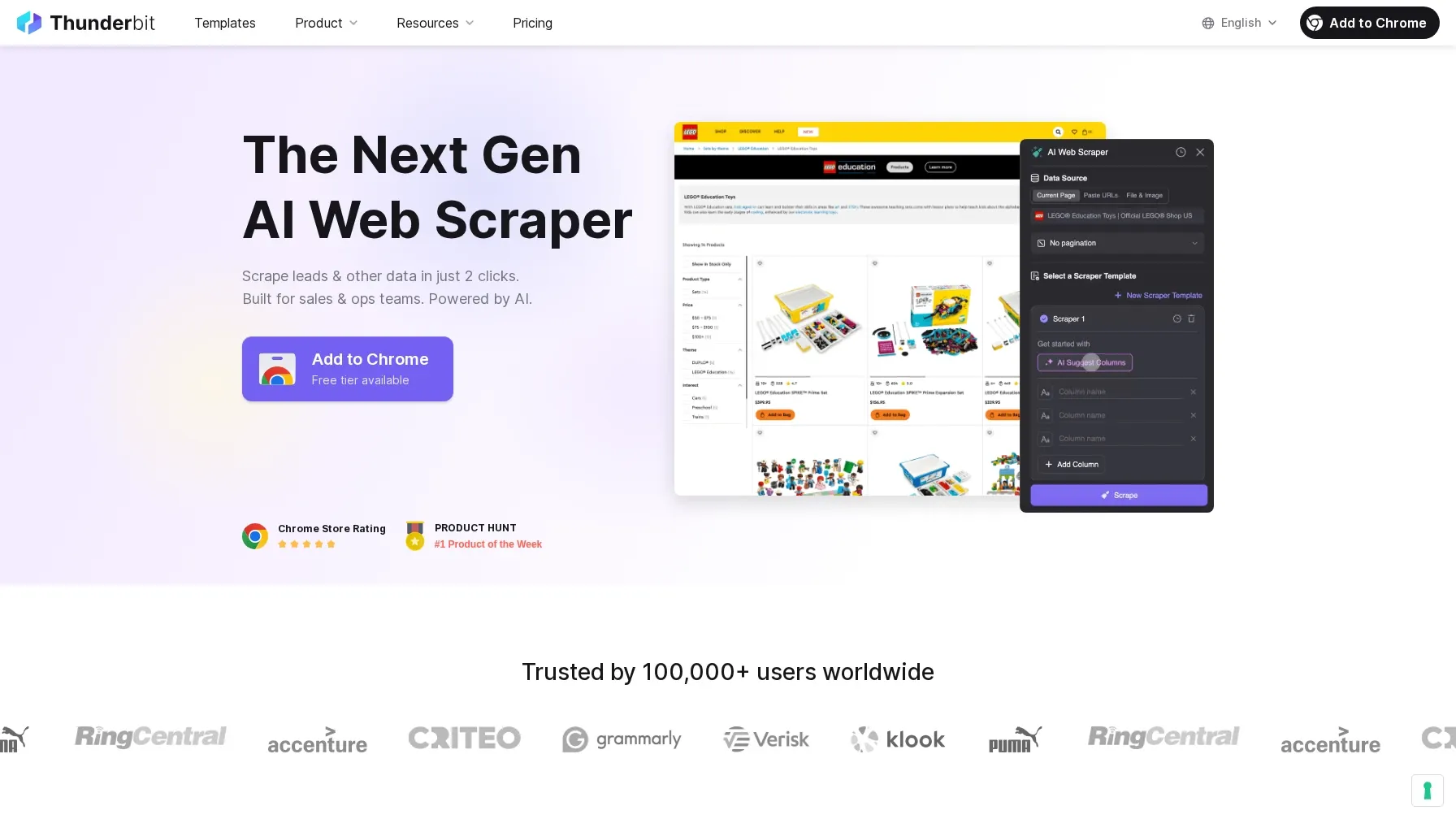 Thunderbit isn’t your typical Amazon price tracker. It’s an AI-powered web scraper Chrome Extension that lets you extract structured data from Amazon (and just about any other website) in a couple of clicks. Sure, you can track prices—but you can also pull product details, reviews, ratings, seller info, and more, all into a spreadsheet for deep analysis.
Scrape Amazon product data with AI Get Started Free
What makes Thunderbit stand out? You don’t have to mess with complicated templates or code. Just open the extension, use “AI Suggest Fields,” and Thunderbit reads the page, suggests what you can extract (like “Initial Price,” “Final Price,” “Brand,” “Rating,” etc.), and builds your data table. Want to see how prices have changed over time? Schedule recurring scrapes and build your own price history dataset—perfect for power shoppers, deal bloggers, or anyone who wants to go beyond the basics.
Thunderbit’s Key Features for Amazon Price Tracking
- AI Suggest Fields: Let Thunderbit’s AI scan the Amazon page and recommend the best columns to extract—no guesswork needed.
- Subpage Scraping: Need more details? Thunderbit can visit each product’s detail page, grab reviews, seller info, or even images, and add them to your table.
- Scheduled Scraping: Set up recurring scrapes to track price changes over time. You can build your own price history, not just rely on someone else’s chart.
- Export Anywhere: Send your data straight to Excel, Google Sheets, Airtable, or Notion. Perfect for analysis, sharing, or even building your own alerts.
- No-Code Simplicity: If you can use a browser, you can use Thunderbit. It’s designed for business users, researchers, and anyone who wants more than just a price chart.
How to Use Thunderbit for Amazon Price Tracking
- Install the Thunderbit Chrome Extension and sign up for a free account.
- Open an Amazon search or product page.
- Click the Thunderbit icon and hit “AI Suggest Fields.” Thunderbit will suggest fields like “Initial Price,” “Final Price,” “Rating,” and more.
- Click “Scrape.” Thunderbit extracts the data into a structured table.
- (Optional) Scrape Subpages for deeper details—like reviews or seller info.
- Export your data to your favorite spreadsheet tool.
- (Optional) Schedule recurring scrapes to build your own price history over days, weeks, or months.
Want to see it in action? Check out Thunderbit’s Amazon Product Scraper template or read the step-by-step tutorial.
Heads up: Thunderbit is a data extraction tool, not a built-in alert service. You can set up your own alerts in Google Sheets or Airtable using the exported data. And as always, use it responsibly—Amazon’s terms generally prohibit scraping, so don’t go overboard.
2. Keepa: In-Depth Amazon Price History Analysis
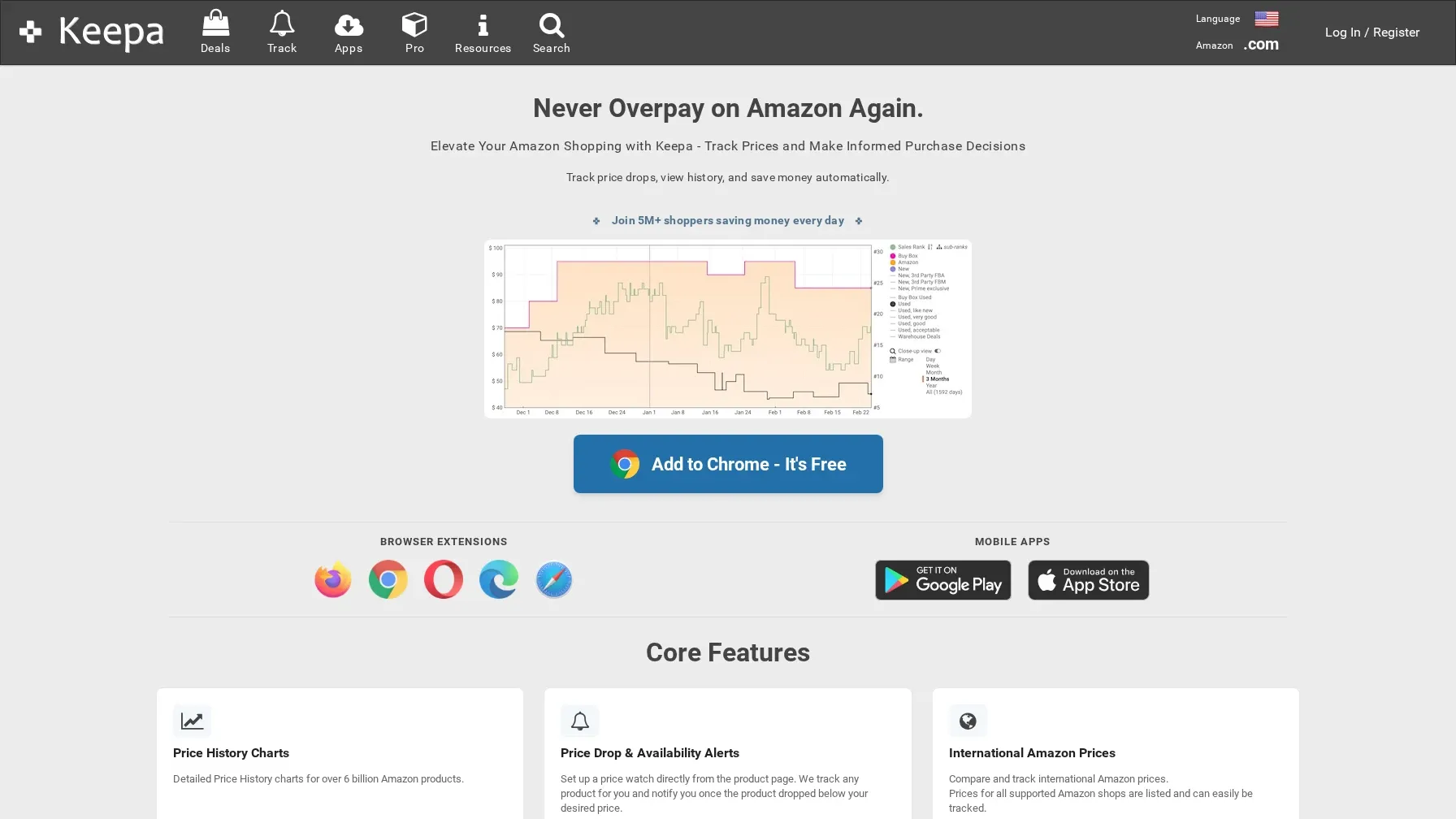 Keepa is the gold standard for Amazon price history. It’s a browser extension (Chrome, Firefox, Edge, Safari) that embeds detailed price history charts right on Amazon product pages. Want to see how the price has changed over months or even years? Keepa’s got you covered, with breakdowns for new, used, warehouse deals, and even Buy Box history.
Keepa is especially powerful for shoppers who want to analyze long-term trends, spot the best time to buy, or track Lightning Deals and sales rank. It’s trusted by over 4 million users and has a stellar 4.7/5 rating on the Chrome Web Store (Keepa Chrome Extension).
How to Use Keepa for Amazon Price Tracking
- Install the Keepa extension for your browser.
- Visit any Amazon product page. You’ll see a price history chart embedded below the main product image.
- Analyze the chart: Toggle between new, used, warehouse, and Buy Box prices. See sales rank, offer counts, and more.
- Set up price alerts: Click “Track Product,” set your desired price, and Keepa will email or notify you when the price drops.
- Explore advanced features: Track Lightning Deals, monitor availability, and even export data for deeper analysis.
Keepa’s basic features are free, but advanced data access (like API or bulk exports) may require a paid subscription (commonly around $19/month or $189/year, according to third-party sources). For most shoppers, the free tier is more than enough.
3. CamelCamelCamel: Simple and Effective Amazon Price Alerts
 CamelCamelCamel (and its browser extension, The Camelizer) is the OG of Amazon price tracking. It’s beloved for its no-nonsense interface: just paste an Amazon URL, and you’ll see a clear price history chart. Want to know when the price drops? Set an alert and get notified by email, Twitter, or RSS.
CamelCamelCamel is perfect for shoppers who want quick, reliable price alerts without a lot of bells and whistles. It supports Amazon in the U.S., Canada, Europe, and Australia, and its extension has over 800,000 users and a 4.3/5 rating (The Camelizer Chrome Extension).
Setting Up Price Alerts with CamelCamelCamel
- Go to CamelCamelCamel.com or install The Camelizer extension.
- Paste your Amazon product URL (or use the extension while browsing).
- View the price history chart—see how the price has changed over time.
- Set a price alert: Enter your target price and email address (or connect Twitter/RSS).
- Get notified when the price drops to your chosen threshold.
It’s that simple. Some users and reviewers report that CamelCamelCamel’s sales-rank history is no longer available, but for pure price tracking and alerts, it remains a favorite.
4. Honey: Discover Amazon Discounts and Coupons Automatically
 Honey is more than just a price tracker—it’s your personal deal hunter. This browser extension (Chrome, Firefox, Edge, Safari, Opera) automatically finds and applies coupon codes at checkout, tracks Amazon prices, and even compares different sellers (factoring in shipping and Prime status).
Honey's "Droplist" feature lets you watch Amazon products and get notified when prices drop over 30, 60, 90, or 120 days (Honey Help). Plus, you can see short-term price history and seller ratings right on the product page. With around 13 million users and a 4.6/5 rating (Honey Chrome Extension), Honey still has the largest install base of any tool in this list.
Using Honey to Track Amazon Prices and Save More
- Install the Honey extension for your browser.
- Browse Amazon as usual. Honey will show a badge near the price if it finds a deal or price history.
- Add items to your Droplist to track price drops over your chosen window (30–120 days).
- Get notified by email or browser alert when the price drops.
- At checkout, let Honey search for and apply coupons automatically.
Honey also offers rewards and cashback at thousands of retailers. One note worth knowing: the affiliate-attribution story that broke in late 2024 (The Verge) escalated in January 2026, when Rakuten Advertising, Impact.com, and Awin each removed Honey from their affiliate networks — collectively cutting Honey off from roughly 2,000 retail partners. The extension still works for shoppers and PayPal says the disputed code "no longer has an impact," but the merchant-side coverage you used to get from Honey is now noticeably thinner. If you only care about coupons and price drops, you'll barely notice; if you cared about Honey's reach across retailers, that part has shrunk.
5. PriceBlink: Compare Amazon Prices Across Multiple Retailers
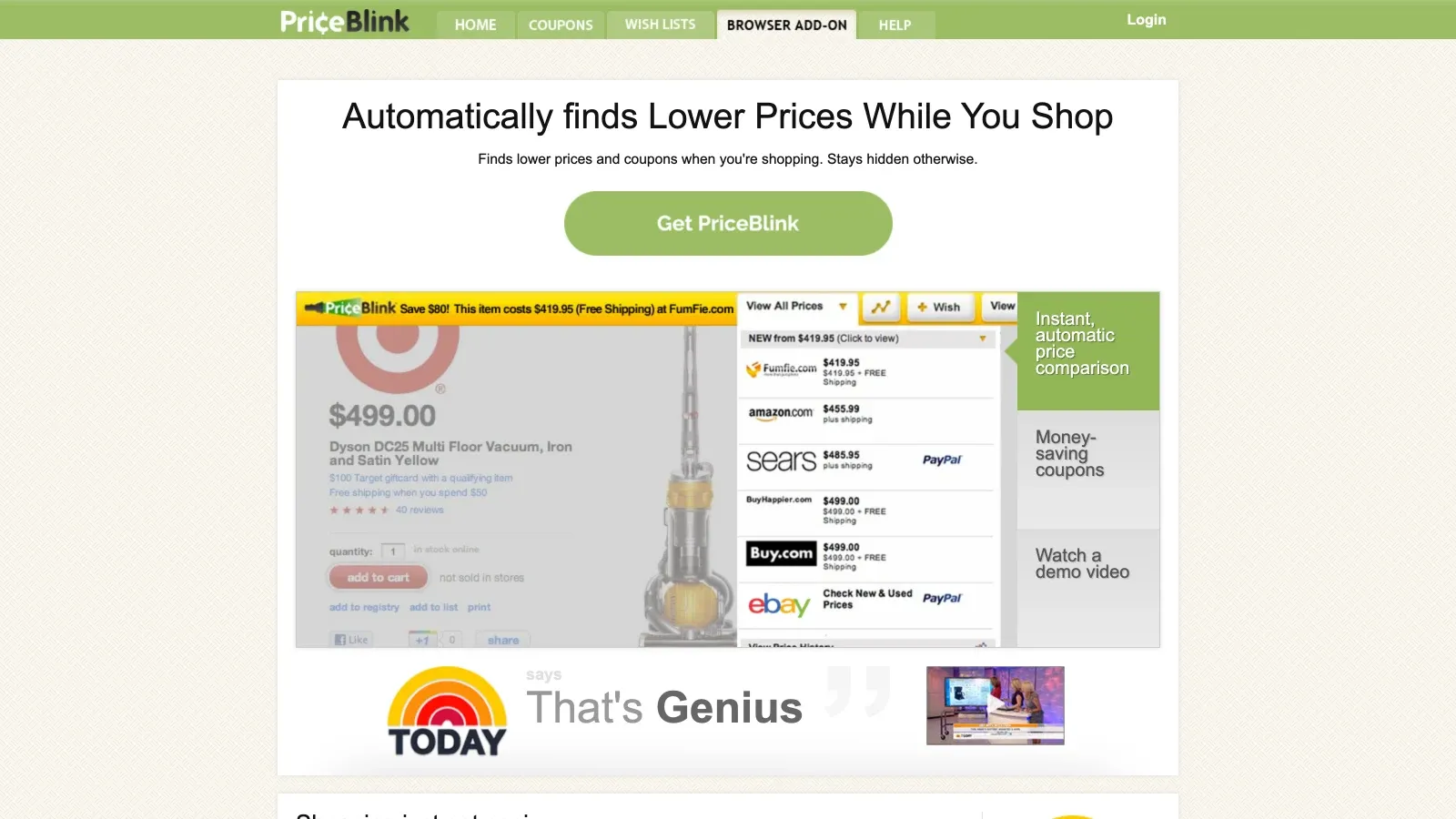 PriceBlink is all about cross-platform price comparison. When you’re shopping on Amazon (or thousands of other sites), PriceBlink scans over 11,000 merchants in real time to show you if a better deal exists elsewhere. It also finds coupons and overlays them right in your browser.
PriceBlink is especially handy for shoppers who want to make sure they’re getting the absolute lowest price—not just on Amazon, but across the web. The extension has over 100,000 users and a 4.6/5 rating (PriceBlink Chrome Extension).
How to Use PriceBlink for Amazon Price Comparison
- Install the PriceBlink extension from the Chrome Web Store.
- Shop on Amazon or any major retailer. PriceBlink will automatically display a bar showing if the same product is cheaper elsewhere.
- Click to compare prices across platforms, view shipping costs, and see available coupons.
- Get notified of instant savings opportunities as you browse.
If you’re the kind of shopper who always wants to “check one more site,” PriceBlink is your best friend.
Quick Comparison Table: Amazon Price Tracking Tools at a Glance
| Tool | Best For | Price History Window | Alerts | Unique Features | Platforms | User Base (Chrome) |
|---|---|---|---|---|---|---|
| Thunderbit | Data extraction, custom price tracking, deep analysis | User-defined (via scheduled scrapes) | No built-in alerts; set up in Sheets/Airtable | AI-powered extraction, subpage scraping, export to Sheets/Excel/Notion | Chrome | 100,000+ |
| Keepa | Deep price history, trend analysis | Multi-year | Email/browser alerts | Buy Box, offer types, sales rank, Lightning Deals | Chrome, Firefox, Edge, Safari | 4,000,000+ |
| CamelCamelCamel | Simple alerts, quick checks | Long-range (varies) | Email/Twitter/RSS | Minimalist UI, easy setup | Chrome, Firefox, Web | 800,000+ |
| Honey | Coupon hunting, short-term price drops | 30/60/90/120 days | Email/browser alerts | Coupon auto-apply, seller comparison, rewards | Chrome, Firefox, Edge, Safari, Opera | 14,000,000+ |
| PriceBlink | Cross-platform price comparison | Not a history tool | Instant comparison | Real-time multi-store comparison, coupons | Chrome, Firefox | 100,000+ |
Choosing the Right Amazon Price Tracking Tool for Your Needs
So, which tool should you pick? Here’s my take:
- Need deep, long-term price history and granular analysis? Go with Keepa.
- Want quick, simple price alerts with minimal setup? CamelCamelCamel is your best bet.
- Love stacking coupons and hunting for extra discounts? Honey is your go-to.
- Want to compare prices across Amazon and other retailers in real time? Try PriceBlink.
- Obsessed with data and want to extract everything—prices, reviews, seller info, and more—for analysis or business use? Thunderbit is the tool for you.
And if you’re like me, you might end up using two or three of these together. There’s no law against maximizing your savings (yet).
Final Thoughts: Outsmarting Amazon’s Price Algorithms
Amazon’s pricing is a moving target, and the only way to shop smart is to arm yourself with the right tools. Whether you’re a casual deal hunter or a data-driven power user, there’s an Amazon price tracking tool that fits your style. Personally, I love having Thunderbit in my arsenal for those times when I want to go beyond the basics—extracting not just prices, but the whole story behind a product.
Remember, the best deal isn’t just about the lowest price today—it’s about knowing the history, timing your purchase, and making sure you’re not missing out on a better offer somewhere else. Happy deal hunting, and may your shopping cart always be full of real bargains.
Want to dive deeper into web data and automation? Check out the Thunderbit Blog for more guides, tips, and tutorials on smart shopping, data extraction, and AI-powered productivity.
FAQs
1. Why do Amazon prices change so often?
Amazon uses dynamic pricing algorithms that can adjust prices over 2,000 times a day, based on demand, competition, time of day, and even your browsing habits. That’s why tracking price history is so important for smart shopping.
2. Can I get price drop alerts directly from Amazon?
Amazon's AI shopping assistant "Rufus" now shows 30-, 90-, and 365-day price history, and can set price alerts or even auto-purchase when a target price is hit (About Amazon). For most shoppers that's enough. The reason to still reach for Keepa or CamelCamelCamel: multi-year history beyond Rufus's 365-day window, Buy Box / used / warehouse breakdowns, and the ability to see the same data outside the Amazon app.
3. Is it safe and legal to use price tracking tools?
Most browser extensions (like Keepa, Honey, CamelCamelCamel, and PriceBlink) operate within Amazon’s terms by reading publicly available data. Tools like Thunderbit, which use web scraping, should be used responsibly—Amazon’s terms generally prohibit scraping, so avoid excessive requests and always respect site policies (Thunderbit Amazon Scraper Tutorial).
4. Which tool is best for business users or data analysis?
Thunderbit is ideal for users who want to extract and analyze large datasets from Amazon—including prices, reviews, seller info, and more. It’s perfect for researchers, ecommerce teams, and anyone who wants to go beyond simple price alerts.
5. How can I tell if a price-tracking extension is still maintained?
Open its Chrome Web Store listing and check the “Updated” date, then follow the developer’s website link. Abandoned extensions usually stop shipping updates long before they are pulled from the store, so a stale update date is the earliest warning you get.
Ready to shop smarter? Try out one (or more) of these tools and see how much you can save. And if you want to build your own Amazon price tracker, Thunderbit’s free Chrome extension is a great place to start. Happy hunting!
Build your own Amazon price tracker with Thunderbit
Try Thunderbit AI Web Scraper Get Started Free
Learn More




