
Let’s get real for a second: in 2026, if you’re still manually copying and pasting data from websites, you’re basically running a marathon in flip-flops. The web scraping software market hit $1.01 billion in 2024 and is projected to reach $2.49 billion by 2032, per Apify’s state-of-web-scraping report. More than half of U.S. businesses are already collecting external web data—monitoring competitors, tracking prices, and building lead lists—because they know that whoever gets the freshest data, wins.

Scrape website data with AI in one click Thunderbit's agentic web scraper reads any website's data itself and extracts it in one click, no setup required. Get Started Free
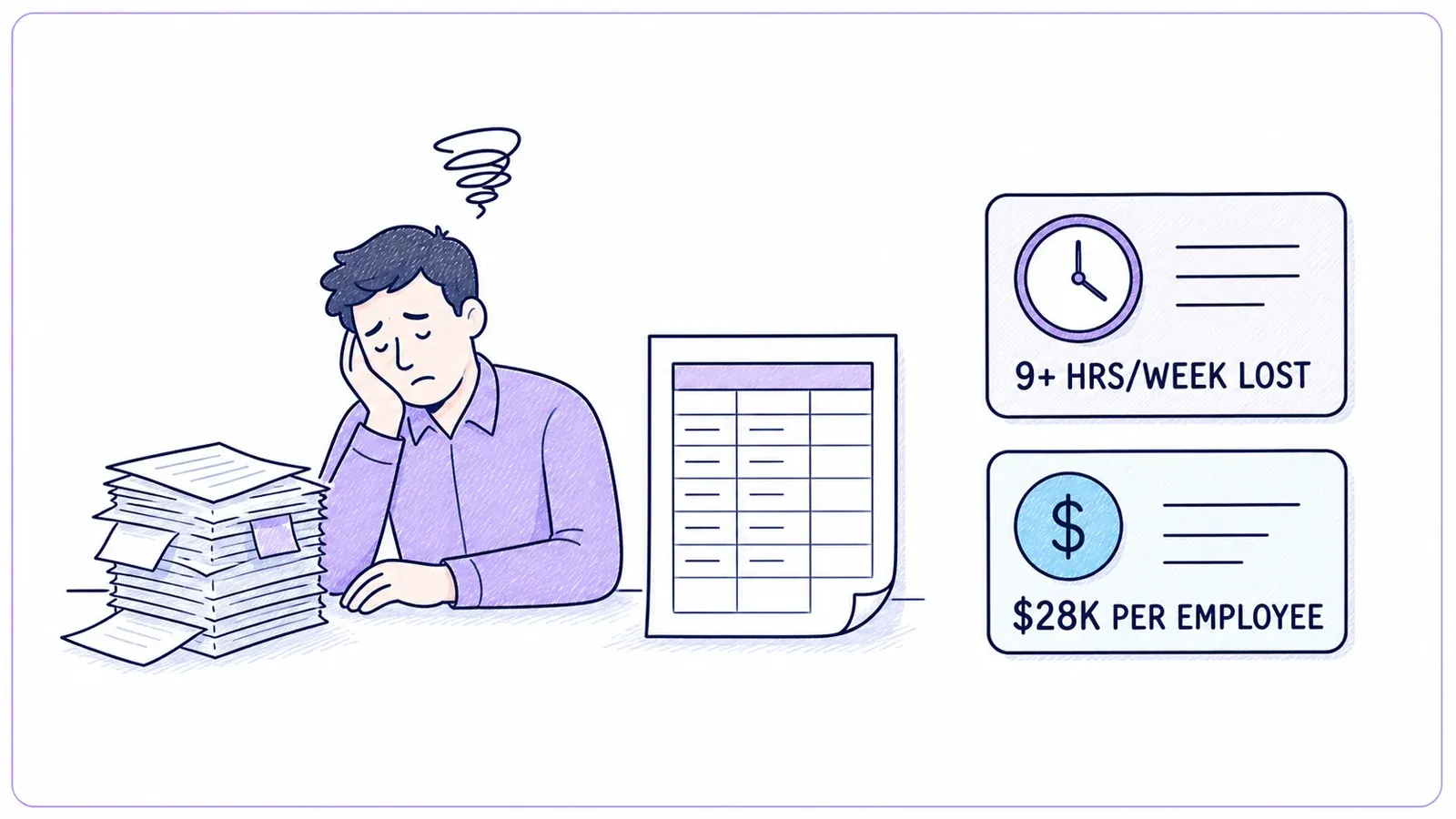
But here’s the catch: most business users aren’t coders. I’ve seen sales teams, marketers, and operations folks spend 9+ hours a week on repetitive data entry, costing companies around $28,500 per employee per year per the 2025 Parseur/QuestionPro survey of 500 U.S. professionals. And nearly 60% of workers say these tasks burn them out. The good news? Scraping website data efficiently is now within reach for everyone—even if you’ve never written a line of code. Let’s break down exactly how to do it, which tools to use, and how to go from “I need this data” to a usable spreadsheet — for the well-structured sites it works on, in a handful of clicks; for the messier ones, in a handful of clicks plus a couple of prompt tweaks.
What Does It Mean to Scrape Website Data?
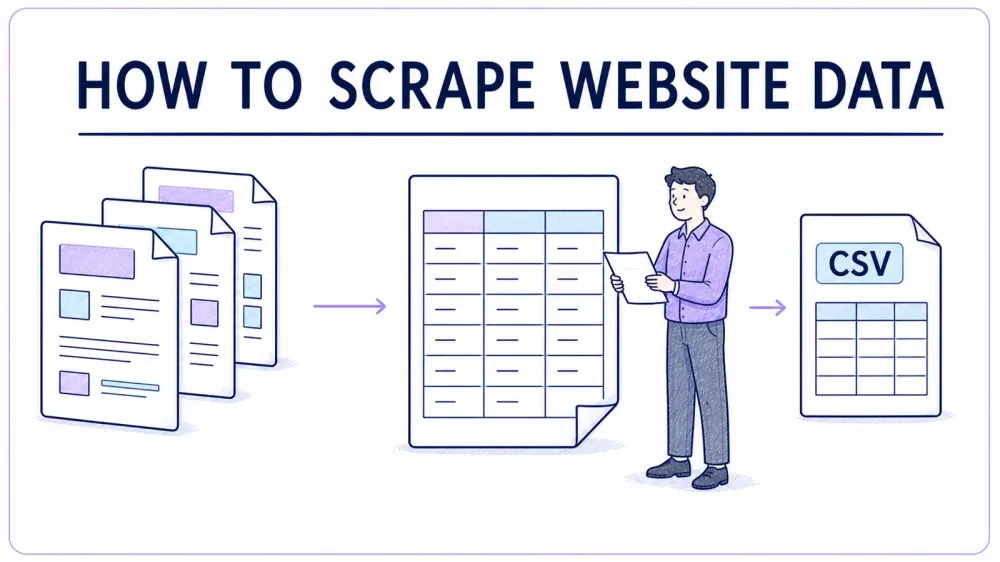
At its core, scraping website data means using software to automatically extract information from web pages and organize it into a structured format—think tables, spreadsheets, or databases. Imagine having a digital assistant that visits hundreds of web pages, grabs the info you need (like names, prices, emails), and drops it all into Excel while you grab a coffee.
Manual data collection—copying and pasting from websites—works for a handful of rows. But when you need to gather info from dozens or thousands of pages, it’s a recipe for sore wrists and lots of typos. Automated web scraping tools do the heavy lifting for you, pulling out the exact data fields you want, at scale, and with far fewer mistakes (ParseHub).
The basic steps of web scraping:
- Identify the data you want (e.g., product prices, contact info, reviews).
- Extract the data using a tool or script.
- Export the results into a format you can analyze (CSV, Excel, Google Sheets, etc.).
Modern web scrapers can even handle multi-page listings, click through “next” buttons, and visit subpages—so you get all the data, not just what’s visible on one screen.
Why Scraping Website Data Matters for Business Teams
Let’s talk about why this skill is a must-have for sales, marketing, and operations teams:
- Lead Generation: Build targeted lists of prospects by scraping business directories, LinkedIn, or event attendee pages. No more buying outdated lists or spending hours on Google.
- Price Monitoring: Track competitor prices and stock levels across marketplaces. Retailers like John Lewis boosted sales by 4% using scraped pricing data.
- Market Research: Aggregate reviews, ratings, and social media mentions to spot trends and customer sentiment in real time.
- Operational Efficiency: Keep product catalogs, supplier info, or real estate listings up to date—automatically.
Here’s a quick table summarizing the benefits:
| Key Benefit | What It Means | Real-World Outcome |
|---|---|---|
| Time Savings | Automate hours of manual data work | +9 hours/week saved per worker (PRNewswire) |
| Accuracy | Fewer errors, more consistent data | Up to 99.5% accuracy (Scrapingdog) |
| Competitive Edge | Faster, fresher insights than your rivals | Dynamic pricing, better targeting |
| Workflow Automation | Data updates itself—no more manual checks | Scheduled daily/weekly reports |
No wonder 63% of companies using external data say it improved decision-making, and over half saw revenue growth.
Step-by-Step: How to Scrape Website Data Without Coding
I get this question a lot: “How do I actually start scraping data if I’m not technical?” Here’s a beginner-friendly roadmap:
1. Define Your Goal and Data Fields
Decide what you want. Is it a list of all restaurants in your city from Yelp, including name, address, and phone? Or maybe competitor product prices from Amazon? Write down the fields you need.
2. Choose the Right Tool
If you’re not a coder, skip the Python scripts. Go for no-code tools like Thunderbit, which is an AI-powered Chrome extension, or other visual scrapers like Octoparse or ParseHub.
Try Thunderbit Agentic Web Scraper for Free Free plan covers 6 pages a month, no credit card required — a fast way to test extraction on your target site. Get Started Free
3. Set Up Your Environment
Install your chosen tool (for Thunderbit, grab the Chrome Extension). Sign up, log in, and you’re ready to roll.
4. Identify the Data on the Website
Navigate to your target page. With Thunderbit, just click “One Click Extract”—the AI scans the page, works out the right columns (like Name, Price, Email), and extracts them.
5. Run a Test Scrape
Always start small. Scrape one page or a handful of entries to check if the data looks right. Adjust columns or prompts as needed.
6. Scrape the Full Dataset
Once you’re happy, run the full scrape. For big jobs, use cloud mode (more on this soon). The tool will handle pagination and subpages if set up.
7. Export and Use Your Data
Export to Excel, Google Sheets, Airtable, or Notion. Spot-check a few rows to make sure everything’s in order.
Pro tip: Avoid common mistakes like forgetting pagination, scraping too much at once, or ignoring site terms of service. Start focused, iterate, and you’ll be a scraping pro in no time.
Choosing the Right Tool: Thunderbit vs. Traditional Scraping Solutions
Let’s compare your options:
| Solution | Ease of Use | Setup Time | Maintenance | Scalability | Cost | Best For |
|---|---|---|---|---|---|---|
| Thunderbit (AI No-Code) | Very High | Minutes | Low | High (cloud) | Free tier, $15+/mo | Sales, ops, non-coders |
| Traditional Extensions | Medium | 30+ min | Medium | Limited | Free/low | Simple, patient users |
| Custom Code (Python) | Low | Hours+ | High | Very High | Dev time | Developers, data teams |
| Outsourcing Services | High | Days | Low | High | $$$ | Large, one-off projects |
Thunderbit stands out for non-technical users: no code, One Click Extract, and a workflow that’s as easy as ordering takeout. Traditional tools require more tinkering, and custom code is best left to the engineers.
Extract Any Page in a Single Click Thunderbit's agentic web scraper reads the page, works out its structure, and hands you a clean table — no selectors. Get Started Free
Thunderbit in Action: Scrape Website Data in Just a Few Clicks
Here’s how I’d use Thunderbit to scrape, say, a directory of real estate agents:
- Install the Chrome Extension and log in.
- Go to the target website (e.g., a real estate directory).
- Click the Thunderbit icon to open the sidebar.
- Hit “One Click Extract.” Thunderbit’s AI scans the page and suggests columns like Name, Agency, Phone, Email.
- Review and adjust fields—rename columns, add a custom prompt if you want to categorize or format data.
- Click “Scrape.” Thunderbit extracts the data into a table, handling pagination and even infinite scroll.
- Export to Excel, Google Sheets, or Notion—no extra charge, no hidden fees.
If each agent’s name links to a profile page, use Subpage Scraping: Thunderbit will visit each profile, grab extra info (like address or years of experience), and append it to your table. No more opening tabs one by one.
Browser Scraping vs. Cloud Scraping: Which Mode Fits Your Needs?
Thunderbit gives you two modes:
- Browser Scraping: Runs in your local Chrome browser. Perfect for scraping data behind logins or personalized pages (like your LinkedIn account or internal dashboards). It uses your session and cookies, so if you can see it, Thunderbit can scrape it.
- Cloud Scraping: Runs on Thunderbit’s servers. Super fast for public data—scrapes up to 50 pages at once, doesn’t tie up your computer, and keeps running even if you close your laptop. Great for big jobs like scraping all products from an ecommerce site.
When to use each:
- Browser Mode: Login-required sites, personalized feeds, small jobs.
- Cloud Mode: Large-scale public data, scheduled scrapes, or when you want to set it and forget it.
Thunderbit also handles pagination and subpages in both modes, so you get complete datasets every time.
Double-Click Efficiency: Using AI to Refine Fields and Data Formats
One of my favorite Thunderbit features is “AI Improve Fields.” Here’s why it rocks:
- Automatic Formatting: Standardize phone numbers, prices, or dates as you scrape—no more messy spreadsheets.
- Categorization: Add a column like “Category” and let the AI label each row (e.g., Electronics, Clothing, Furniture) based on the description.
- Translation: Scrape sites in other languages and have Thunderbit translate fields into English (or 34+ other languages).
- Custom Prompts: Want to extract sentiment from reviews or tag companies by size? Just add an AI prompt to the field.
This means you get analysis-ready data straight out of the tool, skipping hours of manual cleanup.
Automate Your Workflow: Scheduling Regular Website Data Scraping
Why stop at one-time scraping? Thunderbit’s Schedule feature lets you set up recurring scrapes—daily, weekly, or whenever you want.
- Describe the schedule in plain English (“every Monday at 9am”).
- Choose your project and export destination (Excel, Google Sheets, Airtable, Notion).
- Thunderbit runs the scrape automatically and updates your data—no manual effort.
Use cases:
- Sales: Daily lead list updates.
- Ecommerce: Automated price monitoring.
- Ops: Inventory or stock alerts.
- Market Research: News or review aggregation.
With scheduled scraping, your data stays fresh, and your team always has the latest info at their fingertips.
Comparing Popular Website Data Scraping Tools: A Quick Reference
Here’s a side-by-side look at the most common options:
| Tool Type | Ease of Use | Setup Time | Scalability | Maintenance | Cost | Best For |
|---|---|---|---|---|---|---|
| Thunderbit (AI No-Code) | ⭐⭐⭐⭐⭐ | Minutes | High | Low | Free/$15+/mo | Sales, ops, non-coders |
| Traditional Extensions | ⭐⭐⭐ | 30+ min | Medium | Medium | Free/low | Simple, patient users |
| Custom Code (Python) | ⭐ | Hours+ | Very High | High | Dev time | Developers, data teams |
| Outsourcing Services | ⭐⭐⭐⭐ | Days | High | Low | $$$ | Large, one-off projects |
For most business users, Thunderbit is the clear winner for speed, ease, and cost.
Key Takeaways: How to Scrape Website Data Efficiently
- Web scraping is now accessible to everyone. No coding required—just pick the right tool and follow a few simple steps.
- Define your goals and fields before you start. Know what data you need and where to find it.
- Use AI-powered tools like Thunderbit for the easiest, fastest results—especially for non-technical users.
- Automate repetitive tasks with scheduling so your data updates itself.
- Refine and format your data as you scrape using AI prompts—get analysis-ready results instantly.
Ready to give it a try? Download Thunderbit’s Chrome Extension and start your first scrape for free. Or check out the Thunderbit Blog for more guides and real-world examples.
See How Thunderbit Compares See how Thunderbit's one-click, AI-driven extraction compares to the other tools covered in this guide. Get Started Free
FAQs
1. Is web scraping legal and safe for business use?
Yes, as long as you’re scraping publicly available data and respecting website terms of service. Avoid scraping personal or sensitive info without permission, and always check a site’s policies.
2. What kind of data can I scrape with Thunderbit?
You can extract text, numbers, dates, URLs, emails, phone numbers, images, and more. Thunderbit’s AI can even categorize, label, and translate fields as you scrape.
3. Can I scrape data from sites that require login?
Absolutely—use Thunderbit’s Browser Mode to scrape data from any page you can access in your browser, including behind logins.
4. How does Thunderbit handle websites with lots of pages or subpages?
Thunderbit supports automatic pagination and subpage scraping. It can follow “next” buttons and visit linked detail pages, merging all the data into one table.
5. Can I schedule scrapes to run automatically?
Yes! Thunderbit’s Schedule feature lets you set up recurring scrapes (daily, weekly, etc.) and export results directly to Excel, Google Sheets, Airtable, or Notion.
Try Thunderbit Agentic Web Scraper for Free Get Started Free
Scraping website data doesn’t have to be a headache. With the right tools and a clear plan, you can turn the web into your personal database—no code, no stress, just results. Happy scraping!




