
The web is overflowing with data, and let’s be honest—nobody wants to copy and paste their way through a thousand product listings or job postings. That’s why web scraping has become a must-have skill for business users in sales, operations, ecommerce, and beyond. Python, with its approachable syntax and powerful libraries, has become the go-to language for building web scrapers. In a 2023 ScrapingFish survey of web scraping practitioners, Python came in well ahead of any other language at around 62% — and the gap doesn't seem to have closed since.
But here’s the catch: while Python scraping is powerful, it can feel daunting for beginners—and even seasoned pros run into headaches with dynamic sites, anti-bot defenses, and messy data. That’s why I put together this step-by-step guide. We’ll start from scratch, walk through a practical python web scraper example, and explore how you can combine Python with AI-powered tools like Thunderbit to scrape smarter, not harder. Whether you’re looking to automate lead generation, monitor competitor prices, or just wrangle web data into a spreadsheet, you’ll find actionable steps (and a few hard-earned tips) right here.
Python Web Scraping 101: Getting Set Up from Zero
What Is Data Scraping and How to Do It in 2026 Get Started Free
Let’s kick things off with the basics. Web scraping is just a fancy term for automating the process of collecting data from websites. Instead of manually copying info, a scraper visits a page, reads its HTML, and pulls out the bits you care about—think product prices, contact details, or reviews. For business users, this means real-time data for sales leads, price monitoring, or market research, all at your fingertips (browsercat.com).
Step 1: Install Python
First, you’ll need Python 3. Most folks can grab the latest version from the official Python website. On Windows, run the installer and make sure to check “Add Python to PATH.” On Mac, you can use Homebrew with brew install python, or download directly. After installing, open your terminal (or Command Prompt) and run:
python --version
or
python3 --version
If you see something like Python 3.14.5 (or any 3.x release), you're good to go.
Step 2: Set Up a Virtual Environment
A virtual environment keeps your project’s dependencies tidy and avoids conflicts with other Python projects. In your project folder, run:
# On macOS/Linux
python3 -m venv .venv

# On Windows
py -m venv .venv
Activate it with:
- macOS/Linux:
source .venv/bin/activate - Windows:
.venv\Scripts\activate
Now, any packages you install will live inside this project only (Python Packaging Guide).
Step 3: Install Key Libraries
You’ll need a few essential packages:
- Requests: For fetching web pages.
- BeautifulSoup (bs4): For parsing HTML.
- Scrapy: For advanced, large-scale scraping.
Install them with:
pip install requests beautifulsoup4 scrapy
- Requests makes HTTP calls as easy as reading a file.
- BeautifulSoup helps you find and extract data from HTML.
- Scrapy is a full-featured framework for crawling lots of pages, handling errors, and exporting data.
For most beginners, starting with Requests + BeautifulSoup is perfect. Scrapy is great once you want to scale up.
Step 4: Create Your Project Folder
Organize your files! Make a folder for your project, and inside it, keep your scripts, data files, and virtual environment. Trust me, your future self will thank you.
python web scraper example: Basic Script and Code Structure
Let’s build a simple scraper together. We’ll fetch a web page, parse it, and extract some data. Here’s a minimal, annotated example scraping example.com:
import requests
from bs4 import BeautifulSoup

URL = "https://example.com"
response = requests.get(URL)
response.raise_for_status()  # Throws error if not 200 OK

soup = BeautifulSoup(response.text, "html.parser")
# Find all paragraph tags
paragraphs = soup.find_all('p')
for idx, p in enumerate(paragraphs, start=1):
    print(f"Paragraph {idx}: {p.get_text()}")
What’s happening here?
- We import our libraries.
- Fetch the page with
requests.get. - Parse the HTML with BeautifulSoup.
- Find all
<p>tags and print their text.
Common pitfalls:
- Not checking
response.status_code(always check for 200 OK). - Trying to access
.get_text()on aNoneobject (if the element isn’t found). - Forgetting to activate your virtual environment (your imports might fail).
This structure—import, fetch, parse, extract, output—is the backbone of most Python scrapers.
Using Python to Scrape Web Pages: Step-by-Step
Let’s break down the workflow for a real-world scraping task.
1. Inspect the Website
Open your browser, right-click the data you want, and select “Inspect.” This opens the Developer Tools and shows you the HTML structure. Look for unique tags, classes, or IDs that identify your target data (realpython.com).
2. Fetch the Page
Use Requests to get the HTML:
headers = {"User-Agent": "Mozilla/5.0"}
response = requests.get(URL, headers=headers)
response.raise_for_status()
Adding a User-Agent helps avoid basic anti-bot blocks.
3. Parse the HTML
soup = BeautifulSoup(response.text, "html.parser")
4. Locate and Extract Data
Suppose you’re scraping job postings, each in a <div class="job-card">:
job_cards = soup.find_all('div', class_='job-card')
for card in job_cards:
    title = card.find('h2', class_='title').get_text(strip=True)
    company = card.find('h3', class_='company').get_text(strip=True)
    print(title, company)
You can use .find(), .find_all(), or .select() with CSS selectors for more complex queries.
5. Handle Multiple Items (Lists)
Loop through the list of containers (like product listings, job cards, etc.), extracting the fields you need. Store them in a list of dictionaries for easy export.
6. Troubleshooting
- If you get empty results, check your selectors—maybe the class name changed or the content is loaded via JavaScript.
- Print out
response.text[:500]to see if you’re getting the expected HTML.
python web scraper example: Data Storage and Export
Once you’ve got your data, you’ll want to save it. Here are the most common options:
Print to Console
Great for quick checks, but not for real projects.
Write to CSV
import csv

data = [
    {"Name": "Alice", "Age": 25},
    {"Name": "Bob", "Age": 30},
]

with open("output.csv", "w", newline="", encoding="utf-8") as f:
    writer = csv.DictWriter(f, fieldnames=["Name", "Age"])
    writer.writeheader()
    writer.writerows(data)
Export to Excel
If you have pandas and openpyxl installed:
import pandas as pd

df = pd.DataFrame(data)
df.to_excel("output.xlsx", index=False)
Store in a Database
For lightweight needs, SQLite is built into Python:
import sqlite3

conn = sqlite3.connect("scraped_data.db")
cursor = conn.cursor()
cursor.execute("CREATE TABLE IF NOT EXISTS people (name TEXT, age INTEGER)")
for row in data:
    cursor.execute("INSERT INTO people VALUES (?, ?)", (row["Name"], row["Age"]))
conn.commit()
conn.close()
When to use what?
- CSV: Best for spreadsheets, easy sharing.
- Excel: For formatted reports, multiple sheets.
- Database: For large or ongoing projects.
Always use encoding="utf-8" to avoid weird character issues (decodo.com).
Thunderbit and Python: Supercharging Your Scraping Workflow
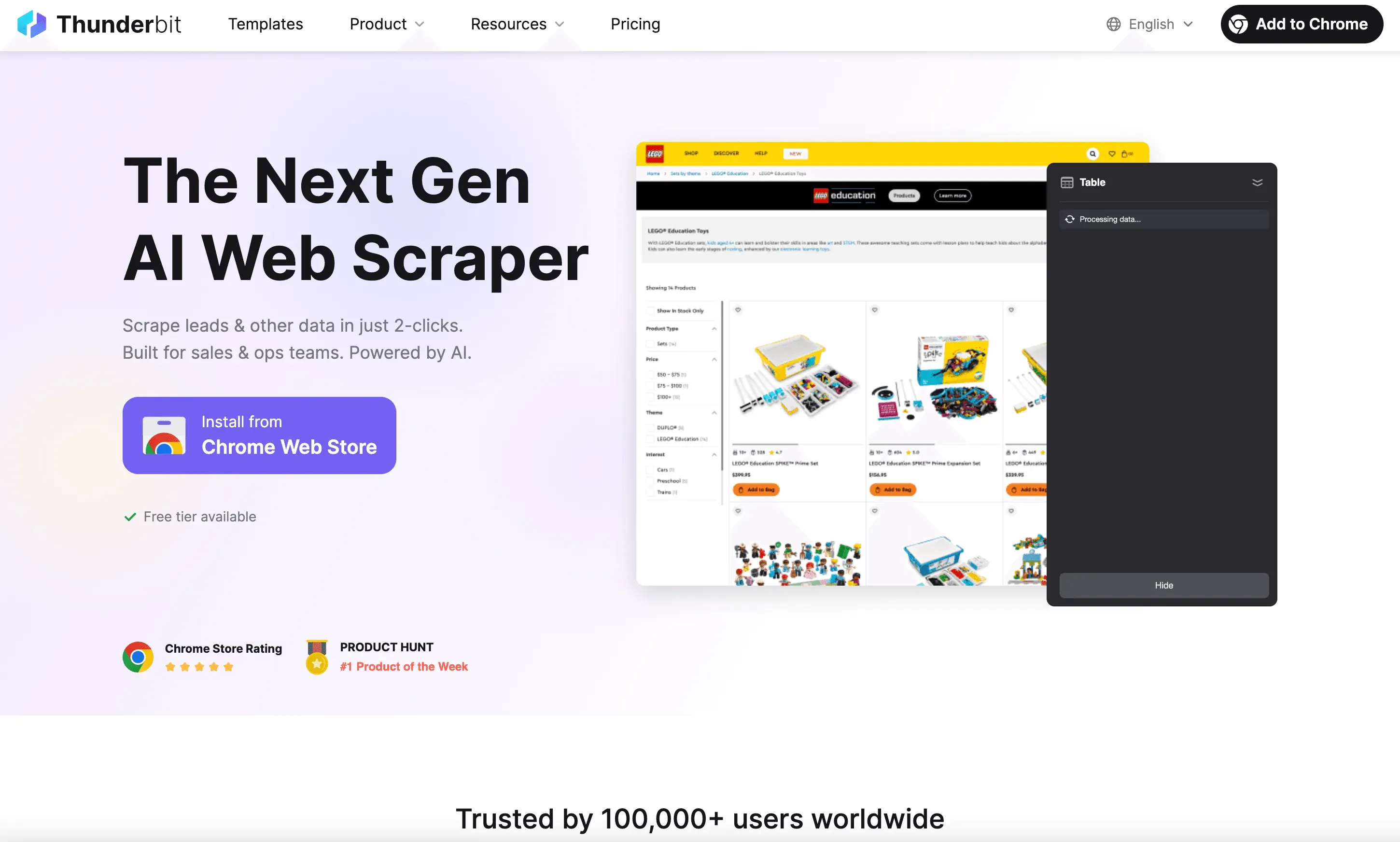 Now, let’s talk about Thunderbit, the AI-powered web scraper Chrome Extension that’s changing the game for business users.
What Makes Thunderbit Different?
- AI Suggest Fields: Thunderbit’s AI scans the page and recommends which data columns to extract—no need to dig through HTML or write selectors.
- Point-and-Click Workflow: Just open the extension, let the AI suggest fields, click “Scrape,” and you’re done.
- Subpage Scraping: Thunderbit can automatically visit detail pages (like product or profile pages) and enrich your dataset with extra info.
- Export Anywhere: Download your data as CSV, Excel, or export directly to Google Sheets, Notion, or Airtable (Thunderbit Export).
Try Thunderbit AI Web Scraper for Free
How Does Thunderbit Complement Python?
Let’s say you’re scraping a complex ecommerce site with lots of JavaScript and login requirements. Traditional Python scripts might struggle, but Thunderbit—running in your browser—can handle these with ease. Once you’ve scraped the data, export it and use Python for further analysis, reporting, or automation.
Example scenario:
- Use Thunderbit to scrape product listings (including images, prices, and reviews) from a dynamic site.
- Export to CSV.
- Use Python to analyze trends, merge with other datasets, or automate alerts.
This combo lets you tackle even the toughest scraping challenges—no matter your coding skill level.
Ensuring Accuracy and Stability in Your Python Web Scraper
Web scraping isn’t just about grabbing data—it’s about grabbing the right data, reliably. Here’s how to keep your scrapers humming:
1. Handle Website Changes
Sites update their HTML all the time. Write your selectors to be as resilient as possible—prefer unique IDs or stable class names over brittle tag positions.
2. Use Error Handling
Wrap your requests and parsing code in try/except blocks:
import time

for attempt in range(3):
    try:
        response = requests.get(url, timeout=10)
        response.raise_for_status()
        break
    except Exception as e:
        if attempt < 2:
            time.sleep(5)
        else:
            print(f"Failed after 3 attempts: {e}")
3. Rotate User-Agent and Use Proxies
Many sites block scripts that look like bots. Randomize your User-Agent string and, for heavy scraping, use proxies to avoid IP bans (scrapingfish.com).
4. Respect robots.txt and Be Ethical
Always check a site’s robots.txt and terms of service. Only scrape public data, avoid personal info, and don’t overload servers (rayobyte.com).
5. Log and Monitor
Use Python’s logging module to track errors and successes. If your scraper runs on a schedule, set up alerts for failures or zero-results days.
How Thunderbit’s AI Features Enhance Python Web Scraping
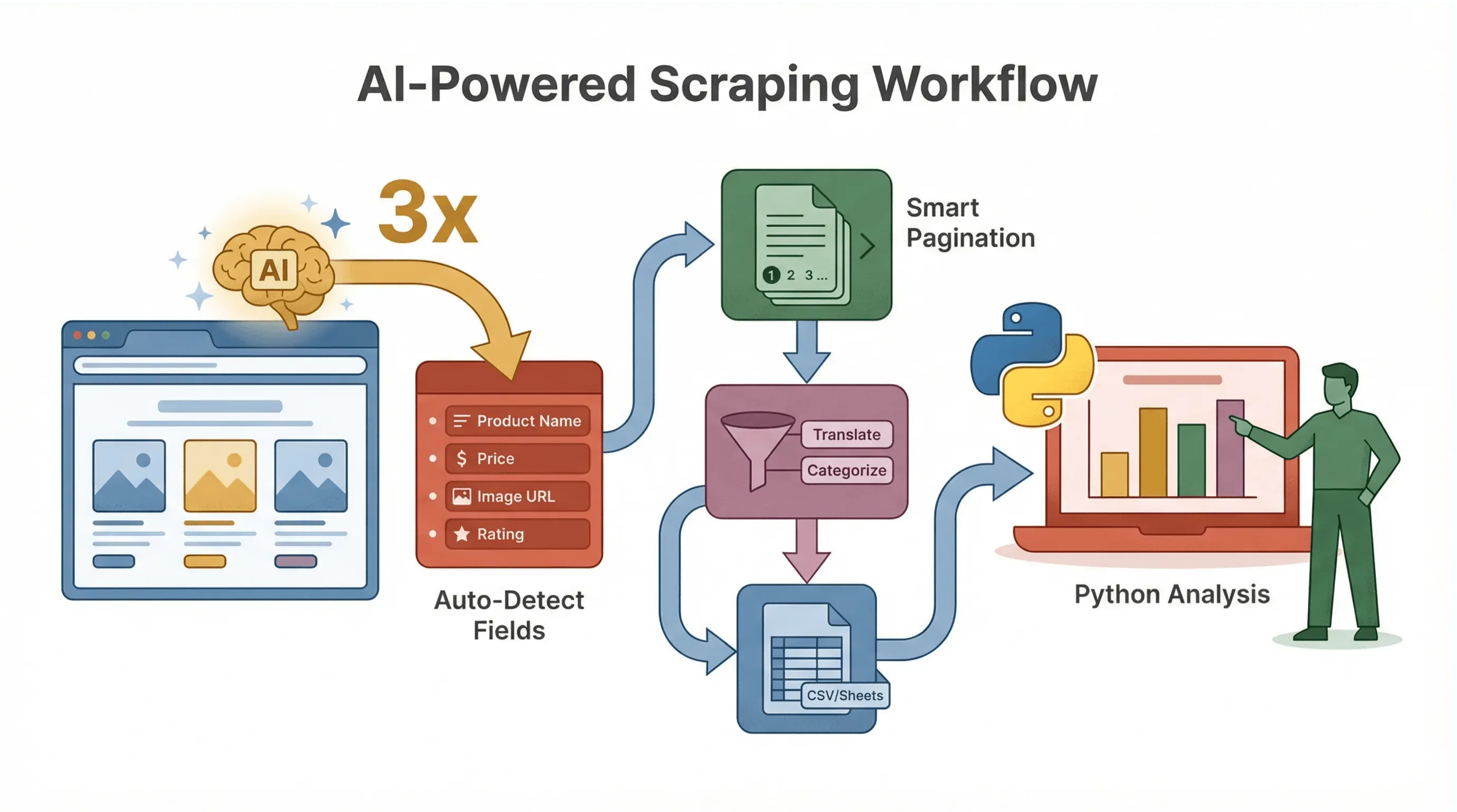 Thunderbit isn’t just about scraping—it’s about making the whole process smarter and faster.
AI-Suggested Data Schema
Thunderbit’s AI can instantly suggest which fields to extract, saving you the guesswork of inspecting HTML and writing selectors. For example, on a product page, it might auto-detect “Product Name,” “Price,” “Image URL,” and more.
Subpage and Pagination Handling
Thunderbit’s AI detects when there are detail pages or multiple result pages, and can scrape them all—no extra coding required. This is a lifesaver for ecommerce, real estate, or lead generation tasks.
AI Data Cleaning and Enrichment
Want to translate, summarize, or categorize data as you scrape? Thunderbit lets you add AI prompts to each field, so you can, say, label reviews as “Positive” or “Negative,” or extract just the numeric part of a price string.
Workflow Example
- Use Thunderbit to scrape and structure your data (with AI-suggested fields).
- Export to CSV or Google Sheets.
- Use Python to analyze, visualize, or automate follow-up actions.
This workflow is perfect for teams where not everyone codes—Thunderbit handles the scraping, Python handles the heavy lifting.
python web scraper example: Advanced Tips and Common Issues
Ready to level up? Here are some pro tips:
Scraping Dynamic Content
Many modern sites use JavaScript to load data. If Requests + BeautifulSoup returns empty or incomplete data, try:
- Selenium or Playwright: Automate a real browser to render the page, then extract the HTML.
- Check for APIs: Sometimes, data is loaded via background API calls (often returning JSON). Use your browser’s Network tab to find these endpoints—they’re much easier to scrape!
Handling Pagination
Loop through pages by changing the URL parameter (e.g., ?page=2). Or, use BeautifulSoup to find the “Next” link and follow it until there are no more pages.
Scheduling Scrapes
Use Python’s schedule library or a cron job to run your scraper automatically. Or, use Thunderbit’s built-in scheduling feature for a no-code solution.
Common Issues
- CAPTCHAs: Slow down your requests, use proxies, or consider human-in-the-loop solutions.
- Encoding Problems: Always specify
encoding="utf-8"when writing files. - IP Blocks: Rotate proxies, randomize User-Agent, and respect rate limits.
Conclusion & Key Takeaways
How to Scrape Any Website Using AI Get Started Free
Mastering web scraping with Python doesn’t have to be overwhelming. Start with the basics:
- Set up your environment and key libraries.
- Inspect your target site and plan your selectors.
- Write a simple script to fetch, parse, and extract data.
- Export your results in a format that fits your business needs.
As you grow, combine Python with AI-powered tools like Thunderbit to handle complex, dynamic, or high-volume scraping tasks. Thunderbit’s AI features—like field suggestions, subpage scraping, and instant exports—can save hours of manual work and help non-coders get in on the action.
Remember: the best scrapers are reliable, ethical, and built with the end goal in mind. Whether you’re a sales pro, ecommerce manager, or data enthusiast, web scraping can unlock a world of insights—just start small, iterate, and keep learning.
Want to go deeper? Check out the Thunderbit Blog for more guides, or try the Thunderbit Chrome Extension to see AI-powered scraping in action.
Try Thunderbit Chrome Extension for Free
FAQs
1. What is the easiest way to start web scraping with Python?
Start by installing Python 3, then use the Requests and BeautifulSoup libraries to fetch and parse web pages. Begin with simple sites and gradually tackle more complex ones as you gain confidence.
2. How do I handle websites that use JavaScript to load data?
For JavaScript-heavy sites, use browser automation tools like Selenium or Playwright, or look for background API calls in your browser’s Network tab that return structured data (like JSON).
3. What’s the best way to export scraped data for business use?
CSV is the most universal format (opens in Excel, Google Sheets, etc.), but you can also export to Excel, JSON, or even databases like SQLite. Thunderbit also supports direct export to Google Sheets, Notion, and Airtable.
4. How can I avoid getting blocked while scraping?
Rotate your User-Agent, use proxies for large-scale scraping, respect rate limits, and always check the site’s robots.txt. Avoid scraping personal or sensitive data.
5. How does Thunderbit make web scraping easier for non-coders?
Thunderbit uses AI to suggest data fields, handle subpages and pagination, and export structured data in just a few clicks—no coding required. It’s perfect for business users who want quick, reliable results without the technical hassle.
Ready to automate your data collection? Try Thunderbit for free, and let AI take your web scraping workflow to the next level.
Try AI Web Scraper Get Started Free
Learn More




