

Web scraping has gone from a niche skill to a must-have superpower for anyone working in sales, operations, or market research. With the sheer volume of web data exploding—global data creation jumped by nearly 193% from 2019 to 2023—it’s no wonder that 81% of companies now treat data as the “heart” of their decision-making. But here’s the catch: 95% of organizations say handling unstructured data (like messy HTML) is a major challenge. I’ve seen plenty of teams drowning in copy-paste marathons, trying to wrangle website info into spreadsheets—trust me, it’s not pretty.
Scrape data from any website using AI Get Started Free
That’s where Python’s BeautifulSoup comes in. In this hands-on tutorial, I’ll walk you through how to use BeautifulSoup for web scraping, with a practical Python Beautiful Soup example you can adapt for your own business needs. And because I’m all about working smarter (not harder), I’ll also show you how to combine BeautifulSoup with Thunderbit, our AI-powered web scraper, to speed up your workflow and get cleaner, more structured data—no matter your coding skill level.
What is BeautifulSoup and Why Use It for Web Scraping?
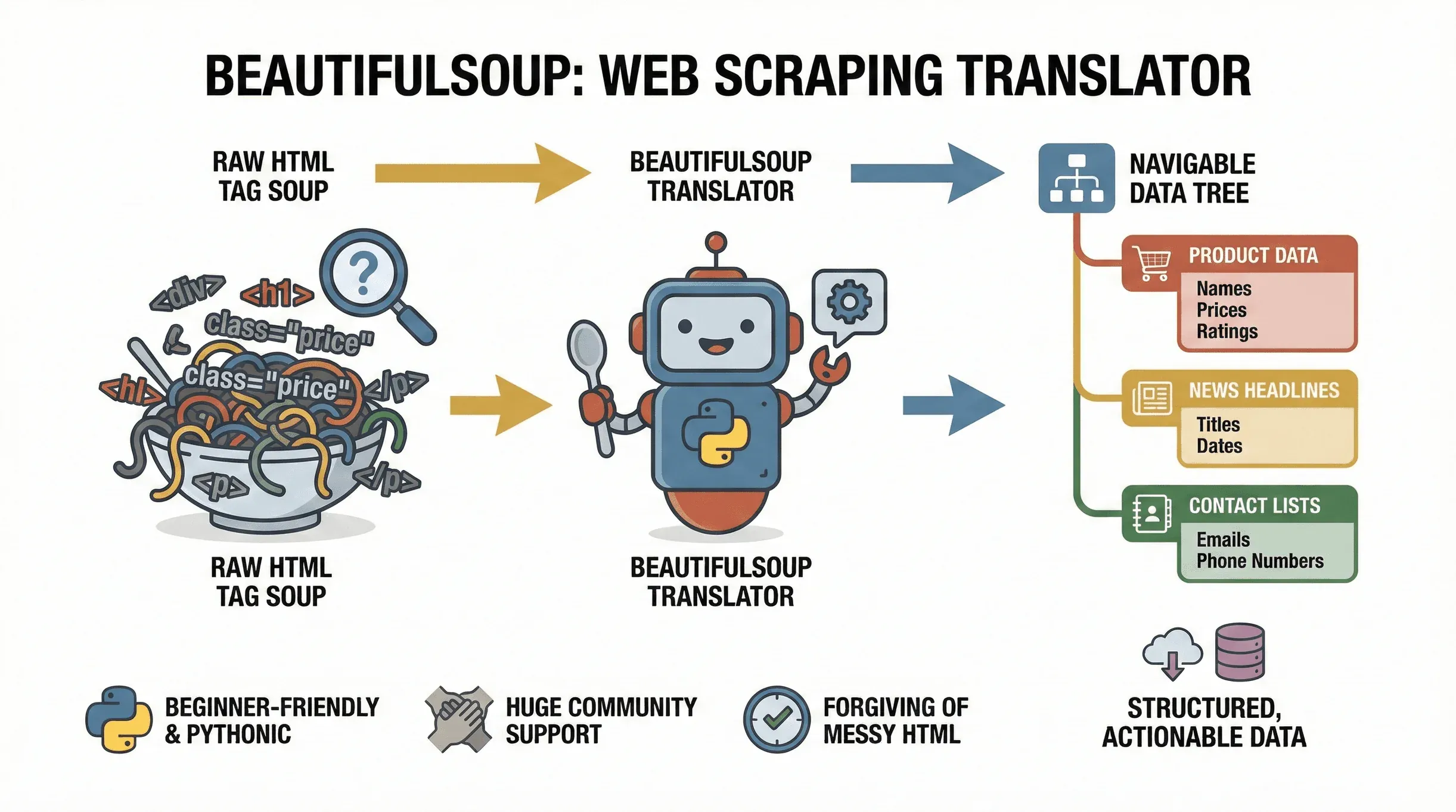 Let’s start with the basics. BeautifulSoup is a Python library that makes it easy to parse HTML and XML documents. Think of it as a translator: it takes the “tag soup” of a web page and turns it into a navigable tree, so you can easily find, extract, and manipulate the data you need. The project is still actively maintained —
 beautifulsoup4 4.14.3 shipped on PyPI in late 2025 — so anything you learn here is current. Whether you’re pulling product prices from an e-commerce site, gathering news headlines, or scraping business directories for leads, BeautifulSoup is the go-to tool for turning web pages into structured, actionable data.
Why is it so popular? For starters, it’s incredibly beginner-friendly. BeautifulSoup is forgiving of messy HTML (and let’s face it, the web is full of it), and its Pythonic syntax means you can go from zero to scraping in just a few lines of code. It’s also widely supported, with millions of downloads and a huge community—so if you get stuck, help is just a Google search away.
Typical use cases for BeautifulSoup include:
- Extracting product names, prices, and ratings from e-commerce pages
- Pulling news headlines, authors, and publication dates from news sites
- Parsing tables or directories (like lists of companies or contacts)
- Gathering emails or phone numbers from listing sites
- Monitoring updates (price changes, new job postings, etc.)
If your data lives in static HTML, BeautifulSoup is your best friend for web scraping.
The Unique Advantages of BeautifulSoup for Web Scraping
There are plenty of Python web scraping libraries out there—so why choose BeautifulSoup? Here’s how it stacks up against the competition:
- Simplicity: BeautifulSoup is lightweight and easy to learn. You don’t need to set up a whole framework or write a ton of boilerplate code. It’s perfect for quick, one-off scraping tasks or for beginners just getting started.
- Forgiveness: It can handle broken or malformed HTML, which is more common than you’d think.
- Flexibility: You’re not forced into a rigid crawling architecture. Just feed it HTML and extract what you need.
- Integration: BeautifulSoup plays nicely with other Python libraries like
requests(for fetching web pages),csv(for saving data), andpandas(for data analysis).
How does it compare to other tools?
| Tool | Best For | Pros | Cons |
|---|---|---|---|
| BeautifulSoup | Static HTML parsing, beginners | Simple, fast setup, forgiving, flexible | Not for JavaScript-heavy sites |
| Scrapy | Large-scale, asynchronous jobs | Powerful, scalable, built-in crawling | Steeper learning curve, more setup |
| Selenium | JavaScript/dynamic content | Can interact with JS, fill forms, click buttons | Slower, heavier, more resource-intensive |
If you’re just starting out or need to quickly parse static pages, BeautifulSoup is the “Swiss Army knife” of web scraping (medium.com). For more complex or dynamic sites, you might combine it with Selenium or Scrapy—but BeautifulSoup is the best way to learn the ropes.
Setting Up Your Python Environment for BeautifulSoup
Ready to get started? Here’s how to set up your environment:
-
Install Python: Download the latest version from python.org.
-
Set up a virtual environment (optional, but recommended):
python -m venv venv source venv/bin/activate # On Windows: venv\Scripts\activate -
Install BeautifulSoup and dependencies:
pip install beautifulsoup4 requests lxml html5libbeautifulsoup4: The main libraryrequests: For fetching web pageslxmlorhtml5lib: Faster/more reliable HTML parsers
-
Troubleshooting tips:
- If you get a “pip not found” error, try
pip3orpy -m pip. - On Mac/Linux, you might need
sudofor permissions. - If you’re on Windows, make sure Python is added to your PATH.
- If you get a “pip not found” error, try
To verify your setup, run this quick test:
from bs4 import BeautifulSoup
import requests

html = requests.get("http://example.com").text
soup = BeautifulSoup(html, "html.parser")
print(soup.title)
If you see <title>Example Domain</title>, you’re good to go (Thunderbit Blog).
A Step-by-Step Python Beautiful Soup Example
Let’s dive into a real-world python beautiful soup example. Imagine you want to extract the latest news headlines from a public news site. Here’s how you’d do it:
1. Fetch the Web Page
import requests
from bs4 import BeautifulSoup

url = "https://www.bbc.com/news"
response = requests.get(url)
html = response.text
2. Parse the HTML
soup = BeautifulSoup(html, "html.parser")
3. Inspect the HTML Structure
Open your browser’s Developer Tools (right-click → Inspect) and look for the tags that contain the headlines. On many news sites, headlines are in <h3> tags with specific classes.
For example, you might see:
<h3 class="gs-c-promo-heading__title">Headline Title</h3>
4. Extract the Data
headlines = soup.find_all("h3", class_="gs-c-promo-heading__title")
for h in headlines:
    print(h.get_text(strip=True))
This will print out all the news headlines on the page.
5. Save the Data to CSV
Let’s save those headlines for later analysis:
import csv

with open("headlines.csv", "w", newline='', encoding="utf-8") as file:
    writer = csv.writer(file)
    writer.writerow(["headline"])
    for h in headlines:
        writer.writerow([h.get_text(strip=True)])
Now you’ve got a CSV file ready for Excel or Google Sheets.
Understanding HTML Structure for Effective Data Extraction
Before you write any code, always inspect the page’s HTML. Here’s how:
- Open Developer Tools: Right-click on the page and select “Inspect.”
- Find the Data: Hover over elements to see which tags contain the info you want (e.g., headlines, prices, authors).
- Note the Tags and Classes: Look for unique identifiers like
class="product-title"orid="main-content". - Test Your Selectors: Use BeautifulSoup’s
.find(),.find_all(), or.select()methods to target those elements.
Pro tip: Use soup.prettify() to print a readable version of the HTML in your Python console.
Extracting and Structuring Data with BeautifulSoup
Let’s say you want to extract both titles and authors from a blog page:
articles = soup.find_all("article")
data = []
for article in articles:
    title = article.find("h2").get_text(strip=True)
    author = article.find("span", class_="author").get_text(strip=True)
    data.append({"title": title, "author": author})
Now you have a list of dictionaries—perfect for exporting to CSV or further analysis.
You can extract links, images, or any attribute like this:
for link in soup.find_all("a"):
    print(link.get("href"))
Or images:
for img in soup.find_all("img"):
    print(img.get("src"))
Saving Extracted Data: From Python to Excel or CSV
Once you’ve structured your data, exporting is easy. Here’s how to do it with the csv module:
import csv

with open("articles.csv", "w", newline='', encoding="utf-8") as file:
    writer = csv.DictWriter(file, fieldnames=["title", "author"])
    writer.writeheader()
    for row in data:
        writer.writerow(row)
Or, if you’re a pandas fan:
import pandas as pd

df = pd.DataFrame(data)
df.to_csv("articles.csv", index=False)
df.to_excel("articles.xlsx", index=False)
Always use UTF-8 encoding to avoid weird character issues, especially with international data.
Case Study: Scraping News Website Data with BeautifulSoup
Let’s walk through a practical python beautiful soup example: scraping article titles, authors, and publication dates from a news site.
Suppose you want to scrape CNN for article data:
import requests
from bs4 import BeautifulSoup
import csv

url = "https://edition.cnn.com/world"
response = requests.get(url)
soup = BeautifulSoup(response.content, "html.parser")

articles = soup.find_all("article")
data = []

for article in articles:
    title_tag = article.find("h3")
    date_tag = article.find("span", class_="date")
    author_tag = article.find("span", class_="author")
    title = title_tag.get_text(strip=True) if title_tag else ""
    date = date_tag.get_text(strip=True) if date_tag else ""
    author = author_tag.get_text(strip=True) if author_tag else ""
    data.append({"title": title, "date": date, "author": author})

with open("cnn_articles.csv", "w", newline='', encoding="utf-8") as file:
    writer = csv.DictWriter(file, fieldnames=["title", "date", "author"])
    writer.writeheader()
    for row in data:
        writer.writerow(row)
This script will fetch the latest articles, extract the title, date, and author, and save them to a CSV — assuming CNN’s current markup still matches the tags above. Major news sites rotate class names and DOM structure frequently, so re-inspect the page before running this against production data. The structure (<article> containers, then find on child tags) is the durable pattern; the specific class names like "date" and "author" are placeholders you should adjust to whatever the live page is serving today.
Enhancing Your Workflow: Combining BeautifulSoup with Thunderbit
Now, let’s talk about how to make your scraping workflow even smoother. Thunderbit is an AI-powered web scraper Chrome Extension that takes the guesswork out of data extraction. With Thunderbit, you can:
- Use “AI Suggest Fields”: Thunderbit reads the page and automatically suggests which data fields to extract—no more hunting through HTML or tweaking selectors.
- Scrape Subpages: Thunderbit can follow links to subpages (like individual product or article pages) and enrich your dataset with extra details.
- Export Instantly: Send your data straight to Excel, Google Sheets, Airtable, or Notion with one click.
- Handle Pagination: Thunderbit can scrape data across multiple pages (including infinite scroll).
- Schedule Scrapes: Set up recurring jobs to keep your data fresh.
Here’s a hybrid workflow I love:
- Start with Thunderbit: Open your target site, click the Thunderbit icon, and let “AI Suggest Fields” identify the right columns (like title, author, date).
- Export the Data: Download the results as CSV or send them to Google Sheets.
- Use BeautifulSoup for Custom Processing: If you need to do deeper analysis (like text cleaning, deduplication, or combining with other sources), load the exported CSV into Python and use BeautifulSoup or pandas for post-processing.
This combo gives you the best of both worlds: Thunderbit’s speed and AI-powered field detection, plus BeautifulSoup’s flexibility for custom logic.
Try Thunderbit AI Web Scraper for Free
Speed and Data Quality: Why Use Thunderbit and BeautifulSoup Together?
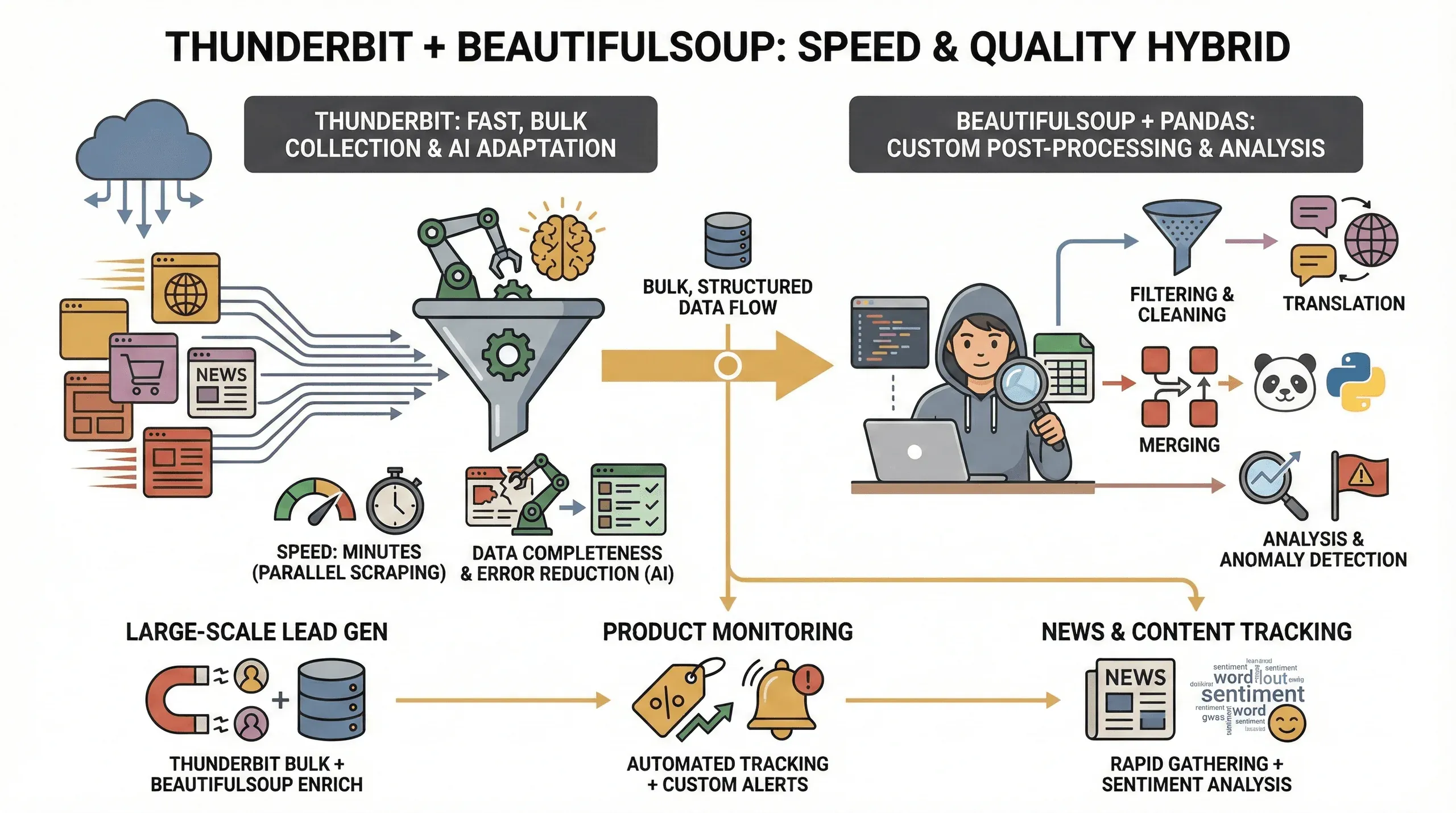 Why bother with both tools? Here’s what I’ve found:
- Speed: Thunderbit can scrape dozens of pages in parallel (up to 50 at a time in cloud mode), so you get your data in minutes instead of hours.
- Data Completeness: Thunderbit’s AI adapts to layout changes and can extract structured data even from tricky sites, reducing the chance of missing fields.
- Error Reduction: No more broken scripts when a class name changes—Thunderbit’s AI re-evaluates the page each time.
- Custom Post-Processing: For advanced needs (like filtering, translation, or merging datasets), BeautifulSoup and pandas give you full control.
This hybrid approach is especially valuable for:
- Large-scale lead generation: Use Thunderbit to grab the bulk data, then BeautifulSoup to clean and enrich it.
- Product monitoring: Thunderbit handles the repetitive scraping, while BeautifulSoup lets you analyze trends or flag anomalies.
- News and content tracking: Quickly gather articles with Thunderbit, then use Python for sentiment analysis or keyword extraction.
Troubleshooting Common Issues in BeautifulSoup Web Scraping
Try Thunderbit Chrome Extension Scrape any website with AI in 2 clicks. Get Started Free
Web scraping isn’t always smooth sailing—here are some common pitfalls and how to fix them:
- Dynamic Content: If a site loads data with JavaScript (infinite scroll, AJAX), BeautifulSoup alone won’t see it. Use Selenium or Thunderbit’s browser mode for these cases.
- Anti-Bot Measures: Some sites block automated requests. Try setting a custom User-Agent header, add delays between requests, or use Thunderbit’s cloud scraping to bypass simple blocks.
- HTML Structure Changes: If your script suddenly breaks, the site’s HTML probably changed. Inspect the page again and update your selectors. Thunderbit’s AI can help here by adapting on the fly.
- Missing Data: Always check if elements exist before calling
.get_text(). Use.get()instead of[]for attributes to avoid KeyErrors. - Encoding Issues: Save files with UTF-8 encoding to handle special characters.
And always, always respect robots.txt and the site’s terms of service. Scrape responsibly—nobody likes a rude robot.
Conclusion & Key Takeaways
Web scraping with BeautifulSoup is one of the most practical skills you can learn in today’s data-driven world. Here’s what we covered in this beautifulsoup web scraping tutorial:
- BeautifulSoup is the ideal starting point for parsing static HTML and extracting structured data with Python.
- Setting up is a breeze—just install Python, pip, and a couple of libraries.
- Inspecting HTML is key to targeting the right data.
- Exporting to CSV/Excel makes your data instantly usable for business analysis.
- Combining with Thunderbit gives you AI-powered field detection, faster scraping, and easier exports—perfect for business users and non-coders.
- Hybrid workflows (Thunderbit for bulk extraction, BeautifulSoup for custom processing) deliver the best speed, data quality, and flexibility.
If you’re ready to level up your web scraping game, try out both tools: experiment with a simple BeautifulSoup script, then see how much faster you can go with Thunderbit’s AI web scraper. And for more hands-on guides, check out the Thunderbit Blog.
Happy scraping—and may your data always be clean, structured, and ready for action.
Try Thunderbit AI Web Scraper Get Started Free
FAQs
1. What is BeautifulSoup and what is it used for?
BeautifulSoup is a Python library for parsing HTML and XML documents. It helps you extract data from web pages and turn it into structured formats like lists or tables, making it ideal for web scraping projects.
2. How does BeautifulSoup compare to Selenium and Scrapy?
BeautifulSoup is lightweight and easy to use for static HTML pages. Selenium is better for scraping dynamic, JavaScript-heavy sites, while Scrapy is a full-featured framework for large-scale, asynchronous scraping. BeautifulSoup is the best choice for beginners and quick tasks.
3. Can I use BeautifulSoup and Thunderbit together?
Absolutely. Thunderbit can quickly identify and extract fields from web pages using AI, and you can use BeautifulSoup for custom post-processing or deeper analysis of the exported data.
4. What are common challenges in web scraping with BeautifulSoup?
Common issues include handling dynamic content, dealing with anti-bot measures, and adapting to changes in HTML structure. Using Thunderbit’s AI features or browser mode can help overcome many of these challenges.
5. How do I export data scraped with BeautifulSoup to Excel or CSV?
You can use Python’s built-in csv module or the pandas library to write your extracted data to CSV or Excel files. Always use UTF-8 encoding to handle special characters and ensure compatibility with spreadsheet tools.
Ready to try it yourself? Download Thunderbit’s Chrome Extension and start scraping smarter today. For more tutorials and tips, visit the Thunderbit Blog.
Learn More




