
The web is overflowing with forms to fill, dashboards to check, and data to wrangle. If you’re like me, you’ve probably caught yourself thinking, “There’s got to be a better way than clicking through this site for the hundredth time.” Well, you’re not alone. In 2024, Python officially overtook JavaScript as the most popular language on GitHub, with nearly a quarter of Python developers using it for automation and web scraping tasks (GitHub Octoverse, JetBrains Survey). The reason? Python makes automating website interaction not just possible, but practical—even for non-developers.
In this guide, I’ll walk you through how to use Python to automate website interactions efficiently. We’ll cover why Python is the go-to choice, how to set up your toolkit, best practices for using Selenium to fill forms and navigate sites, and how AI-powered tools like Thunderbit can take automation even further. Whether you’re a business user tired of repetitive tasks or a developer looking to streamline your workflow, you’ll find actionable steps, code snippets, and a few hard-won lessons from my own automation adventures.
Why Choose Python to Automate Website Interaction?
Scrape data from any website using AI Get Started Free
Let’s start with the big question: why Python? From my experience—and the consensus in the developer community—Python is the “Swiss Army knife” of automation. Here’s why:
- Readability & Approachability: Python’s syntax is famously clear and beginner-friendly. Even if you’re not a seasoned developer, you can read and tweak Python scripts without feeling like you’re deciphering ancient hieroglyphics (Monterail).
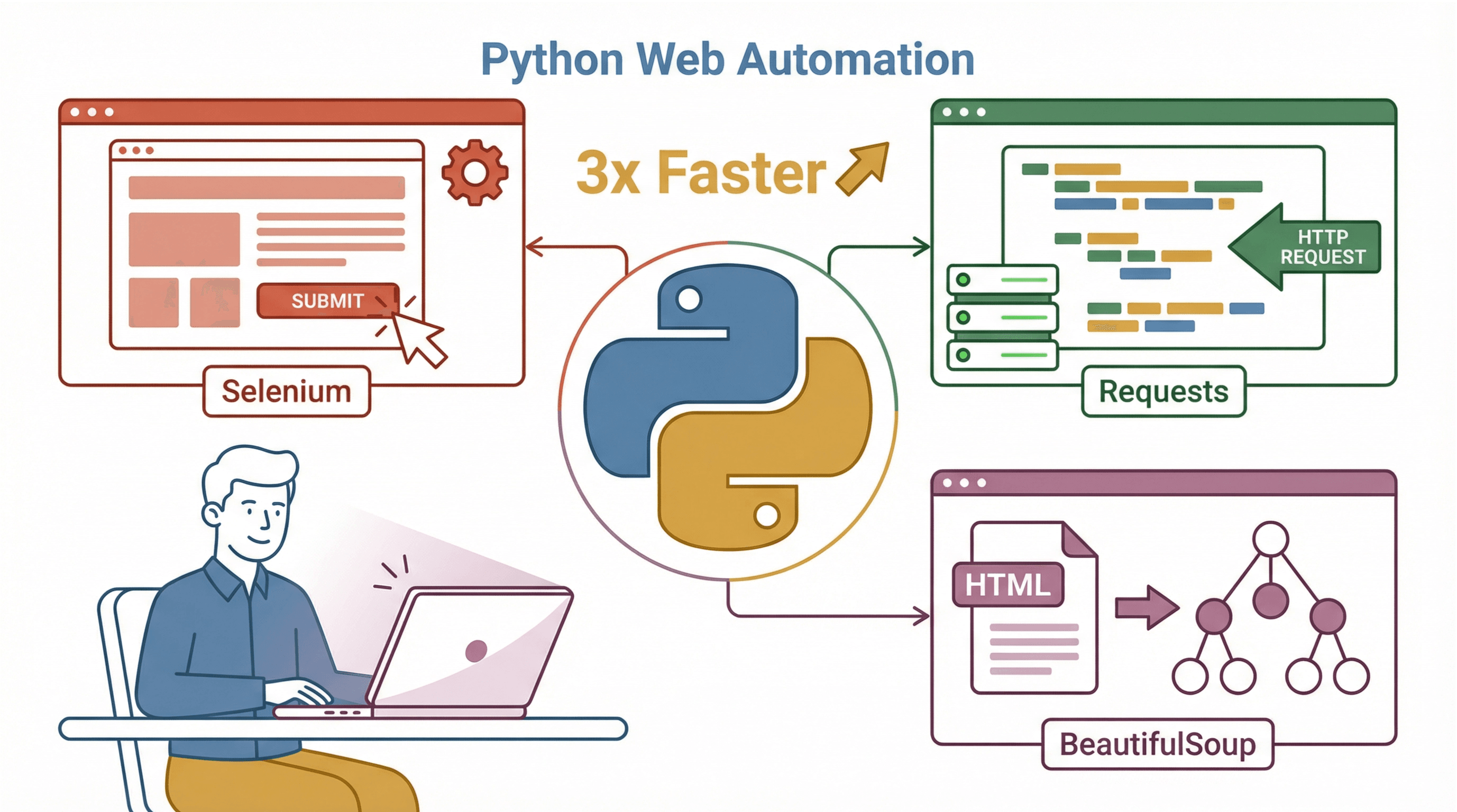
- Rich Ecosystem: Python boasts a huge library ecosystem for web automation. The big three are:
- Selenium: For simulating real user actions in a browser—clicking, typing, navigating, and more (BlazeMeter).
- Requests: For making HTTP requests to fetch web pages or APIs without a browser (Requests Docs).
- BeautifulSoup: For parsing and extracting data from HTML or XML (BeautifulSoup Docs).
- Community & Support: If you get stuck, there’s a good chance someone else has already solved your problem and posted about it on Stack Overflow or in a blog.
- Cross-Platform: Python scripts run on Windows, macOS, and Linux with minimal changes.
Compared to other languages like Java or C#, Python lets you get more done with less code and less hassle. And while JavaScript can automate browsers too, Python’s libraries and documentation make it the friendliest option for most business automation needs (ActiveBatch).
Setting Up Your Python Automation Toolkit
Before you can automate anything, you need to get your tools in order. Here’s how I recommend setting up your Python automation environment—whether you’re on Windows, macOS, or Linux.
1. Install Python and Pip
- Windows: Download Python 3 from python.org. During installation, check “Add Python to PATH.”
- macOS: Use the official installer or, if you’re a Homebrew fan, run
brew install python3. - Linux: Most distros have Python pre-installed. If not, use your package manager:
sudo apt-get install python3 python3-pip.
Verify your installation:
python3 --version
pip --version
If pip isn’t found, you may need to install it separately (sudo apt-get install python3-pip on Ubuntu).
2. Install Selenium and Other Packages
Once Python and pip are ready, install the libraries you’ll need:
pip install selenium requests beautifulsoup4
- Selenium for browser automation
- Requests for HTTP requests
- BeautifulSoup for HTML parsing
3. Download a WebDriver (for Selenium)
Selenium controls browsers via a driver. For Chrome, download ChromeDriver. For Firefox, grab geckodriver.
- Place the driver in your system PATH, or specify its location in your script:
from selenium import webdriver
driver = webdriver.Chrome(executable_path="/path/to/chromedriver")
Newer Selenium versions can often find the driver automatically if it’s on PATH.
4. Set Up a Virtual Environment
Using a virtual environment (like venv or virtualenv) keeps your project’s dependencies isolated and avoids version conflicts (Real Python).
Create and activate a virtual environment:
python3 -m venv myenv
source myenv/bin/activate  # On Windows: myenv\Scripts\activate
Now, any pip install will only affect this project.
5. OS-Specific Tips & Troubleshooting
- Windows: If
pythonorpipisn’t recognized, you may need to add Python to your PATH or use thepylauncher. - macOS: Use
python3instead ofpythonto avoid confusion with the system Python. - Linux: If running Selenium on a headless server, use headless mode or set up Xvfb.
If you hit issues with driver versions or missing packages, double-check compatibility and update as needed.
Using Selenium to Automate Website Forms and Navigation
Now for the fun part: making your browser dance to your tune. Selenium is the workhorse here, letting you automate everything from simple logins to multi-step workflows.
Opening a Browser and Loading a Page
from selenium import webdriver
from selenium.webdriver.common.by import By

driver = webdriver.Chrome()
driver.get("https://example.com/login")
This launches Chrome and opens the login page.
Locating and Interacting with Elements
Selenium lets you find elements by ID, name, CSS selector, XPath, and more:
username_box = driver.find_element(By.ID, "username")
password_box = driver.find_element(By.NAME, "pwd")
login_button = driver.find_element(By.XPATH, "//button[@type='submit']")
- Fill a text field:
username_box.send_keys("alice") - Click a button:
login_button.click() - Select from a dropdown:
from selenium.webdriver.support.ui import Select
select_elem = Select(driver.find_element(By.ID, "country"))
select_elem.select_by_visible_text("Canada")
- Navigate to another page:
driver.get("https://example.com/profile")
Best Practices for Element Selection
- Prefer ID or unique attributes for stability.
- Use CSS selectors for concise targeting.
- Avoid absolute XPaths—they break easily if the page layout changes (Medium).
Handling Dynamic Content and Waits
Modern websites love to load things asynchronously. If your script tries to click a button before it’s ready, you’ll get errors. Use explicit waits:
from selenium.webdriver.support.ui import WebDriverWait
from selenium.webdriver.support import expected_conditions as EC

WebDriverWait(driver, 10).until(EC.element_to_be_clickable((By.ID, "loginBtn")))
This waits up to 10 seconds for the login button to become clickable. Always prefer explicit waits over arbitrary time.sleep() calls—they’re smarter and more reliable (BrowserStack).
Example: Automating a Multi-Step Web Form
Let’s automate a two-step signup process (using a public demo site):
from selenium import webdriver
from selenium.webdriver.common.by import By
from selenium.webdriver.support.ui import WebDriverWait
from selenium.webdriver.support import expected_conditions as EC

driver = webdriver.Chrome()
driver.get("https://practicetestautomation.com/Practice-Signup")

# Step 1: Fill first form
driver.find_element(By.ID, "name").send_keys("Alice")
driver.find_element(By.ID, "email").send_keys("alice@example.com")
driver.find_element(By.ID, "password").send_keys("SuperSecret123")
driver.find_element(By.ID, "nextBtn").click()

# Step 2: Wait for and fill second form
WebDriverWait(driver, 10).until(EC.visibility_of_element_located((By.ID, "address")))
driver.find_element(By.ID, "address").send_keys("123 Maple St")
driver.find_element(By.ID, "phone").send_keys("5551234567")
driver.find_element(By.ID, "submitBtn").click()

# Step 3: Confirmation
WebDriverWait(driver, 5).until(EC.text_to_be_present_in_element((By.TAG_NAME, "h1"), "Welcome"))
print("Signup successful!")
driver.quit()
This script fills out both steps, waits for each form to load, and checks for a success message. It’s a pattern you’ll use again and again.
Thunderbit: AI-Powered Automation for Complex Website Interactions
Try Thunderbit Chrome Extension Automate web data extraction and workflows with AI in just a few clicks. Get Started Free
Now, let’s talk about the elephant in the room: what if you need to automate a messy website, extract data from PDFs or images, or just don’t want to write code at all? That’s where Thunderbit comes in.
Thunderbit is an AI-powered web scraper Chrome Extension that lets you automate data extraction and web interactions with just a few clicks—no coding required. Here’s why I think it’s a game-changer for business users:
- Natural Language Instructions: Just describe what you want (“Product Name, Price, Rating”), and Thunderbit’s AI figures out how to extract it (Futurepedia).
- Subpage Scraping: Need details from each product’s page? Thunderbit can visit subpages automatically and append the data to your table.
- Instant Templates: For popular sites like Amazon or Zillow, Thunderbit offers one-click templates—no setup, just results.
- Handles PDFs and Images: Extracts text from PDFs (even scanned ones) and images—something that would take extra libraries and setup in Python.
- Scheduled Scraping: Set up recurring jobs (“every Monday at 9am”) in plain English.
- Free Data Export: Export to Excel, Google Sheets, Airtable, Notion, CSV, or JSON—for free.
Thunderbit is especially powerful when you need to turn unstructured web content into structured data, or when you want to empower non-technical team members to automate their own workflows. It’s like having an AI research assistant who never complains about repetitive work.
When to Use Thunderbit vs. Python Scripts
-
Use Python (Selenium/Requests/BeautifulSoup):
- When you need custom logic, integrations, or fine control.
- For workflows that go beyond web scraping (e.g., data analysis, API calls, or complex conditionals).
- If you’re comfortable coding and want to version-control your solution.
-
Use Thunderbit:
- For quick, no-code data extraction or routine web interactions.
- When dealing with messy, unstructured sites or formats (PDFs, images).
- To empower non-developers or save time on one-off or frequent scraping jobs.
Honestly, I often use both: Thunderbit for fast prototyping or empowering sales/ops teams, and Python scripts for deeply integrated, custom workflows.
Try Thunderbit for No-Code Web Automation
Ensuring Stability and Reliability in Your Python Automation Scripts
Automation is only as good as its reliability. Here’s how I keep my scripts running smoothly—even when the web throws curveballs:
Error Handling and Retries
Wrap fragile operations in try/except blocks:
try:
    element = driver.find_element(By.ID, "price")
except Exception as e:
    print("Error finding price element:", e)
    driver.save_screenshot("screenshot_error.png")
    # Optionally retry or skip
For network hiccups or flaky elements, add simple retry logic:
import time
max_retries = 3
for attempt in range(max_retries):
    try:
        driver.get(url)
        break
    except Exception as e:
        print(f"Attempt {attempt+1} failed, retrying...")
        time.sleep(5)
Use Explicit Waits Everywhere
Don’t assume elements will be ready instantly. Use explicit waits before every interaction:
WebDriverWait(driver, 10).until(EC.element_to_be_clickable((By.CLASS_NAME, "result"))).click()
Logging and Monitoring
For long-running scripts, use Python’s logging module to record progress and errors. For critical failures, send yourself an email or Slack message. Always capture screenshots on failure—they’re a lifesaver for debugging.
Resource Management
Always call driver.quit() at the end of your script to avoid leaving browsers running in the background.
Throttling and Politeness
If you’re scraping lots of pages, add random delays (time.sleep(random.uniform(1,3))) to avoid getting blocked. Respect robots.txt and don’t overload servers.
Adapting to Website Changes
Websites change. IDs get renamed, layouts shift, new pop-ups appear. Here’s how I future-proof my scripts:
- Use Flexible Locators: Prefer stable attributes or
data-*attributes over brittle XPaths. - Centralize Selectors: Store all your selectors at the top of your script for easy updates.
- Test Regularly: Run your scripts periodically to catch breakages early.
- Version Control: Use Git to track changes and roll back if needed.
If you’re working with internal tools, ask the web team to add stable hooks (like data-automation-id) for your scripts.
Comparing Python Automation Tools: Selenium, Requests, BeautifulSoup, and Thunderbit
Here’s a quick comparison to help you pick the right tool for the job:
| Tool | Strengths & Use Cases | Limitations & Notes |
|---|---|---|
| Selenium (WebDriver) | Full browser automation; handles dynamic JS; simulates real user actions; great for multi-step workflows | Slower, higher resource use; needs driver setup; can be brittle if selectors aren’t robust |
| Requests + BeautifulSoup | Fast and lightweight for static pages/APIs; easy HTML parsing; great for bulk data extraction where JS isn’t needed | Can’t handle dynamic JS; no user interaction; needs manual parsing logic |
| Thunderbit | No-code, AI-driven; handles messy/unstructured sites, PDFs, images; subpage scraping; instant templates; free export; empowers non-developers | Less flexible for custom logic; relies on external service; initial AI suggestions may need tweaking |
Step-by-Step Guide: Automating a Website Interaction with Python
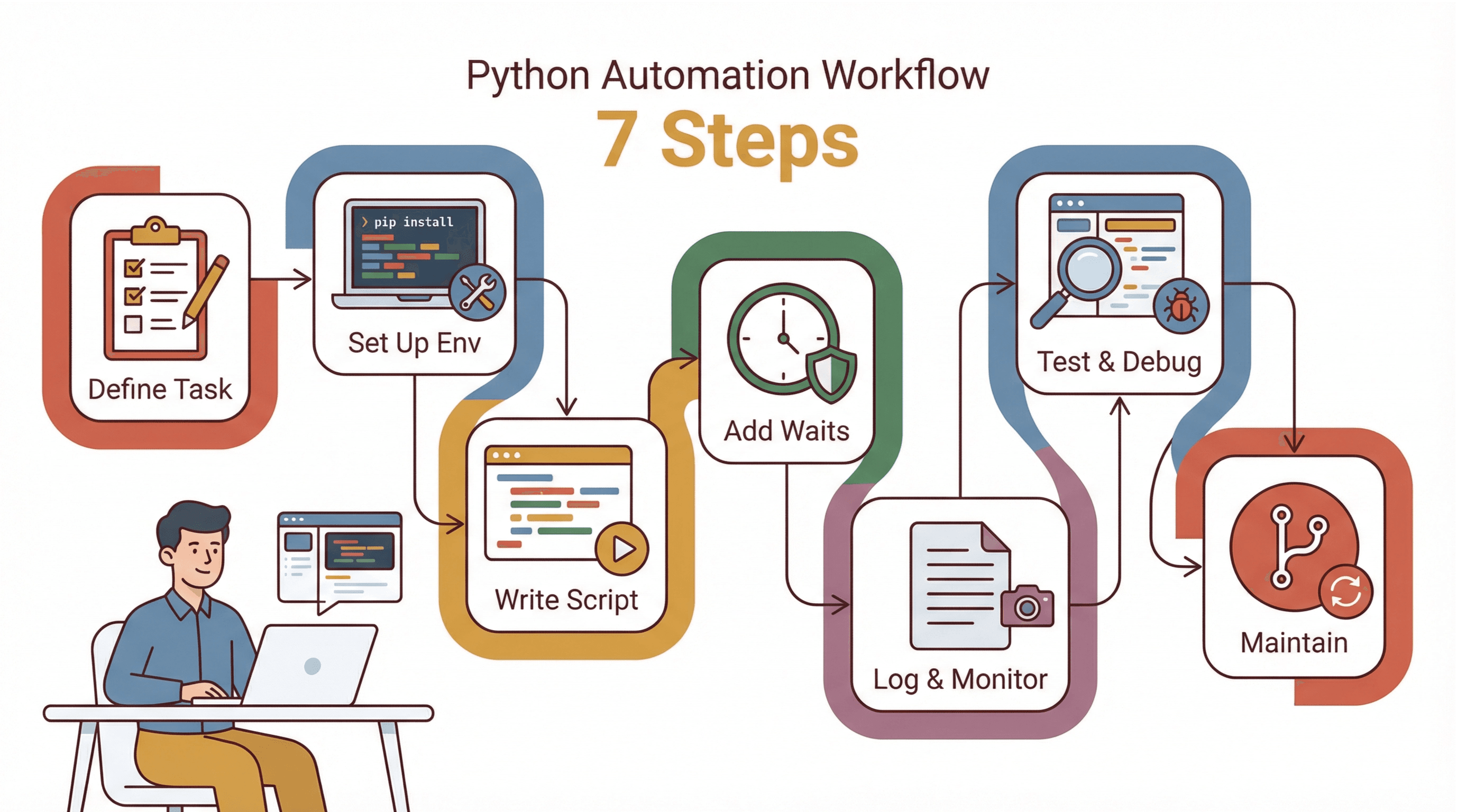 Here’s my go-to checklist for automating any website task:
- Define the Task: Write down the steps you’d take manually. Identify tricky parts (e.g., logins, pop-ups, dynamic content).
- Set Up Your Environment: Install Python, pip, virtualenv, Selenium, and the right WebDriver.
- Write the Script Incrementally: Start with basic navigation, then add interactions step by step. Test after each addition.
- Add Waits and Error Handling: Use explicit waits and wrap fragile steps in try/except blocks.
- Log and Monitor: Add logging for progress and errors. Capture screenshots on failure.
- Test and Debug: Use browser dev tools to verify selectors. Run in visible mode to watch for unexpected pop-ups or redirects.
- Maintain and Update: Store selectors at the top, use version control, and review scripts regularly.
If you’re new to automation, start small—maybe automate logging into a test site or filling a simple form. Each win builds your confidence and skill.
Conclusion & Key Takeaways
Automating website interaction with Python is one of the most satisfying ways to reclaim your time and sanity. With its readable syntax and powerful libraries, Python lets you automate everything from simple form fills to complex multi-step workflows. The community is huge, the resources are plentiful, and the productivity gains are real—saving even 15 minutes a day adds up to nearly 90 hours a year (LinkedIn).
But don’t forget: sometimes, the fastest path to results is using an AI-powered tool like Thunderbit. For messy, unstructured sites or when you want to empower non-technical teammates, Thunderbit lets you automate data extraction and web interaction in just a few clicks.
My advice? Start with a small, annoying web task you do often. Try automating it with Python or Thunderbit. You’ll be amazed at how quickly you can go from “ugh, not again” to “done in seconds.”
And if you want to dive deeper into web scraping, check out the Thunderbit Blog for more guides and tips.
FAQs
1. Why is Python so popular for automating website interaction?
Python’s readable syntax, extensive libraries (like Selenium, Requests, and BeautifulSoup), and huge community support make it the top choice for web automation and scripting (GitHub Octoverse).
2. What’s the difference between Selenium, Requests, and BeautifulSoup?
Selenium automates real browsers for dynamic sites and user actions. Requests fetches web pages or APIs without a browser (great for static content). BeautifulSoup parses HTML to extract data, typically used with Requests.
3. When should I use Thunderbit instead of Python scripts?
Use Thunderbit when you want a no-code, AI-powered solution for extracting data from messy or unstructured sites, handling PDFs/images, or empowering non-technical users. Use Python scripts for custom logic, integrations, or deeply tailored workflows.
4. How can I make my Python automation scripts more reliable?
Use explicit waits, robust error handling (try/except), retry logic for network hiccups, and logging for monitoring. Store selectors in one place and update them as sites change.
5. Can I combine Thunderbit and Python in my workflow?
Absolutely! Use Thunderbit to quickly extract data and then process or analyze it further with Python scripts. Or, use Python to automate complex logic and Thunderbit for rapid, no-code scraping.
Ready to automate your web workflows? Give Thunderbit’s free Chrome Extension a spin, or roll up your sleeves and start scripting in Python. Either way, you’ll be working smarter in no time.
Try AI Web Scraper Get Started Free
Learn More