

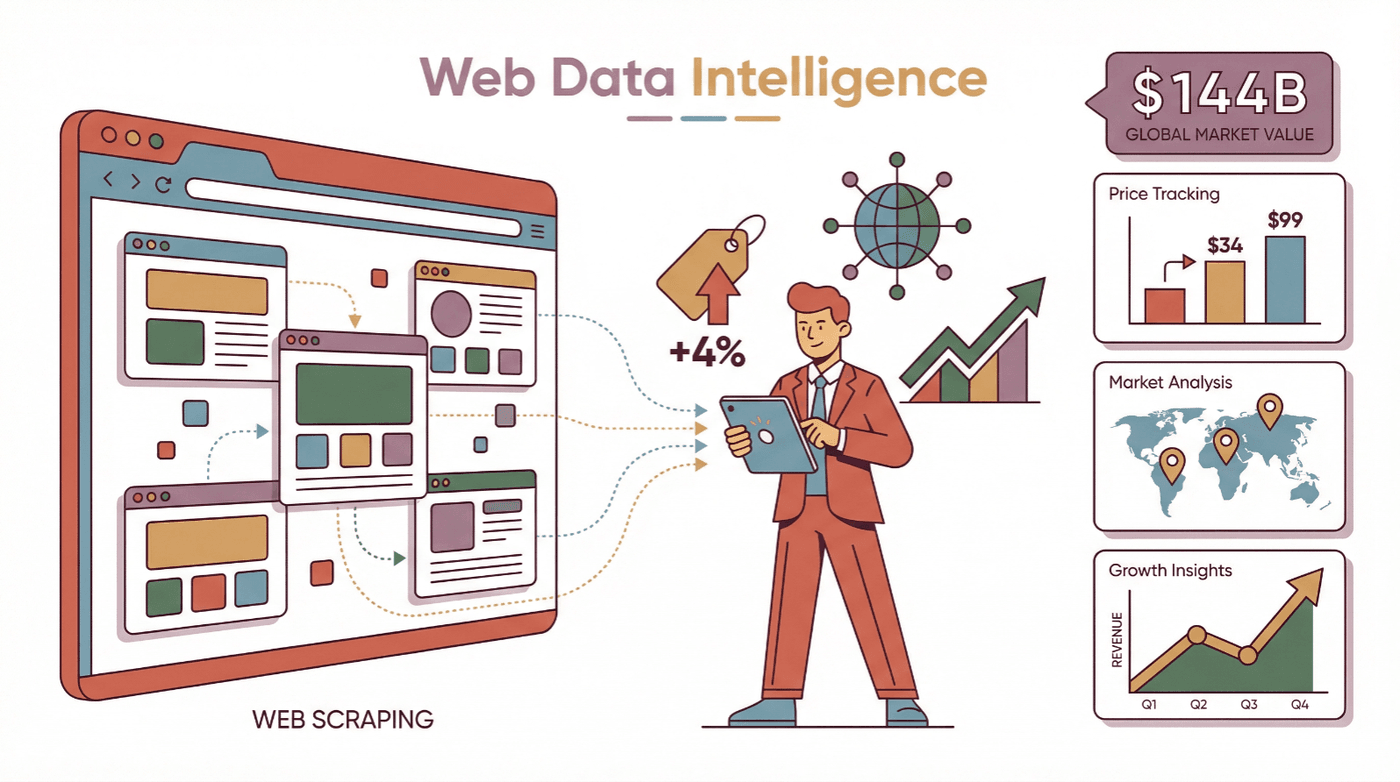
The web is growing at a pace that would make even the most ambitious data nerd dizzy. Businesses are now relying on web data more than ever—whether it’s tracking competitor prices, monitoring product trends, or building massive lead lists. In fact, the global web scraping market is projected to rocket from about $5 billion in 2023 to nearly $144 billion by 2032. Why? Because the right data, at the right time, can mean the difference between a missed opportunity and a major win. Reported examples are concrete: John Lewis lifted sales 4% from competitor price scraping, and retailers like ASOS have credited region-specific web data with roughly doubling their international business.
But here’s the catch: today’s websites are more like mini-apps than static pages. They’re loaded with JavaScript, dynamic content, and interactive features that leave old-school scrapers in the dust. That’s where Playwright web scraping comes in—a browser automation tool that lets you interact with websites just like a real user, making it possible to extract data from even the trickiest, most dynamic sites. In this guide, I’ll walk you through the essentials of Playwright web scraping, show you how to get started, and share how you can combine it with AI-powered tools like Thunderbit to take your data game to the next level.
What Is Playwright Web Scraping?
Let’s break it down: Playwright is an open-source browser automation framework from Microsoft. It’s like having a remote control for Chrome, Firefox, Safari, and more. With Playwright, you can launch a real browser, navigate to a website, click buttons, fill out forms, scroll, and—most importantly—extract data from the page, even if that data only appears after a bunch of JavaScript runs (Thunderbit Playwright Guide).
Browser-based scraping (like Playwright) is different from traditional HTTP-based scraping. Old-school scrapers just fetch the HTML—if the site loads data via JavaScript, you get a blank page. Playwright, on the other hand, controls a real browser that executes all the scripts, so you see the fully rendered page, just like a human would (ScrapFly).
Who benefits from Playwright web scraping? Anyone who needs data from modern, interactive websites: sales teams scraping leads from directories, marketing teams monitoring competitor sites, ecommerce teams tracking prices and inventory, and researchers aggregating public data. If you’ve ever tried to scrape a site and ended up with a bunch of empty fields, Playwright is your new best friend.
Why Playwright Web Scraping Matters for Business
Here’s the bottom line: Playwright unlocks data that was previously out of reach. By automating real browser actions, you can extract information from sites that rely heavily on JavaScript, require logins, or have interactive features.
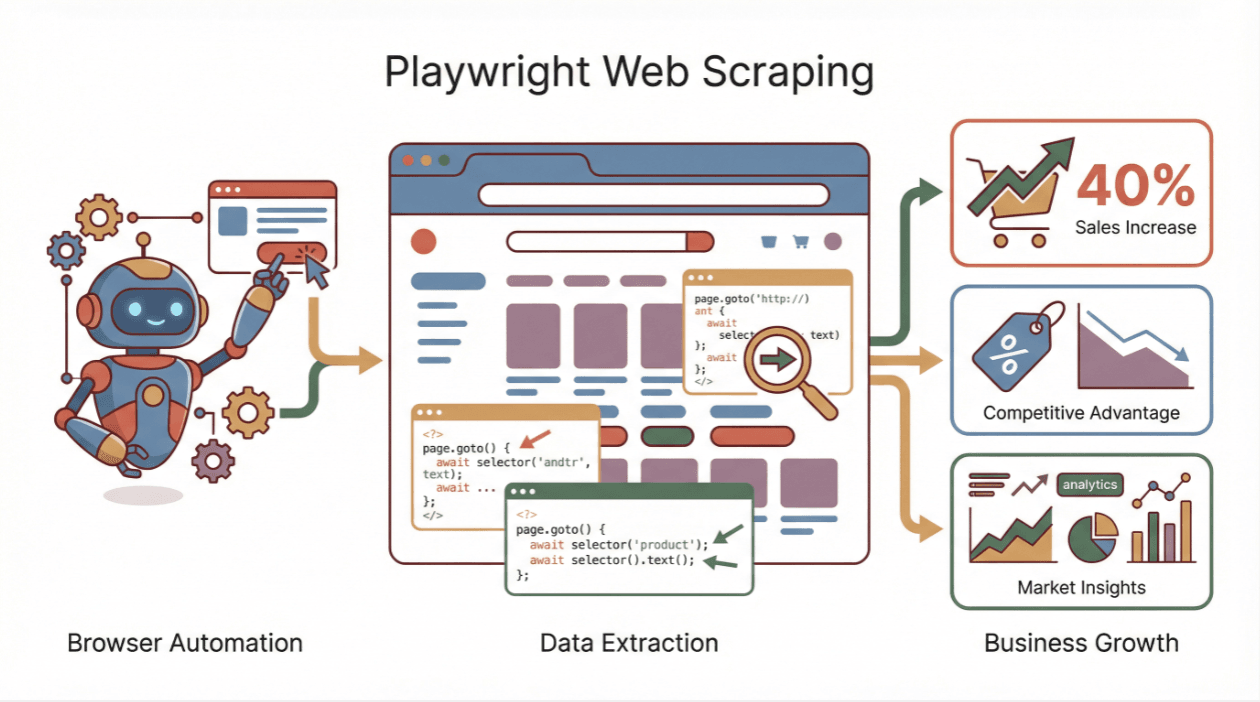
Let’s look at some real business use cases:
| Department | Web Scraping Use Case | Benefit / Outcome |
|---|---|---|
| Sales | Scrape business directories or LinkedIn for leads | Larger, fresher lead lists; faster pipeline growth |
| Marketing | Monitor competitor sites for pricing, launches, content | Real-time insights; quick strategy adjustments |
| E-commerce Ops | Track competitor prices, scrape marketplaces for products | Dynamic pricing optimization; improved product and inventory decisions |
| Research & BI | Aggregate public data (social, financial, government) | Timely analytics and reports for better decision-making |
The impact is real: John Lewis boosted sales 4% by scraping competitor prices, and some ecommerce teams report 20–30% sales increases from competitive price monitoring built on scraped data.
Setting Up Playwright for Web Scraping: Your First Steps
Getting started with Playwright is refreshingly straightforward—even if you’re not a seasoned developer. Here’s how to get rolling:
1. Install a Programming Language
Playwright works with Node.js (JavaScript/TypeScript) or Python (also Java and .NET, but let’s keep it simple). Make sure you have Node.js or Python installed. For Python, you’ll need version 3.8+ (Playwright Docs).
2. Install Playwright
- For Node.js:
npm init -y npm install playwright npx playwright install - For Python:
pip install playwright
python -m playwright install
3. Verify Installation
Try a quick script to make sure everything’s working. Here’s a Python example:
from playwright.sync_api import sync_playwright

with sync_playwright() as p:
    browser = p.chromium.launch(headless=True)
    page = browser.new_page()
    page.goto("https://example.com")
    print(page.title())
    browser.close()
If you see “Example Domain” printed out, you’re good to go.
4. Troubleshooting
If you hit snags (missing browsers, permissions, or network issues), re-run the install command or check the official docs. Most setup issues are solved with a quick Google search and a little patience.
Browser-Level Scraping: Interacting with Dynamic Pages Using Playwright
This is where Playwright really shines. Unlike old-school scrapers, Playwright can interact with the page just like a human:
- Navigate to a page:
page.goto("https://...") - Wait for content:
page.wait_for_selector(".product-item") - Click buttons/links:
page.click(".pagination-next") - Type into forms:
page.fill("input[name='q']", "laptop") - Scroll:
page.evaluate("window.scrollBy(0, document.body.scrollHeight)") - Select from dropdowns:
page.select_option("select#element", "value") - Run custom JavaScript:
page.evaluate("return window.someValue")
Why does this matter? Because modern sites often hide data behind clicks, dropdowns, or infinite scroll. Playwright lets you simulate all those actions, ensuring you get the data that only appears after user interaction (ZenRows).
Example: Scraping Product Listings
# Pseudocode for Playwright scraping
page.goto("https://example.com/products")
page.wait_for_selector(".product-item")
names = page.locator(".product-name").all_text_contents()
prices = page.locator(".price").all_text_contents()
You can even loop through pagination by clicking the “Next” button and repeating the extraction.
Maximizing Performance: Multi-Tab and Multi-Session Playwright Web Scraping
One browser tab at a time is fine for small jobs, but what if you need to scrape hundreds or thousands of pages? Playwright supports multi-tab and multi-session scraping—meaning you can open multiple browser contexts or pages at once, dramatically speeding up your data collection (ScrapFly).
How does it work? In Node.js, you can use Promise.all to run multiple page.goto() calls in parallel. In Python, use the async API with asyncio.gather.
Best practices:
- Start with 3–5 concurrent browsers per CPU core.
- Use semaphores to limit concurrency and avoid overloading your machine or the target website.
- Monitor CPU and memory usage.
- Implement polite delays and randomize actions to avoid anti-bot detection.
Comparison Table: Single vs. Multi-Tab Scraping
| Mode | Throughput Speed | Complexity | Risk of Detection |
|---|---|---|---|
| Single-Tab | Slow (one-by-one) | Simple | Low |
| Multi-Tab | 3–5x faster (or more) | Higher (async) | Moderate (if abused) |
For most business scraping, a handful of concurrent tabs gives you the best balance of speed and safety.
Overcoming API Limitations and Dynamic Content Challenges
Modern websites love to throw curveballs: API rate limits, content that loads via AJAX, infinite scroll, CAPTCHAs, and more. Playwright’s features help you handle these with style:
- Wait for elements: Use
wait_for_selectorto pause until the data you need appears. - Wait for network idle:
wait_for_load_state("networkidle")ensures all requests are done. - Handle infinite scroll: Loop through scroll actions and wait for new content to load.
- Retry logic: If you hit a rate limit or block, back off and try again.
- Rotate user agents and proxies: Mimic real users and avoid IP bans.
Troubleshooting Checklist:
- Empty data? Add or adjust waits.
- Script works on one page but not another? Check for CAPTCHAs or layout changes.
- Blocked? Slow down, rotate IPs, or tweak headers.
Integrating Thunderbit with Playwright Web Scraping
Download Thunderbit Chrome Extension Get started with AI-powered web scraping in your browser. Get Started Free
Now, here’s where things get really interesting. Thunderbit is an AI-powered web scraping Chrome extension that makes data extraction as easy as clicking a button. You simply open a page, click “AI Suggest Fields,” and Thunderbit’s AI figures out what data to extract—no coding required.
How does Thunderbit complement Playwright?
- For non-developers: Thunderbit lets sales, marketing, and ecommerce teams get the data they need without waiting for dev support.
- For developers: Use Playwright for complex, large-scale, or deeply integrated scraping. Use Thunderbit for quick, ad-hoc, or tricky pages where AI can adapt faster than a coded script.
- Combined workflows: For example, use Playwright to automate login and navigation, then let Thunderbit’s AI handle the data extraction and export to Excel, Google Sheets, or Notion.
Thunderbit is especially handy for:
- Scraping messy, dynamic, or frequently changing pages
- Extracting structured data with AI-driven field suggestions
- Exporting directly to business tools (Excel, Sheets, Airtable, Notion)
- Handling subpages and pagination with minimal setup
If you want to see how Thunderbit stacks up to Playwright and other tools, check out our in-depth comparison.
Try Thunderbit AI Web Scraper for Free
Data Post-Processing: Turning Playwright Scraping Results into Business Insights
Scraping is only half the battle—the real value comes from turning raw data into actionable insights. Here’s how I approach post-processing:
- Clean the data: Remove duplicates, filter out junk, and normalize formats (dates, prices, categories).
- Validate: Make sure key fields aren’t missing and values make sense (e.g., prices are positive numbers).
- Enrich: Add extra context, like geolocation, sentiment analysis, or category tags. Thunderbit can even do this automatically during extraction.
- Export: Save your data in the format your team needs—Excel, Google Sheets, CSV, JSON, or directly into your CRM.
- Visualize and analyze: Load the data into BI tools or dashboards for reporting and decision-making.
Mini-Checklist:
- Deduplicate and filter
- Standardize formats
- Validate critical fields
- Enrich with extra info
- Export to business systems
For more on data cleaning best practices, see this Grepsr guide.
Comparing Playwright Web Scraping to Other Solutions
There are plenty of tools in the web scraping toolbox. Here’s how Playwright stacks up:
| Tool | Ease of Use | Browser Support | Language Support | Strengths | Drawbacks |
|---|---|---|---|---|---|
| Playwright | Moderate (coding) | Chrome, Firefox, Safari | Python, JS, Java, .NET | Cross-browser, smart waits, concurrency | Needs coding, newer community |
| Puppeteer | Moderate (coding) | Chrome only | JavaScript | Fast in Chrome, large JS community | Chrome-only, no official Python support |
| Selenium | Steep (older API) | All major browsers | Many (Python, JS, Java, etc) | Mature, broad support | Slower, more boilerplate |
| Thunderbit | Very easy (no code) | Chrome extension | N/A (no coding needed) | AI adapts to page changes, instant export | Paid beyond free tier, less custom logic |
When to use what?
- Playwright: For developers needing full control and dynamic site scraping.
- Thunderbit: For business users or quick jobs where AI can handle the complexity.
- Puppeteer/Selenium: If you’re already invested in those ecosystems or need specific browser/language support.
Step-by-Step Example: Scraping a Dynamic Website with Playwright
Let’s get hands-on. Suppose you want to scrape the first two pages of eBay search results for “laptop”—titles and prices.
Python Example:
from playwright.sync_api import sync_playwright

with sync_playwright() as p:
    browser = p.chromium.launch(headless=True)
    page = browser.new_page()
    search_term = "laptop"
    page.goto(f"https://www.ebay.com/sch/i.html?_nkw={search_term}")
    page.wait_for_selector("h3.s-item__title")
    results = []
    for _ in range(2):  # scrape 2 pages
        titles = page.locator("h3.s-item__title").all_text_contents()
        prices = page.locator("span.s-item__price").all_text_contents()
        for title, price in zip(titles, prices):
            results.append({"title": title, "price": price})
        next_button = page.locator("a[aria-label='Go to next search page']")
        if next_button.count() > 0:
            next_button.click()
            page.wait_for_selector("h3.s-item__title")
        else:
            break
    browser.close()
    print(f"Found {len(results)} items in total.")
Key Playwright features in this example:
- Navigating to a dynamic page
- Waiting for content to load
- Extracting multiple elements at once
- Handling pagination by clicking “Next”
- Storing and printing results
You can then export results to CSV or Excel for further analysis.
Conclusion & Key Takeaways
Playwright web scraping is a superpower for anyone who needs data from the modern web. It lets you automate real browser actions, handle dynamic content, and extract accurate, up-to-date information from even the most complex sites. For business users, this means better leads, smarter pricing, and faster insights.
And if you want to make life even easier, tools like Thunderbit bring AI-driven, no-code scraping to your browser—perfect for sales, marketing, and ecommerce teams who need data now, not next week.
Ready to level up your web scraping? Try Playwright for your next project, and don’t be afraid to mix in Thunderbit for those quick wins or tricky pages. The future of web data is hybrid, flexible, and—dare I say—kind of fun.
Download Thunderbit Chrome Extension
FAQs
1. What is Playwright web scraping?
Playwright web scraping uses Microsoft’s Playwright framework to automate real browsers for extracting data from dynamic, JavaScript-heavy websites. It simulates human actions (clicks, typing, scrolling) to access content that traditional scrapers can’t reach.
2. Why should I use Playwright instead of a traditional scraper?
Traditional scrapers fetch only the initial HTML and often miss data loaded by JavaScript. Playwright controls a real browser, so you get the fully rendered page—making it ideal for scraping modern, interactive sites.
3. How does Playwright handle dynamic content and API limitations?
Playwright offers smart waiting functions (like wait_for_selector and wait_for_load_state), supports multi-tab concurrency, and can interact with elements just like a user. This helps bypass API rate limits and ensures you capture all dynamic content.
4. How can I combine Thunderbit with Playwright?
Thunderbit is an AI-powered Chrome extension that makes scraping point-and-click simple. Use Thunderbit for quick, no-code data extraction, or combine it with Playwright scripts for more complex workflows—especially when you want to export data directly to business tools.
5. What should I do after scraping data with Playwright?
Clean and validate your data (remove duplicates, standardize formats), enrich it if needed, and export it to Excel, Google Sheets, or your CRM. Proper post-processing turns raw data into actionable business insights.
Want more tips and tutorials? Check out the Thunderbit Blog or download the Chrome extension to start scraping smarter today.
Try AI Web Scraper Get Started Free
Learn More




