

Web data extraction is no longer just a “nice-to-have” for business teams—it’s a competitive necessity. Whether you’re in sales, operations, research, or e-commerce, the need to turn messy, ever-changing web content into structured, actionable data has never been greater. But as the web evolves—think JavaScript-heavy “mini-apps,” infinite scrolls, and anti-bot defenses—traditional scraping tools are struggling to keep up. I’ve seen teams spend hours wrestling with broken scripts or blank spreadsheets, all because the old copy-paste or HTTP-request methods just can’t handle today’s dynamic sites.
Scrape data from any website using AI Get Started Free
That’s where Playwright scraping comes in. It’s a modern browser automation toolkit that’s changing the game for anyone who needs reliable, efficient data extraction from even the trickiest websites. And when you combine Playwright’s technical muscle with Thunderbit’s AI-powered data structuring and export features, you get a workflow that’s not just powerful—it’s actually fun to use (yes, I said it). Let’s dive into how you can master Playwright scraping, overcome common hurdles, and unlock a whole new level of productivity for your team.
What is Playwright Scraping? The Basics Explained
At its core, Playwright scraping is about using Playwright—a browser automation framework from Microsoft—to control real web browsers (like Chrome, Firefox, or Safari) through code. Instead of just fetching raw HTML (which often misses content loaded by JavaScript), Playwright launches a real browser, interacts with the page like a human (clicks, scrolls, fills forms), and extracts data from the fully rendered site (Thunderbit: Playwright Guide).
Why does this matter? Because most modern websites are dynamic. They load data after the initial page load, require user interaction, or even hide content behind logins. Traditional HTTP-based scrapers (think BeautifulSoup or Requests in Python) can only see what’s in the initial HTML—they’re blind to anything loaded later by JavaScript. Playwright, on the other hand, sees exactly what a real user sees. If you can see it in your browser, Playwright can scrape it.
When should you use Playwright scraping? Whenever you’re dealing with:
- Dynamic content loaded via JavaScript or AJAX
- Sites that require login or multi-step navigation
- Interactive features (infinite scroll, “load more” buttons, pop-ups)
- Pages that break traditional scrapers or return empty data
If you’ve ever tried scraping a site and ended up with a blank spreadsheet, Playwright is probably your new best friend.
Why Playwright Scraping Matters for Modern Data Extraction
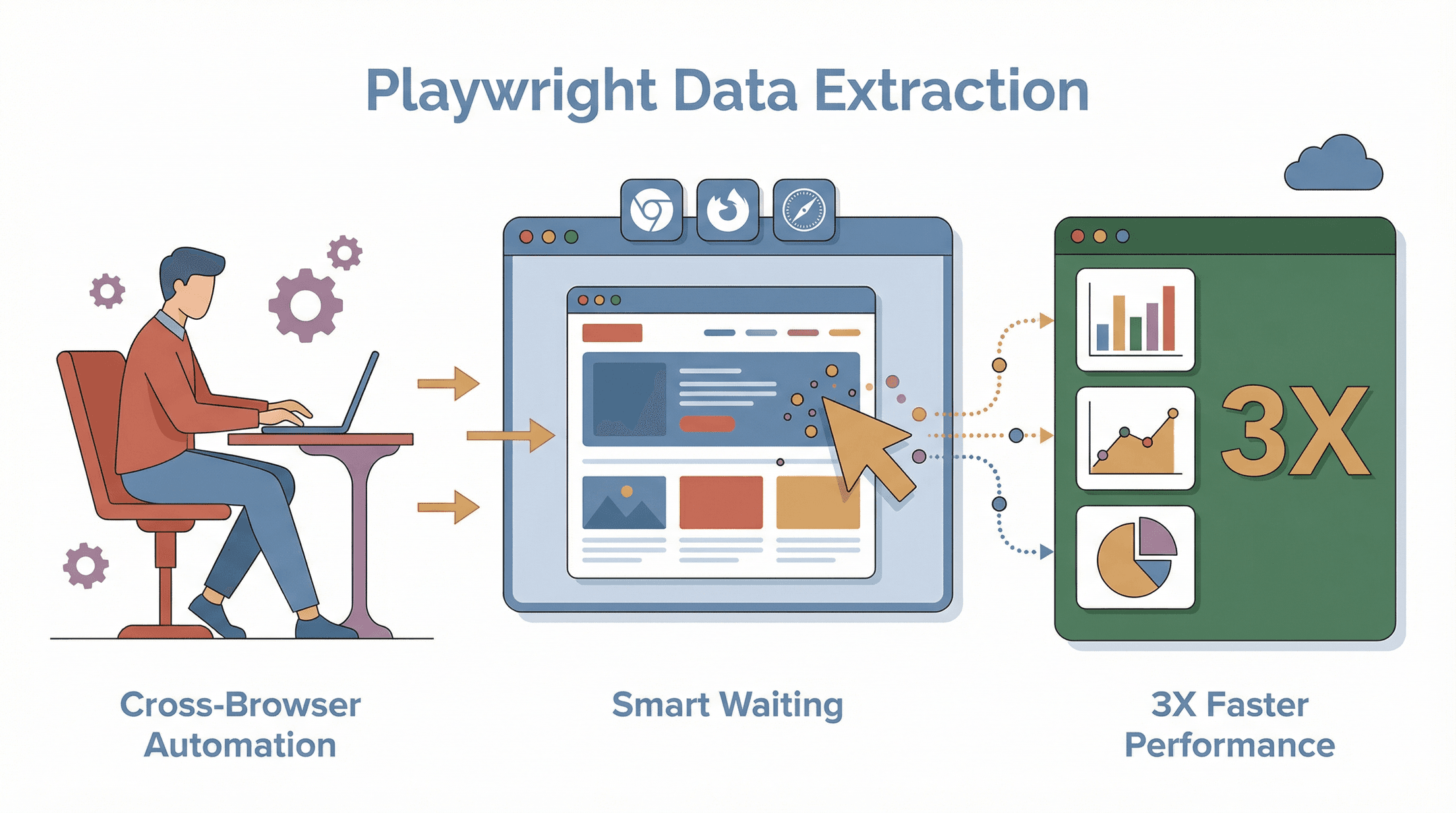 Playwright isn’t just another automation tool—it brings some unique technical advantages to the table:
1. Cross-Browser Automation
Playwright supports Chromium (Chrome/Edge), Firefox, and WebKit (Safari) out of the box (Oxylabs). This means you can write one script and run it across all major browsers, which is a lifesaver if you’re dealing with sites that behave differently depending on the browser.
2. Human-Like Behavior Simulation
Playwright can mimic real user actions—clicking, scrolling, hovering, filling forms, even uploading files. This is crucial for scraping content hidden behind interactions or for bypassing basic anti-bot checks. You can even run in “headful” mode (with a visible browser window) for debugging or to appear more like a human.
3. Headless and Headful Modes
Switch between headless (no UI, faster, more stealthy) and headful (with UI, great for debugging or evading some anti-bot scripts) with a single parameter. Some sites block headless browsers, so being able to flip modes is a real advantage.
4. Smart Waiting and Timing
Dynamic sites often load content asynchronously. Playwright’s auto-waiting features mean your script pauses until the data is actually there—no more guessing how many seconds to “sleep.” This leads to more reliable, accurate scrapes (Thunderbit: Playwright Guide).
5. Parallelism and Performance
Playwright can handle multiple browser tabs or sessions in parallel, letting you scrape at scale without bottlenecks. This is a big upgrade from the one-page-at-a-time approach of older tools.
6. Anti-Bot and Stealth Features
Because Playwright controls real browsers, it can spoof user agents, rotate proxies, and even emulate mobile devices. With the right setup, you can avoid many of the blocks that stop traditional scrapers in their tracks (BrowserStack).
In short: Playwright scraping gives you the flexibility, power, and reliability you need to extract data from the modern web—no matter how complex the site.
Setting Up Your Playwright Scraping Environment from Scratch
Getting started with Playwright is easier than you might think—even if you’re new to browser automation. Here’s how to go from zero to your first scrape:
Installing Node.js and Playwright
First, you’ll need Node.js (or Python, but Node.js is the most common for Playwright). Download Node.js from nodejs.org, install it, and then open your terminal.
Next, set up your project folder:
mkdir my-playwright-scraper
cd my-playwright-scraper
npm init -y
npm install playwright
npx playwright install
npm install playwrightgrabs the Playwright library.npx playwright installdownloads the browser engines (Chromium, Firefox, WebKit).
Verify your installation by running a simple script:
const { chromium } = require('playwright');
(async () => {
    const browser = await chromium.launch();
    const page = await browser.newPage();
    await page.goto('https://example.com');
    console.log(await page.title()); // Should print "Example Domain"
    await browser.close();
})();
If you see the expected title, you’re good to go (Thunderbit: Playwright Guide).
Managing Dependencies and Project Structure
Best practice: keep your code organized. For simple projects, a single file is fine. For larger ones, use a src/ folder and separate modules for scraping logic, data processing, and configuration. Store credentials or settings in a .env file (never hard-code passwords in your scripts).
Writing and Running Your First Playwright Scraping Script
Let’s scrape product names and prices from a sample e-commerce page:
const { chromium } = require('playwright');
(async () => {
    const browser = await chromium.launch();
    const page = await browser.newPage();
    await page.goto('https://example-ecommerce.com/laptops');
    await page.waitForSelector('.product-card');
    const names = await page.$$eval('.product-card .name', els => els.map(el => el.textContent.trim()));
    const prices = await page.$$eval('.product-card .price', els => els.map(el => el.textContent.trim()));
    names.forEach((name, i) => {
        console.log(`${name} - ${prices[i]}`);
    });
    await browser.close();
})();
This script waits for product cards to load, then grabs all names and prices. You can adapt the selectors to match your target site.
Troubleshooting tip: If you get errors about missing selectors or blank data, double-check the site’s structure in Chrome DevTools and make sure your selectors are correct.
Playwright Scraping in Action: Key Techniques and Best Practices
Once you’re set up, it’s time to level up your scraping skills.
Locating and Extracting Data Elements
- CSS Selectors: Use
page.locator('selector')orpage.$('selector')to target elements. - Extracting Text:
await page.locator('.product-name').allTextContents()returns an array of all product names. - Extracting Attributes: For images or links, use
.getAttribute('src')or.getAttribute('href'). - Chaining Locators: You can target nested elements, e.g.,
item.locator('.price')inside a loop.
Handling Dynamic Content and Pagination
- Wait for Content: Use
await page.waitForSelector('.item')to pause until items load. - Infinite Scroll: Programmatically scroll with
await page.evaluate(() => window.scrollBy(0, window.innerHeight));and wait for new content. - Pagination: Loop through pages by clicking “Next” and waiting for the new page to load. Example:
let pageNumber = 1;
while (true) {
    await page.waitForSelector('.result-item');
    // Extract data...
    const nextButton = await page.$('button.next');
    if (!nextButton) break;
    await nextButton.click();
    await page.waitForNavigation();
    pageNumber++;
}
Using Proxies and Avoiding Blocks
- Set a Proxy: When launching the browser, use:
const browser = await chromium.launch({
    proxy: { server: 'http://YOUR_PROXY:PORT', username: 'USER', password: 'PASS' }
});
- Rotate User Agents: Change the user agent string for each session.
- Randomize Delays: Insert random waits between actions to mimic human browsing.
- Headful Mode: Some sites block headless browsers—try running with a visible window (
headless: false). - Stealth Plugins: Consider community tools like playwright-stealth to mask automation fingerprints.
Combining Playwright Scraping with Thunderbit: Unlocking New Data Extraction Dimensions
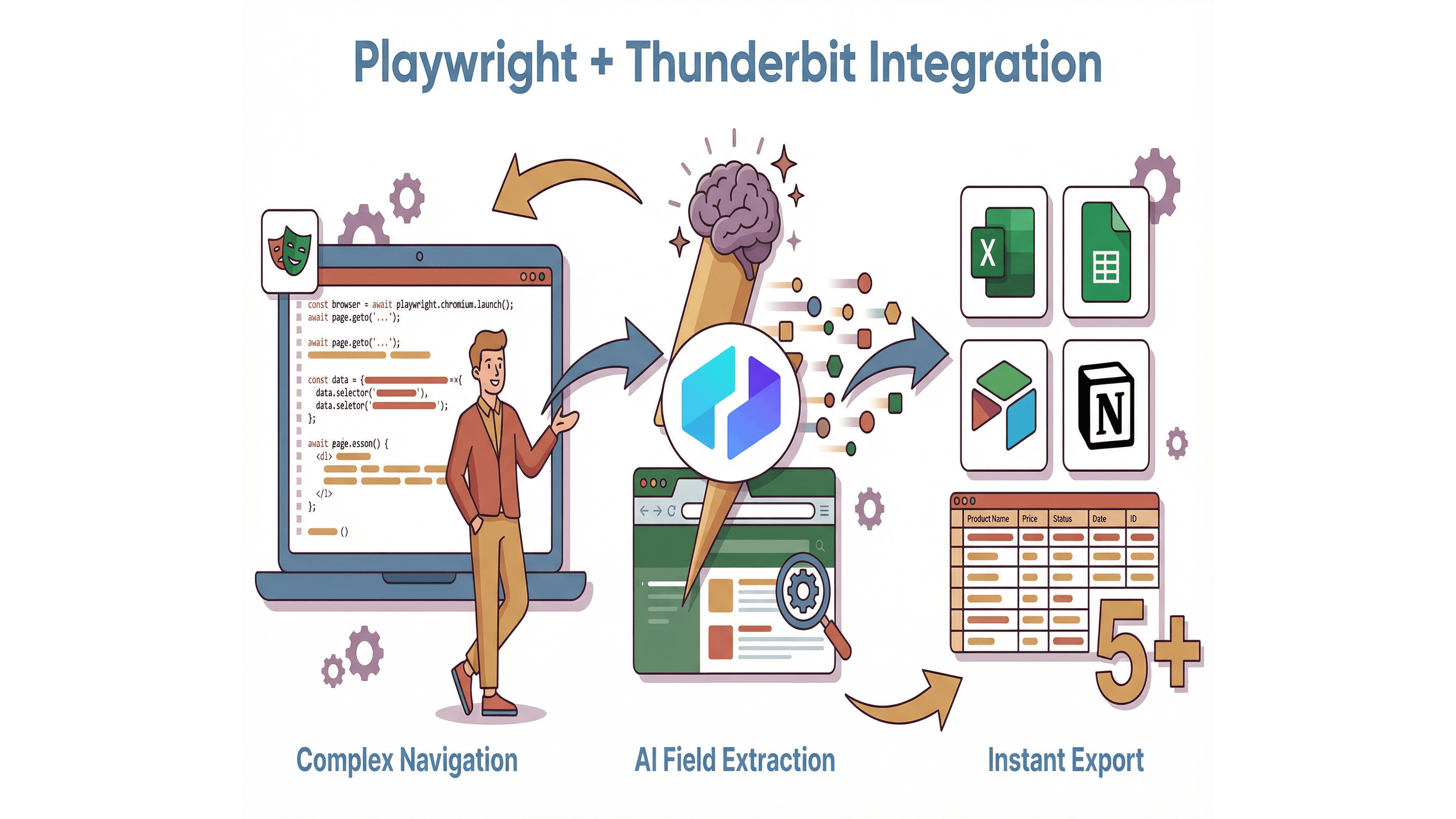 Here’s where things get really interesting. Playwright is fantastic for navigating and interacting with complex sites, but what about structuring and exporting the data—especially if you want to hand it off to non-technical teammates? That’s where Thunderbit comes in.
Using Thunderbit’s AI Suggest Fields with Playwright
Thunderbit’s AI Suggest Fields feature lets you instantly identify what data to extract from any page. Instead of manually inspecting HTML and guessing at field names, just open the Thunderbit Chrome Extension, click “AI Suggest Fields,” and let the AI recommend columns and data types (Thunderbit: Playwright Guide).
How does this help Playwright users?
- Faster Setup: Use Thunderbit’s AI to prototype your field mapping before writing Playwright code.
- Accurate Extraction: Copy the suggested selectors or field names into your Playwright script for more reliable results.
- Empower Non-Developers: Let business users use Thunderbit for quick, no-code scrapes, while developers handle the heavy lifting with Playwright.
Try Thunderbit AI Web Scraper for No-Code Data Extraction
Real-Time Data Formatting and Export
Thunderbit doesn’t just extract data—it formats it into structured tables and lets you export directly to Excel, Google Sheets, Airtable, or Notion (Thunderbit: Beginner Tutorial). No more wrestling with CSV files or writing custom export scripts.
Workflow tip: Use Playwright for complex navigation (logins, multi-step forms), then hand off the rendered page to Thunderbit for AI-powered field extraction and instant export. Or, use Thunderbit’s subpage scraping to enrich your data with details from linked pages—no extra code required.
Overcoming Common Playwright Scraping Challenges
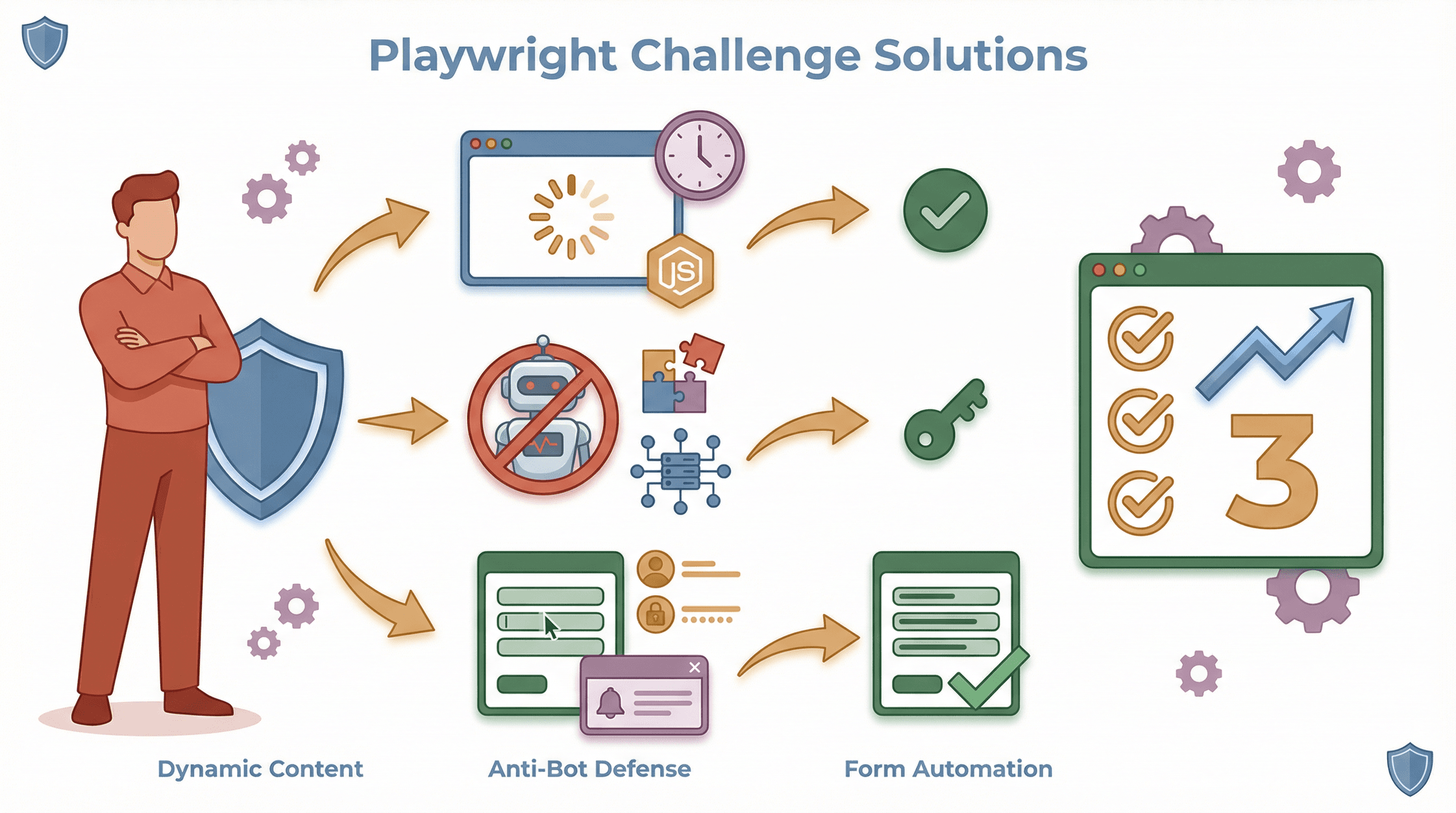 Even with Playwright’s power, you’ll hit some bumps. Here’s how to get unstuck:
Dealing with Dynamic Content and JavaScript Rendering
- Wait for the Right Element: Always use
waitForSelectorfor the data container, not just the page load. - Handle Infinite Scroll: Loop scroll actions and check if new items appear.
- Debug in Headful Mode: Watch the browser to see what’s missing or loading late.
Navigating Anti-Bot Measures
- Rotate Proxies and User Agents: Don’t let your scraper look like a bot.
- Randomize Actions: Vary your scraping pattern and timing.
- Handle CAPTCHAs Gracefully: If you hit a CAPTCHA, consider pausing, switching proxies, or integrating a solving service (ethically, of course).
Handling Complex Forms and User Interactions
- Automate Form Filling: Use
page.fill()andpage.click()for multi-step forms. - Script Logins: Automate login flows and save cookies for session reuse.
- Handle Pop-Ups and New Tabs: Use Playwright’s context and page events to manage multiple windows.
Real-World Applications: 5 Practical Playwright Scraping Use Cases
Let’s get concrete. Here are five ways Playwright scraping delivers real business value—plus code snippets to get you started.
- E-commerce Price Monitoring
- Market Research and Trend Analysis
- Real Estate Listings Extraction
- Sales Lead Generation
- Competitor Product Analysis
1. E-commerce Price Monitoring
Scenario: Track competitor prices and stock.
await page.goto('https://example-ecommerce.com/laptops');
await page.waitForSelector('.product-card');
const products = await page.$$eval('.product-card', cards =>
    cards.map(card => ({
        name: card.querySelector('.name').textContent.trim(),
        price: card.querySelector('.price').textContent.trim()
    }))
);
console.log(products);
(Thunderbit: Beginner Tutorial)
2. Market Research and Trend Analysis
Scenario: Aggregate news headlines or forum posts.
await page.goto('https://tech-news.com/latest');
await page.waitForSelector('.headline');
const headlines = await page.$$eval('.headline', els => els.map(el => el.textContent.trim()));
console.log(headlines);
3. Real Estate Listings Extraction
Scenario: Scrape property details from real estate portals.
from playwright.sync_api import sync_playwright
with sync_playwright() as p:
    browser = p.chromium.launch()
    page = browser.new_page()
    page.goto("https://realestate.com/city")
    page.wait_for_selector(".listing")
    listings = page.query_selector_all(".listing")
    for listing in listings:
        price = listing.query_selector(".price").inner_text()
        beds = listing.query_selector(".beds").inner_text()
        print(price, beds)
    browser.close()
4. Sales Lead Generation
Scenario: Extract contact info from business directories.
await page.goto('https://yellowpages.com/search?query=plumbers');
await page.waitForSelector('.result');
const leads = await page.$$eval('.result', results =>
    results.map(res => ({
        name: res.querySelector('.business-name').textContent.trim(),
        phone: res.querySelector('.phones').textContent.trim()
    }))
);
console.log(leads);
(Thunderbit: Playwright Guide)
5. Competitor Product Analysis
Scenario: Benchmark product specs and reviews.
products = ["ProductA", "ProductB"]
with sync_playwright() as p:
    browser = p.chromium.launch()
    page = browser.new_page()
    for product in products:
        page.goto(f"https://competitor.com/products/{product}")
        page.wait_for_selector(".specs")
        specs = page.query_selector(".specs").inner_text()
        print(product, specs)
    browser.close()
Playwright Scraping vs. Other Tools: A Quick Comparison
How does Playwright stack up against Puppeteer and Selenium? Here’s a side-by-side look (PromptFuel, Oxylabs, BrowserStack):
| Feature | Playwright | Puppeteer | Selenium |
|---|---|---|---|
| Browser Support | Chrome, Firefox, Safari | Chrome (officially) | All major browsers |
| Language Support | JS, Python, Java, .NET | JS (Node.js) | Many (Java, Python, C#, etc.) |
| Speed | Very fast, parallel sessions | Fast (Chrome only) | Slower, more overhead |
| Ease of Use | Modern API, auto-wait | Easy for Node.js devs | More verbose, config-heavy |
| Stealth/Anti-bot | Good, growing plugins | Good with plugins | Weaker, easier to detect |
| Community/Ecosystem | Growing fast | Strong in Node.js | Huge, but testing-focused |
Bottom line: Playwright is the best choice for most new scraping projects, especially if you need cross-browser support, modern APIs, or advanced anti-bot features.
Conclusion & Key Takeaways
What Is Data Scraping and How to Do It in 2025 Get Started Free
Mastering Playwright scraping is a superpower for anyone who needs to turn the modern web into structured data. With its cross-browser automation, human-like interactions, and robust handling of dynamic content, Playwright makes even the toughest scraping jobs feel manageable. And when you layer in Thunderbit’s AI-powered field detection and instant export tools, you unlock a workflow that’s not just efficient—it’s enjoyable.
Key takeaways:
- Playwright scraping is ideal for dynamic, JavaScript-heavy sites where traditional scrapers fail.
- Its unique strengths—cross-browser support, smart waiting, and stealth features—make it the go-to for modern data extraction.
- Setting up Playwright is straightforward, and best practices (like smart waits and proxy rotation) will keep your scrapes reliable.
- Combining Playwright with Thunderbit brings AI-powered field mapping, subpage scraping, and instant export to your workflow—perfect for business users and developers alike.
- Real-world use cases span e-commerce, market research, real estate, sales, and more.
Ready to level up your data extraction game? Try building your first Playwright script, then experiment with Thunderbit’s AI Web Scraper Chrome Extension for instant, no-code data structuring and export. And if you’re hungry for more tips and tutorials, check out the Thunderbit Blog.
Download Thunderbit Chrome Extension
Happy scraping—and may your selectors always match, your proxies never get blocked, and your spreadsheets fill themselves.
FAQs
1. What makes Playwright scraping better than traditional HTTP-based scrapers?
Playwright controls a real browser, so it can see and interact with all the dynamic content loaded by JavaScript—something traditional scrapers miss. This means you get more accurate, complete data from modern websites.
2. Can Playwright handle sites with logins or multi-step forms?
Absolutely. Playwright can automate logins, fill out forms, click through multi-step processes, and even manage cookies or sessions for authenticated scraping.
3. How does Thunderbit enhance Playwright scraping?
Thunderbit’s AI Suggest Fields feature helps you quickly identify what data to extract and how to structure it. It also lets you export scraped data directly to Excel, Google Sheets, Airtable, or Notion—no manual formatting needed.
4. What are the best practices for avoiding blocks when scraping with Playwright?
Use rotating proxies, randomize user agents, insert human-like delays, and consider running in headful mode. Always respect site terms and avoid overloading servers.
5. Is Playwright scraping suitable for non-coders?
While Playwright itself is code-based, pairing it with Thunderbit’s no-code Chrome Extension empowers non-developers to extract and export structured data from most websites—no programming required.
Ready to see Playwright and Thunderbit in action? Download the Thunderbit Chrome Extension, and check out the Thunderbit Blog for more hands-on guides and inspiration.
Try AI Web Scraper Get Started Free
Learn More




