

The browser is quickly becoming the new “office”—and with it, browser-based AI assistants are turning from novelty into necessity. In 2026, over 75% of global knowledge workers are now using generative AI, and Chrome extensions like Claude are leading the charge, boasting more than 1,000,000 users.
For anyone in sales, operations, or just tired of endless copy-paste marathons, the Claude AI browser plugin promises not just smarter web browsing, but a whole new way to work.
But installing an AI assistant isn’t just about clicking “Add to Chrome.” To really unlock Claude’s potential—summarizing web pages, automating workflows, and even teaming up with tools like Thunderbit—you need to know the right steps, settings, and best practices.
As someone who’s spent years building productivity tools at Thunderbit, I’m here to walk you through everything: from installation to real-world use cases, troubleshooting, and how to get Claude and Thunderbit working together for a truly next-level browser experience.
What is the Claude AI Browser Plugin for Chrome?
Let’s start with the basics. The Claude AI browser plugin (officially called “Claude in Chrome”) is an agentic browser assistant built by Anthropic. Unlike simple chatbots that just answer questions, Claude can:
- Read and summarize web pages right in a side panel
- Interact with websites: click buttons, fill forms, and even automate multi-step workflows
- Take screenshots, manage tabs, and run scheduled tasks
- Record and replay workflows—think of it as a macro recorder, but powered by AI
- Integrate with your existing browser sessions (so it works with your logged-in apps)
In plain English: Claude brings a powerful, context-aware chatbot directly into your Chrome browser, letting you delegate everything from research to routine web tasks—without ever leaving the page.
Why Install the Claude AI Browser Plugin? Real-World Use Cases
So, why bother adding yet another extension to Chrome? For business users, especially in sales and operations, Claude isn’t just a chatbot—it’s a real productivity booster. Here’s how:
1. Summarize and Extract Key Info Instantly
Ever landed on a 3,000-word competitor blog post and thought, “Just give me the highlights”? With Claude, you can select the page and ask for a summary, key takeaways, or even a bullet-point list of action items. It’s like having a research assistant who never gets tired.
2. Automate Repetitive Browser Tasks
From filling out the same web forms to updating CRM entries, browser busywork eats up hours. Claude can record your workflow (say, filling out a lead form), save it as a shortcut, and replay it on demand—or even schedule it to run daily.
3. Multi-Tab Research and Batch Actions
Need to check 10 competitor sites for pricing changes? Claude can open tabs, scan each page, and compile a summary—while you focus on higher-value work.
4. Assist with Data Entry and Reporting
Pair Claude with a tool like Thunderbit to extract structured data from web pages, summarize it, and export to Google Sheets or Notion. Suddenly, that weekly reporting task is a two-minute job.
5. Workflow Integration for Teams
On Team or Enterprise plans, admins can deploy Claude across the org, set up allowlists, and manage permissions—making it a safe, scalable assistant for everyone.
Feature-to-Use Case Table
| Claude Feature | Sales Use Case | Operations Use Case |
|---|---|---|
| Summarize web content | Quick competitor analysis | Summarize policy updates |
| Automate form fill | Batch lead entry | Vendor onboarding |
| Multi-tab workflows | Research prospects across sites | Monitor supply chain dashboards |
| Workflow recording/scheduling | Daily CRM updates | Scheduled report generation |
| Integration with Thunderbit | Scrape and enrich lead data | Extract and organize market data |
Step-by-Step: How to Install the Claude Extension for Chrome
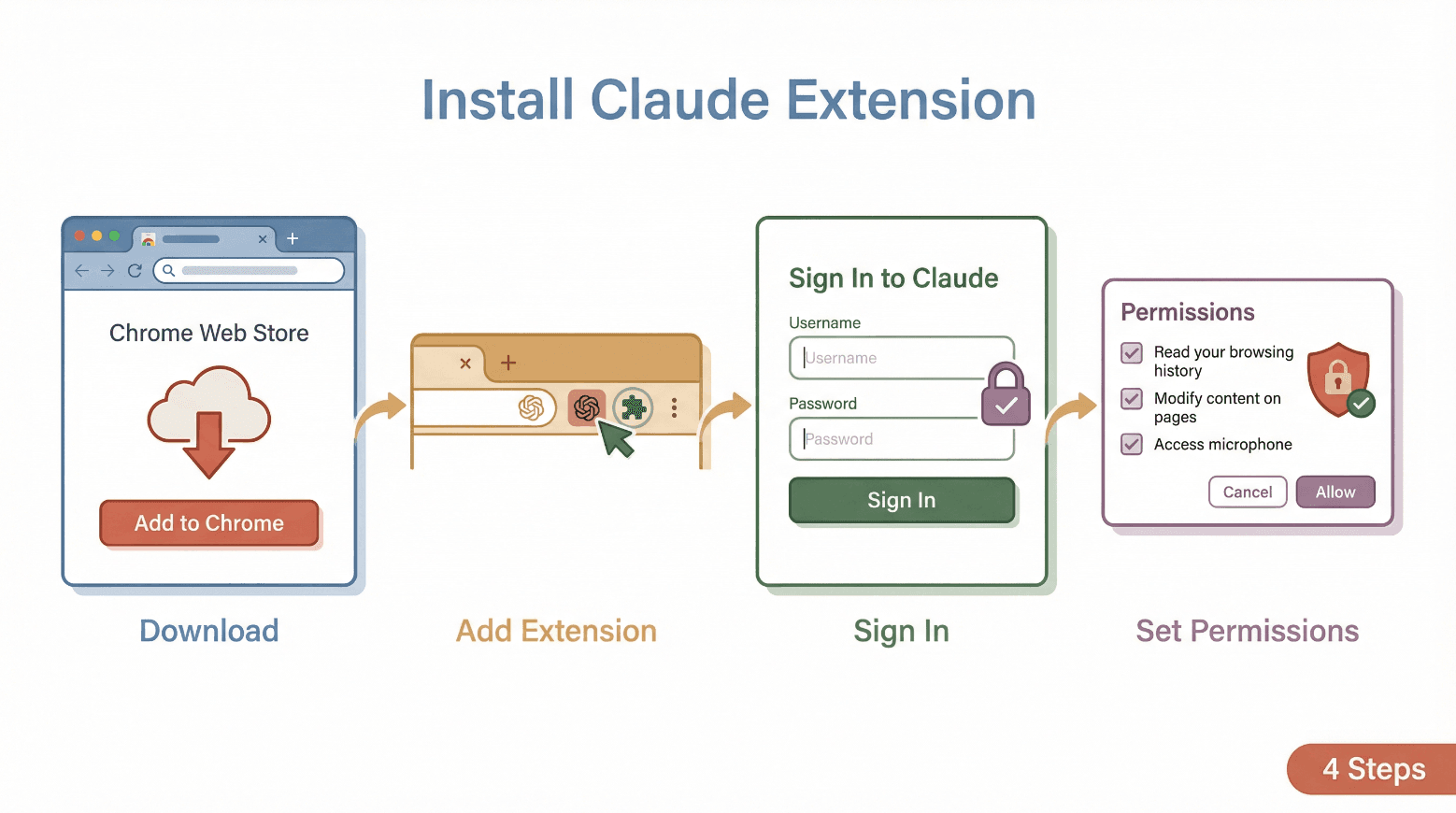 Ready to get started? Here’s how to install the Claude AI browser plugin for Chrome—no tech degree required.
Prerequisites
- Google Chrome browser on desktop (not mobile)
- Active Claude paid plan (Pro, Max, Team, or Enterprise)
- Claude account in a supported region
- (For teams) Admin must enable the extension if using Team/Enterprise
Installation Steps
- Open Chrome and go to the Claude in Chrome extension page.
- Click “Add to Chrome.”
- [Screenshot: Chrome Web Store listing with “Add to Chrome” button]
- Confirm by clicking “Add extension” in the pop-up dialog.
- [Screenshot: Chrome confirmation dialog]
- Once installed, pin the extension for easy access:
- Click the puzzle piece icon in the Chrome toolbar, then click the pin next to “Claude.”
- [Screenshot: Extension pinned in toolbar]
- Click the Claude icon to open the side panel.
- Sign in with your Claude account. (You may need to use Google login or a passwordless email link.)
- Grant the requested permissions (see next section).
Pro tip: Only install the extension published by Anthropic. Avoid third-party “Claude” plugins to protect your data and privacy.
Granting Permissions: What to Expect
Claude will ask for several permissions to function as a browser assistant.
Privacy tip: Always review permissions and start with “ask before acting” mode for extra safety. You can manage site access in Chrome’s extension settings.
First-Time Setup: Key Settings for Claude Chatbot for Chrome
Once installed, Claude will walk you through a quick setup. Here’s what to look for:
Important Settings to Review
- Language: Set your preferred language for chat and summaries.
- Theme: Choose light, dark, or system theme for the side panel.
- Shortcut keys: Customize keyboard shortcuts for quick access.
- Permission mode: Start with “ask before acting” (Claude will propose a plan and wait for your approval before taking action).
- Site access: Limit Claude to specific sites if desired, or allow on all sites for full functionality.
Personalization tip: Take a minute to explore settings—tweaking shortcuts and themes can make Claude feel like your own personal assistant.
Troubleshooting Common Installation and Compatibility Issues
Even the best Chrome extensions can hit a snag. Here are common issues and how to fix them:
Support tip: For persistent issues, use the “Get help” feature in the Claude side panel or visit the Claude Help Center.
What Makes Claude AI Browser Plugin Stand Out from Other Chrome Extensions?
Let’s be honest: Chrome is packed with AI chatbots and productivity plugins. So what makes Claude different?
Claude vs. Other Chrome AI Extensions
Claude is designed to be lightweight and fast, minimizing resource usage and loading times—addressing a common pain point with other Chrome plugins. Its “agentic” abilities (actually taking actions, not just summarizing) set it apart, and the focus on user control (“ask before acting”) gives you peace of mind.
| Feature | Claude AI Plugin | Typical Extension |
|---|---|---|
| Side-panel chat | Yes | Yes |
| Website interaction | Full (click/type/fill) | Usually read-only |
| Workflow recording | Yes | Rare |
| Scheduled automation | Yes | Rare |
Practical Tips: Using Claude Chatbot for Chrome in Everyday Workflows
Now for the fun part—how do you actually use Claude to save time and work smarter? Here are some practical tips and prompt ideas:
1. Summarize Web Pages and Documents
- Prompt: “Summarize this page in 5 bullet points.”
- Prompt: “What are the key differences between this product and [competitor]?”
2. Automate Routine Tasks
- Record a workflow for filling out a web form (e.g., lead entry, feedback submission).
- Save it as a shortcut and schedule it for daily or weekly runs.
3. Research and Compare Across Tabs
- Open several competitor or supplier pages.
- Ask Claude: “Scan all open tabs and create a comparison table of pricing and features.”
4. Batch Email or CRM Updates
- Use Claude to draft replies or update CRM entries in bulk (with your approval).
5. Use Keyboard Shortcuts
- Assign a shortcut (e.g., Ctrl+Shift+C) to open Claude instantly—great for quick research or summaries.
Workflow tip: Start small—try automating one repetitive task per week. Over time, you’ll build a library of shortcuts that save hours.
Advanced Integration: Combine Claude with Thunderbit for Enhanced Data Workflows
Here’s where things get really interesting. While Claude excels at summarizing and automating, Thunderbit is your go-to for structured data extraction from websites. Used together, they’re a powerhouse for business users.
Example Workflow: Claude + Thunderbit
- Use Claude to summarize or analyze a web page (e.g., extract key insights, summarize a competitor’s product page).
- Activate Thunderbit to scrape structured data (e.g., product specs, pricing, contact info) from the same or related pages.
- Export results from Thunderbit directly to Google Sheets, Notion, or Airtable for further analysis or sharing.
- Leverage Claude again to draft reports, emails, or presentations based on the structured data you’ve just captured.
When Does This Combo Shine?
- Lead generation: Claude summarizes company profiles; Thunderbit scrapes contact info and details.
- Competitor analysis: Claude highlights key differentiators; Thunderbit extracts pricing/features into a spreadsheet.
- Market research: Claude condenses long-form content; Thunderbit pulls structured data for trend analysis.
Integration tip: Both tools work side-by-side in Chrome. Use Claude for context and insights, Thunderbit for data extraction and export.
Staying Safe: Best Practices for Using Claude AI Browser Plugin
AI browser assistants are powerful—but with great power comes great responsibility. Here’s how to stay safe:
1. Start with Trusted Sites
Only use Claude’s automation features on sites you trust. Avoid using it for sensitive tasks (banking, legal, health records).
2. Use “Ask Before Acting” Mode
Keep Claude in “ask before acting” mode until you’re comfortable with its behavior. Always review proposed actions before approving.
3. Manage Permissions Carefully
Limit site access to only those you need. Regularly review and revoke permissions you no longer use.
4. Watch for Prompt Injection
Be aware that malicious sites can try to trick AI assistants. If Claude proposes unexpected or risky actions, stop and review.
5. Separate Work and Personal Accounts
Consider using different Chrome profiles for work and personal browsing to reduce risk.
Safety tip: Anthropic recommends reporting any suspicious behavior and starting with a restrictive allowlist for business rollouts.
Conclusion: Start Exploring with Claude Chatbot for Chrome
The browser is now the front door to your work—and with the Claude AI browser plugin, you’ve got a powerful assistant ready to help you work smarter, not harder. From summarizing web pages to automating repetitive tasks, and especially when paired with Thunderbit, you can unlock a whole new level of productivity and insight.
My advice? Install the Claude extension, try it out on your daily workflows, and don’t be afraid to experiment. The more you use it, the more value you’ll find—whether you’re in sales, operations, or just want to reclaim your time from browser busywork. And if you discover a killer use case, share your feedback to help the Claude team keep improving.
Want to keep leveling up? Check out the Thunderbit Blog for more tips on AI-powered productivity and data automation.
FAQs
1. Do I need a paid Claude plan to use the browser plugin?
Yes, the Claude AI browser plugin requires an active paid plan (Pro, Max, Team, or Enterprise). Free accounts currently can’t access the extension.
2. Is the Claude extension available on browsers other than Chrome?
Officially, it’s supported on desktop Chrome. Some Chromium-based browsers may work, but support is not guaranteed.
3. What permissions does Claude need, and is it safe?
Claude requests permissions to read page content, control tabs, fill forms, take screenshots, and run scheduled tasks. Always review permissions, use “ask before acting” mode, and limit access to trusted sites for maximum safety.
| Permission | Why It's Needed |
|---|---|
| Read page content | To summarize and interact with sites |
| Control tabs | For multi-step workflows |
| Fill forms/click | To automate repetitive actions |
| Run scheduled tasks | To automate recurring jobs |
4. How does Claude compare to other AI browser assistants?
Claude stands out for its full website interaction (not just summaries), workflow recording, scheduled automation, and lightweight, fast design. It’s especially strong for business users who want more than just chat.
5. Can I use Claude and Thunderbit together?
Absolutely! Use Claude for summarizing and analyzing content, and Thunderbit for structured data extraction and export. Together, they make web research, lead generation, and reporting much faster and more powerful.
Ready to supercharge your browser? Install Thunderbit alongside Claude and see what’s possible.
Learn More




