

If you’ve ever found yourself staring down a mountain of spreadsheets, wondering how you’ll get all those leads into your CRM before your coffee goes cold, you’re not alone. In today’s sales and marketing world, the difference between a hot lead and a missed opportunity often comes down to how quickly—and accurately—you can import, organize, and act on your data. I’ve seen teams spend hours (sometimes days!) wrangling CSV files, only to end up with duplicate contacts, missing emails, or worse—calls to the wrong person. The good news? There’s a much better way.
Let’s break down the modern, practical approach to importing leads—whether you’re a beginner or just tired of manual data headaches. I’ll share the pitfalls to avoid, the tools that make life easier, and how AI-powered solutions like Thunderbit are changing the game for sales, marketing, and operations teams everywhere.
What Does It Mean to Import Leads? A Simple Overview
At its core, importing leads means taking contact data—names, emails, phone numbers, company info—and loading it into your CRM or sales tool. Instead of typing each contact by hand, you’re transferring (often in bulk) lead information from sources like spreadsheets, CSV files, or even web directories into a single, organized system.
Why does this matter? Because accurate lead import is the foundation of every successful sales and marketing operation. If your data is messy, incomplete, or riddled with duplicates, your team will waste time chasing dead ends and risk missing out on real opportunities. On the flip side, a smooth import process means your sales reps have the right info at their fingertips, ready to follow up while interest is hot.
Most CRMs (think Salesforce, HubSpot, Zoho) are built around this idea. They expect your lead data to come in structured formats—usually CSV or Excel—and mapped to specific fields like “First Name,” “Email,” or “Company.” The trick is making sure your data is clean and matches what your CRM expects (Bardeen, Oracle Docs).
Why Efficient Import Leads Process Matters for Your Team
Let’s be real: time is money. Over 40% of workers spend at least a quarter of their week on repetitive tasks like data entry. Inefficient lead import doesn’t just waste time—it can cost your business real revenue. Poor data practices mean companies miss out on 45% of potential leads, and the U.S. economy loses an estimated $3.1 trillion annually to bad data.
But when you get it right? Companies using a CRM with clean data see lead conversion rates jump by 17% and sales team productivity rise by over 20%. Efficient lead import isn’t just an IT concern—it’s a direct path to faster sales cycles, better campaign tracking, and happier sales teams.
Here’s a quick before-and-after:
| Scenario | Before (Manual/Ad Hoc) | After (Streamlined/Automated) |
|---|---|---|
| Lead Import Time | Hours or days, lots of errors, duplicates, and delays | Minutes, with built-in error checking and instant assignment to sales reps |
| Data Quality | Incomplete, inconsistent, or outdated info; missed follow-ups | Clean, standardized, and ready for segmentation and automation |
| Sales Productivity | Reps chase bad leads, waste time fixing errors | Reps focus on selling, not data wrangling |
| ROI | Missed opportunities, low conversion rates | Higher conversion, faster response, and more revenue |
Manual vs. Automated Import Leads: Which Approach Fits Your Team?
When it comes to importing leads, you’ve got two main options: manual or automated. Each has its place, but the differences are huge—especially as your team and data needs grow.
Manual Import Leads: When and Why
Manual import means you’re handling the data yourself—maybe uploading a CSV into your CRM, mapping fields by hand, or even typing in leads one by one. This approach is fine for small, one-off imports (say, 20 leads from a local event) or when you need to review each entry for accuracy.
Pros:
- Full control over each record
- No extra tools needed beyond Excel and your CRM
Cons:
- Time-consuming and tedious for anything more than a handful of leads
- Prone to human error—typos, misaligned fields, and duplicates are common (Docuclipper)
- Doesn’t scale—more leads means more hours (and more coffee)
Manual import is best reserved for small datasets or when you need to make judgment calls on each lead. But as soon as you’re dealing with hundreds or thousands of records, it’s time to automate.
Automated Import Leads: Unlocking Efficiency
Automated import uses tools—either built into your CRM or third-party platforms—to handle bulk data, check for errors, and even trigger follow-up actions automatically. This is where most teams see the biggest gains.
Benefits:
- Handles thousands of leads in minutes
- Built-in error checking and deduplication
- Integrates with other business systems (like marketing automation or email sequences)
- Frees up your team to focus on selling, not data entry
For example, a real estate SaaS company saved 8–10 hours per batch of new customer data by switching to automated import tools.
Comparison Table: Manual vs. Automated Import
| Factor | Manual Import | Automated Import |
|---|---|---|
| Setup Effort | Low, but repetitive | Moderate, then minimal ongoing |
| Speed & Scale | Slow, doesn’t scale | Fast, handles bulk easily |
| Error Rate | 1–4% (typos, misalignments) | Very low, with validation rules |
| Technical Skill | Basic Excel/CRM knowledge | Varies, but many no-code tools |
| Cost | High labor, hidden error costs | Upfront tool cost, big ROI |
Step-by-Step: How to Import Leads with Popular CRM Tools
Whether you’re using Salesforce, HubSpot, Zoho, or another CRM, the import process usually follows the same basic steps. Here’s a beginner-friendly walkthrough to help you avoid the most common traps.
Preparing Your Lead Data for Import
- Consolidate and Format Data: Use a single CSV or Excel file. Make sure the first row contains clear headers (e.g., “First Name,” “Email,” “Company”).
- Check Required Fields: Most CRMs need at least a name and email. Fill in any missing mandatory info.
- Clean Up Formatting: Standardize phone numbers, emails, and addresses. Remove extra spaces and fix typos.
- Remove Duplicates: Use Excel’s “Remove Duplicates” or Google Sheets’ “UNIQUE” function. Better to catch these now than after import.
- Match CRM Picklists: If your CRM has dropdowns (like “Industry”), make sure your file uses the exact same values.
- Test Import: Try importing 5–10 sample rows first to catch mapping or formatting issues.
Importing Leads into Your CRM: A Simple Workflow
- Access the Import Tool: In your CRM, go to the “Leads” or “Contacts” module and find the “Import” button.
- Upload Your File: Choose your cleaned CSV or Excel file.
- Map Fields: Match each column in your file to the correct CRM field. Most CRMs auto-map if the headers match.
- Set Import Options: Decide how to handle duplicates (skip, merge, or update existing records).
- Run the Import: Click “Import” and let the CRM process your data.
- Check Results: Review the summary for errors or skipped records. Fix and re-import if needed.
- Spot-Check Data: Look up a few leads in the CRM to make sure everything landed in the right place.
(Ruler Analytics, Oracle Docs)
Common Pitfalls:
- Not cleaning data first (leading to errors or garbage in CRM)
- Mapping fields incorrectly (e.g., “State” to “Stage”)
- Forgetting unique identifiers (like email) for deduplication
How Thunderbit Makes Importing Leads from Complex Webpages Easy
Scrape leads from any website using AI Get Started Free
Now, what if your leads aren’t sitting in a neat CSV file, but scattered across websites, directories, or even PDFs? This is where Thunderbit comes in—and honestly, it’s one of my favorite productivity hacks.
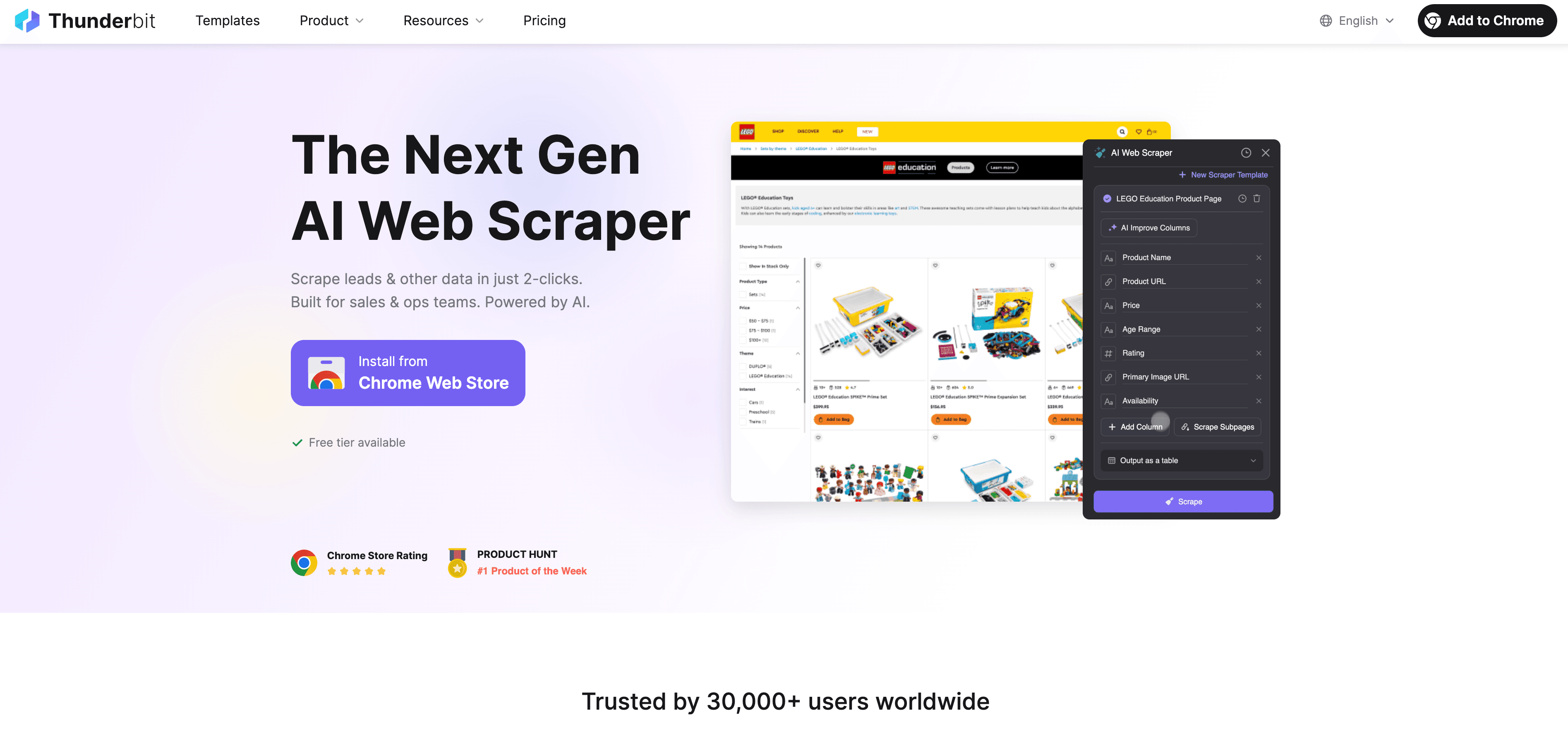
Thunderbit is an AI-powered web scraper Chrome Extension that lets you extract lead data from any website, structure it, and export it directly to Excel, CSV, Google Sheets, Airtable, or Notion. No coding, no templates, no manual copy-paste.
Using Thunderbit AI Scraper for Lead Extraction
Here’s how it works:
- Go to the Webpage: Open the site with the leads you want (e.g., a directory, LinkedIn search, or event attendee list).
- Launch Thunderbit: Click the Thunderbit extension in Chrome.
- AI Suggest Fields: Hit “AI Suggest Fields” and Thunderbit’s AI will scan the page, recommending columns like “Name,” “Email,” “Company,” etc.
- Review and Adjust: Rename or add fields as needed. You can even add custom instructions for more advanced extraction.
- Scrape: Click “Scrape” and Thunderbit will pull all the data into a structured table.
- Subpage Scraping: If each lead links to a detail page, use Thunderbit’s subpage feature to enrich your data (e.g., grab direct emails or phone numbers from each profile).
- Export: One click to export your table as Excel, CSV, or directly to Google Sheets, Airtable, or Notion.
Thunderbit is designed for non-technical users—if you can browse the web and click a button, you can use it. It’s especially handy for scraping leads from places that don’t offer easy exports, like association directories, niche forums, or even PDFs (thanks to Thunderbit’s OCR capabilities).
Why is this a big deal? Because it turns hours of manual copy-paste into minutes of AI-powered extraction. I’ve seen teams go from “we’ll never get this done” to “done before lunch” just by switching to Thunderbit.
(Thunderbit Blog, Thunderbit Chrome Extension)
Try Thunderbit AI Web Scraper for Lead Import
Optimizing and Managing Leads After Import
Learn more about Lead Capture Get Started Free
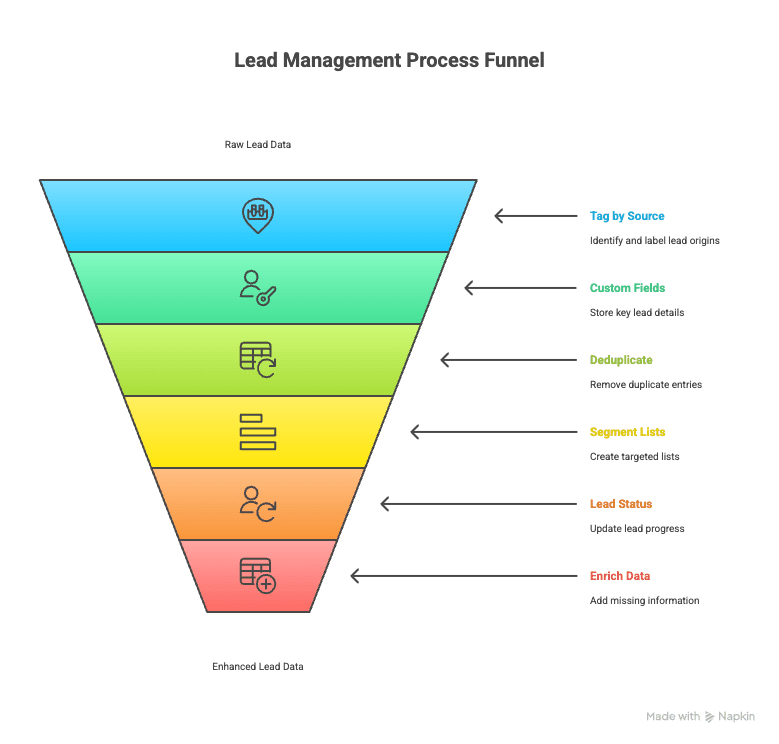
Getting leads into your CRM is just the start. The real magic happens when you organize, tag, and follow up—turning raw data into real opportunities.
Best Practices for Lead Organization
- Tag by Source: Use CRM tags or custom fields to label where each lead came from (e.g., “Webinar Q2 2025,” “Thunderbit Scrape,” “Trade Show”).
- Custom Fields: Store key info like industry, company size, or product interest in dedicated fields for easy segmentation.
- Deduplicate: Use your CRM’s deduplication tools to merge or remove duplicates right after import.
- Segment Lists: Create smart lists or filtered views (e.g., “New Leads—Last 7 Days,” “C-Suite Titles”) for targeted outreach.
- Lead Status: Set an initial status (“New,” “Uncontacted”) and update as you work the leads.
- Enrich Data: Use data enrichment tools or Thunderbit’s AI prompts to add missing info (like LinkedIn URLs or company details).
Leveraging Automation for Lead Nurture and Follow-Up
- Welcome Workflows: Set up automated emails or tasks for every new lead imported.
- Task Reminders: Automatically assign follow-up calls or emails to reps.
- Lead Scoring: Use CRM rules to prioritize leads based on job title, company size, or engagement.
- Drip Campaigns: Enroll leads in nurture sequences to warm them up over time.
- Sales Alerts: Trigger notifications when leads engage (e.g., open an email or visit your pricing page).
Automation ensures no lead slips through the cracks—and that your team can focus on selling, not chasing spreadsheets.
(PipelineCRM, HubSpot Community)
Real-World Example: How a Marketing Team Used Thunderbit to Optimize Lead Import
Let’s get concrete. Imagine a mid-sized marketing team at “AcmeSoft” targeting biotech companies. They used to spend a week manually copying contacts from industry directories and LinkedIn, often ending up with incomplete or duplicate data.
After switching to Thunderbit:
- They scraped 300 contacts from a biotech directory and LinkedIn in a single day.
- Used Thunderbit’s subpage scraping to enrich each lead with direct emails and LinkedIn URLs.
- Imported the cleaned, structured data into their CRM with tags for source and industry.
- Sales reps received leads faster, with richer context, and saw a 15–20% increase in contact rates.
- The team increased their lead volume by 30% quarter-over-quarter—without hiring more staff.
The kicker? The marketing ops specialist was a lot happier, too. No more copy-paste marathons, just more time for strategy and creative work.
(Flatfile Case Study, Thunderbit Blog)
Comparing Import Leads Solutions: Manual, Automated, and AI-Powered
| Criteria | Manual Import | Automated Import (CRM Tools) | AI-Powered (Thunderbit) |
|---|---|---|---|
| Setup Time | Minimal, but repetitive | One-time setup, quick after | Minimal, AI suggests fields |
| Speed | Slow, hours for big lists | Fast, minutes for thousands | Very fast, web-to-CSV in minutes |
| Error Rate | 1–4% (typos, misalignments) | Low, with validation | Very low, AI reads exact data |
| Scalability | Poor, doesn’t scale | Good, handles bulk easily | Excellent, scales with web data |
| Technical Skill | Basic Excel/CRM knowledge | Low to medium (no-code tools) | Low, built for non-coders |
| Cost | High labor, hidden errors | Tool cost, high ROI | Free tier, affordable paid plans |
| Maintenance | Each import is ad-hoc | Occasional updates needed | Low, AI adapts to changes |
| Ideal Use Case | Small, one-off imports | Recurring, structured imports | Unstructured web data, enrichment |
(Docuclipper, Thunderbit Blog)
Key Takeaways: Import Leads with Confidence
- Prep is everything: Clean and structure your data before importing. Use unique identifiers and match CRM fields.
- Automate whenever possible: Save your team from repetitive tasks and reduce errors. Use your CRM’s import tools or integration platforms.
- Leverage AI tools like Thunderbit: Extract leads from anywhere on the web, structure them instantly, and export in CRM-ready formats.
- Organize and tag leads post-import: Use tags, custom fields, and segmentation for actionable lists.
- Automate follow-up: Set up workflows, reminders, and nurture sequences to ensure no lead is left behind.
- Keep your data fresh: Regularly deduplicate, enrich, and update your leads.
- Measure and improve: Track your import and follow-up metrics to spot bottlenecks and iterate.
Efficient lead import is the secret sauce for sales success. With the right prep, automation, and a dash of AI, you can turn messy data into a sales machine—no technical wizardry required.
Ready to try it for yourself? Download Thunderbit and see how easy it is to go from web page to CRM in just a few clicks. For more tips and deep dives, check out the Thunderbit Blog.
Start Importing Leads with Thunderbit
FAQs
1. What’s the fastest way to import leads into my CRM?
Use your CRM’s bulk import tool with a clean CSV or Excel file. For leads trapped on websites, use Thunderbit to extract and structure the data first.
2. How do I avoid duplicates when importing leads?
Deduplicate your list before import (using Excel or Google Sheets), and use your CRM’s “skip or merge duplicates” option, usually matching on email.
3. Can I import leads directly from a website or PDF?
Yes—with Thunderbit’s AI web scraper, you can extract leads from web pages, directories, or even PDFs, and export them in CRM-friendly formats.
4. What’s the main advantage of automated over manual import?
Automation saves hours, reduces errors, and scales easily. Manual import is only practical for very small or one-off lists.
5. How can I make sure imported leads are followed up quickly?
Set up CRM automation—like welcome emails, task assignments, and reminders—so every new lead is contacted promptly and consistently.
Learn More:
- What Is Lead Capture and How to Do It
- Lead Generation Process: A Beginner Guide in 2025
- 10 Practical Lead Prospecting Strategies to boost your revenue
- 4 Best New Zealand Proxy Providers of 2025
Try AI Web Scraper for Effortless Lead Import Get Started Free




