

If you’ve ever tried to automate a modern web app, you know the pain: you write a Selenium test, it clicks a button, and—bam—nothing happens. Turns out, the button was just out of view, or maybe the page was still loading more products as you scrolled. Welcome to the world of dynamic, infinite-scrolling web pages, where getting your tests to “see” what a real user sees is half the battle. I’ve spent years wrangling web automation, and I can tell you: efficient scrolling in Selenium isn’t just a nice-to-have—it’s the difference between flaky, unreliable tests and robust, production-ready automation.
Let’s dive into why scrolling in Selenium is so essential, the best techniques for handling everything from lazy-loaded lists to sticky headers, and how tools like Thunderbit can supercharge your workflow. I’ll share practical code, browser-specific tips, and a few lessons learned from the trenches—so you can stop fighting your tests and start trusting your results.
Understanding the Basics of Scrolling in Selenium
So, what does “scrolling in Selenium” actually mean? In web automation, it’s all about programmatically moving the browser’s viewport—up, down, left, right, or to a specific element—so that the content you want to interact with is actually visible. Selenium WebDriver, by default, won’t scroll for you. If you try to click an element that’s off-screen, you’ll often get a dreaded ElementNotInteractableException (GeeksforGeeks). That’s why precise, intentional scrolling is a must for reliable UI test automation. Everything in this guide targets the Selenium 4.x line — the wheel/scroll input was introduced in Selenium 4.2 and is still the current way to do it in the latest 4.43 release (Selenium downloads). If you're still on Selenium 3, the Actions-API snippets won't compile and you'll need to fall back to the JavascriptExecutor patterns shown later.
Here are the main types of scroll actions you’ll use in Selenium:
- Vertical scrolling: Move the page up or down to reveal more content.
- Horizontal scrolling: Useful for wide tables or carousels.
- Scroll to element: Bring a specific element into view, usually with
scrollIntoView. - Scroll by pixels: Move the viewport by a set number of pixels—handy for incremental scrolling.
- Scroll to top/bottom: Jump to the very start or end of a page.
Why does this matter? Because web pages today are packed with dynamic elements—think infinite scroll feeds, “Load More” buttons, sticky headers, and lazy-loaded images. If your test can’t scroll, it can’t see (or verify) half the UI. And that means bugs slip through, or your tests fail for all the wrong reasons (BrowserStack).
Common pitfalls:
- Locating an element doesn’t guarantee it’s visible or clickable.
- Actions like
.click()or.sendKeys()won’t auto-scroll to the element. - Fixed headers can cover elements even after scrolling.
- Infinite scroll pages require repeated, incremental scrolling to load all content.
Here’s a quick Java example for scrolling an element into view:
((JavascriptExecutor) driver).executeScript("arguments[0].scrollIntoView(true);", element);
This ensures your target element is visible at the top of the viewport—no more “element not interactable” errors.
Why Efficient Scrolling in Selenium Matters for Web Testing
Let’s get real: most modern web apps rely on dynamic content that appears only after you scroll. According to recent data, over 516,000 live websites use infinite scroll via jQuery alone, and the true number is likely much higher. If your Selenium tests never scroll, you’re missing out on a massive chunk of your application.
 Where scrolling is required:
- Infinite/lazy-loaded lists: Social feeds, product grids, SaaS dashboards.
- “Load More” buttons: E-commerce, news, and directory sites.
- Hidden buttons or links: Elements that appear only after scrolling.
- Sticky headers: Can cover elements, requiring precise scroll positioning.
- Large tables or carousels: Often need horizontal or container-specific scrolling.
| Test Scenario | Why Scrolling is Required |
|---|---|
| Infinite content feed (e.g., social media) | New posts load as you scroll. Tests must scroll repeatedly to load and verify all items. |
| “Load More” pagination | Additional items aren’t in the DOM until you scroll/click. |
| Lazy-loaded images | Images load only when scrolled into view—tests must scroll to verify all images are present and loaded. |
| Sticky header overlaps content | Elements may be hidden under headers—scrolling must account for this. |
| Large scrollable tables/carousels | Only part of the content is visible at a time; tests must scroll to access and validate all rows/items. |
ROI:
- Improved test coverage: You validate all UI elements, not just those visible on load.
- Reduced manual effort: No more splitting tests or manual intervention to reveal content.
- More reliable automation: Fewer false negatives due to “element not found” or “not interactable” errors.
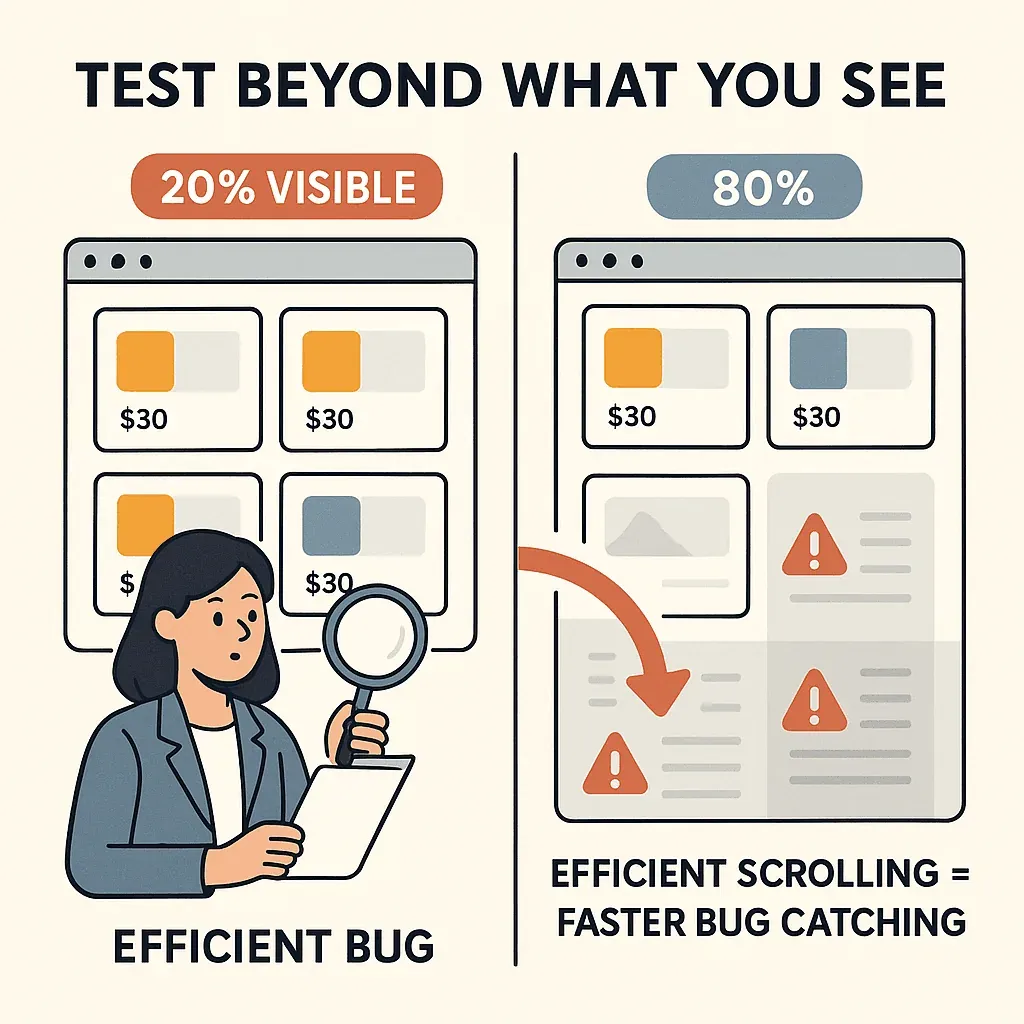
Imagine an e-commerce site with 100 products but only 20 load at a time. A test without scrolling only checks 20% of your catalog—leaving 80% untested. Efficient scrolling means you catch more bugs, faster.
All the Ways to Scroll: Selenium Scrolling Techniques Compared
Selenium doesn’t have a single “scrollDown()” command, but it gives you several ways to get the job done. Here’s a quick rundown:
| Method | Browser Support | Complexity | Best Use Case |
|---|---|---|---|
| Actions API (Wheel input) | Chrome, Edge (Selenium 4) | Medium | Native, precise scroll to element or by offset |
| JavaScriptExecutor | All browsers | Easy | Scroll to element, by pixels, or to page ends |
| Keyboard keys (Page Down, etc) | All browsers | Easy | Simulate user key scrolling |
| Scroll within elements | All browsers | Medium | Scroll inside containers, tables, carousels |
Scrolling to Elements and by Pixels
Scroll to element:
Best for when you know exactly what you want to see.
js.executeScript("arguments[0].scrollIntoView();", webElement);
Or, with Selenium 4 Actions API (Chrome/Edge):
new Actions(driver).scrollToElement(element).perform();
Scroll by pixels:
Great for incremental scrolling or fine-tuning position.
js.executeScript("window.scrollBy(0, 350)", "");
Use positive values to scroll down, negative to scroll up.
When to use which?
- Prefer scroll-to-element for precision and reliability.
- Use scroll-by-pixels for incremental loads, parallax effects, or when you need to simulate user-like scrolling.
Scrolling to Page Top/Bottom and Handling Infinite Scroll
Scroll to bottom:
js.executeScript("window.scrollTo(0, document.body.scrollHeight)");
Scroll to top:
js.executeScript("window.scrollTo(0, 0)");
Handling infinite scroll:
You’ll need a loop: scroll, wait for new content, repeat until no more loads.
long lastHeight = (Long) js.executeScript("return document.body.scrollHeight");
while (true) {
    js.executeScript("window.scrollTo(0, document.body.scrollHeight);");
    Thread.sleep(2000); // Use explicit waits in real tests!
    long newHeight = (Long) js.executeScript("return document.body.scrollHeight");
    if (newHeight == lastHeight) break;
    lastHeight = newHeight;
}
This pattern ensures you load all content, just like a real user would (Testsigma).
Custom Scrolling in Selenium with execute_script
For anything beyond the basics, JavaScript’s execute_script is your best friend. You can:
- Scroll in steps for smooth, user-like behavior.
- Wait for content to load after each scroll.
- Scroll inside specific containers (like tables or carousels).
- Handle edge cases (e.g., sticky headers, dynamic elements).
Example: Smooth, stepwise scrolling
for i in range(10):
    driver.execute_script("window.scrollBy(0, 500);")
    time.sleep(0.5)
Example: Wait for content after scroll
js.executeScript("window.scrollTo(0, document.body.scrollHeight);");
WebDriverWait wait = new WebDriverWait(driver, Duration.ofSeconds(10));
wait.until(ExpectedConditions.visibilityOfElementLocated(By.id("new_element")));
Best practices:
- Always pair scrolls with explicit waits for new content.
- Use
{block: "center"}withscrollIntoViewfor better visibility if needed. - Avoid hardcoded sleeps—use waits tied to actual content changes.
- For containers, use
element.scrollTop = ...orelement.scrollBy(...)via JS.
Optimizing Scrolling in Selenium for Different Browsers
Here’s where things get spicy. Not all browsers handle scrolling the same way:
- Chrome / Edge / other Chromium-based browsers (Brave, Opera, Arc): Full support for the Actions API wheel input (
scrollToElement,scrollByAmount,scrollFromOrigin) and JavaScript. - Firefox: JavaScript scrolling works as expected. The Actions API wheel input is not supported by geckodriver — per the Selenium docs, wheel actions are Chromium-only. Use
JavascriptExecutorinstead. - Safari: Same situation as Firefox — safaridriver doesn't implement the wheel endpoint. Stick to
JavascriptExecutorandarguments[0].scrollIntoView(...). - Headless mode: Set an explicit window size (
driver.manage().window().setSize(...)or--window-size=1920,1080for Chrome). Without it, the viewport defaults to a small size and content that would render off-screen in a real browser may not trigger lazy-load.
Tips:
- Test your scroll logic on all target browsers early.
- Use JavaScript as a universal fallback for scrolling.
- For sticky headers, you may need to scroll a few extra pixels or use custom JS to avoid overlap.
- In headless mode, set window size with
driver.manage().window().setSize(...)to ensure consistent scroll behavior.
Thunderbit: Accelerating Selenium Test Development with Smart Scraping
Scrape dynamic web data with AI Get Started Free
Selenium drives the browser, but it doesn't extract data for you — you write the locators, the loops, the asserts. If the page you're testing has dynamic, scroll-heavy content (product grids, social feeds, lazy-loaded tables), Thunderbit is useful as a companion tool: point it at the page, let it scroll + paginate + extract a structured dataset, then use that dataset as the source-of-truth your Selenium test asserts against. It's a faster way to build the "expected" half of your test than hand-rolling a one-off scraper.
How Thunderbit complements Selenium:
- Scrape all data, even from infinite scroll pages: Thunderbit's AI handles the scroll loop and pagination for you, and returns structured rows (product names, prices, images) that you can export to CSV or Sheets.
- Generate reference data for your tests: Use Thunderbit to quickly gather all expected UI data, then have your Selenium test scroll and verify the UI matches.
- Speed up test development: Thunderbit’s “AI Suggest Fields” can help you identify selectors and structure, making it easier to write Selenium locators.
Example workflow:
- Use Thunderbit to scrape all products from a dynamic e-commerce page (it will scroll and extract everything for you).
- Export the data to Google Sheets or CSV.
- In your Selenium test, scroll through the page, collect the visible product info, and compare it to the Thunderbit dataset.
- Assert that all products are present, correctly loaded, and no data is missing.
This combo means you spend less time writing brittle scraping code and more time validating what matters. Thunderbit’s subpage scraping and scheduled scraping features are especially handy for large, dynamic sites.
Try Thunderbit Chrome Extension for Smart Scraping
Practical Examples: Efficient Scrolling in Real Selenium Test Cases
Let’s get hands-on. Here are some real-world scenarios and code you can adapt:
1. Scrolling Through a Large Table
Suppose you have a data grid with its own scroll bar:
WebElement table = driver.findElement(By.id("data-table"));
js.executeScript("arguments[0].scrollTop = arguments[0].scrollHeight", table);
Scrolls to the bottom of the table. Loop in increments if you want to validate each row as it appears.
2. Navigating Infinite Scroll Feeds
prev_count = 0
while True:
    driver.execute_script("window.scrollTo(0, document.body.scrollHeight);")
    time.sleep(2)
    posts = driver.find_elements(By.CSS_SELECTOR, ".post")
    if len(posts) == prev_count:
        break
    prev_count = len(posts)
Loads all posts, stopping when no new ones appear.
3. Validating Lazy-Loaded Images
List<WebElement> images = driver.findElements(By.tagName("img"));
for (WebElement img : images) {
    if ("lazy".equals(img.getAttribute("loading"))) {
        js.executeScript("arguments[0].scrollIntoView(true);", img);
        WebDriverWait wait = new WebDriverWait(driver, Duration.ofSeconds(5));
        wait.until(d -> (Boolean) ((JavascriptExecutor)d).executeScript("return arguments[0].complete && arguments[0].naturalWidth > 0;", img));
        Assert.assertTrue((Integer) js.executeScript("return arguments[0].naturalWidth;", img) > 0);
    }
}
Scrolls each lazy image into view and checks it loaded.
4. Horizontal Scrolling in a Carousel
WebElement carousel = driver.findElement(By.className("carousel"));
js.executeScript("arguments[0].scrollBy(300, 0);", carousel);
Scrolls the carousel right by 300px.
5. Detecting Content Load Failures
After each scroll, use explicit waits to check for new content or loading spinners. If a timeout occurs, log the state and flag a failure.
Step-by-Step Guide: Implementing Efficient Scrolling in Selenium
Learn more about data scraping best practices Get Started Free
Here’s your actionable checklist:
- Identify when scrolling is needed: Is content hidden, lazy-loaded, or paginated?
- Ensure element presence: Use explicit waits to confirm elements exist in the DOM.
- Choose the right scroll method:
- Scroll to element for precision.
- Scroll by pixels for incremental loads.
- Loop for infinite scroll.
- Implement scrolling: Use JavaScript or Actions API as appropriate.
- Synchronize after each scroll: Wait for new content to load—don’t rely on fixed sleeps.
- Validate content: After scrolling, assert that elements are visible, loaded, and interactable.
- Optimize for browsers: Test on all target browsers; use JS as a fallback.
- Integrate Thunderbit for data extraction: Use Thunderbit to pre-fetch or validate large datasets.
- Minimize unnecessary scrolling: Only scroll as much as needed.
- Document your logic: Comment on why you chose each scroll approach.
| Step | Key Action |
|---|---|
| Identify need | Is scrolling required for this scenario? |
| Element presence | Wait for elements to exist in DOM |
| Choose method | Element, pixels, loop, or container scroll |
| Implement | Use JS/Actions/Keys as needed |
| Synchronize | Wait for content after each scroll |
| Validate | Assert visibility and correctness |
| Browser optimize | Test across Chrome, Firefox, Edge, Safari |
| Thunderbit integrate | Use for data extraction/validation |
| Minimize | Avoid redundant scrolls |
| Document | Comment and explain approach |
Conclusion & Key Takeaways
Efficient scrolling in Selenium is the backbone of robust, modern web test automation. With dynamic content and infinite scroll everywhere, your tests need to scroll like a real user to truly validate your UI. Here’s what matters most:
- Scroll with purpose: Identify when and where scrolling is needed—don’t just hope elements are visible.
- Use the right tools: Prefer scroll-to-element for precision, JavaScript for flexibility, and Actions API for native behavior (where supported).
- Synchronize and verify: Always wait for content to load after scrolling, and assert that it’s visible and correct.
- Optimize for all browsers: Test your scroll logic everywhere, and use JavaScript as a universal fallback.
- Leverage Thunderbit: Combine Selenium with Thunderbit to accelerate data extraction and validation—especially for scrolling-heavy or dynamic pages.
Ready to level up your Selenium tests? Try integrating Thunderbit’s Chrome Extension for smarter, faster test development. And if you’re hungry for more automation tips, check out the Thunderbit Blog for deep dives and tutorials.
Accelerate Selenium Testing with Thunderbit
Happy scrolling—and may your tests always find what they’re looking for.
FAQs
1. Why does Selenium sometimes fail to interact with elements that are present in the DOM?
Because Selenium doesn’t automatically scroll elements into view. If an element is off-screen, you may get an ElementNotInteractableException. Use scroll actions to ensure elements are visible before interacting.
2. What’s the best way to handle infinite scroll pages in Selenium?
Use a loop: scroll to the bottom, wait for new content to load, and repeat until no more content appears. Always use explicit waits tied to content changes, not fixed sleeps.
3. How do I make my scrolling code work across all browsers?
JavaScript’s execute_script is the most universal method. The Actions API works well in Chrome/Edge, but may not be supported in Safari or older Firefox versions. Always test your logic on all target browsers.
4. Can I scroll inside containers or tables, not just the main page?
Yes! Use JavaScript to set scrollTop or scrollBy on the container element. For example: js.executeScript("arguments[0].scrollTop = arguments[0].scrollHeight", tableElement);
5. How does Thunderbit help with Selenium test automation?
Thunderbit’s AI-powered scraping can extract all data from dynamic or infinite-scroll pages, providing reference datasets for your Selenium tests. This makes it easier to validate UI content and speeds up test development—especially for complex, data-rich sites.
6. Do I still need to write scroll code by hand in 2026, or has Selenium caught up to Playwright's auto-scroll?
Playwright and recent Cypress versions auto-scroll elements into view before interacting with them — Selenium WebDriver still doesn't, and there's no signal that this is changing in the 4.x line. So yes, on Selenium you still write the scroll yourself (Actions API on Chromium, JavascriptExecutor everywhere else). If you're starting a new test suite from scratch and the team has no Selenium investment, the auto-scroll behavior is one of the genuine reasons people pick Playwright. If you're maintaining an existing Selenium suite — which is most teams — the patterns in this guide are still the right answer.
For more on Selenium, web scraping, and automation best practices, visit the Thunderbit Blog.
Try AI Web Scraper for Dynamic Pages Get Started Free




