
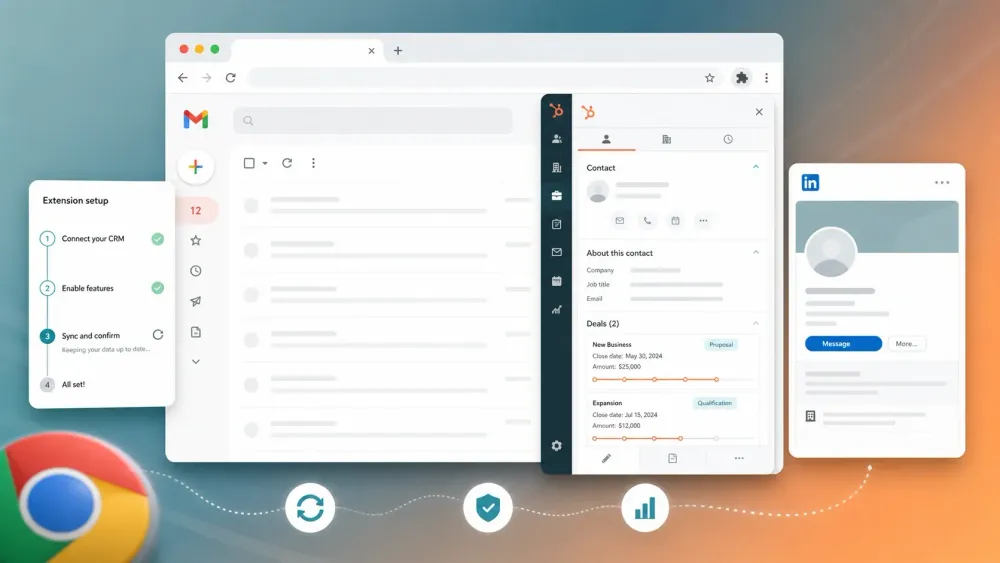
Last week, one of our sales reps told me he had spent 40 minutes reinstalling the HubSpot Chrome extension after it randomly logged him out, for the third time that month. That is basically why this page exists.
If you manage a sales team running on HubSpot, the math is still brutal. HubSpot's 2024 Sales Trends Report says reps spend only about 2 hours per day actually selling, while Salesforce says sellers still lose a large share of time to non-selling work such as admin, handoffs, and context switching. The right browser stack can claw back some of that time, but only if setup is clean and the extension stays stable.
This guide is built for the real job to be done:
- get the HubSpot Sales Chrome extension installed correctly,
- connect Gmail and calendar without missing a hidden dependency,
- fix the recurring issues that make reps say "HubSpot stopped working again",
- and decide which extra extensions actually belong beside HubSpot in 2026.
The current Chrome Web Store listing for HubSpot Sales shows version 5.1.2, more than 1,000,000 users, a 4.4/5 rating, and 8,219 reviews as of May 9, 2026.
What Is the HubSpot Sales Chrome Extension?
The HubSpot Sales Chrome extension is the browser layer that brings HubSpot into Gmail and selected websites. In practical terms, it gives reps inbox-side access to contact records, deal history, templates, snippets, meeting links, tracking, logging, and lightweight workflow actions without forcing a tab switch back to the CRM.
For Gmail users, it is still one of the cleanest "keep the CRM close to the work" extensions on the market. The current HubSpot setup guide says you can use it to track and log emails from Gmail, use HubSpot sales tools directly in the inbox, and work "across the web" through the extension sidebar on supported sites and enabled web pages.
Core capabilities still include:
- email tracking and logging,
- contact and company context in a sidebar,
- templates, snippets, documents, and meetings links,
- sequences for eligible paid seats,
- and Breeze access from the sidebar when AI features are enabled in the HubSpot account.
Why Sales Chrome Extensions Still Matter for HubSpot Teams
The hidden cost on most sales teams is not just data entry. It is fragmented workflow.
| Use case | What the browser layer fixes | Best-fit extension |
|---|---|---|
| Inbox-side CRM context | Keep contact and deal history next to the email thread | HubSpot Sales |
| LinkedIn prospecting to HubSpot | Turn profile research into CRM records faster | Hublead or Surfe |
| Directory and website lead extraction | Pull names, emails, phones, and fields from public pages | Thunderbit |
| Email and phone enrichment | Fill missing data while browsing | Apollo |
| Meeting scheduling | Add booking links without leaving Gmail | HubSpot Sales |
| Cross-tab workflow friction | Reduce switching between Gmail, LinkedIn, web pages, and HubSpot | A small mixed stack, not one extension alone |
That matters because the browser is still where prospecting starts. LinkedIn, directories, company websites, event pages, contact pages, and inbox threads all sit outside the CRM first. The right stack reduces the "tab-hopping tax" without turning the browser into a cluttered extension war.
Before You Start
- Difficulty: Beginner
- Time required: 10 to 15 minutes for full setup
- You need: Google Chrome, a HubSpot account, a Gmail or Google Workspace inbox, and optional add-on tools if you also want LinkedIn sync or lead extraction
If your goal is only to get the native HubSpot extension working, do not install five other sales extensions first. Set up HubSpot cleanly, confirm that logging and tracking work, and only then add the surrounding stack.
Open the HubSpot Sales Chrome Web Store Listing
Step 1: Install HubSpot Sales from the Chrome Web Store
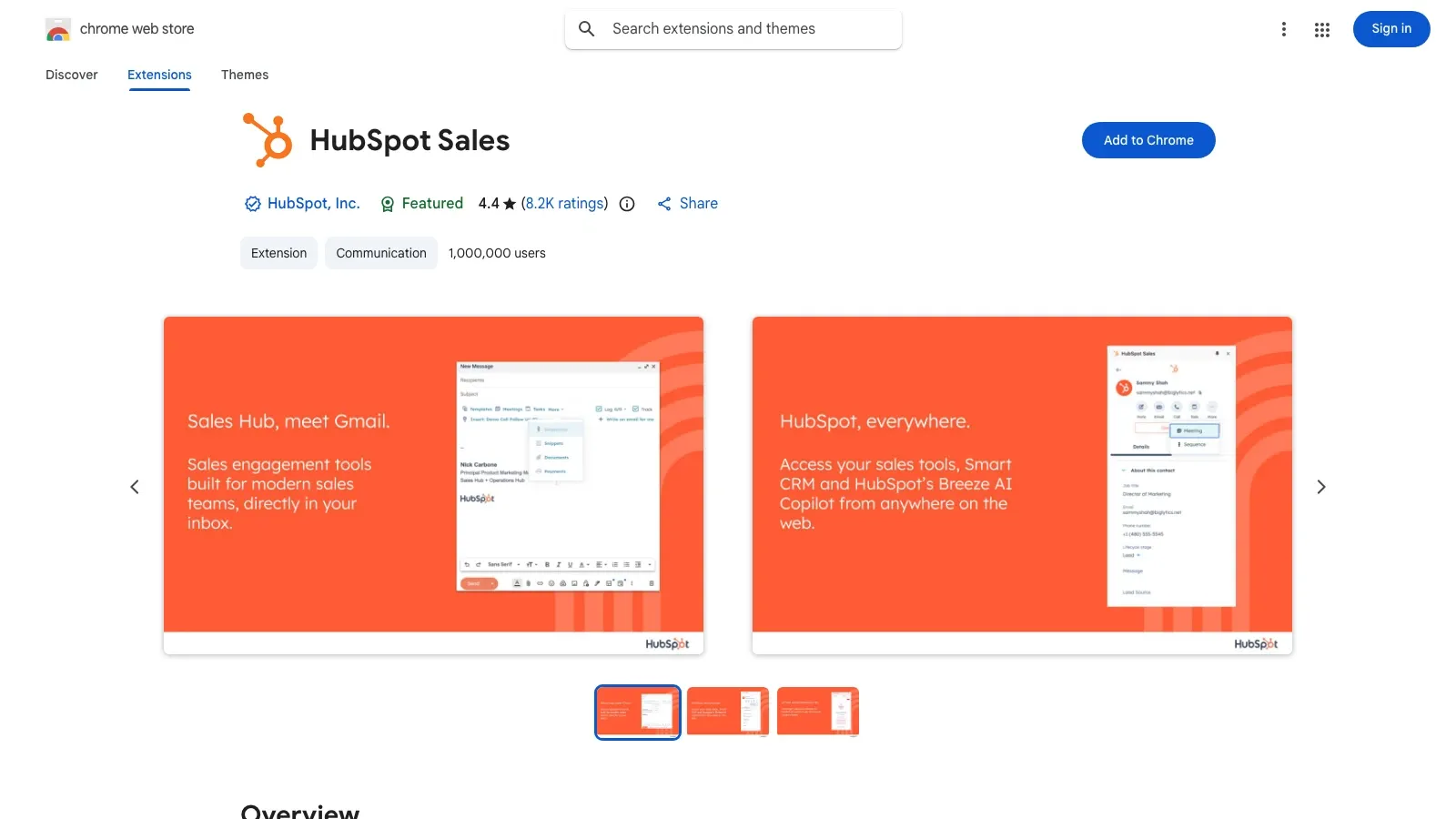
Start at the official HubSpot Sales Chrome Web Store listing. Make sure you are in the correct Chrome profile before you click install. This matters because Chrome extensions are tied to the current browser profile, which is one of the reasons reps think the extension has "disappeared" later.
Click Add to Chrome, then confirm the install. HubSpot asks for access because the extension needs to read enabled pages, inject the CRM sidebar where allowed, and insert tracking and sales tools into Gmail.
Step 2: Connect Your Gmail Inbox
After the install, open Gmail and sign in through the extension prompt if HubSpot asks. Then connect the actual inbox in HubSpot so tracking and logging do not stay half-configured.
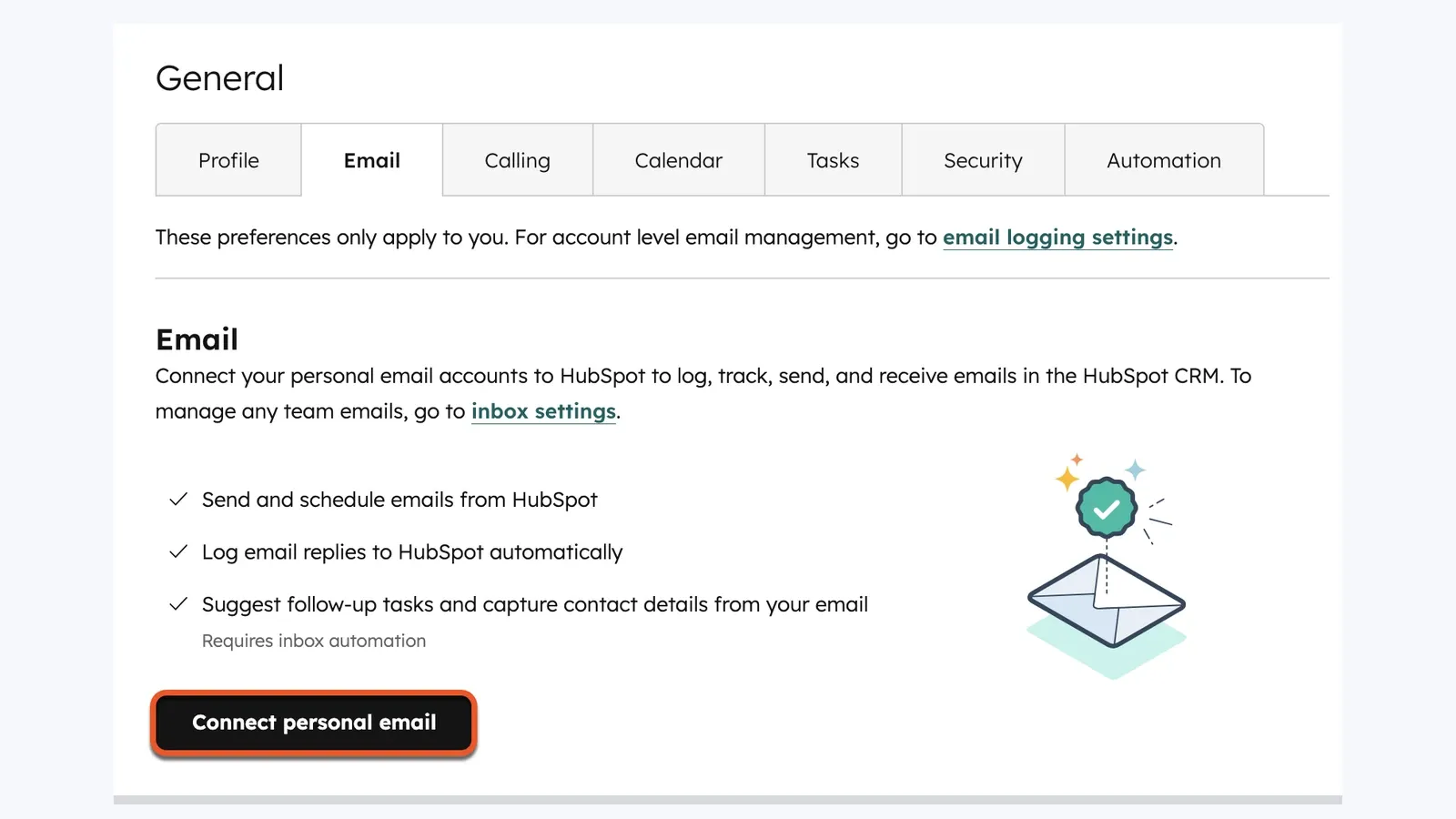
The official HubSpot flow is:
- Open Settings in HubSpot.
- Go to the Email settings area for connected personal email.
- Click Connect personal email.
- Complete the Google OAuth flow.
Without a connected inbox, the extension can look installed but still fail to log replies the way reps expect.
If you rely on meetings links, connect Google Calendar too. HubSpot's "across the web" settings treat Gmail and Google Calendar separately, so the calendar part does not automatically come along just because Gmail is working.
Step 3: Configure Track and Log Defaults
The next mistake teams make is leaving logging and tracking half-configured, then assuming the extension is broken when emails do not appear where they expect.
Open the HubSpot sprocket in Chrome, then go into the extension settings. The defaults you care about most are:
- Track: opens and clicks for tracked emails,
- Log: save the email to the contact timeline and related records,
- Never log: keep internal or irrelevant domains out of the CRM.
For most sales teams, enabling both Track and Log by default is the cleanest starting point. Then immediately add internal domains and edge-case addresses to the Never Log list.
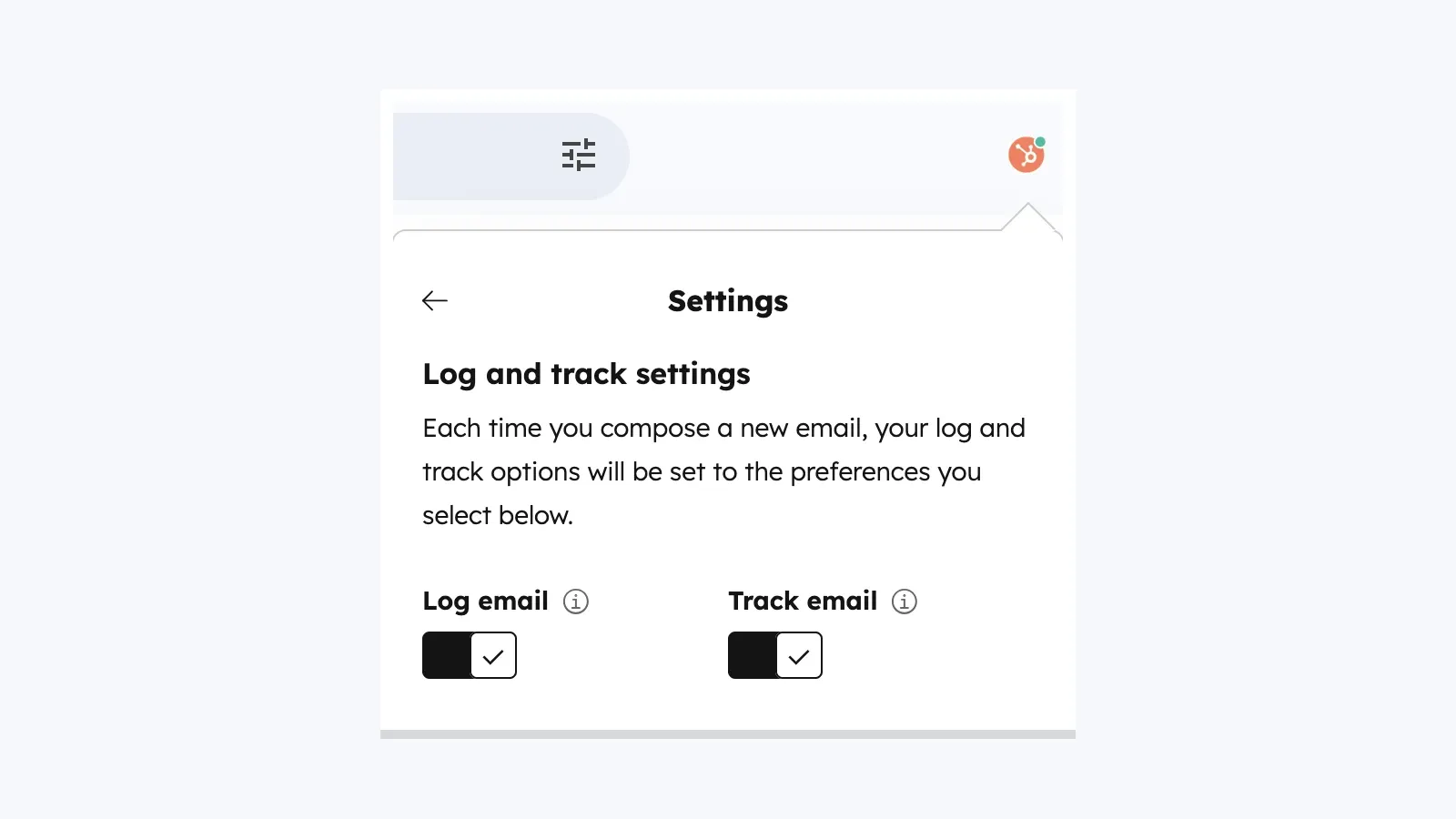
One free-tier limit worth knowing: HubSpot's activity feed documentation says users without an assigned seat and accounts with free tools can receive up to 200 sales activity notifications per month. After that, tracking can still happen, but the activity feed blurs notifications until the monthly count resets.
Step 4: Pin the Extension and Enable It Across the Right Surfaces
Pin the extension in Chrome so reps can always find it. Then open the settings tab that controls where the extension is enabled.
HubSpot's current documentation says the key enablement switches are:
| Surface | What to do |
|---|---|
| Gmail | Leave enabled if the inbox workflow matters |
| Google Calendar | Turn on if you use meeting scheduling or calendar-side access |
| All other websites | Turn on if you want CRM context outside Gmail |
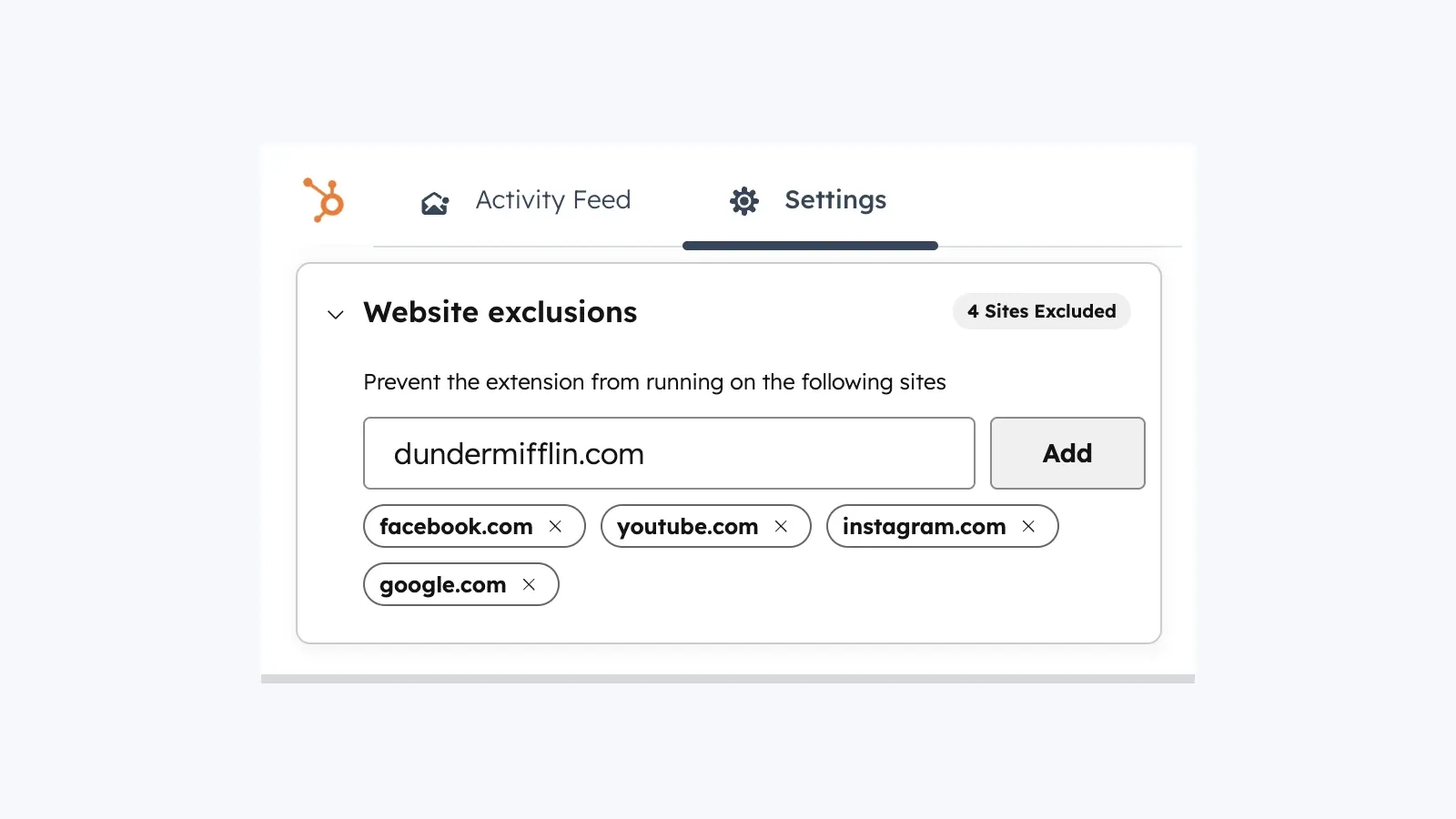
| Website exclusions | Use this to block noisy or irrelevant domains |
This is also where many "HubSpot does not show up on this site" issues get explained. HubSpot's current documentation says the default exclusions include facebook.com, youtube.com, instagram.com, google.com, and hubspot.com.
Step 5: Customize the Gmail Sales Toolbar
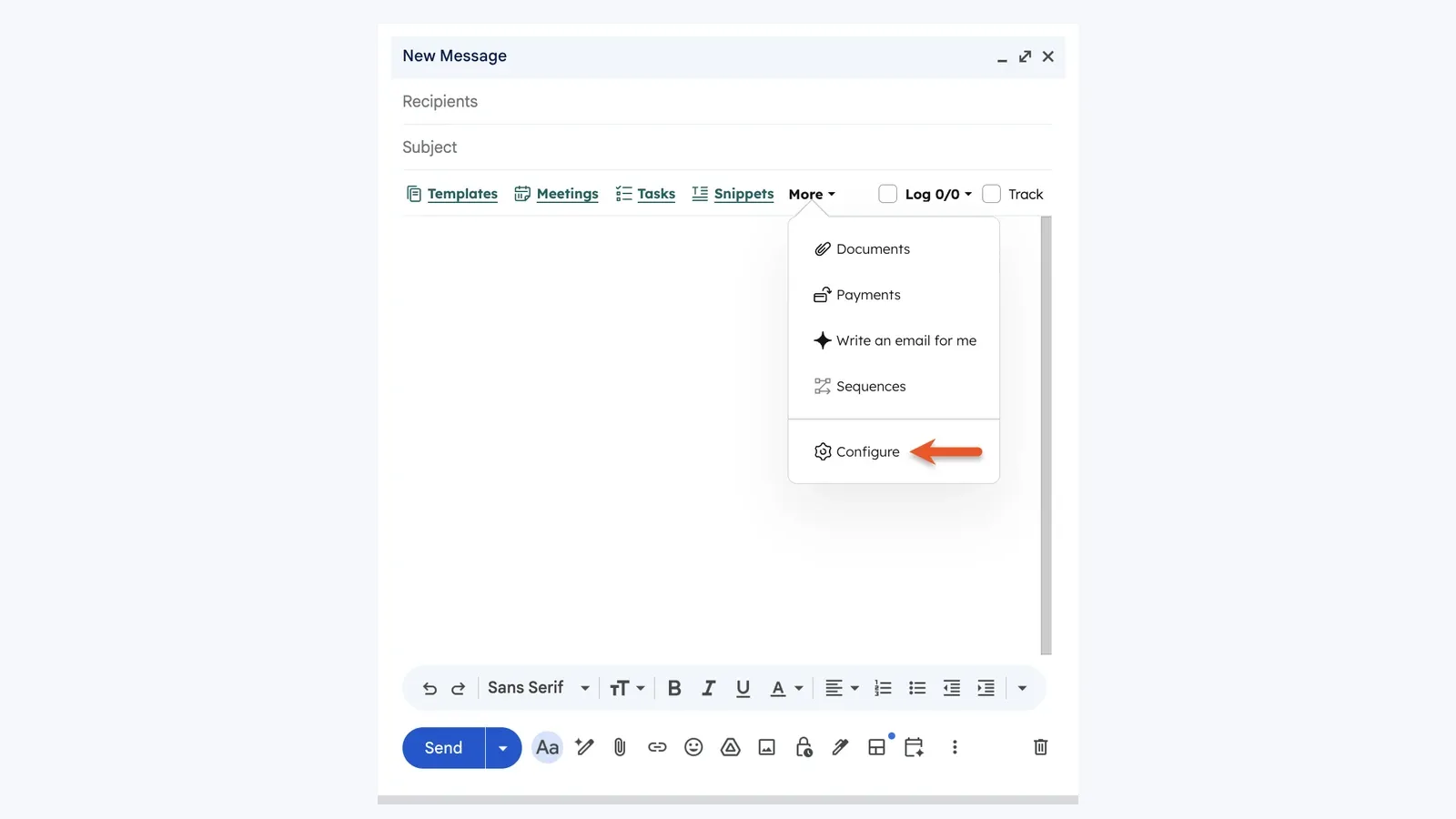
Once the extension is live in Gmail, open a compose window and confirm that the sales tools you actually need appear in the compose bar. This is where templates, snippets, documents, and meetings links surface.
If a rep says "the extension is installed but I do not see the tools," this is one of the first places to check.
If you want a short orientation clip before you roll this out more broadly, this walkthrough is still live and still useful for the Gmail-side experience:
Why the HubSpot Extension Keeps Breaking
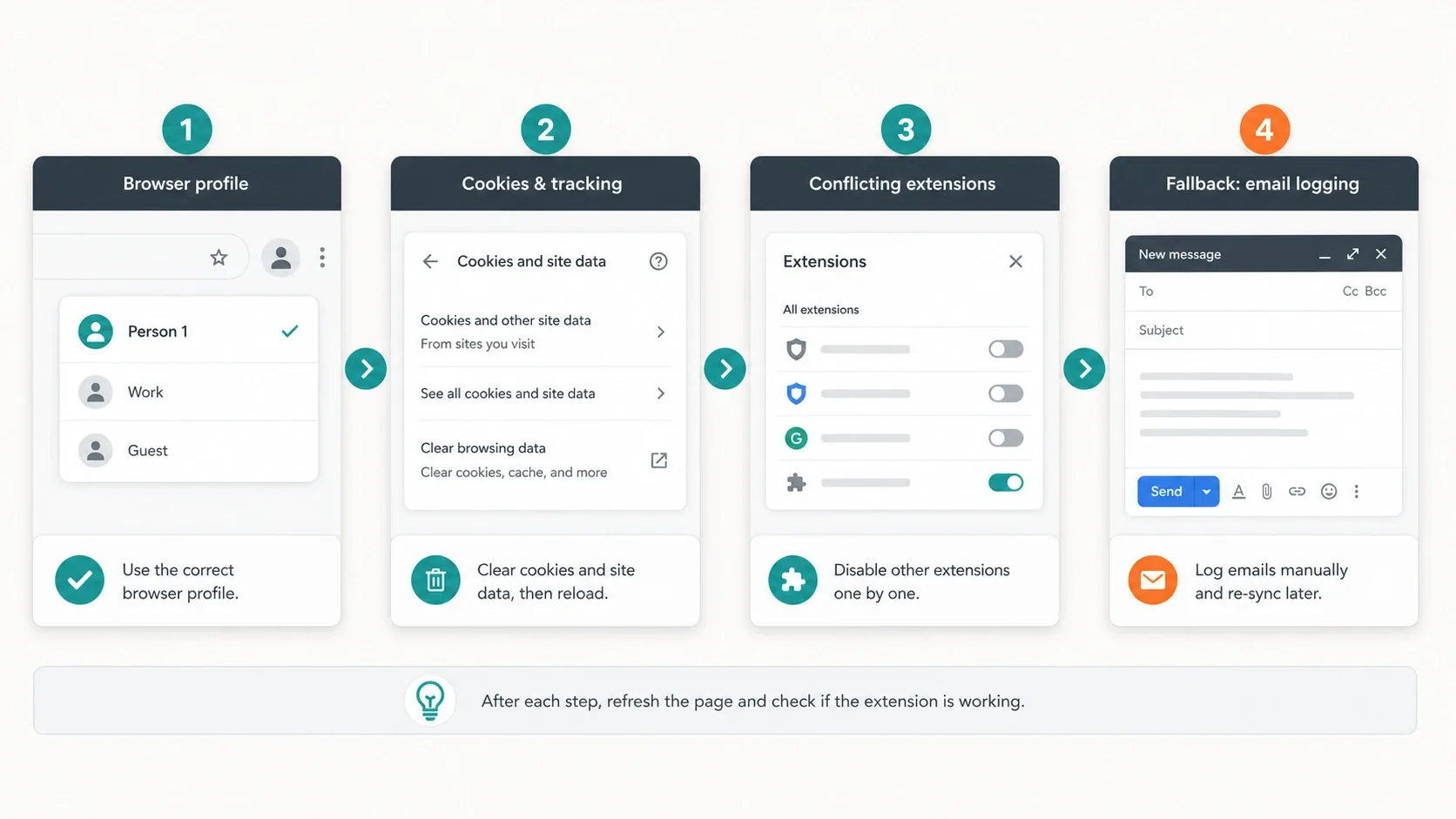
Most recurring problems cluster around browser state, profile confusion, or extension conflicts. The official HubSpot troubleshooting page is stronger here than most listicles, because it gets specific about cookies, browser profiles, conflicting extensions, and Incognito mode.
| Symptom | Likely cause | Best fix |
|---|---|---|
| Repeated login prompts or missing state | Wrong Chrome profile, blocked cookies, cleared session data | Use the correct Chrome profile and review cookie settings |
| Extension missing from the browser | Extension toggled off or installed in another Chrome profile | Re-enable it in chrome://extensions and switch to the right profile |
| HubSpot not showing in Gmail | Cache issue, Incognito mode, conflicting extension | Clear cache, exit Incognito, and disable conflicts |
| Email tracking not working | Plain-text email mode, conflicting extension, cookie restrictions | Switch to HTML mode, disable conflicts, allow cookies |
| Sidebar not appearing on a site | The site is not enabled, or it is on the exclusion list | Turn on All other websites or remove the exclusion |
The current HubSpot troubleshooting article also lists several known conflicts by name:
- AdBlock
- Boomerang
- Ghostery
- MailTrack
- Privacy Badger
- Yesware
Fix 1: Confirm the Extension Is Actually Turned On
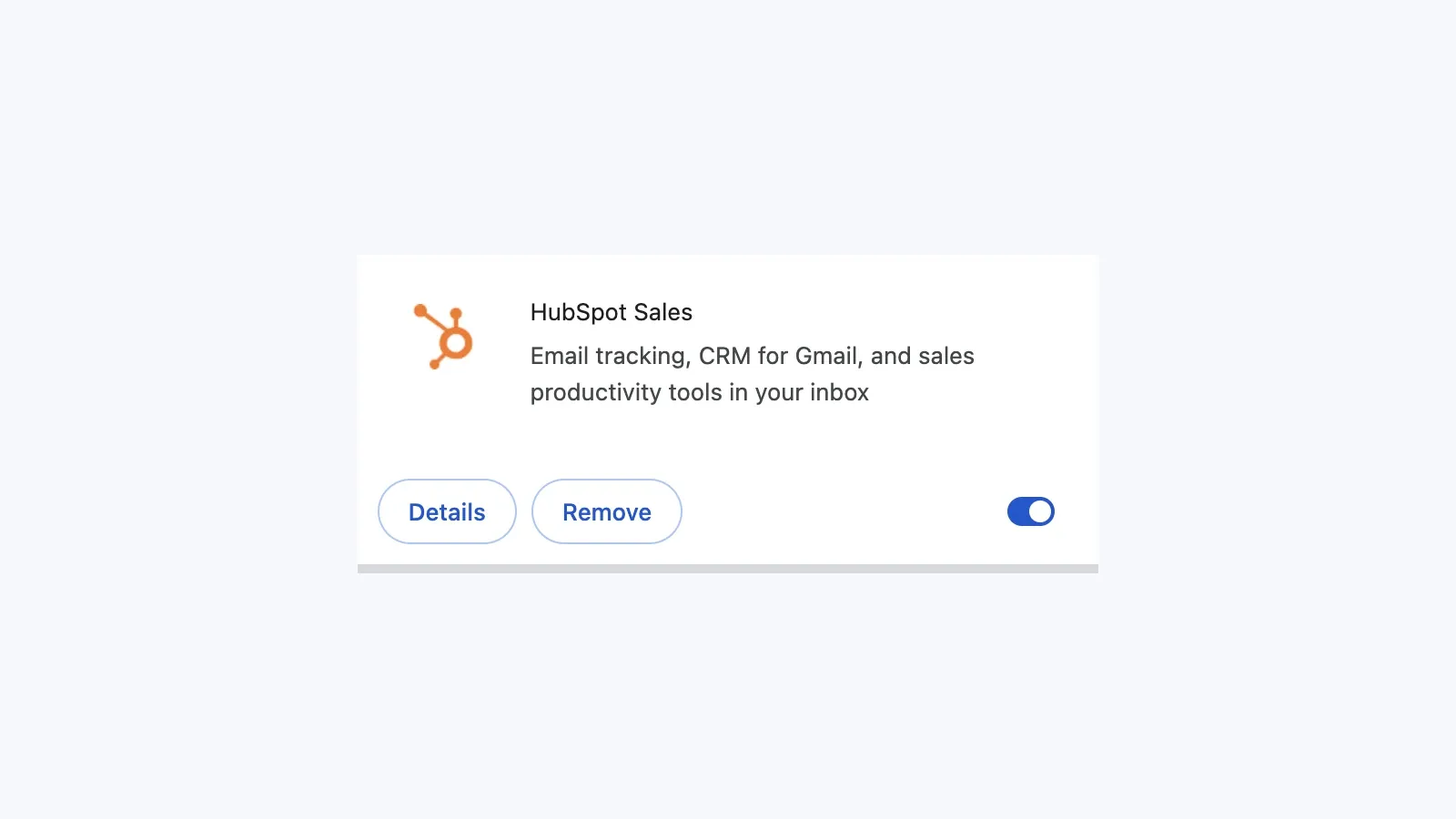
Start with the dumbest fix first, because it is surprisingly common. Open chrome://extensions, locate HubSpot Sales, and confirm the toggle is on.
Fix 2: Use the Correct Chrome Profile
HubSpot explicitly says Chrome extensions are tied to the current Chrome profile. If the extension was installed under one profile and the rep is now using another, it may look like HubSpot vanished.
For teams that work across multiple HubSpot portals, separate Chrome profiles are the cleanest setup. It is the easiest way to reduce portal confusion, cookie collisions, and "why am I in the wrong account again?" complaints.
Fix 3: Review Cookie Settings
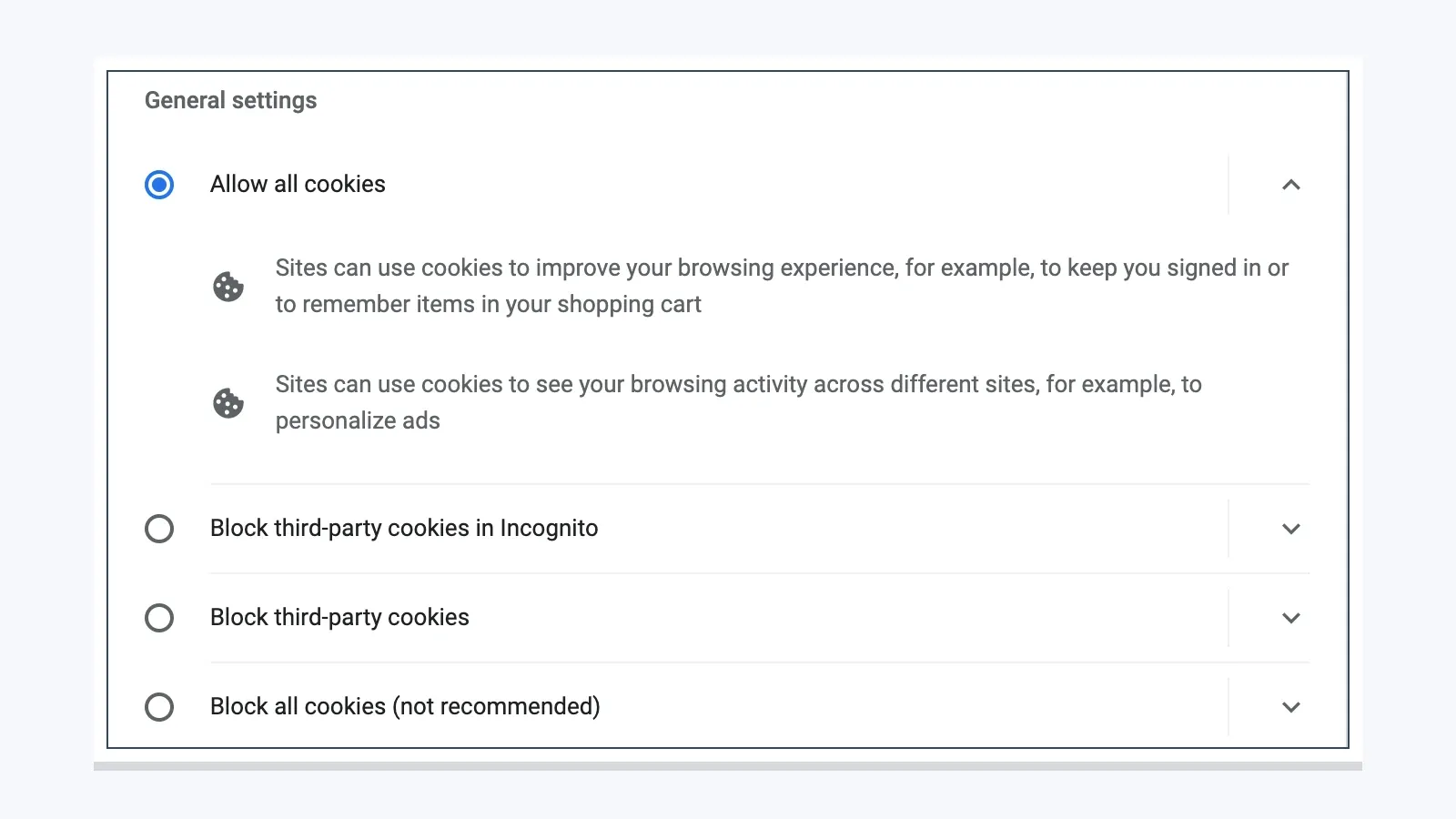
HubSpot's official troubleshooting guide says the extension is not compatible with Google's Rapid Release track and also depends on working cookie settings. If third-party cookie restrictions are too aggressive, the extension can fail silently.
Fix 4: Check for Conflicting Extensions
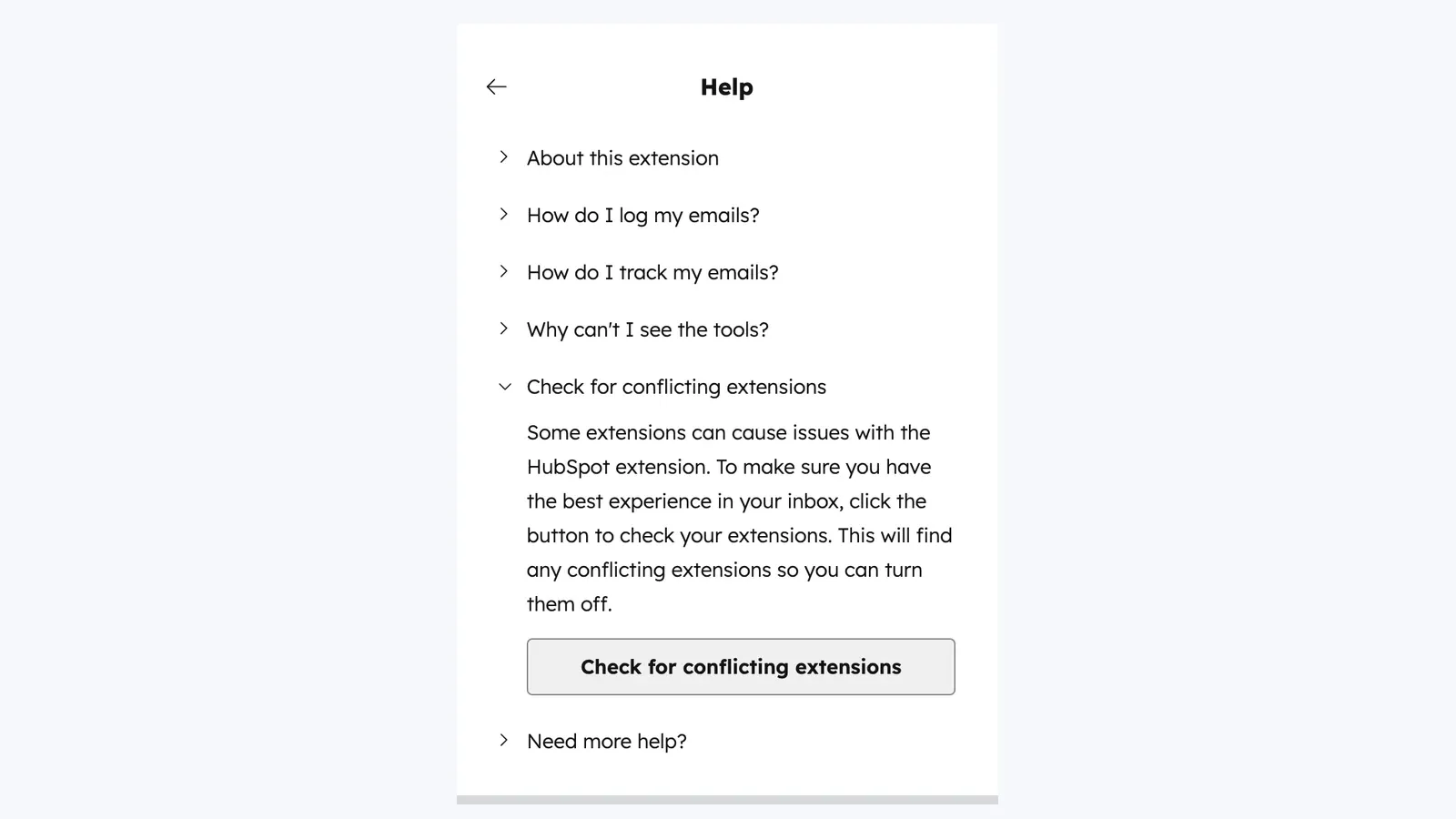
HubSpot now exposes a "Check for conflicting extensions" area inside the extension settings. That is much faster than guessing.
The BCC Fallback When the Extension Is Down
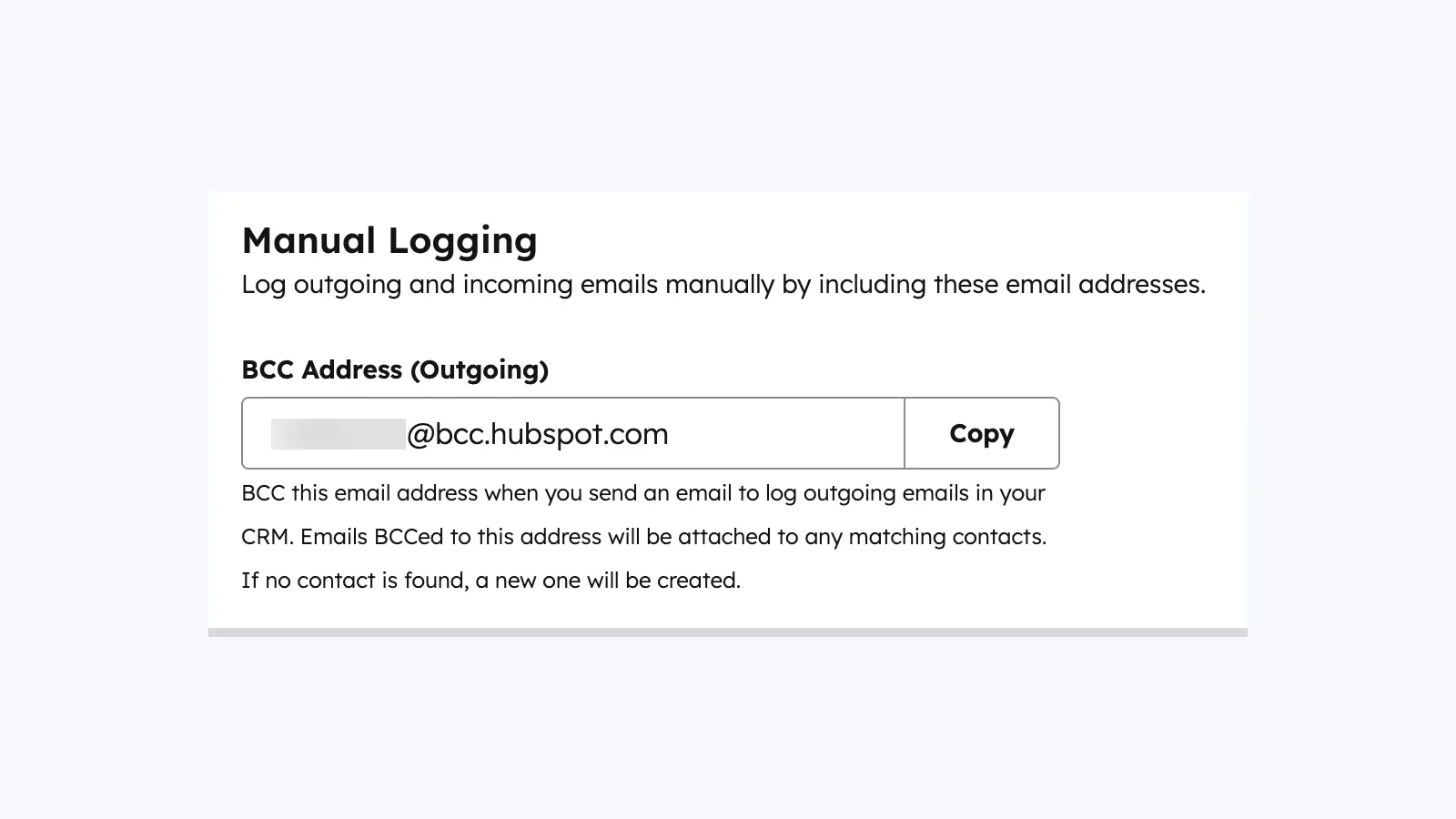
When the extension is unstable and you still need the email recorded in the CRM, use the manual BCC route. HubSpot's official BCC article shows exactly where to copy the address from the Email Log & Track settings.
This is a continuity tool, not a full substitute.
- It logs the message content and attachments.
- It can associate the email with the contact and recent related records.
- It does not replace the full tracked extension workflow for opens and clicks.
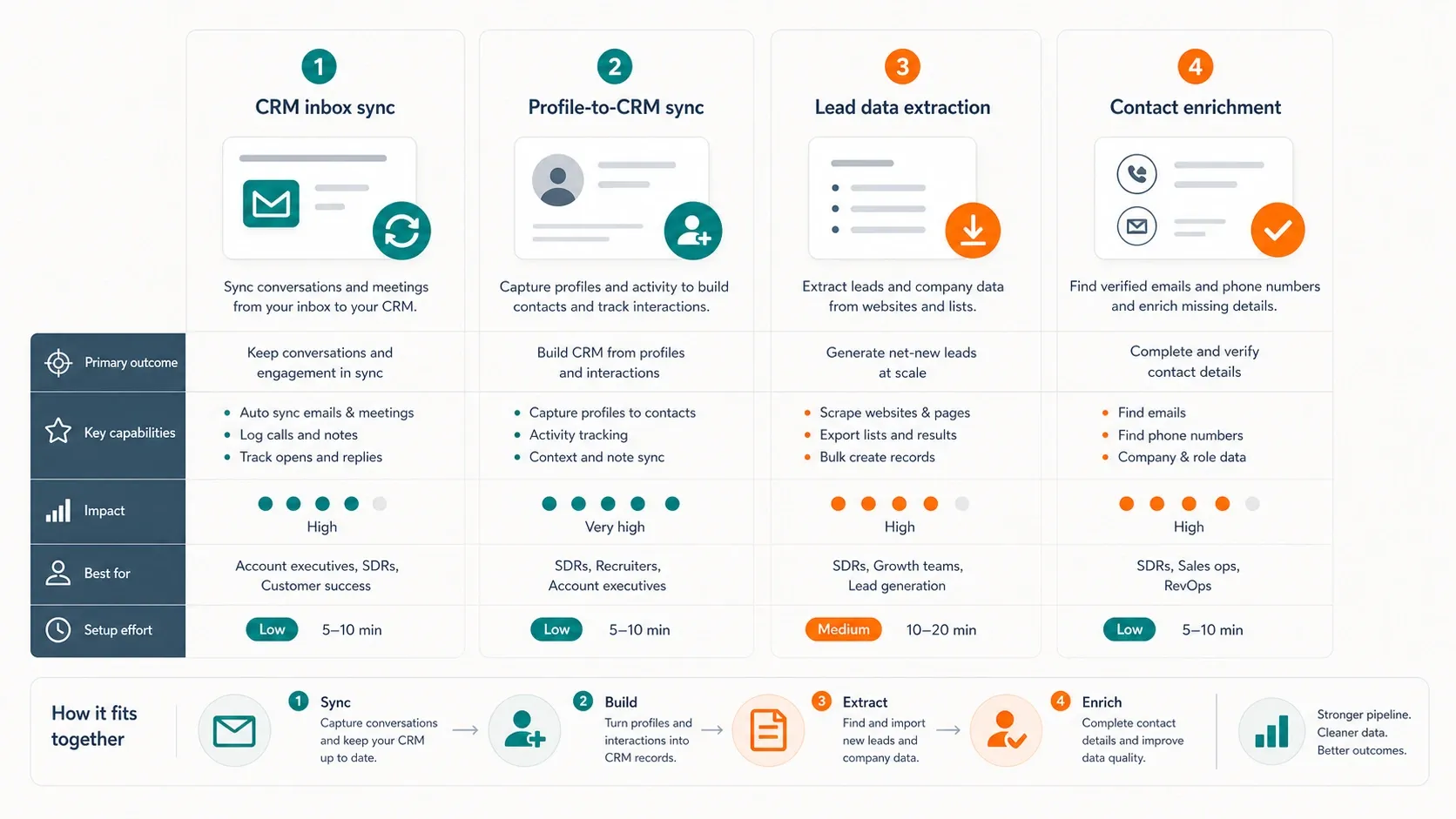
The Sales Chrome Extension Stack Beyond HubSpot
Most people searching for "sales Chrome extensions for HubSpot" are not really asking about one extension. They are asking which small browser stack actually works around HubSpot.
| Category | Tool | Best use | Pricing signal |
|---|---|---|---|
| Inbox CRM and logging | HubSpot Sales | Tracking, logging, templates, meetings, CRM sidebar | Free tools plus paid Sales Hub tiers |
| LinkedIn to HubSpot sync | Hublead | Import LinkedIn contacts and activity into HubSpot | Starter free forever; paid team tiers |
| LinkedIn to CRM plus enrichment | Surfe | Sync LinkedIn and CRM workflows with a stronger browser layer | Free tier and paid plans |
| Lead data extraction | Thunderbit | Pull leads from directories, company pages, PDFs, and event pages | Free and paid workflow tiers |
| Email and phone enrichment | Apollo | Fill missing contact data while prospecting | Free plan and paid tiers |
| LinkedIn research depth | Sales Navigator | Advanced account and lead research | Paid plans |
The right stack is usually:
- one inbox and CRM layer,
- one LinkedIn or prospecting layer,
- and one extraction or enrichment layer.
Anything beyond that tends to create more conflict than leverage.
LinkedIn to HubSpot Workflow: What HubSpot Does and What It Does Not
HubSpot's native extension can show CRM context when you browse enabled websites and lets you add or inspect records from the sidebar. The current across-the-web documentation shows the browser-side contact experience clearly:
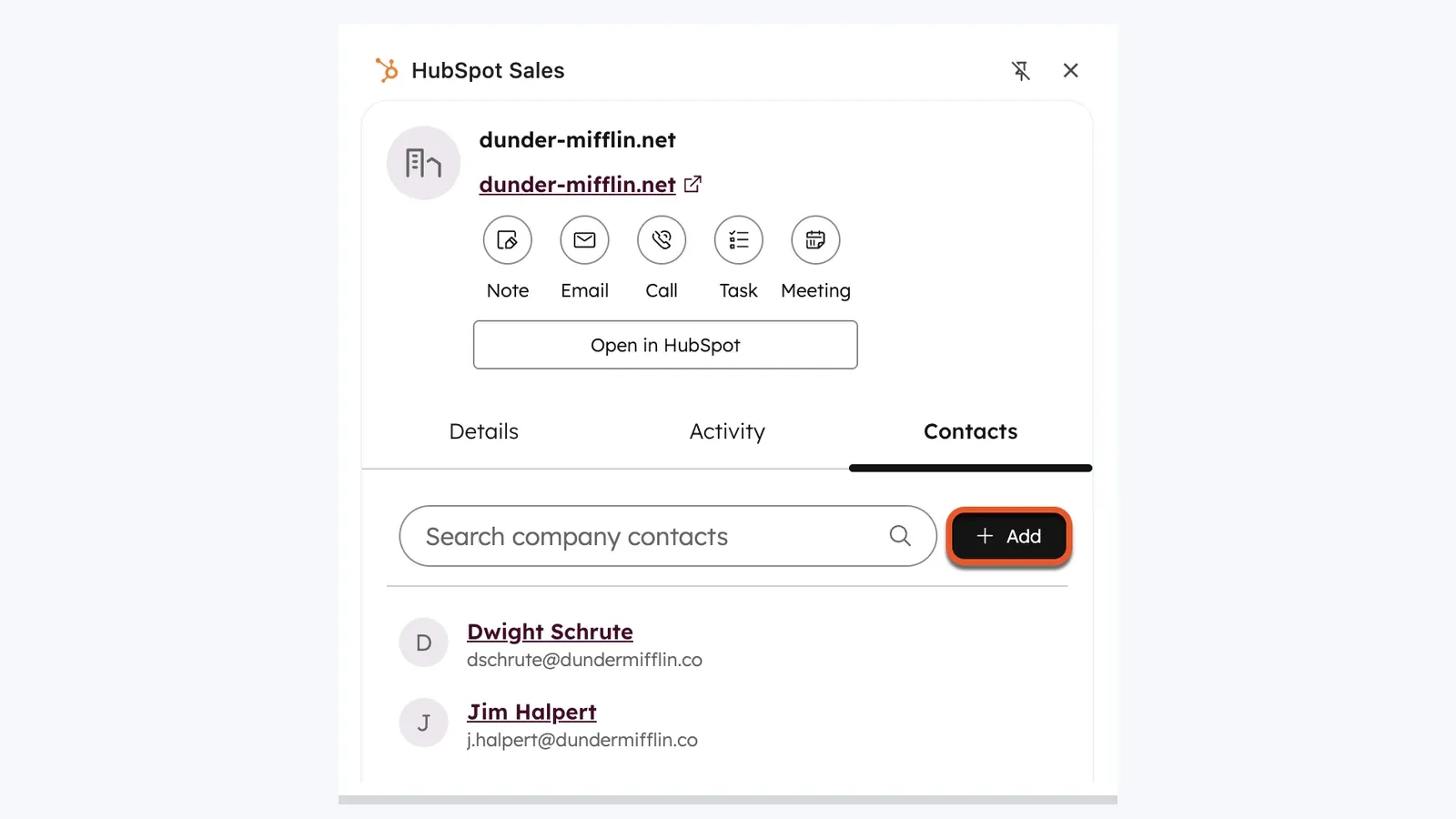
That is useful context, but it is not the same thing as a full LinkedIn-to-HubSpot sync layer.
When Hublead Fits
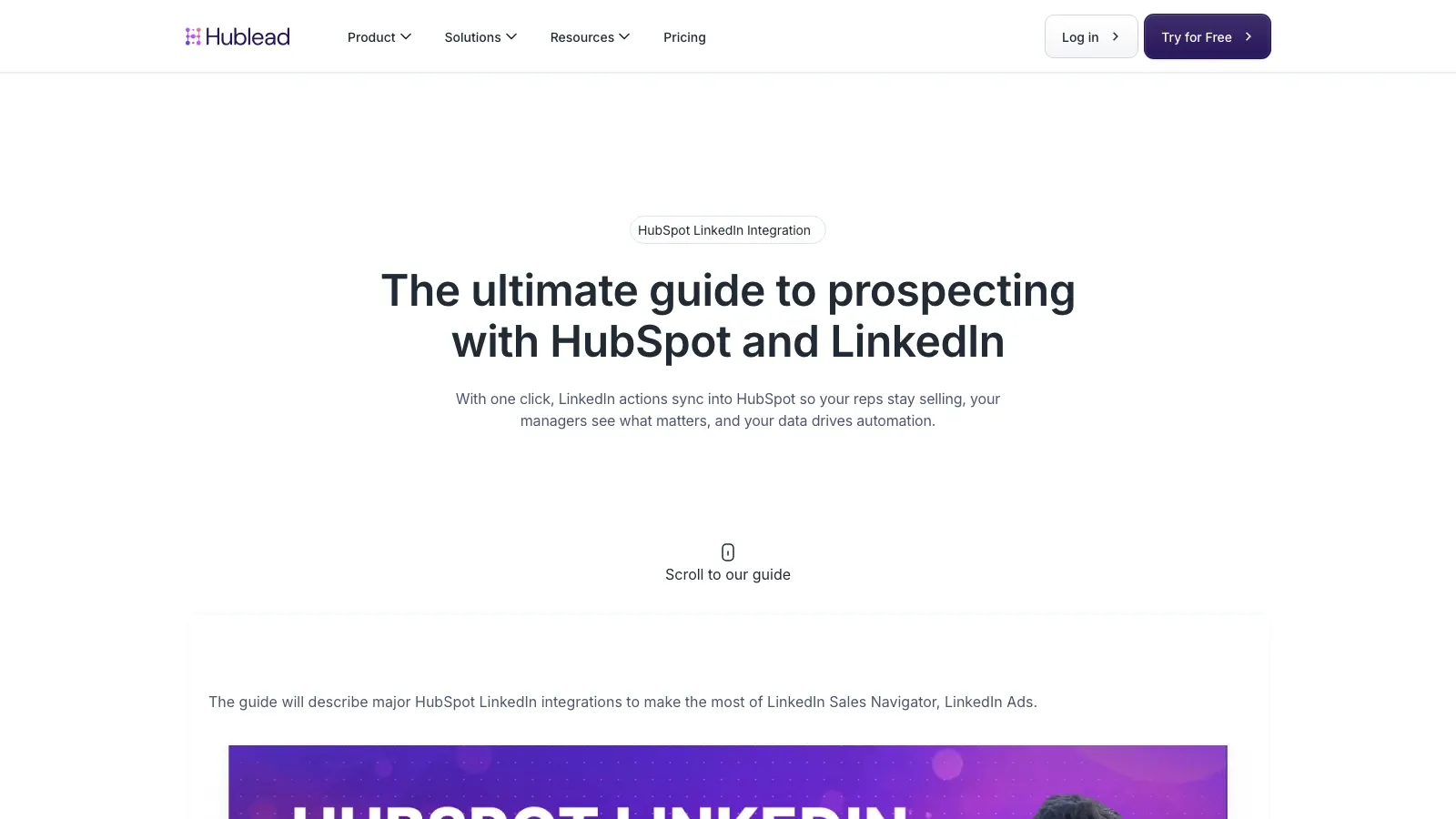
Hublead is purpose-built for the "I am on LinkedIn and want the HubSpot action to happen now" workflow. Its current pricing page shows a free Starter plan and paid tiers above it, with Professional starting at $32/mo/seat billed yearly as of May 9, 2026.
When Surfe Fits
Surfe is the better comparison if your team wants a more explicit LinkedIn-plus-CRM operating layer. Its current integration page is still centered on turning LinkedIn activity into CRM updates without constant tab switching.
If you want to see this workflow in motion before choosing between Hublead and Surfe, this Surfe and HubSpot prospecting walkthrough is still live:
Where Thunderbit Fits in a HubSpot Workflow
HubSpot is good at CRM-side workflow. It is not a web extraction tool.
That gap matters when reps need to pull lead data from:
- niche directories,
- event attendee pages,
- company team pages,
- PDFs,
- or long-tail list pages that are not already structured in LinkedIn or the CRM.
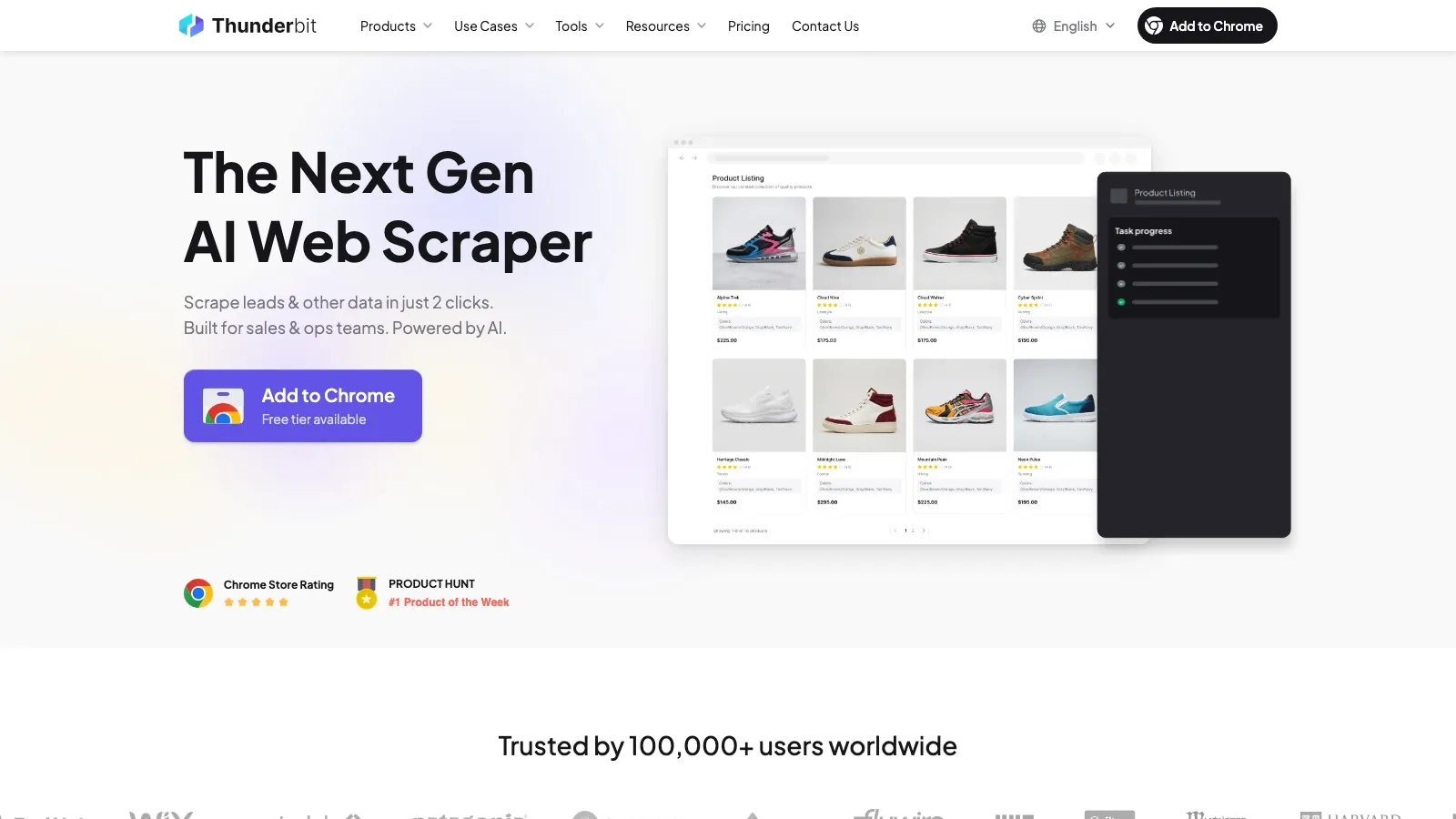
That is where Thunderbit fits. Instead of asking reps to copy data cell by cell, it can read a page, suggest fields, open subpages, and export structured data into Sheets, Airtable, Notion, or a CSV that gets imported into HubSpot.
This is the cleanest complement to HubSpot when your bottleneck is lead sourcing, not inbox workflow.
Try Thunderbit on a Live Lead Source
When Apollo Makes Sense
Apollo is less about browser-side setup and more about completing records and improving outbound coverage. The current Chrome Web Store listing still presents it as a free B2B phone and email finder with more than 1,000,000 users.
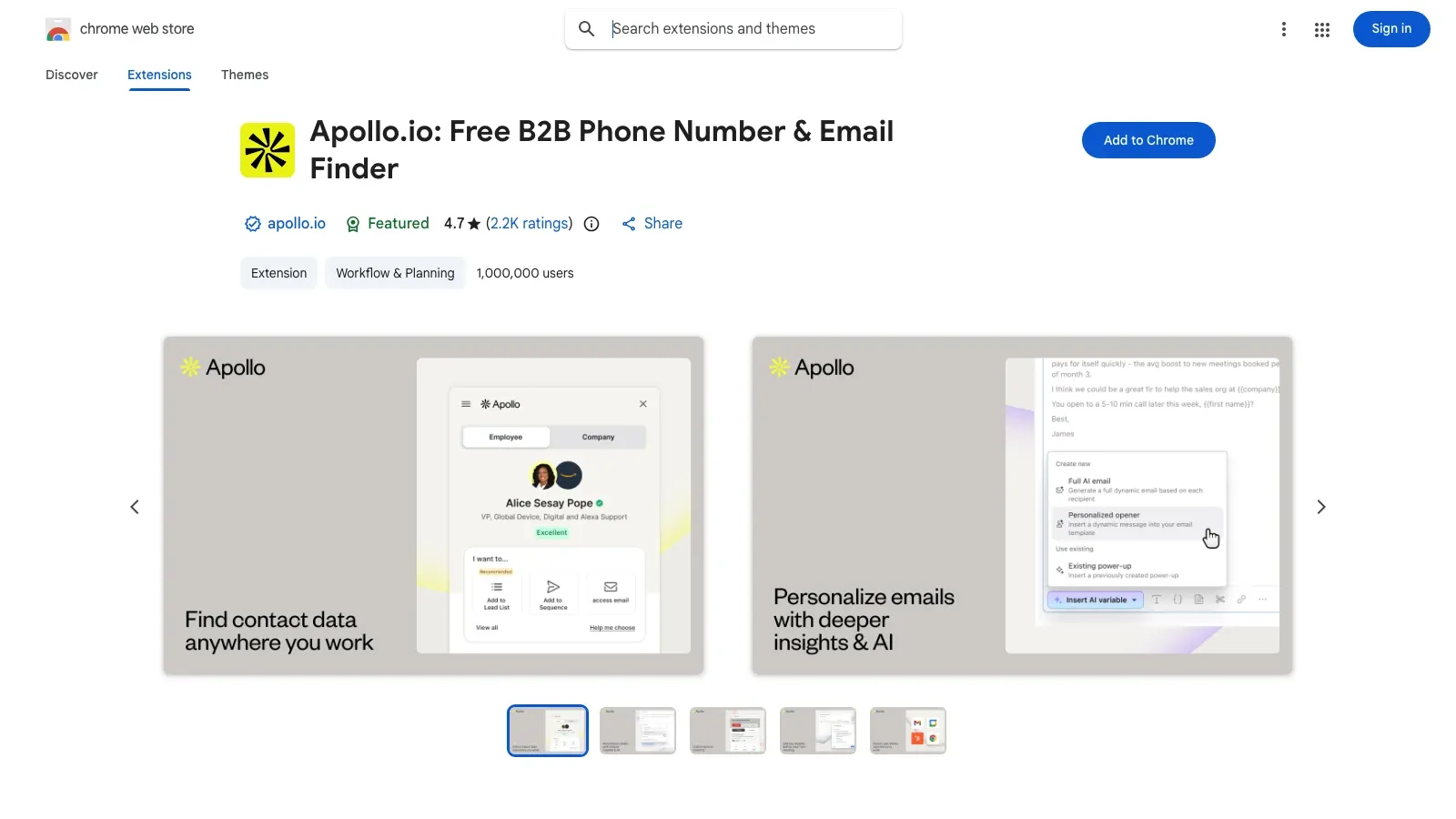
For HubSpot teams, Apollo makes the most sense when:
- the contact exists but the phone or email is missing,
- enrichment quality matters more than raw page scraping,
- or the team wants data lookup plus a broader outbound workflow layer.
Free vs Paid: What You Actually Get
HubSpot Native Capabilities
| Feature | Free tools | Paid HubSpot tier needed |
|---|---|---|
| Email tracking | Yes, with activity-feed notification limits on free tools | Paid seats remove the free-tier activity feed cap |
| Email logging | Yes | No paid tier required just to log |
| Templates and snippets | Limited availability | More complete usage comes with paid Sales Hub tiers |
| Sequences | No | Sales Hub Professional or above |
| Meetings links | Yes | No |
| Breeze access in the sidebar | Available when AI settings allow it | Advanced AI workflows depend on account setup and tier |
Complementary Extension Stack
| Tool | Best buying signal |
|---|---|
| Hublead | Free Starter plan; paid tiers for more sync depth and automation |
| Surfe | Free tier for evaluation; paid plans for broader CRM and workflow coverage |
| Thunderbit | Free entry point for light extraction; paid plans when the volume grows |
| Apollo | Free plan for lightweight use; paid tiers for deeper enrichment and outbound |
| Sales Navigator | Paid product, typically justified only when LinkedIn prospecting is central |
AI Workflows That Are Actually Useful in 2026
The AI layer here is only useful if it removes real workflow friction.
| Scenario | Tool | What it helps with |
|---|---|---|
| Summarize a prospect before a call | HubSpot plus Breeze | Reduce CRM scrolling and basic prep work |
| Extract decision-makers from a team page | Thunderbit | Turn a company page into a usable contact table |
| Fill missing contact details | Apollo | Add emails and phones to incomplete records |
| Move from LinkedIn research to CRM activity | Hublead or Surfe | Capture research without manual re-entry |
If you want the execution-side example for the web data part of this stack, this Thunderbit quick-start video is still live and relevant:
How to Run Multiple Sales Extensions Without Creating Chaos
Keep the stack small and disciplined.
- Use a dedicated Chrome profile for work.
- Keep one HubSpot portal per Chrome profile where possible.
- Enable only the surfaces you actually use.
- Review cookie policy changes after major Chrome updates.
- Add one new extension at a time, then test HubSpot again before adding the next.
- If tracking breaks, disable overlap first: read-receipt tools and outreach tools are the most common conflict cluster.
Final Recommendation
If the goal is "make HubSpot work in the browser without babysitting it," the best setup is not the biggest stack. It is the cleanest one.
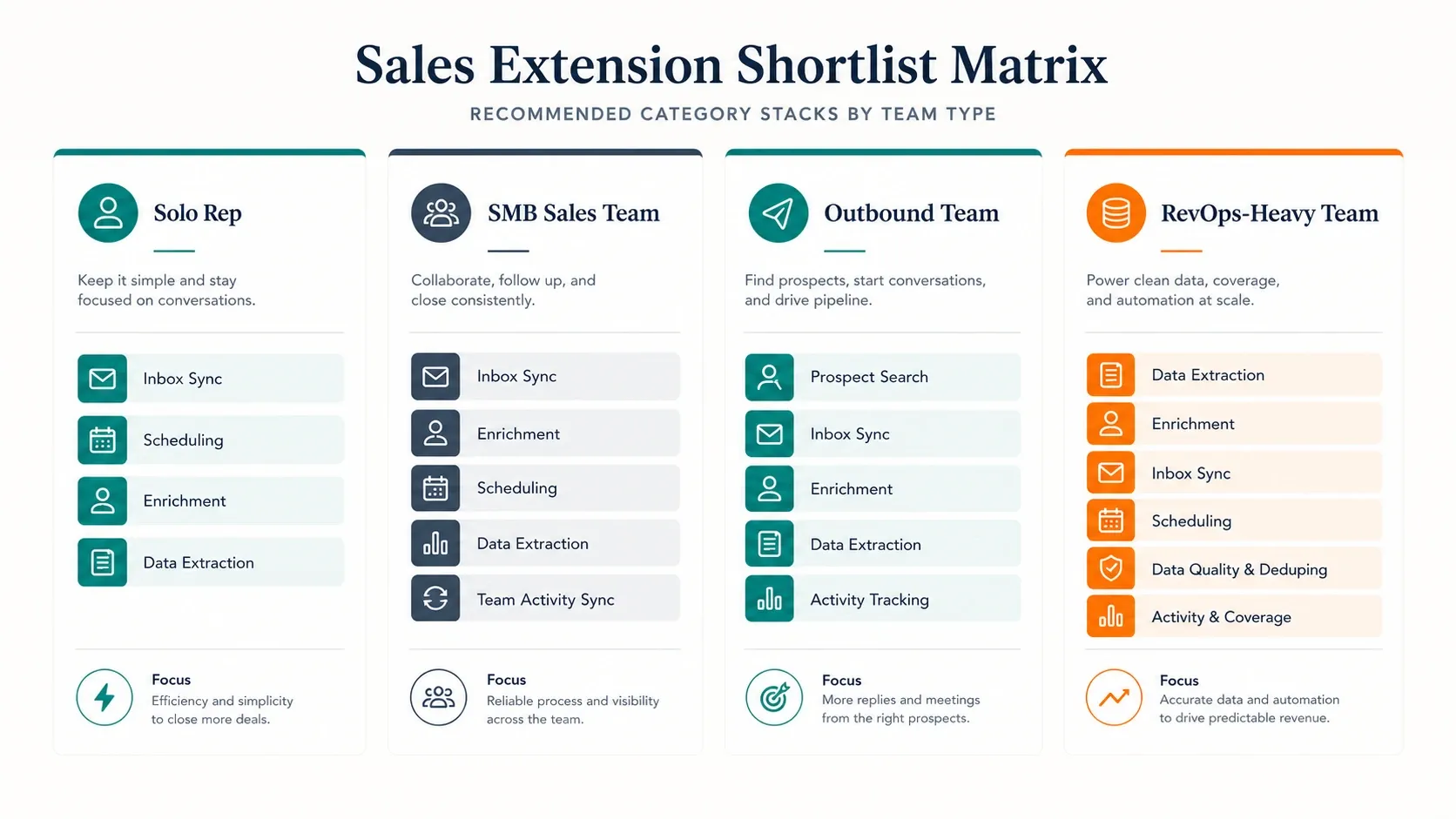
The practical shortlist looks like this:
- Just need inbox-side CRM and scheduling: start with HubSpot Sales alone.
- Need LinkedIn to HubSpot motion every day: add Hublead or Surfe.
- Need net-new lead data from the open web: add Thunderbit.
- Need contact completion and enrichment: add Apollo.
Start with HubSpot configured correctly, confirm the native extension is stable, then add only the one extra layer that matches your actual bottleneck.
Try Thunderbit for HubSpot Lead Extraction Workflows Get Started Free
FAQs
1. Is the HubSpot Sales Chrome extension free?
Yes. HubSpot offers free tools that include the Chrome extension workflow for Gmail, but some capabilities such as sequences and broader paid Sales Hub features require higher tiers.
2. What version is the HubSpot Sales Chrome extension on now?
The Chrome Web Store listing showed version 5.1.2 on May 9, 2026.
3. Why does HubSpot keep logging me out or disappearing?
The most common causes are the wrong Chrome profile, blocked or cleared cookies, a conflicting extension, or the extension being toggled off in Chrome.
4. Does the HubSpot Chrome extension work with Outlook?
Not directly in the same way it works with Gmail. For Outlook, HubSpot's current documentation points teams to the HubSpot Sales Office 365 add-in, which it says can be used in Outlook for Windows, Outlook for Mac, and Outlook for the web, including both classic and new Outlook experiences.
5. Can I still log emails if the extension is down?
Yes. Use HubSpot's BCC address from the Email Log & Track settings to manually log the message to the CRM.
Learn More




