
Shopping online has always been a bit of a treasure hunt, but lately, it feels like the map has changed. More and more, I find myself staring at a photo—maybe it’s a friend’s shoes, a cool lamp in a TikTok video, or a mystery gadget in a coworker’s Zoom background—and thinking, “I want that… but what do I even search for?” Turns out, I’m not alone. Visual search is booming, especially on Amazon: the company says the number of customers using Amazon Lens has grown by more than 50% in the past year, and the number of photo searches has more than doubled over the same window.

If you’ve ever wished you could just “show” Amazon what you want instead of playing keyword bingo, this guide is for you. I’ll walk you through how to search by image on Amazon—using built-in features, third-party tools like Google Lens, and even advanced options like Thunderbit for business users or anyone who wants to turn images into structured product data. Whether you’re a casual shopper or a data geek (like me), you’ll find something here to make your next search a whole lot smarter.
What Is Image Search on Amazon?
Let’s start with the basics: search by image on Amazon means using a photo—either one you snap or one you upload—to find matching or similar products on Amazon. Instead of typing “blue mid-century lamp with gold base” and hoping for the best, you can just show Amazon the lamp and let its AI do the detective work.
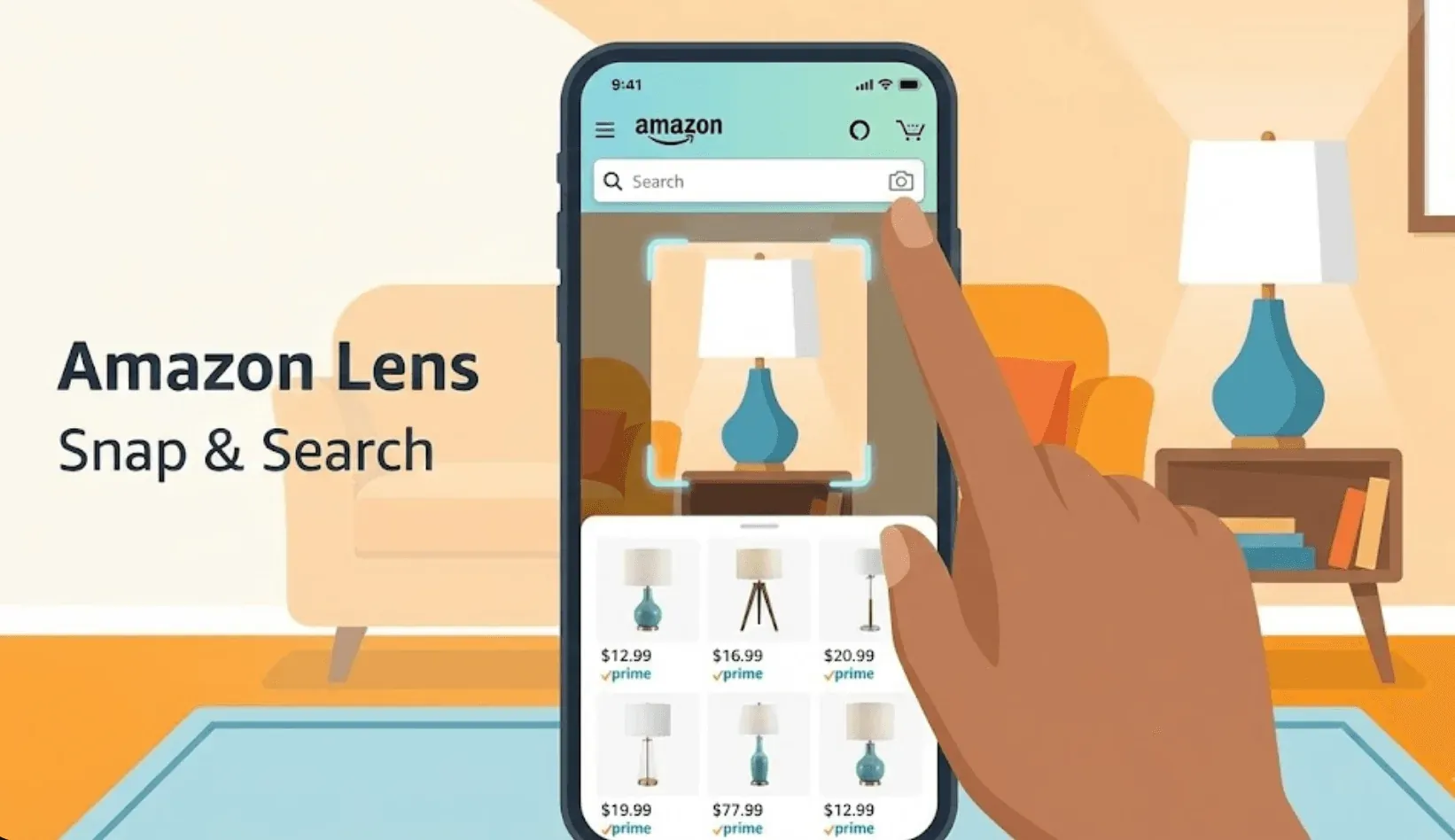
This feature, called Amazon Lens, is built right into the Amazon Shopping app. Tap the camera icon in the search bar, upload or take a photo, and Amazon’s AI analyzes the image—looking at shapes, colors, logos, and more—to surface products that look like what’s in your picture (aboutamazon.com). The clearer and more focused your image, the better your results. If your photo has a bunch of items, Amazon even lets you circle the one you care about (more on that in a bit).
Why Search by Image on Amazon Matters
Why is this such a big deal? Because sometimes, words just aren’t enough. Maybe you don’t know what a product is called, or you want to match a style you saw in real life. Visual search bridges that gap, making it possible to find products with nothing but a photo.
What Is Data Scraping and How to Do It in 2025 Get Started Free
Here’s a quick look at why image search is a game-changer for both shoppers and businesses:
| Use Case | Problem Solved | How Image Search Helps |
|---|---|---|
| Fashion discovery | “What brand is that jacket?” | Snap a photo, find the same or similar item |
| Home decor matching | “Where can I buy this lamp?” | Upload a pic, see lookalikes on Amazon |
| Replacement parts | “What’s this weird screw called?” | Take a photo, get exact or close matches |
| Bulk product research (B2B) | “How do I track all these SKUs?” | Use images to find and extract product data |
| Price comparison | “Is this cheaper on Amazon?” | Snap a barcode or product photo, compare |
Amazon’s own data shows that customers use Lens for everything from replicating fashion looks to finding exact replacement parts (aboutamazon.com). And in categories like fashion and home decor, visual search users view 48% more products and spend 9% more per order.
All the Ways to Search by Image on Amazon
Amazon’s made it surprisingly easy to search by image, but there’s more than one way to do it. Here’s a quick rundown:
| Method | Platform | How It Works | Best For |
|---|---|---|---|
| Amazon Lens | Amazon app (iOS/Android) | Tap camera icon, upload or snap photo, see matches | Everyday shoppers, mobile users |
| Barcode Scan | Amazon app | Use camera to scan barcode, get exact product | Fast, exact matches (e.g., groceries, books) |
| Circle to Search | Amazon app | Draw a circle around item in photo to isolate it | Group photos, cluttered scenes |
| Lock Screen Widget (iOS) | iPhone | Add Amazon Lens widget for one-tap access from lock screen | Quick access, on-the-go searches |
| Google Lens | Google app, Photos, Android/iOS | Upload/snap photo, find matches across the web (often includes Amazon) | Cross-platform, broader search |
| Pinterest Lens | Pinterest app | Upload photo, see visually similar Pins (some link to Amazon) | Fashion, home decor inspiration |
| Browser Extensions | Chrome/Edge desktop | Right-click image, search Amazon for matches | Desktop users, web images, research |
| Thunderbit | Chrome Extension | Scrape Amazon product data starting from image-based finds, export to Excel/Sheets | Business users, bulk research, data extraction |
Each method has its own strengths. Amazon Lens is fast and integrated, barcode scan is perfect for exact matches, and third-party tools like Google Lens are great for searching outside Amazon’s ecosystem. For business users or anyone who wants to turn image search into structured data, Thunderbit unlocks a whole new level of power.
Try Thunderbit for Amazon Image Search
Step-by-Step: Using Amazon Lens for Image Search
Ready to try it? Here’s how to use Amazon Lens in the Amazon Shopping app:
- Open the Amazon app and tap the camera icon in the search bar.
- Choose to upload a photo (from your gallery) or take a new photo.
- Amazon’s AI will analyze the image and show you a carousel of visually similar products.
- Refine your results: If your photo has multiple items, tap “Circle to Search” and draw around the product you want. You can also add keywords (like “red” or “Nike”) to narrow things down.
- Tap a product to see details, reviews, and buy options.
Pro tip: For the best results, use clear, well-lit images with the product centered and minimal background clutter. If you’re searching for an exact item, try scanning the barcode instead.
Advanced Features: Circle to Search, Barcode Scan, Widget, and the Newer Stuff
- Circle to Search: Perfect for group shots or cluttered backgrounds. Just draw a circle around the item you want, and Amazon will focus its search on that region. You can also resize or move the bounding box if Amazon picks the wrong item (aboutamazon.com).
- Barcode Scan: Switch to barcode mode in the Lens tool and point your camera at the barcode. This gives you an exact match—no guesswork (aboutamazon.com).
- Lock Screen Widget (iOS): On iPhone, you can add the Amazon Lens widget to your lock screen for instant access—no need to unlock your phone or open the app (aboutamazon.com).
- Text-Enhanced Image Search: After you upload a photo, you can layer in words right on the results page — "in navy blue," "in oak," "size 11" — to nudge the AI toward what you actually want (aboutamazon.com).
- Visual Suggestions: Start typing a descriptive query like "flannel shirt" or "olive linen pants" and Amazon now drops in image suggestions while you type, so you can pick the look before you even finish the sentence (aboutamazon.com).
- More Like This: Tap "More Like This" on any product to see Lens-powered alternatives with the same vibe but different colors, fits, or price points — handy if the original is out of stock or out of budget (aboutamazon.com).
- Videos in Search: For home items, appliances, toys, and electronics, Amazon now slots short product videos directly into the search results, so you can see something move before you tap in (aboutamazon.com).
How to Search by Image on Amazon Using Third-Party Tools
Amazon’s built-in tools are great, but sometimes you want to search by image from your desktop, or you’re starting with a photo you found elsewhere. Here’s how to do it with third-party tools:
Using Google Lens
- Open the Google app (or Google Photos) on your phone, or visit Google Lens online on desktop.
- Tap the Lens icon and upload or snap a photo.
- Google Lens will analyze the image and show you visually similar results—including Amazon listings if available (blog.google).
- Tap through to shop or compare prices.
Using Browser Extensions
- Install a Chrome extension like Search by Image on Amazon.
- Right-click any image on the web and select “Search on Amazon.”
- The extension will upload the image and return a list of matching Amazon products.
Pros: Works on desktop, great for images you find while browsing.
Cons: May not be as accurate as Amazon’s own tools, and your image is sent to a third-party server, so consider privacy.
Thunderbit: Supercharging Image Search on Amazon
Here’s where things get really interesting—especially if you’re in sales, ecommerce, or just love data. Thunderbit is an AI-powered Chrome extension that takes image search to the next level. Instead of just finding one product, Thunderbit can scrape entire Amazon product listings or catalogs starting from an image-based search.
How To Scrape Amazon Products and Reviews in 2025 using AI Get Started Free
What Makes Thunderbit Different?
- AI-Powered Scraping: Click “AI Suggest Fields” and Thunderbit will scan the Amazon page, automatically suggesting fields like “Product Name,” “Price,” “Image,” and more (Thunderbit Blog).
- Image Extraction: Thunderbit doesn’t just grab links—it can extract every product image, and when exporting to Notion or Airtable, it uploads the images as attachments so you get full visual catalogs (Thunderbit Blog).
- Subpage & Pagination Support: Scrape not just the search results, but also click into each product’s detail page for richer info (descriptions, specs, reviews). Handles “Load More” and infinite scroll automatically.
- Templates & Cloud Mode: Use instant templates for Amazon and other popular sites, or run scrapes in the cloud for up to 50 pages at once (Thunderbit Blog).
- Free Data Export: Export your structured data—including images—to Excel, Google Sheets, Notion, or Airtable (Thunderbit Blog).
Thunderbit is a lifesaver for anyone who needs to turn image-based finds into actionable data—think lead generation, competitor analysis, or SKU monitoring.
Thunderbit vs. Traditional Image Search: Side-by-Side Comparison
| Feature | Amazon Lens / Google Lens | Browser Extensions | Thunderbit AI Scraper |
|---|---|---|---|
| Purpose | Find similar products by photo | Quick desktop image search | Bulk data extraction, cataloging, business workflows |
| Ease of Use | Mobile app, no setup | Browser install, right-click | No-code UI, AI suggests fields in one click |
| Output | Images, links to a few products | List of matching items | Structured table: names, prices, images, SKUs, etc. |
| Scale | One image at a time | One image per search | Hundreds of items, paginated lists, subpages, cloud |
| Automation | Manual only | Manual only | Scheduled scrapes, AI labeling, data export |
| Best For | Shoppers, inspiration | Ad hoc desktop search | Sales, ecommerce, research, bulk product tracking |
Thunderbit is especially powerful for business users who need to extract, label, and export large amounts of product data—something no other image search tool really offers.
Scrape Amazon Product Data with Thunderbit
Tips for Getting the Best Results When You Search by Image on Amazon
Want to get the most out of image search? Here are my top tips:
- Use clear, high-quality photos: Good lighting, sharp focus, and a plain background help the AI do its job.
- Isolate the product: If your image has multiple items, use Circle to Search or crop the photo to focus on the item you want.
- Add keywords: After uploading, add a word or two (like color or brand) to refine your results.
- Try different angles: Some products are easier to recognize from certain viewpoints.
- Scan barcodes for exact matches: If you have the product in hand, scanning the barcode is the fastest way to get the right listing.
- For Thunderbit users: Use field AI prompts to label or categorize data, and leverage subpage scraping for richer datasets (Thunderbit Blog).
- Troubleshoot: If you get no matches, try a different photo or use text search as a backup.
The Advantages of Image Search for Business and Everyday Shoppers
Image search isn’t just a novelty—it’s a productivity booster for everyone:
- Everyday Shoppers: Find that “mystery” item instantly, compare prices, and discover new styles with just a photo. No more guessing keywords or endless scrolling.
- Business Users: Use Thunderbit to turn images into structured data for lead generation, competitor analysis, SKU monitoring, and bulk product research. Automate your workflows, monitor prices, and build catalogs—all starting from a single image (Thunderbit Blog).
For me, the real magic is in how image search and AI scraping work together. I can go from “I saw this cool thing” to “Here’s a spreadsheet of every similar product, price, and review on Amazon” in just a few clicks. That’s a superpower for anyone in sales, ecommerce, or research.
Conclusion & Key Takeaways
Visual search on Amazon has clearly turned the corner from "interesting feature" to a daily-driver shopping habit — and the toolbox keeps expanding (text-enhanced refinement, More Like This, in-results video, all rolled out since this article first went up). Whether you’re using Amazon Lens for quick shopping, Google Lens for cross-platform discovery, or Thunderbit for advanced data extraction, searching by image is the fastest way to go from inspiration to purchase (or analysis).
Key takeaways:
- Amazon Lens makes it easy to search by image in the app—just tap the camera, snap or upload, and shop.
- Third-party tools like Google Lens and browser extensions bring image search to desktop and across the web.
- Thunderbit supercharges image search for business users, letting you extract, label, and export product data at scale.
- Use high-quality images, isolate your product, and add keywords to get the best results.
Curious to see what Thunderbit can do? Download the Chrome extension and try scraping an Amazon product page—you might be surprised how much data you can unlock. And if you want more tips on web scraping, image search, or automating your workflow, check out the Thunderbit Blog.
Try Thunderbit AI Web Scraper for Amazon Image Search Get Started Free
FAQs
1. Can I search by image on Amazon from my desktop?
Not directly with Amazon’s built-in tools, but you can use browser extensions or Google Lens on desktop to search by image and find Amazon listings.
2. What kinds of images work best for Amazon image search?
Clear, well-lit photos with the product centered and minimal background clutter work best. If possible, use the Circle to Search feature to isolate the item.
3. How does Thunderbit improve image search on Amazon?
Thunderbit lets you scrape and export structured product data—including images, prices, and SKUs—from Amazon pages, making it ideal for business users who need more than just a quick match.
4. Is it safe to use third-party image search tools with Amazon?
Most are safe, but be aware that your image may be uploaded to a third-party server. For sensitive or proprietary images, stick to Amazon’s own tools or trusted platforms.
5. Can I use image search for bulk product research or price monitoring?
Absolutely! Tools like Thunderbit are designed for exactly that—turning visual searches into structured, exportable data for sales, ecommerce, and research teams.
Ready to shop smarter? Give image search a try on Amazon—and if you’re ready to level up, see what Thunderbit can do. Happy hunting!
Learn More




