
The web is overflowing with data, and the appetite for pulling it down is growing fast — though if you go shopping for a single market-size number you'll find estimates that disagree by an order of magnitude depending on whether the analyst is counting software, services, proxies, or all three. The honest read is that web scraping has settled into the boring-but-essential corner of the data stack.
Whether you’re a business analyst, a marketer, or just a curious beginner, the ability to pull data from a website is quickly becoming a must-have skill. And if you’re like me, you probably want to skip the endless copy-paste routine and get straight to the good stuff: actionable insights, clean spreadsheets, and maybe even a little bit of automation magic.
That’s where Python comes in. It’s the Swiss Army knife of the data world—simple enough for beginners, but powerful enough to handle everything from scraping a single page to crawling thousands. In this hands-on tutorial, I’ll walk you through the basics of web scraping with Python, show you how to tackle dynamic websites, and even introduce you to Thunderbit, our AI-powered, no-code web scraper that makes data extraction as easy as ordering takeout. Whether you’re here to learn the code or just want a shortcut, you’re in the right place.
What Is Web Scraping and Why Use Python to Pull Data from a Website?
Scrape data from any website using AI Get Started Free
Web scraping is the automated process of extracting information from websites and converting it into a structured format—think spreadsheets, CSVs, or databases—for analysis or business use (PromptCloud). Instead of manually copying and pasting data, a scraper mimics what a human would do, but at lightning speed and scale.
Why is this so valuable? Because in today's business world, data-driven decision-making is the name of the game. The bigger you are, the more decisions you're trying to back with real numbers instead of vibes — and a lot of those numbers start their lives on someone else's web page.
Imagine being able to monitor competitor prices daily, aggregate real estate listings, or build a custom lead list—all without breaking a sweat.
So, why Python? Here’s why it’s the go-to language for web scraping:
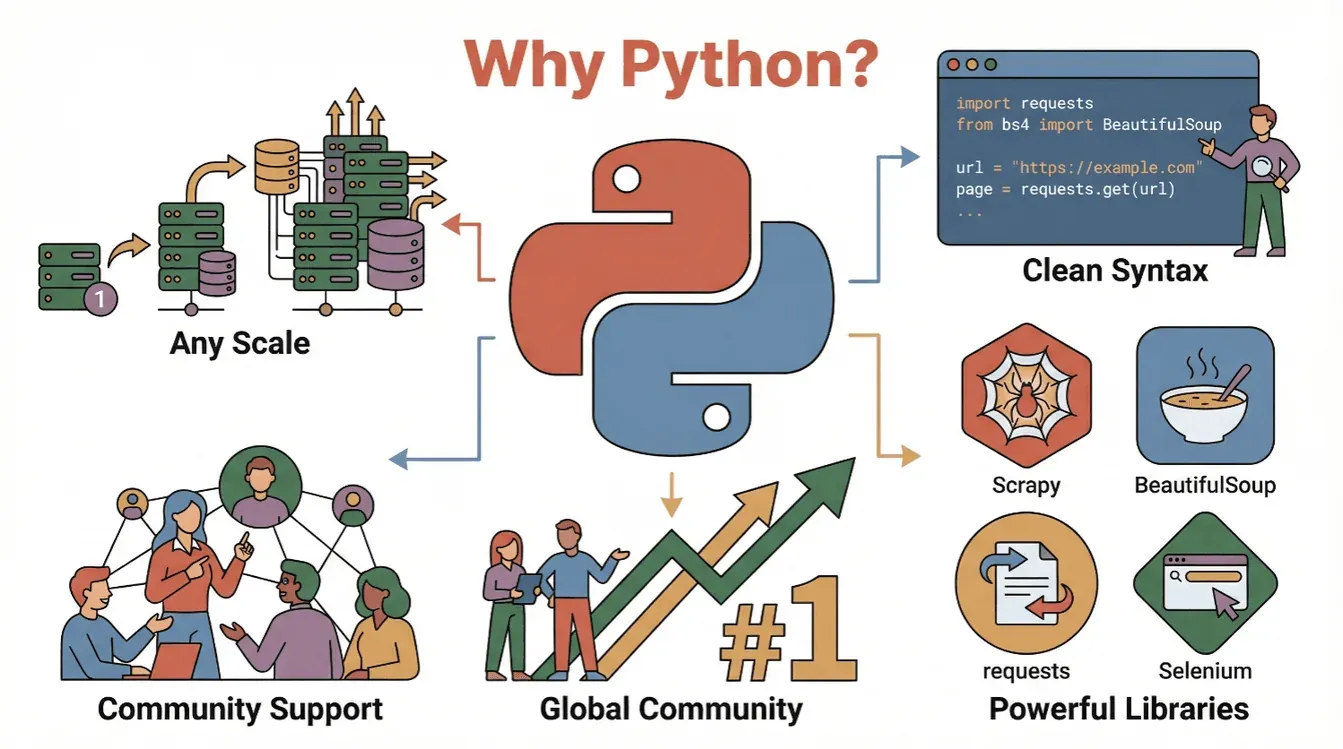
- Readability & Simplicity: Python’s syntax is clean and beginner-friendly, making it easy to write and understand scraping scripts (PromptCloud).
- Rich Ecosystem: Libraries like
requests,BeautifulSoup,Scrapy, andSeleniummake scraping, parsing, and automating browser actions a breeze. - Community Support: With Python consistently ranking as the world’s most popular programming language, there are endless tutorials, forums, and code samples to help you out.
- Scalability: Python can handle everything from simple one-off scripts to large-scale crawlers.
In short: Python is your entry ticket to the world of web data, whether you’re a total beginner or a seasoned analyst.
Getting Started: Python Web Scraping Tutorial Basics
Before we dive into code, let’s break down the basic workflow for pulling data from a website with Python:
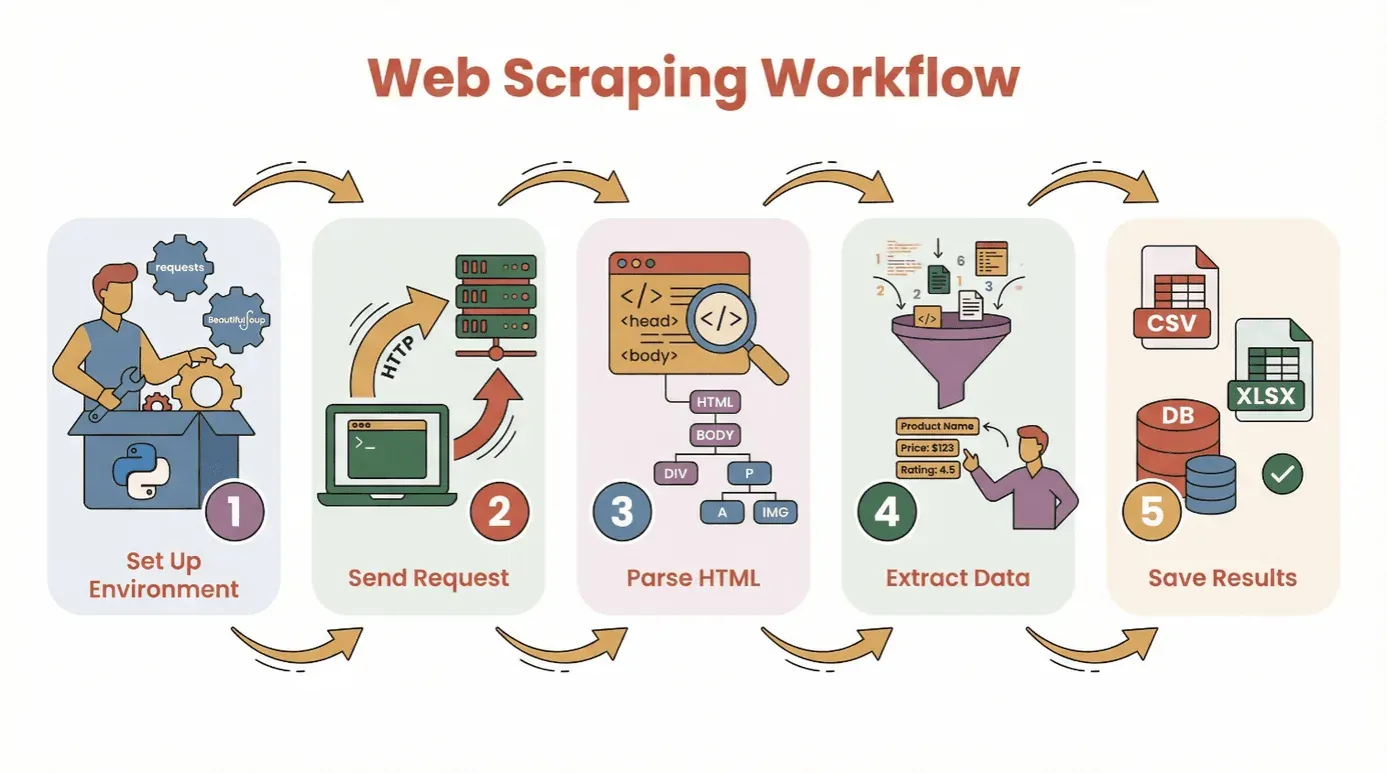
- Set Up Your Environment: Install Python and the necessary libraries (
requests,BeautifulSoup, etc.). - Send a Request: Use Python to fetch the HTML content of your target webpage.
- Parse the HTML: Use a parser to navigate the page’s structure.
- Extract the Data: Locate and pull out the information you need.
- Save the Results: Store your data in a CSV, Excel file, or database for analysis.
You don’t need to be a coding wizard to get started. If you know how to install Python and run a script, you’re already halfway there. For total beginners, I recommend using a virtual environment or a Jupyter notebook, but you can also use any basic text editor.
Essential Libraries:
requests— for fetching web pagesBeautifulSoup— for parsing HTMLpandas— for saving and cleaning data (optional, but highly recommended)
Choosing the Right Python Web Scraping Library: BeautifulSoup, Scrapy, or Selenium?
Not all Python scraping tools are created equal. Here’s a quick rundown of the three most popular options:
| Tool | Best For | Strengths | Drawbacks |
|---|---|---|---|
| BeautifulSoup | Simple, static pages; beginners | Easy to use, minimal setup, great docs | Not great for large crawls or dynamic content |
| Scrapy | Large-scale, multi-page crawling | Fast, async, built-in pipelines, handles crawling and data storage | Steeper learning curve, overkill for small jobs, doesn’t run JavaScript |
| Selenium | Dynamic/JavaScript-heavy sites, automation | Can render JS, simulate user actions, supports logins and clicks | Slower, resource-heavy, more complex setup |
BeautifulSoup: The Go-To for Simple HTML Parsing
BeautifulSoup is perfect for beginners and small projects. It lets you parse HTML and extract elements with just a few lines of code. If your target site is mostly static (no fancy JavaScript loading), BeautifulSoup + requests is all you need.
Example:
import requests
from bs4 import BeautifulSoup

url = "https://example.com"
response = requests.get(url)
soup = BeautifulSoup(response.text, 'html.parser')
titles = [h2.text for h2 in soup.find_all('h2', class_='product-title')]
print(titles)
When to use: One-off scrapes, simple blogs, product pages, or directories.
Scrapy: For Large-Scale or Structured Crawling
Scrapy is a full-fledged framework for crawling entire websites or handling thousands of pages. It’s asynchronous (read: fast), supports pipelines for cleaning/saving data, and can follow links automatically.
Example:
import scrapy

class ProductSpider(scrapy.Spider):
    name = "products"
    start_urls = ["https://example.com/products"]
    def parse(self, response):
        for item in response.css('div.product'):
            yield {
                'name': item.css('h2::text').get(),
                'price': item.css('span.price::text').get()
            }
When to use: Large projects, scheduled crawls, or when you need speed and structure.
Selenium: Handling Dynamic and JavaScript-Heavy Websites
Selenium controls a real browser (like Chrome or Firefox), so it can handle sites that load data with JavaScript, require logins, or need you to click buttons.
Example:
from selenium import webdriver
from selenium.webdriver.common.by import By

driver = webdriver.Chrome()
driver.get("https://example.com/login")
driver.find_element(By.NAME, "username").send_keys("myuser")
driver.find_element(By.NAME, "password").send_keys("mypassword")
driver.find_element(By.XPATH, "//button[@type='submit']").click()
dashboard = driver.find_element(By.ID, "dashboard").text
print(dashboard)
driver.quit()
When to use: Social media, stock sites, infinite scroll, or anything that looks empty when you “view source.”
Step-by-Step: How to Pull Data from a Website Using Python (Beginner Tutorial)
Let’s walk through a real example using requests and BeautifulSoup. We’ll scrape a simple book listing site for titles, authors, and prices.
Step 1: Setting Up Your Python Environment
First, install the libraries you’ll need:
pip install requests beautifulsoup4 pandas
Then, import them in your script:
import requests
from bs4 import BeautifulSoup
import pandas as pd
Step 2: Sending a Request to the Website
Fetch the HTML content:
url = "http://books.toscrape.com/catalogue/page-1.html"
response = requests.get(url)
if response.status_code == 200:
    html = response.text
else:
    print(f"Failed to retrieve page: {response.status_code}")
Step 3: Parsing HTML Content
Create a BeautifulSoup object:
soup = BeautifulSoup(html, 'html.parser')
Find all book containers:
books = soup.find_all('article', class_='product_pod')
print(f"Found {len(books)} books on this page.")
Step 4: Extracting the Data You Need
Loop through each book and grab the details:
data = []
for book in books:
    title = book.h3.a['title']
    price = book.find('p', class_='price_color').text
    data.append({"Title": title, "Price": price})
Step 5: Saving Data for Analysis
Convert to a DataFrame and save:
df = pd.DataFrame(data)
df.to_csv('books.csv', index=False)
Now you’ve got a clean CSV file ready for analysis!
Troubleshooting Tips:
- If you get empty results, check if the data is loaded by JavaScript (see the next section).
- Always inspect the HTML structure with your browser’s dev tools.
- Handle missing data with
get_text(strip=True)and conditional checks.
Overcoming Dynamic Content: Pulling Data from JavaScript-Rendered Websites
Modern websites love JavaScript. Sometimes, the data you want isn’t in the initial HTML—it’s loaded after the page appears. If your scraper is coming up empty, you might be dealing with dynamic content.
How to handle it:
- Selenium: Simulates a real browser, waits for content to load, and can click buttons or scroll.
- Playwright/Puppeteer: More advanced, but similar idea (headless browsers).
Mini Selenium Guide:
- Install Selenium and a browser driver (e.g., ChromeDriver).
- Use explicit waits to let content load.
- Extract the rendered HTML and parse with BeautifulSoup if needed.
Example:
from selenium import webdriver
from selenium.webdriver.common.by import By
from selenium.webdriver.support.ui import WebDriverWait
from selenium.webdriver.support import expected_conditions as EC

driver = webdriver.Chrome()
driver.get("https://example.com/dynamic")
WebDriverWait(driver, 10).until(
    EC.presence_of_element_located((By.CLASS_NAME, "dynamic-content"))
)
html = driver.page_source
soup = BeautifulSoup(html, 'html.parser')
# Extract data as before
driver.quit()
When do you need Selenium?
- If
requests.get()returns HTML with no data, but you see it in your browser. - If the site uses infinite scroll, pop-ups, or requires login.
Simplifying Web Scraping with AI: Using Thunderbit to Pull Data from a Website
Try Thunderbit AI Web Scraper Pull data from any website in 2 clicks—no code required. Get Started Free
Let’s be honest—sometimes you just want the data, not the code. That’s where Thunderbit comes in. Thunderbit is an AI-powered Chrome Extension that lets you pull data from any website with just a few clicks—no Python required.
How Thunderbit Works:
- Install the Thunderbit Chrome Extension.
- Open your target website.
- Click the Thunderbit icon and hit “AI Suggest Fields.” Thunderbit’s AI scans the page and recommends what data to extract (e.g., product names, prices, emails).
- Adjust fields if needed, then click “Scrape.”
- Export your data directly to Excel, Google Sheets, Notion, or Airtable.
Why Thunderbit Rocks:
- No coding required. Even my mom can use it (and she still calls me for Wi-Fi issues).
- Handles subpages and pagination. Need to scrape product details from multiple pages? Thunderbit can click through and merge the data for you.
- Natural language instructions. Just tell it what you want (“extract all product titles and prices”) and let the AI figure it out.
- Instant templates for popular sites. Amazon, Zillow, LinkedIn, and more—one click and you’re done.
- Free data export. Download as CSV, Excel, or push straight to your favorite tools.
Thunderbit is trusted by over 100,000 users worldwide. There's a free tier you can try without paying anything — see the pricing page for the current page allowance, since the limits have moved around a couple of times. For business users it's a time-saver; for Python folks, it's a useful way to scope a job before deciding whether it's worth writing your own scraper.
Try Thunderbit Free – No Code Needed
Post-Scraping: Cleaning and Analyzing Data with Pandas and NumPy
Pulling data is just the first step. Raw web data is often messy—duplicates, missing values, weird formats. That’s where Python’s pandas and NumPy libraries shine.
Common Cleaning Tasks:
- Remove duplicates:
df.drop_duplicates(inplace=True) - Handle missing values:
df.fillna('Unknown')ordf.dropna() - Convert data types:
df['Price'] = df['Price'].str.replace('$','').astype(float) - Parse dates:
df['Date'] = pd.to_datetime(df['Date']) - Filter outliers:
df = df[df['Price'] > 0]
Basic Analysis:
- Summary stats:
df.describe() - Group by category:
df.groupby('Category')['Price'].mean() - Quick plots:
df['Price'].hist()ordf.groupby('Category')['Price'].mean().plot(kind='bar')
For more advanced math or fast array operations, NumPy is your friend. But for most business users, pandas covers 95% of what you need.
Resources: If you’re new to pandas, check out the 10 Minutes to pandas guide.
Best Practices and Tips for Successful Python Web Scraping
Web scraping is powerful, but it comes with responsibilities. Here’s my checklist for scraping like a pro (and not getting blocked or sued):
- Respect robots.txt and Terms of Service. Always check if the site allows scraping (PromptCloud).
- Don’t overload servers. Add delays between requests (
time.sleep(2)) and scrape at human-like speeds. - Use realistic headers. Set a User-Agent string to mimic a browser.
- Handle errors gracefully. Use try/except blocks and retry failed requests.
- Rotate proxies if needed. For large-scale scraping, consider using proxy pools to avoid IP bans.
- Be ethical and legal. Don’t scrape personal data or content behind logins without permission.
- Document your process. Keep notes on what you scraped, from where, and when.
- Use official APIs when available. Sometimes there’s a better way than scraping HTML.
For more tips, check out the Ultimate Web Scraping Guide.
Conclusion & Key Takeaways
Web scraping with Python is a superpower for anyone who wants to turn the chaos of the web into structured, actionable data. Whether you’re using code (with requests, BeautifulSoup, Scrapy, or Selenium) or a no-code tool like Thunderbit, you have the tools to pull data from a website and unlock new insights.
Remember:
- Start simple—scrape a single page before tackling big projects.
- Choose the right tool for your needs (BeautifulSoup for basics, Scrapy for scale, Selenium for dynamic sites, Thunderbit for no-code).
- Clean and analyze your data with pandas and NumPy.
- Always scrape responsibly and ethically.
Ready to try it yourself? Start with a small project—maybe scrape today’s headlines or a list of products—and see how quickly you can go from raw web page to clean spreadsheet. And if you want to skip the code, download Thunderbit and let AI do the heavy lifting.
For more tutorials, tips, and web scraping wisdom, check out the Thunderbit Blog.
Read More Web Scraping Tutorials
FAQs
1. What is web scraping and why is Python popular for it?
Web scraping is the automated extraction of data from websites. Python is popular for web scraping because of its readable syntax, powerful libraries (like BeautifulSoup, Scrapy, and Selenium), and strong community support (PromptCloud).
2. Which Python library should I use for web scraping?
Use BeautifulSoup for simple, static pages; Scrapy for large-scale or multi-page crawling; and Selenium for dynamic or JavaScript-heavy websites. Each has its own strengths depending on your needs (IPRoyal).
3. How do I handle websites that load data with JavaScript?
For JavaScript-rendered content, use Selenium (or Playwright) to simulate a browser and wait for the content to load before extracting data. Sometimes, you can find an underlying API endpoint by inspecting network traffic.
4. What is Thunderbit and how does it simplify web scraping?
Thunderbit is an AI-powered Chrome Extension that lets you pull data from any website without coding. It uses AI to suggest fields, handle subpages and pagination, and exports data directly to Excel, Google Sheets, Notion, or Airtable.
5. How can I clean and analyze scraped data in Python?
Use pandas to remove duplicates, handle missing values, convert data types, and perform analysis. NumPy is great for numerical operations. For visualization, pandas integrates with Matplotlib for quick plots (10 Minutes to pandas).
Happy scraping—and may your data always be clean, structured, and ready for action.
Try AI Web Scraper Get Started Free
Learn More




