
There’s a moment every sales or marketing pro knows all too well: you’ve found a goldmine of potential leads online, but now you’re staring at a messy webpage, wondering how you’ll ever get all those names, emails, and phone numbers into a spreadsheet—without losing your mind (or your weekend). I’ve been there, and I’ve seen teams waste hours on copy-paste marathons, only to end up with error-ridden, incomplete lists. The truth is, exporting leads isn’t just about moving data from Point A to Point B—it’s about setting your team up for faster follow-up, smarter campaigns, and, ultimately, more closed deals.
In this guide, I’ll break down what it really means to export leads, why it’s so critical for your workflow, and how you can do it in minutes (not hours) using modern tools like Thunderbit. Whether you’re a total beginner or just tired of spreadsheet headaches, I’ll walk you through every step—from picking the right tool to organizing your exported data for real business impact.
Export Leads: What Does It Really Mean?
Let’s get clear on the basics. Exporting leads means taking contact data—names, emails, phone numbers, company info, whatever you need—from wherever it currently lives (a website, a CRM, a directory, a PDF) and moving it into a format you can actually use, like Excel, Google Sheets, or your CRM. It’s not just a technical chore; it’s the bridge between finding prospects and actually turning them into customers.
Imagine you’ve found 50 perfect prospects in a business directory, event attendee export, CRM view, or company website. Instead of writing each one down by hand, exporting leads means you extract all those details into a structured file—ready for analysis, sharing, or importing into your sales tools. In the real world, this could mean exporting webinar signups into a campaign list, downloading trade show attendees for follow-up, or pulling fresh contacts from Google Maps for local outreach. In short, exporting leads is about liberating your data so you can put it to work.
Why Exporting Leads Matters for Sales and Operations
You might be thinking, “Isn’t exporting leads just an admin task?” Actually, it’s one of the most important steps in your sales and marketing workflow. Here’s why:
- Faster Response Times: 78% of customers buy from the first business that responds), and contacting a lead within 5 minutes makes you 100× more likely to qualify them). If your leads are stuck in a website or a messy export, you’re losing precious time.
- Better Campaigns and Personalization: Once your leads are in a spreadsheet or CRM, you can segment, tag, and personalize your outreach. Teams that use exported data for targeted campaigns see 50% more sales-ready leads at a 33% lower cost.
- Accurate Pipeline Tracking: Exported leads feed your CRM, helping you track every prospect and avoid letting anyone slip through the cracks. Companies with organized lead exports are 29% more likely to hit their sales quotas.
- Team Collaboration: When leads are exported into shareable formats, everyone (sales, marketing, ops) can work from the same data—no more version control nightmares or duplicate outreach. Teams that align on lead data see 38% higher win rates.
Here’s a quick snapshot of the ROI:
| Benefit | Impact on Business |
|---|---|
| Lightning-Fast Response | Reach leads while they’re “hot,” boosting conversion odds (first responders win ~40%+ of sales) |
| Personalized Campaigns | Segmentation and tagging enable relevant outreach and higher engagement |
| Accurate Pipeline | Structured exports feed your CRM, improving forecasting and follow-up |
| Team Coordination | Shared data means aligned efforts and fewer dropped balls |
| Time Savings & ROI | Automated exports save hours and reduce costly manual errors |
Choosing the Right Tool to Export Leads
So, how do you actually export leads? There are three main approaches:
- Manual Copy-Paste: The old-school method. It’s free, but painfully slow and error-prone. Studies show 94% of business spreadsheets have mistakes (and I’m convinced the other 6% just haven’t been checked yet).
- Built-in Platform Exports: Some CRMs or tools have an “Export” button. Fast and accurate—if you only need basic fields and the platform allows it. But many sites and platforms do not let you export leads directly, or they limit what you can get. Always use built-in exports where available and follow the source's terms.
- Automated Tools (like Thunderbit): This is where things get fun. Modern web scrapers and AI-powered extensions can extract leads from any permitted website, structure the data, and export it in seconds—no coding required.
Here’s how the main methods stack up:
| Method | Speed | Accuracy & Quality | Data Depth | Ease of Use |
|---|---|---|---|---|
| Manual Copy-Paste | Slow | Low (typos, omissions) | Limited | Tedious, error-prone |
| Built-in Export | Fast | High (for that tool) | Basic fields, one source | Easy, but inflexible |
| Generic Scraper Tools | Medium | Medium-High | Can be rich, setup needed | Some technical steps |
| Thunderbit (AI Scraper) | Very Fast | High (AI-driven) | Rich, multi-source | Beginner-friendly, 2 clicks |
Thunderbit stands out because it combines the speed of automation with AI-powered field detection and a no-code interface. You don’t have to fiddle with templates or selectors—just point, click, and export. It’s like having a supercharged intern who never gets tired (and doesn’t ask for coffee breaks).
How Thunderbit Simplifies Exporting Leads from Any Website
Scrape leads from any website with AI Get Started Free
Let’s talk about why Thunderbit has become my go-to tool for exporting leads from permitted sources such as business directories, company websites, event pages, PDFs, and Google Maps-style public listings where allowed:

- 2-Click Scraping: Just click “AI Suggest Fields” and Thunderbit’s AI reads the page, figures out what data is there (names, emails, phones, companies), and structures it for you. Then click “Scrape” and you’re done.
- Handles Complex Pages: Whether it’s pagination, infinite scroll, or subpages (like individual directory listings, company pages, or public business listings on permitted sites), Thunderbit can navigate and extract the details—no manual setup required.
- Direct Export: Once scraped, you can export leads directly to Excel, Google Sheets, Airtable, or Notion. No CSV wrangling or data loss.
- No Coding Required: Everything is done in plain English. Want to format phone numbers or translate job titles? Just tell Thunderbit what you want, and the AI handles it.
- Works Everywhere: Thunderbit isn’t limited to one page type. Use it on permitted websites, PDFs, and images where you have the right to collect and process the data.
I’ve seen teams cut hours of grunt work down to minutes, and the data quality is miles ahead of what you get with manual methods.
Step-by-Step Guide: How to Export Leads with Thunderbit
Ready to see how easy this can be? Here’s a beginner-friendly walkthrough:
Step 1: Install Thunderbit Chrome Extension
Head to the Thunderbit Chrome Extension page and click “Add to Chrome.” You’ll need to sign up or log in (the free tier lets you scrape a handful of pages to start). Pin the Thunderbit icon to your browser for easy access.
Try Thunderbit Free for Lead Export
Step 2: Navigate to Your Target Website
Go to the page where your leads live—a business directory, Google Maps-style listing, Yelp page, company website, event page, or even a PDF in your browser. Make sure the data you want is visible (scroll or click as needed to load results).
Step 3: Use AI to Suggest and Select Lead Fields
Click the Thunderbit icon. In the sidebar, hit “AI Suggest Fields.” Thunderbit’s AI will scan the page and propose columns like Name, Email, Phone, Company, etc. You can rename, remove, or add fields as needed. Double-check that emails are marked as Email type, phones as Phone, and so on—Thunderbit will format and validate these for you.
Step 4: Start the Export Process
Choose your pagination mode (Single Page, Click Pagination, Infinite Scroll) if your leads span multiple pages. Then click “Scrape.” Thunderbit will extract the data, moving through pages or subpages automatically. Once done, preview the results in the Thunderbit window.
Step 5: Review and Use Your Exported Leads
Export your data in your preferred format: Excel, Google Sheets, Airtable, Notion, or CSV. Open the file and spot-check a few entries to make sure everything looks right. Now you’re ready to import into your CRM, share with your team, or start your outreach.
Pro tip: For permitted sites, use Thunderbit’s subpage scraping to grab extra details from each listing—like company websites, addresses, categories, or public contact fields.
Beyond Copy-Paste: How AI Enhances the Export Leads Experience
Learn more about lead extraction with AI Get Started Free
Here’s where Thunderbit really shines:
- Automatic Formatting & Cleaning: Thunderbit’s AI can format phone numbers, split names, translate job titles, and more—right as you export. No more Excel gymnastics.
- Data Enrichment: Add custom columns with AI prompts (e.g., “Categorize lead as Hot/Warm/Cold based on title”). Thunderbit can even infer missing info, like company industry or location.
- Deduplication & Validation: Mark fields as Email or Phone, and Thunderbit will skip invalid entries and reduce duplicates.
- OCR for Images & PDFs: Need to export leads from a scanned directory or image? Thunderbit’s built-in OCR can pull text from anywhere.
The result? You get a clean, ready-to-use spreadsheet—no hours of post-export cleanup required.
Managing Your Exported Leads: Organization and Next Steps
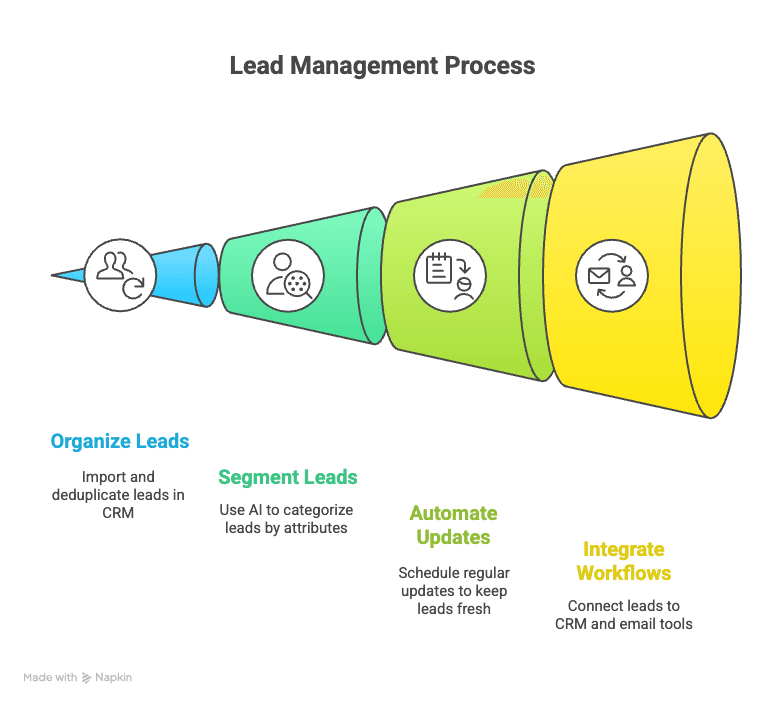
Exporting is just the beginning. Here’s how to make the most of your new leads:
- Organize and Store: Import your leads into your CRM, Google Sheets, or Airtable. Use unique identifiers (like email) to avoid duplicates.
- Segment and Tag: Use Thunderbit’s AI to auto-label leads (e.g., by region, seniority, or industry) for targeted campaigns.
- Integrate with Workflows: Use integrations (Zapier, Make, etc.) to push new leads from Google Sheets into your CRM or email tool automatically.
Best practice: Always track the source of your leads (e.g., “business directory export, July 2026”) so you can measure which channels work best and keep provenance clear.
Troubleshooting and Tips for Smooth Lead Exporting
Even with great tools, hiccups happen. Here’s how to handle common issues:
- Missing Data: If a column is empty, check if the info is actually on the page or hidden behind a click. Use subpage scraping for deeper data.
- Website Changes: If a site updates its layout, re-run “AI Suggest Fields” or check for updated Thunderbit templates.
- Duplicates: Use Excel’s “Remove Duplicates” or set unique fields in Thunderbit to minimize repeats.
- Export Limits: Free plans have limits—upgrade or break large jobs into smaller batches if needed.
- Complex Data: For multi-line addresses or odd formats, export as XLSX (not CSV) to preserve formatting.
And always, always spot-check your exported data before importing into your CRM or launching a campaign. A quick review now saves a lot of headaches later.
Key Takeaways: Export Leads with Confidence
Let’s recap:
- Exporting leads is crucial for fast follow-up, better campaigns, and accurate sales tracking.
- Thunderbit makes exporting leads simple—even for beginners. Its AI-powered Chrome extension handles complex pages, formats data, and exports to all your favorite tools.
- AI enhancements mean cleaner, more actionable data—no more hours spent cleaning up spreadsheets.
- Organize, tag, and integrate your leads for maximum impact.
- Troubleshooting is easy—most issues have quick fixes, and Thunderbit’s support and community are always there to help.
Ready to ditch the copy-paste grind? Install Thunderbit and try exporting leads from your favorite site today. You’ll be amazed how much time (and sanity) you save—and your sales team will thank you.
Export Leads Instantly with Thunderbit
FAQs
1. What does “export leads” actually mean?
Exporting leads means taking contact data (names, emails, phones, etc.) from a website or platform and moving it into a usable format like Excel, Google Sheets, or your CRM—so you can analyze, share, and act on it.
2. Why is exporting leads important for my business?
Fast, organized lead exports enable quicker follow-up, better campaign targeting, and more accurate sales tracking. Teams that respond to leads faster and use structured data see much higher conversion rates.
3. How is Thunderbit different from other lead export tools?
Thunderbit uses AI to automatically detect, structure, and export lead data from any permitted website in just two clicks. It handles complex pages, formats data, and exports directly to Excel, Google Sheets, Airtable, or Notion—no coding required.
4. Can Thunderbit export leads from any website?
Thunderbit works on many permitted websites, business directories, Google Maps-style listings, Yelp pages, PDFs, and images. Always confirm that your source allows the extraction workflow you plan to run.
5. What should I do after exporting my leads?
Import your leads into your CRM or sales tool, segment and tag them for targeted outreach, and set up automated workflows to keep your pipeline fresh. Always review your exported data for accuracy before launching campaigns.
Learn More:
- Lead Extraction Guide: Meaning, Tools, and Tactics
- How to Export Contacts to Excel: Simple and Complete Guide
Try AI Lead Export with Thunderbit Get Started Free