

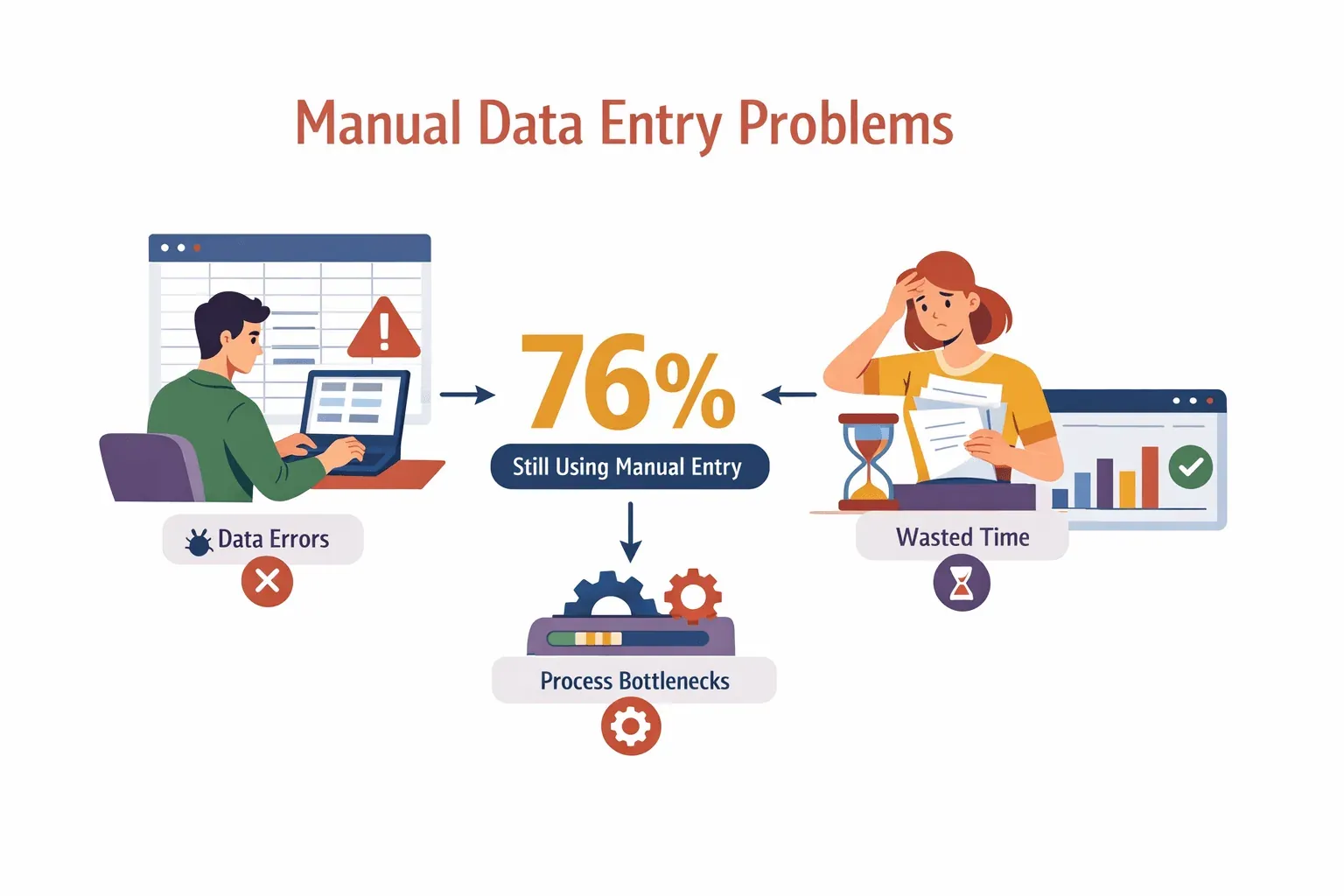
If you’ve ever spent an afternoon copying numbers from invoices into a spreadsheet or wrangling product info from a dozen supplier websites, you know the feeling: data entry can be a soul-crushing time sink. It’s not just tedious—it’s risky, too. Manual entry is notorious for introducing errors, slowing down business processes, and draining team morale. In fact, 76% of businesses say they still rely on manual data entry for critical processes, even though it’s a leading cause of mistakes and wasted hours.
Automate Data Entry with Thunderbit Get Started Free
But here’s the good news: data entry automation is no longer just for tech giants or spreadsheet wizards. With tools like Thunderbit, even small teams can automate the grind, capturing data from emails, PDFs, and websites in just a couple of clicks. As someone who’s spent years in SaaS and automation, I can tell you—this isn’t just a technical upgrade. It’s a strategic shift that’s changing how businesses operate, compete, and grow.
Data Entry Automation: The Shortcut to Escaping Manual Work
At its core, data entry automation is about using software to move data from one place to another—without the mind-numbing copy-paste. Imagine a sales rep pulling hundreds of leads from a directory into their CRM, or an ecommerce manager updating prices from supplier catalogs, all without typing a single line. That’s data entry automation in action.
Manual data entry is a classic productivity killer. It’s repetitive, error-prone, and, let’s be honest, nobody wakes up excited to do it. 32% of sales reps spend an hour or more every day just entering data. That’s time not spent selling, strategizing, or building relationships.
Data entry automation solves these headaches by:
- Capturing data from emails, PDFs, websites, and forms automatically
- Validating and formatting data as it’s collected
- Exporting clean, structured info directly into your business systems
It’s like having a super-fast, never-tired assistant who never makes a typo.
Why Data Entry Automation Matters for Modern Businesses
Why is everyone suddenly talking about automating data entry? Because the business impact is huge. Here’s what automation brings to the table:
- Speed: Automated tools process data in seconds, not hours. That means faster lead follow-up, quicker order processing, and real-time reporting.
- Accuracy: Automation slashes error rates. Manual entry can introduce mistakes in up to 1% of keystrokes, which adds up fast across thousands of records.
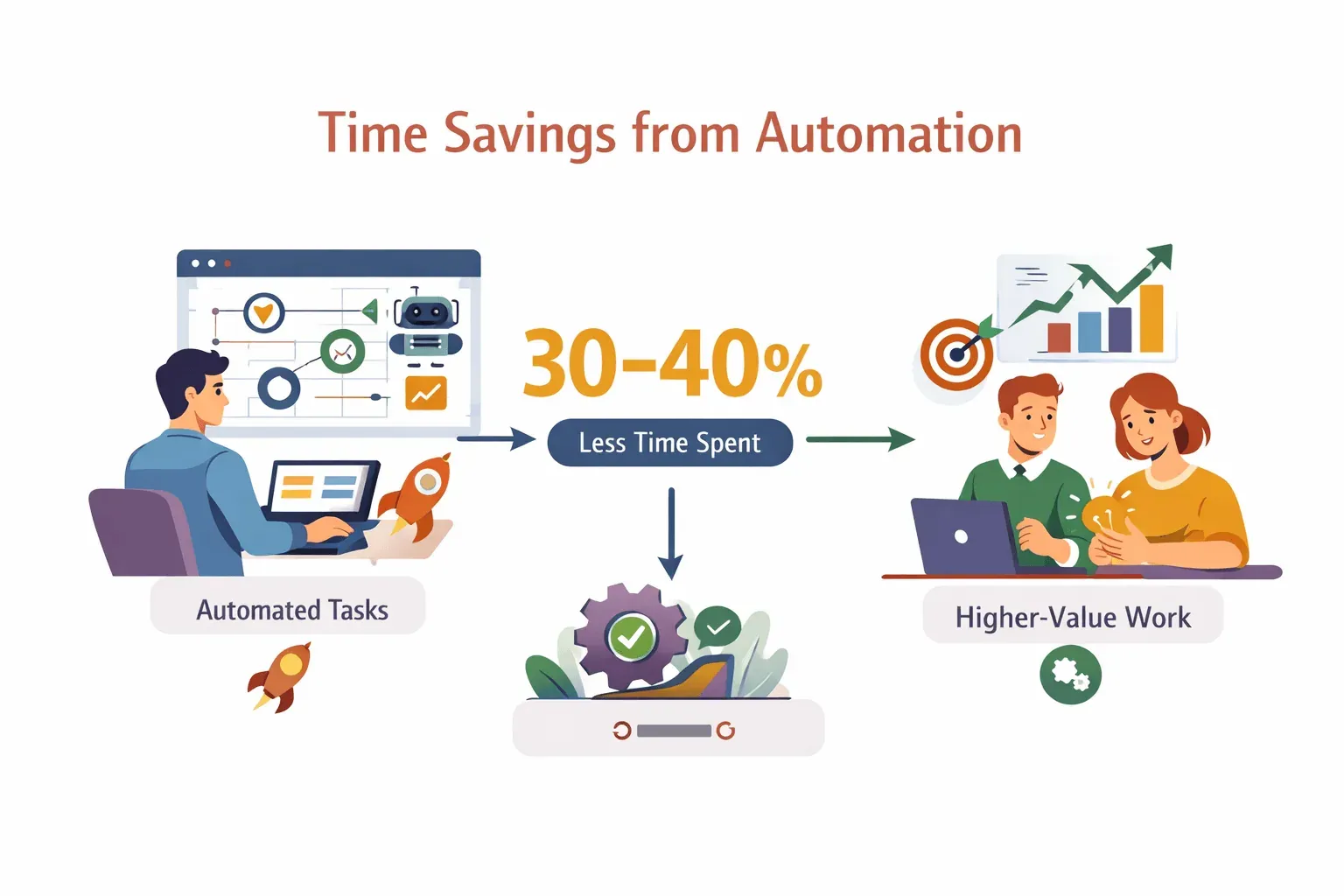
- ROI: Companies that embrace automation see 30–40% time savings on data tasks, freeing teams to focus on higher-value work.
- Employee Satisfaction: Less grunt work means happier, more engaged teams. (And fewer coffee-fueled late nights fixing spreadsheet errors.)
 Let’s break down how different departments benefit:
| Department | Manual Pain Point | Automation Benefit |
|---|---|---|
| Sales | Copying leads into CRM | Instantly capture and sync leads from websites |
| Marketing | Aggregating campaign data | Auto-pull results from multiple platforms |
| Ecommerce | Updating product info/prices | Scrape and update SKUs in bulk |
| Real Estate | Collecting property listings | Gather listings from multiple sites in minutes |
The bottom line: automation isn’t just about saving time—it’s about unlocking new business potential.
Traditional vs. Modern Data Entry Automation: What’s Changed?
Not all automation is created equal. Let’s talk about the evolution:
Traditional Data Entry Automation
Old-school automation relied on:
- Macros: Simple scripts in Excel or Google Sheets to automate repetitive tasks
- Rule-based scripts: Tools like VBA or Python scripts that follow strict, pre-defined rules
These methods work well for structured, repetitive tasks. But they fall apart when:
- Data comes from messy, unstructured sources (think: websites, PDFs, emails)
- The process or data format changes frequently
- Non-technical users need to adapt the workflow
Traditional tools are rigid. If the website layout changes or a new data field appears, you’re back to square one—rewriting scripts or fixing broken macros (heicodersacademy).
Modern Data Entry Automation
Enter AI and natural language processing. Modern automation tools, like Thunderbit, use AI to:
- Understand and extract data from unstructured sources (websites, documents, images)
- Adapt to changes in layout or content automatically
- Let users describe what they want in plain English—no coding required
This shift is a game-changer for fast-moving teams. Need to scrape a new supplier’s website? Just point Thunderbit at the page, click “AI Suggest Fields,” and let the AI do the heavy lifting. No more waiting on IT or learning complex scripting.
How Data Entry Automation Works: From Raw Data to Organized Tables
Let’s break down the typical workflow:
- Data Capture: The tool grabs data from the source—website, PDF, image, or email.
- Processing: AI analyzes the content, identifies key fields, and extracts the relevant info.
- Validation: The system checks for errors, standardizes formats (like phone numbers or dates), and flags inconsistencies.
- Export: Clean, structured data is sent to your spreadsheet, CRM, or project management tool.
With Thunderbit, it’s even simpler:
- Open the Chrome Extension on the page you want to scrape.
- Click “AI Suggest Fields.” Thunderbit’s AI scans the page and recommends columns (like Name, Email, Price).
- Click “Scrape.” The tool extracts the data, handles subpages and pagination, and builds a table.
- Export to Excel, Google Sheets, Airtable, Notion, CSV, or JSON—wherever you need it.
Try Thunderbit Chrome Extension Automate your data entry in 2 clicks. Get Started Free
This two-step process means you can go from raw, messy web data to a clean, export-ready table in less time than it takes to microwave your lunch.
Key Features to Look for in Data Entry Automation Tools
Not all automation tools are created equal. Here’s what matters most:
- AI Field Suggestion: Automatically detect and name data fields—no manual mapping.
- Subpage Scraping: Visit and extract info from linked subpages (like product details or contact profiles).
- Pagination Handling: Scrape data across multiple pages or infinite scrolls.
- Flexible Export Options: Send data directly to Excel, Google Sheets, Airtable, Notion, or download as CSV/JSON.
- Data Validation: Standardize formats, deduplicate entries, and catch errors before they spread.
- Integration: Connect with your existing tools and workflows.
Thunderbit nails these essentials, making it a favorite for teams who want results without the setup headaches.
Thunderbit: Redefining Data Entry Automation for Every Team
Let’s talk specifics. Thunderbit is an AI-powered Chrome Extension built for business users—no coding required. Here’s how it stands out:
- Two-Click Simplicity: Click “AI Suggest Fields,” then “Scrape.” That’s it. The AI reads the page, figures out what’s important, and pulls it into a structured table.
- Handles Complex Tasks: Need to grab data from subpages, handle pagination, or extract info from PDFs and images? Thunderbit’s AI adapts on the fly.
- Flexible Export: Push your data straight to Excel, Google Sheets, Airtable, Notion, or download in your favorite format.
- No Maintenance: Because Thunderbit uses AI, it adapts to website changes automatically. No more broken scripts or endless template tweaking.
- Loved by Users: Thunderbit is trusted by over 30,000 users worldwide, with glowing reviews for its ease of use and accuracy (Trustpilot).
I’ve seen everyone from solo entrepreneurs to large sales teams use Thunderbit to turn hours of manual work into a five-minute task. And yes, I’ve had more than one user tell me it saved their weekend.
Maximizing Business Value: Department-Specific Use Cases
Let’s get practical. Here’s how different teams are using data entry automation to level up:
Sales: Supercharging Lead Generation
Sales teams live and die by their lead lists. But copying names, emails, and phone numbers from directories or websites? That’s a productivity killer. With Thunderbit, sales reps can:
- Scrape hundreds of leads from a directory or LinkedIn in minutes
- Export directly to their CRM or spreadsheet
- Reduce manual errors and speed up outreach
No more “Sorry, wrong number” or “Oops, that email bounced.”
Ecommerce: Streamlining Product and Price Monitoring
Ecommerce teams need to keep tabs on competitors’ prices, stock levels, and product details. Manual checking is impossible at scale. Automation lets them:
- Scrape SKUs, prices, and stock info from competitor sites
- Schedule regular updates for real-time market intelligence
- Optimize pricing and inventory strategies (PromptCloud)
Real Estate: Accelerating Property Data Collection
Real estate agents juggle listings from dozens of platforms. Data entry automation helps them:
- Aggregate property details and contact info from multiple sites
- Quickly analyze market trends and new opportunities
- Spend less time on data, more on closing deals (ScrapeHero)
Integration and Export: Making Data Entry Automation Work with Your Tools
Automation is only as good as its ability to fit into your workflow. Thunderbit makes this easy:
- Direct Export: Send data to Excel, Google Sheets, Airtable, or Notion in one click.
- CSV/JSON Download: Perfect for importing into CRMs, databases, or analytics tools.
- API and Integrations: For power users, Thunderbit offers API access for advanced workflows.
No more copy-paste marathons. Just clean data, right where you need it.
Overcoming Challenges: Security, Data Quality, and Standardization
Of course, automation isn’t without its challenges. Here’s how to tackle the big ones:
- Data Privacy & Security: Only scrape public data and respect privacy laws. Thunderbit supports browser-based scraping for sensitive sites, ensuring your credentials stay secure (Thunderbit Blog).
- Data Quality: Use tools with built-in validation and deduplication. Thunderbit’s AI standardizes formats and flags inconsistencies as it scrapes.
- Standardization: Define clear field names and types. Thunderbit’s “AI Suggest Fields” helps you create consistent, structured tables—even from messy sources.
When choosing an automation tool, look for transparency on security, compliance, and data handling. It’s not just about speed—it’s about trust.
Key Takeaways: The Future of Data Entry Automation
Let’s recap:
- Manual data entry is a major bottleneck—costing time, money, and accuracy.
- Data entry automation delivers speed, accuracy, and ROI across every department.
- Modern AI-powered tools like Thunderbit make automation accessible to everyone, not just IT or data teams.
- Integration and security matter: Choose tools that fit your workflow and protect your data.
- The future is flexible: As business needs change, AI-driven automation adapts—no more rigid scripts or endless template tweaks.
If you’re still spending hours on manual data entry, it’s time to rethink your workflow. With Thunderbit’s free Chrome Extension, you can try data entry automation for yourself—no credit card, no coding, just results.
Want to dive deeper? Check out the Thunderbit Blog for more guides on web scraping, automation, and making your business data work for you.
FAQs
1. What is data entry automation, and how does it work?
Data entry automation uses software to capture, process, and export data from sources like websites, emails, and PDFs—without manual typing. Tools like Thunderbit use AI to identify and extract key fields, validate the data, and export it to your preferred format.
2. How does data entry automation benefit my business?
Automation speeds up processes, reduces errors, and frees up your team for higher-value work. It’s especially useful for sales lead capture, product monitoring, and aggregating information from multiple sources.
3. What’s the difference between traditional and modern data entry automation?
Traditional automation relies on rigid scripts and macros, which break easily and require technical skills. Modern tools use AI and natural language processing to adapt to changing data and let non-technical users automate complex tasks.
4. Is data entry automation secure and compliant?
Yes, when done responsibly. Use tools that respect privacy laws, support browser-based scraping for sensitive data, and offer data validation. Thunderbit is designed with security and compliance in mind.
5. How can I get started with data entry automation?
Start by identifying your most repetitive data entry tasks. Try a tool like Thunderbit for free, automate a small workflow, and measure the time and error reduction. Scale up as you see results and integrate with your existing business systems.
Learn More
- AI for Data Entry: Top 10 Tools That Automate Manual Work
- How to Implement an Automated Data Entry System Effectively
- Understanding the Benefits of Data Automation for Businesses
- What Are Form Bots? Exploring Automated Data Entry Solutions
- Automating Forms: The Complete Guide to Smarter Processing
Start Automating Data Entry with Thunderbit Get Started Free




