

Let me tell you, few things in digital life are as oddly satisfying as seeing a neat, complete list of every single page on a website—like finally finding all the socks after laundry day. But if you’ve ever tried to get website pages for a content audit, migration, or just to see what’s lurking in the digital basement, you know it’s rarely as simple as it sounds. I’ve seen teams spend hours (or days) cobbling together lists from sitemaps, Google searches, and CMS exports, only to realize they’re still missing hidden or dynamic pages. And don’t even get me started on the time I tried to help a friend export all their WordPress URLs—let’s just say there was a lot of coffee and a little bit of existential dread involved.
The good news? You don’t have to keep playing digital hide-and-seek with your own website. In this guide, I’ll walk you through every major method to find website URLs—old-school and new-school—including a look at how AI-powered tools like Thunderbit can make this process dramatically faster, more complete, and (dare I say) actually enjoyable. Whether you’re a marketer, developer, or just the unlucky soul tasked with “getting all the URLs,” you’ll find practical steps, real-world examples, and honest comparisons to help you pick the best approach for your team.
Why You Might Need to Get Website Pages: Real-World Use Cases
Before we dive into the how, let’s talk about the why. Why do so many teams need to find website URLs, anyway? Turns out, it’s not just an SEO thing—this is a recurring need for marketing, sales, IT, and operations. Here are some of the most common scenarios:
- SEO Content Audits & Strategy: Content audits are now routine, with 61% of marketers conducting audits at least twice a year. A full list of URLs is the foundation for evaluating performance, updating old content, and boosting rankings. In fact, 49% of marketers saw improved traffic after updating old content.
- Website Redesigns & Migrations: 68% of marketers believe a website should be redesigned every 1–3 years), and every migration requires mapping current URLs to avoid broken links and lost SEO.
- Compliance and Maintenance: Operations teams need to find orphan or outdated pages—sometimes old campaign microsites that are still live, just waiting to embarrass someone.
- Competitor Analysis: Sales and marketing teams scrape competitor sites to list product pages, pricing, or blog posts, looking for gaps or leads.
- Lead Generation & Outreach: Sales teams often need to compile lists of store locators, dealer directories, or member pages for outreach.
- Content Inventory: Content marketers keep a running list of all blog posts, landing pages, PDFs, and more to avoid duplication and maximize value.
Here’s a quick table that sums up the scenarios:
| Scenario | Who Needs It | Why a Complete Page List Matters |
|---|---|---|
| SEO Audit / Content Audit | SEO specialists, Content marketers | Evaluate every piece of content; missing pages = incomplete analysis, missed optimization opportunities |
| Website Migration/Redesign | Web developers, SEO, IT, Marketing | Map old to new URLs, set up redirects, prevent broken links and SEO loss |
| Competitor Analysis | Marketing, Sales | See all competitor pages for insights; hidden pages can reveal opportunities |
| Lead Generation | Sales teams | Gather contact/resource pages for outreach; ensures no potential lead is missed |
| Content Inventory | Content marketing | Maintain an up-to-date repository, identify gaps, avoid duplication, and review old pages |
And the impact of missing or hidden pages? It’s real. Imagine planning a redesign and forgetting a hidden landing page that’s still converting, or running an audit and missing 5% of your pages because they’re not indexed. That’s lost revenue, SEO penalties, and sometimes a PR headache you didn’t see coming.
Common Ways to Find Website URLs: Traditional Methods Explained
Alright, let’s get into the nitty-gritty: how do people actually get website pages? There are a handful of tried-and-true methods—some are quick and dirty, others are more thorough (and sometimes, more painful). Here’s how they stack up:
Google Search and Search Operators
How it works:
Pop open Google and type site:yourwebsite.com. Google will show you all the pages it has indexed for that domain. You can refine with keywords or subdirectories (e.g., site:yourwebsite.com/blog).
What you get:
A list of indexed pages—basically, what Google knows about your site.
Limitations:
- Only shows what’s indexed, not everything that exists
- Google’s own reps say the “site:” operator only shows some indexed pages, not all
- Typically stops after a few hundred results, even for large sites
- Misses new, hidden, or intentionally unindexed pages
When to use:
Great for a quick look or small sites, but not for a comprehensive audit.
Checking robots.txt and Sitemap.xml
How it works:
Visit yourwebsite.com/robots.txt and look for “Sitemap:” lines. Open the sitemap (usually yourwebsite.com/sitemap.xml or /sitemap_index.xml). Sitemaps list URLs the site owner wants indexed.
What you get:
A list of key pages—often all blog posts, product pages, etc. About 80% of websites have a sitemap.
Limitations:
- Sitemaps only include pages the owner wants indexed—hidden or orphan pages are often missing
- Sitemaps can be outdated if not regenerated
- Some sites have multiple sitemaps; you might need to hunt for them
When to use:
Perfect if you own the site or want a quick look at a competitor’s main pages. But remember, you’re seeing what the site owner wants you to see.
SEO Spider Tools and Website Crawlers
How it works:
Tools like Screaming Frog, Sitebulb, or DeepCrawl simulate a search engine crawler. Enter your site’s URL, and the tool follows all internal links, building a list of found pages.
What you get:
Potentially every page that’s linked on the site, plus data like status codes and meta tags.
Limitations:
- Orphan pages (not linked anywhere) are missed unless you feed them in manually
- Dynamic or JavaScript-generated pages may be missed unless the tool supports headless browsing
- Crawling large sites can take a long time and eat up your computer’s memory
- Requires technical setup and know-how
When to use:
Ideal for SEO pros or developers doing deep audits. Not so friendly for non-technical users.
Google Search Console and Analytics
How it works:
If you have site access, Google Search Console (GSC) and Analytics can export lists of URLs.
- GSC: Index Coverage and Performance reports show indexed and excluded URLs (up to 1,000 per export, more via API).
- Analytics: Shows all pages that received traffic during a chosen time frame (GA4 allows up to 100,000 rows per export).
Limitations:
- GSC and Analytics only show pages Google knows about or that have received traffic
- Export limits (1,000 rows for GSC, 100k for GA4)
- Requires site ownership/verification; not usable for competitor research
- Pages with zero traffic or not indexed won’t appear
When to use:
Great for your own site, especially before a migration or audit. Not suitable for competitor analysis.
CMS Dashboards
How it works:
If your site runs on WordPress, Shopify, or another CMS, you can often export a list of pages and posts directly from the admin dashboard (sometimes with a plugin).
What you get:
A list of all content entries—pages, posts, products, etc.
Limitations:
- Requires admin access
- May not include non-content or dynamic pages
- If your site uses multiple systems (blog, shop, docs), you’ll need to combine exports
When to use:
Best for site owners doing a content inventory or backup. Not helpful for competitor research.
The Limitations of Traditional Methods to Get Website Pages
Let’s be real: none of these methods are perfect. Here’s a quick rundown of the main gaps:
- Technical Complexity: Many methods require technical skills or specialized tools. For non-technical team members, this can be a real barrier. A manual content audit can take weeks or even months on a large site.
- Incomplete Coverage: Each method can miss certain pages—Google’s index misses unindexed or new pages, sitemaps miss orphans, crawlers miss unlinked or dynamic pages, CMS exports miss anything outside the system.
- Manual Effort and Time: Often, you have to combine data from multiple sources, deduplicate, and clean up—tedious and error-prone. People have even shared “hacks” like copy-pasting from sitemaps into Excel or using command-line scripts.
- Maintenance and Freshness: Lists go out of date quickly. Traditional methods require re-running the process every time the site changes.
- Access and Permissions: Some methods require admin access or site ownership—no good for competitor research.
- Data Overload: SEO spiders can drown you in technical data when all you want is a simple URL list.
In short, the traditional process is like “trying to bake a cake while the recipe keeps changing and the oven occasionally locks you out.” (Yes, that’s a real analogy from a content strategist—and I’ve felt it.)
Meet Thunderbit: The AI-Powered Way to Find Website URLs
Scrape all website URLs with Thunderbit AI Get Started Free
Now for the fun part. What if you could just ask an assistant to “go through that website and list all the pages for me,” and it actually did it—no code, no fuss? That’s what Thunderbit is all about.
Thunderbit is an AI web scraper Chrome extension designed for non-technical users (but powerful enough for pros). It uses AI to “read” websites, structure the data, and export all website URLs—including hidden, dynamic, and subpage content. You don’t have to write code or mess with complicated settings. Just open the site, click “AI Suggest Fields,” and let Thunderbit do the heavy lifting.
Why Thunderbit stands out:
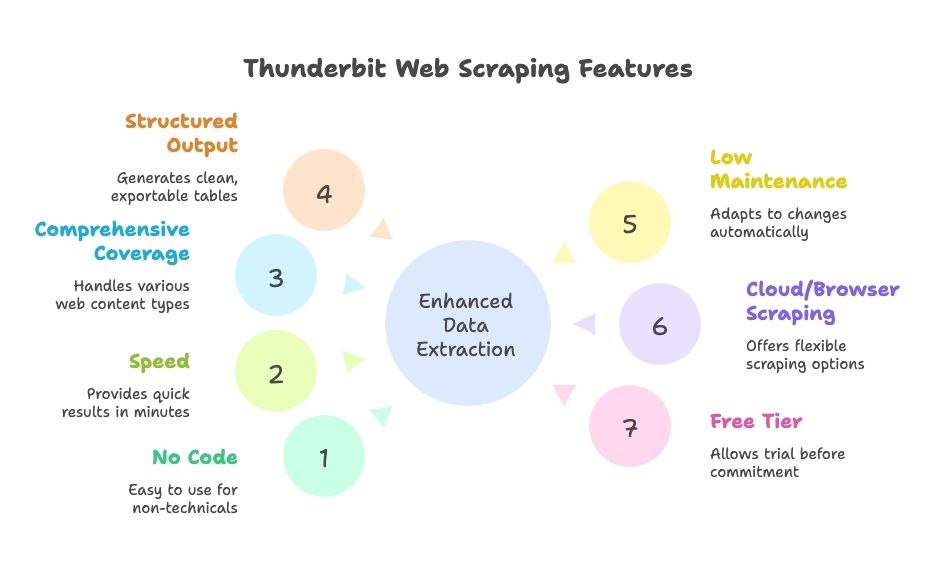
- No coding or setup: Natural language interface, guided by AI. Anyone on the team can use it.
- Speed: Get results in minutes, not hours.
- Comprehensive coverage: Handles dynamic content, pagination, infinite scroll, and subpages.
- Structured output: Clean tables, ready to export to Google Sheets, Excel, Airtable, Notion, CSV, or JSON.
- Low maintenance: AI adapts to site changes automatically; less tweaking required.
- Cloud or browser scraping: Choose what works best for your workflow.
- Free tier available: Try it out before committing.
How Thunderbit Makes Getting Website Pages Simple
Let’s walk through how Thunderbit works in practice. I’ll show you how to go from “I need a list of all my website pages” to “here’s a spreadsheet, boss” in just a few clicks.
Step 1: Install and Launch Thunderbit
Download the Thunderbit Chrome Extension and pin it to your browser. Navigate to the website you want to scrape (e.g., your homepage) and click the Thunderbit icon to open the interface.
Pro tip: Thunderbit offers free credits for new users, so you can test-drive it without pulling out your credit card.
Try Thunderbit Free on Your Website
Step 2: Choose Your Data Source
Thunderbit defaults to scraping the current page, but you can also input a list of URLs (like a sitemap or category pages) if you want to start from a specific section.
- For most sites, start with the homepage or a sitemap page.
- For e-commerce, maybe start with a category or product listing page.
Step 3: Use “AI Suggest Fields” to Detect URLs
Here’s where the AI magic happens. Click “AI Suggest Fields” (or “AI Suggest Columns”). Thunderbit’s AI scans the page, recognizes patterns, and suggests columns like “Page Title” and “Page URL” for all the links it finds. You can adjust these columns as needed.
- On a homepage, you might get navigation, footer, and featured links.
- On a sitemap, you’ll get a clean list of URLs.
- You can add or remove columns, or refine what you want to extract.
Thunderbit’s AI is doing the hard work—no need to write XPaths or CSS selectors. It’s like having a robot intern who actually understands what you want.
Step 4: Enable Subpage Scraping
Most sites don’t list every page on the homepage. That’s where Thunderbit’s Subpage Scraping comes in. Mark the URL column as a “follow” link, and Thunderbit will click through each link it finds, scraping more URLs from those pages. You can even set up nested templates for multi-level scraping.
- For paginated lists or “load more” buttons, enable Pagination & Scrolling so Thunderbit keeps going until it’s found everything.
- For sites with subdomains or sections (like a blog on blog.example.com), Thunderbit can follow those too if you direct it.
Step 5: Run the Scrape
Click “Scrape” and watch Thunderbit go. It’ll fill a table with URLs (and any other fields you chose) in real-time. For larger sites, you can let it run in the background and come back when it’s done.
Step 6: Review and Export
Once finished, review the results—Thunderbit lets you sort, filter, and remove duplicates right in the app. Then export your data in one click to Google Sheets, Excel, CSV, Airtable, Notion, or JSON. No more copy-pasting or messy formatting.
The whole process? For a small-to-medium site, you can go from zero to a full URL list in under 10 minutes. For larger sites, it’s still dramatically faster (and less stressful) than piecing together data from multiple sources.
Discovering Hidden and Dynamic Pages with Thunderbit
One of my favorite features of Thunderbit is how it handles pages that traditional tools often miss:
- JavaScript-Rendered Content: Because Thunderbit runs in a real browser, it can capture pages that load dynamically (like infinite scroll job boards or product listings).
- Orphan or Unlinked Pages: If you have a hint (like a sitemap or a search function), Thunderbit can use it to find pages that aren’t linked anywhere else.
- Subdomains or Sections: Thunderbit can follow links across subdomains if needed, giving you a complete picture of your site.
- User-like Interaction: Need to fill out a search box or click a filter to reveal hidden pages? Thunderbit’s AI Autofill can handle that too.
Real-world example: A marketing team needed to find all their old landing pages—many weren’t linked anywhere but still existed. By scraping Google search results with Thunderbit and feeding in known URL patterns, they uncovered dozens of forgotten pages, saving the company from potential confusion (and a few headaches).
Comparing Thunderbit vs. Traditional Methods: Speed, Simplicity, and Coverage
Let’s put Thunderbit head-to-head with the traditional methods:
| Aspect | Google “site:” Search | XML Sitemap | SEO Crawler (Screaming Frog) | Google Search Console | CMS Export | Thunderbit AI Scraper |
|---|---|---|---|---|---|---|
| Speed | Very quick, but limited | Instant if available | Varies (minutes to hours) | Quick for small sites | Instant for small sites | Fast, config in minutes, automated scraping |
| Ease of Use | Very easy | Easy | Moderate (needs setup) | Moderate | Easy (if admin) | Very easy, no coding |
| Coverage | Low (only indexed) | High for intended pages | High for linked pages | High for indexed, limited export | Medium (content only) | Very high, handles dynamic & subpages |
| Output & Integration | Manual copy-paste | XML (needs parsing) | CSV with lots of extra data | CSV/Excel, up to 1,000 rows | CSV/XML, may need cleanup | Clean table, 1-click export to Sheets, Excel, etc. |
| Maintenance | Manual re-run | Needs updating | Re-crawl as site changes | Periodic export | Export after changes | Low—AI adapts, can schedule scraping |
Thunderbit excels in ease of use, completeness, and integration. Traditional methods each have their strengths, but they require more effort to combine results and keep them up to date. Thunderbit’s AI adapts to site changes, so you’re not constantly tweaking settings or re-running manual exports.
Choosing the Right Approach: Who Should Use Which Method?
How to Scrape Any Website Using AI Get Started Free
So, which method is best for you? Here’s my take, based on years of helping teams wrangle their website data:
- SEO Pros / Developers: If you need deep technical data (meta tags, broken links, etc.), or you’re auditing a massive enterprise site, a crawler or custom script might still make sense. But even then, Thunderbit can get you a fast URL list to feed into your other tools.
- Marketers, Content Strategists, Project Managers: Thunderbit is a lifesaver. No more waiting for IT to run a script or combine exports. If you need a content inventory, competitor analysis, or quick audit, Thunderbit lets you self-serve.
- Sales Teams / Lead Gen: Thunderbit makes it easy to pull lists of store locations, event pages, or member directories from any site—no coding required.
- Small Websites / Quick Tasks: For tiny sites, a manual check or sitemap might be enough. But Thunderbit’s setup is so quick, it’s often worth using anyway to avoid missing anything.
- Budget Considerations: Traditional methods are low-cost (aside from your time). Thunderbit has a free tier, and paid plans are affordable for most businesses. Remember: your time is valuable!
- Highly Custom Data Needs: If you need very specific data or complex logic, coding your own scraper might be necessary. But Thunderbit’s AI can handle most use cases with minimal setup.
Decision tips:
- If you have site ownership less than 1,000 pages, try Google Search Console export—but double-check completeness.
- If you don’t have site access or need competitor data, Thunderbit or a crawler is your friend.
- If you value your time and want a solution that scales, Thunderbit is hard to beat.
- For team collaboration, Thunderbit’s direct export to Google Sheets is a big plus.
Many organizations use a hybrid approach: Thunderbit for quick-turnaround tasks and enabling non-tech team members, traditional tools for deep audits.
Key Takeaways: Getting Website Pages for Every Business Need
Let’s wrap it up:
- Having a complete list of your website’s pages is crucial for SEO, content strategy, migrations, and sales research. It prevents surprises, broken links, and lost opportunities. Most marketers now conduct content audits at least annually (source).
- Traditional methods exist, but each has gaps. No single approach guarantees a full, up-to-date list. They often require technical skills and combining multiple outputs.
- AI-powered scraping (Thunderbit) offers a modern solution. Thunderbit uses AI to do the “heavy thinking” and clicking, making web scraping accessible to everyone. It handles dynamic content, subpages, and exports data in a ready-to-use format—saving time and reducing errors. In head-to-head comparisons, Thunderbit often accomplishes in minutes what used to take hours, with little to no learning curve (see more).
- Match the method to your needs and team. Use every tool in the toolbox for massive sites, but for most business users, Thunderbit alone is likely your best bet.
- Keep it updated. Regular audits mean you’ll catch issues early and keep your website lean and effective. Thunderbit’s scheduling makes this feasible, while manual processes often get skipped due to the effort involved.
Final thought: No more excuses for not knowing what’s on your own website (or your competitor’s). With the right approach, you can get a comprehensive list of all pages and use that knowledge to improve SEO, user experience, and business strategy. Work smarter, not harder—let AI do the heavy lifting, and make sure no page is left behind.
Next Steps
If you’re ready to stop dreading the “get me all the URLs” task, download Thunderbit and try it on your site or a competitor’s. You’ll be amazed at how much time (and sanity) you save. And if you want to dig deeper into web scraping, check out our other guides on the Thunderbit Blog, like How to Scrape Any Website Using AI or 6 Web Scraping Tools I Actually Use: Honest Comparison (2026).
Learn How to Scrape Any Website Using AI
FAQs
1. Why would I need to get a list of all the pages on a website?
Teams across SEO, marketing, sales, and IT often need full website URL lists for tasks like content audits, website migrations, lead generation, and competitor analysis. Having a complete and accurate list helps avoid broken links, ensures content isn't duplicated or forgotten, and surfaces hidden opportunities.
2. What are the traditional ways to find all website URLs?
Common methods include using Google’s site: search, checking sitemap.xml and robots.txt files, crawling with SEO tools like Screaming Frog, exporting data from CMS platforms like WordPress, and pulling indexed/traffic pages from Google Search Console and Analytics. However, each method has limitations in coverage and usability.
3. What are the limitations of traditional URL-finding methods?
Traditional methods often miss dynamic, orphaned, or unindexed pages. They can require technical knowledge, take hours to combine and clean, and typically don’t scale well for large sites or repeat audits. You may also need site ownership or admin access, which isn’t always possible.
4. How does Thunderbit simplify the process of finding all website pages?
Thunderbit is an AI-powered web scraper that scans websites like a human would—clicking through subpages, handling JavaScript, and structuring data automatically. It requires no coding, works via a Chrome extension, and can export clean URL lists to Google Sheets, Excel, CSV, and more in just a few minutes.
5. Who should use Thunderbit vs. traditional tools?
Thunderbit is ideal for marketers, content strategists, sales teams, and non-technical users who want fast, complete URL lists without hassle. Traditional tools are better for technical audits that require deep metadata or custom scripting. Many teams use both—Thunderbit for speed and ease, and traditional tools for in-depth analysis.
Try Thunderbit AI Web Scraper for Free Get Started Free




