

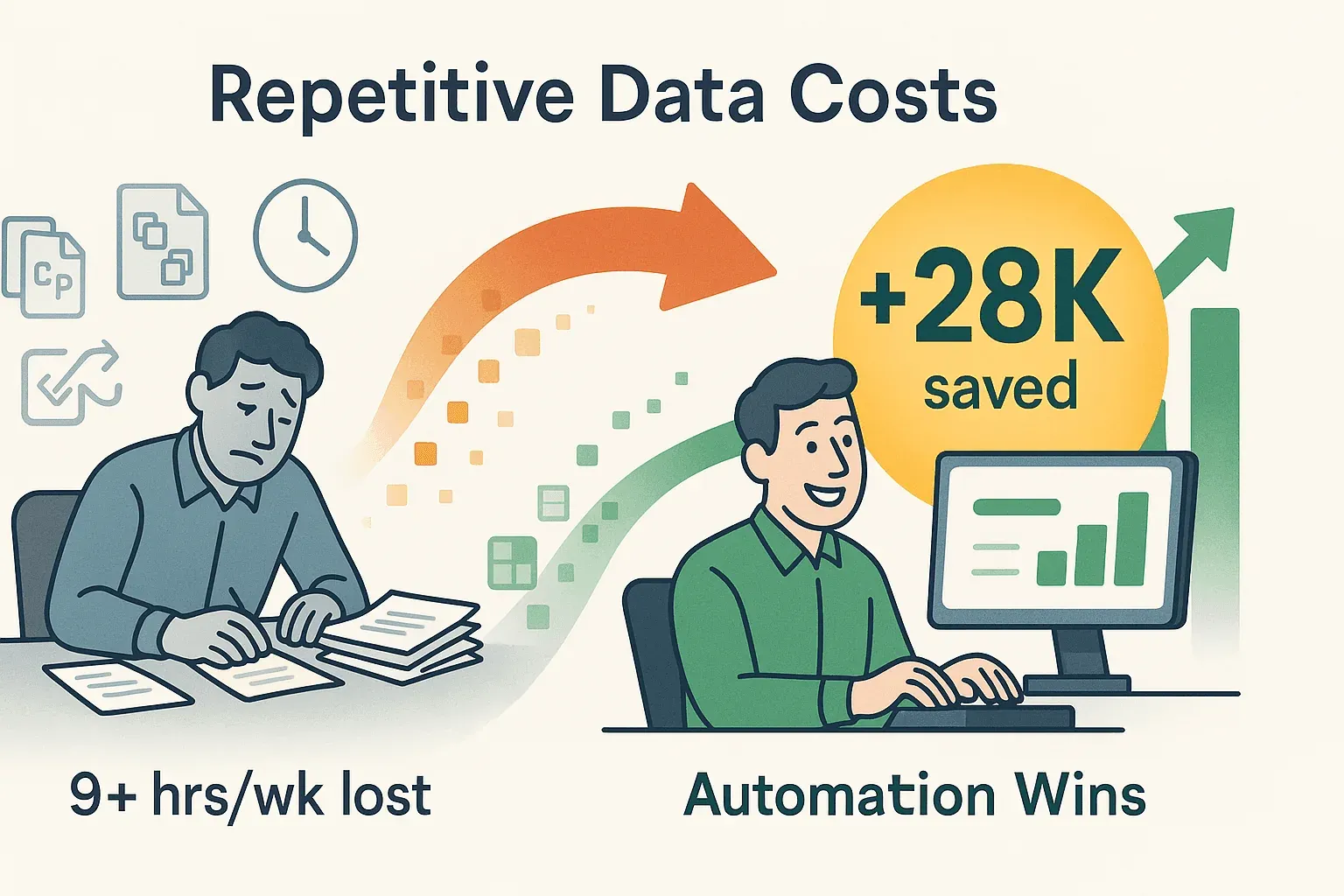
If you’ve ever spent your afternoon copying and pasting data from a website into Excel, you know the feeling: the clock ticks, your coffee gets cold, and somehow you’re still only halfway through that endless list of product SKUs or sales leads. It’s not just tedious—it’s expensive. Recent research shows that office workers spend an average of 1.5 hours per week on repetitive data tasks, and in data-heavy roles, that number can balloon to 9+ hours weekly. That’s more than $28,000 per employee per year in lost productivity. And let’s be honest—no one’s winning “Employee of the Month” for their copy-paste skills.
So why do we keep doing it? Because getting web data into Excel is mission-critical for sales, operations, ecommerce, and real estate teams. But the old ways—manual entry, clunky plugins, or fragile scripts—just don’t cut it anymore. That’s why I’m excited to walk you through smarter, faster, and frankly more enjoyable ways to convert web pages to Excel, with a special focus on how Thunderbit makes the process a breeze for everyone (yes, even if you think “AI” stands for “Absolutely Intimidating”).
What Does It Mean to Convert Web Page to Excel?
Let’s break it down: converting a web page to Excel means extracting information from a website and organizing it into a spreadsheet. In the real world, that might look like:
- Pulling a list of leads (names, emails, phone numbers) from an online directory
- Compiling product names, prices, and ratings from a competitor’s ecommerce site
- Aggregating property listings—addresses, prices, features—from a real estate portal
- Collecting research data, like government stats or social media metrics, for analysis
The challenge? Most web content is unstructured—it’s designed for humans, not spreadsheets. You can’t just copy and paste a product page into Excel and expect a neat table. The magic happens when you transform that messy web info into structured data: rows and columns you can sort, filter, and analyze.
Structured data is organized (think: a table with columns like “Product Name,” “Price,” “Rating”). Unstructured data is everything else—blocks of text, images, or mixed content. The goal is to bridge that gap and get clean, usable data into Excel, where business happens.
Why Converting Web Page to Excel Matters for Business Teams
How to Scrape Website Data into Excel using AI Get Started Free
Let’s get real: time is money, and accuracy is everything. Here’s why converting web pages to Excel is a game plan for winning in business:
- Faster analysis: Automated extraction means less time wrangling data, more time making decisions.
- Easier reporting: Once in Excel, you can pivot, chart, and share data with your team in seconds.
- Improved accuracy: Scraping directly from the source avoids typos and missed details.
- Automation: Set it and forget it—let your tools do the heavy lifting.
Here’s how different teams use web-to-Excel conversion:
| Team | Use Case Example | Benefit |
|---|---|---|
| Sales | Lead list extraction from directories | Faster outreach, richer CRM data |
| Ecommerce | Competitor price and SKU monitoring | Dynamic pricing, inventory insights |
| Operations | Supplier/product data aggregation | Streamlined procurement, fewer errors |
| Real Estate | Property listing aggregation from multiple portals | Market analysis, faster client response |
| Research/Analytics | Public data, reviews, or social metrics | Trend spotting, actionable insights |
The ROI is real: one automated script can process over 12,000 records in a week, saving hundreds of hours and letting teams focus on what actually moves the needle.

Comparing All Methods to Convert Web Page to Excel
There’s more than one way to turn a web page into an Excel file. Let’s compare the major approaches:
| Method | Ease of Use | Best For | Limitations |
|---|---|---|---|
| Manual Copy-Paste | Very High | Tiny, one-off tasks | Error-prone, slow, formatting issues, no automation |
| Excel Web Query/Google IMPORTHTML | Moderate | Simple, static tables | Breaks on dynamic/login sites, limited to basic structures |
| Browser Extensions/Online Tools | High | Medium-scale, repeatable tasks | May struggle with complex layouts, privacy considerations |
| Programming (Python/VBA) | Low (needs coding) | Custom, large-scale workflows | Steep learning curve, ongoing maintenance |
| AI Web Scrapers (Thunderbit) | Very High | Most business scenarios | Needs browser/internet, usage limits on free plans |
Let’s dig into each one.
Manual Copy-Paste: When Does It Work?
Sometimes, old school is fine. If you need to grab a single, small table from a static web page, copy-paste can work. But beware:
- Formatting often breaks (everything ends up in one column, or you get weird HTML artifacts)
- You might lose hidden data or misinterpret dates/numbers
- It’s painfully slow for anything more than a handful of rows
If you must use copy-paste, try Excel’s “Text to Columns” or paste into Notepad first to strip out formatting. But for anything real, you’ll want a better tool (webscrapingapi.com).
Excel Web Queries and Google Sheets IMPORTHTML
Excel’s “From Web” feature and Google Sheets’ IMPORTHTML function are handy for pulling in simple, public tables.
- Excel Web Query: Go to Data > Get Data > From Web, paste a URL, and Excel tries to detect tables. Great for Wikipedia stats or other static tables.
- Google Sheets IMPORTHTML: Use
=IMPORTHTML("URL", "table", 1)to pull the first table from a page.
Limitations:
- Doesn’t work with dynamic content (JavaScript, infinite scroll)
- Can’t handle login-protected data
- Size limits (Google Sheets may truncate large tables)
- Breaks if the website structure changes (netnut.io)
Handy for quick jobs, but not reliable for anything complex or recurring.
Browser Extensions and Online Tools
This is where things get interesting for non-coders. Chrome extensions like Instant Data Scraper, Data Miner, or Thunderbit let you point, click, and extract data—no code required.
- Pros: Quick setup, handles moderate complexity, supports export to Excel/CSV/Google Sheets
- Cons: Some tools struggle with very dynamic or nested data, and privacy is a consideration (be mindful of what data goes through third-party servers)
For most business users, these tools are a huge upgrade over manual methods (Thunderbit Blog).
Programming Solutions: Python, VBA, and Beyond
If you love code (or have a developer handy), Python (with BeautifulSoup, Selenium, Pandas) or Excel VBA can automate just about anything.
- Pros: Maximum flexibility, can handle any workflow, integrates with other systems
- Cons: Requires technical skills, scripts break when websites change, ongoing maintenance headaches
For most teams, this is overkill—unless you’re building a custom, mission-critical pipeline.
Why Thunderbit Is the Easiest Way to Convert Web Page to Excel
Try Thunderbit Chrome Extension Get Started Free
Let’s talk about the fun part. Thunderbit is an AI-powered web scraper Chrome Extension built for business users—no coding, no templates, no drama. Here’s why it stands out:
- AI “Suggest Fields”: Click one button, and Thunderbit’s AI scans the page, suggests column names, and sets up your extraction template.
- 2-Click Workflow: 1) Click “AI Suggest Fields.” 2) Click “Scrape.” Done. Even my mom can do it (and she still calls me for printer issues).
- Handles Complex Pages: Whether it’s a long-tail niche site or a dynamic ecommerce page, Thunderbit’s AI reads the structure and extracts what matters.
- Subpage & Pagination Scraping: Need to collect data across multiple pages or drill into detail pages? Thunderbit automates it—no manual setup.
- Scheduled Scraping: Set up recurring jobs (e.g., “every Monday at 9am”), and Thunderbit will fetch fresh data and export to Excel or Google Sheets automatically.
- AI Improve Fields: Clean, format, categorize, or translate data as you scrape—no more post-extraction cleanup.
- Multi-language & Flexible Export: Supports 34 languages and exports to Excel, Google Sheets, CSV, JSON, Airtable, and Notion.
Thunderbit is like having an AI-powered intern who never gets tired, never makes mistakes, and never asks for a raise (Thunderbit Blog).
Try Thunderbit for Web-to-Excel
Step-by-Step: How to Convert Web Page to Excel with Thunderbit
Ready to see it in action? Here’s how you can go from web page to Excel in minutes:
-
Install Thunderbit Chrome Extension
Head to the Chrome Web Store and add Thunderbit. It’s free to try (scrape up to 6 pages, or 10 with a trial boost). -
Navigate to the Target Web Page
Open the website with the data you want. For example, a product listing or a directory page. -
Click “AI Suggest Fields”
Open the Thunderbit extension and hit “AI Suggest Fields.” The AI scans the page and suggests columns (like Name, Price, Email, etc.). -
Review and Adjust Fields
Tweak the suggested columns if needed. Add or remove fields, or use “AI Improve Fields” to clean or format data on the fly. -
Click “Scrape”
Thunderbit extracts the data, handling pagination or infinite scroll if enabled. -
Export to Excel (or Google Sheets, Airtable, Notion, CSV, JSON)
Click “Export” and choose your format. For Excel, you’ll get a clean .xlsx file—ready to analyze, share, or upload.
For a visual walkthrough, check out the Thunderbit Docs.
Using Subpage and Pagination Scraping for Large Data Sets
Let’s say you’re scraping a list of products, and each product links to a detail page with more info. Thunderbit’s Subpage Scraping lets you:
- Scrape the main list (e.g., product names and URLs)
- Click “Scrape Subpages” on the URL column
- Thunderbit visits each detail page, extracts more fields (like specs or reviews), and merges them into your table
For multi-page listings (like search results with “Next” buttons or infinite scroll), enable Pagination and Thunderbit will collect data from every page—no manual clicking required.
This is a lifesaver for sales teams building lead lists, ecommerce teams monitoring SKUs, or real estate agents gathering property details (Thunderbit Blog).
Automating Data Updates with Scheduled Scraping
Need fresh data every day, week, or month? Thunderbit’s Scheduled Scraping lets you:
- Set up a schedule in plain English (“every weekday at 8am”)
- Thunderbit runs the scrape in the cloud—no computer needed
- Data is exported automatically to Excel, Google Sheets, or your favorite tool
Perfect for price monitoring, recurring reports, or keeping your CRM up to date (Thunderbit Blog).
Reducing Data Processing Costs and Manual Work
Let’s talk about the bottom line. Thunderbit’s AI Improve Fields feature lets you:
- Clean and format data as you scrape (e.g., strip currency symbols, standardize dates)
- Categorize or label data (e.g., tag leads as “hot” or “cold”)
- Translate content or summarize descriptions
This means less time fixing data in Excel and more time using it. Teams have reported cutting manual cleanup time to near-zero, freeing up resources for higher-value work (Thunderbit Blog).
Thunderbit’s Multi-Language and Flexible Export Support
Thunderbit isn’t just for English speakers. With support for 34 languages and exports to Excel, Google Sheets, CSV, JSON, Airtable, and Notion, it’s built for global teams.
- Scrape French, Spanish, Chinese, or Arabic sites—Thunderbit’s AI understands them all
- Export directly to your team’s preferred tool—no more manual imports or format headaches
This makes cross-region collaboration and data sharing a breeze (Thunderbit Blog).
Key Takeaways: Choosing the Best Way to Convert Web Page to Excel
Let’s recap the playbook:
- Manual methods are fine for tiny, one-off jobs—but break down fast as data grows.
- Excel/Google built-ins work for simple, static tables—but can’t handle dynamic or complex sites.
- Browser extensions and online tools are a huge leap for non-coders—fast, flexible, and easy to use.
- Programming gives maximum control—but comes with a steep learning curve and maintenance headaches.
- AI web scrapers like Thunderbit combine the best of all worlds: easy, powerful, and built for business users.
Checklist for picking your method:
- Is the data simple and static? Try Excel/Sheets built-ins.
- Is it complex, multi-page, or recurring? Use an AI-powered tool like Thunderbit.
- Do you need automation, cleaning, or multi-language support? Thunderbit’s your best bet.
- Are you a developer with custom needs? Python or VBA might make sense—but try Thunderbit first, you might save yourself a weekend.
In my experience, once teams try Thunderbit, they don’t go back. It’s like switching from a flip phone to a smartphone—you wonder how you ever lived without it.
Want to see for yourself? Download Thunderbit and try converting your next web page to Excel in just two clicks. And if you want to dive deeper, check out the Thunderbit Blog for more tips, guides, and real-world use cases.
Convert Web Page to Excel with Thunderbit
FAQs
1. What’s the fastest way to convert a web page to Excel?
The fastest way is to use an AI-powered web scraper like Thunderbit. Just click “AI Suggest Fields,” then “Scrape,” and export to Excel. No coding, no templates, no manual cleanup.
2. Can I automate recurring web-to-Excel exports?
Yes! Thunderbit’s Scheduled Scraping lets you set up recurring jobs (daily, weekly, etc.) that automatically export fresh data to Excel, Google Sheets, or other formats.
3. What if the web page has multiple pages or links to detail pages?
Thunderbit handles pagination (multi-page listings) and subpage scraping (drilling into detail pages) automatically. Just enable those features during setup.
4. Does Thunderbit work with non-English websites?
Absolutely. Thunderbit supports 34 languages, so you can extract data from sites in French, Spanish, Chinese, Arabic, and more.
5. Is it safe to use browser extensions for web scraping?
The honest answer: it depends on the extension. For any browser scraper (Thunderbit included), check the permissions it requests, read the privacy policy, and think twice before pointing it at logged-in pages with sensitive customer data, internal dashboards, or anything covered by NDA. A scraping tool runs in your browser session — that's its whole superpower and also its whole risk surface.
Ready to leave manual copy-paste behind? Try Thunderbit for free and see how easy web-to-Excel conversion can be. Your coffee (and your team) will thank you.
Learn More
- The Easiest Way to Scrape Website to Excel
- What Is Web Scraping? Everything You Should Know
- How to Scrape Emails from a Website using AI
Try AI Web Scraper for Excel Get Started Free




